

One of my teammates has the responsibility of creating a leave tracker template in Excel for the entire team. This tracker template is then used to track vacations/holidays and planned leaves of the team members.
Till now, she used a simple Gantt chart in Excel but wanted something better with more functionalities.
So, I created this Excel Leave Tracker Template to make leaves management easy and track monthly and annual leaves by her team members.
You can also use this as a vacation tracker template or student attendance tracker if you want.
Excel Leave Tracker Template
This Excel Leave Tracker template can be used to record and monitor employee leaves for a year (of a financial year where you can choose the starting month of the year).
You can track 10 different leave codes for an employee – vacation leaves, sick leaves, maternity/paternity leaves, casual leave tracking, leave in lieu of overtime, and half days, etc.
It also provides a monthly and yearly total of different types of leaves that can be helpful in project planning and leave management.
It uses a bit of conditional formatting, a few DATE functions, array formulas, and a simple VBA code.
Download the Excel Leave Tracker Template (tracking for 20 employees/people)

Looking for the Google Sheets version of this Leave Tracker Template? Click here!
How this Excel Leave Tracker Template Works?
- Use the triangle icons next to the month name to move to the next/previous month (the template updates itself to show the dates for the selected month). There is a short VBA code that runs in the background whenever you change the month. It shows you the selected month only and hides all the other months.
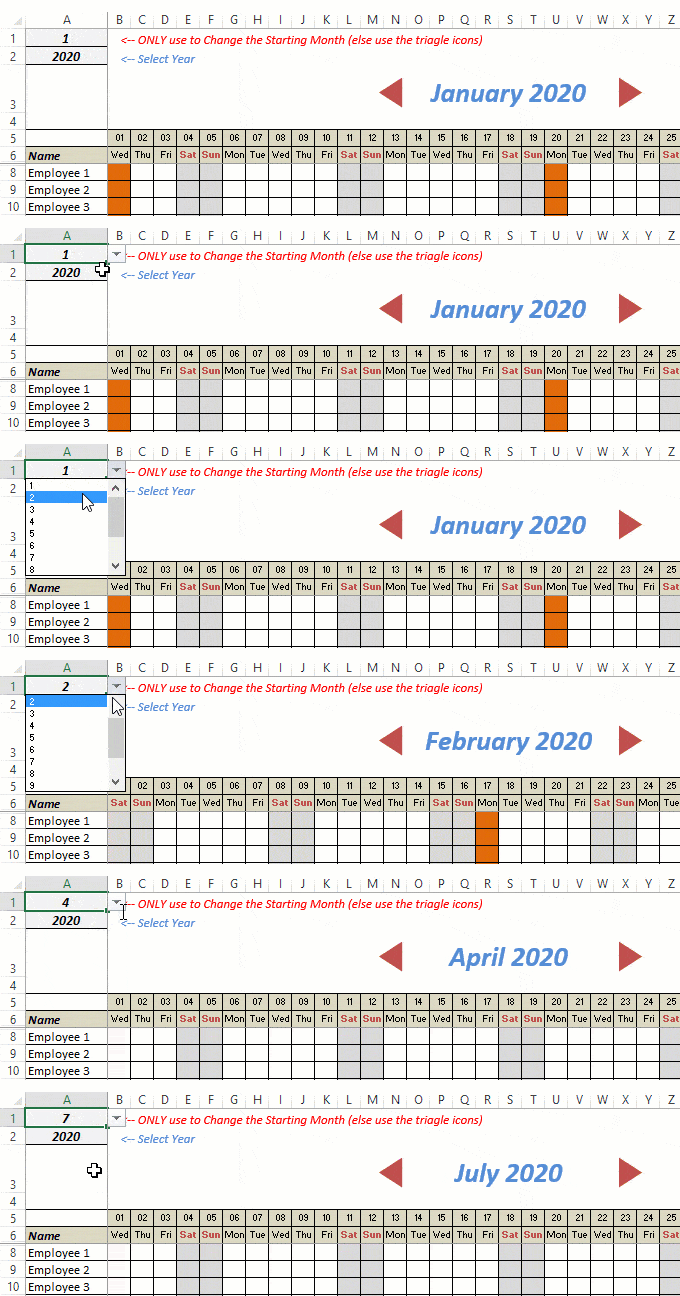
- This Excel template can be used to track leaves for over a year. You can select a start month and can track leaves for a year. For example, if you follow the April-March cycle, select April 2023 as the starting month.
- Note: The value in cell A1 is to change the time period of the leave tracker ONLY. DO NOT use Cell A1 to move to the next month while recording leaves. Use the triangle icons next to the month names to go to the next/previous month and mark leaves.

- You can specify the working days and non-working days (Weekends). At the right of the leave tracker, there is functionality to specify the working days by selecting Yes from the drop-down. If you select No, that day is marked as a non-working day in the leave tracker.
- As soon as you specify the non-working days, those weekdays get highlighted in gray color in the leave tracker.

- You can update the holiday list in the worksheet named “Holiday List”. It will automatically be reflected in the tracker by highlighting those days in Orange color.
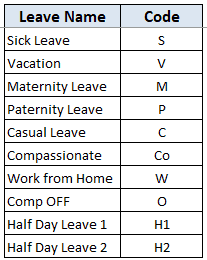
- To enter the leave record for employees, use the relevant codes based on the leave type (you can customize these leave codes). For example, in the case of sick leave, use S, in the case of Vacation, use V, as so on.
- There are two codes reserved for half-day leaves. you can enter H1 or H2 for a half-day leave.

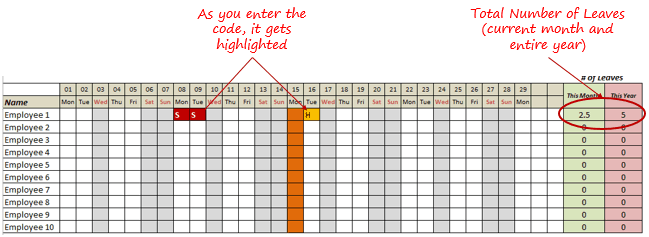
- As soon as you enter the leave code for any employee, it gets highlighted in red (in the case of half-day, it gets highlighted in yellow). If that day is a weekend or holiday, the color would not change.
- Column NJ (highlighted in green in the pic below) has the number of leaves of that employee in that month. It counts the leaves on working days only (those on weekends and/or holidays are not counted). Half-day leaves are counted as 0.5.
- UPDATED: Column NK (highlighted in light red in the pic below) has the number of annual leaves taken by an employee. It counts the leaves on working days only (those on weekends and/or holidays are not counted). Half-day leaves are counted as 0.5.
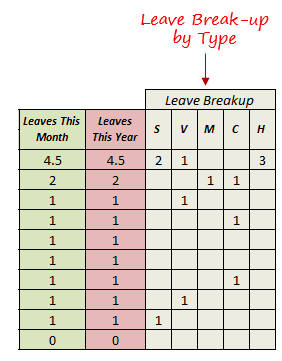
- Columns NL to NU gives the leave break-up by leave code (for the entire year). This could be helpful to keep a track of the type of leave that has been availed. Note that while Half Leaves are counted as .5 leaves in the total count, in the leave break-up, it is counted as whole numbers. For example, 2 half leaves would lead to 1 leave count, but you’ll see two half leaves in the leave breakup.
I have created this leave/attendance tracker template for 20 employees. If you want to add more, just copy-paste the formatting and formulas for additional rows.
Also, since there is a VBA code involved, make sure you always save it with .xls or .xlsm extension.
Download the Leave Tracker Template
Note: To update this template for any year, simply change the year value in cell A2. For example, to make it for 2017, just change the value in A2 to 2017. Also, you need to update the holiday list for the specified year.
The download file is completely unlocked so you can customize it to your needs.
Here is another version of the template that can track leaves for 50 employees.
Want to learn how to create awesome templates and dashboards? Check out the Excel Dashboard Course
FAQs on using this Leave Tracker Template
Since I created this vacation/leave tracker, I have been inundated with emails and comments. What you see now is a refined version that has been possible due to all the feedback that I have got.
Based on the questions I get repeatedly, I have created this FAQ section so that you can get an answer faster (instead of waiting for me to respond).
Here are the most common questions I get about the Leave tracker template:

Q: I tried downloading the file but it downloaded as a zip. How do I use it?
A: I have fixed this issue, and now you should be able to download the Excel file directly.

Q: When I change the month, the existing leaves are reflected in the changed month as well.
A: This happens when you use cell A1 to change the month. You need to use the arrow icons to change months. Cell A1 is to be used only to set the starting month of the calendar. For example, if you want the calendar to start from April, make cell A1 value 4. Now to move to March, use the triangle icons.

Q: I need to track multiple years of leaves. Do I need to create a new worksheet for each year (financial year)?
A: Yes! This leave tracker can only track leaves for a 12 month period. You need to create a copy for each year.

Q: Can I use my own leave codes?
A: Yes! You can change the leave code in cells NX8:NX17. You also need to specify the same code in cells NL5:NU5. For example, if you change the Work from Home leave code to X, you also need to change it in NR5.
I hope you find this leave/vacation tracker helpful.
Are there any other areas where you think an Excel template could be helpful? I am hungry for ideas and you are my gold mine. Do share your thoughts in the comments section 🙂
Related Excel Project Management Tutorials and Templates:

How can I customize this or can you please update this tracker to include two columns to the right of the Name and add a date range (date away then return) to then populate the data by leave type?
Is it possible to replace the monthly bar (to change months) and do a drop down menu instead listing all 12 months? With the bar, it is a bit laggy/unresponsive.
Hi,
May I know how to sum up the leaves of certain types (like for example P, H1 and H2) for this month and this year but not all as types of leaves as in now? Please kindly advise. Thanks.
It’s great!, this template really useful. Thank you so much for your sharing.
Dear Sumit,
Thank you very much for this which is very helpful. I work in a hospital and want to use this to create an Excel sheet where all the different types of leaves taken by 10 different staff members can be recorded.
Everything works fine with your sheet. However, I need to upload this in a shared drive where many people can see it but not edit it as it will become unsafe if there is not a single editor.
However, when I password protect the sheet, the viewers are unable to scroll through the different months. How can I resolve this issue?
My viewers should be unable to edit the document but at the same time be able to view the whole year.
Thanks in advance.
Hello. This is perfect apart from ONE thing.
I want to specify non/working days for each individual employee but the option only lets you do it for every employee.
I want to do it per employee as we have part time members of staff.
How do you do this, or can you amend it to reflect this?
I find the tool quite useful, but I encountered an issue with the week numbers formula not working in the file. It’s located in row 7, hidden below the name & employees rows.
Could you please provide me with the formula or share an updated version of the template where the week numbers function properly?
Thank you for your assistance.
Hi,
Great Tracker!
Q:Is there a way to import the entire workbook to Google Sheets?
Thank you!
Hello Christi.. You can upload the Sheet to Google Drive and then start using it in Google Sheets. It may need some adjustment in formulas though
It would be great if there was a column for days available or accrued and days remaining. The days available could be a number entered, like 30, or it could be based on a formula of x days per month. The days remaining column should subtract either total days out or a selected subset. For example, I don’t get charged for my companies newly formed refresh/recharge days (covid inspired) but I am still out those days and added it as a code R above the half days.
Hi, How can I share the file only allowing the users to navigate from month to month using the arrows while keeping the data protected? I tried different ways of protecting the sheet, but was not able to make it work. Please advise
Is it possible to copy the sheet and update it to a new year. I tried that by changing the year, the months change but 2020 stayed. When you try using the arrow to go from month to month, it get a VBA Debug error. Please get back to me at your convenience. Would be happy to pay for a 2021 template if that is an option.
This is a really great tracker. One thing I would like to be able to do is when I add a new employee, I would like it to not include that employee in previous months; and obviously i would like to be able to delete an employee without affecting their previous months. I know it is possible to do this, just looking for the best method to do so. Thanks in advance!
Hello, this has been helpful.
Question: I have been asked to create an extra column for “the number of days taken” after each month and I have tried several formulas but I am not getting it can you please help with a formula?
There should be another sheet where it has to give summary like employee name, jan leaves, Feb leaves and finally total leaves used for that month. Do you think is possible?
Thank you for this. I would like the sheet to count certain types of leave on holidays, such as comp time earned. If they work a holiday, they receive one comp day to use at a later time. Is it possible to formulate so only these 2 types of leave (full comp day and half comp day) are counted on holidays and/or weekends? Thank you again for sharing this, it has been very helpful!
Hi I love the template. I do have an issue. Having filled everything in and revamped some items to suit I have to password protect so that the staff members viewing it cannot edit, delete cells or make entries. they file a request based on the availability in the holiday window and I unprotect then make entries and then protect.
The problem is that due to the macro that changes the view from month to the next month they cannot view the months as the macro does not work whilst the sheet is protected? Any fix?? thanks
Steve
I love this tracker! Thank you for sharing. Since we track FMLA on a rolling calendar, I’d like to track one person per tab. I tried duplicating the Leave Tracker Tab but the Starting Month function did not operate properly on duplicated tabs. Can this be done?
Any chance to have a 2021 version too? I love this file and would like to keep using it for next year.
I cant click the triangle icon . it shows like macros is missing
Thank you very much for sharing this, it is phenomenal! I am looking to extend this to include multiple balances of different leave types (vacation, sick). I would like to include the accrual in real-time for each month in addition to deducting any time taken. If they accrue 13.33 vacation hours the last day of month, with no probationary period, how can I have the beginning balance minus used time plus the accrual in real-time? Example, John has 120 hours vacation in March, used 20 hours in May and accrues 13.33 at the end of each month. I need the balance automatically populated for the date I open the workbook. Any guidance is truly appreciated! Thanks again!
Thanks allot… for sharing your efforts here. Really very useful.
If the working days are different for different employees could we customize working days for each employee?
Thanks for this excellent stuff…really helped me a lot.
But i have small concern about it that when i mark for vacation it doesn’t add up the holidays which falls in between..i want that to be added..this is how calculation goes here in my country..any solution to this?
Hi,
I just want to know that I dont want to count Work from home in leaves monthly and annually. How can i change it?
Regards,
Ajinkya
Great file. Thank you. Any ideas on how I can add this into the existing document?
i want the vacation count only in leave this month and leave this year column. I have to change the formula in leave this month and leave this year. please help.
Hello Summit, Thanks for the template. Really excellent and it solves my purpose. My project resources are based on multiple locations and can you help me with the below additional requirement
To create one dropdown attribute named Country and based on the country selection for that particular employee, the respective public holiday needs to be applied for that particular resource.
Please help.
Best Regards
Raghav
Is there a way to pull reports or trends (graphs) for all employee leave taken during a month?
I would like to be able to enter hours per day (9 sick) and also total hours for each code (sick 23). This is already great, tracking hours would make it FANTASTIC!
Hi… this spreadsheet is really great and has helped me tremendously… I just have one question please. Is there anyway made the cells different colours for each leave code please? Ive tried to suss it out but can’t find how to do it. Thank you.
This is amazing! 🙂 I copied the tab and changed the arrow macros to ActiveSheet which worked but the month stays as ‘January 2020’ in the text box. How do I get it to automatically change to the next date? The formula is =Sheet3!G2 but doesn’t make sense to me 🙁
Hey Sophie, not sure when you asked this but have you tried changing Column A, Cell 1 from 1 in the drop down options to the month you want it to start from? Worked for me when I changed it to 4 & now starts at April .
Thank you for this – its truly amazing – I really like the way you can scroll through the months with the arrows, rather than navigating a long sheet – how do you set this up?
Hi the tracker is excellent and has saved me a lot of time.
I have some colleagues who work part time, is there a way to mark the days of for those people so it doesn’t show as a work day?
Hi,
The tracker is superb but I need one more help on it. I would like to track the leave balance too. It is doable?
Hope to hear from you soon.
Thanks
Hi , i want to remove Work from category from leave. When i removing from column all others cell being red. Pls help
Its work from Home*
can a rolling year be added for the sickness? Also can you create tabs to add additional trackers for multiple years or does it need to be a new document each time
Hi – I love this leave tracker, it’s great! Just one question, I like to protect the spreadsheet to avoid people make changes or overwriting formula – the problem is when I protect the formula area (the 2 red triangles either side of the month /year) I am unable to change the month and an error is issued saying that I need to unprotect the sheet. Can you help?
Don’t worry … finally figured out…..
This has been SUPER helpful for me! Thank you!
Question: I know that we can only use the leave sheet for one year. However, is there a way to duplicate the leave sheet and the reference sheet within the same workbook and just change the year??
How can I do only half year? means separate Jan – Jun & Jul – Dec? Thank you
Super useful, thank you so so much for your work
Hello Sumit,
Your Leave Tracker is amazing and has really opened my eyes even wider to what Excel can do. I am trying to use this tracker for my employees but instead of tabulating the days and half days can this be modified to tabulate hours instead?
Thank you so much!
Can it be customized to include different work days per employee? For example, not all employees have the same days on or days off. The ‘Select Work days” to be customized per employee?
Hi. Its a great solution. I could use it to track leaves across multiple projects in separate sheets. Can a dashboard be added to it that will pull the total leave information of individual employees month wise for each project and colour code the individuals record if it exceeds a certain number of leaves for a month?
Hi There, Thank you it’s helps, just a question, I have teams in different country and the public holiday is not same across all country, next to name can you include a column to add country?
Can i use other colors for each leave code, like Green for Vacation, Red for Sick, Yellow for Maternity and so on.
I want to include weekends for the sick leave only. How do I do that?