

If you want to count the number of working days between two dates in Excel, leaving out weekends and holidays, the NETWORKDAYS function does exactly that.
It skips Saturdays and Sundays for you automatically, and you can hand it a list of holidays to leave those out as well.
For a whole list of projects, you can copy NETWORKDAYS down the column using one pair of dates per row, which I’ll cover below.
In this article, I’ll show you how to use NETWORKDAYS with practical examples, from a simple two-date count to excluding holidays and estimating project effort.
Follow along with the example file
NETWORKDAYS Function Examples.xlsx
NETWORKDAYS Syntax
Here is the syntax of the NETWORKDAYS function:
=NETWORKDAYS(start_date, end_date, [holidays])
- start_date – The date the period begins. NETWORKDAYS includes this day if it is a weekday and is not an excluded holiday.
- end_date – The date the period ends. This day is counted too if it is a weekday and is not an excluded holiday.
- [holidays] – Optional. A range or list of dates to leave out of the count, such as public or company holidays.
When to Use NETWORKDAYS
Use this function when you need to:
- Count the working days between two dates without counting weekends
- Exclude public or company holidays from a working-day count
- Work out how many working days are left until a deadline
- Estimate project effort or cost based on the number of working days
Let me show you a few practical examples of how to use this function.
Example 1: Count Working Days Between Two Dates
Let’s start with the most common use of this function, a straight count between two dates.
Below is a dataset with a project’s start date in cell B2 and its end date in cell C2.

I want to know how many working days fall between these two dates, with the weekends left out.
Here is the formula:
=NETWORKDAYS(B2,C2)
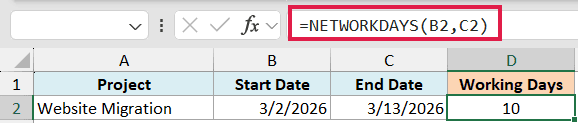
This returns 10. The start date is March 2, 2026 (a Monday) and the end date is March 13, 2026 (a Friday). That span covers two full work weeks, so NETWORKDAYS counts 10 days and skips the one weekend in between.
Pro Tip: NETWORKDAYS counts both the start date and the end date when they are working days and are not excluded holidays. If both dates are the same working day, you get 1, not 0.
Example 2: Count Working Days for a List of Projects
Now let’s do this for a whole list of projects by copying one formula down the column.
Below is a list of five projects, each with a start date in column B and an end date in column C.
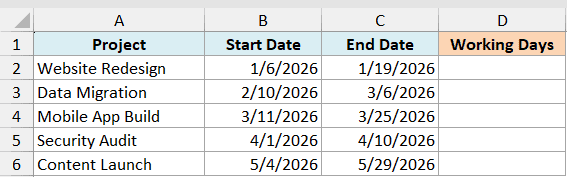
I want the working-day count for each project in the list.
Here is the formula:
=NETWORKDAYS(B2,C2)
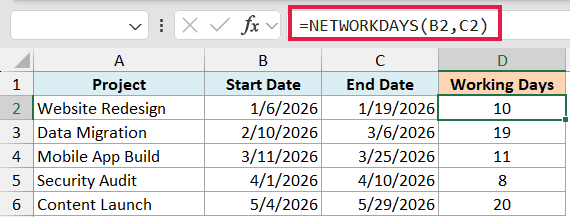
Enter this in cell D2 for the first project, then copy it down to D6. Excel shifts the references for each row, so every project gets its own count (10, 19, 11, 8, and 20).
Pro Tip: =NETWORKDAYS(B2:B6,C2:C6) returns #VALUE!. Use =NETWORKDAYS(B2:B6+0,C2:C6+0), as in column E of the example file. Adding +0 turns the ranges into numeric arrays of date serial numbers, so all five counts spill in Excel 365 or Excel 2021 and later.
Example 3: NETWORKDAYS Excluding Weekends and Holidays
Weekends are handled for you automatically. Holidays are not, so let’s add those.
Below is a Q4 project that runs from November 16, 2026 to December 31, 2026. Column F holds three company holidays: Thanksgiving (November 26), the day after (November 27), and Christmas Day (December 25).

I want the working-day count for this project with those three holidays left out.
First, here is the count with only weekends removed:
=NETWORKDAYS(B2,C2)

This returns 34. It skips every Saturday and Sunday in the range, but it still counts the three holiday dates because we haven’t told it about them yet.
Now add the holidays with the third argument:
=NETWORKDAYS(B2,C2,F2:F4)

This returns 31. The three dates in F2:F4 all fall on weekdays, so NETWORKDAYS drops them from the count, taking it from 34 down to 31.
Pro Tip: When you copy a NETWORKDAYS formula down a column, lock the holidays range with dollar signs (=NETWORKDAYS(B2,C2,$F$2:$F$4)) so it doesn’t shift as the formula moves.
Example 4: Count Working Days in a Month
A common need is the number of working days in a specific month.
Below I have the first day of a month in cell B2, which is June 1, 2026.
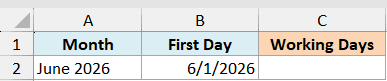
I want to count every working day in that month without typing the last date by hand.
Here is the formula:
=NETWORKDAYS(B2,EOMONTH(B2,0))
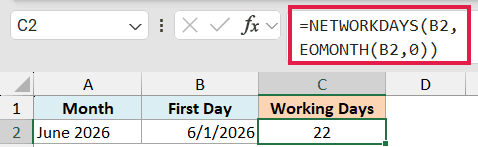
EOMONTH(B2,0) returns the last day of the month that B2 belongs to, which is June 30, 2026. NETWORKDAYS then counts the working days from the first to the last of the month, and that comes to 22 for June 2026.
Change the date in B2 to the first day of another month and the count updates on its own. To leave out holidays as well, drop a holiday range into the third argument as in the previous example.
Example 5: Working Days Left Until a Deadline
NETWORKDAYS is handy for tracking how much working time is left before something is due.
Below I have a status date in cell B2 (July 6, 2026), a project deadline in cell C2 (July 31, 2026), and one company holiday in cell F2 (July 24, 2026).

I want to know how many working days remain between the status date and the deadline.
Here is the formula:
=NETWORKDAYS(B2,C2,F2)

This returns 19. There are 20 working days between July 6 and July 31, and the single holiday on July 24 (a Friday) brings that down to 19.
Pro Tip: Replace the status date with the TODAY function, =NETWORKDAYS(TODAY(),C2,F2), and the countdown updates when Excel recalculates. It can be negative after the deadline.
Example 6: Estimate Project Effort and Cost
Once you can count working days, you can turn that count into hours or cost.
Below is a consulting engagement that runs from September 8, 2026 to October 2, 2026, with a daily rate of $650 in cell D2.

I want to estimate the total cost of the engagement based on the number of working days.
Here is the formula:
=NETWORKDAYS(B2,C2)*D2

NETWORKDAYS(B2,C2) returns 19 working days for the engagement. Multiplying that by the $650 daily rate gives an estimated cost of $12,350.
Swap the rate for hours per day and you get total effort instead, for example =NETWORKDAYS(B2,C2)*8 for an 8-hour day.
Tips & Common Mistakes
- Working-day endpoints are counted. NETWORKDAYS includes the start date and the end date when they are weekdays and are not excluded holidays. Counting from a Monday to the following Monday gives you 6 working days, not 5, because both Mondays are in the count.
- Only Saturday and Sunday are treated as the weekend. If your days off are different, such as Friday and Saturday, use NETWORKDAYS.INTL instead, which lets you choose the weekend days.
- Holidays are not built in. Excel has no knowledge of public holidays, so you have to supply the dates yourself in a range or a list.
- A reversed date order gives a negative number. If start_date is later than end_date, NETWORKDAYS returns a negative count rather than an error. That is useful for showing overdue days, but check your date order if you expected a positive result.
- Use real dates, not text. A formula like =NETWORKDAYS(“1 Jan 2026″,”31 Jan 2026”) can return a #VALUE! error, so reference date cells or build the dates with the DATE function.
NETWORKDAYS is one of the quickest ways to count working days in Excel, whether you’re measuring a project, planning around a deadline, or estimating effort.
Point it at a start date and an end date, add a holiday list when you need one, and it takes care of the weekends for you.
Once you’re comfortable with it, NETWORKDAYS.INTL is worth a look for weeks that don’t run Monday to Friday. And if you need the date that lands a set number of working days after a start date, the WORKDAY function does that.
To count business days without writing a formula at all, our Business Days Calculator gives you the same result right in the browser.
Other Excel Articles You May Also Like:
