

If you want to find a date that falls a set number of working days after (or before) a starting date, the WORKDAY function is what you need.
It counts forward or backward from your start date and skips weekends automatically, and you can also hand it a list of holidays to skip those too.
In Excel 365, you can also give WORKDAY a whole column of dates and the results spill into the cells below.
In this article, I’ll show you how to use the WORKDAY function with a few practical examples.
Follow along with the example file
WORKDAY Function Examples.xlsx
WORKDAY Syntax
Here is the syntax of the WORKDAY function:
=WORKDAY(start_date, days, [holidays])
- start_date – The date you want to count from. This day is not counted for a nonzero day offset.
- days – The number of working days before or after the start date. Use a positive number to go forward and a negative number to go back. With 0, the result is the start date, even on a non-working day.
- holidays – Optional. A cell or range of dates you want to treat as days off, on top of weekends.
When to Use the WORKDAY Function in Excel
Use the WORKDAY function when you need to:
- Work out a delivery or due date that is a certain number of business days away.
- Skip weekends (and holidays) when scheduling a task or project.
- Count backward from a deadline to find the date you need to start.
WORKDAY treats Saturday and Sunday as the weekend. If your week off looks different (say Friday and Saturday), use the WORKDAY.INTL function instead.
Let me show you how this works with a few practical examples.
Example 1: Find a Delivery Date a Few Working Days Out
Let’s start with a simple example.
Below is the dataset. It has a single order date in cell B1, the day the order was placed.
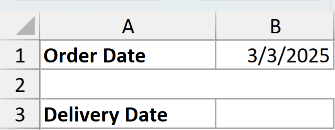
I want to know the delivery date, which is 10 working days after the order is placed.
Here is the formula:
=WORKDAY(B1,10)
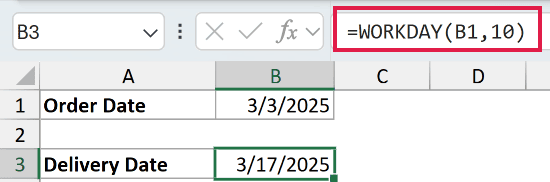
The order date is Monday, March 3, 2025, and the formula returns March 17, 2025.
WORKDAY starts counting from the day after the start date, then steps forward one working day at a time, skipping every Saturday and Sunday, until it reaches the 10th working day.
WORKDAY returns a date serial number, so a fresh result may show up as a number like 45733. Just format the cell as a date to see it properly.
Pro Tip: With a positive day count, WORKDAY starts with the next working day after the start date. With 0 days, it returns the start date itself.
Example 2: Add Working Days to a Whole Column at Once
Here’s a more useful scenario.
Below is the dataset. Column A has five order dates, and every order ships 15 working days after it comes in.
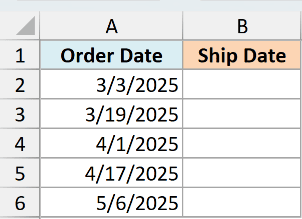
I want the promised ship date for every order without copying a formula down the column.
Here is the formula:
=WORKDAY(A2:A6+0,15)
The +0 nudges Excel into treating the range as an array here. Without it, WORKDAY returns a #VALUE! error.
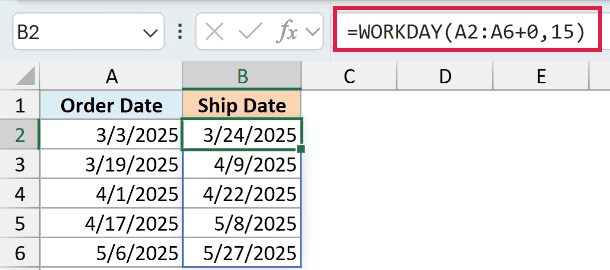
Because I gave WORKDAY the whole range A2:A6, the results spill down automatically. Each order date gets its own ship date, 15 working days later.
This spilling behavior works in Microsoft 365, Excel 2021, and Excel 2024. In older versions, you would enter the formula in the first cell and drag it down instead.
Remember to format the spilled range as dates, since each result comes back as a serial number.
Example 3: Skip Holidays as Well as Weekends
Now let’s account for holidays.
Below is the dataset. It has a project start date in cell B1 and a short list of company holidays in D2:D3.
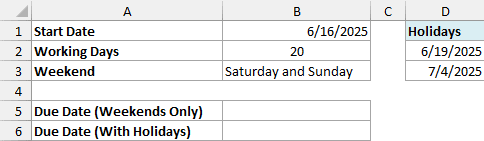
I want the due date 20 working days after the start, but the office is closed on those two holidays.
First, here is the formula without the holidays, counting weekends only:
=WORKDAY(B1,20)
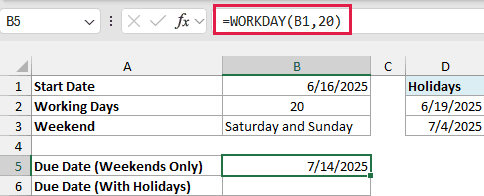
This returns July 14, 2025.
Now here is the same formula with the holidays range added as the third argument:
=WORKDAY(B1,20,D2:D3)
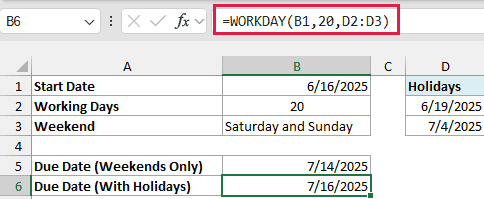
This returns July 16, 2025.
The two holidays fall inside the 20-day window, so WORKDAY skips them along with the weekends and pushes the due date out by two extra days.
Pro Tip: Point the holidays argument at a cell or range that holds actual Excel dates. Some text dates may be interpreted, but invalid holiday text can return #VALUE!, so don’t rely on text dates.
Follow along with the example file
WORKDAY Function Examples.xlsx
Example 4: Count Backward From a Deadline
WORKDAY can also count in reverse when you give it a negative number.
Below is the dataset. It has a product launch date in cell B1 and one holiday in cell D2 (Labor Day, September 1, 2025).
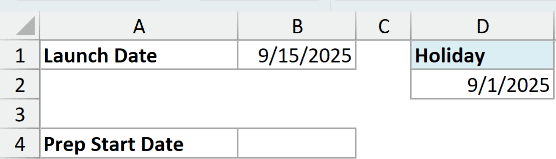
The launch is on September 15, 2025, and I need to start prep 12 working days before it. I want to know that start date.
Here is the formula:
=WORKDAY(B1,-12,D2)
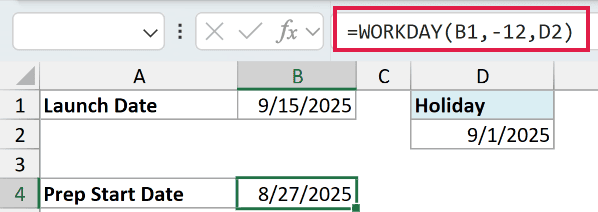
This returns August 27, 2025.
The negative days value tells WORKDAY to walk backward from the launch date. It skips weekends and skips Labor Day, which sits inside that window, landing on the day I need to begin.
Example 5: Use a Different Lead Time for Each Row
Let’s step it up a little.
Below is the dataset. Column A has order dates and column B has the lead time in working days for each one, since different products take different amounts of time to prepare.
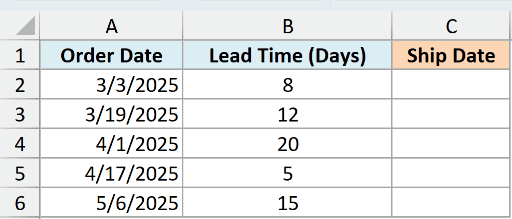
I want a ship date for every order, using each order’s own lead time, in a single formula.
Here is the formula:
=WORKDAY(A2:A6+0,B2:B6+0)
The +0 on both ranges nudges Excel into treating them as arrays here. Without it, WORKDAY returns a #VALUE! error.
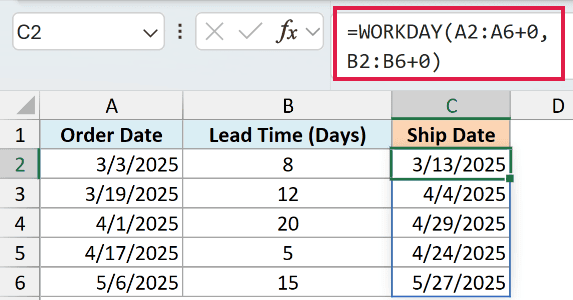
Here both arguments are ranges. WORKDAY pairs each order date in column A with the matching lead time in column B, row by row, and spills a ship date for each.
This is handy when your delays are not fixed. You change a number in column B and its ship date updates on its own.
Example 6: Check Whether a Date Is a Working Day
Here’s a clever use of WORKDAY.
Below is the dataset. Column A has a list of dates, and cell D2 holds a holiday (July 4, 2025).
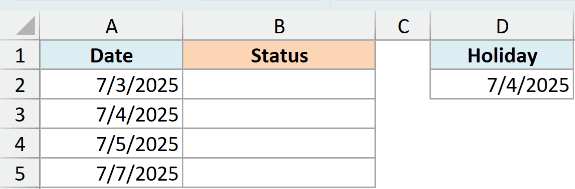
I want to label each date as a working day or not, taking both weekends and the holiday into account.
Here is the formula:
=IF(WORKDAY(A2-1,1,$D$2)=A2,"Working Day","Not a Working Day")
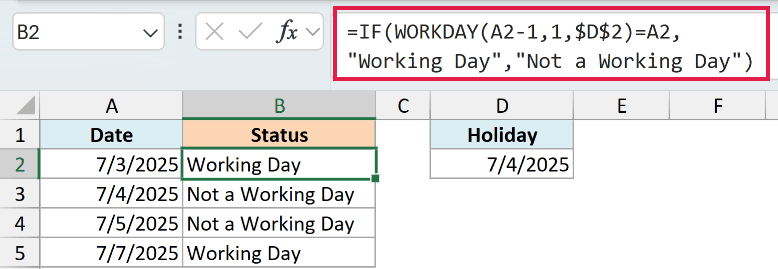
The trick is WORKDAY(A2-1,1). It finds the first working day on or after the date in A2. If that comes back equal to A2, then A2 is itself a working day.
If A2 is a weekend or a holiday, WORKDAY jumps ahead to the next working day, the result no longer matches A2, and the formula returns “Not a Working Day”.
I’ve kept this one per row so the logic is easy to read. In Excel 365 you could point it at the whole column with =IF(WORKDAY(A2:A5-1,1,$D$2)=A2:A5,"Working Day","Not a Working Day") and let it spill.
Tips & Common Mistakes
- The result looks like a number. WORKDAY returns a date serial number. If you see something like 45733 instead of a date, format the cell as a date.
- The start date is not counted for a nonzero offset. WORKDAY(date, 1) gives you the next working day. WORKDAY(date, 0) returns the start date, even on a weekend or holiday.
- WORKDAY only skips Saturday and Sunday. If your weekend is different, or you only take one day off a week, use the WORKDAY function’s sibling, WORKDAY.INTL, which lets you set custom weekends.
- Use real dates for holidays. Text dates can depend on how Excel interprets them. Use actual Excel dates in a cell or range for the holidays argument.
- To count working days between two dates instead, use the NETWORKDAYS function. WORKDAY gives you a date from a count of days, while NETWORKDAYS gives you a count of days from two dates.
- Decimal days get truncated. If days is 10.9, WORKDAY treats it as 10.
The WORKDAY function is one of the handiest date functions once you deal with schedules, due dates, or delivery estimates. It skips weekends for you, takes an optional list of holidays, and works both forward and backward from any start date.
Try it with your own start dates and holiday list, and you’ll rarely count business days by hand again.
Other Excel Articles You May Also Like:
