

The DAYS360 function counts the days between two dates as if every month had exactly 30 days, which makes a full year 360 days.
So January 1 to February 1 is 30 days, and so is February 1 to March 1, even though the calendar says 31 and 28.
This is the day count a lot of loan and accounting calculations use (you’ll often see it called 30/360), because it makes every month the same size when you work out interest or payments.
In this tutorial, I’ll show you how DAYS360 works, how it differs from a regular day count, what the US and European methods change, and how to use it for interest and salary calculations.
Follow along with the example file
DAYS360 Function Examples.xlsx
DAYS360 Function Syntax
Here is the syntax of the DAYS360 function:
=DAYS360(start_date, end_date, [method])
- start_date – The date you’re counting from. This can be a cell with a date, a range of dates, or a formula that returns a date.
- end_date – The date you’re counting up to.
- [method] – Optional. FALSE (or leaving it out) uses the US method, and TRUE uses the European method.
If the start date is later than the end date, DAYS360 returns the count as a negative number instead of an error.
The US and European methods give the same result for most pairs of dates. Example 4 shows exactly where they differ.
If your dates also have a time, DAYS360 ignores the time and uses only the date part.
The DAYS360 function works in all Excel versions, including Microsoft 365, Excel 2024, 2021, 2019, 2016, Excel for Mac, and Excel for the web.
When to Use the DAYS360 Function
Use this function when you need to:
- Calculate interest on a loan or deposit that uses a 30/360 day count
- Age unpaid invoices on a 30-day-month basis
- Prorate a monthly salary, rent, or fee when every month counts as 30 days
- Match the day counts used by an accounting system that works on a 360-day year
- Use the 30/360 method (US or European) that a loan agreement or contract specifies
Let me show you a few practical examples of how to use the DAYS360 function in Excel.
Example 1: Count Days Between Two Dates on a 360-Day Basis
Let’s start with a simple example.
Below is a list of storage unit rentals with the move-in and move-out date for each customer, and I want to get the number of days each unit was rented, on a 30/360 basis, in column D.
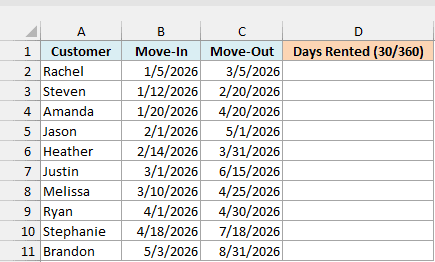
Here is the formula:
=DAYS360(B2:B11,C2:C11)
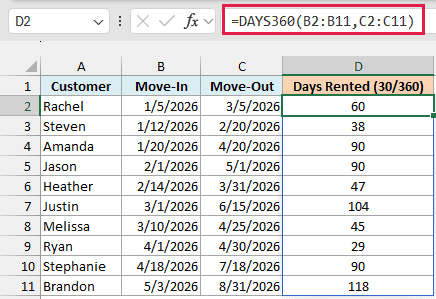
In the above formula, B2:B11 has the move-in dates (the start dates) and C2:C11 has the move-out dates (the end dates). The results spill down column D from the one formula in D2.
Look at Rachel and Amanda. Rachel’s two months come out as exactly 60 days and Amanda’s three months as exactly 90, because DAYS360 counts every full month as 30 days.
Brandon gets 118, while a regular calendar count from 5/3/2026 to 8/31/2026 gives 120. That’s because DAYS360 counts May and July as 30-day months.
Spilling a range like this needs Excel 365 or Excel 2021 and later. If you are using Excel 2019 or earlier, enter the below formula in cell D2 and then copy it down the range:
=DAYS360(B2,C2)
The same single-cell approach works for every spilling formula in this article.
Also, watch out for move-out cells that don’t hold a proper date. Text that Excel can’t read as a date gives a #VALUE! error for that row.
An empty move-out cell is worse, because DAYS360 treats it as 0 and returns a large negative number instead of an error.
Example 2: DAYS360 vs DAYS (Why the Numbers Don’t Match)
Here’s an example that shows how DAYS360 differs from a regular day count.
Below is a list of monthly billing periods for an internet plan, and I want to compare the actual number of days in each period in column D with the 30/360 count in column E.
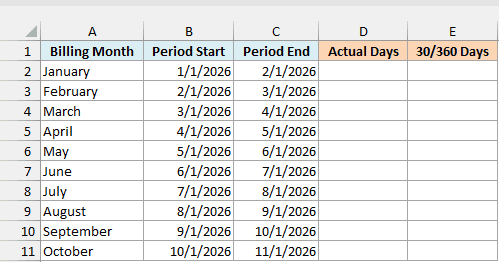
Here is the formula for the actual days, using the DAYS function:
=DAYS(C2:C11,B2:B11)
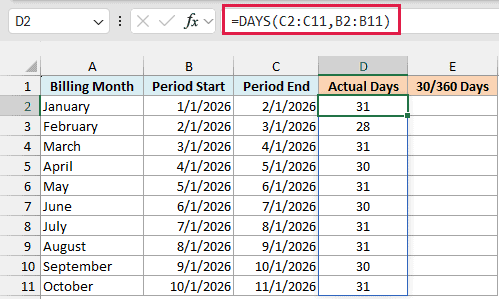
The DAYS function counts real calendar days, so you get 31 for January, 28 for February, 30 for April, and so on.
And here is the DAYS360 formula for the same billing periods:
=DAYS360(B2:B11,C2:C11)
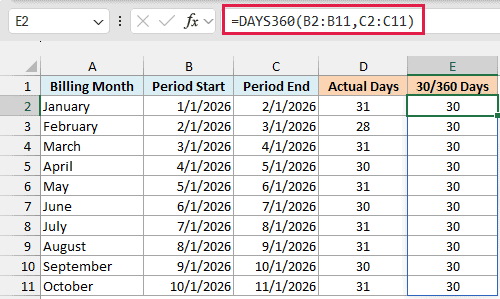
Every billing period comes out as 30 days, no matter how long the month actually is. That’s the whole idea behind 30/360.
If you bill at a daily rate, a charge worked out with DAYS360 comes to the same amount every month, because every period counts as 30 days.
Important: The two functions take their dates in opposite order. DAYS wants the end date first, while DAYS360 wants the start date first, so if you copy the arguments from one formula into the other, you’ll get negative results.
Use DAYS when you need the real number of days between two dates, like how long a delivery took. Use DAYS360 when a loan, payroll, or accounting rule tells you to count 30-day months.
Example 3: Count Days Outstanding as of a Report Date
Now let’s look at something you’d see in an accounts receivable report.
Below is a list of unpaid invoices with their invoice dates, and I want to get the number of days each one has been outstanding in column D, counting up to the report date in cell G1.
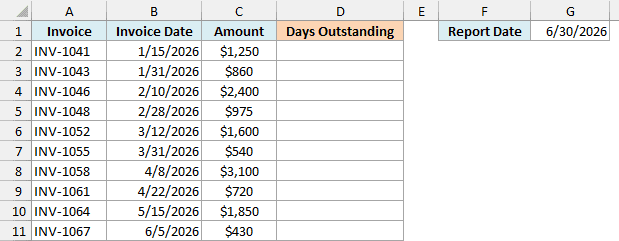
Here is the formula:
=DAYS360(B2:B11,G1)
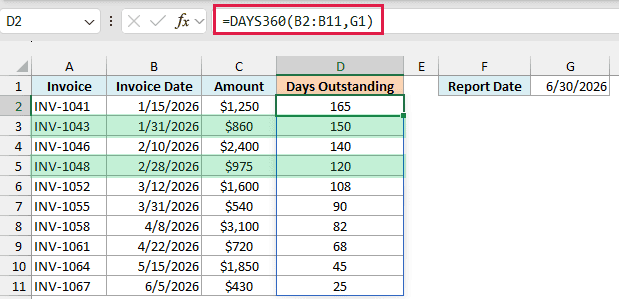
Here, the invoice dates in B2:B11 are the start dates, and the report date in G1 is the end date for every row. DAYS360 pairs each invoice date with that one report date, so the formula still spills a result for all ten invoices.
Look at INV-1043 and INV-1048. They were issued on 1/31/2026 and 2/28/2026, the last day of their months, so DAYS360 treats both dates as the 30th.
That’s why INV-1043 shows exactly 150 days (five 30-day months) and INV-1048 shows exactly 120 (four 30-day months) before the 6/30/2026 report date.
Pro Tip: Change the date in G1 and every result updates, so you can rerun the aging for any month-end. You could use the TODAY function in place of G1 to count to the current date, but then the numbers change every day.
Example 4: DAYS360 US vs European Method
This next one shows what the method argument changes.
Below is a list of freelance projects with their start and end dates, and I want to compare the US method result in column D with the European method result in column E.
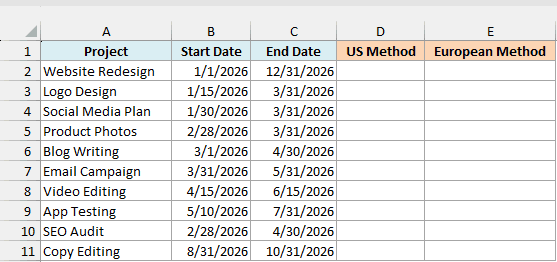
Here is the formula for the US method:
=DAYS360(B2:B11,C2:C11)
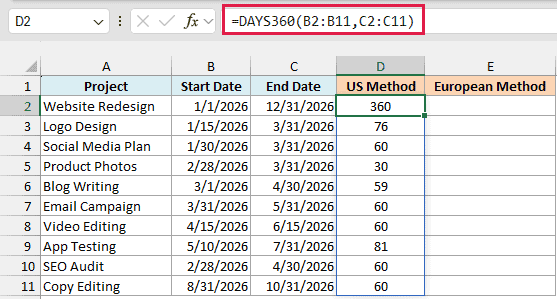
Since the method argument is left out, this formula uses the US method.
And here is the formula for the European method:
=DAYS360(B2:B11,C2:C11,TRUE)
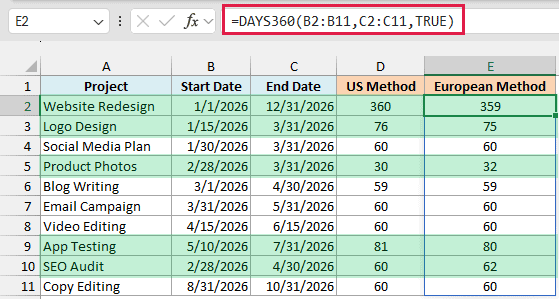
Adding TRUE as the third argument switches DAYS360 to the European method.
Half of these rows give the same answer with both methods. The differences show up only when a date falls on the 31st or at the end of February:
- When the end date is the 31st, the European method always treats it as the 30th.
- The US method treats an end date on the 31st as the 30th only when the start date is the 30th, the 31st, or the last day of February. Otherwise it keeps the 31st, which adds a day, so Logo Design (1/15/2026 to 3/31/2026) shows 76 with the US method and 75 with the European method.
- When the start date is the last day of February, the US method treats it as the 30th, while the European method leaves it as the 28th. So Product Photos (2/28/2026 to 3/31/2026) gets 30 with the US method and 32 with the European method.
The Website Redesign row is a good one to remember. A full calendar year from 1/1/2026 to 12/31/2026 is 360 days with the US method, but 359 with the European method.
Neither method changes an end date in February, and Example 6 shows where that matters.
As for which method to pick, use the one your loan agreement or accounting system specifies.
Example 5: Calculate Loan Interest Using a 30/360 Day Count
Let’s step it up with a more practical financial use case.
Below is a list of short-term loans with the loan amount, annual interest rate, start date, and end date, and I want to calculate the simple interest on each loan on a 30/360 basis in column F.
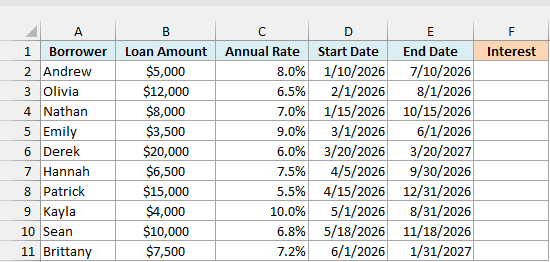
Here is the formula:
=B2:B11*C2:C11*DAYS360(D2:D11,E2:E11)/360
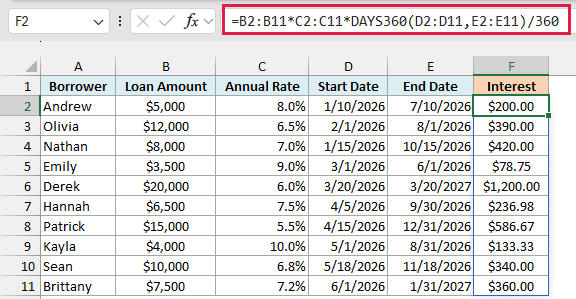
How this formula works:
- DAYS360(D2:D11,E2:E11) counts the days for each loan on a 30/360 basis.
- /360 turns that day count into a fraction of a 360-day year. Andrew’s loan runs 180 days, so that’s half a year.
B2:B11*C2:C11multiplies each loan amount by its annual rate to get a full year’s interest, and the formula takes the matching fraction of it.
So Andrew pays $5,000 x 8% x 180/360, which is $200.00 in interest.
Since every month counts as 30 days, a loan that runs exactly six months always gets half a year’s interest. Olivia’s loan runs from 2/1/2026 to 8/1/2026, which is 181 calendar days, and it still counts as exactly 180.
Example 6: Prorate a Monthly Salary for a Partial First Month
Let’s finish with a payroll example.
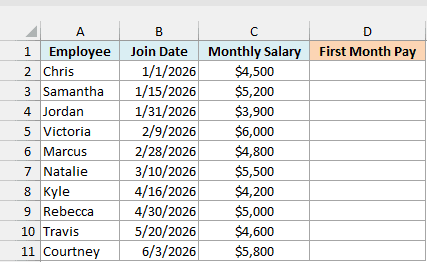
Below is a list of new employees with their join date and monthly salary, and I want to calculate their pay for the partial first month, counting every month as 30 days, in column D.
Here is the formula:
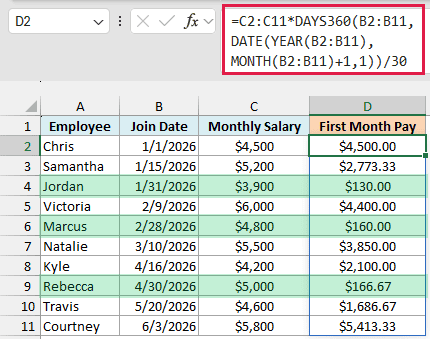
=C2:C11*DAYS360(B2:B11,DATE(YEAR(B2:B11),MONTH(B2:B11)+1,1))/30
How this formula works:
- DATE(YEAR(B2:B11),MONTH(B2:B11)+1,1) uses the DATE function to build the first day of the month after each join date. For Samantha, who joined on 1/15/2026, that’s 2/1/2026.
- DAYS360(B2:B11, …) counts the days from the join date to that date on a 30-day month, which is the number of days the employee gets paid for. Samantha gets 16 days, the 15th through the 30th.
/30turns those days into a share of the month, andC2:C11*multiplies that share by the monthly salary. So Samantha gets $5,200 x 16/30, which is $2,773.33.
Employees who join on the last day of a month, like Jordan (1/31/2026), Marcus (2/28/2026), and Rebecca (4/30/2026), get paid for one day. On a 30-day month, each of those dates counts as the 30th, the last day of the month.
Important: If you count to the month’s last day and add 1, February joiners come out short, because DAYS360 never adjusts a February end date. A 2/15/2026 join date gets 14 days instead of 16, so count to the first of the next month.
So these are some practical ways to use the DAYS360 function in Excel, from a basic 30/360 day count to the US and European methods, loan interest, and salary proration.
I hope you found this Excel tutorial useful.
Other Excel Articles You May Also Like:
