

The DAYS function gives you the number of days between two dates. You give it an end date and a start date, and it returns the count as a plain number.
It’s handy any time you need the gap between two dates in days, like how long a project took from start to finish, or the days left until a deadline.
In this tutorial, I’ll show you how DAYS works, including negative results, inclusive counts, dates that have times, and blank cells.
Follow along with the example file
DAYS Function Examples.xlsx
DAYS Function Syntax
Here is the syntax of the DAYS function:
=DAYS(end_date, start_date)
- end_date – The date you’re counting up to, usually the later of the two. This can be a date, a cell reference, a range, or a formula that returns a date.
- start_date – The date you’re counting from, usually the earlier one.
Note that the end date comes first. That’s the opposite of how most people say it out loud (“from the start to the end”), so it’s easy to swap them by mistake.
If you do swap them, DAYS doesn’t give an error. It just returns the same count as a negative number.
You can also type a date straight into the formula, as long as it’s inside double quotes. For example, =DAYS("15-Mar-2026","1-Mar-2026") returns 14, because DAYS converts the text to a date the same way the DATEVALUE function does.
Be careful with text dates that are all numbers, like “03/04/2026”. Excel reads them using your computer’s regional date settings, so the same text can give a different result on another computer.
That’s why it’s better to point DAYS at cells that hold real dates.
The DAYS function works in Excel 2013 and later versions, including Microsoft 365, Excel 2024, 2021, 2019, 2016, Excel for Mac, and Excel for the web.
When to Use the DAYS Function
Use this function when you need to:
- Count the days between two dates, like an order date and a delivery date
- Find how many days early or late something was
- Count the days left until a deadline or event
- Count the nights between a check-in and check-out time
- Work out an average number of days across a list of date pairs
Let me show you a few practical examples of how to use the DAYS function in Excel.
Example 1: Count Days Between Two Dates
Let’s start with a simple example.
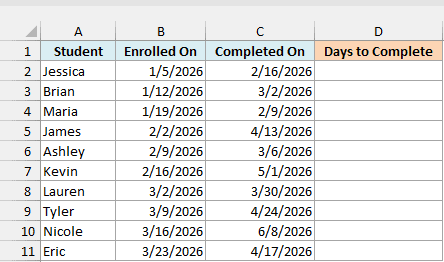
Below is a list of students with the date each one enrolled in an online course and the date they completed it, and I want to get the number of days each student took in column D.
Here is the formula:
=DAYS(C2:C11,B2:B11)
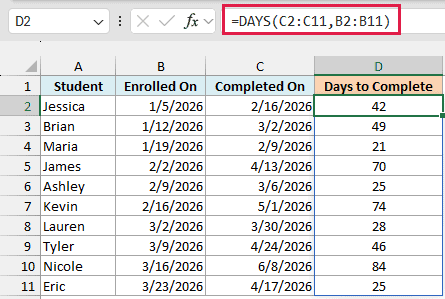
In the above formula, C2:C11 has the completion dates (the end dates) and B2:B11 has the enrollment dates (the start dates). DAYS subtracts each start date from its end date, and the results spill down column D from the one formula in D2.
So Jessica, who enrolled on 1/5/2026 and finished on 2/16/2026, took 42 days.
Spilling a range like this needs Excel 365 or Excel 2021 and later. If you are using Excel 2019 or earlier, enter the below formula in cell D2 and then copy it down the range:
=DAYS(C2,B2)
The same single-cell approach works for every spilling formula in this article.
Example 2: Find Days Late or Early (Negative Results)
Here’s another practical scenario, where a negative result is actually useful.
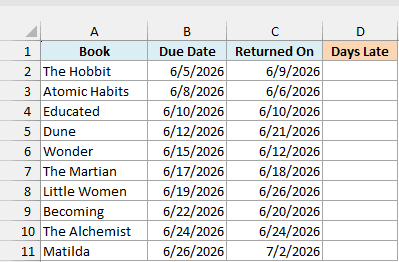
Below is a list of library books with the due date and the date each book was returned, and I want to see how many days late each one came back in column D.
Here is the formula:
=DAYS(C2:C11,B2:B11)
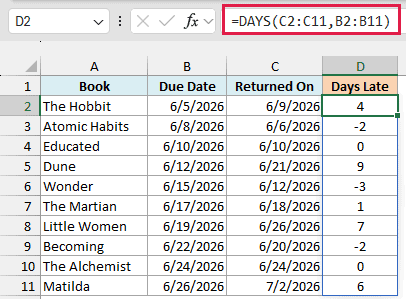
Here, the return date is the end date and the due date is the start date. When a book comes back after its due date, you get a positive number, so Dune shows 9 days late.
When a book comes back early, the return date is before the due date, so DAYS returns a negative number. Atomic Habits shows -2, which means it was returned 2 days early.
A book returned on its due date, like Educated, shows 0.
This is where DAYS is better than the DATEDIF function. DATEDIF returns a #NUM! error when the start date is after the end date, while DAYS just gives you the negative number.
In a list where you only want the size of the gap and don’t care which date came first, wrap DAYS in the ABS function. It turns every negative result into a positive one.
Example 3: Count Days Until a Date Using DAYS and TODAY
Now let’s look at something you’ll probably use a lot, a countdown.
Below is a list of upcoming events with their dates, and I want to show how many days are left until each event in column C.
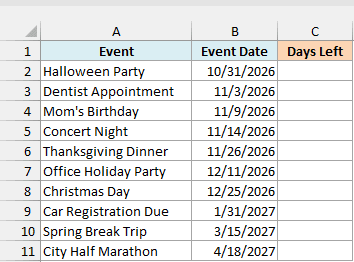
Here is the formula:
=DAYS(B2:B11,TODAY())
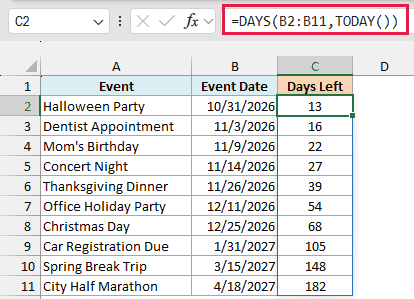
The TODAY function returns the current date, and it goes in as the start date. The event dates in B2:B11 are the end dates, so DAYS counts how many days you have from today until each event.
I took this screenshot on October 18, 2026, so the Halloween Party on 10/31/2026 shows 13 days left. When you open the example file, you’ll see different numbers, because TODAY updates every day and the countdown updates with it.
To count the days since a past date instead (like days since a last order), swap the two arguments so TODAY() comes first.
Example 4: Count Days Including the Start and End Date
Let’s step it up with a case where the plain DAYS result is one short.
Below is a list of vacation requests with the first and last day each employee is off, and I want to get the total number of days off in column D.
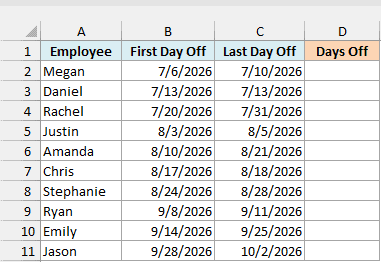
Here is the formula:
=DAYS(C2:C11,B2:B11)+1
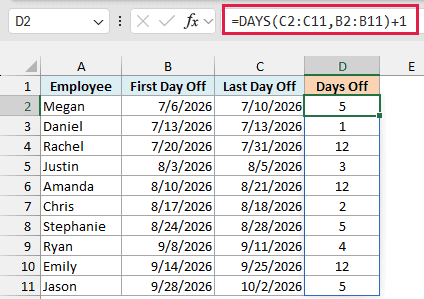
DAYS counts the gap between the two dates, so it doesn’t count the start date itself. Megan is off from 7/6/2026 to 7/10/2026, and DAYS alone would return 4, even though she’s off on all five of those days.
Adding 1 fixes that by adding back the first day. With Daniel, whose first and last day off are both 7/13/2026, DAYS alone gives 0, and the +1 makes it 1 day off.
Use the +1 whenever both the start and end dates count, like days off or a conference that runs over several days. Leave it off when you’re measuring a gap, like how long something took.
Also note that DAYS counts every calendar day, including weekends. If you want only the working days, use the NETWORKDAYS function instead, which counts both the start and end date on its own.
Example 5: Count Nights When Dates Have Times
Here’s a case where DAYS gives a better answer than simply subtracting the dates.
Below is a list of hotel guests with their check-in and check-out date and time, and I want to get the number of nights each guest stayed in column D.
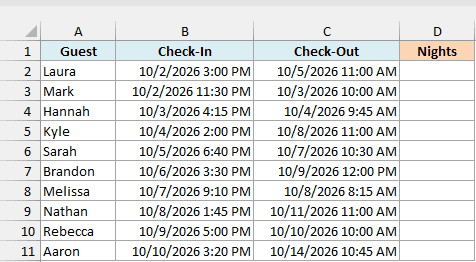
Here is the formula:
=DAYS(C2:C11,B2:B11)
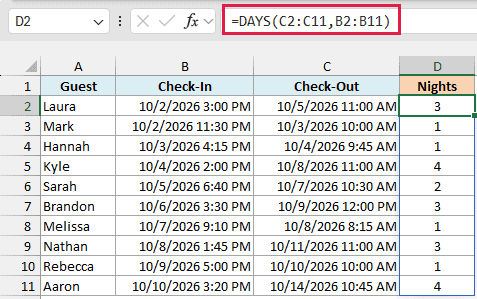
DAYS looks only at the date part of each value and ignores the time. So Laura, who checked in on 10/2/2026 at 3:00 PM and checked out on 10/5/2026 at 11:00 AM, gets 3 nights, which is exactly what the hotel would charge her for.
To see why this matters, here is the plain subtraction of the same two columns:
=C2:C11-B2:B11
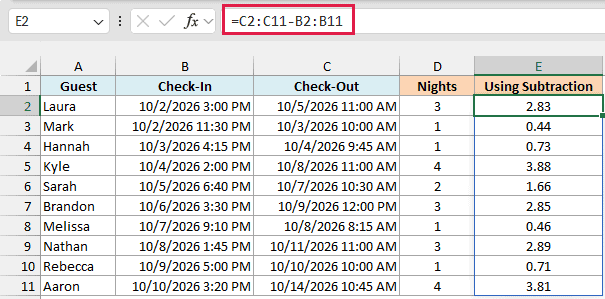
Excel stores a time as a fraction of a day, so subtracting date-times gives you fractions. Laura’s stay comes out as 2.83 days, because her check-out time is earlier in the day than her check-in time.
Rounding that doesn’t fix it either. Mark checked in at 11:30 PM and left at 10:00 AM the next morning, so the subtraction gives 0.44, which rounds down to 0.
DAYS correctly gives Mark 1 night.
Example 6: Handle Blank Dates in the DAYS Formula
This next one is something you’ll run into with any list that’s still being filled in.
Below is a list of online orders with the order date and the ship date, where some orders haven’t shipped yet, and I want to get the number of days each order took to ship in column D.
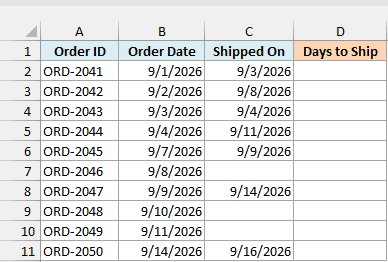
Important: DAYS treats an empty cell as 0, which Excel reads as a date back in 1900. So a plain DAYS formula would show -46273 for an unshipped order like ORD-2046, instead of an error or a blank.
To avoid that, the formula needs to check for a blank ship date first. Here is the formula that does this:
=IF(C2:C11="","Not shipped",DAYS(C2:C11,B2:B11))
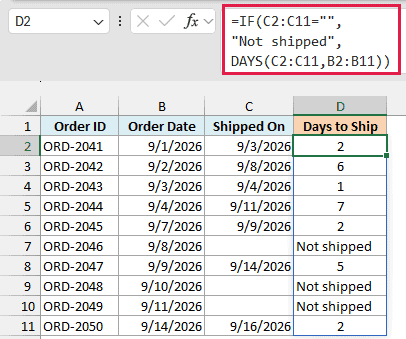
How this formula works:
- C2:C11=”” checks each Shipped On cell and returns TRUE for the ones that are empty.
- DAYS(C2:C11,B2:B11) counts the days from the order date to the ship date.
- IF shows “Not shipped” where the ship date is empty, and the DAYS result everywhere else.
The same thing happens when the start date is blank, except you get a huge positive number. So any time a date column can have gaps, check for the blank first.
Example 7: Average Days Without a Helper Column
Let’s finish with a more advanced use case, where you don’t need the individual day counts at all.
Below is a list of homes with the date each one was listed for sale and the date it sold, and I want to get the average number of days on the market in cell F2.
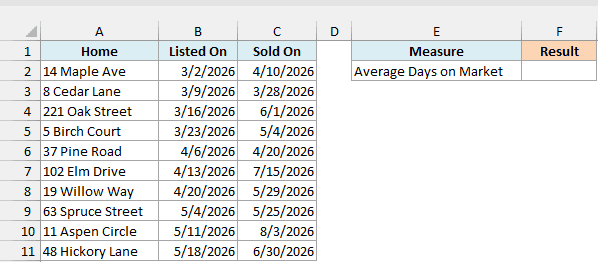
Here is the formula:
=AVERAGE(DAYS(C2:C11,B2:B11))
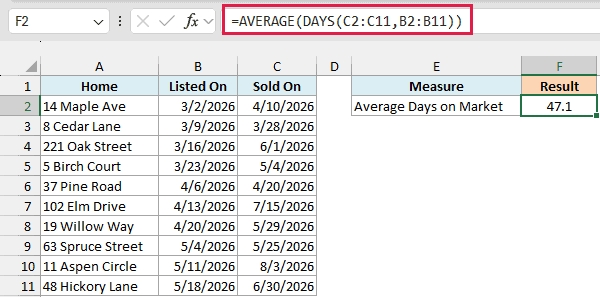
How this formula works:
- DAYS(C2:C11,B2:B11) works out the days on the market for all ten homes at once. Since it’s inside another function, the results don’t spill onto the sheet. They’re passed straight to AVERAGE.
- AVERAGE then takes those ten numbers and returns their average, which is 47.1 days.
This saves you from adding a helper column just to hold the day counts. You can swap AVERAGE for MAX or MIN to find the longest or shortest time a home sat on the market.
Like the spill formulas, this needs Excel 365 or Excel 2021 and later. If you are using Excel 2019 or earlier, enter the below formula in cell F2 instead:
=SUMPRODUCT(C2:C11-B2:B11)/COUNT(C2:C11)
For whole dates, subtracting the start date from the end date gives the same number as DAYS, so the subtraction stands in for DAYS here. SUMPRODUCT adds up those differences without a spill, and the formula divides that by the number of homes.
So these are some practical ways to use the DAYS function in Excel, from a simple count between two dates to countdowns, inclusive counts, date-times, and blank cells.
I hope you found this Excel tutorial useful.
Other Excel Articles You May Also Like:
- How to Calculate the Number of Days Between Two Dates in Excel
- Days Between Dates Calculator
- DAY Function in Excel
- YEARFRAC Function in Excel
- Calculate Number of Months Between Two Dates in Excel (Easy Formulas)
- How to Get the Number of Days in a Month in Excel?
- Duration.Days Function in Power Query M
- Convert Days to Months in Excel
