

If you have dates sitting in your sheet as text, and Excel won’t sort, filter, or do any math with them, the DATEVALUE function is what turns those text dates into real dates Excel understands.
It takes a date written as text and hands back the serial number Excel uses for that date. Once you format that number, you have a proper date you can work with.
In Excel 365, you can also feed DATEVALUE a whole column of text dates and the results spill into the cells below.
In this article I’ll show you how to use DATEVALUE with real examples, from a single date and a whole column to timestamps and the #VALUE! error that hidden nonbreaking spaces cause.
Follow along with the example file
DATEVALUE Function Examples.xlsx
DATEVALUE Syntax
Here is the syntax of the DATEVALUE function:
=DATEVALUE(date_text)
- date_text – the date written as text that you want to convert. This can be text in quotes like
"10-Aug-2024", or a cell reference that holds a text date.
The function returns a serial number. In Excel’s default 1900 date system, August 10, 2024 comes back as 45514. To see it as a date, you apply a date format to the cell.
DATEVALUE works in Excel for Microsoft 365, Excel 2024, 2021, 2019, 2016, older versions, and Excel on the web.
When to Use DATEVALUE
Use the DATEVALUE function when you need to:
- Turn dates that are stored as text into real dates you can sort and filter
- Fix dates pulled in from another system, a CSV, or a copy-paste that landed as text
- Use text dates inside date math, like finding the days between two of them
When Excel Treats a Date as Text
A quick way to spot a text date: real dates sit on the right by default, while text dates sit on the left. Text dates lack normal date grouping in filters, though Excel can automatically convert recognized date text during subtraction.
Let me show you a few practical examples of how DATEVALUE works.
Example 1: Convert a Single Text Date to a Real Date
Let’s start with the simplest case.
Below I have a single date in cell A2, stored as text (10-Aug-2024). You can tell it’s text because it’s left-aligned in the cell.
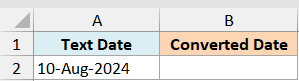
I want to convert this text date into a real date Excel can use.
Here is the formula:
=DATEVALUE(A2)
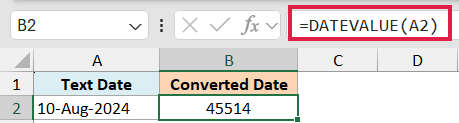
This returns 45514, which is the serial number for August 10, 2024.
That number is the real date. Excel just shows it as a plain number until you tell it to look like a date. The downloadable example file already applies date formatting to the converted dates.
Pro Tip: To show the serial number as a date, select the cell, press Ctrl + 1 to open Format Cells, and pick a Date format. Or on the Home tab, choose Short Date from the number format dropdown.
Example 2: Convert a Whole Column of Text Dates at Once
You’ll rarely have just one date. More often it’s a whole column that came in as text, and you want to fix all of them in one go.
Below I have a list of text dates in A2:A6. All of them are left-aligned, so Excel is treating each one as text.
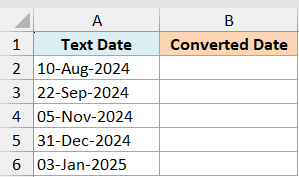
I want to convert the entire column into real dates with a single formula.
Here is the formula:
=DATEVALUE(A2:A6)
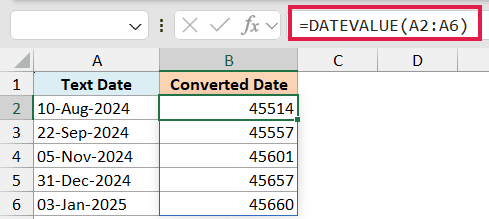
Because I handed DATEVALUE the whole range at once, the results spill down the column on their own. You type the formula once in B2 and Excel fills the rest, returning 45514, 45557, 45601, 45657, and 45660.
Those are still serial numbers, so format the spilled column as dates to read them normally.
Pro Tip: The spilling form needs Microsoft 365 or Excel 2021. On Excel 2019 or earlier, put =DATEVALUE(A2) in B2 and copy it down the column instead.
Example 3: Use DATEVALUE with Different Text Date Formats
One handy thing about DATEVALUE is that it recognizes a lot of common date layouts, not just one. So a messy column where every date is written differently still converts fine.
Below I have the same date, August 10, 2024, written four different ways in column A: August 10, 2024, 8/10/2024, 2024-08-10, and 10-Aug-2024. Each one is stored as text.
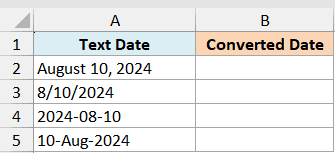
I want to check that DATEVALUE reads all four styles and returns the same date.
Here is the formula:
=DATEVALUE(A2)
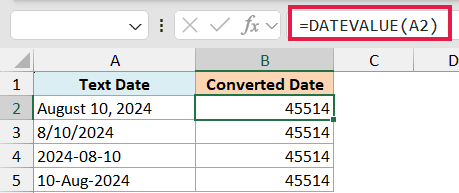
With the US regional settings used here, all four return 45514, the serial number for August 10, 2024. With other settings, 8/10/2024 may mean October 8, and some formats may not be recognized.
If your text is in a layout Excel doesn’t recognize, there are other ways to convert text to date that can split and rebuild it.
The formats DATEVALUE accepts follow your computer’s regional settings. If a layout matches how your system writes dates, DATEVALUE will read it.
Follow along with the example file
DATEVALUE Function Examples.xlsx
Example 4: Pull the Date Out of a Text Timestamp
Sometimes a text value has a time stuck on the end of the date, like a log entry or an export from another tool. DATEVALUE handles this cleanly because it ignores any time information.
Below I have a text timestamp in cell A2 that reads 10-Aug-2024 3:45 PM. I only care about the date part.
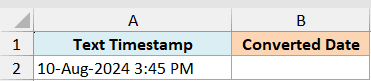
I want to grab just the date from this timestamp and drop the time.
Here is the formula:
=DATEVALUE(A2)
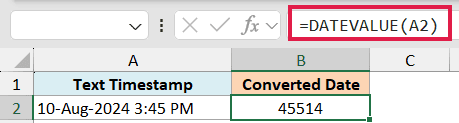
This returns 45514, the serial number for August 10, 2024. The 3:45 PM is thrown away, so you get a clean date with no time attached.
Pro Tip: If you actually need to keep the time as well, use the VALUE function instead. VALUE converts the full text timestamp, date and time, into a number, while DATEVALUE keeps only the date.
Example 5: Find the Number of Days Between Two Text Dates
If Excel recognizes the date text, it can subtract the dates directly. Wrapping each one in DATEVALUE makes the conversion explicit, but the text still needs to match a format Excel recognizes.
Below I have a start date in cell A2 (01-Jan-2024) and an end date in cell B2 (10-Aug-2024), both stored as text.

I want the number of days between the start date and the end date.
Here is the formula:
=DATEVALUE(B2)-DATEVALUE(A2)
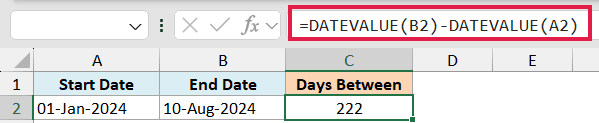
This returns 222, the number of days between January 1, 2024 and August 10, 2024.
DATEVALUE(B2) turns the end date into 45514 and DATEVALUE(A2) turns the start date into 45292. Subtracting the two gives you the day count. The result is already a plain number, so leave it formatted as General, not as a date.
Example 6: Clean Extra Spaces Before Converting a Text Date
Text dates copied from other places often carry extra spaces. The TRIM function removes ordinary extra spaces before DATEVALUE reads the date, though an ordinary leading or trailing space doesn’t necessarily cause an error.
Below I have a text date in cell A2 that reads 10-Aug-2024 with a leading space. A plain =DATEVALUE(A2) also converts this example successfully; TRIM is an optional cleanup step here.
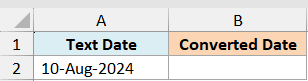
I want to strip the extra spaces first, then convert the cleaned-up text to a date.
Here is the formula:
=DATEVALUE(TRIM(A2))
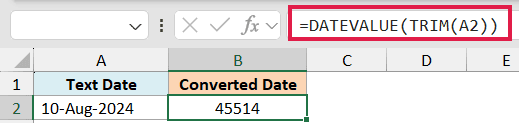
This returns 45514, the serial number for August 10, 2024. TRIM removes the leading, trailing, and any double spaces, then DATEVALUE converts the clean text without complaint.
Fix #VALUE! Caused by Nonbreaking Spaces
Text copied from a web page often carries a nonbreaking space. In the example file’s “Nonbreaking spaces” sheet, A2 holds 10-Aug-2024 with a hidden nonbreaking space in front.
Here’s what happens with a plain DATEVALUE:
=DATEVALUE(A2)
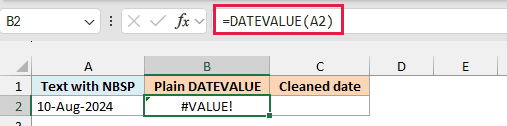
B2 returns #VALUE! because Excel can’t read this text as a date. TRIM alone won’t help because it only removes regular spaces, not nonbreaking spaces (CHAR(160)).
Use the SUBSTITUTE function inside TRIM to clear the nonbreaking space:
=DATEVALUE(TRIM(SUBSTITUTE(A2,CHAR(160)," ")))
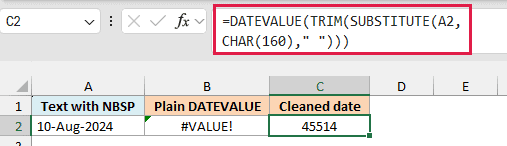
C2 returns 45514, the serial number for August 10, 2024. SUBSTITUTE swaps each nonbreaking space for a regular space, TRIM removes it, and DATEVALUE converts the clean text.
Tips & Common Mistakes
A few things that trip people up with DATEVALUE:
- The result is a serial number, not a date. DATEVALUE returns a number like 45514. That IS the date. Apply a date format to the cell (Ctrl + 1) to see it as a normal date.
- A #VALUE! error means the text isn’t a recognized date. Check for a typo, a layout that doesn’t match your regional settings, or hidden characters. TRIM removes ordinary extra spaces but cannot remove nonbreaking spaces on its own. DATEVALUE only reads formats Excel knows.
- A missing year uses the current year. If the text has no year, like
10-Aug, DATEVALUE fills in the current year from your computer’s clock. Include the year to avoid surprises. - DATEVALUE drops the time. It only converts the date part of the text. To keep both the date and time, use the VALUE function instead.
- The date range is limited. In the default 1900 date system, DATEVALUE handles dates from January 1, 1900 to December 31, 9999. Anything outside that returns a #VALUE! error.
- If the cell already holds a real date, you don’t need DATEVALUE. It’s only for dates stuck as text. Running it on an actual date can return an error.
Wrapping Up
DATEVALUE is a small function that solves a very common headache: dates that came in as text and refuse to behave. Convert them once, format the result, and they’ll sort, filter, and calculate like any other date.
Start with a single cell and move up to a whole spilled column. When an import throws a #VALUE! error, clear nonbreaking spaces with SUBSTITUTE and TRIM before converting.
I hope you found this tutorial helpful. Let me know in the comments if you have a DATEVALUE scenario you’re stuck on.
Other Excel Articles You May Also Like:
