

If you have a date in Excel and you want just the day of the month from it, the DAY function is the quickest way to get it. It takes a date and returns the day as a number between 1 and 31.
In Excel 365, you can also feed DAY a whole range of dates and the day numbers spill into the cells below. In this article, I’ll show you how to use the DAY function with a few practical examples.
Follow along with the example file
DAY Function Examples.xlsx
DAY Syntax
Here is the syntax of the DAY function:
=DAY(serial_number)
- serial_number – The date you want the day from. This can be a cell reference to a date, a date entered with the DATE function, or the result of another formula that returns a date.
When to Use DAY in Excel
Use the DAY function when you need to:
- Pull the day of the month out of a full date
- Find the first or last day of a month from any date
- Flag or filter records that fall on a specific day
- Rebuild a date after changing its year or month
Let me show you a few practical examples of how this works.
Example 1: Extract the Day from a List of Dates
Let’s start with the most common use.
Below is a small dataset with order IDs in column A and their order dates in column B (five orders on different dates).
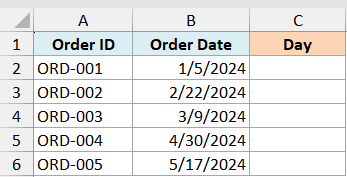
I want to pull the day of the month out of each order date into column C.
Here is the formula:
=DAY(B2:B6)
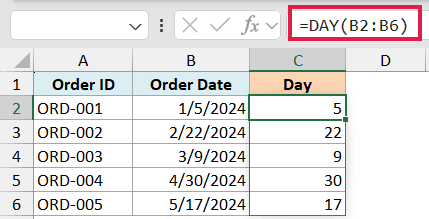
Because I gave DAY the whole range B2:B6 at once, the result spills down column C automatically. Each cell shows the day number for that row’s date.
You don’t need to copy the formula down. One formula in C2 fills the entire column.
Pro Tip: If the result shows up as a date (like 1/5/1900) instead of a plain number, the cell is formatted as a date. Select it and change the format to General or Number.
The spilling version works in Microsoft 365, Excel 2024, Excel 2021, and Excel for the web. On older versions, put =DAY(B2) in C2 and copy it down the column instead.
Example 2: Find the First Day of the Month
Here’s a handy one that people often overcomplicate.
Below is a dataset with subscription sign-up dates in column B. The sign-ups happened on various days across January, February, and March.
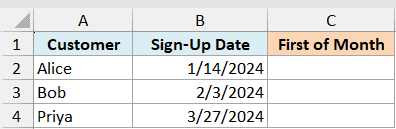
I want the first day of the month for each sign-up date, so I can group them by billing month.
Here is the formula:
=B2:B4-DAY(B2:B4)+1
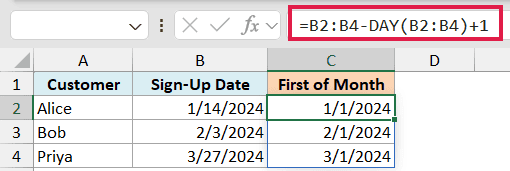
Here is what happens. Subtracting the day number from a date lands you on the last day of the previous month, and adding 1 moves you to the first of the current month.
So a sign-up on 14-Jan becomes 01-Jan, a sign-up on 03-Feb becomes 01-Feb, and so on. The result is a real date, so format the column as a date if it shows a serial number.
Example 3: Count the Number of Days in a Month
Now let’s combine DAY with EOMONTH for something genuinely useful.
Below is a dataset with a sample date from three different billing months in column B (one in February, one in April, one in July).
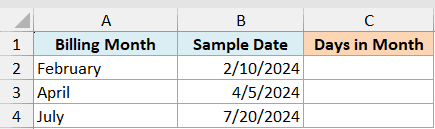
I want to know how many days each of those months has, which matters for things like daily rate calculations.
Here is the formula:
=DAY(EOMONTH(B2,0))
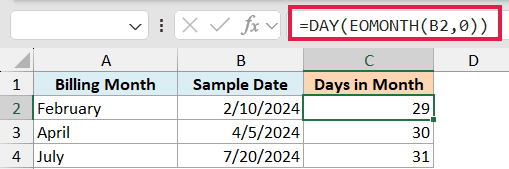
Copy this formula down for the other rows. EOMONTH with a 0 returns the last date of the month for each input. Wrapping DAY around it pulls out that last day number, which is exactly the count of days in the month.
February 2024 returns 29 because 2024 is a leap year, April returns 30, and July returns 31. DAY handles the leap-year math for you, so you never have to remember which months are short.
Follow along with the example file
DAY Function Examples.xlsx
Example 4: Flag Records That Renew on the 1st
Let’s use DAY inside a condition.
Below is a dataset with customer names in column A and their renewal dates in column B. Some renew on the 1st of the month, others on random days.
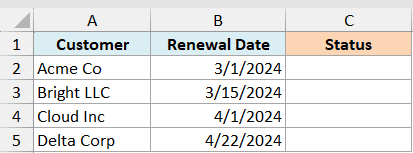
I want to flag every customer whose renewal falls on the 1st of the month.
Here is the formula:
=IF(DAY(B2:B5)=1,"Renews on 1st","")
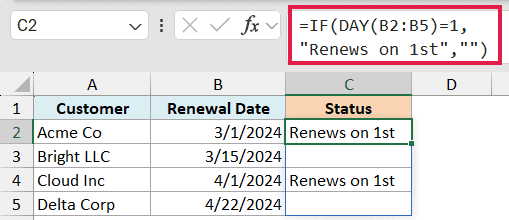
DAY pulls the day number from each renewal date, and the IF checks whether it equals 1. When it does, the cell shows “Renews on 1st”, otherwise it stays blank.
Since I passed the whole range B2:B5, the result spills down the column in one shot. You can swap the 1 for any day number to flag a different due date.
Pro Tip: To count how many customers renew on the 1st instead of flagging them, use =SUMPRODUCT(–(DAY(B2:B5)=1)). It gives you the total in a single cell.
Example 5: Change the Year but Keep the Same Day
Here’s the last one, and it shows why DAY is so useful alongside YEAR and MONTH.
Below is a dataset with product names in column A and their purchase dates in column B. Each product has a two-year warranty.
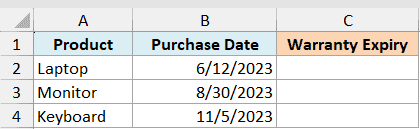
I want the warranty expiry date, which is the same month and day but two years later.
Here is the formula:
=DATE(YEAR(B2:B4)+2,MONTH(B2:B4),DAY(B2:B4))
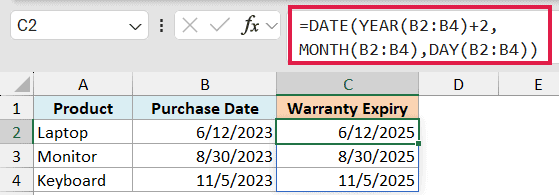
The DATE function rebuilds a date from three pieces. Here I take the year and add 2, keep the month as is, and use DAY to keep the exact same day of the month.
A purchase on 12-Jun-2023 becomes 12-Jun-2025, and a purchase on 30-Aug-2023 becomes 30-Aug-2025. The day stays locked while only the year shifts.
Pro Tip: Watch out for 29-Feb. If you feed a leap-day date into a non-leap year, DATE rolls it forward to 1-Mar. It’s rare, but worth knowing when you rebuild dates.
Tips & Common Mistakes
- The result shows a date, not a number. DAY returns a plain number from 1 to 31. If you see something like 1/5/1900, the cell just inherited date formatting. Change it to General or Number.
- DAY only reads text that Excel sees as a date. If your dates are stored as text, DAY may return a #VALUE! error. Convert them to real dates first with DATEVALUE or by cleaning the column.
- Don’t confuse DAY with WEEKDAY. DAY gives the day of the month (1 to 31). WEEKDAY gives the day of the week as a number (1 to 7). They answer different questions.
- Spilling needs a modern version. Feeding DAY a range and letting it spill works in Microsoft 365, Excel 2024, Excel 2021, and Excel for the web. On older versions, enter the formula for one cell and copy it down.
The DAY function is small, but it does a lot of the heavy lifting whenever you work with dates. On its own it pulls the day of the month, and paired with DATE, YEAR, MONTH, and EOMONTH it lets you reshape dates however you need.
Try it on your own data and you’ll find plenty of everyday uses for it.
Other Excel Articles You May Also Like:
