

When working with dates in Excel, sometimes you may want to know what day the date is (whether it’s a Monday or a Tuesday, or any other weekday).
This could especially be useful in project planning, where some days could be for a specific task (such as having a project meeting or sending the progress report).
It also helps when you need to know what days the working days are and what days are the weekends.
In this tutorial, I will show you three ways you can use to convert dates into the day of the week and get its name in Excel: a custom number format, the TEXT function, and the CHOOSE and WEEKDAY functions.
I’ll also show you how to get the day name in another language. And if you want the day of the month as a number instead (like 14 for November 14), the DAY function is what you need.
So let’s get to it!
Follow along with the example file
Get Day Name from Date Excel.xlsx
Get the Day Name Using Custom Number Formats
One of the best methods to convert a date into the day name is by changing the format of the cell that has the date.
The good thing about this method is that while you see the day name in the cell, in the back end, it still continues to be the date. This way, you can still use the dates in calculations.
Below I have a list of due dates in column A, and I want to see the name of the day for each date in those same cells.
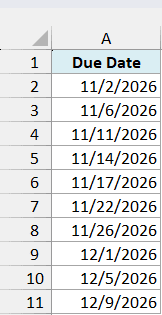
Below are the steps to do this:
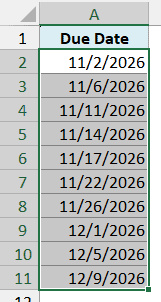
- Select the dates in column A
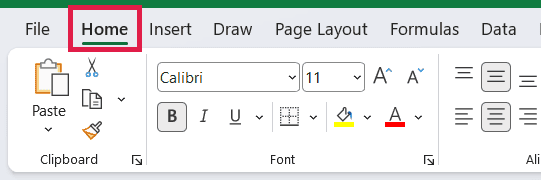
- Click the Home tab
- In the Number group, click on the dialog box launcher (the tilted arrow at the bottom right part of the group in the ribbon)
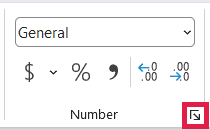
Pro Tip: Instead of steps 2 and 3, you can press Ctrl + 1 (Command + 1 on a Mac) once the dates are selected. It opens the same Format Cells dialog box.
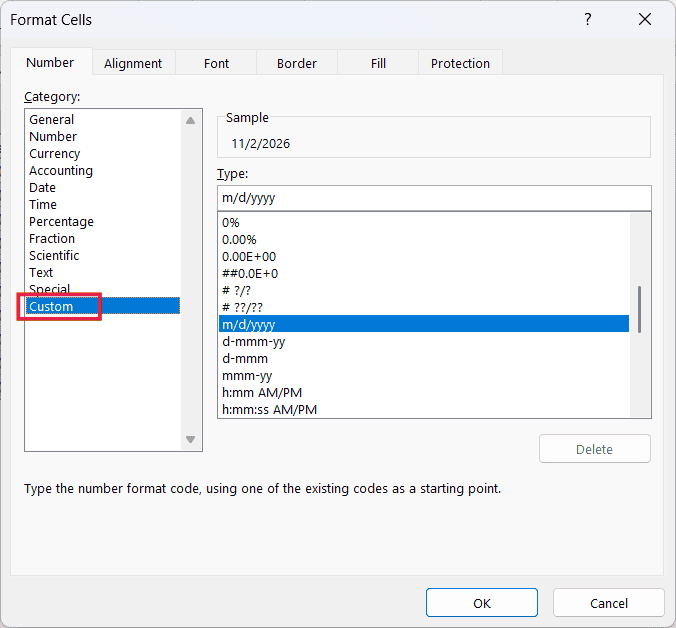
- In the Format Cells dialog box, click on the Custom category option
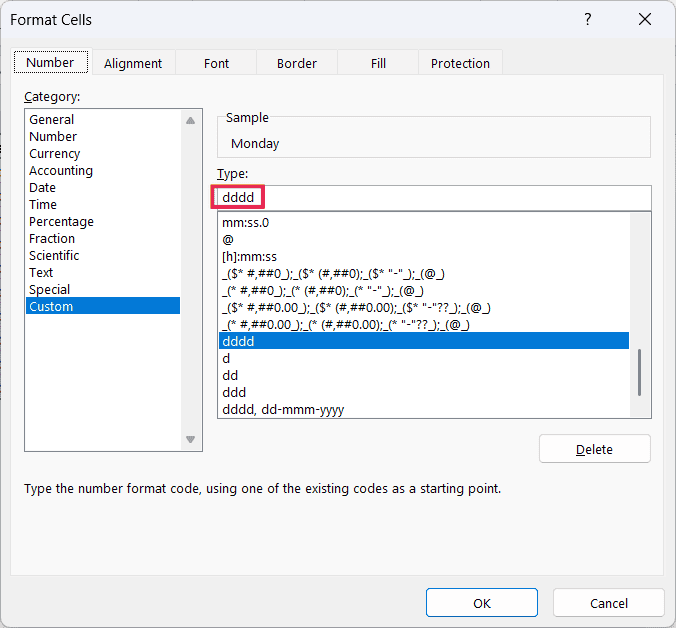
- In the Type field, enter dddd
- Click OK
The above steps would convert the dates in the cells in column A and give you the name of the day for those dates.
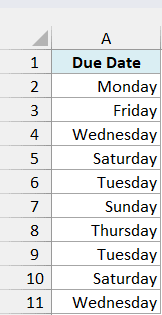
And as I mentioned, doing this would only change the way the dates are being displayed in the cells. In the back end, the cells still contain the dates that can be used in calculations.
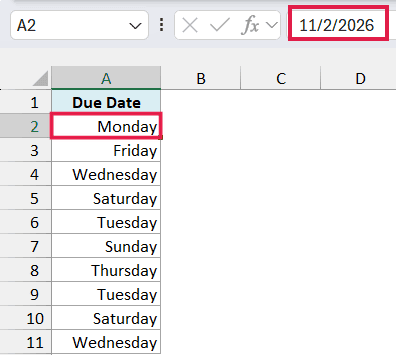
When I use the custom code dddd, it tells Excel that I want to show only the day name from the date, and hide the month and the year value.
Below are the formats you can use when you’re working with dates in Excel:
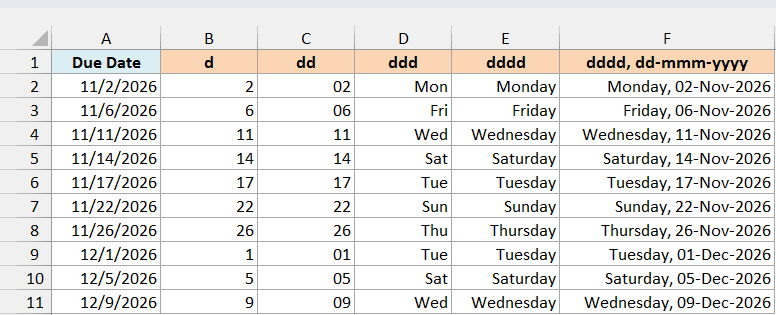
- d: shows the day value from the date. If the day value is less than 10, only one digit is shown and if it’s 10 or more than 10, then two digits are shown.
- dd: shows the day value from the date in two digits. If the day value is less than 10, a leading zero is added to the number. For example, 5 would become 05
- ddd: this will show you the day name in the short format. If it’s Monday it would show you Mon, for Tuesday it will show Tue, and so on.
- dddd: when you use this custom format, it will show you the entire day name (such as Monday or Tuesday)
So d and dd give you the day of the month as a number, and it’s only ddd and dddd that give you a day name.
You can also see the day name and the date together by adding the rest of the date to the custom code. For example, dddd, dd-mmm-yyyy shows 11/2/2026 as Monday, 02-Nov-2026.
Here’s what each of these formats looks like on the same dates:
Important: For this method to work, you need to make sure that the dates are in a format that Excel understands as a date.
For example, if you use Jan 21 2021, then it wouldn’t be converted into the day name as Excel doesn’t recognize this as a valid date format. With a comma (Jan 21, 2021), a US English Excel reads it as a date just fine.
Get the Day Name Using TEXT Formula
You can also use the TEXT function in Excel to convert a date into the name of the day.
However, unlike the above custom number format method, the result of the TEXT formula would be a text string. This means that you would not be able to use the result of the TEXT formula in calculations as a numeric or date value.
Let me show you how this method works.
Below I have a list of due dates in column A, and I want the name of the days in column B.
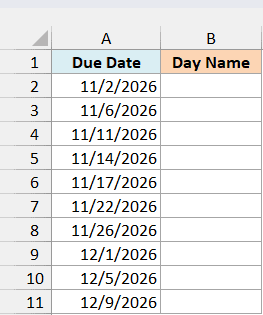
Below is the formula I can use to do this:
=TEXT(A2:A11,"dddd")
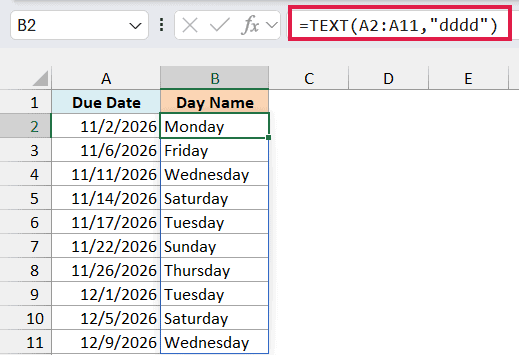
The above formula will give you the full name of the day (such as Monday or Tuesday). You enter it only in cell B2, and in Excel 365, 2021, and later, it spills down automatically for all the dates.
If you are using Excel 2019 or earlier, enter the below formula in cell B2 and then copy it down the range:
=TEXT(A2,"dddd")
The same goes for the other formulas in this article. In older versions, change the range (such as A2:A11) to just the first cell (A2), and copy the formula down.
All the custom number formats that are covered in the above section can also be used in the TEXT formula. Just make sure that the format is within double quotes (as the one shown in the formula above).
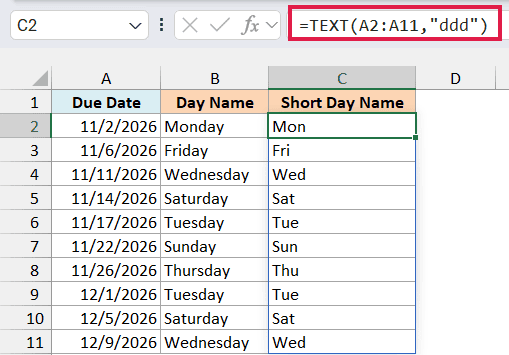
For example, using ddd instead of dddd gives you the short day name (Mon, Tue, and so on) in column C:
=TEXT(A2:A11,"ddd")
And to get the day name and the date together in column D, you can use the longer format we saw earlier:
=TEXT(A2:A11,"dddd, dd-mmm-yyyy")
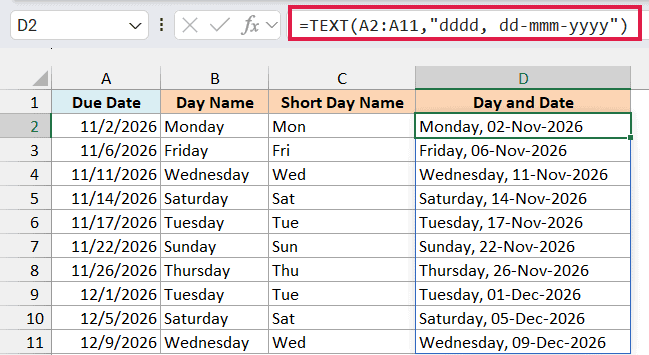
Now, you must be wondering why you would ever use the TEXT formula when the custom formatting method (covered before this method) gives you the same result and seems easier to use.
Let me show you in what situation using the TEXT formula to get day names can be useful.
Suppose I have the same data set, but now instead of getting the day name, I want to get an entire sentence where I have some text before or after the day name.
Let’s say I want to get the result as ‘Due Date: Monday’ (i.e., I want to add some text before the day name) in column E.
I can use the below formula to do this:
="Due Date: "&TEXT(A2:A11,"dddd")
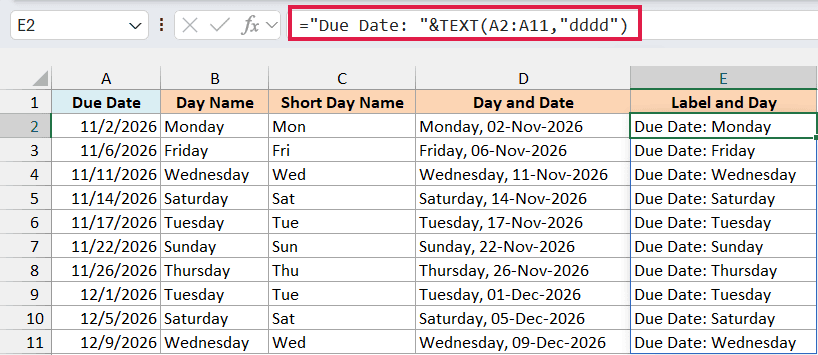
A custom number format can also handle this particular one. The format "Due Date: "dddd shows the same thing, and the cell stays a real date.
But a custom format can’t work out things like whether a date falls on a weekend. When the text has to change like that, you need a formula.
Or, another example could be where you want to show whether the day is Weekday or Weekend followed by the day name. This can be done using the below formula in column F:
=IF(WEEKDAY(A2:A11,2)>5,"Weekend: ","Weekday: ")&TEXT(A2:A11,"dddd")
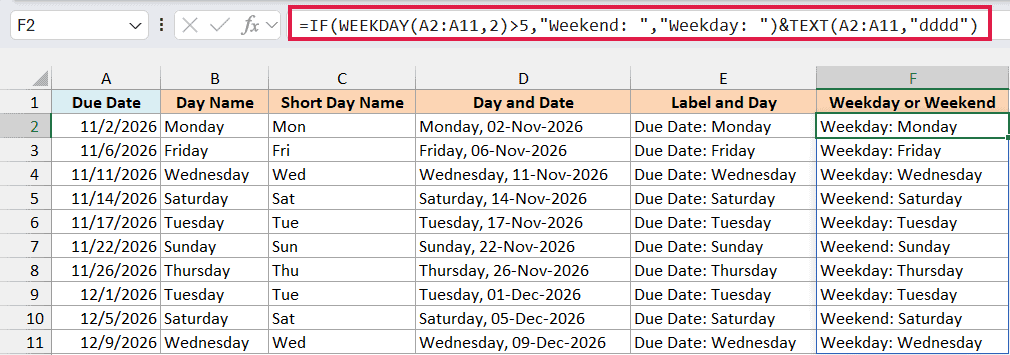
Here, WEEKDAY with 2 as its second argument gives 1 for Monday through 7 for Sunday, so anything above 5 is a Saturday or a Sunday.
I’m sure you get the idea.
The benefit of using the TEXT formula is that you can combine the result of that formula with other formulas (such as IF function or AND/OR function).
There’s one thing to watch out for when you use the TEXT formula on your own data. If a cell is blank or has a date stored as text, you don’t get an error, so the wrong result can be easy to miss.
Below is a list of due dates where two cells are blank and one has the text Jan 21 2021, and I want to get the day name in column B.
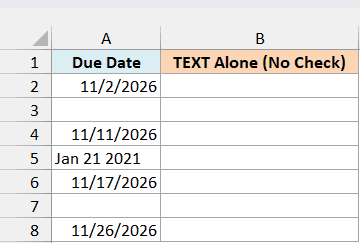
Here is the TEXT formula on its own:
=TEXT(A2:A8,"dddd")
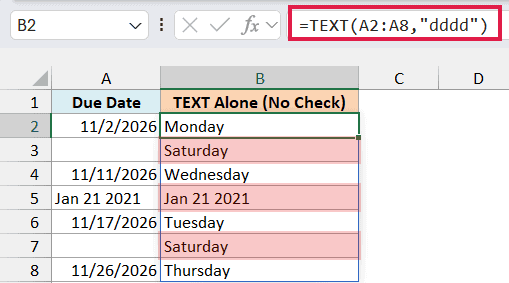
The blank cells show Saturday, because Excel treats a blank cell as 0, and it reads 0 as a Saturday. The text date just comes back as Jan 21 2021, since the formula has no real date to work with.
To catch both of these, you can first check whether the cell has a real date. Excel stores dates as numbers, so the ISNUMBER function can do this check, with the result going in column C:
=IF(ISNUMBER(A2:A8),TEXT(A2:A8,"dddd"),"Not a date")
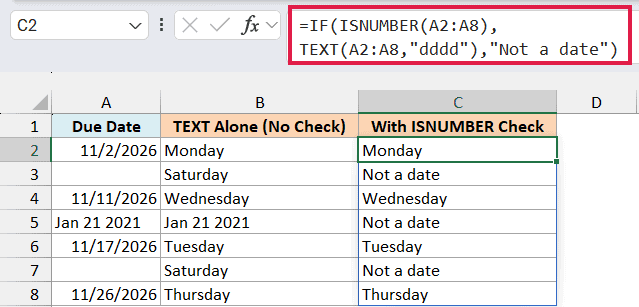
Now the blank cells and the text date all show Not a date, while the real dates still show their day names.
If you would rather leave the blank cells empty, add one more check for them by replacing the formula in column C with this one:
=IF(A2:A8="","",IF(ISNUMBER(A2:A8),TEXT(A2:A8,"dddd"),"Not a date"))
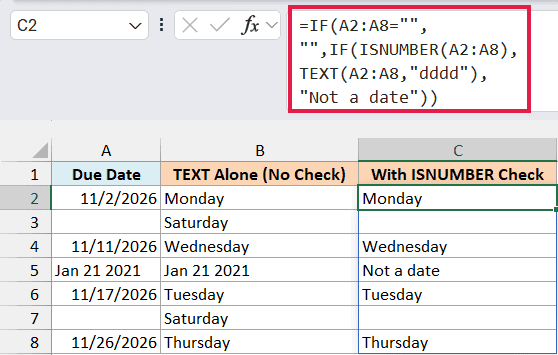
The blank cells now stay empty, and only the text date shows Not a date. To fix text dates for good, you can convert text to date in Excel.
Also read: Calculate Number of Weeks Between Two Dates in Excel
Follow along with the example file
Get Day Name from Date Excel.xlsx
Get the Day Name Using CHOOSE and WEEKDAY Formula
And lastly, let me show you how to get the day name using a combination of CHOOSE and WEEKDAY formulas.
Below I have a list of due dates in column A, and I want to get the day name in column B.
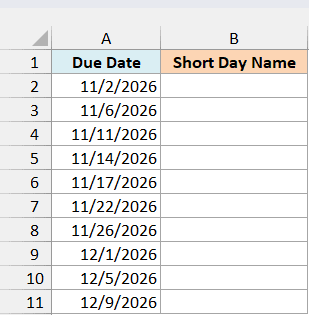
Here is the formula that will do this:
=CHOOSE(WEEKDAY(A2:A11,2),"Mon","Tue","Wed","Thu","Fri","Sat","Sun")
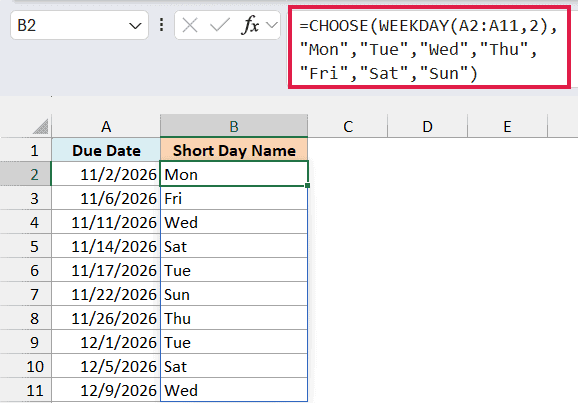
If you are using Excel 2019 or earlier, enter the below formula in cell B2 and then copy it down the range:
=CHOOSE(WEEKDAY(A2,2),"Mon","Tue","Wed","Thu","Fri","Sat","Sun")
In the above formula, I have used the WEEKDAY formula to get the weekday number of any given date.
Since I’ve specified the second argument of the WEEKDAY formula as 2, it would give me 1 for Monday, 2 for Tuesday, and so on.
This value is then used within the CHOOSE formula to get the day name (which is something that I have already specified in the formula).
CHOOSE returns the item at the position that WEEKDAY gives it, so 1 returns the first item in the list (Mon) and 7 returns the last one (Sun).
This is definitely bigger and more complex than the TEXT formula we used in the previous section.
So for a plain day name, the TEXT formula is the simpler choice.
But there is one scenario where using this formula can be useful, when you want to get something specific to that day instead of getting the day name.
For example, below is the same formula where I have changed the day name with specific activities that need to be done on those days, with the result going in column C.
=CHOOSE(WEEKDAY(A2:A11,2),"Townhall","Proj Update Call","Buffer day","Support","Weekly Check-in","Weekend","Weekend")
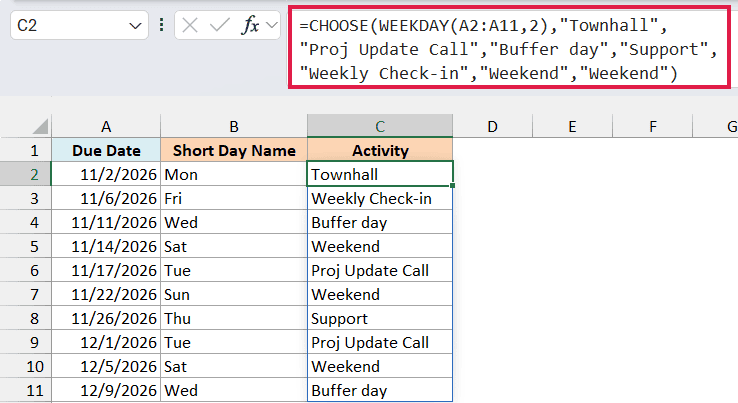
In the above formula, instead of using the day names, I have used the name of the activities that need to be done on those days. The activities go in the same Monday to Sunday order, which is why Weekend is listed twice at the end.
Get the Day Name in Another Language
You may sometimes want the day name in a different language than the one your Excel uses. You can do this by adding a language code to the format in the TEXT formula.
Below is a list of due dates in column A, and I want to get the day name in Indonesian in column B, with four more languages in columns C to F.
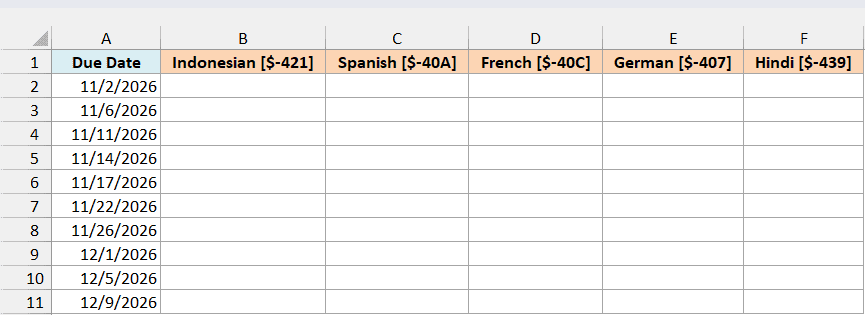
Here is the formula for Indonesian:
=TEXT(A2:A11,"[$-421]dddd")
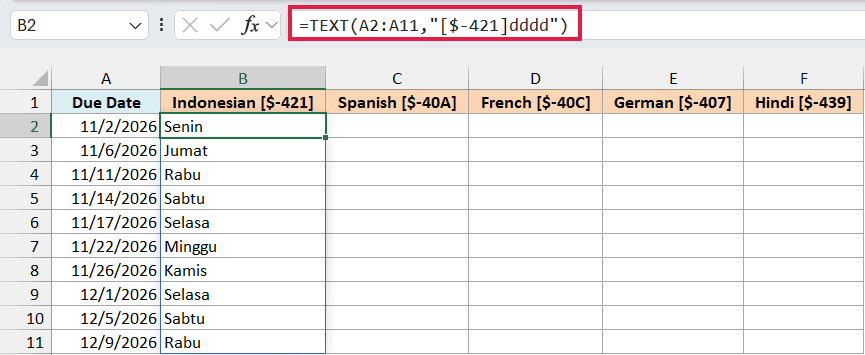
The [$-421] part is the language code, and it tells Excel which language to use for the day name. So 11/2/2026 gives you Senin, which is Monday in Indonesian.
To get another language, keep the same formula and change the code. Here is what each code gives you for a Monday:
- Spanish:
[$-40A]gives you lunes - French:
[$-40C]gives you lundi - German:
[$-407]gives you Montag - Hindi:
[$-439]gives you सोमवार
Here are all five languages side by side:
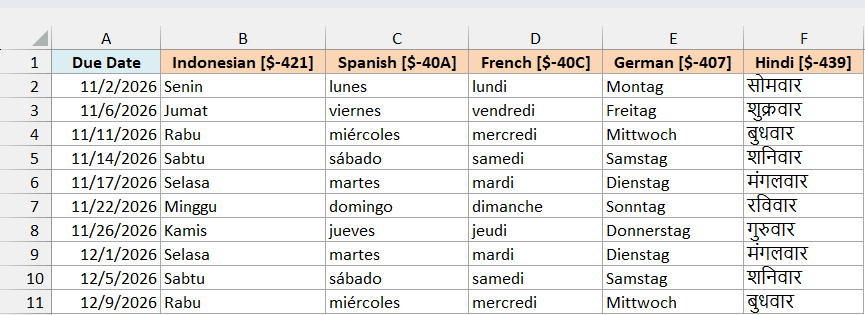
These codes work in a custom number format too. Entering [$-421]dddd in the Type field shows the date as Senin, and the cell stays a real date.
Without a language code, dddd may show the day name in the language your Excel is set to. [$-409] is the code for English, so [$-409]dddd is the one to try if you always want English day names.
You can read more about changing how dates look in my guide on how to change the date format in Excel.
So these are three easy and simple ways you can use to convert a date value into the day name in Excel.
I hope you found this tutorial helpful!
Other Excel Articles You May Also Like:
- How to Get the First Day of the Month in Excel (Easy Formulas)
- How to Add or Subtract Days to a Date in Excel
- How to Calculate the Number of Days Between Two Dates in Excel
- How to Group Dates in Pivot Tables in Excel (by Years, Months, Weeks)
- How to Calculate Age in Excel using Formulas + FREE Calculator Template
- Check IF a Date is Between Two Given Dates in Excel
- How to Autofill Only Weekday Dates in Excel (Formula)
- How to Get Month Name from Date in Excel (4 Easy Ways)
- Convert Date to Text in Excel – Explained with Examples
