

If you have a column of dates and you want to know which day of the week each one falls on, the WEEKDAY function is what you’re looking for. It takes a date and returns a number that stands for the day, like 2 for Monday or 7 for Saturday.
One thing to know up front: by default WEEKDAY counts Sunday as day 1, which surprises a lot of people. You can change that with a single argument, and I’ll show you how below.
In Excel 365, you can also feed WEEKDAY a whole range of dates and the results spill into the cells below, so one formula handles the entire column.
Follow along with the example file
WEEKDAY Function Examples.xlsx
WEEKDAY Function Syntax
Here is the syntax of the WEEKDAY function:
=WEEKDAY(serial_number, [return_type])
- serial_number – the date you want the day of the week for. This is usually a cell reference to a date, but it can also be a date typed with the DATE function.
- return_type – optional. A number that sets which day the week starts on and how the days are numbered. Leave it out and Excel uses 1 (week starts on Sunday). More on this in Example 2.
WEEKDAY works in Excel for Microsoft 365, Excel 2024, 2021, 2019, 2016, and older versions too, plus Excel on the web.
When to Use the WEEKDAY Function
Use the WEEKDAY function when you need to:
- Find out which day of the week a date falls on
- Tell weekend dates apart from working days
- Highlight or count Saturdays and Sundays in a schedule
- Pull the day name out of a date for a report or label
Let me show you a few practical examples of how to use this function.
Example 1: Get the Day of the Week from a Date
Let’s start with the simplest case.
Below is a list of dates in column A, each one the date a customer support ticket was opened.
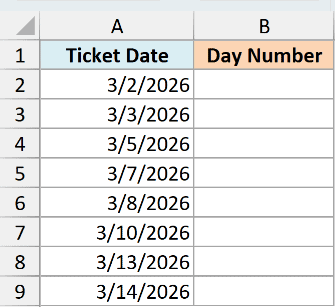
I want the day-of-week number for every date in one go.
Here is the formula:
=WEEKDAY(A2:A9)
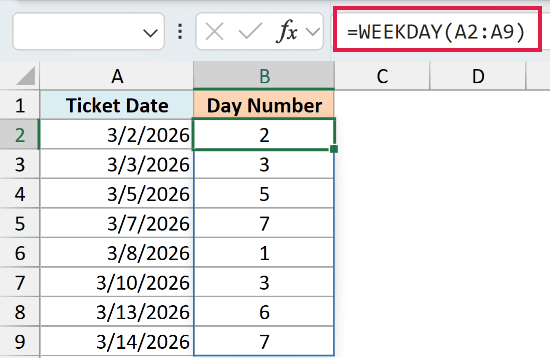
Because I passed the whole range A2:A9 at once, the formula spills a number down column B for each date. You type it once in B2 and Excel fills the rest.
With the return_type left out, WEEKDAY uses its default numbering where Sunday is 1 and Saturday is 7. So 2026-03-02 (a Monday) returns 2, and 2026-03-08 (a Sunday) returns 1.
Pro Tip: The spilling form needs Microsoft 365, Excel 2021, or Excel 2024. On older versions, put =WEEKDAY(A2) in B2 and copy it down the column.
Example 2: Start the Week on Monday with the Return Type
The default numbering where Sunday is 1 feels backwards to most people, since the working week starts on Monday. The return_type argument fixes that.
Here is the same list of support ticket dates in column A. This time I want the week to start on Monday, so Monday is 1 and Sunday is 7.
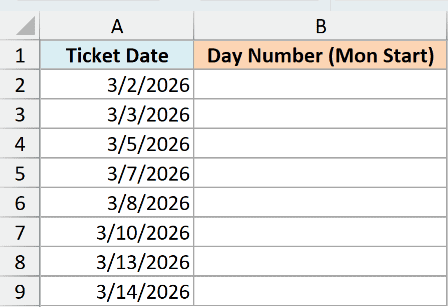
I want each date numbered with Monday as day 1.
Here is the formula:
=WEEKDAY(A2:A9, 2)
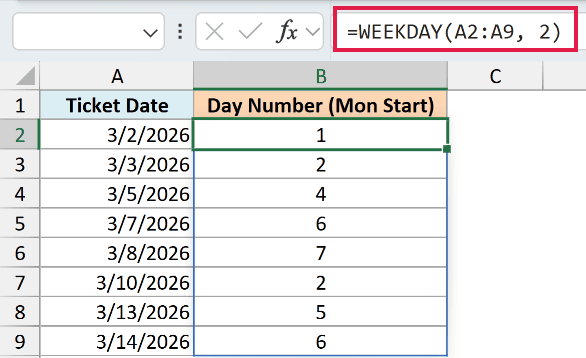
The 2 in the second spot tells WEEKDAY to start the week on Monday. Now 2026-03-02 (a Monday) returns 1 instead of 2, and 2026-03-08 (a Sunday) returns 7.
This return_type is the one I reach for most, because it makes weekend testing easy. With Monday as 1, Saturday and Sunday are always 6 and 7, so anything above 5 is a weekend.
Here are the return_type codes you can use and how each one numbers the days.
| return_type | Day numbering |
|---|---|
| 1 or omitted | Sunday = 1 through Saturday = 7 |
| 2 | Monday = 1 through Sunday = 7 |
| 3 | Monday = 0 through Sunday = 6 |
| 11 | Monday = 1 through Sunday = 7 |
| 12 | Tuesday = 1 through Monday = 7 |
| 13 | Wednesday = 1 through Tuesday = 7 |
| 14 | Thursday = 1 through Wednesday = 7 |
| 15 | Friday = 1 through Thursday = 7 |
| 16 | Saturday = 1 through Friday = 7 |
| 17 | Sunday = 1 through Saturday = 7 |
Codes 11 to 17 need Excel 2010 or later. Any return_type outside this table returns #NUM!.
Example 3: Get the Day Name from a Date Using WEEKDAY
WEEKDAY gives you a number, not a name. When you want the actual day name like “Monday”, you can pair WEEKDAY with the CHOOSE function to turn the number into text.
Below is the same list of support ticket dates in column A. I want the day name spelled out for each one.
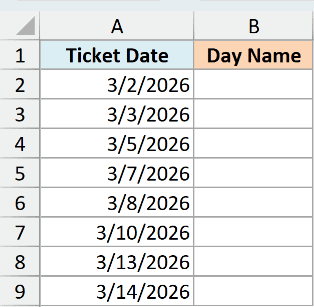
I want each date shown as its full day name.
Here is the formula:
=CHOOSE(WEEKDAY(A2:A9), "Sunday", "Monday", "Tuesday", "Wednesday", "Thursday", "Friday", "Saturday")
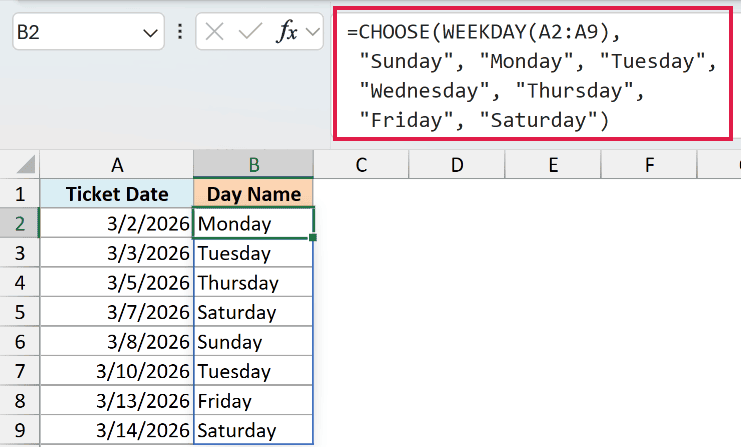
Here WEEKDAY returns the day number using its default numbering (Sunday is 1), and CHOOSE uses that number to pick the matching name from the list. So a 2 picks the second name, “Monday”.
The order of the names has to match the numbering, which is why the list starts with Sunday. If you switch WEEKDAY to return_type 2, you’d start the list with Monday instead.
Pro Tip: If you only need the day name and not the number, =TEXT(A2, “dddd”) is a shorter way to get the day name from a date without WEEKDAY.
Follow along with the example file
WEEKDAY Function Examples.xlsx
Example 4: Flag Each Date as a Weekday or Weekend
A common job is sorting dates into working days and weekends. WEEKDAY makes the test simple when you wrap it in an IF function.
Here is the same list of support ticket dates in column A. I want each date labeled either “Weekday” or “Weekend”.
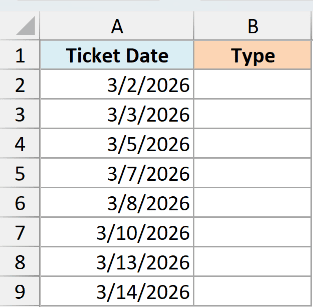
I want to know at a glance which tickets came in over the weekend.
Here is the formula:
=IF(WEEKDAY(A2:A9, 2) > 5, "Weekend", "Weekday")
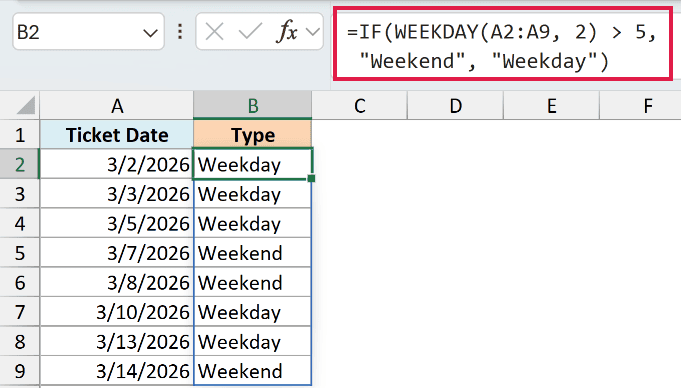
This is where return_type 2 pays off. With Monday as 1, Saturday is 6 and Sunday is 7, so any number above 5 is a weekend.
The IF function checks that condition for each date. When the day number is greater than 5 it returns “Weekend”, and for everything else it returns “Weekday”.
You can get the same result with the SWITCH function if you prefer, but IF keeps this two-way test short.
Example 5: Highlight Weekend Dates with Conditional Formatting
You can also use WEEKDAY inside a conditional formatting rule to color the weekend dates automatically. This is handy for schedules and calendars where you want the weekends to stand out.
Below is the list of support ticket dates in column A. I want every weekend date to get a colored fill.
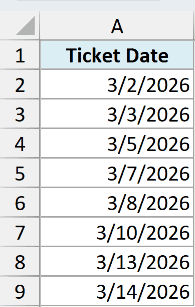
I want the Saturday and Sunday dates highlighted on their own.
Select the dates, go to Home, then Conditional Formatting, then New Rule, and choose “Use a formula to determine which cells to format”. Here is the formula to enter:
=WEEKDAY($A2, 2) > 5
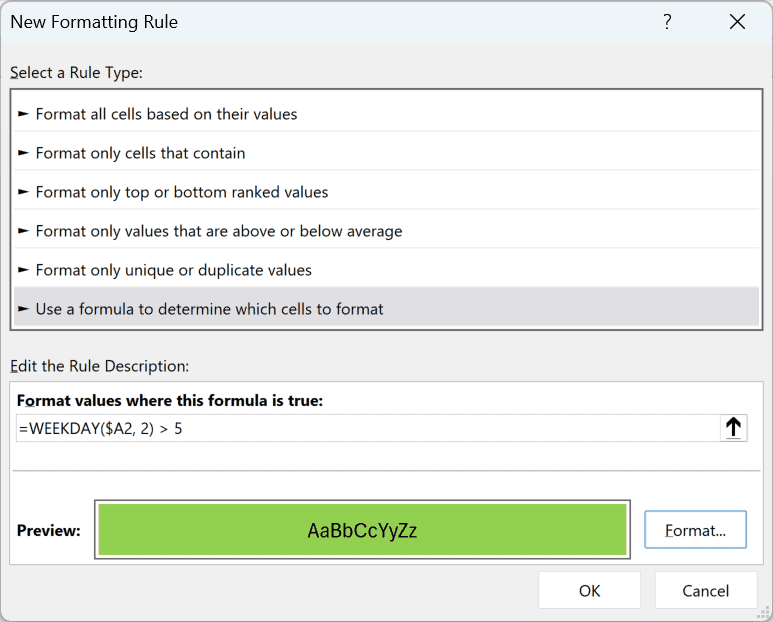
Pick a fill color under Format and click OK. Every date where WEEKDAY returns a 6 or 7 (Saturday or Sunday) gets the fill, and the weekdays are left alone.
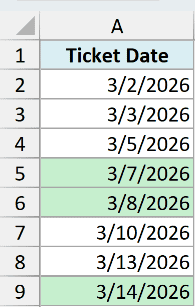
Notice the column letter is locked with a dollar sign ($A2) but the row is not. That lets the rule check each row’s own date as it moves down the list.
Example 6: Count How Many Weekend Days Are in a List
Finally, let’s count the weekend dates instead of labeling them. WEEKDAY doesn’t add anything up on its own, but it works nicely inside SUMPRODUCT to give you a count.
Here is the same list of support ticket dates in column A. I want a single number telling me how many of them fell on a weekend.
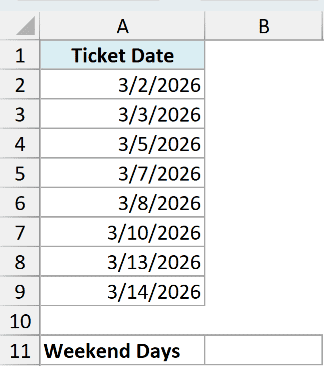
I want the total count of weekend tickets in one cell.
Here is the formula:
=SUMPRODUCT(--(WEEKDAY(A2:A9, 2) > 5))
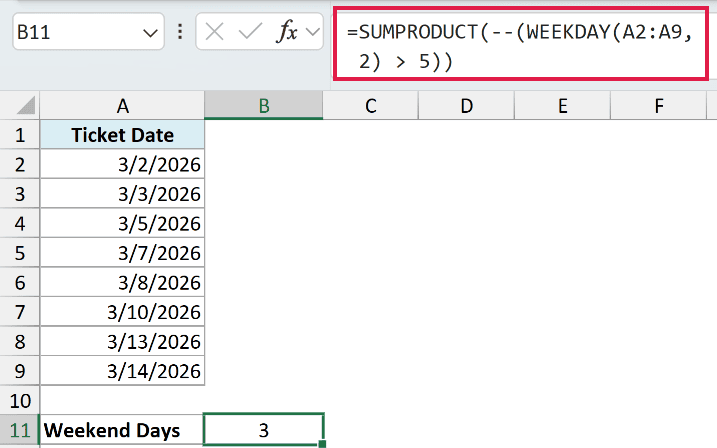
This returns 3, since three of the dates land on a Saturday or Sunday.
Here is how it works:
- WEEKDAY(A2:A9, 2) > 5 checks each date and returns a list of TRUE and FALSE values, TRUE for the weekend dates.
- The double minus (—) turns each TRUE into 1 and each FALSE into 0.
- SUMPRODUCT then adds up those 1s and 0s, which gives you the count of weekend dates.
Tips & Common Mistakes
A few things that trip people up with WEEKDAY:
- Sunday is 1 by default. If you leave out the return_type, the week starts on Sunday, not Monday. Add a 2 as the second argument when you want Monday to be day 1.
- WEEKDAY returns a number, not a day name. To get “Monday” instead of 2, pair it with CHOOSE as shown above, or use =TEXT(A2,”dddd”).
- An out-of-range return_type gives a #NUM! error. Only 1, 2, 3, and 11 through 17 are valid. Anything else returns #NUM!, as does a date serial outside Excel’s supported date range.
- A #VALUE! error means Excel can’t interpret the input. Some text dates work, but their interpretation can depend on regional settings. Use a real Excel date to avoid that problem.
- WEEKDAY doesn’t skip holidays. It returns a day number for all seven days and has no holiday calendar. To count working days while skipping holidays, use the NETWORKDAYS function instead.
Wrapping Up
The WEEKDAY function is a small tool that does a lot once you know the return_type trick. Start with a plain day number, switch to Monday-first numbering when you need it, and build weekend logic on top with IF, CHOOSE, or SUMPRODUCT.
I hope you found this tutorial helpful. Let me know in the comments if you have a WEEKDAY scenario you’re stuck on.
Other Excel Articles You May Also Like:
