

The ISOWEEKNUM function returns the week number of a date using the ISO 8601 system. In this system, every week starts on a Monday, and week 1 is the week that has the first Thursday of the year.
It’s the one to use when your reports or schedules follow ISO week numbers. The catch is that a few days around New Year can belong to a week of the other year.
In this article, I’ll show you how the function works, how it differs from WEEKNUM, and how to group and filter your data by ISO week.
Follow along with the example file
ISOWEEKNUM Function Examples.xlsx
ISOWEEKNUM Function Syntax
Here is the syntax of the ISOWEEKNUM function:
=ISOWEEKNUM(date)
- date – The date you want the ISO week number for. This can be a cell with a date, a formula that returns a date (such as DATE or TODAY), or a range of dates.
This is the only argument. Unlike WEEKNUM, there is no second argument to pick the day the week starts on, because ISO weeks always start on Monday.
The result is always a whole number from 1 to 53.
The date has to be something Excel can read as a date. Text that isn’t a date (such as “next Monday”) returns a #VALUE! error, and a negative number returns a #NUM! error.
The ISOWEEKNUM function works in Excel 2013 and later, including Excel for Microsoft 365, Excel 2024, 2021, 2019, 2016, and Excel for Mac.
When to Use the ISOWEEKNUM Function
Use this function when you need to:
- Get week numbers that start on Monday and match the ISO calendar
- Group or total daily data by week, such as weekly sales, hours, or miles
- Build year-week labels like 2026-W05 for reports
- Pull out all the records that fall in a specific week
- Check whether a year has 52 or 53 weeks
Let me show you a few practical examples of how to use the ISOWEEKNUM function.
Example 1: Get the ISO Week Number From a Date
Let’s start with a simple example.
Below is a list of upcoming flights with the date of each flight, and I want to get the ISO week number of each flight date in column C.
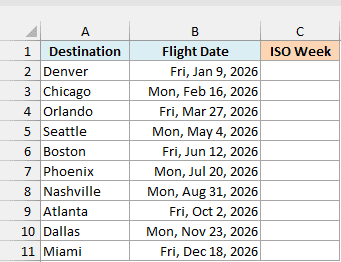
Here is the formula:
=ISOWEEKNUM(B2:B11)
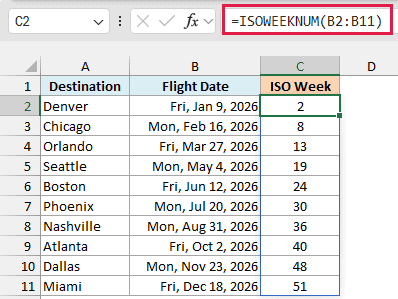
You enter this formula only once, in cell C2, and it spills down to C11 with one week number for each date. For example, Monday, May 4, 2026 is in week 19, and Friday, December 18, 2026 is in week 51.
If you are using Excel 2019 or earlier, enter the below formula in cell C2 and then copy it down to C11:
=ISOWEEKNUM(B2)
Important: ISOWEEKNUM doesn’t skip blank cells. A blank is read as 0 (January 0, 1900) and returns week 52, so if your date column has empty rows, check for blanks first, for example with the IF function.
Example 2: ISOWEEKNUM vs WEEKNUM Around New Year
Now let’s see where ISO week numbers differ from the regular week numbers you get with the WEEKNUM function.
Below is a list of holiday cake pickups at a bakery from December 26, 2025 to January 5, 2026, and I want the regular week number in column C and the ISO week number in column D.
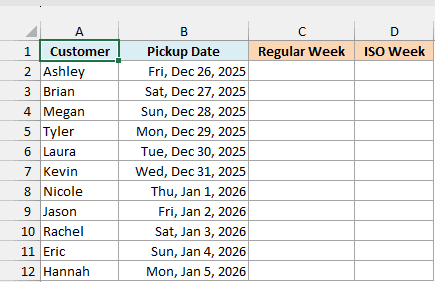
WEEKNUM doesn’t spill when you give it a range (=WEEKNUM(B2:B12) returns a #VALUE! error, and you need a small workaround to make it spill). So here is the WEEKNUM formula in cell C2, copied down to C12:
=WEEKNUM(B2)
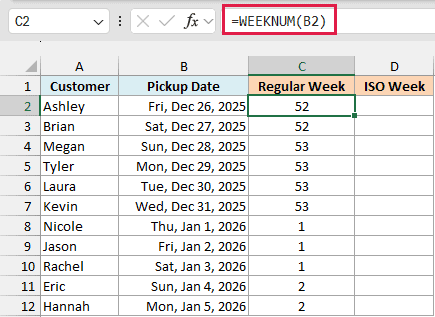
With its default setting, WEEKNUM starts each week on a Sunday, and week 1 is always the week that contains January 1. So Sunday, December 28, 2025 starts week 53, and the count goes back to 1 on Thursday, January 1, 2026.
Now here is the ISOWEEKNUM formula in cell D2:
=ISOWEEKNUM(B2:B12)
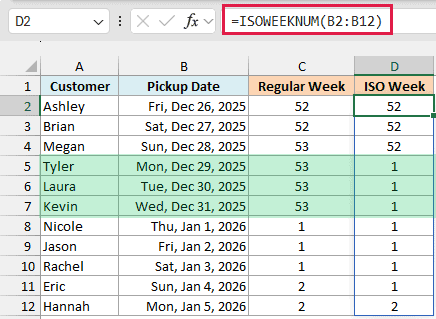
January 1, 2026 is a Thursday, so ISO week 1 of 2026 starts on Monday, December 29, 2025. That’s why December 29 to 31 show week 1 here, while WEEKNUM puts the same three days in week 53.
The two Sundays show the other difference. ISOWEEKNUM keeps each Sunday with the Monday before it, so December 28 stays in week 52 and January 4 stays in week 1, while WEEKNUM starts a new week on both (53 and 2).
WEEKNUM can return the same ISO week numbers if you use 21 as its second argument. ISOWEEKNUM gives you that result without having to remember the code.
Example 3: Find Years That Have 53 ISO Weeks
Most years have 52 ISO weeks, but some have 53, and ISOWEEKNUM can tell you which ones.
Below is a list of years from 2024 to 2033, and I want the number of ISO weeks in each year in column B.
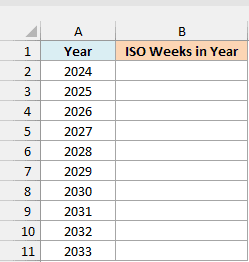
Here is the formula:
=ISOWEEKNUM(DATE(A2:A11,12,28))
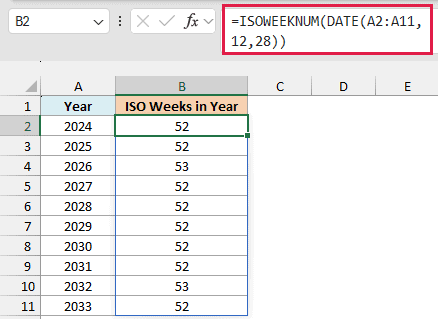
The DATE function builds December 28 for each year, and ISOWEEKNUM returns the week number of that date. December 28 always falls in the last ISO week of its year, so its week number is also the number of weeks in that year.
In this list, 2026 and 2032 have 53 weeks. A year gets a 53rd ISO week when it starts on a Thursday, or when it’s a leap year that starts on a Wednesday.
You can’t use December 31 for this, because it can already be in week 1 of the next year. That’s the case for December 31, 2024 and December 31, 2025, so you would get 1 instead of 52.
Example 4: Create ISO Year-Week Labels Like 2026-W53
Now let’s build year-week labels, where the year part can easily go wrong for the first few days of January.
Below is a photographer’s list of shoots from December 2026 to January 2027, and I want a year-week label like 2026-W49 for each shoot date. I’ll build it with a simple formula in column C, then with the correct one in column D.
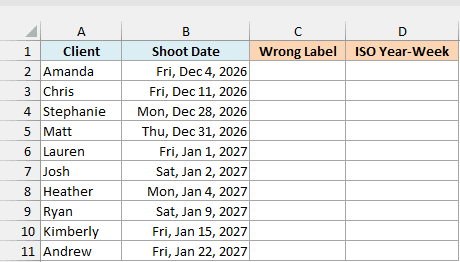
Here is the simple formula, in cell C2:
=YEAR(B2:B11)&"-W"&TEXT(ISOWEEKNUM(B2:B11),"00")
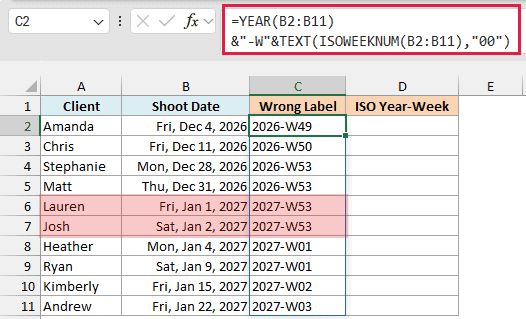
It joins the year, the text -W, and the week number. The TEXT function adds a leading zero, so week 1 shows as 01 and the labels sort in the right order.
Now look at Friday, January 1, 2027 and Saturday, January 2, 2027. They get 2027-W53, but they belong to week 53 of 2026.
ISOWEEKNUM gets the week right, but the YEAR function returns the calendar year, so the label points to a week that doesn’t exist (2027 only has 52 ISO weeks).
Here is the formula that gets the year right, in cell D2:
=LET(d,B2:B11,YEAR(d-WEEKDAY(d,2)+4)&"-W"&TEXT(ISOWEEKNUM(d),"00"))
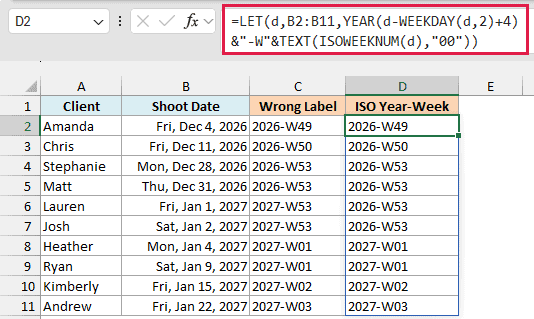
How this formula works:
- The LET function names the date range d, so the formula doesn’t have to repeat B2:B11.
- With 2 as its second argument, the WEEKDAY function returns 1 for Monday through 7 for Sunday, so d-WEEKDAY(d,2)+4 gives the Thursday of the same ISO week.
- An ISO week belongs to the year its Thursday falls in, so YEAR of that Thursday is the correct year for the label.
- The rest works as before, adding -W and the week number with a leading zero.
Now January 1 and 2, 2027 show 2026-W53, and the 2027 labels start with Monday, January 4.
If you are using Excel 2019 or earlier, which doesn’t have the LET function, enter the below formula in cell D2 and then copy it down to D11:
=YEAR(B2-WEEKDAY(B2,2)+4)&"-W"&TEXT(ISOWEEKNUM(B2),"00")
Example 5: Get Weekly Totals by ISO Week Number
Let’s step it up and use ISO weeks to build a weekly summary.
Below is a runner’s log with the date and miles of each run in March 2026, and I want the total miles for each ISO week in columns D and E.
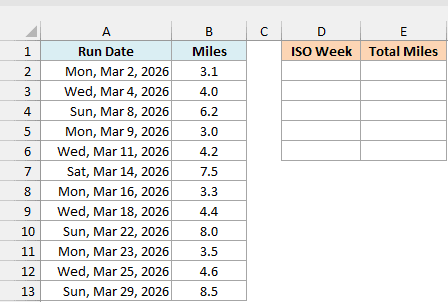
Here is the formula:
=GROUPBY(ISOWEEKNUM(A2:A13),B2:B13,SUM)
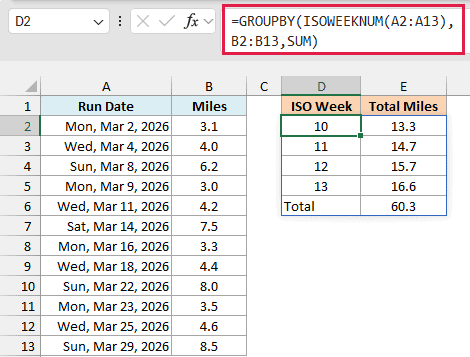
ISOWEEKNUM(A2:A13) turns the twelve run dates into week numbers. The GROUPBY function then groups the miles by those week numbers and adds them up with SUM, giving one row per week plus a Total row that GROUPBY adds by default.
Notice that the Sunday runs, like the 6.2 miles on March 8, count toward the same week as the Monday before them. So each total covers a full Monday to Sunday week.
With SUMIFS, you’d first need a helper column of week numbers, because its criteria range has to be a range on the sheet, not the result of ISOWEEKNUM. GROUPBY takes the ISOWEEKNUM result directly, so you can skip that column.
GROUPBY is only available in Excel for Microsoft 365. If you are using another version, type the week numbers 10 to 13 in D2:D5, then enter the below formula in cell E2 and copy it down to E5:
=SUMPRODUCT((ISOWEEKNUM($A$2:$A$13)=D2)*$B$2:$B$13)
Example 6: Filter Records for a Specific ISO Week
Here’s one more practical use.
Below is a dog walker’s booking list for November 2026, and I want to get all the walks in the ISO week entered in cell F1, with the results in columns H to J.
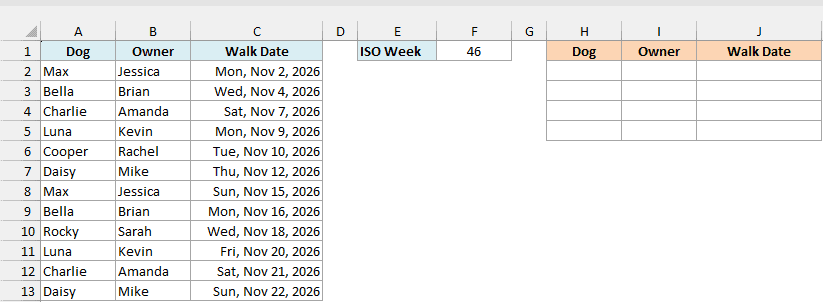
Here is the formula:
=FILTER(A2:C13,ISOWEEKNUM(C2:C13)=F1,"No walks")
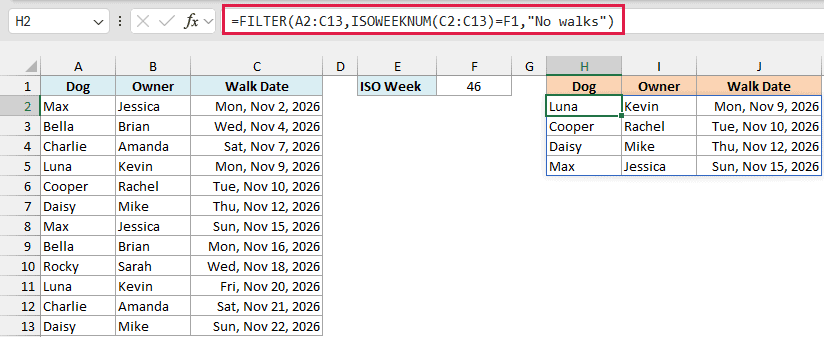
ISOWEEKNUM(C2:C13)=F1 checks each walk date and returns TRUE for the dates in week 46. The FILTER function then returns only those rows, which here are the four walks from Monday, November 9 to Sunday, November 15, 2026.
Change the number in F1 and the list updates on its own.
If no walks fall in the week you enter, the formula shows “No walks”, which is what the third argument is for. Without it, you would get a #CALC! error.
The FILTER function works in Excel 2021 and later, and in Excel for Microsoft 365. In older versions, add a column with the ISO week of each date and filter on it with the Filter button instead.
Important: This formula checks only the week number, not the year. If your list covers more than one year, week 46 of 2025 and week 46 of 2026 would both show up, so also check the ISO year (the Thursday method from Example 4).
So these are some of the ways you can use the ISOWEEKNUM function in Excel to get Monday-based week numbers, handle the days around New Year, and total or filter your data by week. I hope you found this article helpful.
Other Excel Articles You May Also Like:
