

The YEAR function in Excel gives you the year of a date as a four-digit number, so 3/14/2026 becomes 2026. On its own it’s simple, but it becomes really handy inside bigger date formulas, like checking whether a date falls in the current year.
Below, I’ll walk you through seven examples, from pulling the year out of a date to filtering and totaling data by year. I’ll also show you why YEAR sometimes seems to return 1905, and how to fix it.
Follow along with the example file
YEAR Function Examples.xlsx
YEAR Function Syntax
Here is the syntax of the YEAR function:
=YEAR(serial_number)
- serial_number – The date you want the year from. This is usually a cell with a date in it, but it can also be a date returned by another formula, or a whole range of dates.
YEAR always returns a whole number between 1900 and 9999. If the cell also holds a time, like 3/14/2026 5:30 PM, YEAR simply ignores the time and returns 2026.
You can also type a date straight into the formula in quotes, so =YEAR("15-Mar-2026") returns 2026. But if Excel can’t read the text as a date, like “25/12/2026” on a computer set to US dates (there’s no 25th month), you get a #VALUE! error.
That’s why it’s safer to point YEAR at a cell that holds a real date. If the date doesn’t live in a cell, build it with the DATE function instead, as in =YEAR(DATE(2026,12,25)).
The YEAR function works in all Excel versions, including 365, 2024, 2021, 2019, 2016, Mac, and the web.
When to Use the YEAR Function
Use this function when you need to:
- Pull the year out of a date so you can sort or group by year
- Check whether a date falls in the current year
- Find how far into the year a date is, or how many days are left
- Check whether a year is a leap year
- Filter or total your data for a specific year
Let me show you a few practical examples of how to use the YEAR function.
Example 1: Extract the Year From a Date in Excel
Let’s start with the most common use.
Below is a list of household items with the date each one was bought, and I want the year it was bought in column C.
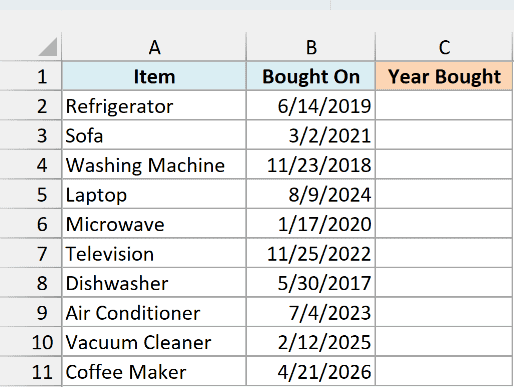
Here is the formula:
=YEAR(B2:B11)
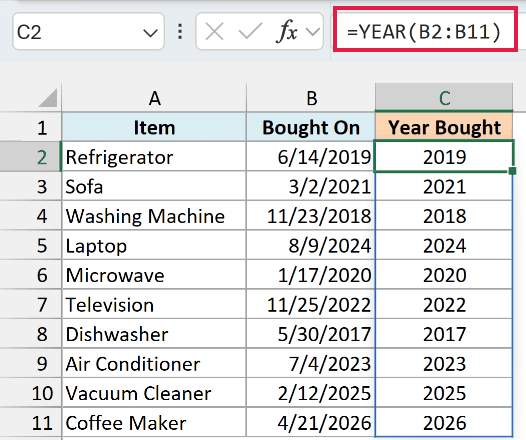
In the above formula, I’ve given YEAR the whole range of dates (B2:B11) instead of one cell. It returns one year for each date, and the results spill into C2:C11 by themselves.
So the Refrigerator, bought on 6/14/2019, gets 2019, and the Coffee Maker, bought on 4/21/2026, gets 2026.
The spill needs the cells below C2 to be empty. If anything is sitting in C3:C11, you get a #SPILL! error instead of the results, and clearing those cells fixes it.
If you are using Excel 2019 or earlier, enter the below formula in cell C2 and then copy it down to C11:
=YEAR(B2)
Pro Tip: If you only want a date to show its year, you don’t need a formula. Give the cell the custom number format yyyy (Ctrl + 1, then Custom), and it shows 2019 while still holding the full date.
Example 2: Check if a Date Is in the Current Year
Here’s something you’d use in a simple tracker.
Below is a list of family members with their passport expiry dates, and I want to flag the passports that expire this year in column C.
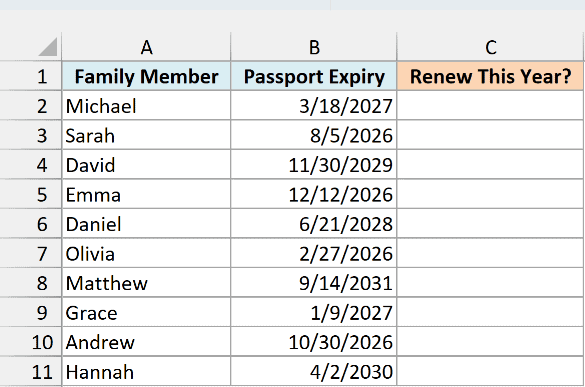
Here is the formula:
=IF(YEAR(B2:B11)=YEAR(TODAY()),"Yes","No")
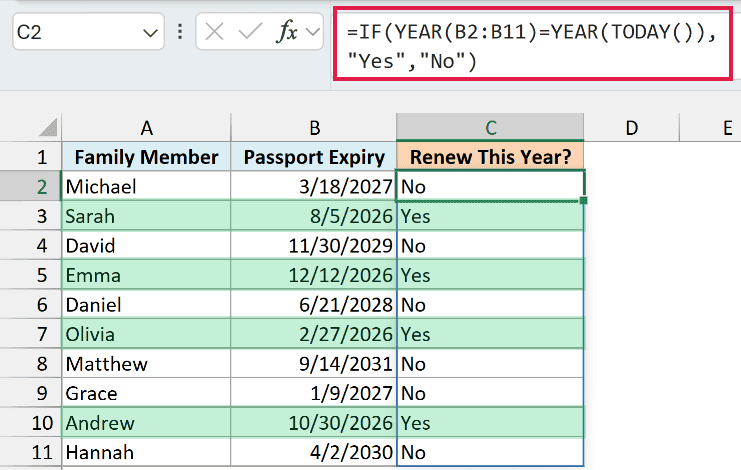
How this formula works:
- YEAR(TODAY()) gives you the current year. The TODAY function returns today’s date, and YEAR pulls the year out of it, so as I write this, you get 2026.
- YEAR(B2:B11) gets the expiry year of each passport.
- IF compares the two and returns “Yes” when the expiry year is the current year, and “No” when it isn’t.
So Sarah, Emma, Olivia, and Andrew get a Yes. Olivia’s passport expired back in February, but it’s still flagged, because the formula only looks at the year.
Since the formula uses TODAY, it updates itself. Open this file on January 1, 2027, and Michael’s and Grace’s passports flip to Yes, while the 2026 ones go back to No.
If you’d rather check a fixed year, replace YEAR(TODAY()) with that year, like 2027.
If you are using Excel 2019 or earlier, enter the below formula in cell C2 and then copy it down to C11:
=IF(YEAR(B2)=YEAR(TODAY()),"Yes","No")
Example 3: Fix YEAR Returning 1905 Instead of the Year
This next one confuses a lot of people, because the formula is right but the result looks wrong.
Below is a list of pets with their adoption dates, and I want the adoption year in column C.
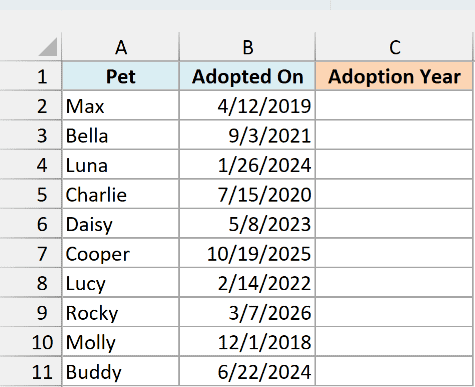
Here is the formula:
=YEAR(B2:B11)
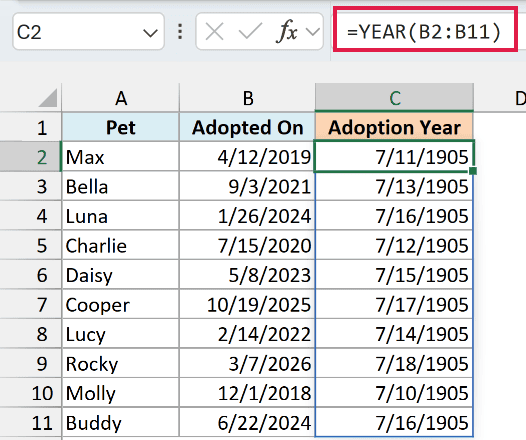
Instead of years, column C shows dates like 7/11/1905. This happens when the result cells already have a date format, for example when you made column C by copying the date column next to it.
YEAR did its job and returned 2019 for Max. But Excel stores dates as numbers that count days from January 1, 1900, and day number 2019 falls on July 11, 1905, so that’s what the date format shows.
To fix it, select C2:C11 and change the format to General from the Number Format drop-down on the Home tab (or press Ctrl + Shift + ~).
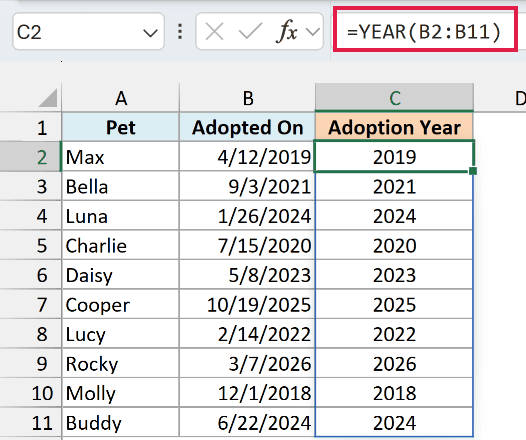
Now the same formula shows 2019 for Max and 2024 for Luna. Nothing about the formula changed, only the way the result is displayed.
There’s one more way to end up with 1905. If a cell already holds a year as a plain number, like 2026, and you wrap YEAR around it, you get 1905.
That’s because Excel reads 2026 as a date in 1905, so =YEAR(2026) returns 1905. In that case, you don’t need YEAR at all, because the cell already has the year.
Example 4: Find the Day of the Year and Days Left
Now let’s use YEAR to work out where a date sits within its year.
Below is a list of US holidays in 2026, and I want the day number of the year for each one in column C and the days left in the year in column D.
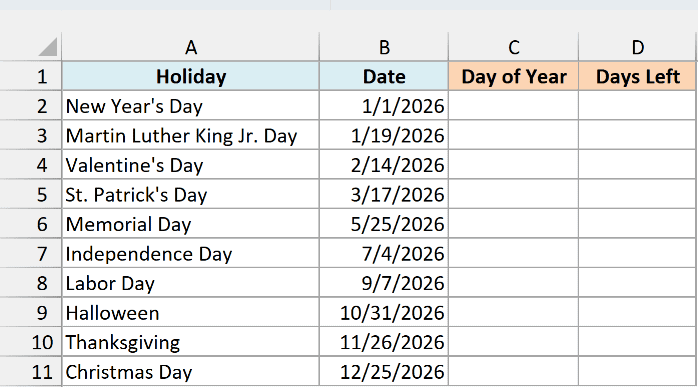
Here is the formula for the day of the year:
=B2:B11-DATE(YEAR(B2:B11),1,0)
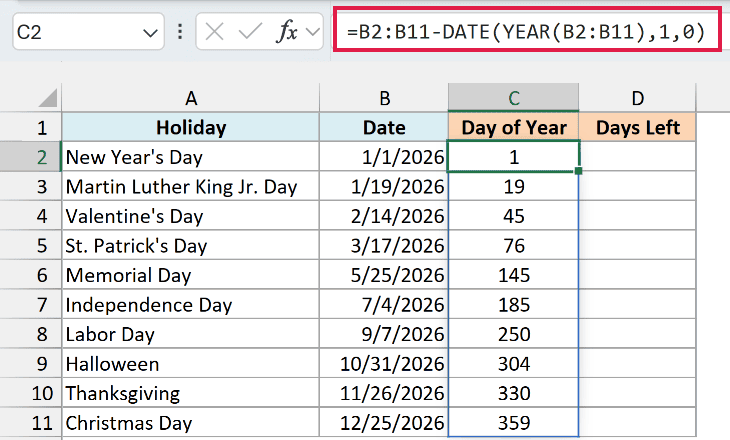
The DATE function builds a date from a year, a month, and a day. Here, it takes the year of each holiday, month 1, and day 0.
There’s no day 0 in January, so Excel steps back to the last day of the previous month, which is December 31 of the year before.
Subtracting that from each holiday gives its day number. So Valentine’s Day is day 45, and Christmas Day is day 359.
Here is the formula for the days left in the year:
=DATE(YEAR(B2:B11),12,31)-B2:B11
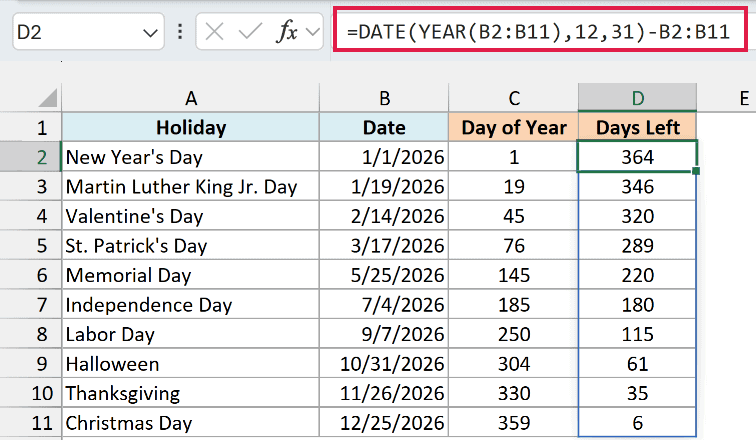
This time, DATE builds December 31 of the same year (the end of the year), and the formula subtracts the holiday from it. So there are 364 days left after New Year’s Day and just 6 after Christmas Day.
YEAR is what makes both formulas work for any year. If your list had dates from 2025 and 2027 as well, each date would be measured against its own year.
If the results show up as dates instead of plain numbers, the cells have a date format. Change them to General, just like in Example 3.
If you are using Excel 2019 or earlier, enter the below formula in cell C2 for the day of the year and then copy it down to C11:
=B2-DATE(YEAR(B2),1,0)
And for the days left, enter the below formula in cell D2 and copy it down to D11:
=DATE(YEAR(B2),12,31)-B2
Example 5: Check if a Year Is a Leap Year
Here’s a neat little trick.
Below is a list of friends with their birthdays, and I want to check whether each one was born in a leap year in column C.
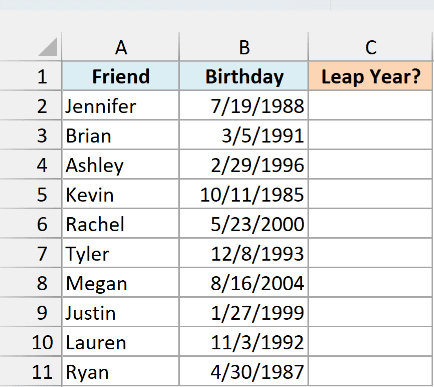
Here is the formula:
=IF(MONTH(DATE(YEAR(B2:B11),2,29))=2,"Yes","No")
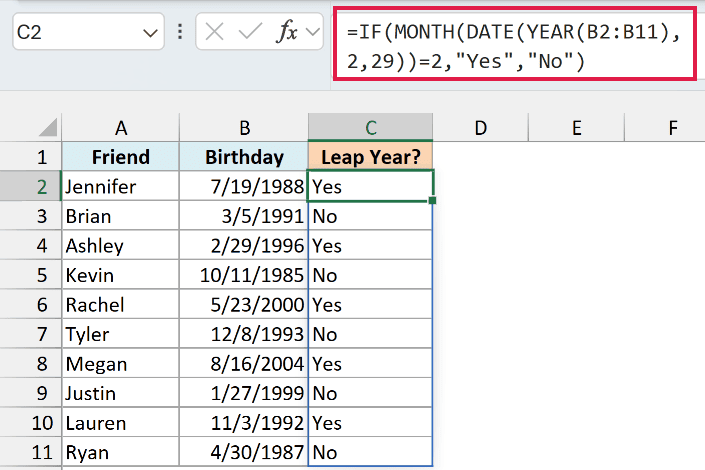
How this formula works:
- YEAR(B2:B11) gets the year each friend was born.
- DATE(…,2,29) tries to build February 29 of that year. In a leap year that date exists, but in any other year Excel rolls it over to March 1.
- MONTH(…)=2 uses the MONTH function to check whether the date stayed in February, which only happens in a leap year.
- IF turns that TRUE or FALSE into “Yes” or “No”.
So Ashley, who was born on 2/29/1996, gets a Yes, and so do Jennifer, Rachel, Megan, and Lauren. Brian, born in 1991, gets a No.
This also gets the tricky century years right. The year 2000 was a leap year (that’s why Rachel gets a Yes), but 2100 won’t be one.
The DATE function already knows these calendar rules, so you don’t have to write the divide-by-4 checks yourself.
If you are using Excel 2019 or earlier, enter the below formula in cell C2 and then copy it down to C11:
=IF(MONTH(DATE(YEAR(B2),2,29))=2,"Yes","No")
Example 6: Filter Data for a Specific Year
Now let’s use YEAR to show only the rows from one particular year.
Below is a car maintenance log with the date, service, and cost of each visit, and I want to pull out every service from the year I type in F1.
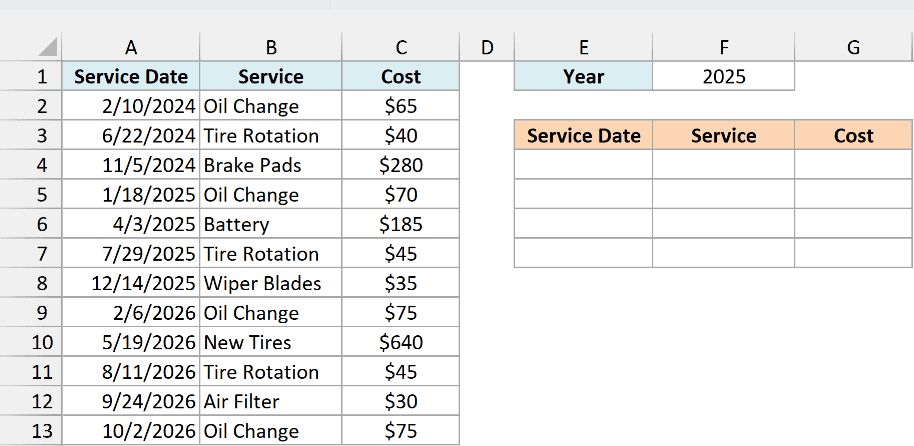
Here is the formula in E4:
=FILTER(A2:C13,YEAR(A2:A13)=F1)
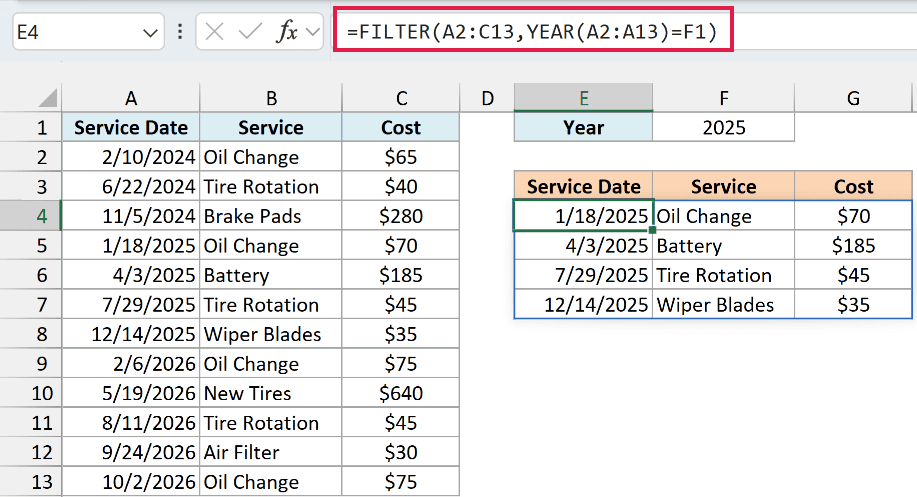
With 2025 in F1, this returns the four services from 2025, from the oil change in January to the wiper blades in December.
How this formula works:
- YEAR(A2:A13)=F1 gets the year of every service date and checks it against F1. It returns TRUE for the 2025 dates and FALSE for the rest.
- FILTER keeps only the rows of A2:C13 where that check is TRUE, and spills them into E4:G7.
Change F1 to 2026, and the list updates to show the five services from 2026 instead.
If you type a year with no services, like 2023, FILTER returns a #CALC! error, because there’s nothing to show. You can add a third argument with a message, such as “No services”, to show that instead.
The FILTER function works in Excel 2021, 2024, and Microsoft 365, so this example won’t work in Excel 2019 or earlier.
Example 7: Sum Values by Year
Let’s finish with a quick yearly summary.
Below is a list of quarterly electricity bills for three years, and I want the total paid in each year, starting in D2.
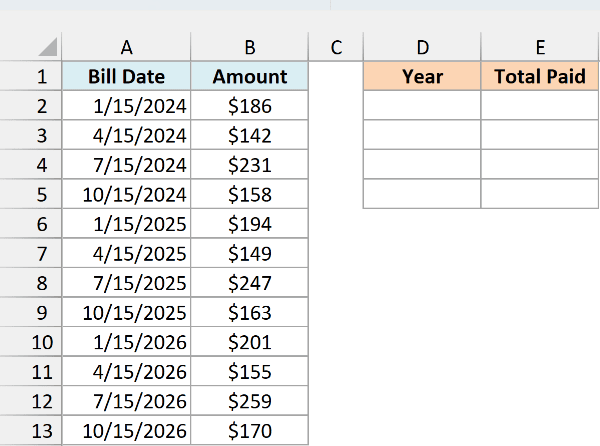
Here is the formula:
=GROUPBY(YEAR(A2:A13),B2:B13,SUM)
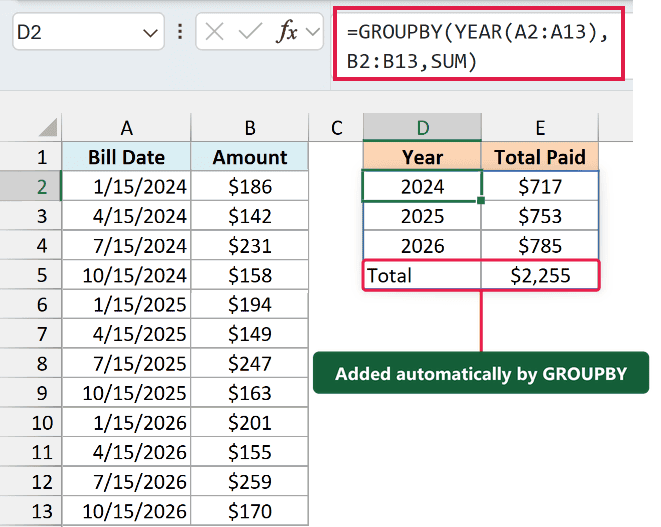
The GROUPBY function builds the whole summary from this one formula: $717 for 2024, $753 for 2025, $785 for 2026, and a Total row of $2,255 at the bottom.
How this formula works:
- YEAR(A2:A13) turns every bill date into its year. These years are what GROUPBY groups by.
- B2:B13 holds the bill amounts, which are the values to add up.
- SUM tells GROUPBY how to combine the amounts in each group. Swap it for COUNT, and you get the number of bills in each year instead.
GROUPBY adds the Total row on its own. And if you change a bill’s date or amount, the summary updates right away.
Important: GROUPBY is only available in Excel for Microsoft 365. In Excel 2024, 2021, or any older version, this formula won’t work.
If you are using an older version, type the years in D2:D4, then enter the below formula in cell E2 and copy it down to E4:
=SUMPRODUCT((YEAR($A$2:$A$13)=D2)*$B$2:$B$13)
So that’s how the YEAR function works. It does one simple job, but paired with functions like TODAY, DATE, FILTER, and GROUPBY, it lets you flag, filter, and total your data by year.
I hope you found this article helpful.
Other Excel Articles You May Also Like:
