

If you want a cell to always show the current date, or you need to work out things like due dates and years of service based on today’s date, the TODAY function is what you need.
TODAY does not take any input and does not spill into a range. It returns a single value, today’s date, and it updates whenever Excel recalculates. With automatic calculation enabled, this normally happens when the workbook opens or changes.
In this article, I’ll show you how the TODAY function works and walk through some practical examples of it in action.
Follow along with the example file
TODAY Function Examples.xlsx
TODAY Syntax
Here is the syntax of the TODAY function:
=TODAY()
TODAY is one of the few functions that takes no arguments. You just type the name and a pair of empty parentheses, and it returns the current date.
The result is stored as a date serial number, and Excel automatically formats the cell as a date. If you ever see a plain number like 46213 instead of a date, change the cell format back to a date format.
When to Use the TODAY Function in Excel
Use the TODAY function when you need to:
- Show the current date on a report, dashboard, or printout that stays up to date on its own
- Calculate a future or past date, like a due date that is a set number of days from now
- Work out durations that depend on the current date, such as age, tenure, or months since an event
- Drive conditional formatting or logic that reacts to whether a date is in the past or future
Let me show you a few practical examples of how to use this function.
Example 1: Insert Today’s Date in a Cell
Let’s start with the simplest use of the function.
Below is a blank worksheet. There is no dataset here because TODAY does not need one. It just reports the current date wherever you put it.
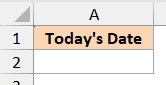
I want cell A2 to display the current date.
Here is the formula:
=TODAY()
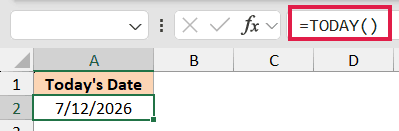
The cell now shows today’s date. Because TODAY is a volatile function, it updates when Excel recalculates. With automatic calculation enabled, open the file next week and it will show next week’s date, with no editing from you.
That auto-updating behavior is exactly what you want on a printed report header. It is not what you want when you need to stamp a date that should never change.
Pro Tip: To enter a fixed date that will not change, use the keyboard shortcut Control + ; (hold Control and press the semicolon). This types today’s date as a static value instead of a formula.
Example 2: Calculate a Future Due Date
Here is a common scenario where TODAY does the heavy lifting inside a small calculation.
Below is a short list of library books that were checked out today. Each book is due back a set number of days later.
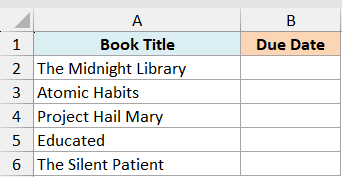
I want the due date to be 14 days from today for every book.
Here is the formula:
=TODAY()+14
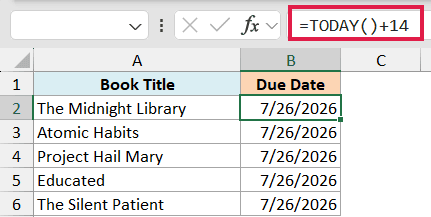
Since dates are stored as serial numbers, adding 14 to today’s date simply moves it 14 days forward. Subtract instead, like =TODAY()-7, and you get a date one week in the past.
Because the formula is built on TODAY, the due date moves forward when Excel recalculates on a later day. That is great for a live tracker, but remember it is a moving target, not the date the book was actually issued.
Pro Tip: TODAY()+14 counts calendar days, including weekends. If you need a due date that skips weekends and holidays, use the WORKDAY function instead.
Example 3: Calculate Years of Service from a Hire Date
Now let’s use TODAY to measure how long something has been going on.
Below is a small staff roster with each person’s name and hire date. I want to know each person’s years of service as of today.
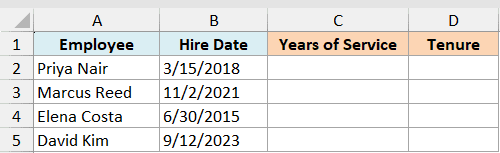
I want the complete years of service for each employee, counted up to today’s date.
Here is the formula:
=DATEDIF(B2,TODAY(),"Y")
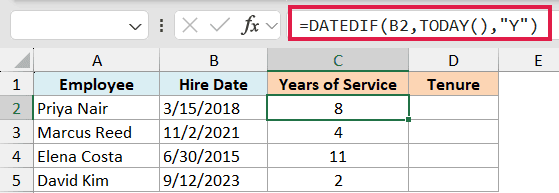
The DATEDIF function measures the gap between two dates. Here the start date is the hire date in B2, the end date is TODAY(), and “Y” tells it to return only the number of complete years.
For a hire date of 15 March 2018, with today being 12 July 2026, this returns 8. The screenshots show fixed example dates; your results will reflect the date Excel recalculates.
Often you want the tenure spelled out as years and months, not just whole years. You can do that by joining two DATEDIF calls together.
Here is the formula:
=DATEDIF(B2,TODAY(),"Y")&" years "&DATEDIF(B2,TODAY(),"YM")&" months"
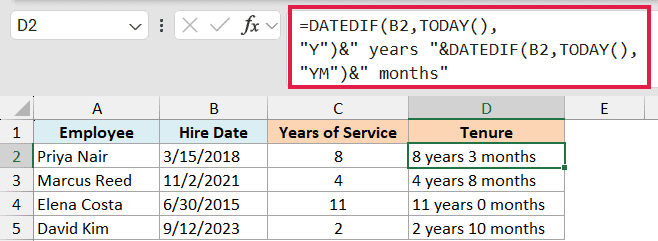
The first DATEDIF returns the complete years. The second uses “YM”, which gives the leftover months after those full years are counted. For the same 15 March 2018 hire date, this returns “8 years 3 months”.
Pro Tip: DATEDIF is a hidden function, so Excel will not show a tooltip or autocomplete as you type it. It still works fine. Just type the whole formula out and it will calculate.
Example 4: Count Months Since a Past Date
This is a variation of the same idea, but returning months instead of years.
Below is a maintenance log listing pieces of equipment and the date each one was last serviced. I want to know how many months have passed since the last service.
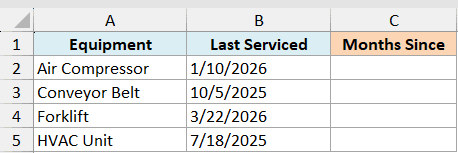
I want the number of complete months between the last service date and today.
Here is the formula:
=DATEDIF(B2,TODAY(),"m")
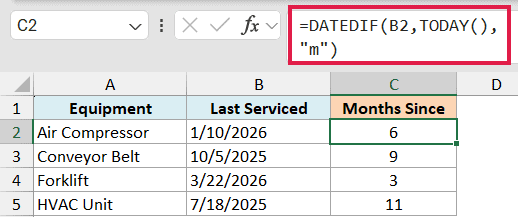
Using “m” as the unit tells DATEDIF to return the total number of complete months between the two dates. For a last service date of 10 January 2026, with today being 12 July 2026, this returns 6.
Since the end date is TODAY(), this count updates when Excel recalculates on a later date. It is a handy way to spot equipment that is overdue for a check without editing anything manually.
For days instead of months, subtract dates because Excel stores them as serial numbers. On the Example 4 Days sheet, this formula counts days until a future date in B2:
=B2-TODAY()
To count days since a past date in B3, subtract it from today:
=TODAY()-B3
A negative result means B2 is in the past or B3 is in the future. If the result displays as a date, change the cell format to General or Number.
Example 5: Flag Overdue Items with an IF Formula
Let’s turn today’s date into a simple status label.
Below is a list of tasks, each with a deadline. I want a status column that tells me at a glance which tasks have slipped past their deadline.
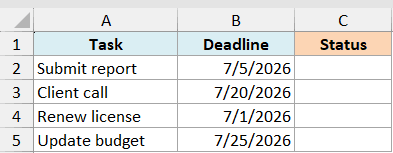
I want each task marked as “Overdue” if its deadline has already passed, and “On Track” if it has not.
Here is the formula:
=IF(B2<TODAY(),"Overdue","On Track")
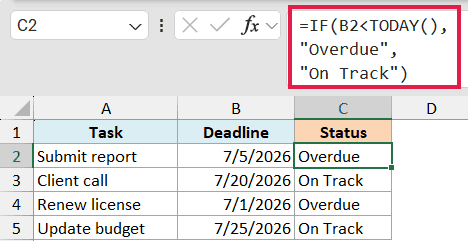
The IF function checks whether the deadline in B2 is earlier than today’s date. If it is, the task is in the past, so the formula returns “Overdue”. If not, it returns “On Track”.
Because TODAY updates when Excel recalculates, this status column keeps itself current. A task that is on track today will flip to “Overdue” after its deadline passes and Excel recalculates.
Example 6: Highlight Past-Due Dates with Conditional Formatting
Instead of a text label, you can have Excel color the dates themselves.
Below is the same kind of deadline list. This time I want the cells with past deadlines to stand out in red, so overdue items jump out visually.
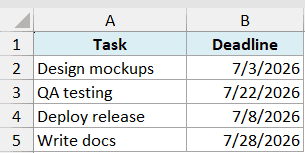
I want every deadline that is earlier than today to get a red fill.
Select the deadline cells, go to Home, then Conditional Formatting, then New Rule, and choose “Use a formula to determine which cells to format”. Here is the formula:
=B2<TODAY()
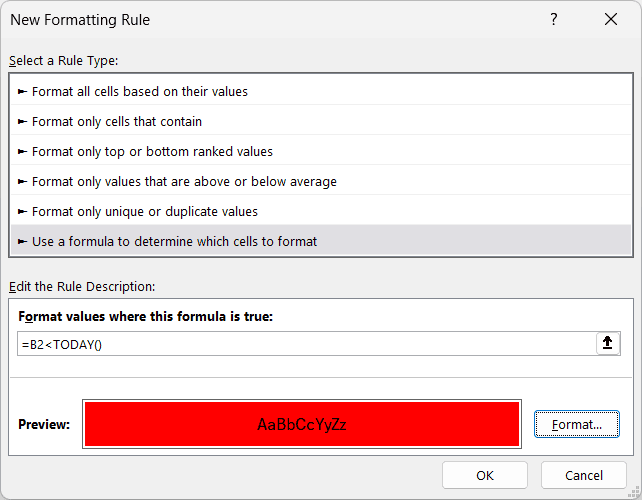
The rule returns TRUE for any cell whose date is before today, and Excel applies your chosen red fill to those cells. Set the fill in the Format button of the same dialog.
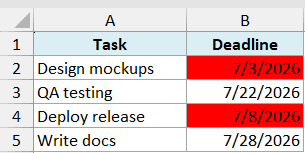
The big advantage over typing the dates in by hand is that this updates when Excel recalculates. A deadline that is upcoming today will turn red after it passes and Excel recalculates, with no need to touch the rule again.
Tips & Common Mistakes
- TODAY does not spill or take a range. It returns one value, today’s date. To work with a whole column of dates, you feed TODAY into other formulas like DATEDIF or IF, as shown above, rather than expecting it to fill a range on its own.
- It is volatile, so it never stays put. TODAY recalculates whenever Excel runs a calculation. Choose File > Options > Formulas > Calculation options > Automatic to update it when the sheet changes or reopens. Press F9 to recalculate all worksheets in all open workbooks right away. If you need the date something actually happened, do not use TODAY. Type it in, or press Control + ; for a static date.
- Getting a number instead of a date? If a cell shows something like 46213, the cell is formatted as a number. Change it to a date format from the Home tab and the date appears.
- TODAY returns only the date, never the time. If you also need the current time, use the NOW function instead.
- Use TODAY for calendar days, WORKDAY for business days. TODAY()+n counts every day including weekends. To land on a working day, switch to WORKDAY.
- Heavy use can slow a large file. Because volatile functions recalculate on every calculation, hundreds of TODAY formulas in a big workbook can make it feel sluggish. Reference one TODAY cell from the others where you can.
That covers the main ways you will use the TODAY function in Excel, from stamping the current date to calculating due dates, years of service, and overdue flags.
The key thing to remember is that TODAY reflects the current date when Excel recalculates. That is what makes it so useful for anything that needs to stay current.
Give these examples a try in your own sheet, and you will quickly see where a live, self-updating date saves you the trouble of editing dates by hand.
Other Excel Articles You May Also Like:
