

If you want to find how much time sits between two dates in Excel, whether in years, months, or days, the DATEDIF function is the quickest way to do it.
There’s one catch worth knowing up front. DATEDIF is a hidden function, so Excel won’t show it in the autocomplete list as you type. You have to spell the whole thing out yourself, which throws people off the first time.
Nothing to worry about though. Once you know the three arguments it takes, it’s simple to use. In this article I’ll show you how to use DATEDIF to get the years, months, days, weeks, and even someone’s age between two dates.
DATEDIF can spill in Excel versions that support dynamic arrays. The examples below use one pair of dates per row, so you copy those formulas down.
Follow along with the example file
DATEDIF Function Examples.xlsx
DATEDIF Function Syntax
Here is the syntax of the DATEDIF function:
=DATEDIF(start_date, end_date, unit)
- start_date – the earlier date, where the period begins.
- end_date – the later date, where the period ends. It has to be on or after the start_date, or DATEDIF returns a #NUM! error.
- unit – a code in double quotes that tells DATEDIF what to measure.
Here is what each of the six unit codes returns:
- “Y” – the number of complete years in the period.
- “M” – the number of complete months in the period.
- “D” – the number of days in the period.
- “YM” – the months left over after the complete years are counted, ignoring the years.
- “MD” – the days left over after the complete months are counted, ignoring the months and years.
- “YD” – the days left over after the complete years are counted, ignoring the years.
Important: Microsoft warns that MD can return negative, zero, or inaccurate results and recommends avoiding it. See the DATEDIF documentation before relying on its day count.
DATEDIF works in Excel for Microsoft 365, Excel 2024, 2021, 2019, and 2016, on both Windows and Mac, as well as Excel on the web.
When to Use the DATEDIF Function
Use DATEDIF when you need to:
- Work out how many whole years, months, or days fall between two dates.
- Calculate someone’s age in complete years from a date of birth.
- Show a duration in a readable way, like “3 years, 5 months, and 12 days”.
- Track how long a subscription, project, or period of service has run.
Let me show you a few practical examples of how DATEDIF works.
Example 1: Calculate Complete Years Between Two Dates
Let’s start with the most common use, which is counting full years.
Below is a small table of library members. Column A has the member name, column B has the date they joined, and column C has the report date we’re measuring up to.
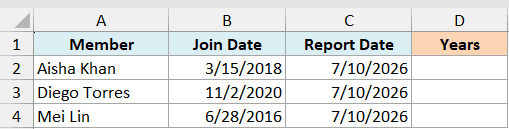
I want to know how many complete years each member has been enrolled, in column D.
Here is the formula:
=DATEDIF(B2,C2,"y")
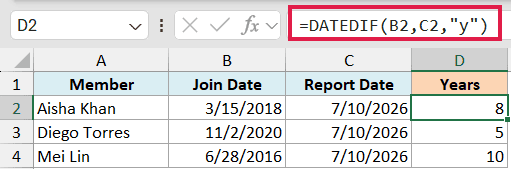
For the first member, this returns 8.
DATEDIF looks at the join date in B2, the report date in C2, and the “y” unit, then counts only the anniversaries that have fully passed. A partial year that hasn’t completed yet is not counted.
Since this formula references one row, copy it down column D to get the years for every member.
Example 2: Calculate the Number of Months Between Two Dates
Now let’s count whole months instead of years.
Below I have a table of software subscriptions. Column A has the plan name, column B has the start date, and column C has the end date.
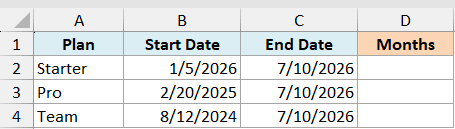
I want the number of complete months each plan has been active, in column D.
Here is the formula:
=DATEDIF(B2,C2,"m")
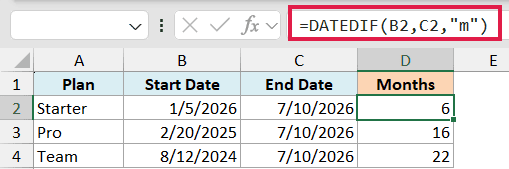
For the Starter plan, this returns 6.
The “m” unit counts full months only. If the end date hasn’t reached the same day-of-month as the start date, that final month doesn’t count yet.
So a subscription running from January 5 to July 10 gives 6 complete months, not 7. The sixth month finishes on July 5, and the seventh won’t complete until August 5.
If you want to explore other approaches, I have a separate guide on how to calculate the number of months between two dates.
Example 3: Calculate the Number of Days Between Two Dates
Counting days is the simplest case for DATEDIF.
Below is a table of orders. Column A has the order ID, column B has the order date, and column C has the delivery date.
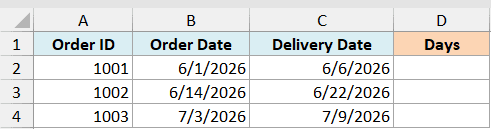
I want to know how many days each order took to deliver, in column D.
Here is the formula:
=DATEDIF(B2,C2,"d")
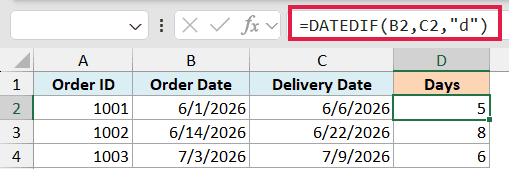
For the first order, this returns 5.
The “d” unit simply counts the number of days from the start date to the end date. There are a few other ways to calculate the number of days between two dates if you’d rather not use DATEDIF.
Pro Tip: For plain days, you don’t even need DATEDIF. A simple subtraction like =C2-B2 gives you the same number. DATEDIF earns its keep when you want years or months, where subtraction alone can’t help.
Follow along with the example file
DATEDIF Function Examples.xlsx
Example 4: Calculate the Number of Weeks Between Two Dates
DATEDIF has no dedicated “weeks” unit, but you can get there by counting the days and dividing by 7. This demonstrates DATEDIF; for a simple day or week difference, subtract the dates instead.
Below I have a table of project sprints. Column A has the sprint name, column B has the start date, and column C has the end date.
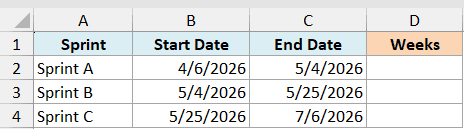
I want the number of weeks each sprint ran, in column D.
Here is the formula:
=DATEDIF(B2,C2,"d")/7
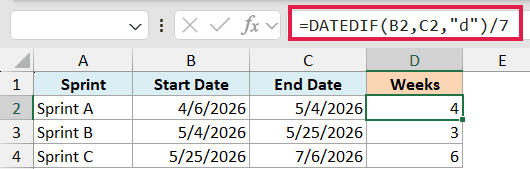
For the first sprint, this returns 4.
DATEDIF counts the days between the two dates, and dividing that by 7 turns it into weeks. Sprint A spans 28 days, which is exactly 4 weeks.
When a span isn’t a clean multiple of 7, you’ll get a decimal. Wrap the whole thing in INT, as in =INT(DATEDIF(B2,C2,"d")/7), if you only want the number of whole weeks.
Example 5: Calculate Age in Excel Using DATEDIF
This is the example most people are after, showing a full age as years, months, and days.
Below I have a list of people with their date of birth in column B. I want to show each person’s age as years, months, and days in column C.
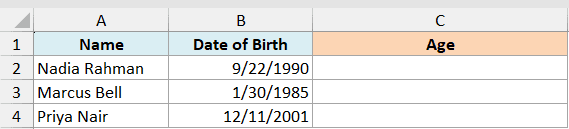
I want the age written out in plain English, like “35 years, 9 months, and 20 days”.
Here is the formula:
=DATEDIF(B2,TODAY(),"y")&" years, "&DATEDIF(B2,TODAY(),"ym")&" months, and "&DATEDIF(B2,TODAY(),"md")&" days"
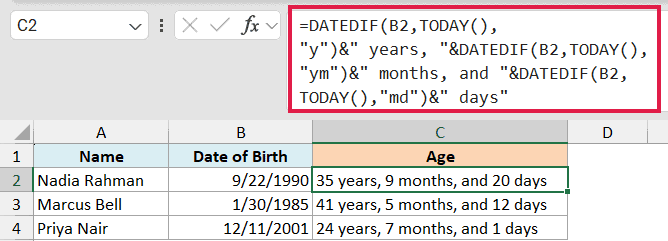
The screenshot shows “35 years, 9 months, and 20 days” for the first person. Your result changes with TODAY().
Here is how this formula works:
- The first DATEDIF uses “y” to get the complete years of age.
- The second DATEDIF uses “ym” to get the leftover months after those full years.
- The third DATEDIF uses “md” to get the leftover days after the full months.
- The & operator joins the three numbers with the plain text (“years”, “months”, “days”) into one readable sentence.
Because the formula uses TODAY() as the end date, the result updates when the workbook recalculates.
Important: This formula demonstrates MD, whose day count is unreliable. Microsoft documents negative, zero, and inaccurate results, not just an occasional one-day difference. See the known issues.
Example 6: Show Duration as Years and Months of Service
Let’s finish with a clean “years and months” label, the kind you’d want next to an employee or member record.
Below I have a table of volunteers with the date they started in column B. I want to show how long each has served as of today, in column C.
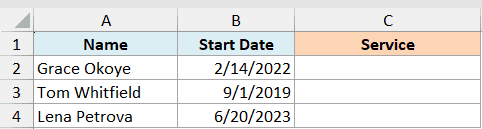
I want a label like “4 years and 4 months” for each person.
Here is the formula:
=DATEDIF(B2,TODAY(),"y")&" years and "&DATEDIF(B2,TODAY(),"ym")&" months"
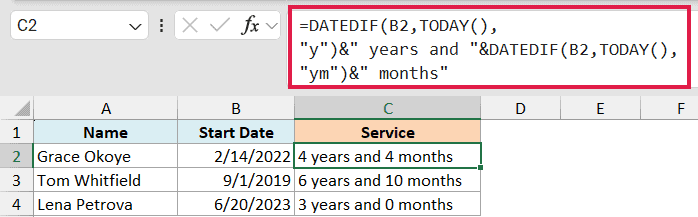
The screenshot shows “4 years and 4 months” for the first volunteer. Your result depends on the current date from TODAY().
This uses just two DATEDIF calls. The “y” one gives the full years, and the “ym” one gives the months left over after those years. Joining them with & builds the label.
Sticking to “y” and “ym” keeps you away from the unreliable “md” unit, so this is a safe pattern for anything you’ll share or report on.
Tips & Common Mistakes
A few things to keep in mind when you use DATEDIF:
- It won’t autocomplete. DATEDIF doesn’t appear in the function list as you type, so Excel won’t offer any argument hints. Type the full name and arguments yourself.
- Start date first, end date second. If the start_date is later than the end_date, DATEDIF returns a #NUM! error instead of a negative number. Put the earlier date first.
- Avoid the “MD” unit where accuracy matters. Microsoft itself flags “MD” as unreliable, since it can return a negative or wrong day count near month ends. Prefer “Y”, “M”, “YM”, and “D”.
- It can spill in dynamic-array versions of Excel. These examples use one pair of date cells per formula, so copy them down for a whole list.
- Wrap the dates in DATE() or point at cells. If you type dates straight into the formula as text, they can be misread. Reference date cells, or use the DATE function, to be safe.
Wrapping Up
DATEDIF is a small function that does one job well, which is measuring the gap between two dates. Start with the “y”, “m”, and “d” units for whole years, months, and days, then combine them with the & operator when you want a full age or a readable duration.
The only real gotchas are that it stays hidden from autocomplete and that the “md” unit can misbehave. Keep those in mind and it’s one of the handiest date tools in Excel.
I hope you found this tutorial helpful.
Other Excel Articles You May Also Like:
