

If you want to find a date that falls a certain number of working days from a start date, and your work week isn’t the usual Monday to Friday, the WORKDAY.INTL function is what you’re looking for.
It lets you set your own weekend days, so it works whether you’re closed on Fridays and Saturdays, open six days a week, or anything in between.
In Excel 365 and Excel 2021 or later, WORKDAY.INTL spills results when given an array of day counts, like SEQUENCE(6). In this article, I’ll show you how to use it with custom weekends, holidays, and more.
Follow along with the example file
WORKDAY.INTL Function Examples.xlsx
WORKDAY.INTL Syntax
Here is the syntax of the WORKDAY.INTL function:
=WORKDAY.INTL(start_date, days, [weekend], [holidays])
- start_date – The date you want to count from. Excel drops any time portion. For a nonzero day count, this date itself is not counted as a working day.
- days – The number of working days before or after the start date. A positive number counts forward, a negative number counts backward. Excel truncates decimals; 0 returns the start date, even on a non-working day.
- weekend – (Optional) Which days of the week count as the weekend. You can pass a number code or a 7-character text string. If you skip it, Excel uses Saturday and Sunday.
- holidays – (Optional) A range or list of dates to skip, on top of the weekend days.
The weekend argument is what makes this function different from the plain WORKDAY function. Here are the number codes you can use:
| Code | Weekend days |
|---|---|
| 1 or omitted | Saturday, Sunday |
| 2 | Sunday, Monday |
| 3 | Monday, Tuesday |
| 4 | Tuesday, Wednesday |
| 5 | Wednesday, Thursday |
| 6 | Thursday, Friday |
| 7 | Friday, Saturday |
| 11 | Sunday only |
| 12 | Monday only |
| 13 | Tuesday only |
| 14 | Wednesday only |
| 15 | Thursday only |
| 16 | Friday only |
| 17 | Saturday only |
If none of those combinations fit, you can use a 7-character string instead. Each character stands for a day, Monday through Sunday, where 1 means a non-working day and 0 means a working day.
For example, “0000011” means Saturday and Sunday are off, and “0000001” means only Sunday is off. The string has to be exactly seven characters, contain only 0s and 1s, and it can’t be all 1s.
When to Use WORKDAY.INTL in Excel
Use this function when you need to:
- Find a due date or deadline a set number of working days out
- Work with a custom weekend (Friday-Saturday, Sunday-only, and so on)
- Skip public holidays as well as weekends
- Work backward from a deadline to find the latest start date
WORKDAY.INTL returns a date serial number, so a fresh result often shows up as a plain number. You’ll want to format the cell as a date to read it properly. I’ll point this out again in the examples.
Let me show you a few practical examples of how this works.
Example 1: Find a Due Date with the Default Weekend
Let’s start with a simple example to see the function in action.
Below is a dataset with a single project start date in cell B1 and the number of working days the project needs in cell B2.
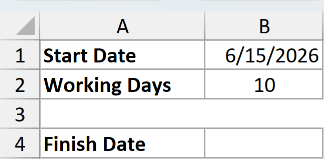
I want to find the finish date that is 10 working days after the start date, using a normal Saturday-Sunday weekend.
Here is the formula:
=WORKDAY.INTL(B1, B2)
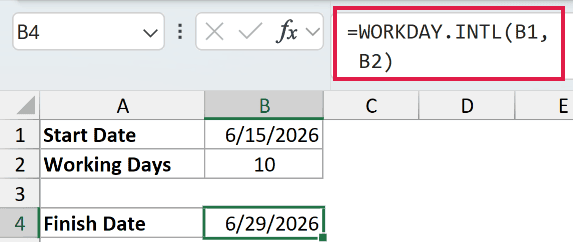
Since the start date is Monday, June 15, 2026, counting 10 working days forward (and skipping both weekends) lands on Monday, June 29, 2026.
Here I left the weekend argument out, so Excel treated Saturday and Sunday as the weekend. With no custom weekend, WORKDAY.INTL gives the same answer the plain WORKDAY function would.
Pro Tip: If your result shows up as a serial number like 46202 instead of a date, select the cell and apply a date format from the Home tab (Number group).
Example 2: Use a Weekend Code for a Friday-Saturday Week
Here’s where WORKDAY.INTL earns its keep. In many countries the weekend is Friday and Saturday, not Saturday and Sunday.
Below is a dataset with a project start date in B1 and the number of working days in B2, for a team that works Sunday through Thursday.
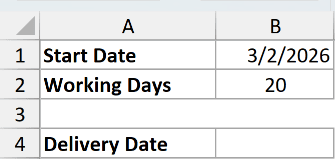
I want the delivery date that is 20 working days out, treating Friday and Saturday as the weekend.
Here is the formula:
=WORKDAY.INTL(B1, B2, 7)
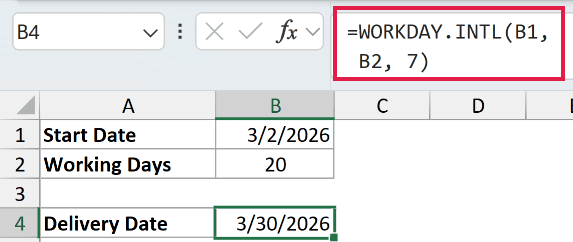
The weekend code 7 tells Excel that Friday and Saturday are the off days. Starting from Monday, March 2, 2026, and counting 20 working days forward gives Monday, March 30, 2026.
For these inputs, plain WORKDAY also returns March 30, 2026. The two weekend patterns happen to give the same result here, but WORKDAY.INTL is still needed to model a Friday-Saturday weekend.
Example 3: Use a 7-Character String for a Custom Weekend
Now let’s use the text-string form of the weekend argument, which handles any pattern the number codes don’t cover.
Below is a dataset for a retail store that is open six days a week and closed only on Sundays. B1 has the start date and B2 has the number of working days.
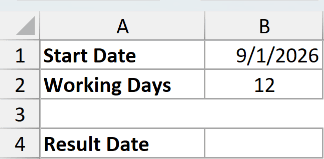
I want to find the date 12 working days out, counting every day except Sunday as a working day.
Here is the formula:
=WORKDAY.INTL(B1, B2, "0000001")
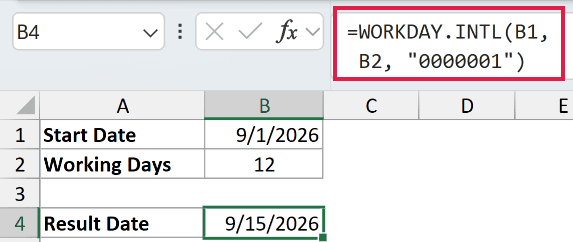
The string “0000001” reads Monday through Sunday, with the last character set to 1. That marks Sunday as the only non-working day.
Starting from Tuesday, September 1, 2026, and counting 12 working days (skipping only Sundays) lands on Tuesday, September 15, 2026.
Pro Tip: The string always starts on Monday and ends on Sunday, regardless of your regional settings. So a 1 in the fourth position always means Thursday is off.
Follow along with the example file
WORKDAY.INTL Function Examples.xlsx
Example 4: Skip Public Holidays as Well
Weekends aren’t the only days off. This example adds a list of holidays so those dates get skipped too.
Below is a dataset with a start date in B1, the number of working days in B2, and a short list of holiday dates in D2:D3.
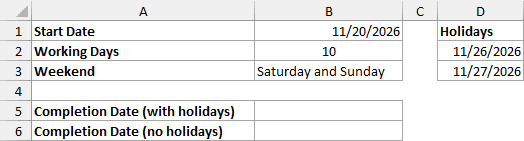
I want the completion date 10 working days out, using a Saturday-Sunday weekend, with the two holidays in column D excluded.
Here is the formula:
=WORKDAY.INTL(B1, B2, 1, D2:D3)
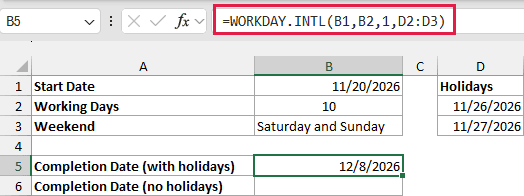
Starting from Friday, November 20, 2026, this counts 10 working days while skipping weekends and the two holidays (November 26 and 27), which lands on Tuesday, December 8, 2026.
To see the difference the holidays make, here is the same formula without the holidays argument:
=WORKDAY.INTL(B1, B2, 1)
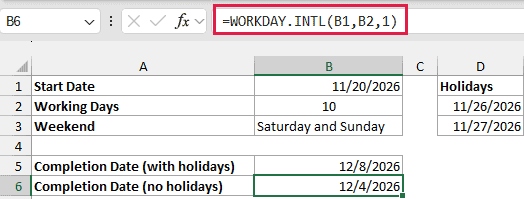
Without the holidays, the result is Friday, December 4, 2026. The two skipped holidays push the finish date out by two more days.
Example 5: Count Backward from a Deadline
WORKDAY.INTL can also work in reverse. Give it a negative number of days and it counts backward, which is handy for figuring out when to start.
Below is a dataset with a hard deadline in B1 and the number of working days a job needs in B2, for a Sunday-to-Thursday team.
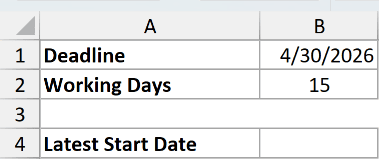
I want to find the latest start date for a job that needs 15 working days to finish by the deadline, with a Friday-Saturday weekend.
Here is the formula:
=WORKDAY.INTL(B1, -B2, 7)
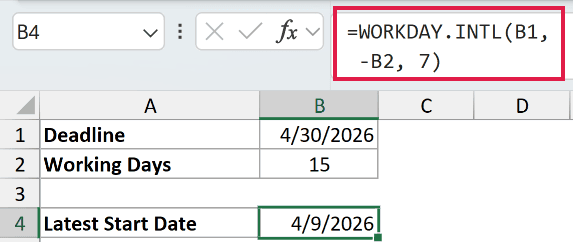
The minus sign in front of B2 makes the count run backward. Starting from Thursday, April 30, 2026, and stepping back 15 working days (skipping Fridays and Saturdays) gives Thursday, April 9, 2026.
So the work has to begin by April 9 to meet the deadline.
Example 6: Build a Spilled Schedule of Dates
In Microsoft 365, Excel 2021, and Excel 2024, you can hand WORKDAY.INTL a list of day counts instead of one, and it returns a date for each.
Below is a dataset with a single start date in cell B1. I want to build a short schedule of the next six working days from it.
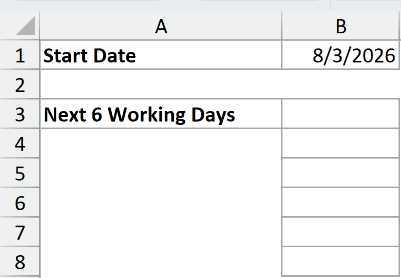
Instead of writing six separate formulas, I’ll feed WORKDAY.INTL the numbers 1 through 6 using the SEQUENCE function.
Here is the formula:
=WORKDAY.INTL(B1, SEQUENCE(6), "0000011")
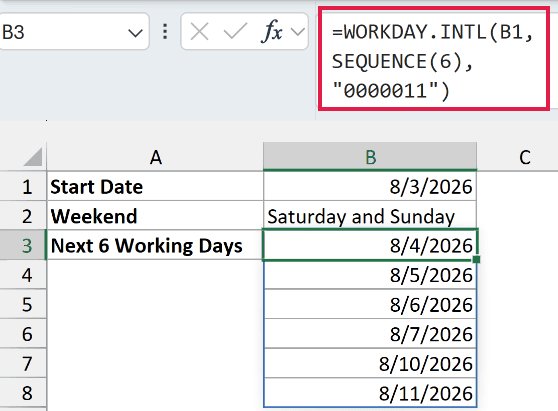
SEQUENCE(6) generates the numbers 1 to 6, so the formula returns six dates that spill down the column. Starting from Monday, August 3, 2026, they run Tuesday August 4 through Tuesday August 11, skipping the weekend in between.
The “0000011” string here is just the standard Saturday-Sunday weekend written out in string form. You could swap in any custom weekend and the whole spilled schedule updates at once.
If you only need a running list of weekday dates rather than dates spaced by working days, see this guide on how to autofill weekday dates in Excel.
Pro Tip: The spilled results come back as serial numbers. Select the whole spill range and apply a date format so all six cells read as dates.
Tips & Common Mistakes
- Results show as numbers. WORKDAY.INTL returns a date serial number. If you see something like 46202, format the cell (or the spill range) as a date.
- Plain ranges won’t spill. WORKDAY.INTL returns #VALUE! with a plain range of day counts like A2:A7. Use +A2:A7 to turn it into an array and spill the results in Excel 365 and Excel 2021 or later.
- The weekend string is always Monday-first. The seven characters run Monday through Sunday no matter your regional settings, and 1 marks a non-working day. An all-1s string like “1111111” is invalid because it leaves no working days. Invalid string lengths or characters give #VALUE!; an invalid weekend code such as 0 gives #NUM!.
- The start date is not counted for a nonzero offset. With positive days, day 1 is the next working day; with negative days, counting goes backward. With 0 days, the result is the start date, even on a weekend or holiday.
- Use real dates for holidays. Pass actual Excel dates or a range of them, since text dates can be interpreted differently. A holiday that falls on a weekend day makes no extra difference, since that day is already skipped.
- Use WORKDAY.INTL only when you need a custom weekend. If Saturday and Sunday are your weekend, the plain WORKDAY function is simpler. It accepts a holidays list too.
- Need the count instead of a date? WORKDAY.INTL gives you a future or past date. To count how many working days fall between two dates, use the NETWORKDAYS.INTL function, which takes the same weekend argument.
WORKDAY.INTL is the go-to function whenever your work week doesn’t match the standard Monday-to-Friday setup. Once you know the weekend codes and the 7-character string, you can model just about any schedule, count forward or backward, and skip holidays along the way.
Give it a try on your own data and it quickly becomes the easiest way to handle deadlines with a custom weekend.
Other Excel Articles You May Also Like:
