

If you want to count the number of working days between two dates, but your weekend isn’t Saturday and Sunday, most of Excel’s date functions assume a standard weekend and hand you the wrong count. The NETWORKDAYS.INTL function fixes that.
It lets you tell Excel exactly which days are your weekend, so it works whether you take Friday and Saturday off, a single day off, or follow some other schedule. You can also give it a list of holidays to leave out.
One thing to know upfront: NETWORKDAYS.INTL doesn’t spill when given raw ranges. So for a list of date pairs, you enter the formula once and copy it down. This works in every version.
In this article, I’ll show you how to use it with hands-on examples.
Follow along with the example file
NETWORKDAYS.INTL Function Examples.xlsx
NETWORKDAYS.INTL Syntax
Here is the syntax of the NETWORKDAYS.INTL function:
=NETWORKDAYS.INTL(start_date, end_date, [weekend], [holidays])
- start_date – The first date in the range. It’s counted as a working day if it isn’t a weekend or a holiday.
- end_date – The last date in the range. It’s also counted when it’s a working day.
- [weekend] – Optional. A number code or a 7-character text string that tells Excel which days are the weekend. Leave it out and Excel uses Saturday and Sunday.
- [holidays] – Optional. One or more dates (usually a range) to exclude on top of the weekend.
You can set the weekend argument in two ways. The first is a weekend number code:
| Code | Weekend (non-working days) |
|---|---|
| 1 (or omitted) | Saturday, Sunday |
| 2 | Sunday, Monday |
| 3 | Monday, Tuesday |
| 4 | Tuesday, Wednesday |
| 5 | Wednesday, Thursday |
| 6 | Thursday, Friday |
| 7 | Friday, Saturday |
| 11 | Sunday only |
| 12 | Monday only |
| 13 | Tuesday only |
| 14 | Wednesday only |
| 15 | Thursday only |
| 16 | Friday only |
| 17 | Saturday only |
The codes 1 to 7 give you two-day weekends, and 11 to 17 give you a single day off.
The second way is a 7-character text string where each character is a day of the week, starting with Monday and ending with Sunday. Use 1 for a non-working day and 0 for a working day.
So “0000011” means Saturday and Sunday are off (the last two positions), and “0000000” means there is no weekend at all.
When to Use NETWORKDAYS.INTL
Use this function when you need to:
- Count working days for a schedule where the weekend isn’t Saturday and Sunday
- Work out project durations in business days
- Handle a six-day work week or a single day off
- Exclude public holidays from a working-day count
Let me show you a few practical examples of how this works.
Example 1: Working Days Between Two Dates
Let’s start with a simple example.
Below is a dataset with three project tasks in column A, each with a start date in column B and an end date in column C.
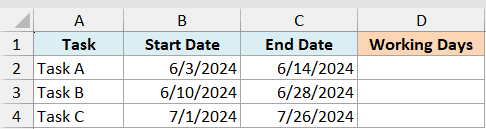
I want the number of working days each task takes, assuming a regular Saturday-Sunday weekend.
Here is the formula:
=NETWORKDAYS.INTL(B2, C2)
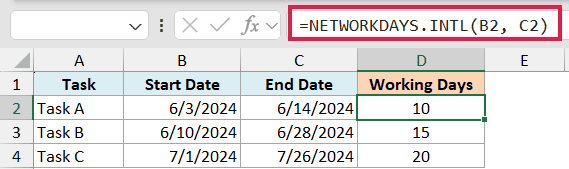
Enter this formula in cell D2 and copy it down for the other two rows. You get 10, 15, and 20 working days.
The simple approach with NETWORKDAYS.INTL is one row per formula, copied down the column. Raw ranges won’t give you a spilling result.
Since I skipped the weekend argument, Excel treats Saturday and Sunday as the weekend. Both the start date and the end date are counted when they fall on a working day.
Pro Tip: Raw date ranges like B2:B4 return #VALUE!. In dynamic-array Excel (Microsoft 365 / Excel 2021+), turn the ranges into calculated arrays to make NETWORKDAYS.INTL spill: =NETWORKDAYS.INTL(+B2:B4,+C2:C4).
Example 2: Custom Weekend Using a Weekend Code
Here’s where NETWORKDAYS.INTL earns its keep.
Below is a dataset for a Dubai office, where the weekend is Friday and Saturday. The start date is in cell B2 and the end date is in cell C2.

I want to count the working days in June 2024 for this team, treating Friday and Saturday as the weekend.
Here is the formula:
=NETWORKDAYS.INTL(B2, C2, 7)
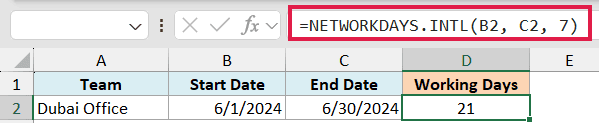
The 7 is the weekend code for a Friday-Saturday weekend, so the formula returns 21.
If I had used the default weekend instead, June would have counted a different set of days off. The weekend code is what lets you match the count to the way this team actually works.
Example 3: Custom Weekend Using the 7-Character String
Now let’s use the text-string version of the weekend argument.
Below is a dataset for a retail associate who works six days a week and only gets Sunday off. The start date is in B2 and the end date is in C2.

I want to count how many days this associate works in June 2024.
Here is the formula:
=NETWORKDAYS.INTL(B2, C2, "0000001")
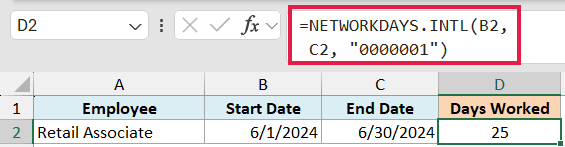
The string reads Monday to Sunday from left to right. Only the last character is a 1, which marks Sunday as the single non-working day, so the formula returns 25.
The string form is handy when your weekend isn’t one of the built-in number codes. For a team that takes Tuesday and Sunday off, for example, you’d use “0100001”.
You can also count just Fridays with =NETWORKDAYS.INTL(B2, C2, "1111011"), which marks every day except Friday as a weekend and returns 4 for the example’s June 1 to June 30, 2024 dates.
Example 4: Excluding Holidays From the Count
Let’s add holidays to the mix.
Below is a dataset covering December 2024. The start and end dates sit in B2 and C2, and two company holidays (December 25 and December 26) are listed in cells F2 and F3.

I want the actual working days in December, leaving out those two holidays.
Here is the formula:
=NETWORKDAYS.INTL(B2, C2, 1, F2:F3)
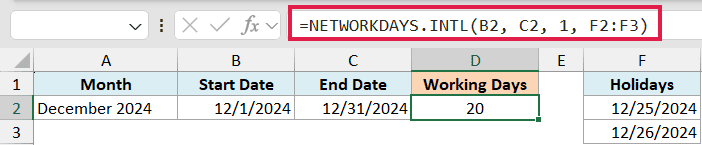
Here the weekend code 1 keeps the standard Saturday-Sunday weekend, and the F2:F3 range tells Excel which dates to drop. The formula returns 20.
Without the holidays, December has 22 working days. Both holidays fall on a working day this year, so each one removes a day from the count.
Pro Tip: A holiday only lowers the count when it lands on a working day. If a holiday falls on a Saturday or Sunday, it was already excluded, so it changes nothing.
Example 5: Count Every Day Except Holidays
This one uses the “0000000” string to switch the weekend off completely.
Below is a dataset for a support desk that is staffed every day of the week. It covers November 2024, with the dates in B2 and C2 and one holiday (Thanksgiving, November 28) in cell F2.

I want to count how many days the desk operates in November, treating every day as a working day but skipping the holiday.
Here is the formula:
=NETWORKDAYS.INTL(B2, C2, "0000000", F2)

The “0000000” string sets no weekend at all, so every day counts. November has 30 days, and the one holiday drops it to 29.
This is a clean way to count total days in a range while still knocking out specific dates you don’t want.
Example 6: A Single Day Off Using a Weekend Code
Let’s finish with a one-day weekend from the code table.
Below is a dataset for a museum that closes on Mondays and opens the rest of the week. It covers July 2024, with the start and end dates in B2 and C2.

I want to count how many days the museum is open in July 2024.
Here is the formula:
=NETWORKDAYS.INTL(B2, C2, 12)
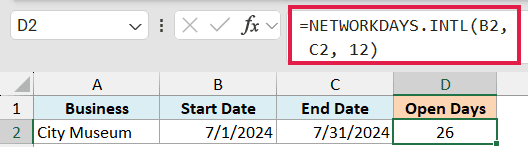
The weekend code 12 marks Monday as the only day off, so the formula returns 26 open days.
With a normal Saturday-Sunday weekend, July would count just 23 days. Because this business only closes one day a week, the codes 11 to 17 are exactly what you need.
Tips & Common Mistakes
- The weekend string must be exactly 7 characters, using only 0 and 1. Anything else (a wrong length, or a stray letter) returns a #VALUE! error.
- The count includes both the start date and the end date when they’re working days, so a single working day between the same start and end date counts as 1.
- If the start date is later than the end date, you get a negative number. That’s the count of working days measured backwards, not an error.
- Holidays only lower the count when they fall on a working day. A holiday sitting on a weekend day doesn’t change anything.
- Use real Excel dates (cell references or the DATE function), not dates typed as text, or the formula may return a #VALUE! error.
- NETWORKDAYS.INTL is available in Excel 2010 and later, including Microsoft 365 and Excel for the web. Older versions only have NETWORKDAYS, which is locked to a Saturday-Sunday weekend.
NETWORKDAYS.INTL is the flexible way to get the number of working days between two dates in Excel. Once you know the weekend codes and the 7-character string, you can match the count to almost any schedule, and the holidays argument takes care of the days off on top of that.
I hope you found this article helpful.
Other Excel Articles You May Also Like:
