

The EOMONTH function in Excel gives you the last day of a month, either the month of a date you already have or a month before or after it.
It’s handy whenever a date has to land on a month-end, such as a billing date or an invoice due date.
In this article, I’ll show you how to use EOMONTH with eight practical examples, including how to get the first day of a month and the number of days in a month.
Follow along with the example file
EOMONTH Function Examples.xlsx
EOMONTH Function Syntax
Here is the syntax of the EOMONTH function:
=EOMONTH(start_date, months)
- start_date is the date you start from. Use a cell with a real Excel date, or a formula that returns a date.
- months is the number of months to move from start_date. Use 0 for the same month, a positive number for a later month, and a negative number for an earlier month.
EOMONTH returns the month-end as a serial number, which is how Excel stores dates. If you see a number such as 46053 instead of a date, format the cell as a date.
If months has a decimal, EOMONTH drops the decimal part instead of rounding it. So 1.9 works as 1 month, and -1.9 works as -1 month.
If start_date points to an empty cell, EOMONTH treats it as 0 and returns 1/31/1900 instead of an error. So it’s worth checking your date column for blanks.
If you type a date in quotes inside the formula, such as =EOMONTH("1/15/2026",0), Excel reads it using your computer’s regional date settings. On a computer with a different date setup, the same formula can return a different date or #VALUE!.
To avoid this, point start_date at a cell that holds a real date, or build the date with the DATE function.
The EOMONTH function works in all Excel versions, including 365, 2024, 2021, 2019, 2016, Mac, and the web.
When to Use the EOMONTH Function
Use this function when you need to:
- Get the last day of the month for any date, such as a billing date or a trial end date.
- Set due dates and deadlines that fall at the end of a month.
- Get the first day of a month by stepping back to the previous month-end.
- Count the days in a month, leap years included.
- Build a list of month-end dates, or monthly totals for a report.
If you want the same day of the month a few months later, rather than the month-end, use the EDATE function instead.
Let me show you a few practical examples of how to use this function.
Example 1: Get the Last Day of the Month for Each Date
Let’s start with the most common use, getting the month-end date for a whole column of dates.
Below I have new members of a streaming service and the date each one joined, and the free trial runs until the end of that month, so I want the trial end date in column C.
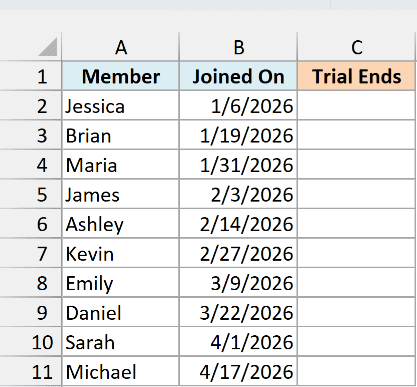
Here is the formula:
=EOMONTH(+B2:B11,0)
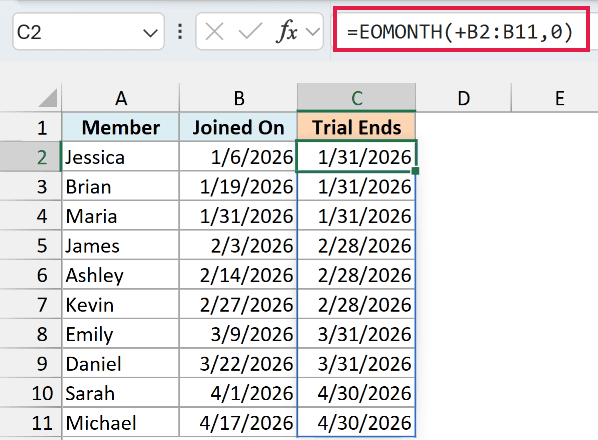
In Excel 365 and Excel 2021 or later, this one formula in C2 spills the ten trial end dates into C2:C11.
The 0 tells EOMONTH to stay in the same month, and the day in the date doesn’t matter. So Jessica, who joined on 1/6/2026, and Maria, who joined on 1/31/2026, both get 1/31/2026.
Important: If you leave out the plus sign, =EOMONTH(B2:B11,0) returns #VALUE!. The plus sign turns the range into an array of dates, which EOMONTH can work with.
My guide to Excel functions that won’t spill explains why EOMONTH needs this plus sign when most other functions don’t.
If you are using Excel 2019 or earlier, enter the below formula in cell C2 and then copy it down to C11:
=EOMONTH(B2,0)
Example 2: Find the End of Next Month (Invoice Due Dates)
Now let’s move forward a month, which is how a lot of invoice payment terms work.
Below I have invoices sent to clients, and each one is due at the end of the month after the invoice date, so I want the due dates in column C.
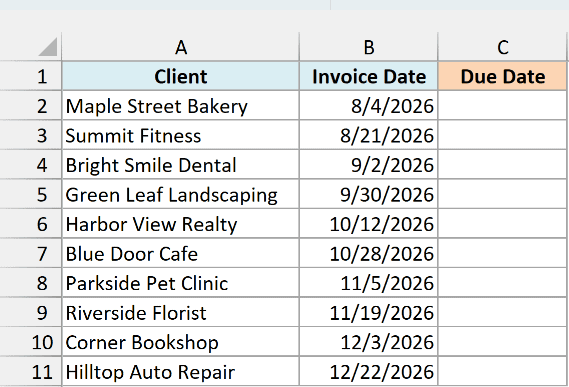
Here is the formula:
=EOMONTH(+B2:B11,1)
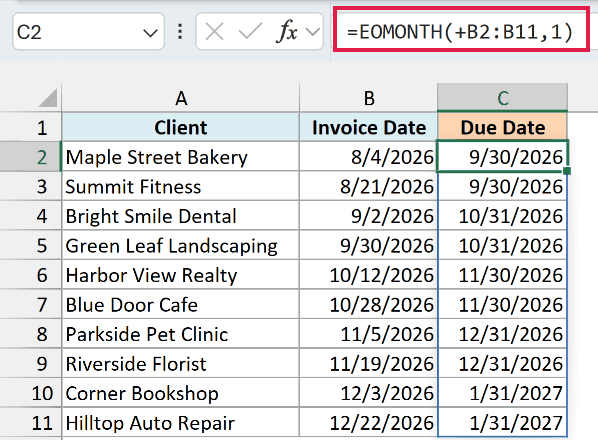
The due dates spill into C2:C11. The 1 moves each date one month ahead, and EOMONTH returns the last day of that month.
For example, Maple Street Bakery’s invoice from 8/4/2026 is due on 9/30/2026.
EOMONTH also takes care of the change of year. Corner Bookshop’s invoice from 12/3/2026 is due on 1/31/2027.
To go further ahead, use a bigger number. For example, 3 gives you the end of the third month, and 12 gives you the same month-end a year later.
Example 3: Get the Last Day of the Previous Month
A negative number for months moves you back instead.
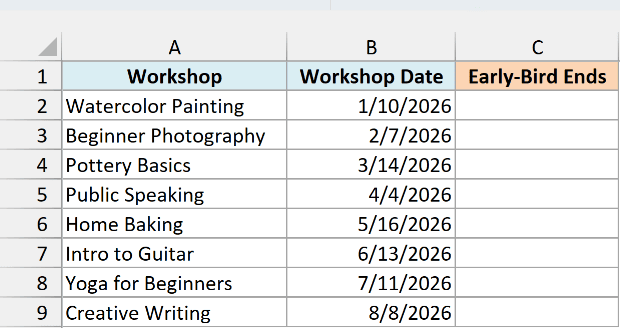
Below I have a list of workshops with their dates, and the early-bird price for each one ends on the last day of the month before it, so I want those deadlines in column C.
Here is the formula:
=EOMONTH(+B2:B9,-1)
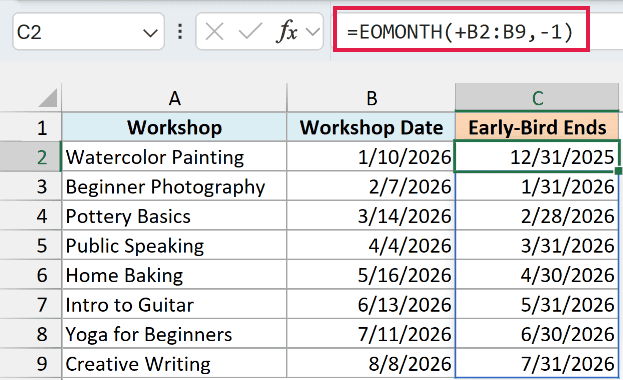
The deadlines spill into C2:C9. The -1 steps back one month before EOMONTH picks the last day.
For example, Pottery Basics is on 3/14/2026, so its early-bird price ends on 2/28/2026.
Watercolor Painting shows how this crosses into the previous year. The workshop is on 1/10/2026, so its early-bird deadline is 12/31/2025.
Stepping back to the previous month-end is also how you get the first day of a month, which is the next example.
Example 4: Get the First Day of the Month With EOMONTH
EOMONTH doesn’t have an option for the first day of a month, but you can get it with one small addition.
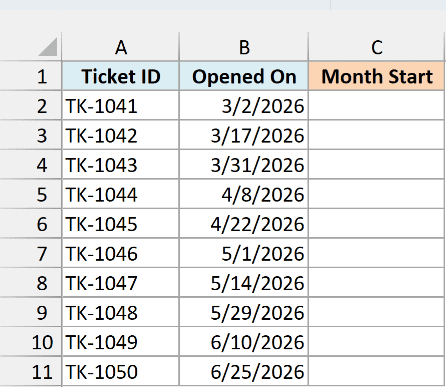
Below I have support tickets and the date each one was opened, and I want the first day of each ticket’s month in column C, so the tickets can be grouped by month.
Here is the formula:
=EOMONTH(+B2:B11,-1)+1
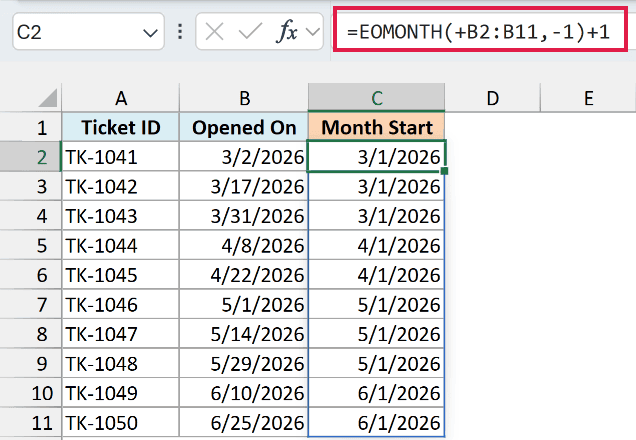
The first-of-month dates spill into C2:C11. EOMONTH with -1 returns the last day of the previous month, and adding 1 moves to the next day, which is always the first day of the ticket’s own month.
For example, TK-1043 was opened on 3/31/2026. EOMONTH returns 2/28/2026, and adding 1 gives 3/1/2026.
Pro Tip: To get the first day of the next month instead, use 0 for months and then add 1. For TK-1041, =EOMONTH(B2,0)+1 returns 4/1/2026.
I’ve covered a few more formulas for this in my tutorial on how to get the first day of the month in Excel.
Example 5: Count the Number of Days in a Month
Since EOMONTH gives you the last day of a month, the day number of that date is the number of days in the month.
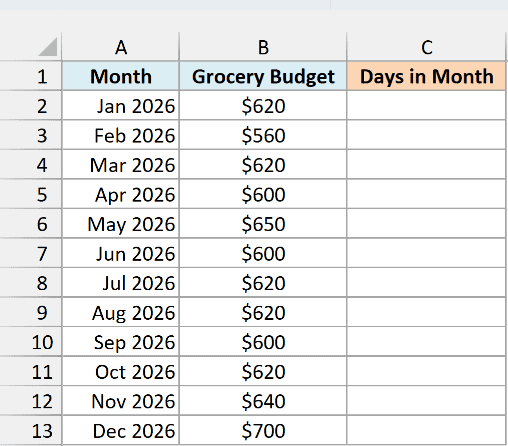
Below I have a monthly grocery budget for 2026, and I want the number of days in each month in column C.
Here is the formula:
=DAY(EOMONTH(+A2:A13,0))
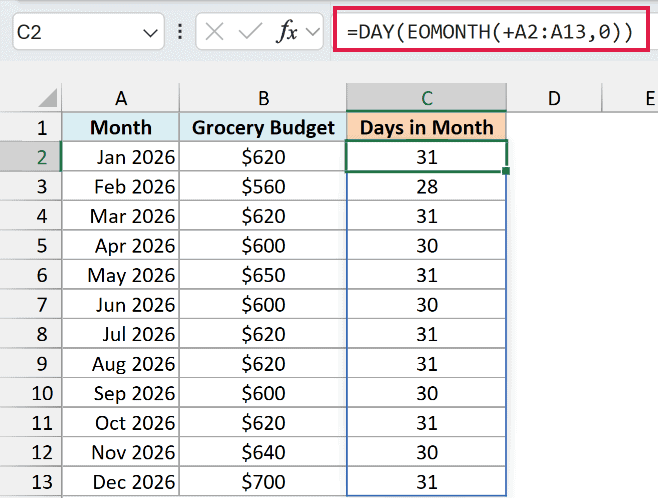
The months in column A are real dates for the first of each month, formatted to show only the month and year. EOMONTH returns the last day of each of these months.
The DAY function then pulls out the day number of each month-end. So January has 31 days, February 2026 has 28, and April has 30.
Leap years are handled for you as well. For any date in February 2024, the same formula returns 29.
With the days in column C, you can divide each month’s budget by its days to see how much you can spend per day.
For more methods, see how to get the number of days in a month in Excel.
Example 6: Create a List of Month-End Dates
So far, every formula has worked on a column of dates. EOMONTH can also build a list of month-end dates from just one date.
Below I have a savings plan that starts on 1/15/2026, with a transfer to savings on the last day of every month, and I want the 12 transfer dates in column B.
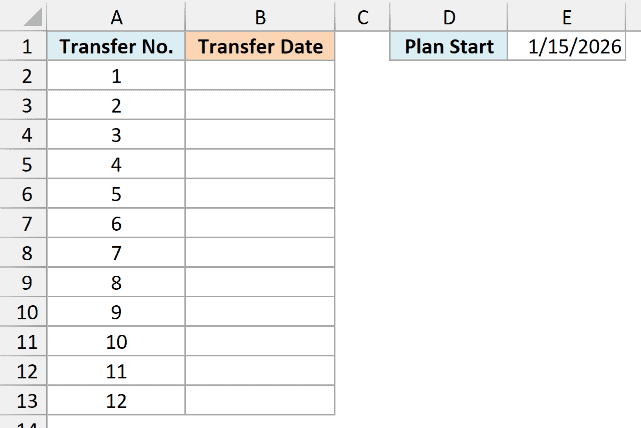
Here is the formula:
=EOMONTH(E1,SEQUENCE(12,,0))
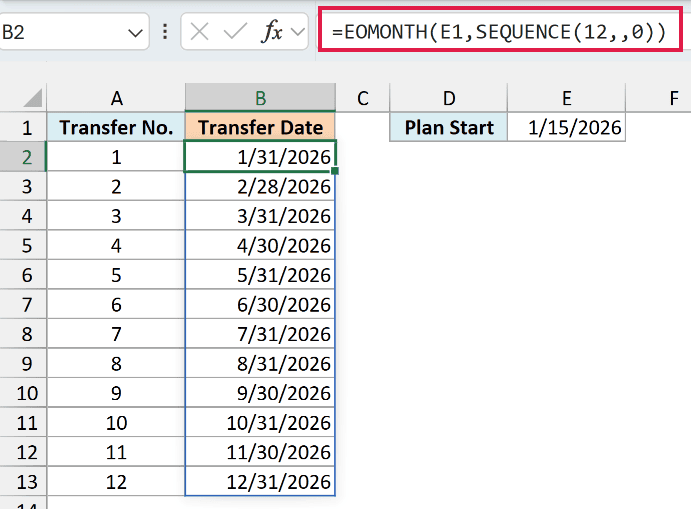
The 12 transfer dates spill into B2:B13, from 1/31/2026 to 12/31/2026. E1 holds the plan’s start date.
Here is how this formula works:
SEQUENCE(12,,0)returns 12 numbers, 0 through 11. The blank second argument keeps them in a single column.- EOMONTH uses each of these numbers as the months argument. So 0 gives the end of January 2026, 1 gives the end of February, and so on.
- Since E1 is a single cell and SEQUENCE already gives EOMONTH an array, this formula works without the plus sign.
To change the length of the plan, change the 12. To start the transfers from the following month, change the 0 to 1.
If you get a #SPILL! error, check that B2:B13 is empty, because the formula needs all 12 cells for its results.
The SEQUENCE function needs Excel 365 or Excel 2021 and later, so this formula won’t work in older versions.
Example 7: Sum Values by Month With SUMIFS and EOMONTH
EOMONTH is also handy inside other formulas when you need the last date of a month as a cutoff.
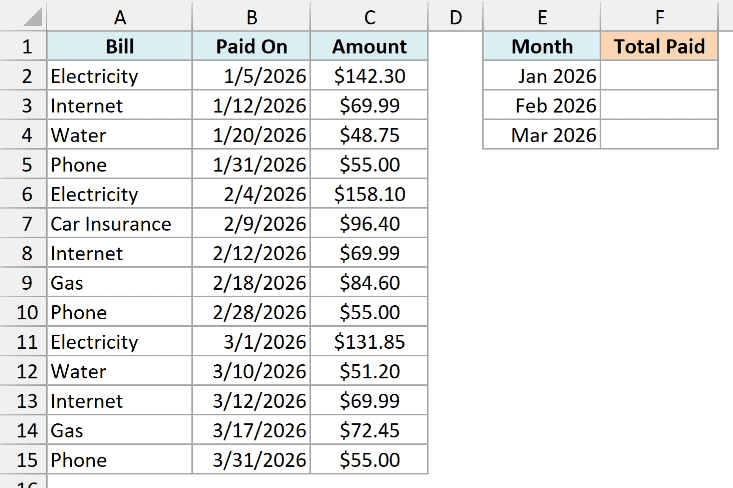
Below I have household bills paid over three months, and I want the total paid in each month in column F.
Here is the formula:
=SUMIFS(C2:C15,B2:B15,">="&E2:E4,B2:B15,"<="&EOMONTH(+E2:E4,0))
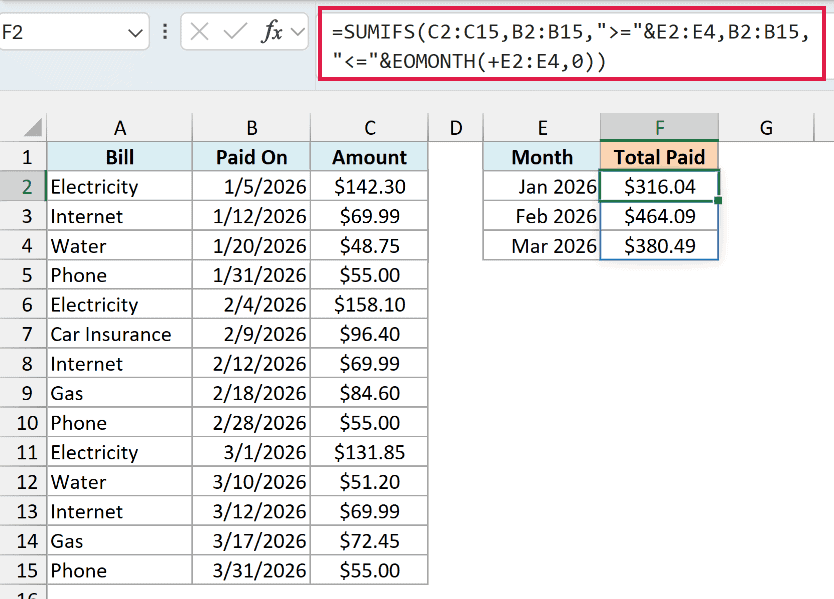
The three monthly totals spill into F2:F4: $316.04 for January, $464.09 for February, and $380.49 for March.
The months in E2:E4 are real dates for the first of each month, formatted to show only the month and year.
Here is how this formula works:
">="&E2:E4creates a starting condition for each month, such as on or after 1/1/2026.EOMONTH(+E2:E4,0)returns the last day of each month (1/31/2026, 2/28/2026, and 3/31/2026), and"<="&turns them into the ending conditions.- The SUMIFS function adds the amounts in C2:C15 whose paid date falls between the two dates, and returns one total for each month.
Since the ending condition uses <= with the month-end date, bills paid on the last day of a month are counted too. The phone bill paid on 1/31/2026 is part of the January total.
Example 8: Find the Last Working Day of the Month
Let’s finish with a payroll example, where EOMONTH works together with the WORKDAY function.
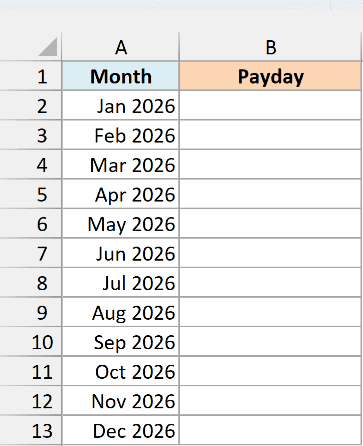
Below I have the months of 2026, and payday is the last weekday of each month, so I want the payday for each month in column B.
Here is the formula:
=WORKDAY(EOMONTH(+A2:A13,0)+1,-1)
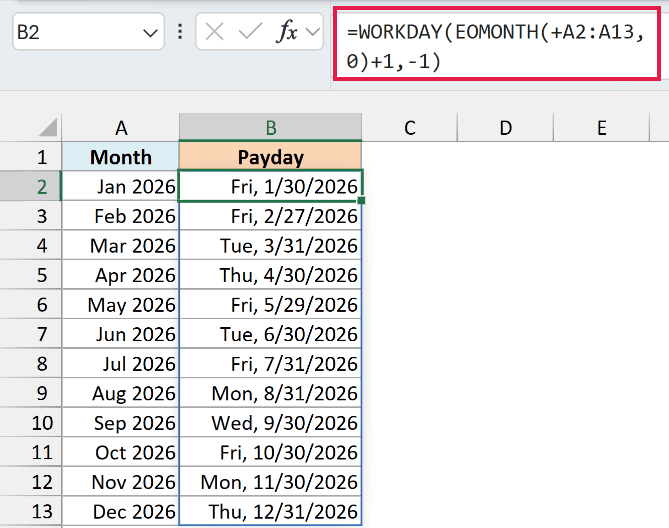
The paydays spill into B2:B13, with the weekday shown next to each date.
Here is how this formula works:
EOMONTH(+A2:A13,0)+1returns the first day of the next month for each month in column A.- WORKDAY with -1 counts one working day back from that date, skipping Saturdays and Sundays.
So if the month-end is a weekday, that’s the payday. If it falls on a weekend, you get the Friday before it.
For example, January 31, 2026 is a Saturday, so the January payday is Friday, 1/30/2026. March 31, 2026 is a Tuesday, so its payday stays 3/31/2026.
Starting from the first day of the next month is what makes this work. WORKDAY with -1 always returns a date before its start date, so starting from March 31 itself would give you March 30.
If your company also skips public holidays, add a range of holiday dates as the third argument of WORKDAY, and the formula will skip those dates as well.
So these are some of the ways you can use the EOMONTH function in Excel to work with month-end dates.
I hope you found this article helpful.
Other Excel Articles You May Also Like:
