

The Table.TransformColumns function in Power Query lets you apply transformations to one or more columns in a table simultaneously.
Instead of modifying each column individually with separate steps, you can clean, convert, or manipulate multiple columns in a single operation.
This function is particularly useful when you need to add prefixes or suffixes, format text, perform calculations, or apply custom functions across your dataset efficiently.
Table.TransformColumns Syntax
Below is the syntax of the Table.TransformColumns function in Power Query.
= Table.TransformColumns(
    table as table,
    transformOperations as list,
    optional defaultTransformation as function,
    optional missingField as MissingField.Type
) as table
- table – The source table you want to transform.
- transformOperations – A list that specifies which columns to modify and how. Each transformation can be written in two formats:
- { “ColumnName”, TransformFunction } – transforms the column without changing its type
- { “ColumnName”, TransformFunction, NewType } – transforms the column and sets a new data type
- defaultTransformation (optional) – A function that applies to all columns NOT listed in transformOperations. This is useful when you want to apply a blanket transformation to most columns.
- missingField (optional) – Specifies what happens if a column listed in transformOperations doesn’t exist. Options include:
- MissingField.Error – Throws an error (default behavior)
- MissingField.Ignore – Skips the missing column without error
- MissingField.UseNull – Creates the column with null values
What it returns: A new table with the specified transformations applied to the designated columns.
When to Use Table.TransformColumns
Use this function when you need to:
- Transform multiple columns simultaneously in a single step
- Add prefixes or suffixes to values (like converting 1, 2, 3 to Q1, Q2, Q3)
- Apply text formatting functions (uppercase, lowercase, trim, proper case)
- Convert data types while also modifying the values
- Clean and standardize data across several columns at once
Example 1: Adding a Prefix to Make Values More Readable
Let’s start with a common scenario.
You have a sales report with a Quarter column containing just numbers (1, 2, 3, 4).
To make reports clearer, you want to display them as Q1, Q2, Q3, and Q4.
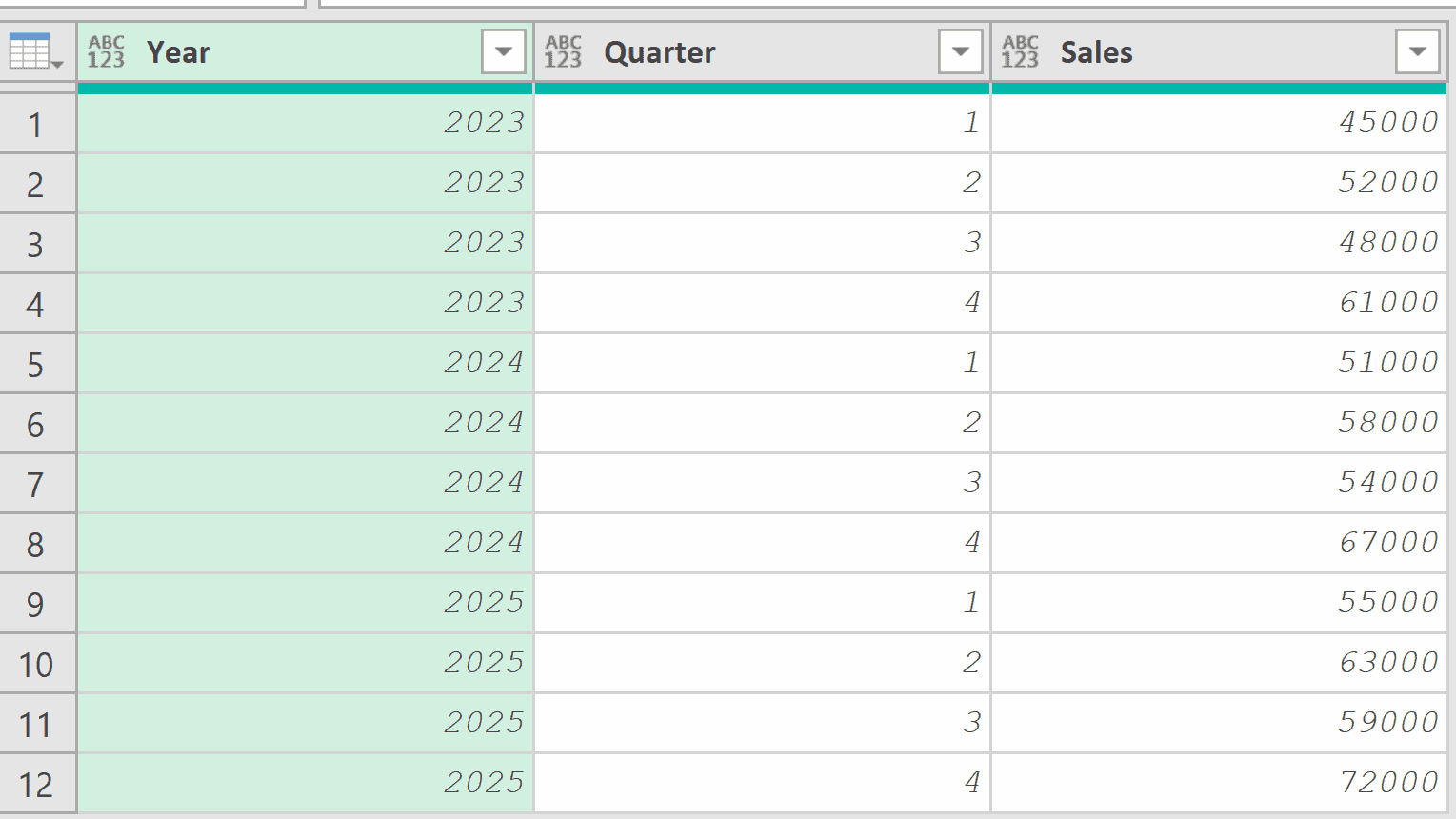
Add a new step (by clicking on the fx icon next to the formula bar) and use this formula:
= Table.TransformColumns(
    Source,
    {{"Quarter", each "Q" & Text.From(_), type text}}
)
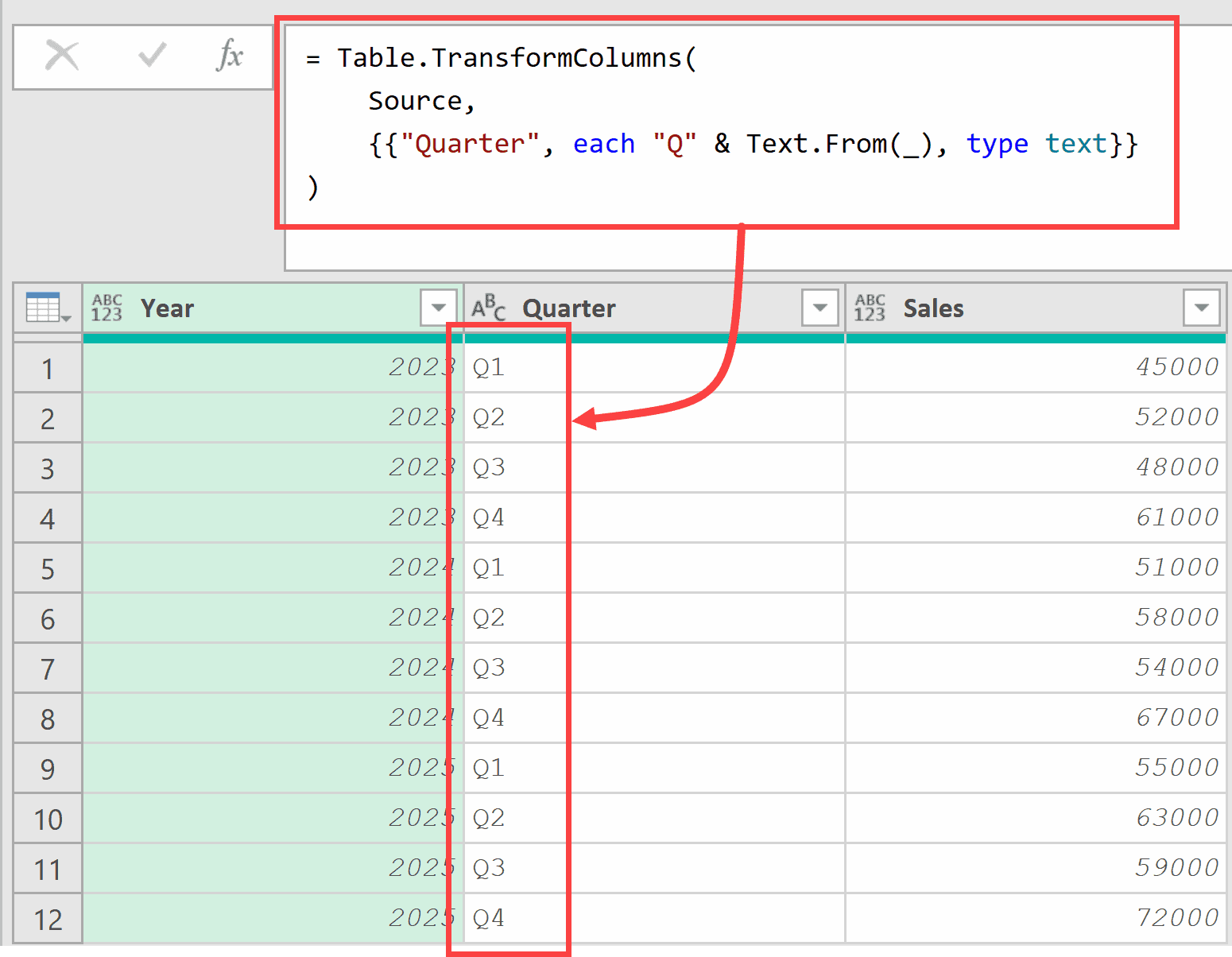
In the above formula, each “Q” & Text.From(_) creates a function that takes each value, converts it to text, and adds “Q” in front.
The underscore _ represents the current cell value (1, 2, 3, or 4).
Text.From(_) converts the number to text so it can be concatenated with “Q”.
The type text at the end sets the column’s data type to text.
Example 2: Adding a Suffix to Values
Here’s another common use case.
You have a table with product dimensions, but the values are just numbers without units. You want to add “cm” to make the measurements clear.
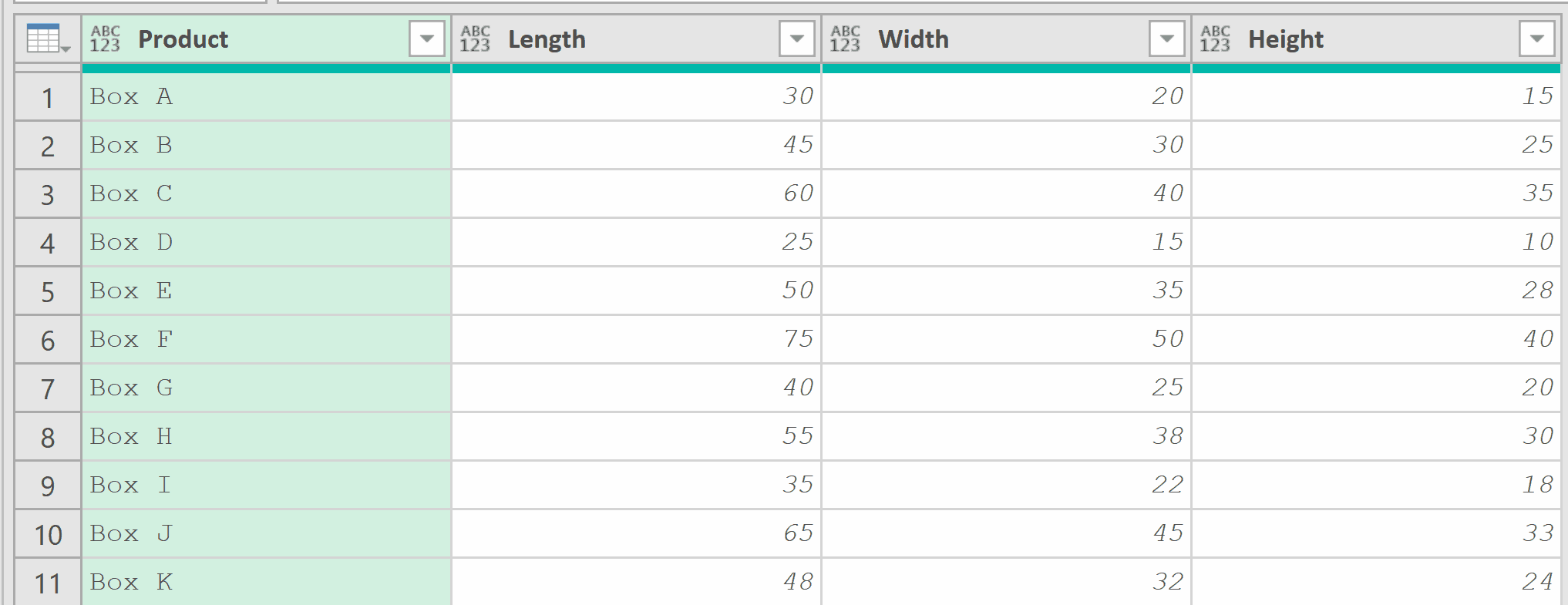
Add a new step (by clicking on the fx icon next to the formula bar) and use this formula:
= Table.TransformColumns(
    Source,
    {
        {"Length", each Text.From(_) & " cm", type text},
        {"Width", each Text.From(_) & " cm", type text},
        {"Height", each Text.From(_) & " cm", type text}
    }
)
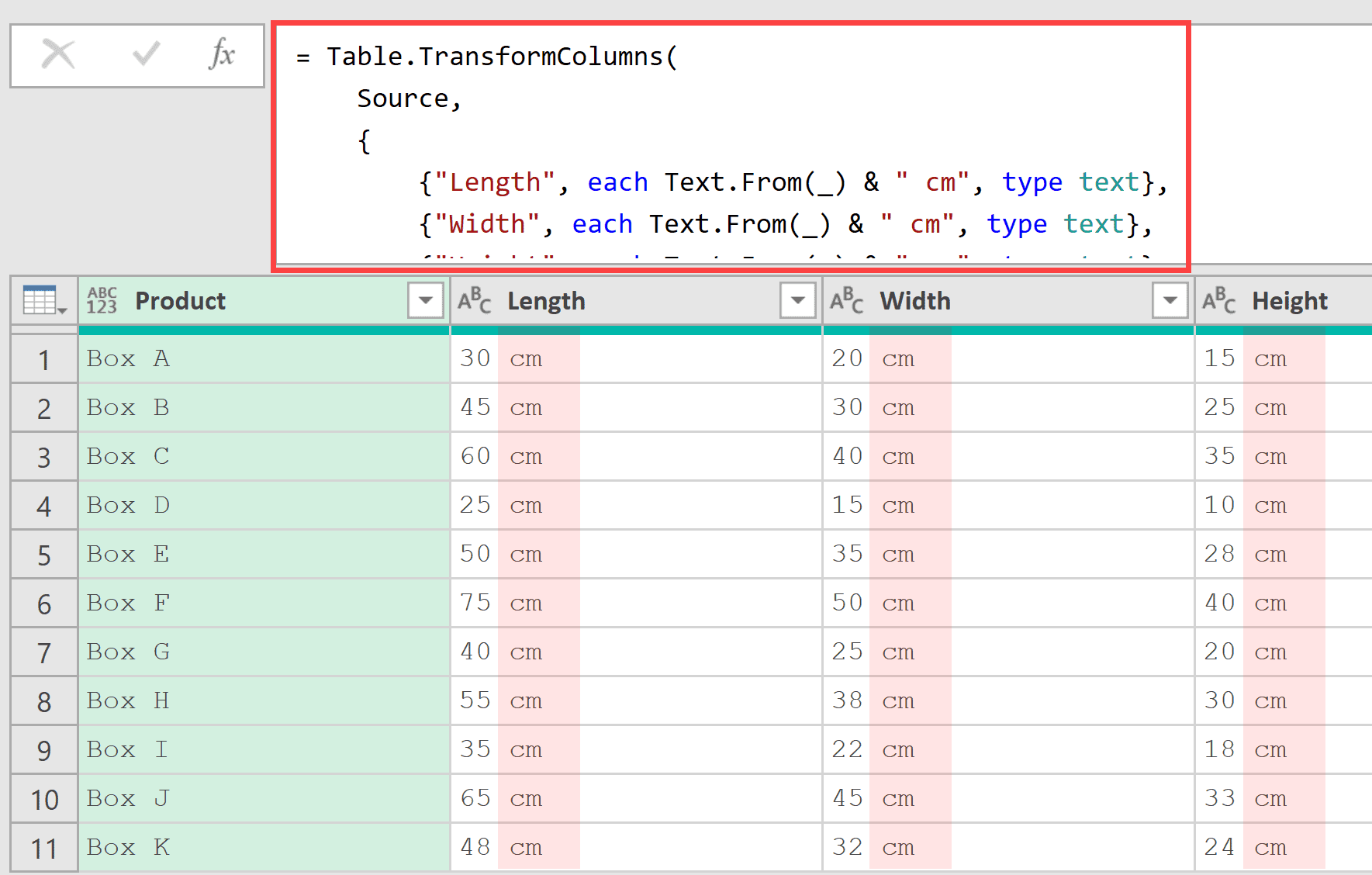
Here, each Text.From(_) & ” cm” converts the number to text and appends ” cm” at the end.
The formula applies the same transformation to all three columns.
Note that after this transformation, the values become text and cannot be used for calculations.
Example 3: Cleaning and Standardizing Text Data
This next one comes up quite often in data cleaning.
You have imported customer data where names have inconsistent formatting, and emails have extra spaces.
You want to clean everything up in one step.
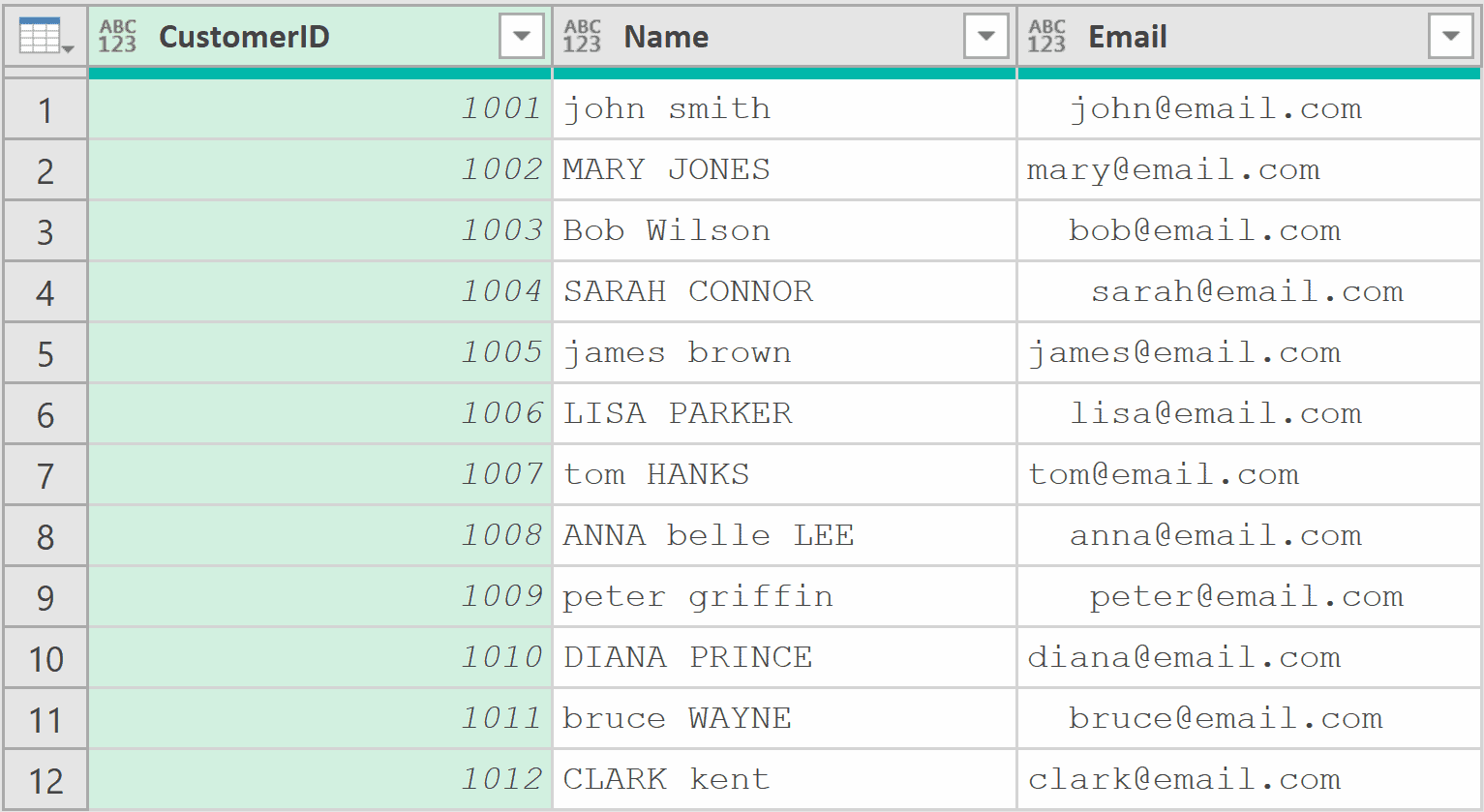
Add a new step (by clicking on the fx icon next to the formula bar) and use this formula:
= Table.TransformColumns(
    Source,
    {
        {"Name", Text.Proper, type text},
        {"Email", Text.Trim, type text}
    }
)
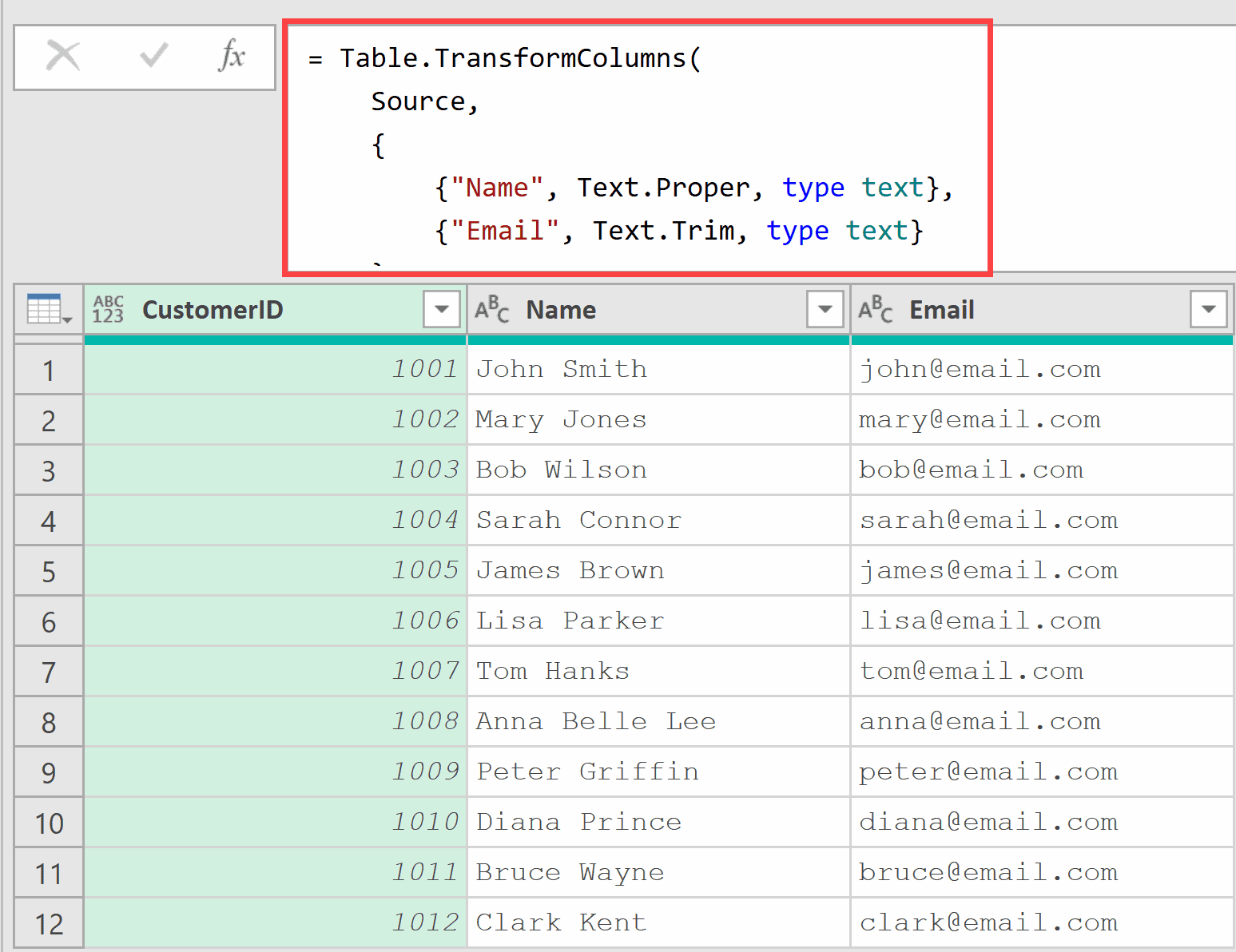
Text.Proper capitalizes the first letter of each word (proper case formatting).
Text.Trim removes leading and trailing spaces from the email addresses.
Pro Tip: For built-in functions that take a single argument, you don’t need the each keyword. Just pass the function name directly.
Example 4: Formatting Currency Values
Now let’s tackle something more advanced.
You have a financial report where amounts are plain numbers, but you want to display them as formatted currency with a dollar sign and thousands separator.
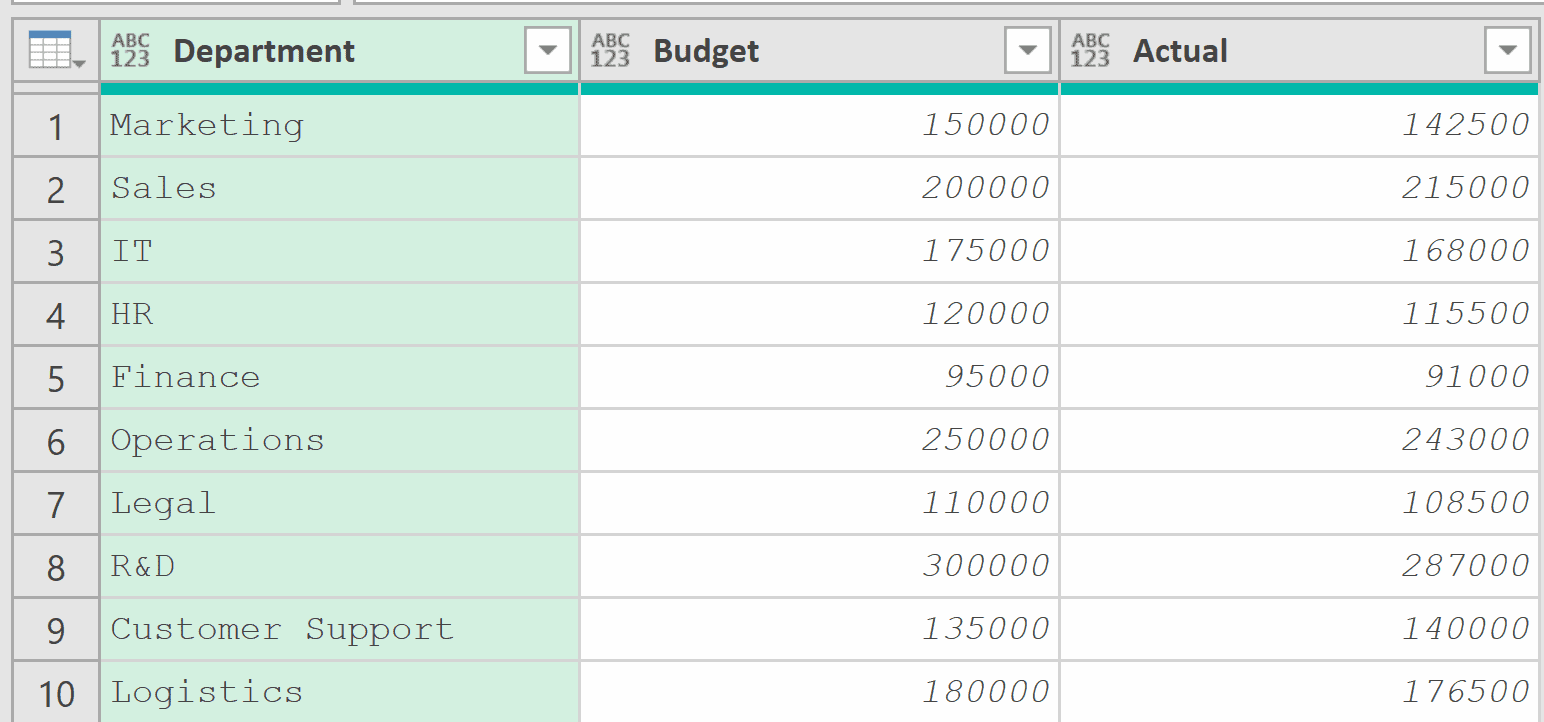
Add a new step (by clicking on the fx icon next to the formula bar) and use this formula:
= Table.TransformColumns(
    Source,
    {
        {"Budget", each "$" & Number.ToText(_, "N0"), type text},
        {"Actual", each "$" & Number.ToText(_, "N0"), type text}
    }
)
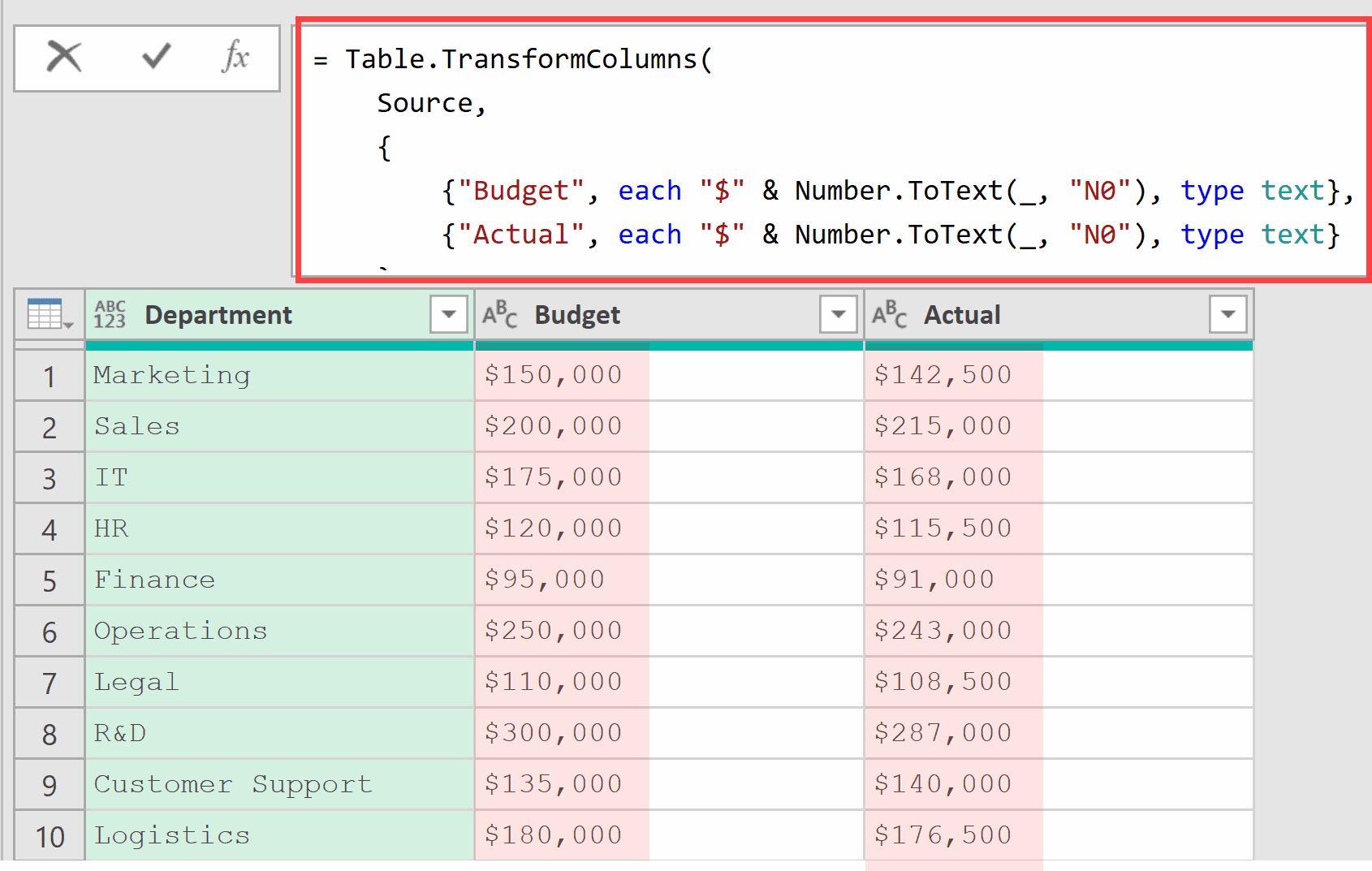
Number.ToText(_, “N0”) formats the number with thousands separators and no decimal places.
We then add a “$” prefix to create the currency format.
The “N0” format code means “Number with 0 decimal places.”
Example 5: Converting Month Numbers to Month Names
Here’s a scenario you’ll encounter frequently when building reports.
You have data with month numbers (1-12) and want to display actual month names for better readability.
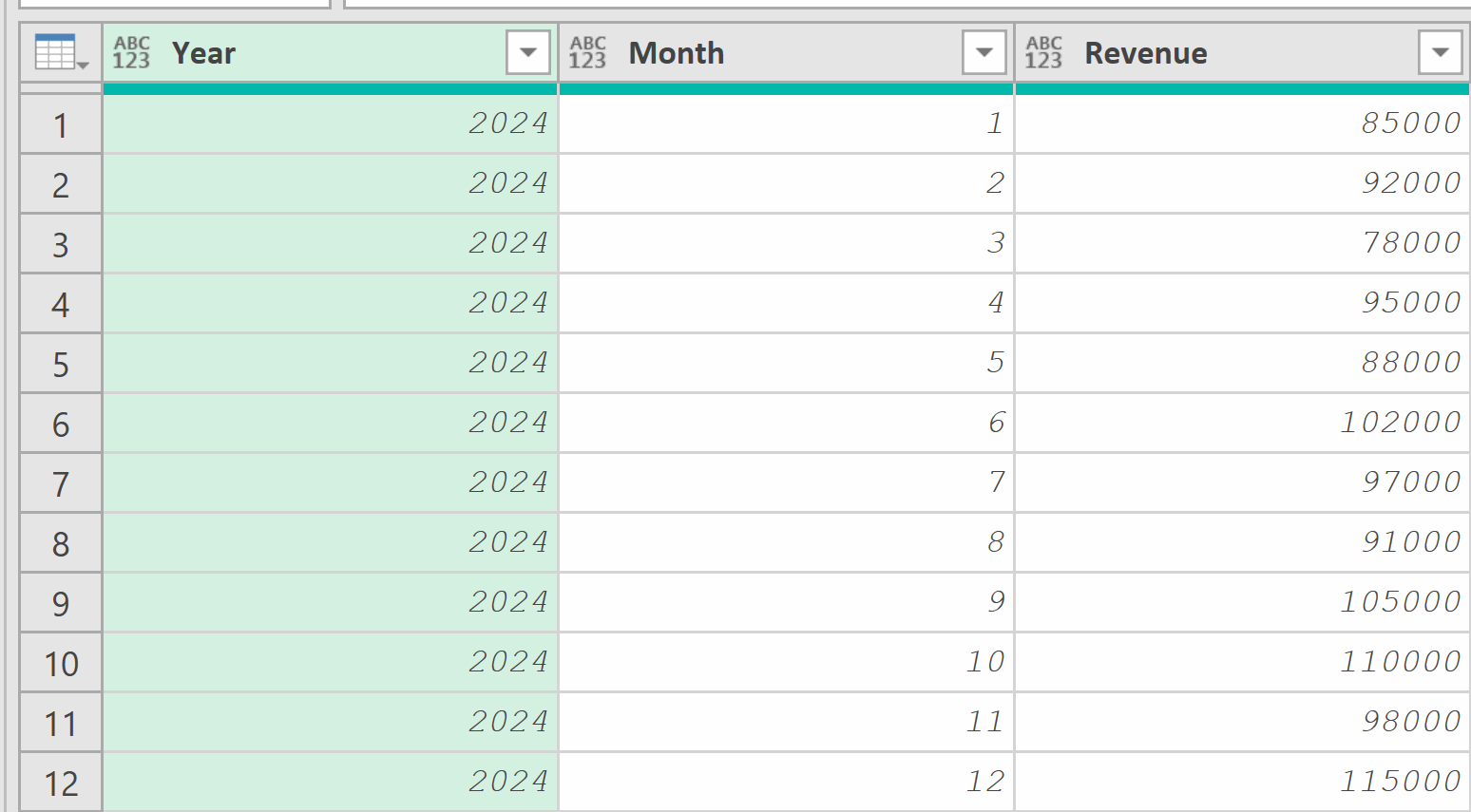
Add a new step (by clicking on the fx icon next to the formula bar) and use this formula:
= Table.TransformColumns(
    Source,
    {{"Month", each Date.MonthName(#date(2000, _, 1)), type text}}
)
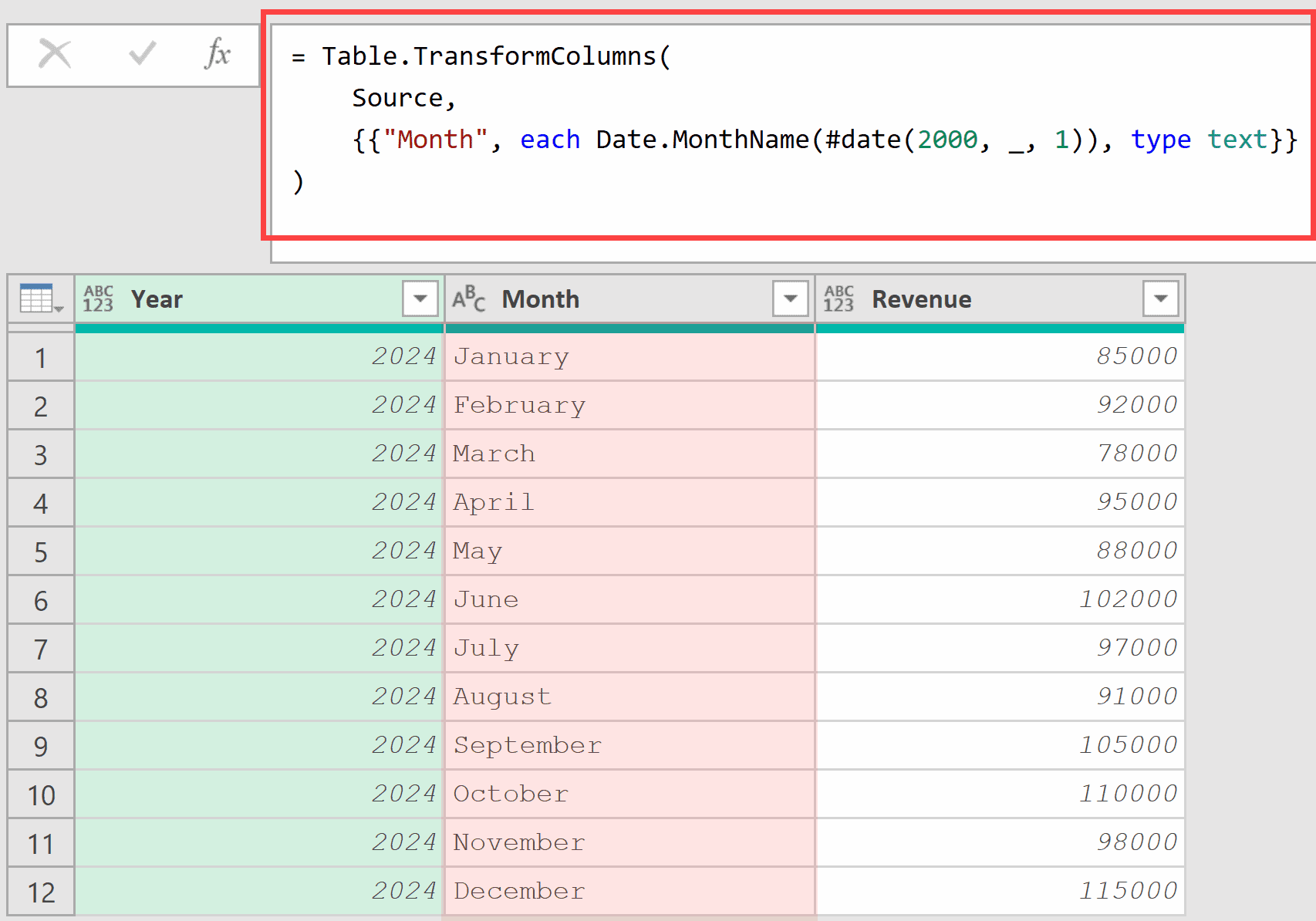
#date(2000, _, 1) creates a date using the month number (the year and day don’t matter here).
Date.MonthName() extracts the full month name from that date.
This is a clever workaround since Power Query doesn’t have a direct “number to month name” function.
Example 6: Applying the Same Transformation to All Other Columns
When most columns need the same transformation, use the optional third parameter (defaultTransformation) instead of listing every column.
Suppose you have a table where most columns contain text that should be numbers:
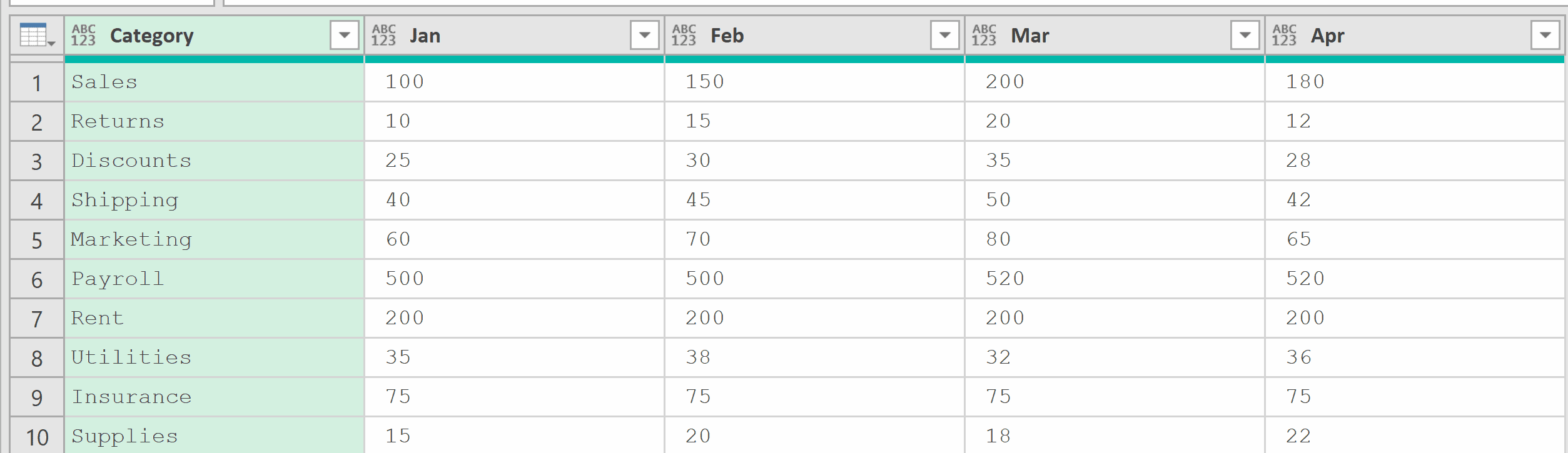
You want to convert all month columns to numbers while leaving Category as text.
Add a new step (by clicking on the fx icon next to the formula bar) and use this formula:
= Table.TransformColumns(
    Source,
    {{"Category", Text.Upper, type text}},
    Number.FromText
)
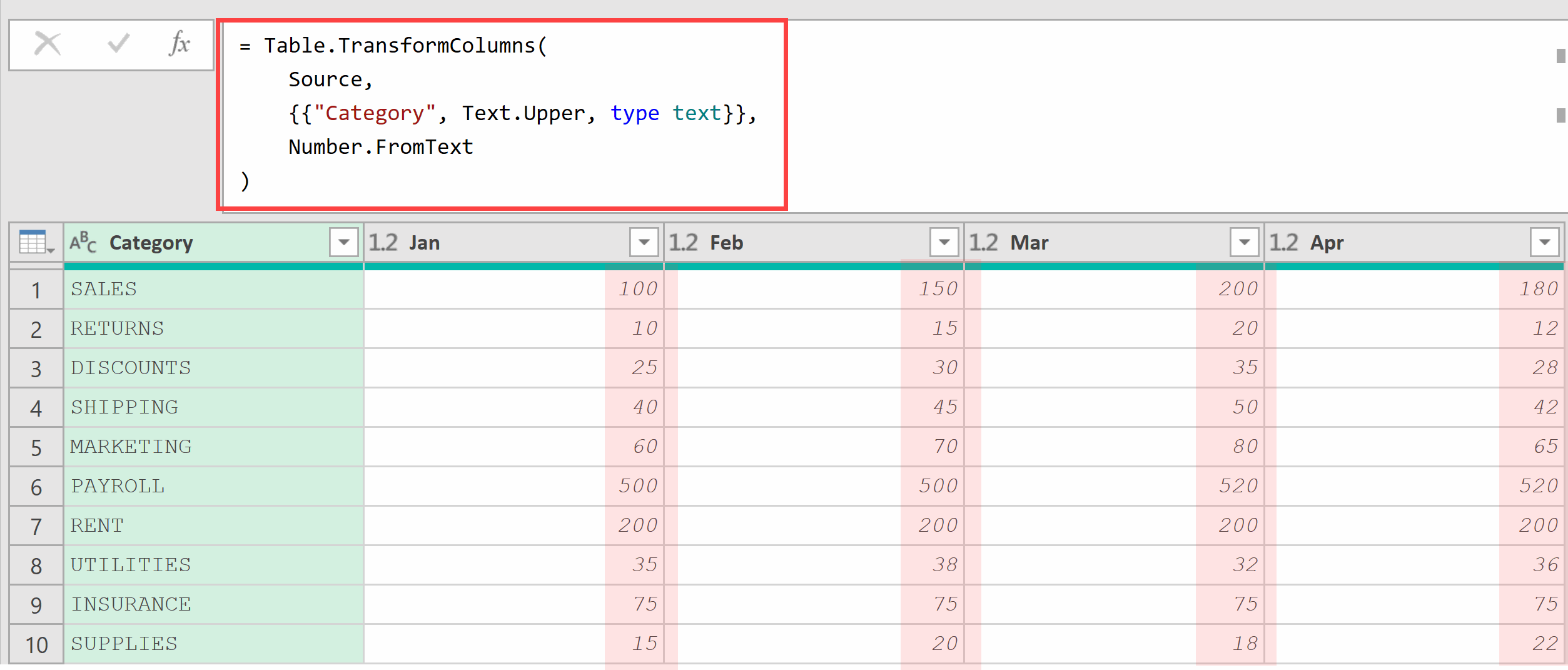
The second argument only specifies the Category column (converting to uppercase).
The third argument Number.FromText applies to ALL other columns (Jan, Feb, Mar, Apr).
This approach saves you from listing every column that needs the same transformation.
Tips & Common Mistakes
- When to use ‘each’: Use the each keyword when your transformation needs to reference the current value (using _) or when using operators like & or +. For built-in functions that take a single argument (like Text.Upper, Text.Trim, Number.FromText), you can pass the function name directly without each.
- Understanding the underscore: The underscore _ is shorthand for the current cell value. each “Q” & Text.From(_) means “for each value, add Q in front of it converted to text.”
- Double curly braces for multiple columns: Each transformation is a list within the main list. Use double curly braces: { {“Column1”, Function1}, {“Column2”, Function2} }. A common error is using single braces, which causes errors.
- Values become text after adding a prefix/suffix: Once you concatenate text (like adding “Q” or “cm”), the column becomes text type, and you cannot perform mathematical operations on it.
- Cannot access other columns: Table.TransformColumns only works with one column at a time. If you need to transform a column based on values from another column, use Table.AddColumn or Table.TransformRows instead.
- Case sensitivity: Column names in Power Query are case-sensitive. “Quarter” and “quarter” are treated as different columns.
Related Functions:
- Table.RenameColumns – Renames one or more columns in a table. Use this when you need to change column headers for clarity, consistency, or to match expected naming conventions downstream.
- Table.TransformColumnTypes – Changes only the data types of columns without modifying the values. Use this when you just need type conversion without value transformation.
- Table.TransformRows – Transforms entire rows at once, allowing you to create new records based on values from multiple columns. Useful when your transformation logic depends on values from other columns.
- Table.ReplaceValue – Replaces specific values in columns based on conditions. Better suited for find-and-replace scenarios rather than applying functions to every value.
- Table.Group – Groups rows that have identical key values, allowing you to aggregate data within each group.
- Table.Buffer – Loads a table into memory so Power Query reads from the cached copy.
- Table.Combine
