

Table.RenameColumns lets you change one or more column names in a table.
This function is essential when you need to standardize column headers, make names more readable, or match column names to a specific schema required by your data model.
Whether you’re renaming a single column or performing bulk renames from a mapping table, this function handles it all.
Table.RenameColumns Syntax
= Table.RenameColumns(table as table, renames as list, optional missingField as nullable number) as table
- table – The table containing the columns you want to rename
- renames – A list specifying the rename operations. For a single rename, use {“OldName”, “NewName”}. For multiple renames, use a list of lists: {{“OldName1”, “NewName1”}, {“OldName2”, “NewName2”}}
- missingField (optional) – Controls what happens if a column name you specified doesn’t exist in the table. By default, it throws an error. Use MissingField.Ignore to skip missing columns without error, or MissingField.UseNull to add the column with null values instead.
What it returns: A table with the specified columns renamed. All data and other columns remain unchanged.
When to Use Table.RenameColumns
Use this function when you need to:
- Rename imported data that has cryptic or auto-generated column names like “Column1”, “Column2”
- Standardize column headers across multiple data sources
- Clean column names that contain spaces or special characters causing issues
- Match column names to a specific schema or naming convention
- Build reusable queries that work with varying source column names
Example 1: Renaming a Single Column
Let’s start with the most basic use case.
Suppose you have a customer table with a column named “CustID” and you want to rename it to the more descriptive “CustomerID”.
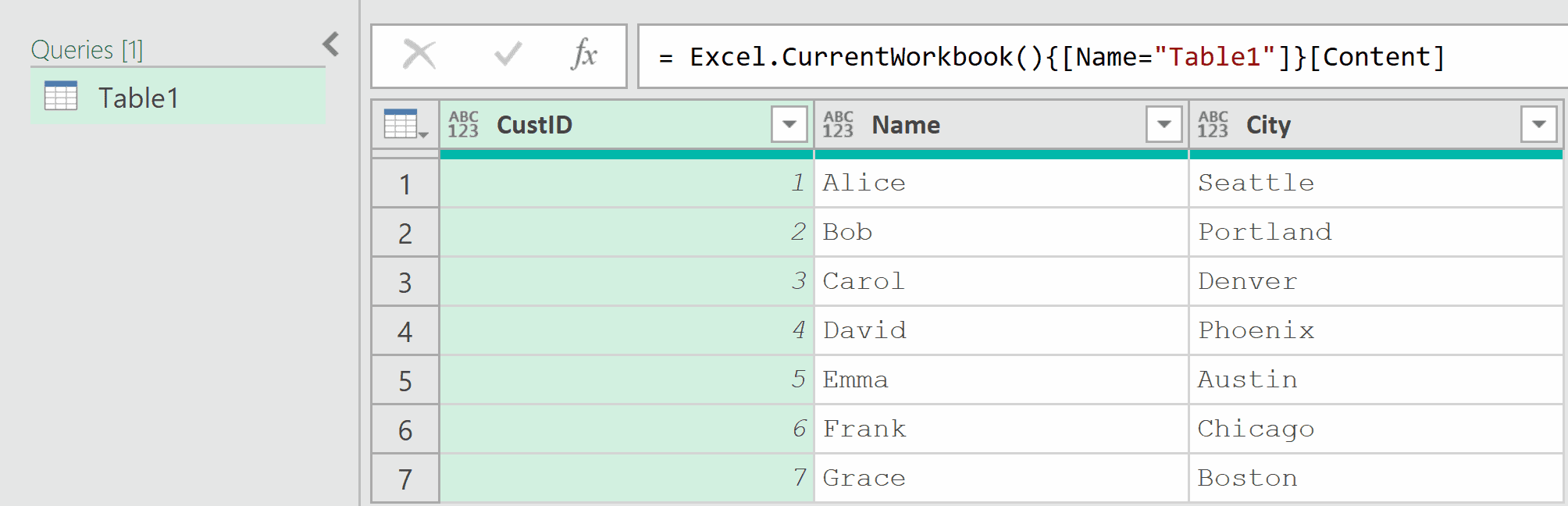
Add a new step with the following formula:
= Table.RenameColumns(Source, {"CustID", "CustomerID"})
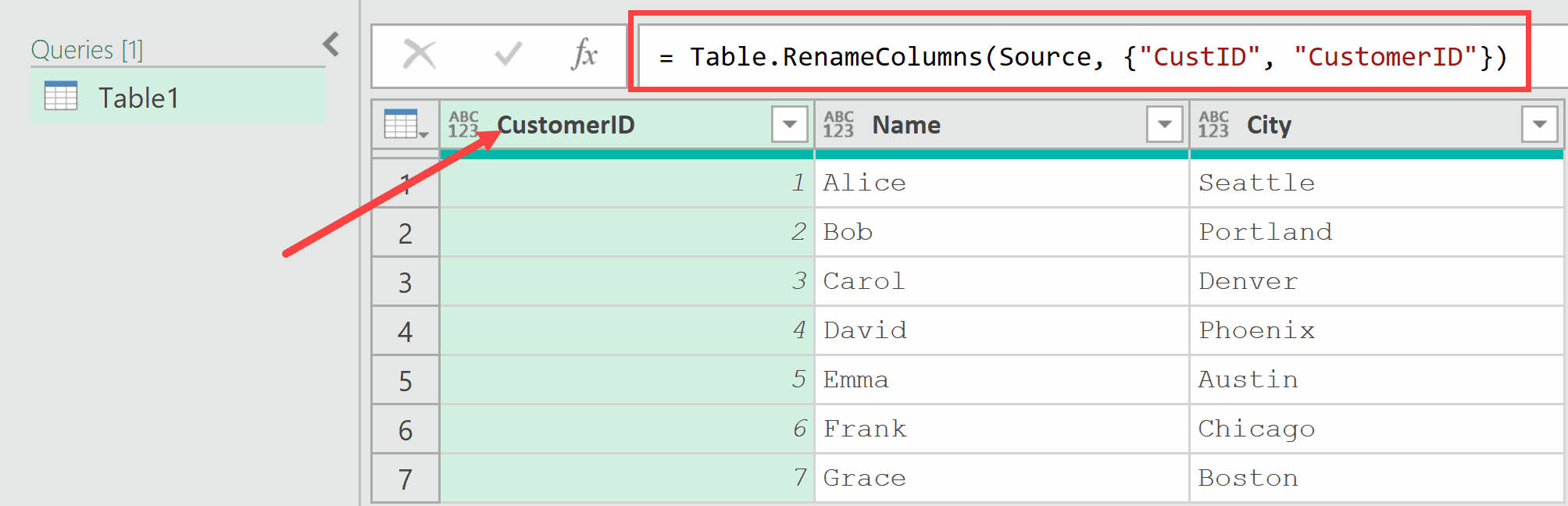
In the above formula, I have provided a simple list with two elements: the current name followed by the new name.
The function finds the column and updates its header while preserving all the remaining data.
Example 2: Renaming Multiple Columns at Once
Here’s a scenario you’ll encounter frequently when importing external data.
Suppose your imported data has generic column names like “Col1”, “Col2”, and “Col3”, and you need to rename them to meaningful names.
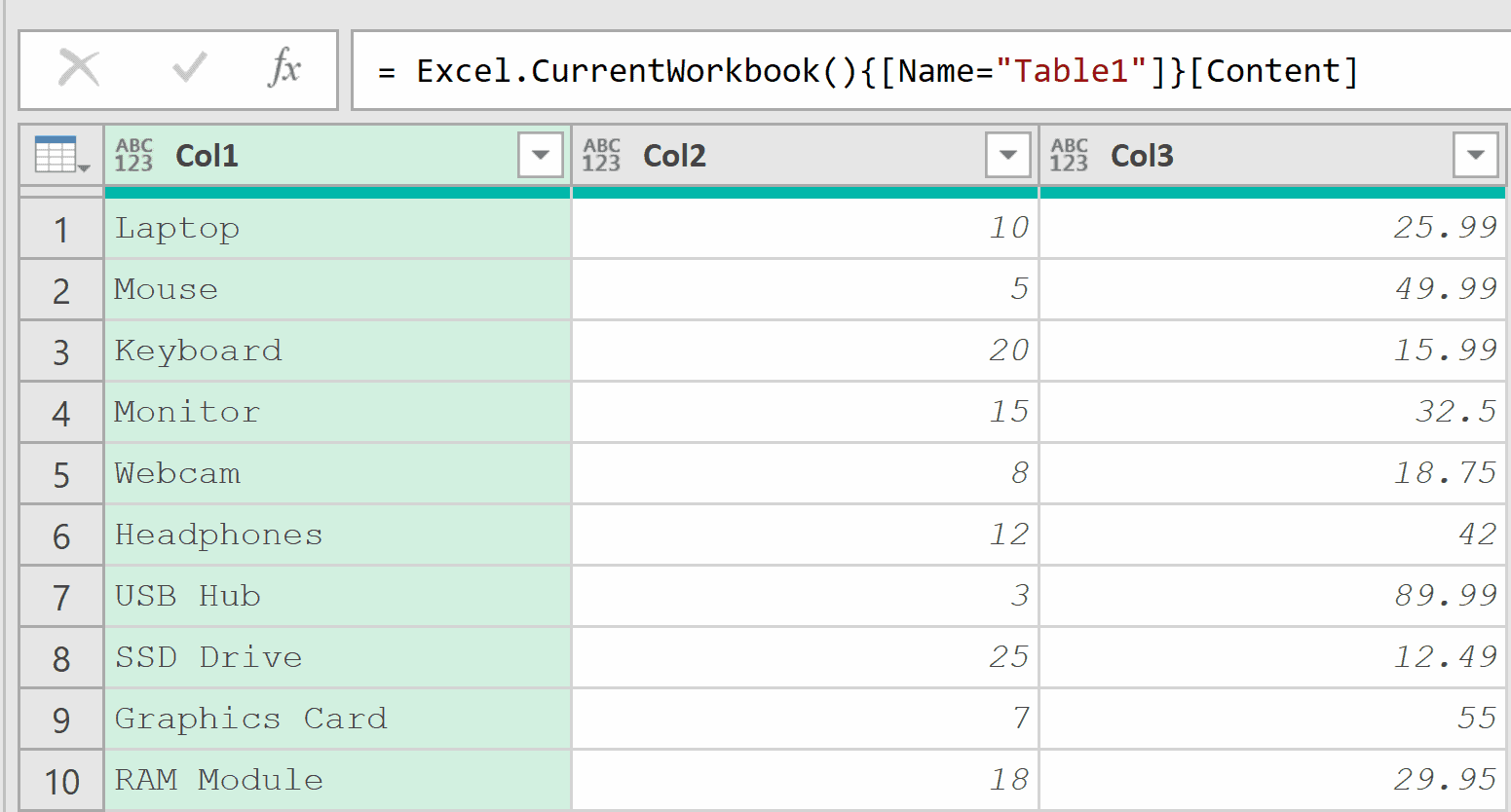
Add a new step (by clicking on the fx icon next to the formula bar) and use this formula:
= Table.RenameColumns(Source, {
    {"Col1", "ProductName"},
    {"Col2", "Quantity"},
    {"Col3", "Price"}
})
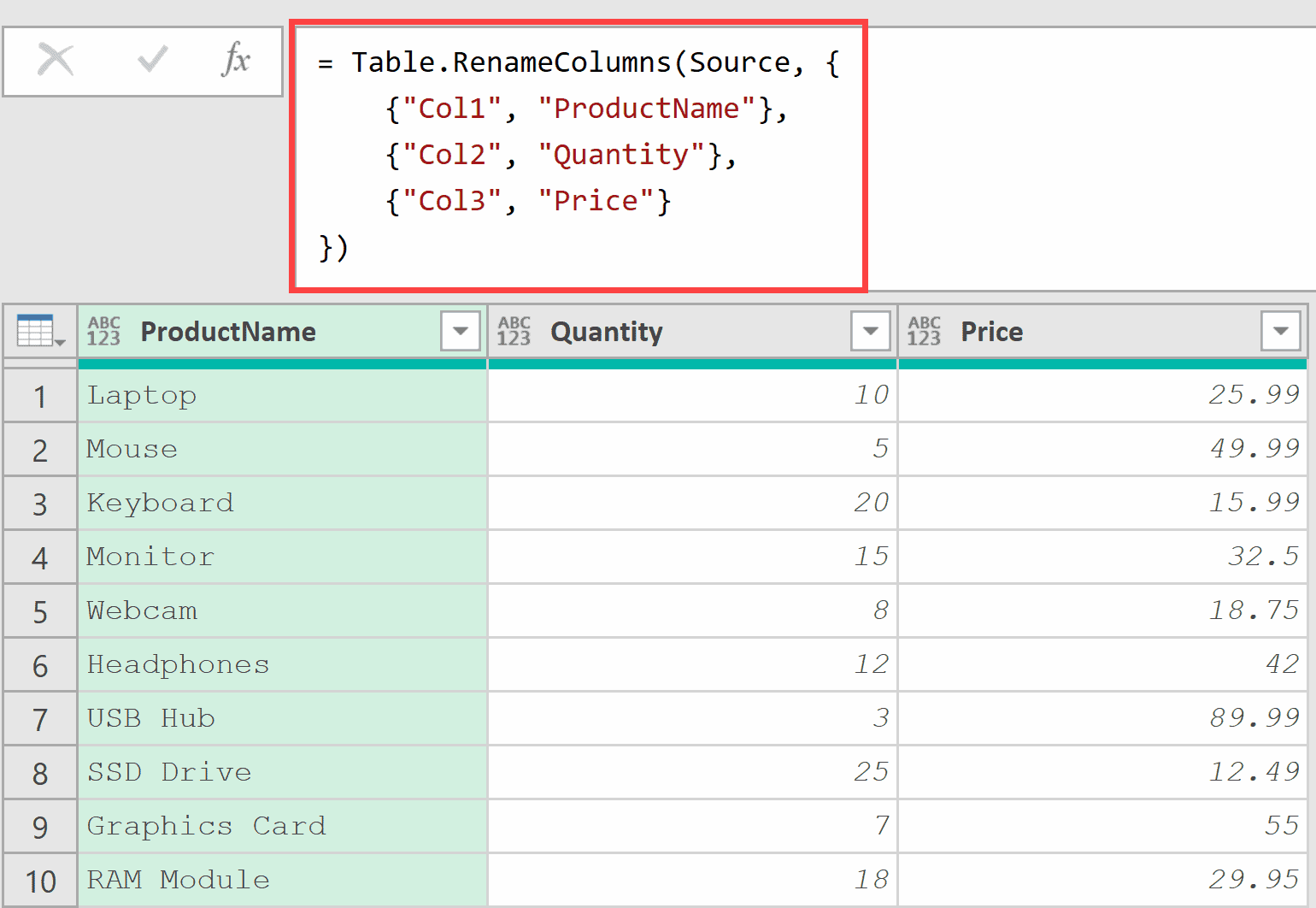
For multiple renames, I have provided a list of lists.
Each inner list contains a pair: {“old name”, “new name”}.
All renames happen in a single step, making your query more efficient than chaining multiple rename operations.
Example 3: Handling Missing Columns with MissingField.Ignore
This one is useful when building reusable queries.
Suppose you’re building a query that processes files from different sources.
Some files have a “Phone” column while others have “PhoneNumber”. You want to standardize to “ContactPhone” without errors when a column doesn’t exist.
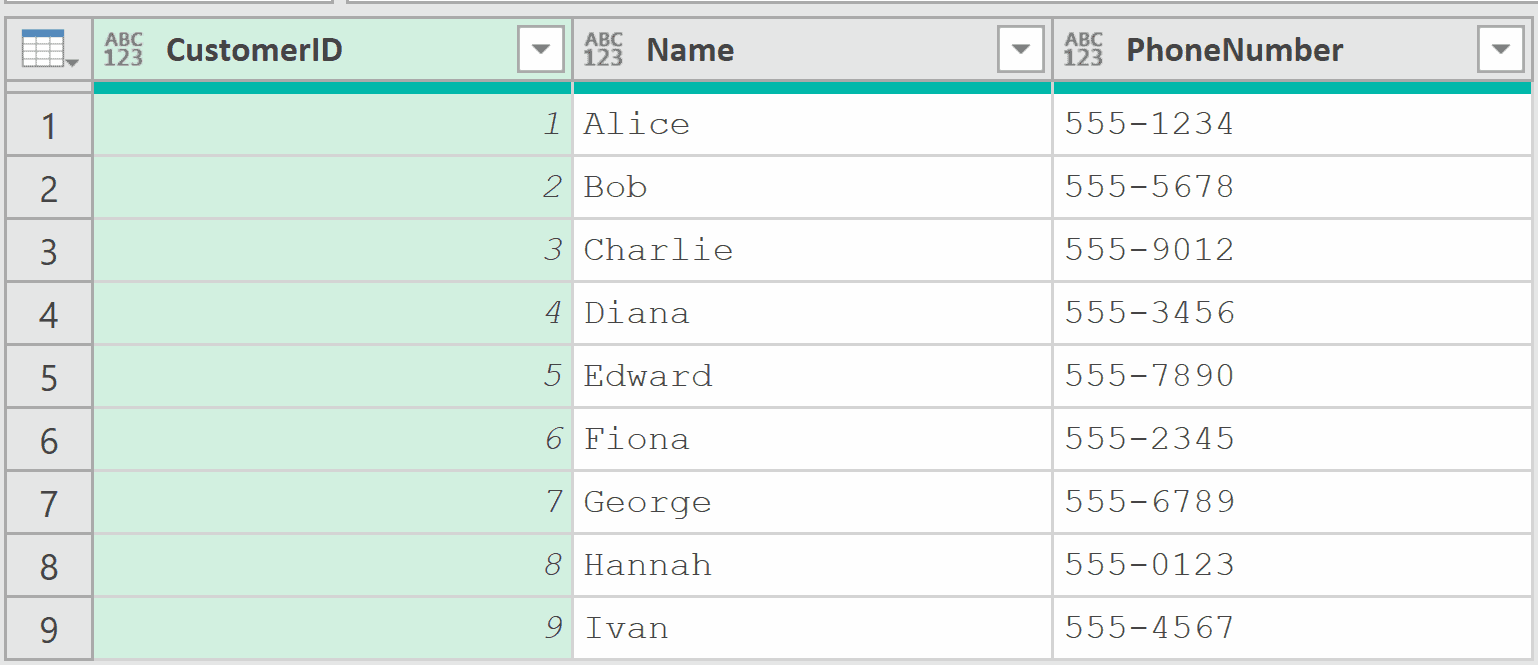
Add a new step (by clicking on the fx icon next to the formula bar) and use this formula:
= Table.RenameColumns(Source, {
    {"Phone", "ContactPhone"},
    {"PhoneNumber", "ContactPhone"}
}, MissingField.Ignore)
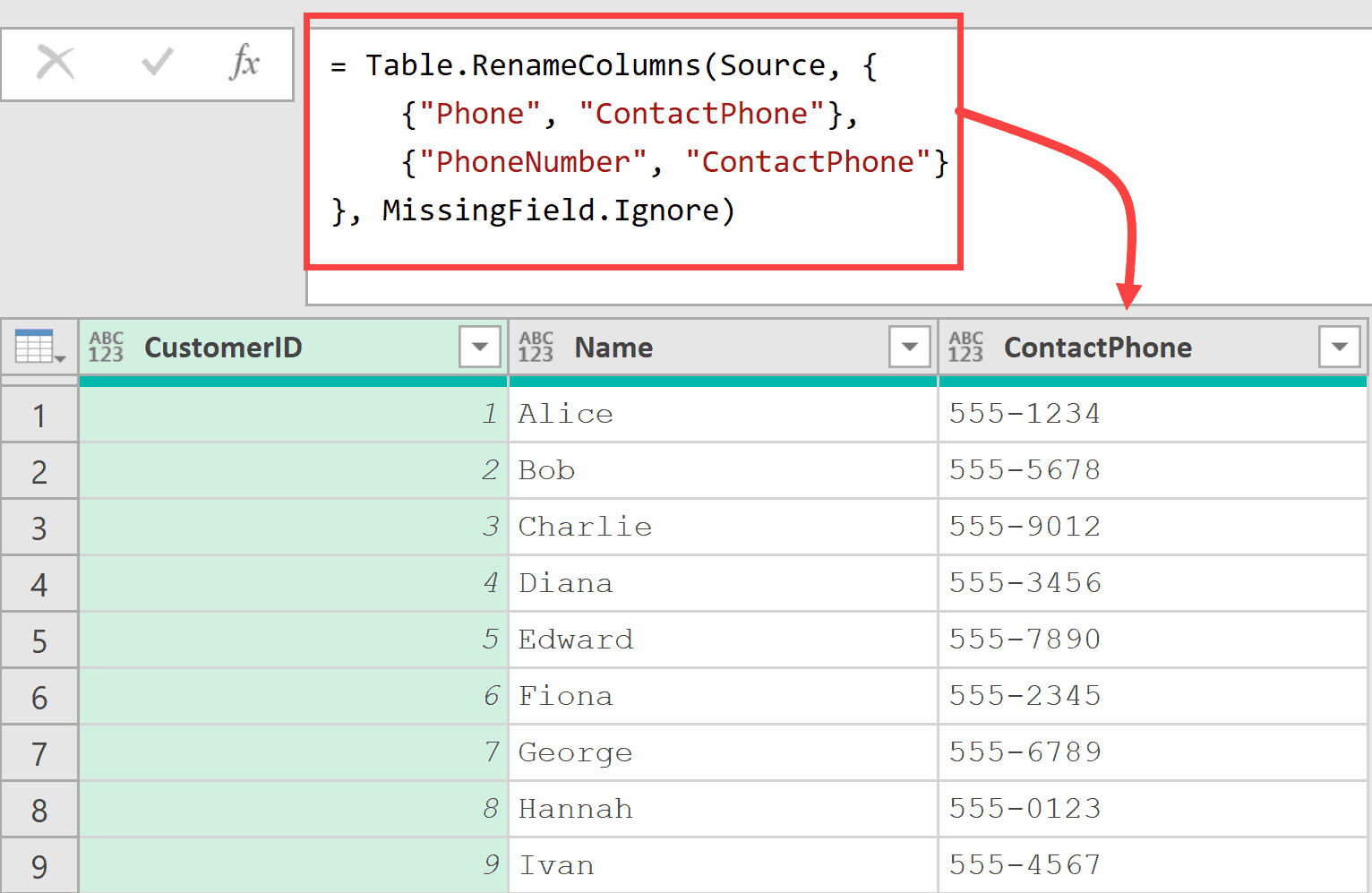
The “PhoneNumber” column is renamed to “ContactPhone”. The rename for “Phone” is silently ignored since that column doesn’t exist.
The third parameter MissingField.Ignore tells Power Query to skip any rename operations where the source column doesn’t exist.
This is essential for creating robust, error-free queries that can handle varying data sources.
Example 4: Dynamic Renaming Using List.Zip
Now let’s tackle something more advanced.
Suppose you have a mapping table that defines how columns should be renamed. You want to apply these renames dynamically without hardcoding each pair.
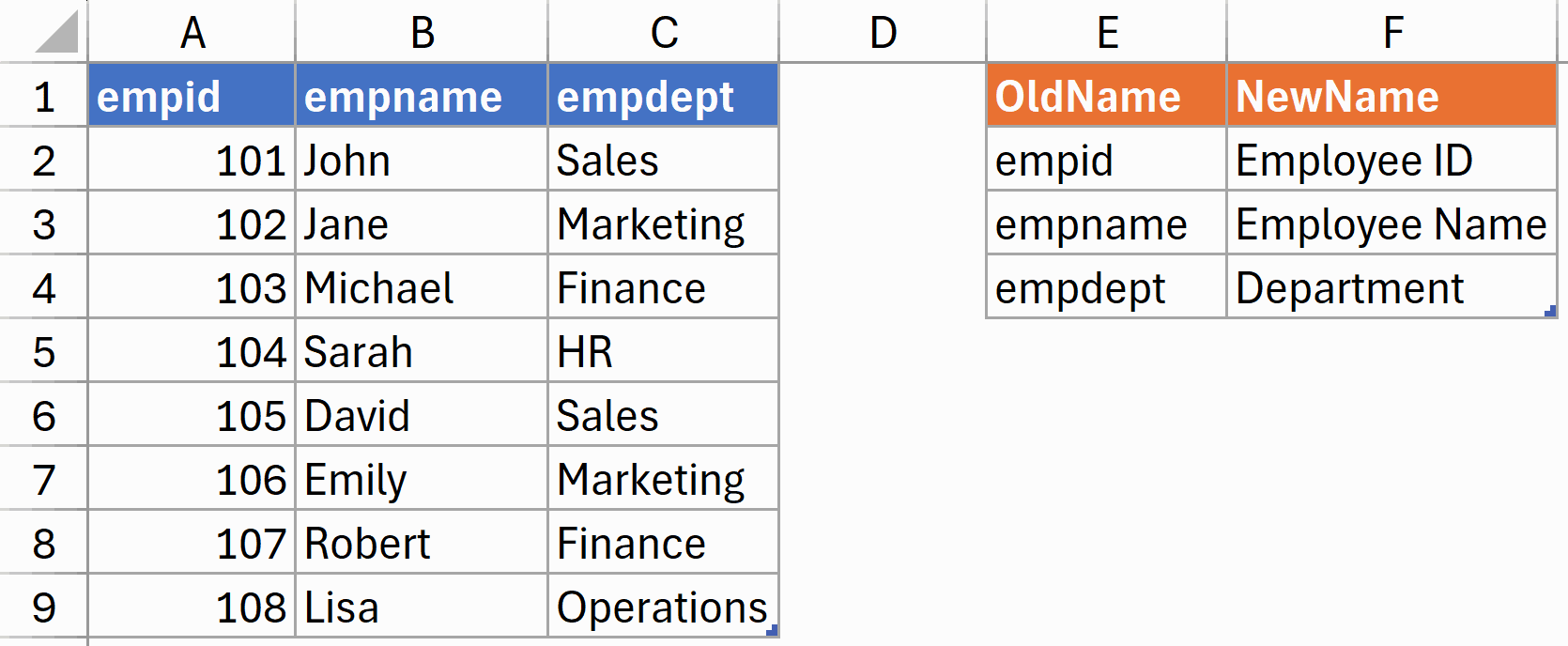
First, load both tables into Power Query. Let’s call them “EmployeeData” (your data) and “ColumnMapping” (your mapping table).
Create a new blank query and use this formula:
= let
    Source = YourDataTable,
    RenameMapping = YourMappingTable,
    RenamePairs = List.Zip({RenameMapping[OldName], RenameMapping[NewName]}),
    RenamedTable = Table.RenameColumns(Source, RenamePairs)
in
    RenamedTable
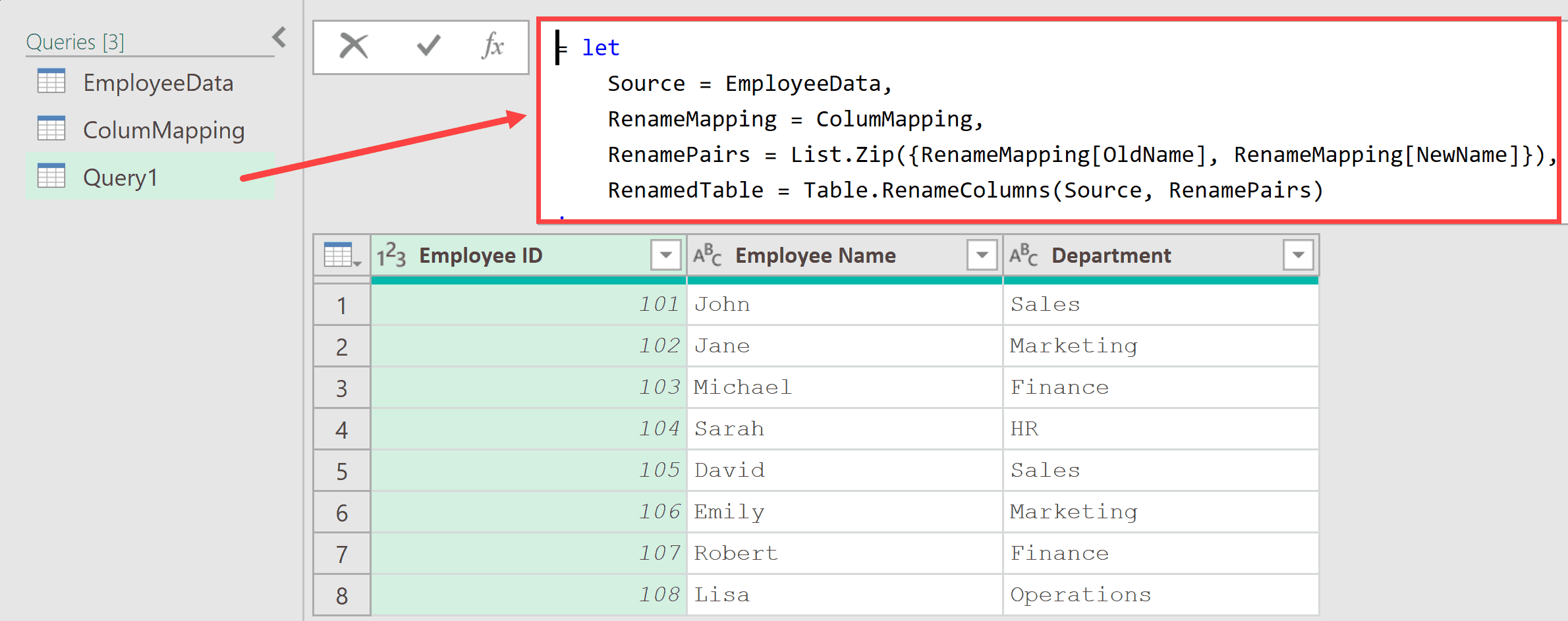
What happens here is that List.Zip combines two lists into a list of paired lists.
By extracting the OldName and NewName columns from your mapping table and zipping them together, you create the exact format that Table.RenameColumns expects.
This approach makes your rename logic data-driven and easy to maintain. Just update your mapping table to change the renames.
Example 5: Dynamic Renaming Using Table.ToRows
Here’s an alternative approach to the previous example.
If you have a mapping table and want to generate rename pairs, you can use Table.ToRows as a more concise method.
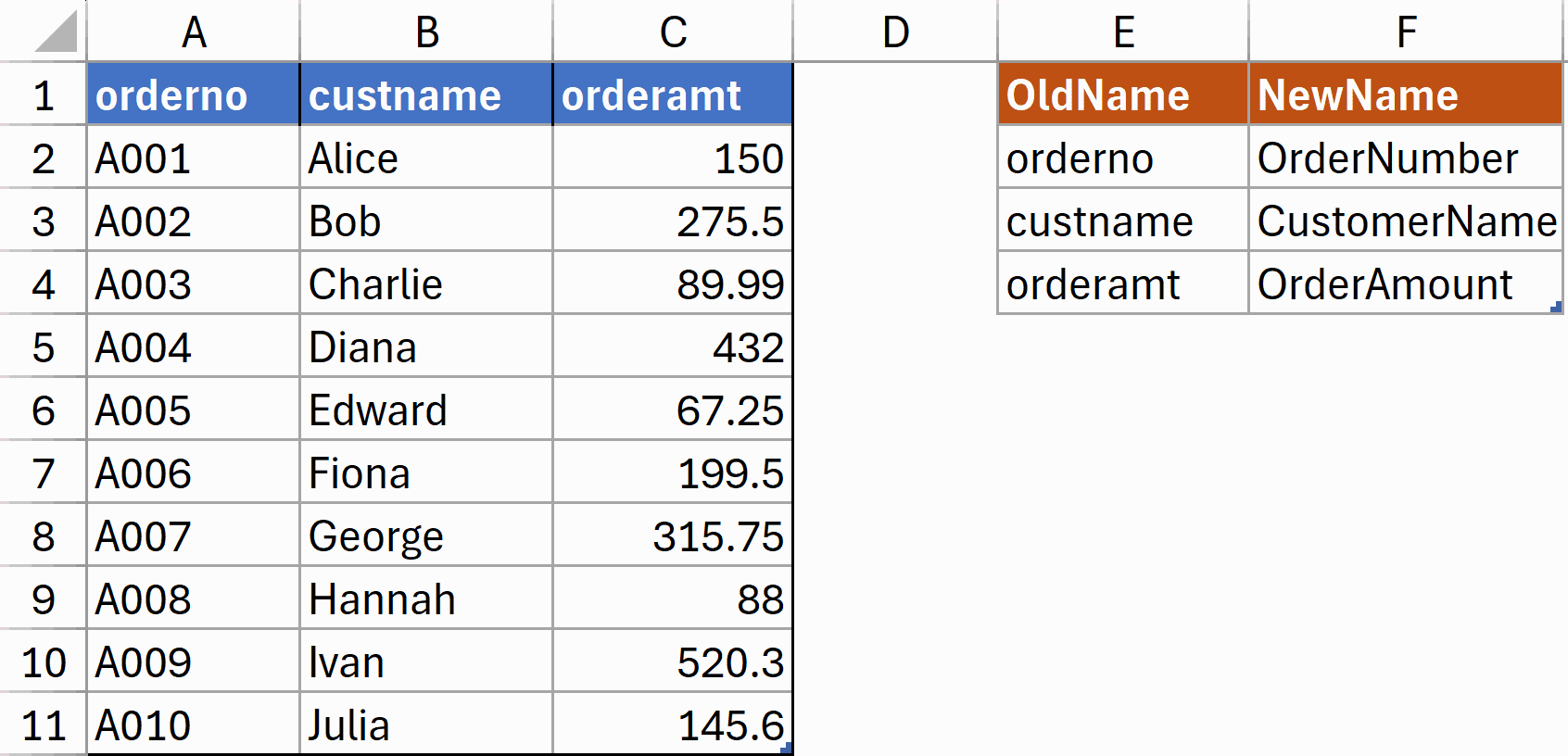
First, load both tables into Power Query. Let’s call them “SalesData” (your data) and “ColumnMapping” (your mapping table).
Create a new blank query and use this formula:
= let
    Source = YourDataTable,
    RenameMap = YourMappingTable,
    RenamedTable = Table.RenameColumns(Source, Table.ToRows(RenameMap), MissingField.Ignore)
in
    RenamedTable
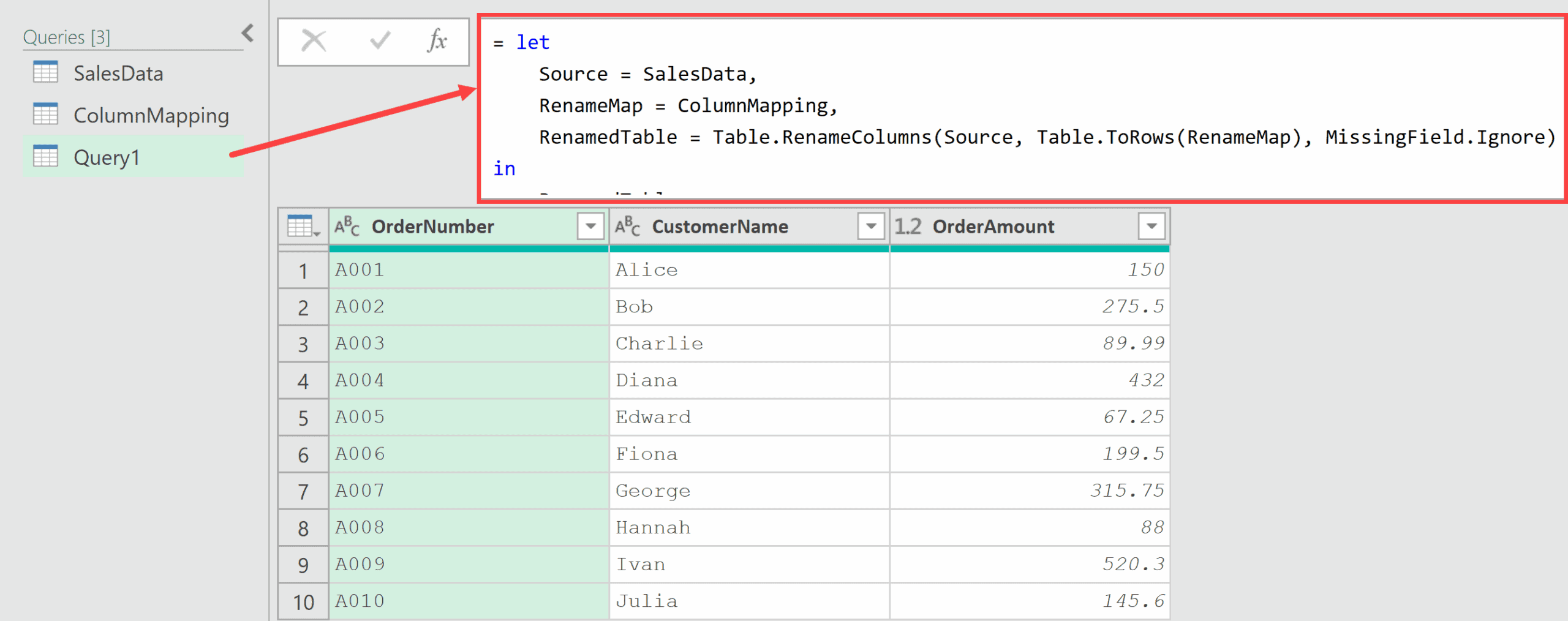
This works because the Table.ToRows function converts a table into a list of lists, where each row becomes a list of its values.
Since your mapping table has exactly two columns (old name and new name), each row naturally becomes a rename pair.
This is often more concise than using List.Zip.
Example 6: Adding a Prefix / Suffix to All Column Names
This pattern comes up often when combining multiple tables.
Suppose you’re merging tables and need to add a prefix to all column names to identify their source (e.g., “Sales” prefix for the sales table).
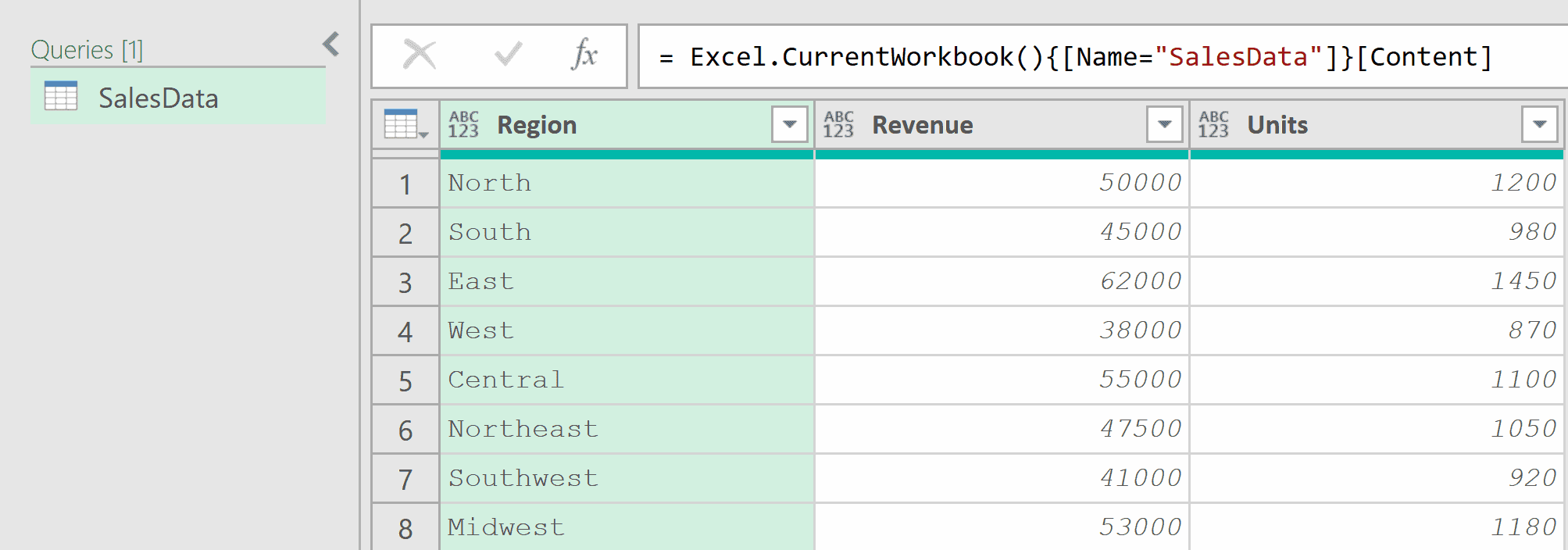
Add a new step (by clicking on the fx icon next to the formula bar) and use this formula:
= let
    ColumnNames = Table.ColumnNames(Source),
    NewNames = List.Transform(ColumnNames, each "Sales_" & _),
    RenamedTable = Table.RenameColumns(Source, List.Zip({ColumnNames, NewNames}))
in
    RenamedTable
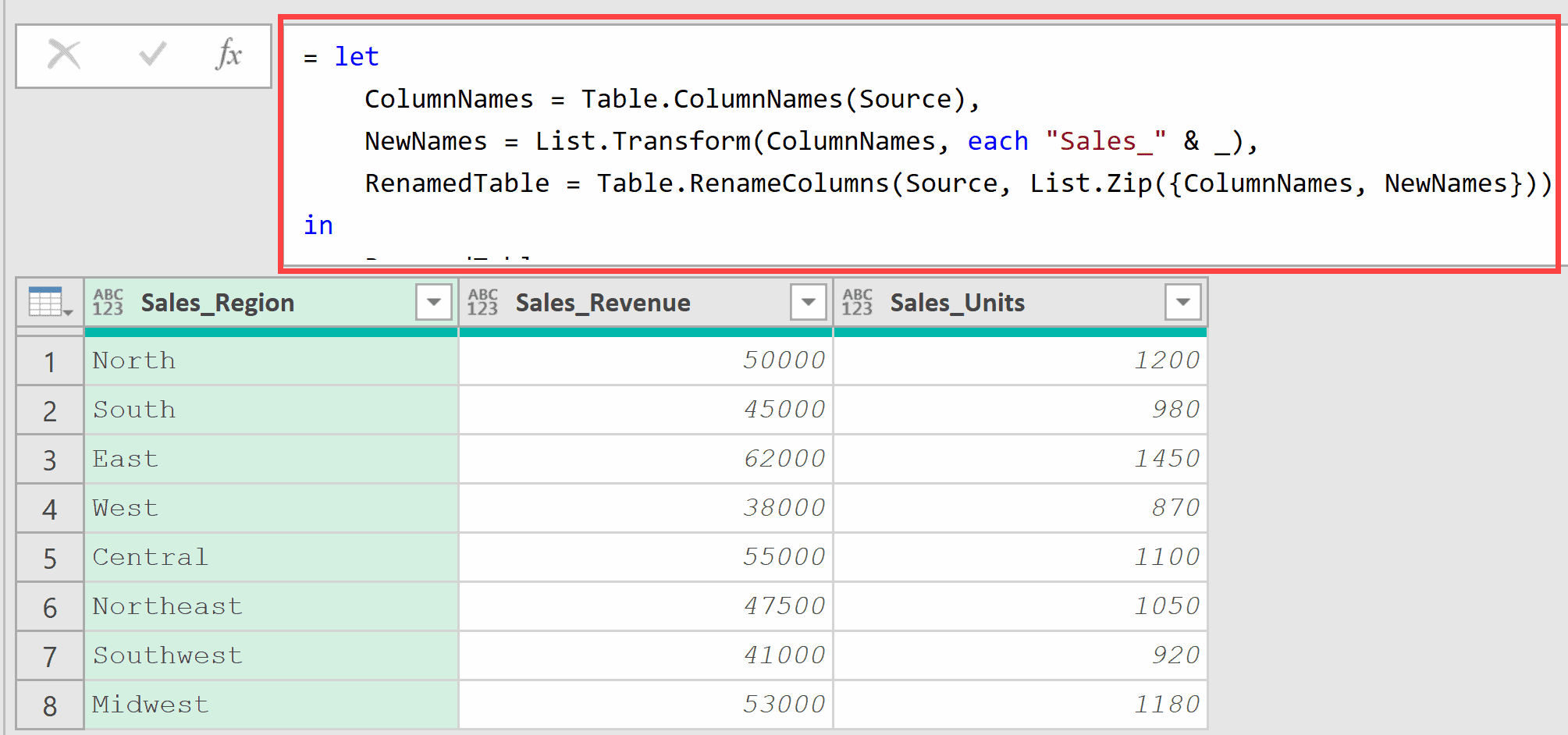
This pattern works for any text transformation. You can use it for suffixes, replacements, or case changes.
Example 7: Cleaning Column Names (Removing Spaces and Special Characters)
Here’s a common data cleaning scenario.
Suppose your imported Excel file has column headers with spaces and special characters that cause issues in your data model.
Your columns look like: “Revenue ($)”, “Sales Amount”, “Profit ($)”, “Product Name”.
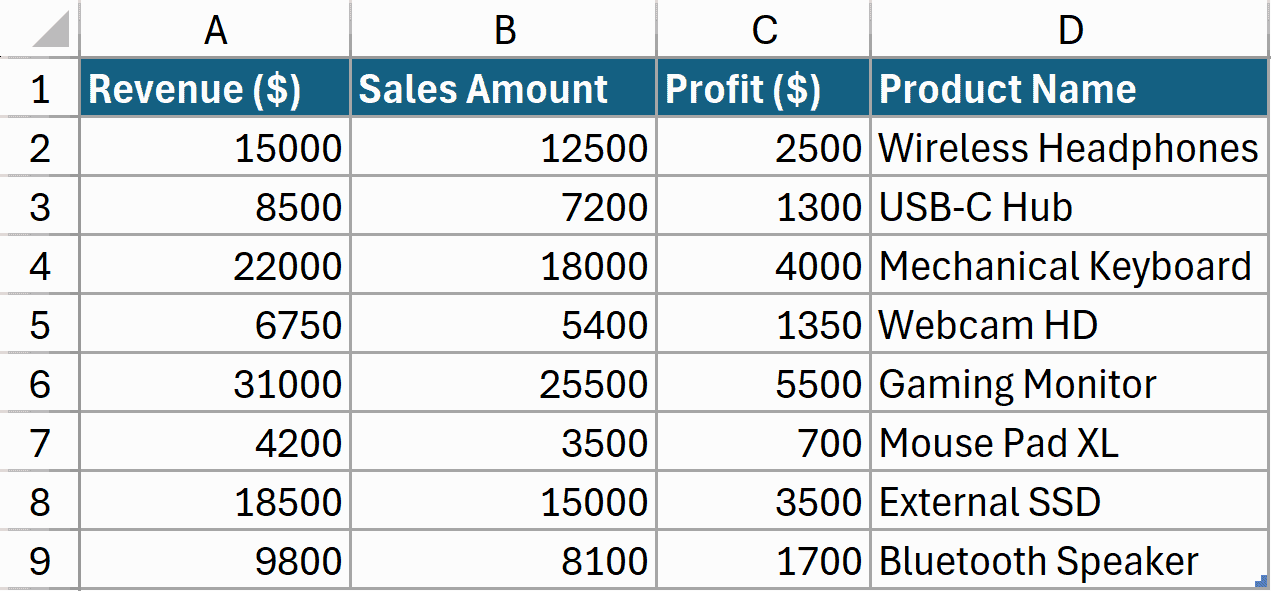
You want to remove the “($)” notation and replace spaces with underscores for cleaner column names.
Load this data into Power Query.
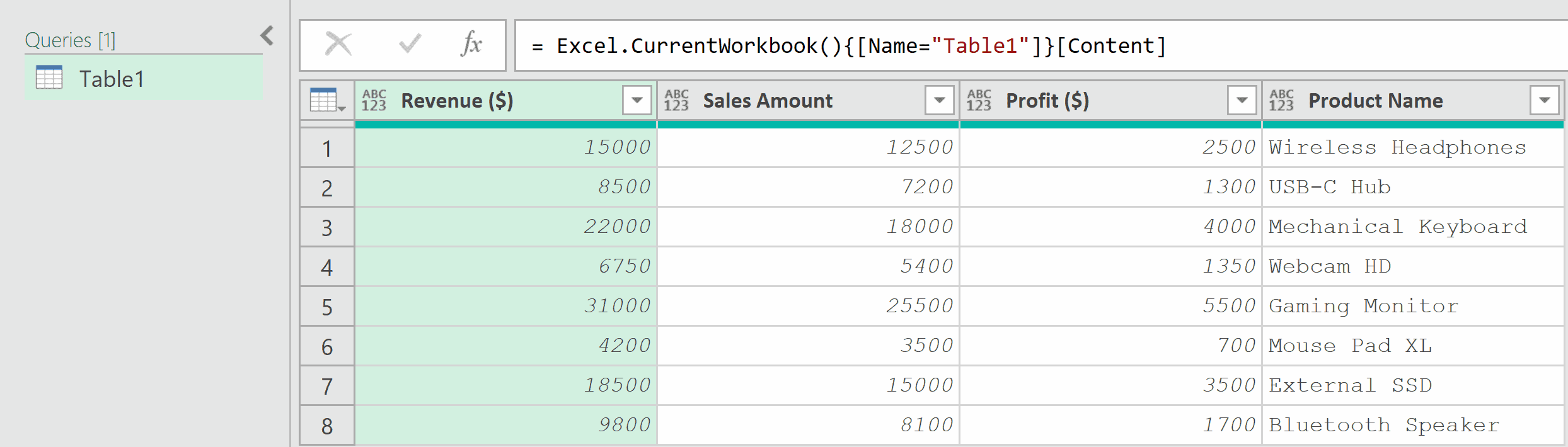
Now, click on the fx icon and then use this formula in the Formula Bar.
= let
    OldNames = Table.ColumnNames(Source),
    NewNames = List.Transform(OldNames, each
        Text.Replace(
            Text.Replace(_, " ($)", ""),
            " ", "_"
        )
    ),
    RenamedTable = Table.RenameColumns(Source, List.Zip({OldNames, NewNames}))
in
    RenamedTable
Result: “Revenue ($)” becomes “Revenue”, “Sales Amount” becomes “Sales_Amount”, and “Profit ($)” becomes “Profit”.
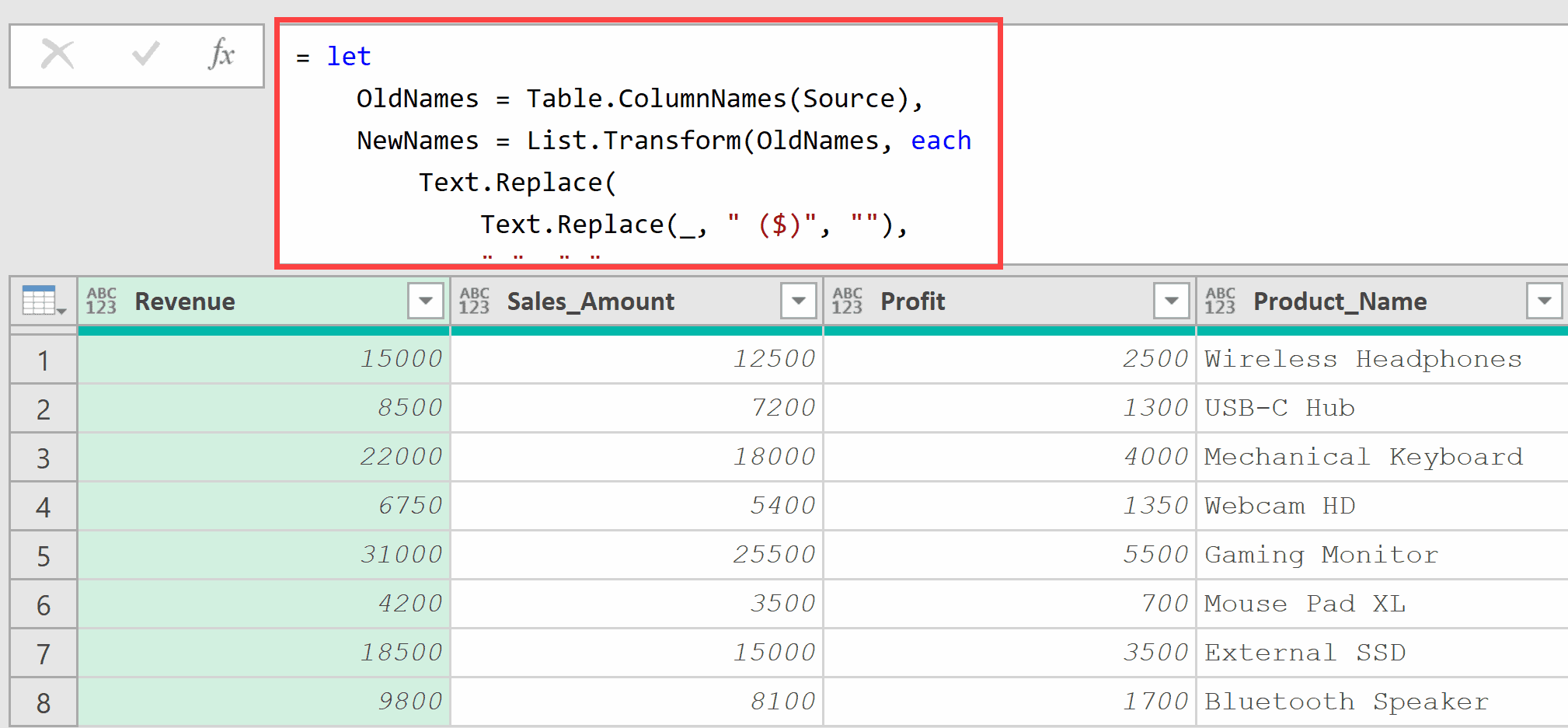
The key here is the order of operations.
By removing ” ($)” first (including the space before the parentheses), you avoid the trailing underscore problem. Only then do you replace any remaining spaces with underscores.
This approach is extensible.
You can add more Text.Replace calls to handle other patterns like ” (%)” or ” (#)” that might appear in your column headers.
Example 8: Conditional Renaming Based on Column Name Patterns
This next one demonstrates more advanced pattern matching.
Suppose you have columns that follow a pattern. Columns starting with “amt” should be renamed to start with “Amount” instead.
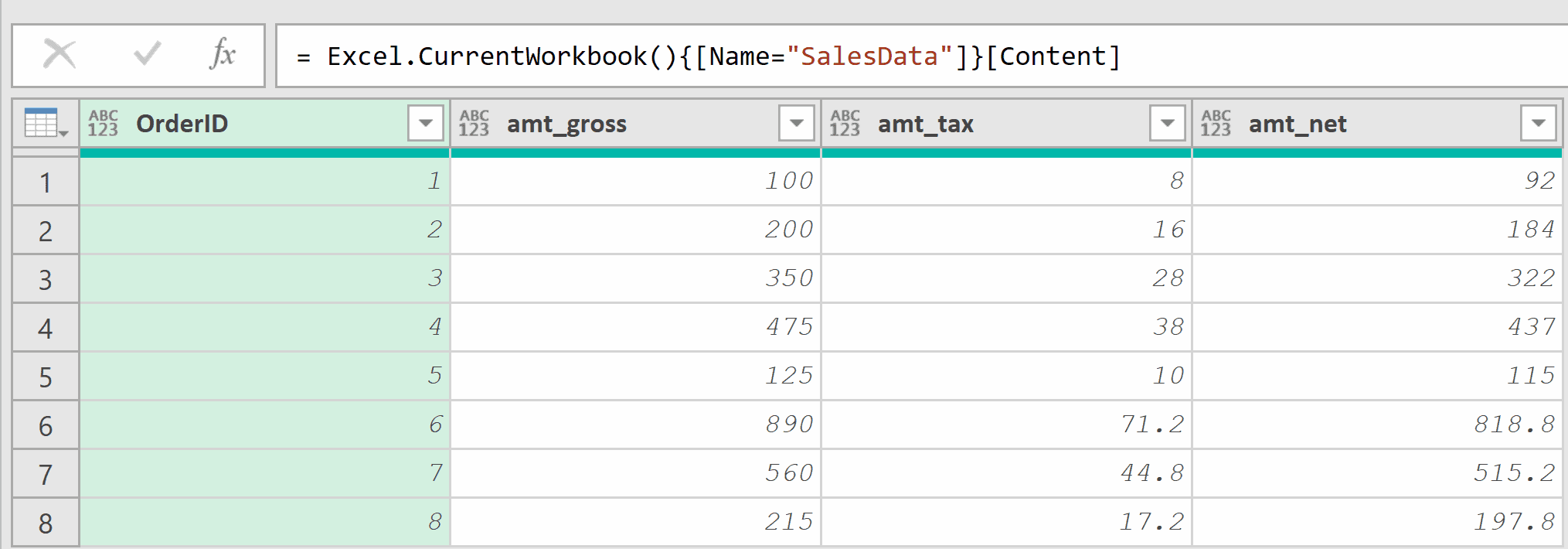
Now, click on the fx icon and then use this formula in the Formula Bar.
= let
    OldNames = Table.ColumnNames(Source),
    NewNames = List.Transform(OldNames, each
        if Text.StartsWith(_, "amt_")
        then "Amount_" & Text.AfterDelimiter(_, "amt_")
        else _
    ),
    RenamedTable = Table.RenameColumns(Source, List.Zip({OldNames, NewNames}))
in
    RenamedTable
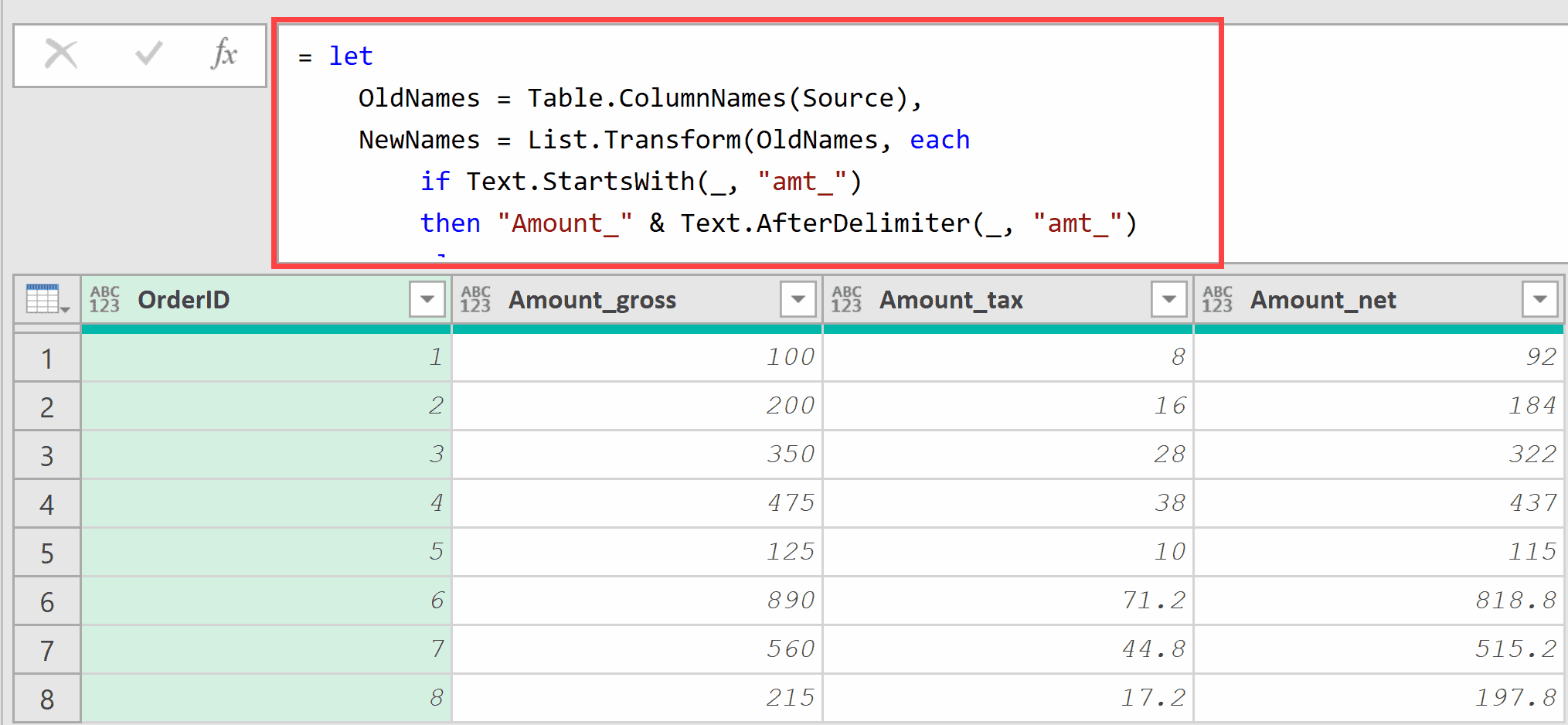
The List.Transform function checks each column name with Text.StartsWith.
If it matches the pattern “amt“, it extracts the part after the prefix using Text.AfterDelimiter and prepend “Amount“.
Columns that don’t match the pattern keep their original names (the else _ part returns the original name unchanged).
Example 9: Renaming Columns by Position (First N Columns)
This approach is useful when column names are unreliable but column order is consistent.
Suppose you’re importing a CSV file where the first three columns are always in the same order but may have varying names like “Column1”, “Column2”, etc.
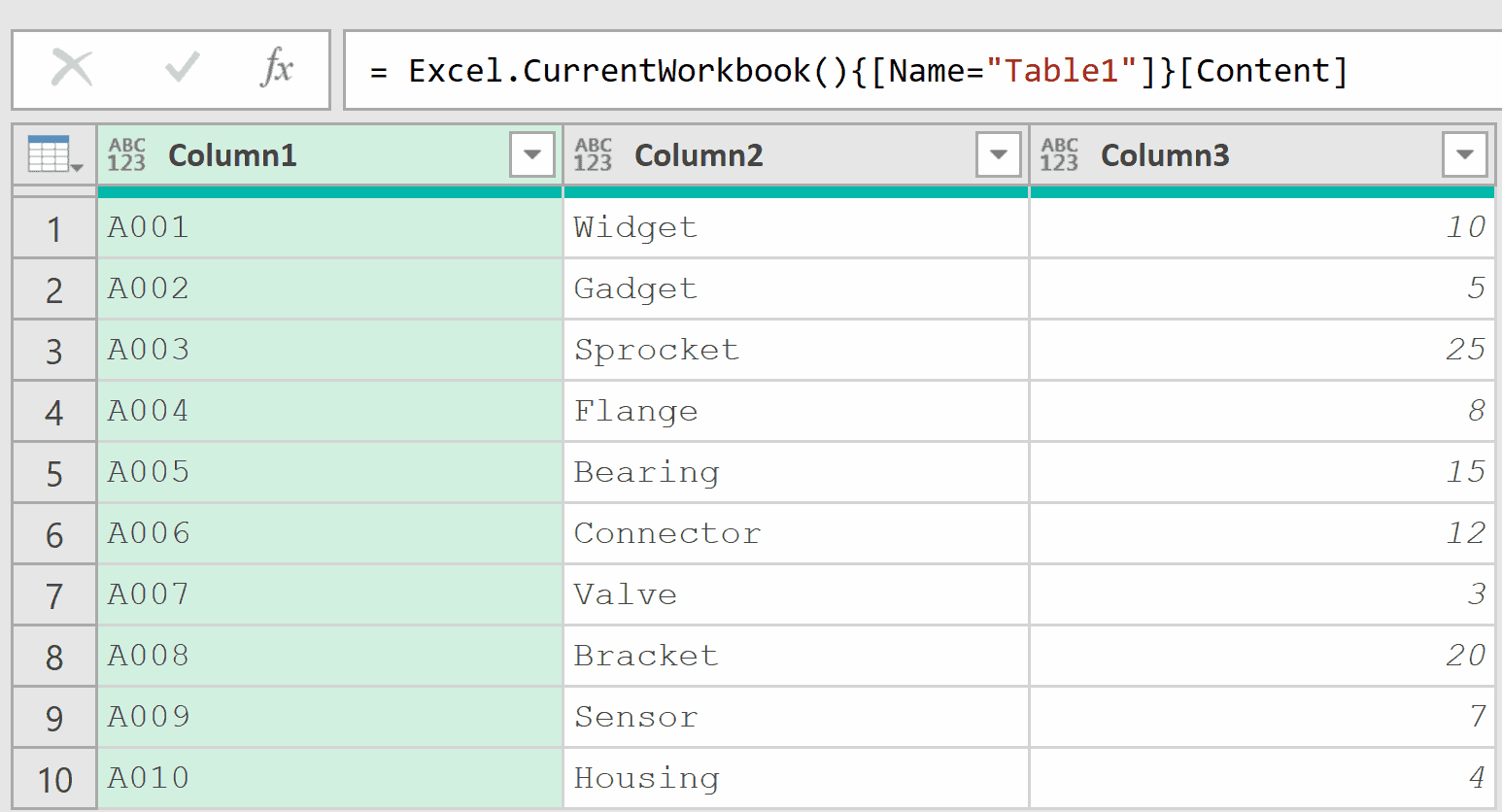
You want to rename them to standard names regardless of their current names.
Now, click on the fx icon and then use this formula in the Formula Bar.
= let
    StandardNames = {"OrderID", "ProductName", "Quantity"},
    CurrentNames = List.FirstN(Table.ColumnNames(Source), 3),
    RenamedTable = Table.RenameColumns(Source, List.Zip({CurrentNames, StandardNames}))
in
    RenamedTable
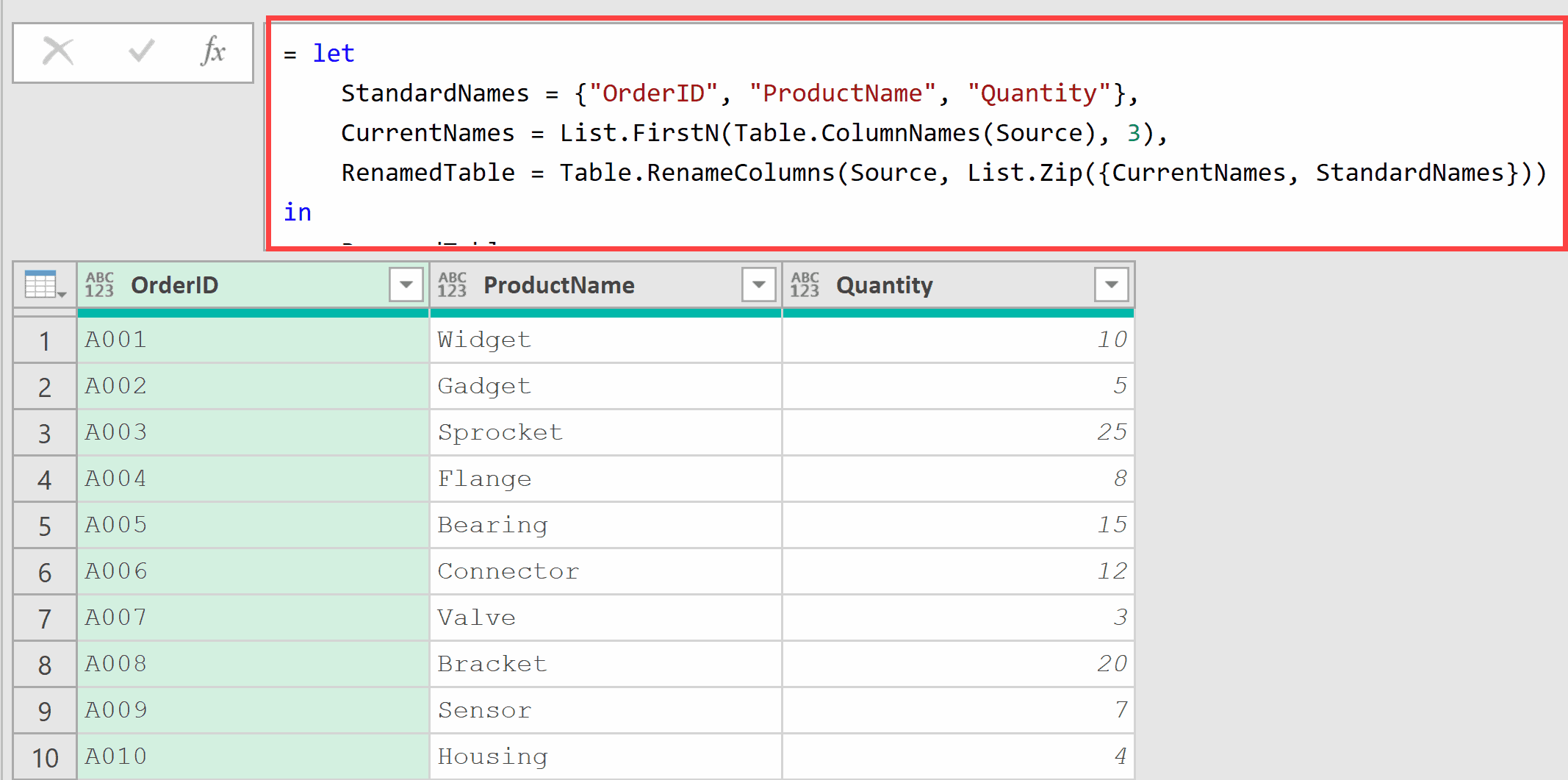
By using List.FirstN to get just the first N column names, I can rename columns by their position rather than their name.
This is useful when column names are unreliable (like auto-generated “Column1”, “Column2”) but the column order is consistent.
Tips & Common Mistakes
- Single vs. Multiple Renames: For a single column, use {“OldName”, “NewName”}. For multiple columns, use {{“Old1”, “New1”}, {“Old2”, “New2”}}. Mixing these formats causes errors.
- Always Use MissingField.Ignore for Flexible Queries: When building reusable queries or templates, add MissingField.Ignore to prevent errors when source data varies.
- Column Names Are Case-Sensitive: “CustomerID” and “customerid” are different column names. Make sure your rename operations match the exact case.
- Duplicate New Names Cause Errors: You cannot rename two columns to the same name. Power Query requires unique column names.
- Use List.Zip or Table.ToRows for Dynamic Renames: Hardcoding rename pairs is fine for a few columns, but for large-scale or data-driven renames, generate your pairs dynamically from a mapping table.
- Order Matters in the Mapping: When using Table.ToRows, ensure your mapping table has columns in the correct order (old name first, new name second).
- Combine with Table.ColumnNames for Bulk Operations: Use Table.ColumnNames to get current names, transform them with List.Transform, then apply renames. This pattern handles any number of columns automatically.
Related Functions
- Table.TransformColumnNames – Apply a transformation function to all column names at once (e.g., convert all to uppercase)
- Table.ColumnNames – Get a list of all column names from a table, useful for dynamic rename operations
- Table.PrefixColumns – Add a prefix to all column names (simpler alternative when you just need prefixes)
- Table.TransformColumns – Applies a transformation function to the values within one or more columns. Use this when you need to modify the actual data in columns rather than renaming or retyping them.
- Table.Group – Group rows that have identical key values and allows you to aggregate data within each group.
All Power Query Functions
