

The Text.Combine function joins a list of text values into a single text string.
You can optionally specify a separator (like a comma or space) to place between each value.
This is the standard function for concatenation in Power Query. Whether you’re merging name columns, building addresses, or combining grouped row values into a single cell, Text.Combine is your go-to function.
Text.Combine Syntax
= Text.Combine(texts as list, optional separator as nullable text) as text
- texts – A list of text values you want to combine into one string. If there are any null values present in texts, those would be ignored
- separator (optional) – A text delimiter to place between each value. If omitted, the values are joined with no separator
What it returns: A single text value containing all the items from the list joined together.
When to Use Text.Combine
Use this function when you need to:
- Merge multiple columns into one (such as First Name + Last Name into Full Name)
- Build full addresses from separate City, State, and Zip columns
- Create concatenated keys by joining multiple column values
- Combine grouped row values into a comma-separated string (like TEXTJOIN across rows)
- Convert a list of values into a single delimited string
Example 1: Basic Combine Without a Separator
Let’s start with the simplest use case.
Suppose you want to join two text values into one without any separator between them.
Open a blank query in Power Query and use the formula below in the formula bar
= Text.Combine({"Power", "Query"})
Result: PowerQuery
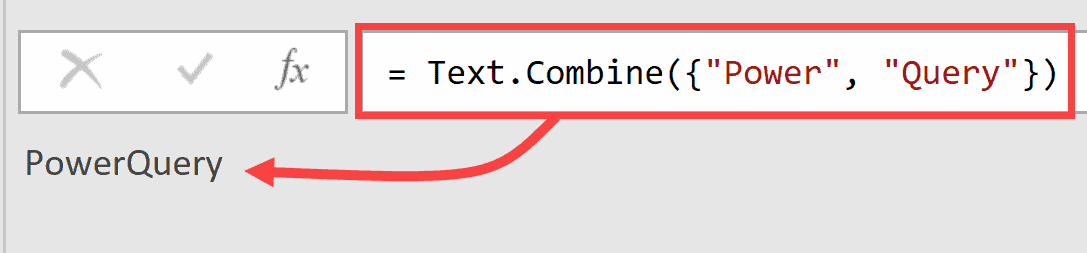
Since no separator is specified, the function simply joins the two values directly with nothing in between.
Example 2: Combine with a Separator
Here’s the most common way you’ll use this function.
Suppose you have a few text values and you want to combine them into one string with a separator between each one, like ” | ” (a pipe with spaces around it).
Enter the formula below in the formula bar in Power Query
= Text.Combine({"Excel", "Power Query", "DAX"}, " | ")
Result: Excel | Power Query | DAX

The second argument ” | ” tells the function to insert a pipe symbol with a space on both sides between each word.
You can use any text as the separator. A hyphen, a comma, a semicolon. Whatever works for your data.
Example 3: Combining Table Columns into a New Column
This next one comes up quite often in data cleaning.
Suppose you have a table with three columns: First Name, Middle Name, and Last Name. You want to combine them into a single Full Name column.
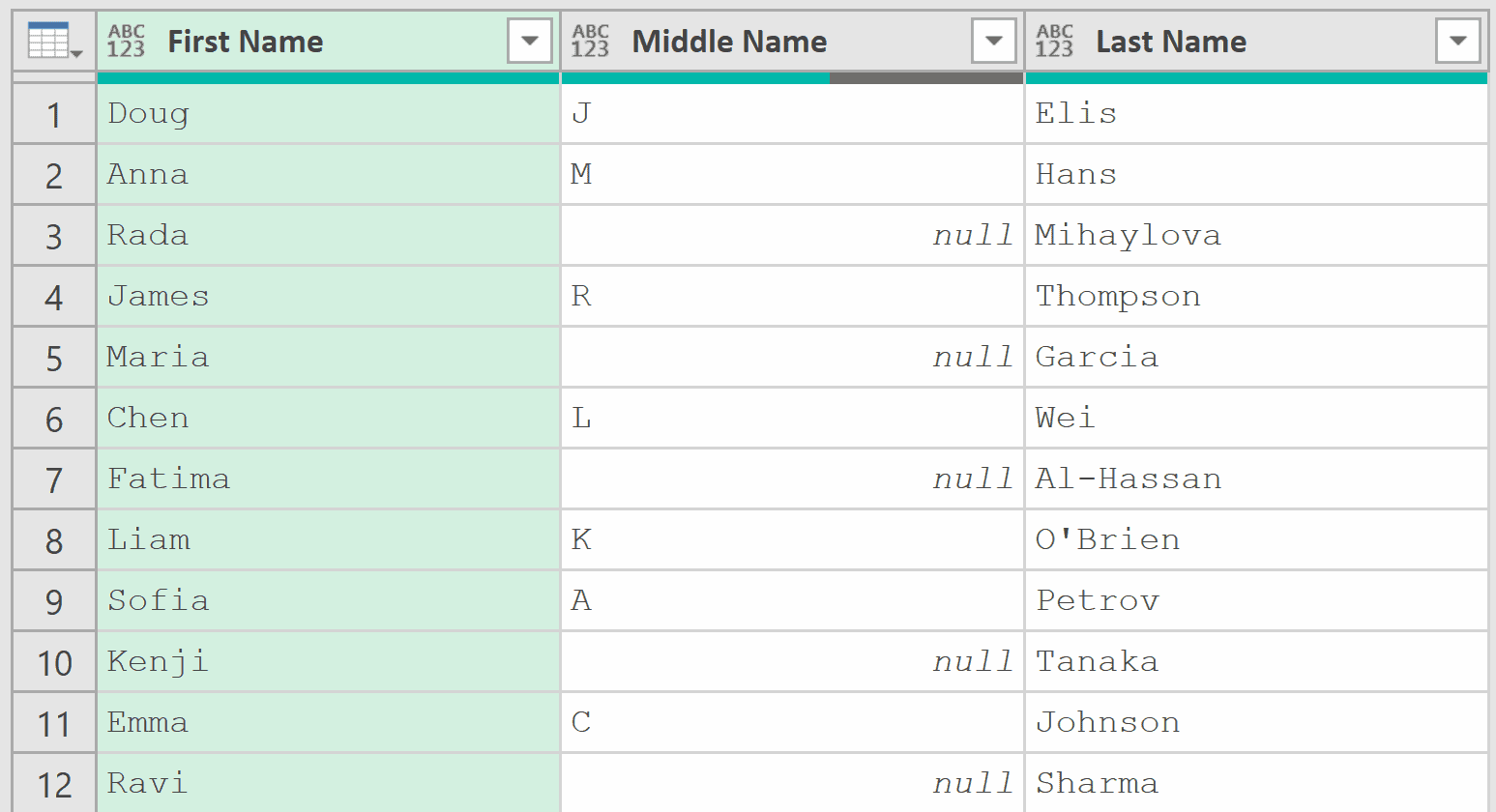
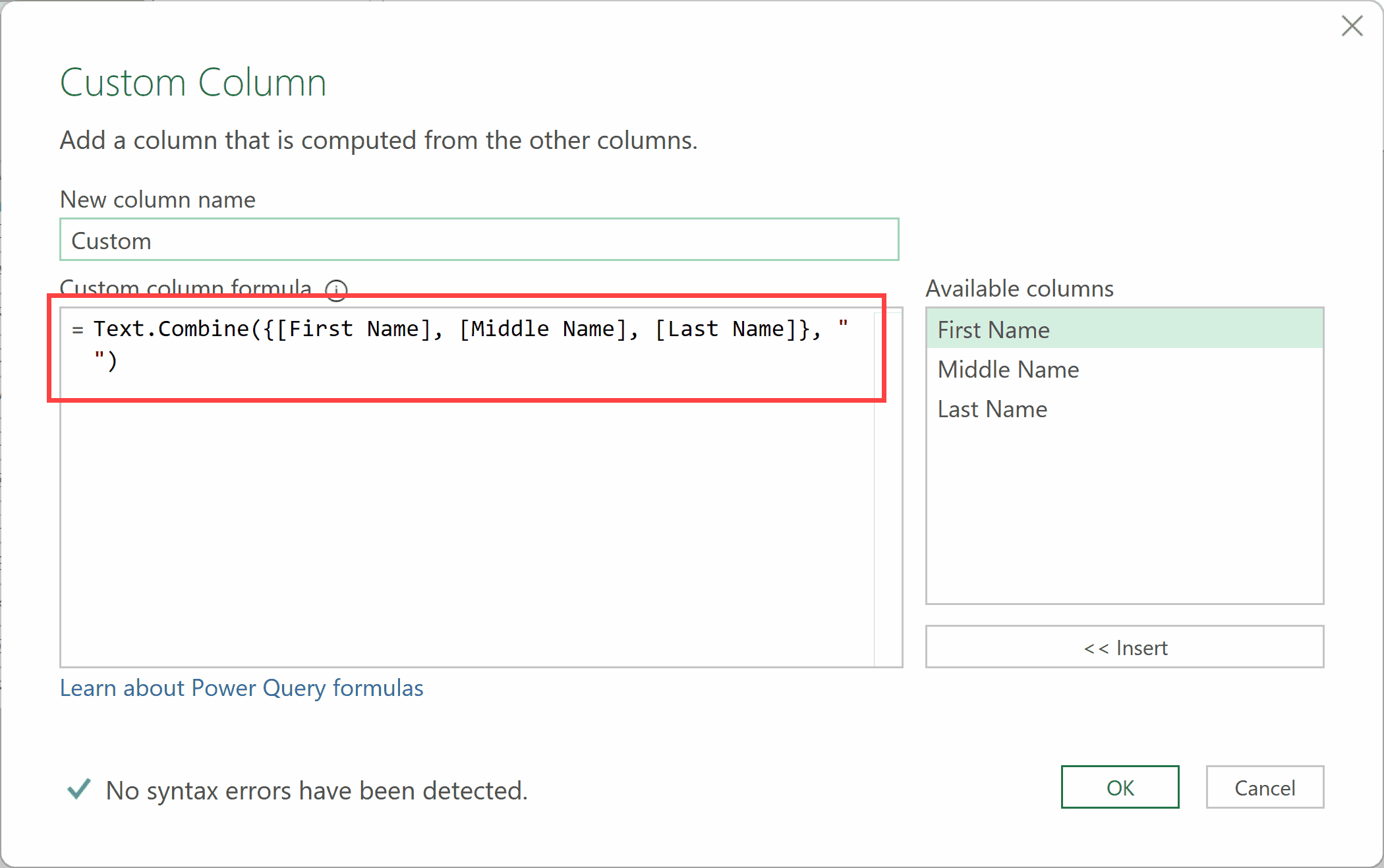
With the table loaded in Power Query, go to Add Column > Custom Column and use this formula, and click OK:
= Text.Combine({[First Name], [Middle Name], [Last Name]}, " ")
Result: A new column where names are combined (from all three columns)
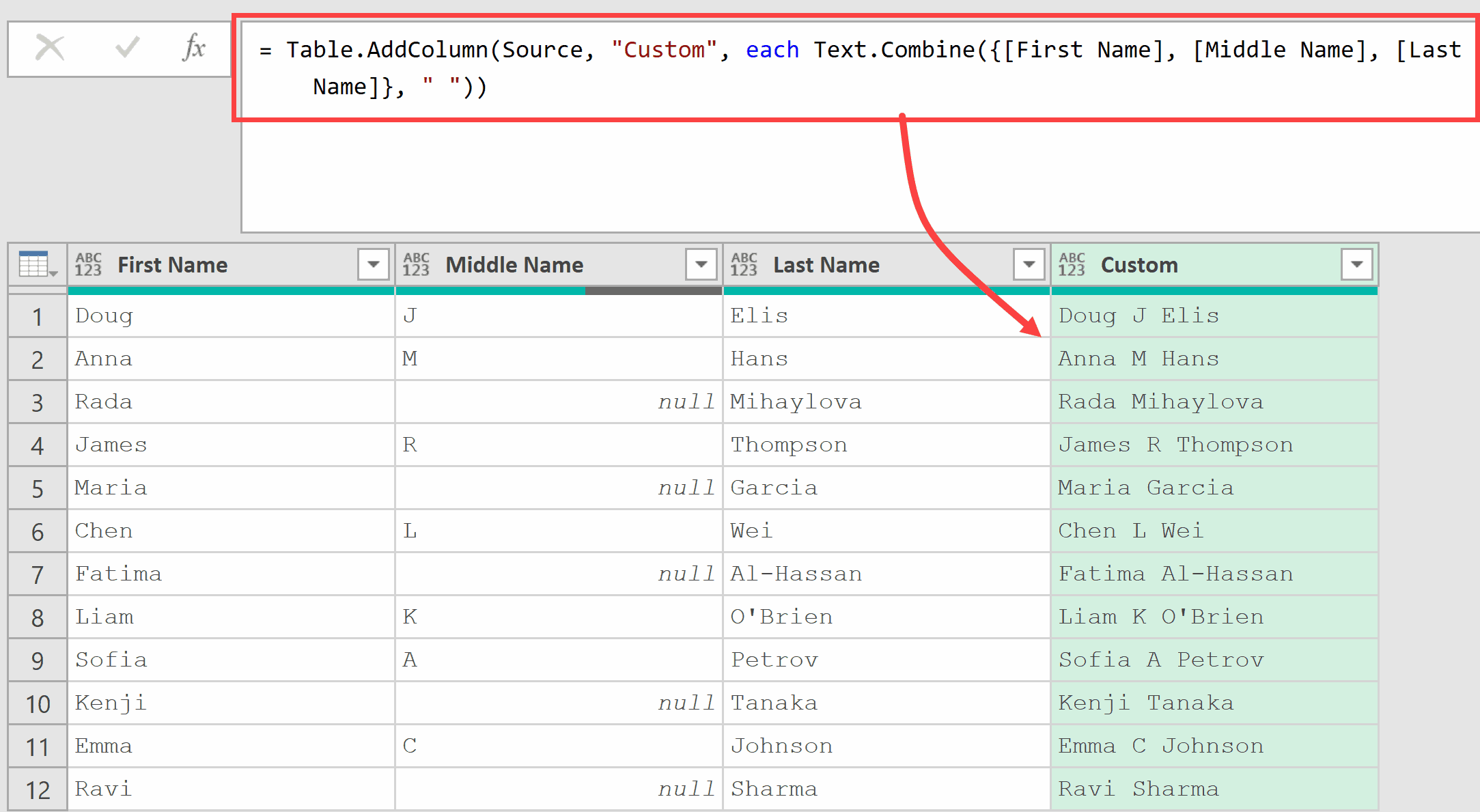
In this formula, the curly braces {} create a list from the three column values for each row. The space ” ” is used as the separator between them.
Notice something important with the fifth row. Maria has no middle name (null value), and the result is Maria Garcia with a single space (not double space).
That’s because Text.Combine skips null values automatically.
More on this in the next example.
Example 4: How Text.Combine Handles Null Values
When your data has missing values (nulls), Text.Combine simply ignores them. It doesn’t insert extra separators or return an error.
Use the formula below in the Power Query Formula Bar:
= Text.Combine({"John", null, "Smith"}, " ")
Result: John Smith

The null value in the middle is completely skipped. You get a clean result without any double commas or trailing separators.
Now compare this to what happens if you have an empty string instead of null:
= Text.Combine({"John", "", "Smith"}, " ")
Result: John Smith

An empty string is not the same as null. The function treats it as a valid value and includes the extra separator.
This distinction matters.
If your data has empty strings instead of nulls and you’re getting unwanted double separators, you may need to replace empty strings with null first, using a step like this:
= Table.ReplaceValue(Source, "", null, Replacer.ReplaceValue, {"YourColumn"})
Example 5: Text.Combine vs. the Ampersand (&) Operator
You might wonder why you’d use Text.Combine when you can use the & operator to join text.
The key difference is how they handle null values.
With the ampersand operator, if any value is null, the entire result becomes null:
= "Sumit" & " " & null & " " & "Bansal"
Result: null

With Text.Combine, nulls are skipped, and you still get a usable result:
= Text.Combine({"Sumit", null, "Bansal"}, " ")
Result: Sumit Bansal

Here’s a quick comparison:
| Feature | Text.Combine | Ampersand (&) |
|---|---|---|
| Null handling | Skips nulls automatically | Returns null if any value is null |
| Separator | Built-in separator parameter | Must manually add separator strings |
| Input format | Takes a list {} | Chains individual values |
| Best for | Multiple columns, Group By | Simple two-value joins with no nulls |
| Syntax | Text.Combine({val1, val2}, sep) | val1 & sep & val2 |
| Error risk | Low. Handles nulls gracefully | High. Any null breaks the result |
| Readability | Clean with many values | Gets messy with 3+ values |
Use & when you’re joining two values, and you’re sure neither will be null. Use Text.Combine for everything else.
Example 6: Combining Non-Text Values (Numbers and Dates)
This is the most common error people run into with Text.Combine.
Suppose you have a table with a text column (Product) and a numeric column (Quantity), and you want to combine them.
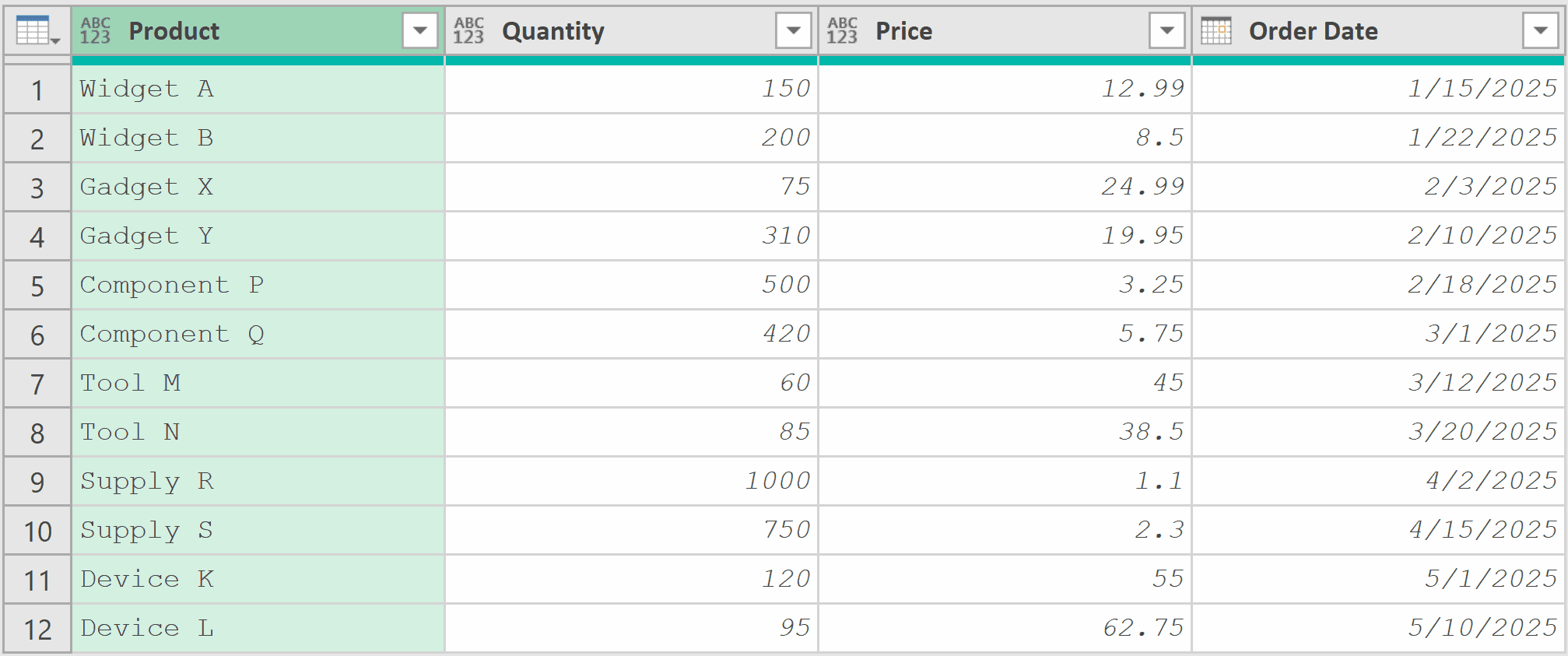
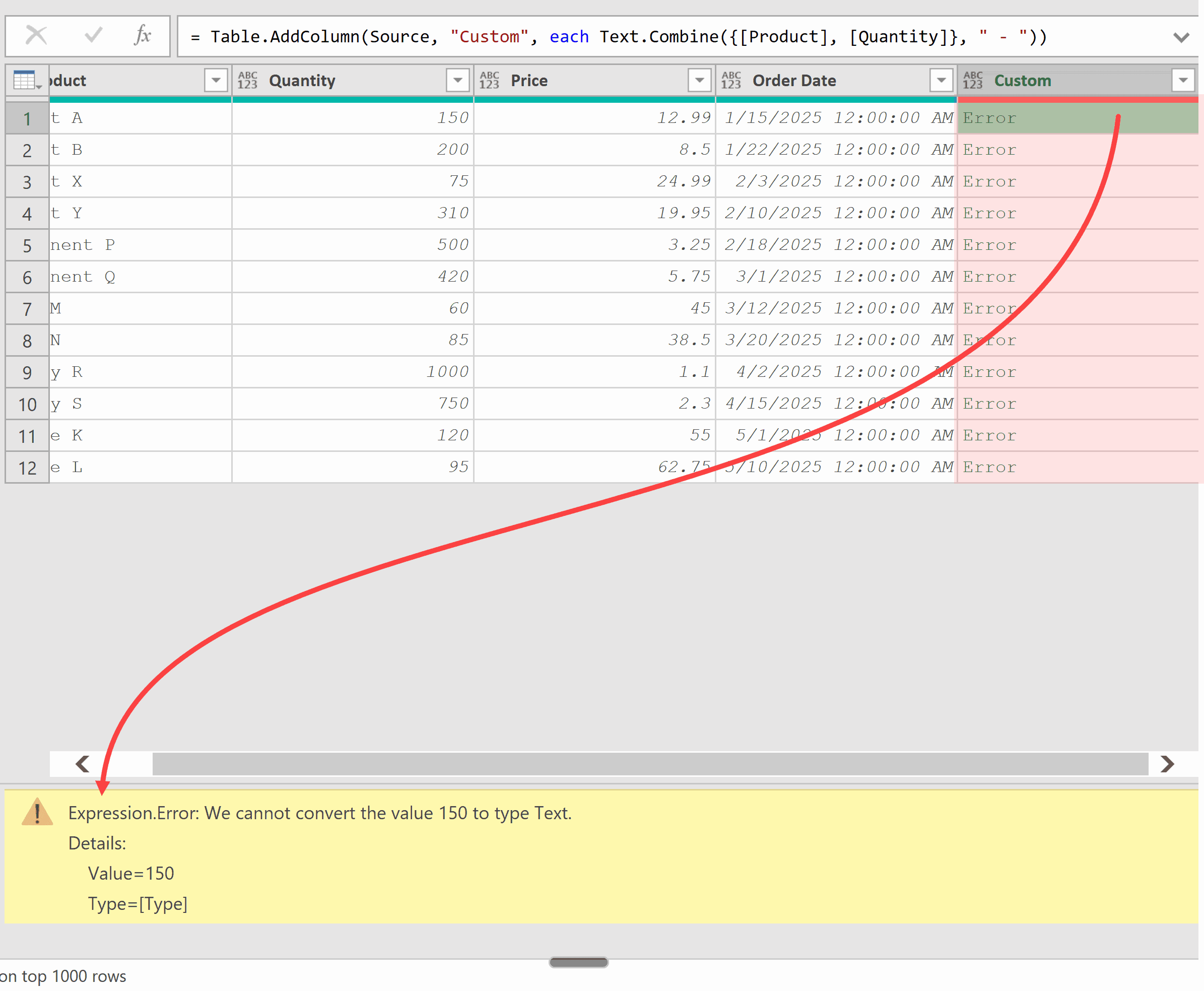
If you try the formula below in a custom column directly:
= Text.Combine({[Product], [Quantity]}, " - ")
…you’ll get an error because Quantity is a number, not text. Text.Combine only works with text values.
The fix is simple. Wrap the non-text value with Text.From():
= Text.Combine({[Product], Text.From([Quantity])}, " - ")
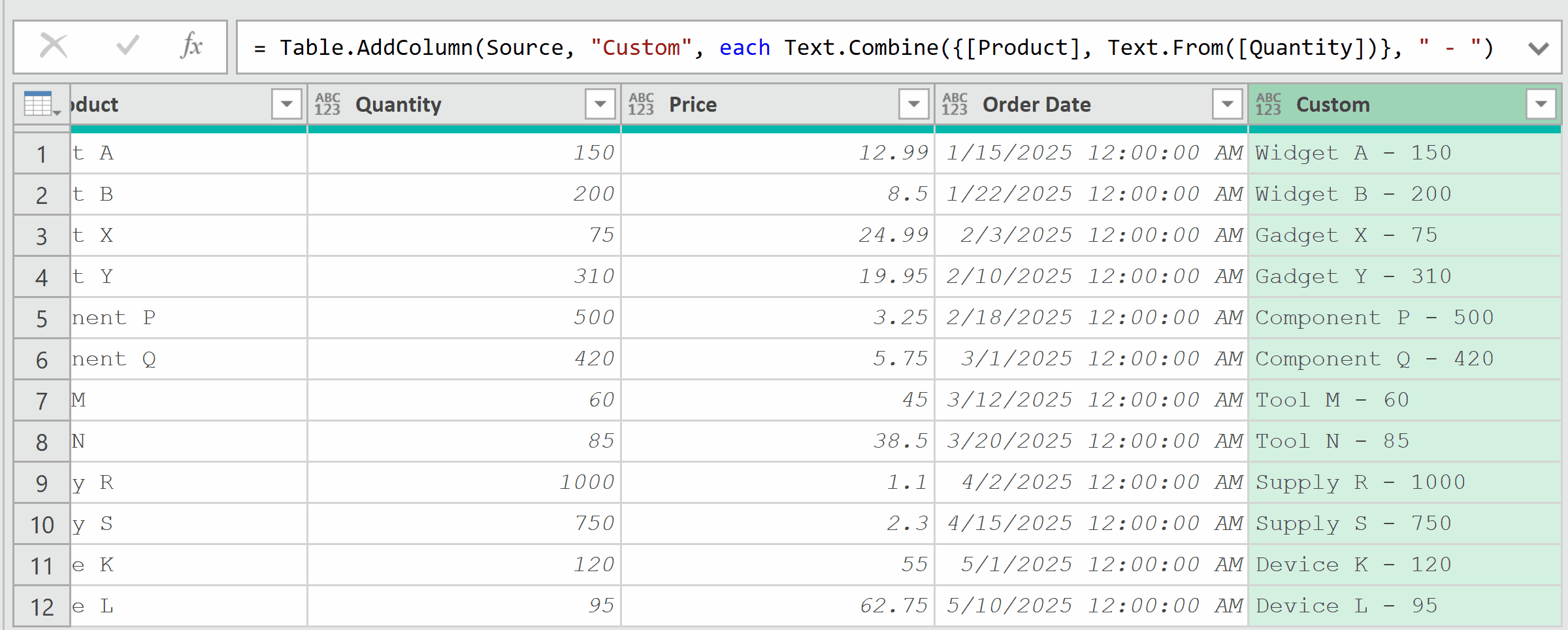
The same approach works for dates and other data types.
Always use Text.From() to convert non-text values before passing them to Text.Combine.
If you’re working with a list of mixed types, you can convert the entire list at once using List.Transform:
= Text.Combine(List.Transform({100, 200, 300}, each Text.From(_)), ", ")
Result: 100, 200, 300

Example 7: Concatenating Row Values with Group By
Now let’s tackle something more advanced. This is the Power Query equivalent of Excel’s TEXTJOIN across rows.
Suppose you have a table of products grouped by brand, and you want to combine all product names for each brand into a single comma-separated string.
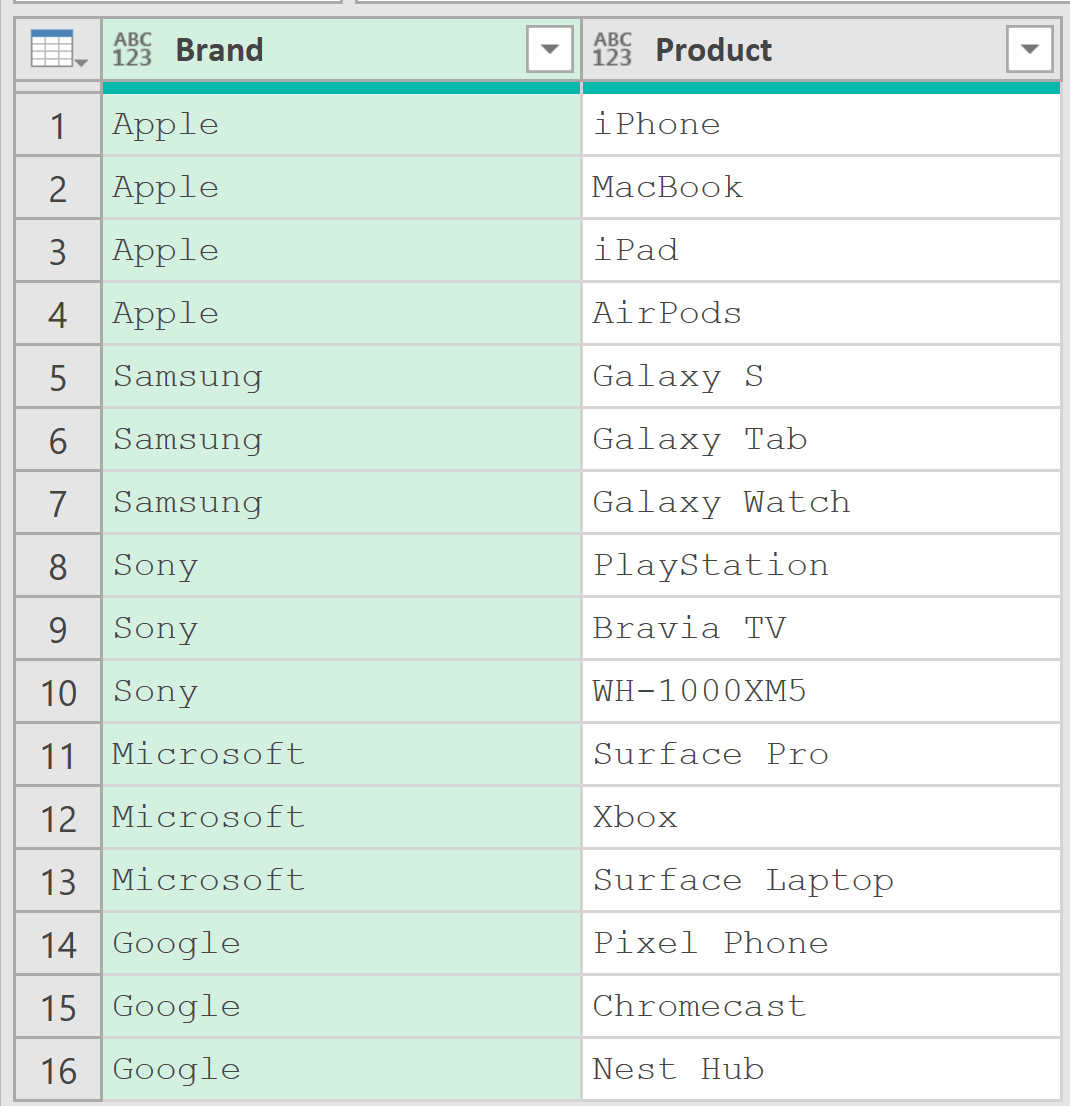
What you want is a result like:
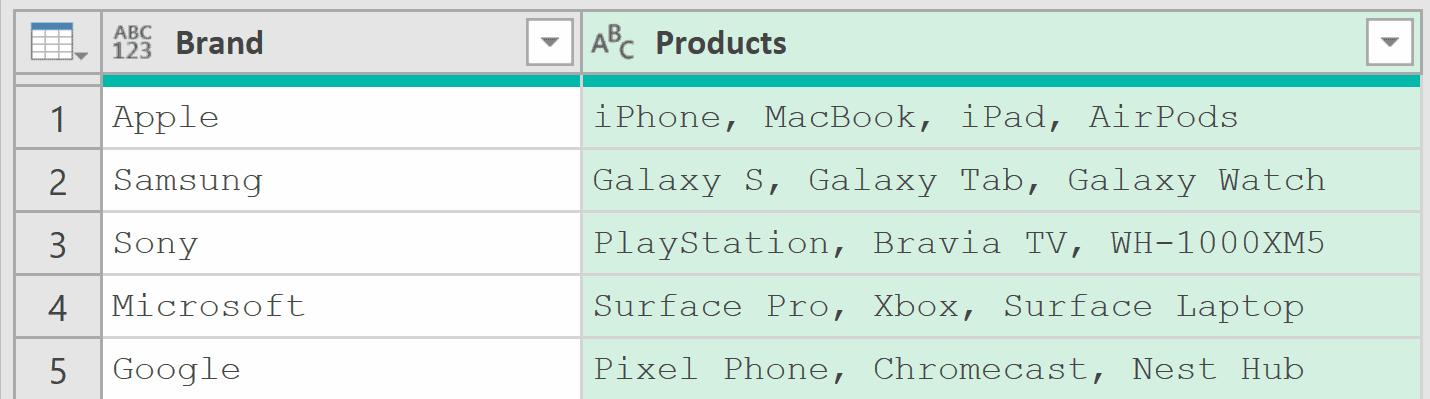
To do this, click on the fx icon (next to the Formula Bar) and then use the formula below:
= Table.Group(Source, {"Brand"}, {{"Products", each Text.Combine([Product], ", "), type text}})
Result: Each brand now has all its products listed in a single cell, separated by commas.
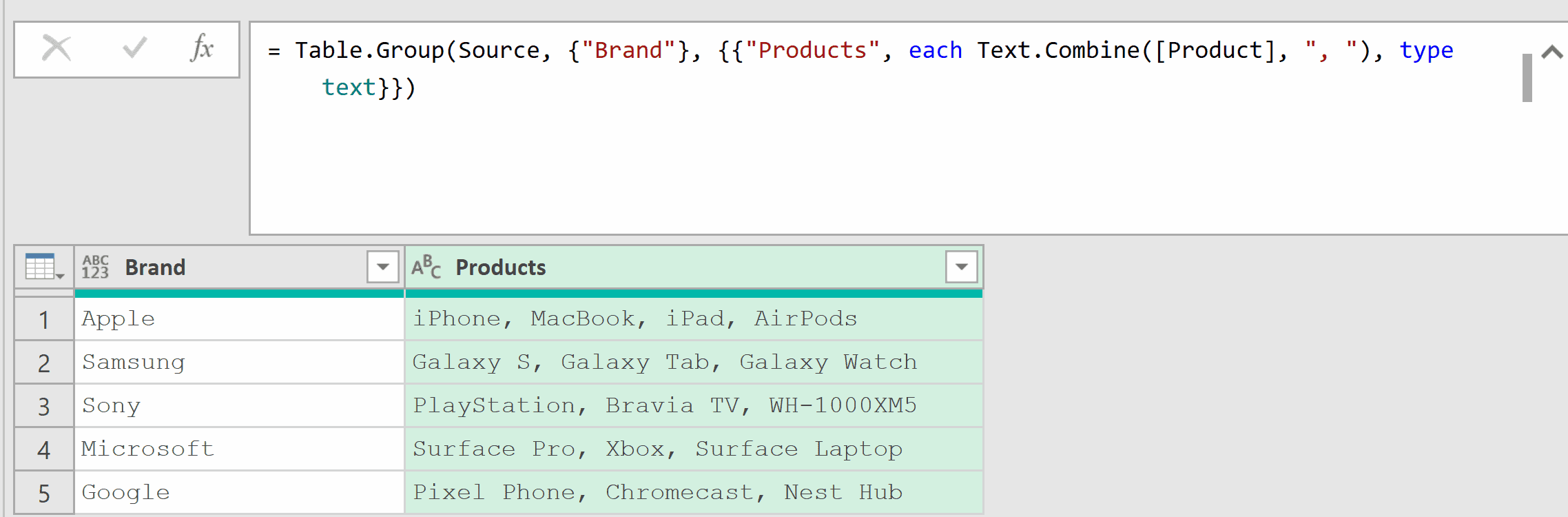
In this formula, Table.Group groups the table by the Brand column.
For each group, each Text.Combine([Product], “, “) takes all the Product values in that group and joins them with a comma and space.
Example 8: Sorting Values Before Combining in Group By
Here’s a gotcha that catches a lot of people.
When you use Text.Combine inside a Group By, the concatenated values appear in whatever order they were in the original data. Even if you sorted the data in a previous step, Power Query may not preserve that order.
To guarantee a specific sort order, use List.Sort inside the Text.Combine expression.
Using the same Brand/Product table from the previous example, here’s how to sort the products alphabetically before combining:
= Table.Group(Source, {"Brand"}, {{"Products", each Text.Combine(List.Sort([Product], Order.Ascending), ", "), type text}})
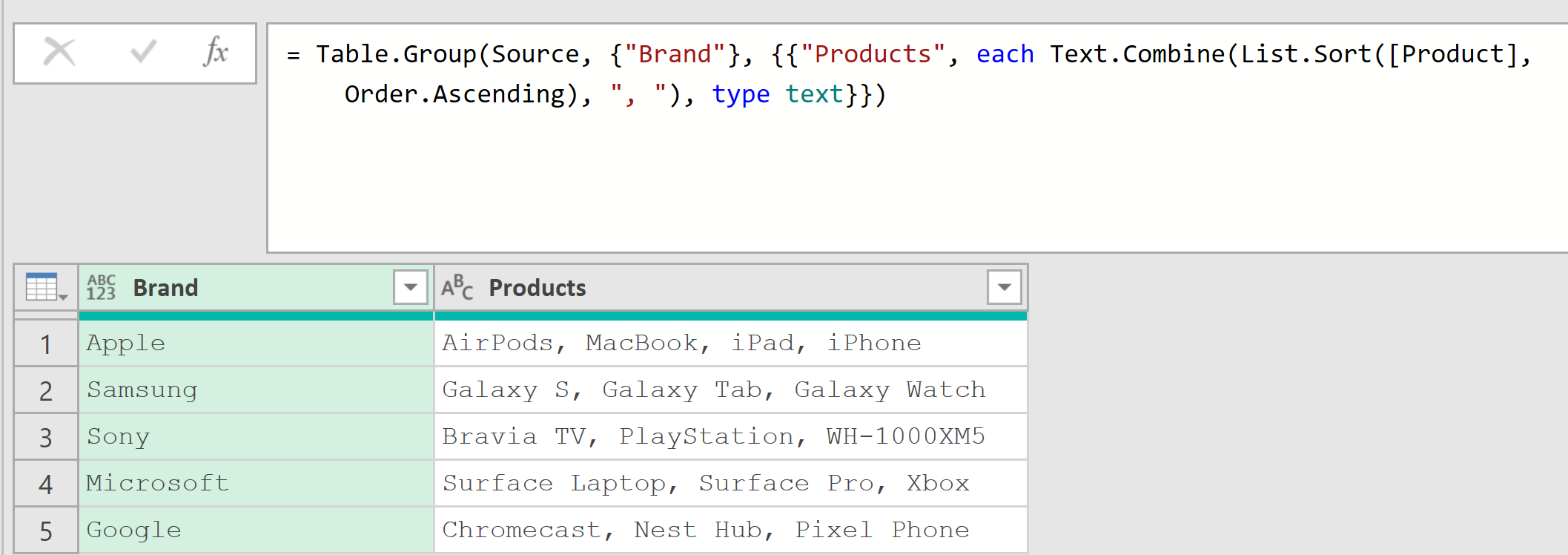
The only difference from the previous example is List.Sort([Product], Order.Ascending) wrapped around the column reference. This sorts the product names alphabetically before joining them.
You can also use Order.Descending to reverse the sort order.
Tips & Common Mistakes
- Null vs. empty string: Text.Combine skips null values but does NOT skip empty strings. If you’re getting unexpected double separators (like A, , C), your data likely has empty strings instead of nulls. Replace them with null before combining.
- All values must be text: Text.Combine only accepts text values. If your list contains numbers, dates, or logical values, wrap them with Text.From() to avoid errors.
- Don’t confuse with Combiner.CombineTextByDelimiter: Combiner.CombineTextByDelimiter is a different function. It returns a function (not text), and it’s used primarily with Table.CombineColumns for merging columns through the UI. Text.Combine directly returns a text value.
- Sort order in Group By: Text.Combine does not sort values. When used inside Table.Group, the output order depends on the original data order. Use List.Sort inside the expression or Table.Buffer after sorting to guarantee order.
- Merge Columns is the GUI shortcut: If you just need to combine two or three columns with a separator, you can also select the columns and use Transform > Merge Columns from the ribbon. Behind the scenes, Power Query uses Combiner.CombineTextByDelimiter for this.
Other Related Power Query Functions
- Text.Contains – It checks whether a text value contains a specific substring or not.
- Text.Split – Splits a text string into a list by a separator (the inverse of Text.Combine)
- Text.From – Converts a number, date, or other value to its text representation
- List.Transform – Applies a function to each item in a list (useful for converting values before combining)
- List.Sort – Sorts the items in a list in ascending or descending order
- Table.Group – Groups rows by one or more columns and applies aggregation functions
- Text.Trim – Removes leading and trailing whitespace from a text value
All Power Query Functions
