
If you want to build a list from scratch in Power Query, where each value depends on the one before it, the List.Generate function is what you’re looking for. It keeps producing values as long as a condition you set stays true.
Think of it as the Power Query version of a loop. You give it a starting value, a rule for when to stop, and a rule for how to get the next value, and it hands you back the whole list.
In this article, I’ll walk you through List.Generate with practical examples, from a simple counting sequence all the way up to a running total and a Fibonacci series.
List.Generate Function Syntax
List.Generate(initial as function, condition as function, next as function, optional selector as nullable function) as list
- initial – A function that returns the starting value (or starting state). It takes no input, so you write it as
() => <value>. - condition – A function that gets tested before each item is added. As long as it returns true, generation keeps going. It receives the current value, which you refer to with
_. - next – A function that takes the current value and returns the next one. This is what moves the list forward on each pass.
- selector (optional) – A function that shapes what actually lands in the final list. Without it, the raw current value is used. With it, you can pick or transform a piece of the current value before it’s stored.
What it returns: A list. Every value that passes the condition is added, one after another, until the condition finally returns false.
How List.Generate Actually Works
This is one of the trickier Power Query functions to get your head around, so it helps to picture the loop it runs.
- Call initial once to get the first value.
- Test that value against condition. If it’s false, stop. If it’s true, add it to the list (or the selector’s version of it, if you used one).
- Run next on the current value to get the next value.
- Go back to step 2 and repeat.
If you’ve written code before, this is a while loop in disguise. The condition is the “keep going while” part, and next is the “and here’s how you move on” part.
The each keyword is shorthand for a function that takes one input, and _ is that input, the current value. So each _ + 1 means “take the current value and add 1 to get the next one.”
When to Use List.Generate
Use this function when you need to:
- Build a number sequence with a custom step or a non-linear pattern
- Create a series where each value is calculated from the previous one
- Generate a running total or a cumulative series
- Produce a list of dates by stepping forward day by day
- Loop a set number of times, the way you would with a while loop
- Page through an API or paginated source until there’s no more data
Example 1: Generate a Basic Number Sequence
Let’s start with the simplest case. Say you want a list of the numbers 1 through 10.
Create a new blank query (Home > New Source > Blank Query) and use this formula:
= List.Generate(() => 1,each _ <= 10,each _ + 1)
Result: {1, 2, 3, 4, 5, 6, 7, 8, 9, 10}
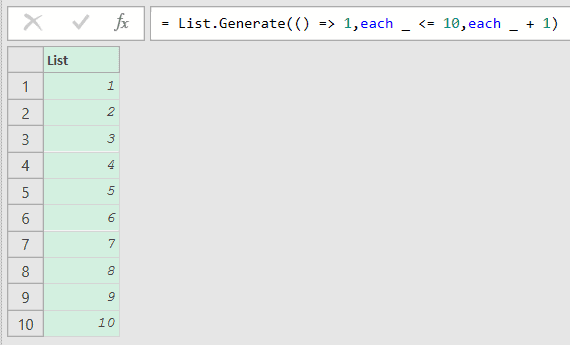
Here, the three arguments do all the work. () => 1 sets the starting value to 1, each _ <= 10 keeps the list going while the current value is 10 or less, and each _ + 1 adds 1 to move to the next value.
Once the current value hits 11, the condition returns false and the list stops, so you’re left with 1 through 10.
Example 2: Sequence with a Custom Step
Here’s a small twist. Instead of counting by 1, you can step by any amount you like.
Say you want the numbers from 0 to 25 in steps of 5.
Create a new blank query and use this formula:
= List.Generate(() => 0,each _ <= 25,each _ + 5)
Result: {0, 5, 10, 15, 20, 25}
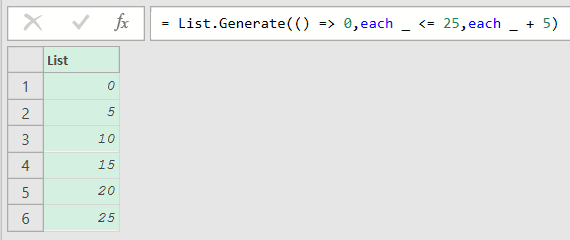
The only thing that changed from the last example is the next function. each _ + 5 jumps forward by 5 each time instead of 1.
The starting value is 0 and the condition stops the list once the value goes past 25, so you get six values in all.
Example 3: A Doubling (Non-Linear) Sequence
The next value doesn’t have to be a fixed step. It can be any calculation on the current value, which means you can build sequences that grow on their own.
Say you want to keep doubling a number, starting at 1, as long as it stays at or below 100.
Create a new blank query and use this formula:
= List.Generate(() => 1,each _ <= 100,each _ * 2)
Result: {1, 2, 4, 8, 16, 32, 64}
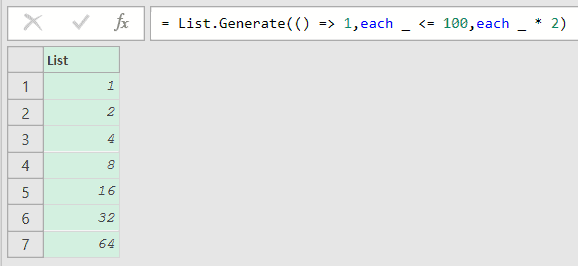
This time the next function is each _ * 2, which multiplies the current value by 2 instead of adding to it.
The list stops after 64, because the next value would be 128, which fails the _ <= 100 condition. You can’t get this kind of pattern from a fixed step, which is exactly why List.Generate is useful here.
Example 4: Build a Running Total
Now let’s tackle something more useful. A running total adds up values as you go, so each entry in the list is the sum of everything up to that point.
Suppose you have a set of daily sales figures, 120, 80, 200, and 100, and you want the cumulative total after each day.
Create a new blank query and set up the sales figures as a list. Then rename this step to Sales (right-click it in Applied Steps and choose Rename), since the next formula refers to it by that name:
= {120,80,200,100}
Now click the fx icon next to the formula bar to add a new step, and use this formula:
= List.Generate(
        () => [i = 0,total = Sales{0}],
        each [i] < List.Count(Sales),
        each [i = [i] + 1,total = List.Sum({[total],Sales{[i] + 1}?})],
        each [total]
    )
Result: {120, 200, 400, 500}
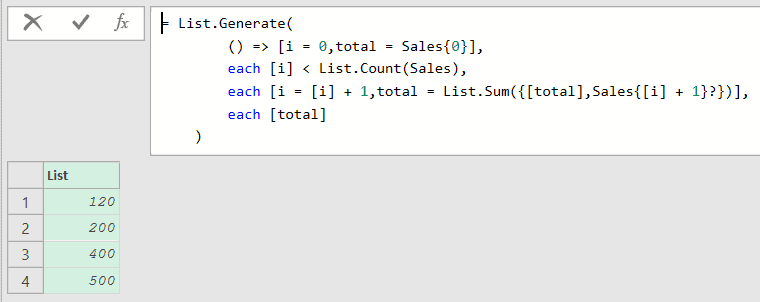
This one carries more than a single number between steps, so the state is a record with two fields: i tracks the position in the list (Power Query counts from 0), and total holds the running sum.
Inside each, [i] is short for _[i], so it reads the i field of the current record. The condition uses the List.Count function, so the loop stops once i has moved past the last sales figure.
The next function bumps i up by 1 and adds the next sales figure to total. The selector at the end, each [total], tells List.Generate to store just the total in the final list, not the whole record.
So each value in the result is the sum so far: 120, then 120+80, then that plus 200, and finally plus 100.
Example 5: Use the Selector to Transform Each Value
The optional fourth argument, the selector, lets you shape each value before it lands in the list. It’s the difference between storing the raw current value and storing something calculated from it.
Say you’re stepping through the even numbers 2, 4, 6, 8, 10, but you actually want the square of each one.
Create a new blank query and use this formula:
= List.Generate(() => 2,each _ <= 10,each _ + 2,each _ * _)
Result: {4, 16, 36, 64, 100}
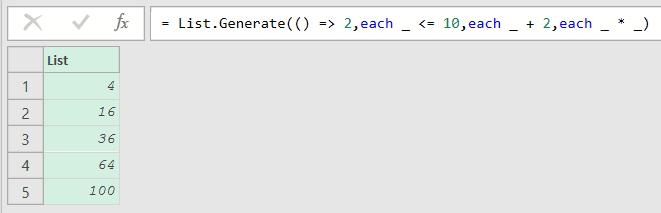
The first three arguments walk through 2, 4, 6, 8, 10 as you’d expect. The fourth argument, each _ * _, is the selector, and it squares the current value before storing it.
So instead of the even numbers themselves, the list holds their squares. The condition still checks the raw value (2 through 10), while the selector only changes what gets saved.
Example 6: Generate a Fibonacci Series
Here’s a classic that shows off carrying state. In a Fibonacci series, each number is the sum of the two before it, so you need to remember two values at once as you go.
Let’s generate the Fibonacci numbers up to 100.
Create a new blank query and use this formula:
= List.Generate(
        () => [a = 0,b = 1],
        each [a] <= 100,
        each [a = [b],b = [a] + [b]],
        each [a]
    )
Result: {0, 1, 1, 2, 3, 5, 8, 13, 21, 34, 55, 89}
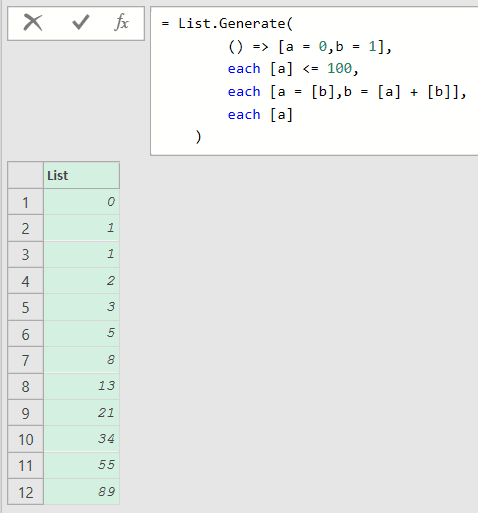
The state here is a record with two fields, a and b, holding the current pair of numbers. They start at 0 and 1.
On each pass, the next function shifts the pair forward: the new a becomes the old b, and the new b becomes the sum of the old pair. The selector each [a] stores just a in the list.
The condition stops once a climbs past 100, which is why the list ends at 89.
Example 7: Build a Series of Dates
List.Generate isn’t only for numbers. You can step through dates just as easily by moving forward one day at a time.
Say you want the first five dates of January 2024.
Create a new blank query and use this formula:
= List.Generate(
        () => [d = #date(2024,1,1),n = 1],
        each [n] <= 5,
        each [d = Date.AddDays([d],1),n = [n] + 1],
        each [d]
    )
Result: {1/1/2024, 1/2/2024, 1/3/2024, 1/4/2024, 1/5/2024}
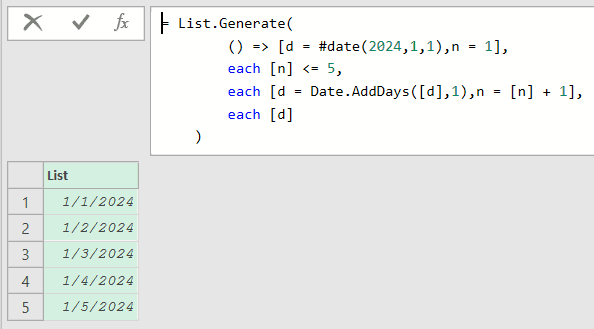
The state is a record with two fields: d is the current date, and n is a plain counter. Starting the date with #date(2024,1,1) builds January 1, 2024.
The next function uses Date.AddDays to push the date forward by one day and bumps the counter. The condition runs off the counter, so the list stops cleanly after five dates.
The selector each [d] keeps only the date in the final list.
For a plain list of dates like this, the purpose-built List.Dates function is often simpler. List.Generate earns its keep when each date also depends on some other calculation, which List.Dates can’t do on its own.
The Result line uses US format, month first. On a UK machine, Power Query shows the same dates day first, so January 2 appears as 02/01/2024, but the underlying date is identical.
Tips & Common Mistakes
- Use a record to carry more than one value: When each step needs to remember several things at once (a counter and a total, or two Fibonacci numbers), make the state a record like
[a = 0, b = 1]instead of a single value. You then read each field with[a],[b], and use a selector to pick which field lands in the list. - Add
?to avoid an index-out-of-range error: When your next function reaches past the end of a source list (likeSales{[i] + 1}), Power Query can throw an index error on the last step. Writing it asSales{[i] + 1}?returns null instead of erroring, so the loop finishes cleanly. - It’s the while loop of Power Query: If you’ve written loops in other languages, treat the condition as the “keep going while” test and next as the “here’s the next value” step. That framing makes even the record-based examples easier to reason about.
- Great for paging through an API: A common advanced use is calling a paginated API. The state holds the current page (and its data), the condition checks whether the last response still returned rows, and next fetches the following page, so List.Generate loops until the source runs dry.
Related Power Query Functions / Articles:
- List.Contains – Checks whether a specific value exists in a list
- List.IsDistinct – Checks if every value in a list is unique, returning true or false
- List.Transform – Use List.Transform in Power Query M to run the same change on every item in a list.
- List.Select – Use List.Select in Power Query M to keep only the list items that meet a condition.