

The Date.MonthName function takes a date and gives you back the month name as text.
So if you feed it March 15, 2025, you get “March”.
It comes in handy when you want to make date columns more readable in reports, or when you need month names in a specific language.
Date.MonthName Function Syntax
Date.MonthName(date as any, optional culture as nullable text) as nullable text- date – The date value from which you want to extract the month name. This can be a date, datetime, or datetimezone value
- culture (optional) – A culture code that determines the language of the returned month name (for example, “en-US” for English, “de-DE” for German). When omitted, it uses your system’s regional settings
What it returns: A text value containing the full month name (such as “January”, “February”, etc.).
When to Use Date.MonthName
Use this function when you need to:
- Add a readable month name column to a table for reports or dashboards
- Display month names in a specific language for international reports
- Convert date values into month labels for grouping or summarizing data
- Build date dimension tables that include month name references
- Replace numeric month values with their corresponding names
Example 1: Basic Month Name Extraction
Let’s start with the simplest use case.
You have a date, and you just want to know the name of the month.
Create a new blank query (Home > New Source > Blank Query) and use this formula:
= Date.MonthName(#date(2026, 9, 14))
Result: “September”

The function takes the date September 14, 2026, and returns the text “September”. It doesn’t care about the day or year.
Just the month name (as text).
Example 2: Works with DateTime and DateTimeZone Values
Date.MonthName also works with datetime and datetimezone values, not just plain dates.
Create a new blank query and use this formula:
= Date.MonthName(#datetime(2026, 7, 20, 14, 30, 0))
Result: “July”

The function pulls out “July” and ignores the time part.
It also works with datetimezone values:
= Date.MonthName(#datetimezone(2026, 11, 5, 9, 0, 0, 5, 30))
Result: “November”

Same deal here. “November” comes back, and the time and timezone offset are ignored. Whether you give it a date, datetime, or datetimezone, Date.MonthName only looks at the month.
Example 3: Adding a Month Name Column to a Table
Suppose you have a sales table with columns OrderID, OrderDate, and Amount, and you want to add a new column that shows the month name for each order.
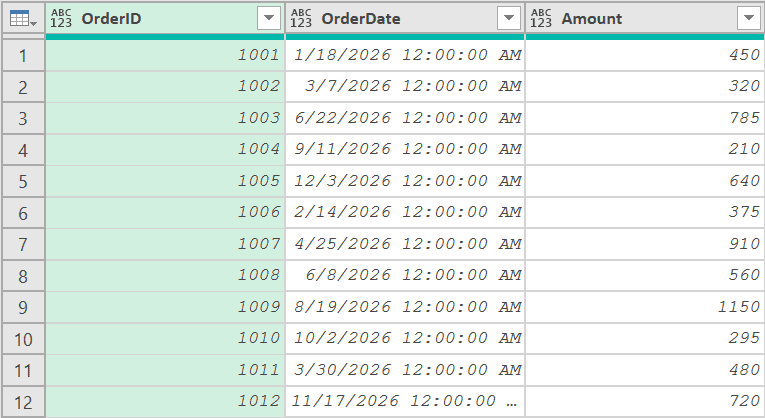
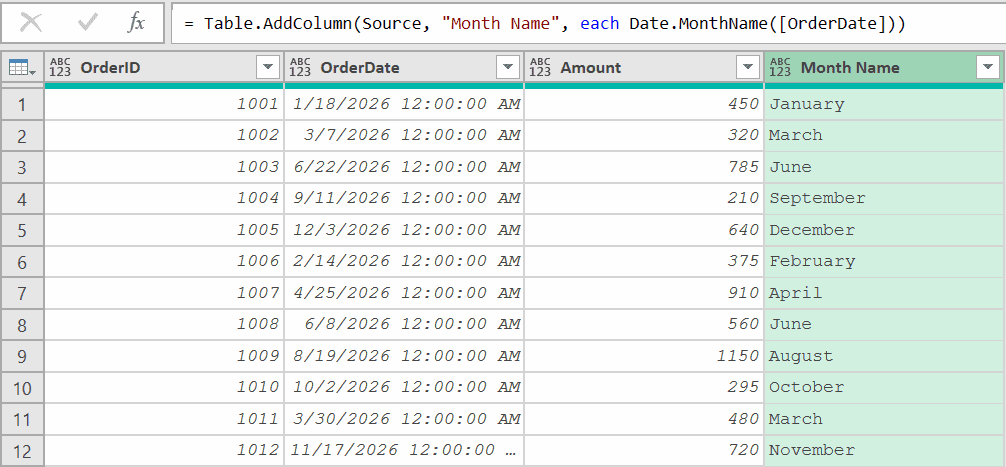
With the table loaded in Power Query, add a new step (by clicking on the fx icon next to the formula bar) and use this formula:
= Table.AddColumn(Source, "Month Name", each Date.MonthName([OrderDate]))
A new column called “Month Name” appears with month names in each row.
Example 4: Getting Month Names in Different Languages
If your reports go out to people in different countries, you’ll want this one.
The second parameter of Date.MonthName accepts a culture code that controls the language of the output.
Create a new blank query and use this formula:
= Date.MonthName(#date(2025, 4, 10), "fr-FR")
Result: “avril”

That returns the French name for April. Notice that it’s lowercase. Different languages follow different capitalization rules for month names.
A few more culture codes:
= Date.MonthName(#date(2025, 4, 10), "de-DE")
Result: “April” (German)
= Date.MonthName(#date(2025, 4, 10), "es-ES")
Result: “abril” (Spanish)
= Date.MonthName(#date(2025, 4, 10), "ja-JP")
Result: “4月” (Japanese)
The culture code tells the function which language rules to follow. Way easier than building a manual translation table for month names.
Example 5: Converting Month Numbers to Month Names (Calendar Year)
Sometimes your data doesn’t have full dates. You might just have month numbers (1, 2, 3, etc.) and need to convert them to names.
Suppose you have a table with columns CustomerID, BillingMonth, and Amount, where BillingMonth contains values 1 through 12 (representing month numbers).
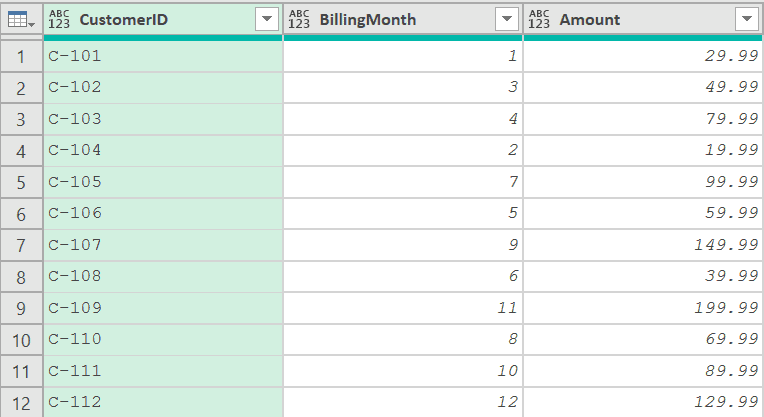
Below is a formula that will add a new step and give us the month names.
= Table.AddColumn(Source, "Month Name", each Date.MonthName(#date(2025, [BillingMonth], 1)))
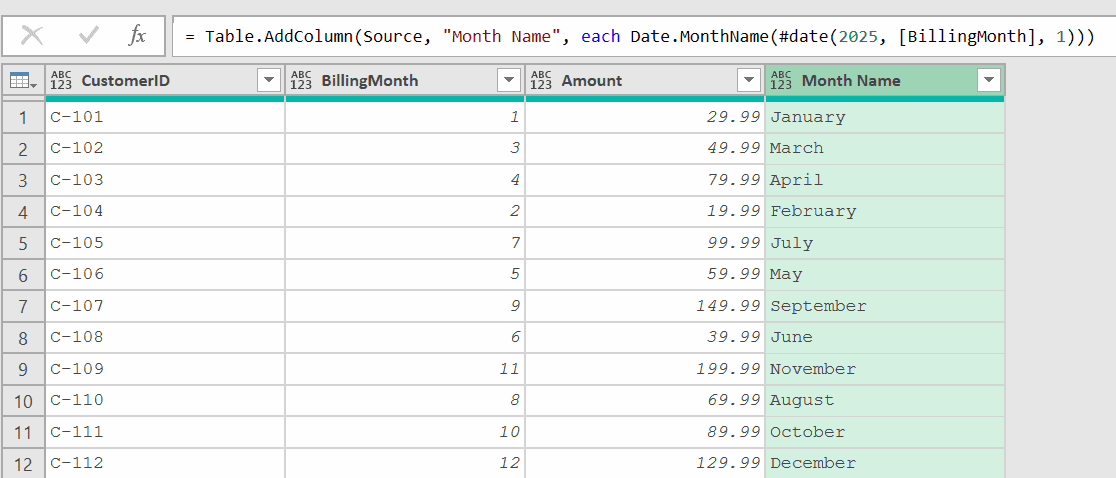
The trick is creating a temporary date using #date(2025, [BillingMonth], 1).
The year and day values in the formula don’t matter. We just need a valid date, so Date.MonthName has something to work with. The 1st of any year does the job.
Example 6: Converting Month Numbers to Month Names (Financial Year)
If you’re working with a financial year dataset where the month numbering starts from a month other than January, then the formula covered in the previous example won’t work for you.
For example, if the financial year starts from April onwards, then:
- Month 1 needs to be April.
- Month 2 needs to be May, and so on.
Let me show you what to do in that case.
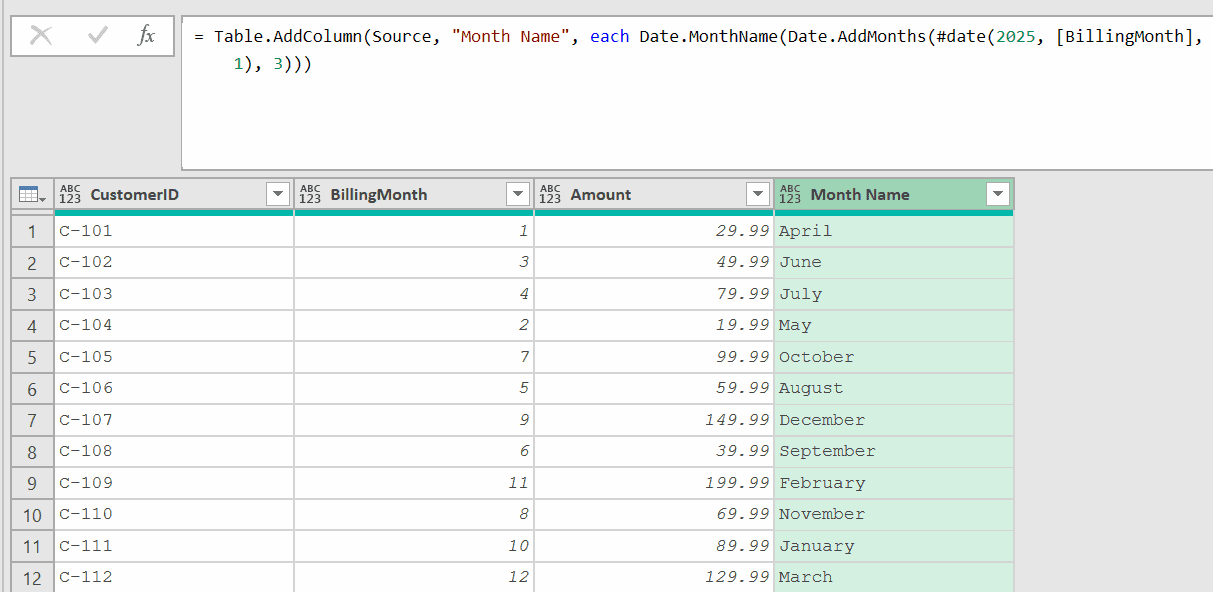
Below, I have the same data set where I have month numbers in the second column, and I want to get the month name (for the financial year starting in April)
To do this, click the fx icon (which adds a new step), and use the formula below.
= Table.AddColumn(Source, "Month Name", each Date.MonthName(Date.AddMonths(#date(2025, [BillingMonth], 1), 3)))
Example 7: Sorting Month Names in the Correct Order
This is a problem that trips up a lot of people.
When you sort month names alphabetically, “April” comes before “January” and “September” ends up near the bottom. That’s obviously not what you want.
This happens because Power Query is very strict about the data type, and when you convert a date into a month name, it is returned as a text value.
So when you are sorting these month names, you are actually sorting text and not dates.
The fix is to add both a month name column and a month number column, then sort by the number.
Suppose you have your sales table loaded in Power Query.
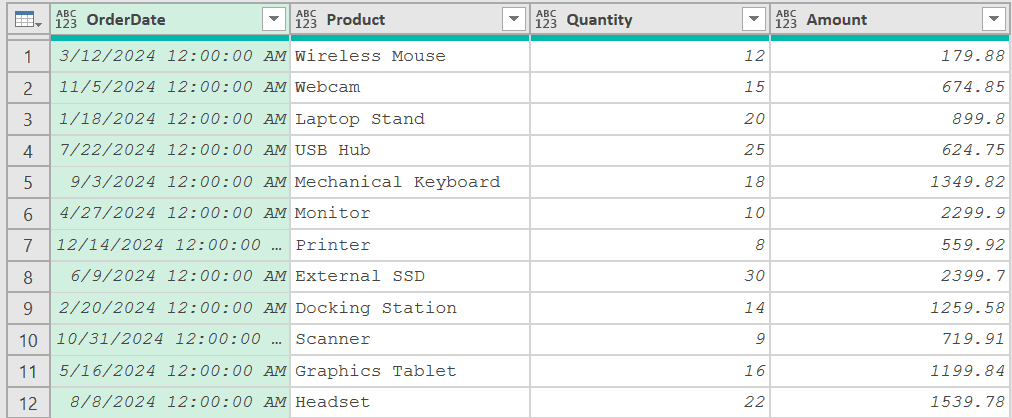
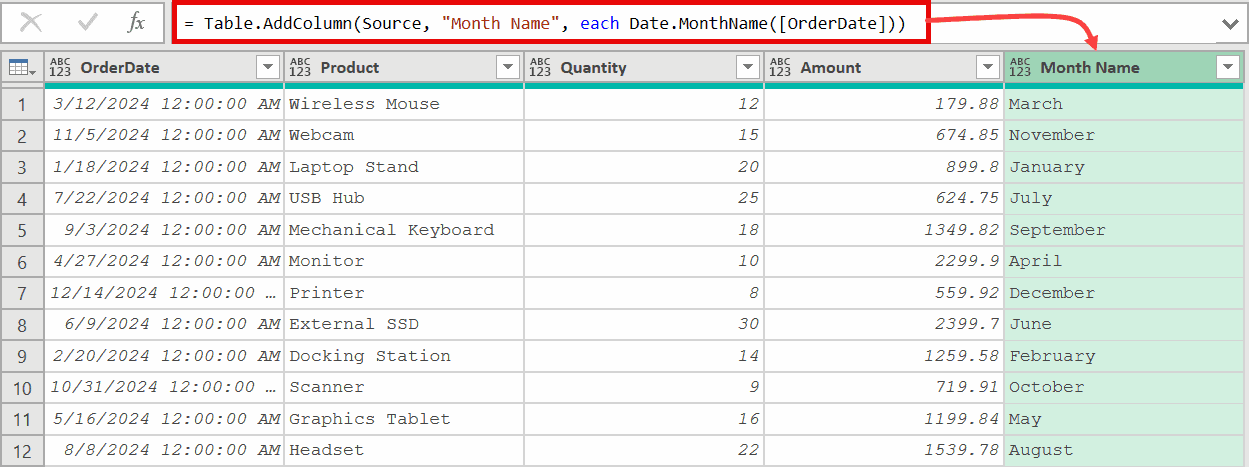
Add a new step (by clicking on the fx icon next to the formula bar) and use this formula:
= Table.AddColumn(Source, "Month Name", each Date.MonthName([OrderDate]))
This will add a new column named month name that lists the month names for all dates.
Then add another step:
= Table.AddColumn(Custom1, "Month Number", each Date.Month([OrderDate]))
This will add another column that would list all the month numbers from the dates.
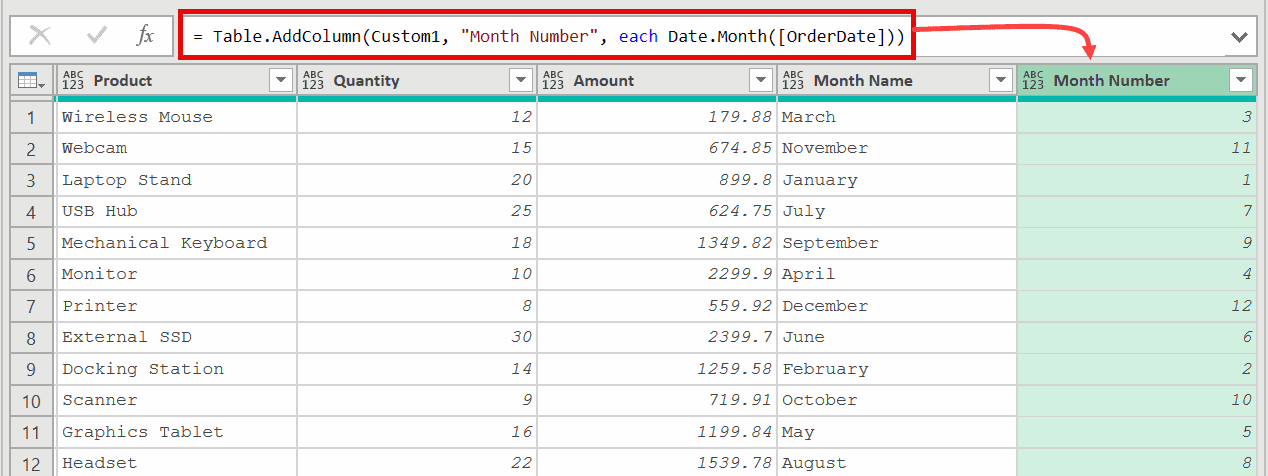
Now you have both “Month Name” and “Month Number” columns. You can sort by “Month Number” to keep months in chronological order while displaying the readable names.
In the second formula, Custom1 refers to the previous step where you added the month name column. Date.Month returns the numeric month (1 for January, 2 for February, and so on), which sorts correctly.
If you want, you can also use this single formula below to add both columns in one go:
= Table.AddColumn(
    Table.AddColumn(Source, "Month Number", each Date.Month([OrderDate])),
    "Month Name",
    each Date.MonthName([OrderDate])
  )
Example 8: Getting Abbreviated Month Names
Date.MonthName always returns the full month name. But sometimes you may want short versions like “Jan”, “Feb”, or “Mar”.
You can use Date.ToText with a custom format string to get abbreviated month names directly.
Suppose you have your sales table loaded in Power Query (as shown below).
Click on the fx icon to add a new step and then use the formula below.
= Table.AddColumn(#"Changed Type", "Month Short", each Date.ToText([OrderDate], [Format="MMM"]))
Result: A new column with values like “Jan”, “Mar”, “Jun”, “Sep”, “Dec”.
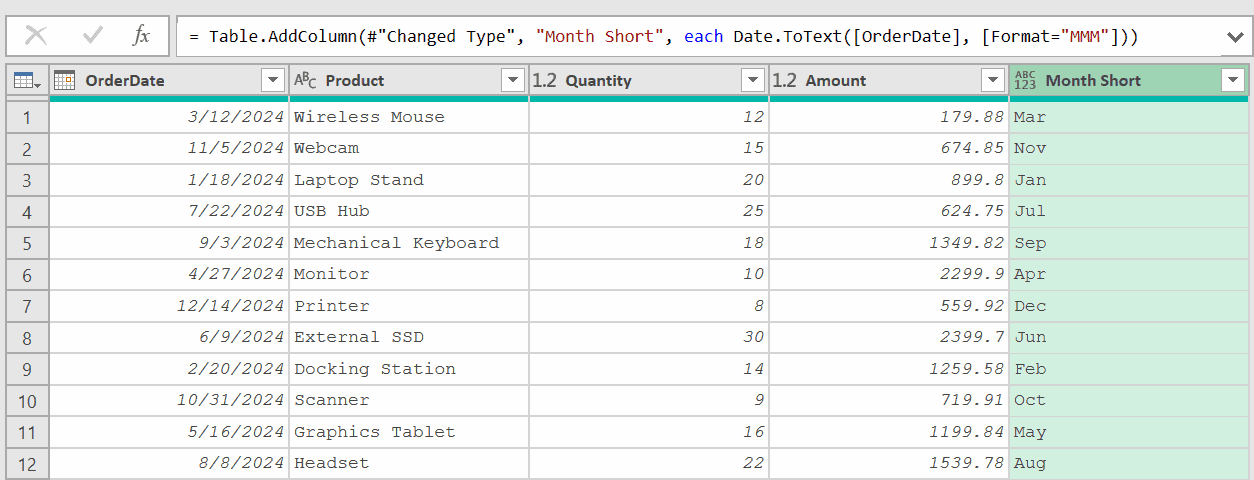
The nice thing about this approach is that it works across languages too. You can pass a Culture parameter to get localized abbreviations:
= Date.ToText(#date(2025, 8, 1), [Format="MMM", Culture="fr-FR"])
Result: “août”
You can also swap the format string to get other variations.
- “MMMM” for the full month name
- “ddd” for short day names like “Mon” or “Tue”
- “dddd” for the full day name
Example 9: Building a Complete Month Reference List
Sometimes you need a standalone month reference table for Power BI or Excel reports.
Here’s how to build one from scratch.
Create a new blank query and use this formula:
= Table.FromList(
    List.Transform(
        {1..12},
        each [
            MonthNumber = _,
            MonthName = Date.MonthName(#date(2025, _, 1)),
            MonthShort = Date.ToText(#date(2025, _, 1), [Format="MMM"])
        ]
    ),
    Record.FieldValues,
    {"Month Number", "Month Name", "Month Short"}
)
Result: A table with 12 rows containing all month numbers, full names, and abbreviations:
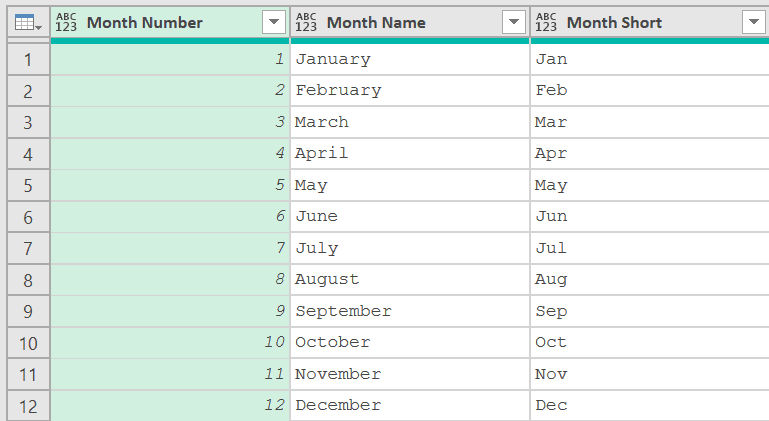
{1..12} generates a list of numbers 1 through 12. List.Transform then converts each number into a record with three fields: the number, the full month name, and a 3-character abbreviation. Table.FromList turns those records into a proper table.
Build this once and reuse it as a lookup table across your reports.
Tips & Common Mistakes
- Don’t confuse with Date.Month: Date.Month returns a number (1 through 12), while Date.MonthName returns the text name (“January” through “December”). Pick the right one based on whether you need a number or text.
- Sorting will bite you: Month names don’t sort chronologically by default. Always pair Date.MonthName with Date.Month if you need proper month ordering in your reports or visuals.
- Capitalization varies by language: English month names are capitalized (“March”), but many other languages use lowercase (“marzo” in Italian, “mars” in French). Don’t assume capitalization will be consistent across cultures.
- Null dates return null: If the date value is null, Date.MonthName returns null without throwing an error. So you don’t need to add special null-handling logic before using it.
- System settings affect output: When you skip the culture parameter, the function uses your computer’s regional settings. This means the same query could produce different results on different machines. If consistency matters, always specify the culture code explicitly.
Other Related Power Query Functions
- Date.Month – Returns the month number (1-12) from a date value
- Date.DayOfWeekName – Returns the name of the day of the week from a date value
- Date.ToText – Converts a date value to text using a specified format
- Date.Year – Returns the year component from a date value
- Date.Day – Returns the day component from a date value
- List.Dates – Generates a list of dates between two dates
- Duration.Days – Extracts the day component from a duration value
- Date.FromText – Converts text strings into dates using local, universal, or custom date formats
- Date.From
