

You can use the COS function in Excel to return the cosine of an angle.
While it might bring back memories of high school geometry, this little function is actually super useful for everything from analyzing waves to building engineering models.
There is just one golden rule you need to remember: Excel thinks in Radians, not Degrees.
COS Function Syntax
The syntax is short and sweet:
=COS(number)
- number: The angle you want to measure, in radians.
In the following examples, I will show you how to use the COS function in various scenarios.
Example #1: Calculate Cosine for an Angle in Radians
If your data is already in radians, you’re in luck. You can pass the number directly into the function.
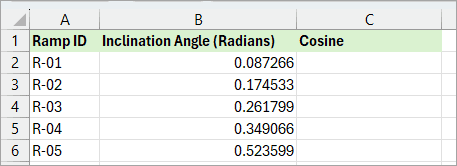
Below is a dataset showing the inclination angles (in radians) for several ramps.
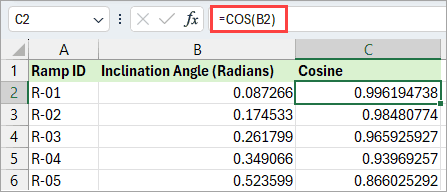
You can calculate the cosine of each inclination angle using the simple formula:
=COS(B2)
Example #2: Calculate Cosine for an Angle in Degrees
This is where most people get stuck.
If your angles are in degrees (like 45° or 60°), you must convert them to radians first. If you don’t, Excel will treat “60” as “60 radians,” which is definitely not what you want!
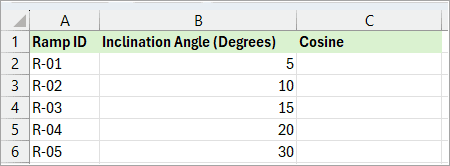
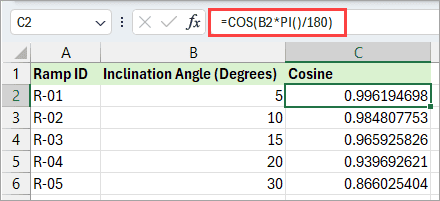
Below is the dataset where I have the angles in degrees, and I want to get the cosine value.
You have two easy ways to fix this:
Option 1: The RADIANS Function (Recommended)
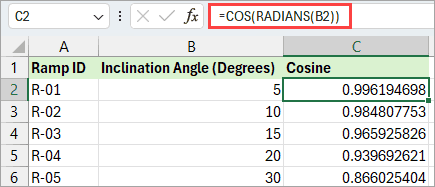
This is the cleanest way to do it. Wrap your angle in the RADIANS function inside your formula.
=COS(RADIANS(B2))
Option 2: The Math Way
If you prefer doing the math yourself, you can multiply your degree value by PI divided by 180.
=COS(B2*PI()/180)
“Wait, why isn’t the result zero?” (A Common Gotcha)
If you calculate the cosine of 90 degrees, you know the answer should be exactly 0.
However, if you type =COS(RADIANS(90)) into Excel, you might get a weird result like 6.12E-17.
Don’t panic!
This is just a tiny “floating point” rounding error that happens in computers. The number is incredibly close to zero ($0.0000000000000000612$), but not quite.
If you need it to be exactly zero for a logical test, just wrap it in the ROUND function:
=ROUND(COS(RADIANS(90)), 10)
Quick Tip: Going Backwards (Inverse Cosine)
What if you have the cosine value (like 0.5) and want to find out what angle created it? You need the ACOS function.
=ACOS(0.5)
Just remember, Excel will give you the answer back in radians. To see it in degrees, wrap it up like this:
=DEGREES(ACOS(0.5)) 2
I hope this guide helps you master the COS function in Excel!
Other articles you may also like: