

List.Count is a fundamental Power Query M function that returns the total number of items in a list.
Whether you’re working with a simple list of values, a table column, or the result of another function, List.Count gives you a quick way to determine how many elements exist.
This function is essential when you need to validate data, create dynamic calculations, or build conditional logic based on list size.
List.Count Syntax
List.Count( list as list ) as number
- list – The list whose items you want to count. This can be a literal list, a column reference, or any expression that returns a list.
What it returns – A number representing the total count of items in the list.
When to Use List.Count
Use this function when you need to:
- Count the number of items in any list
- Count how many rows exist in a table column
- Count words in a text string by splitting text and counting the resulting list
- Count how many values meet a specific condition (combined with List.Select)
- Count unique or distinct values (combined with List.Distinct)
Validate data by checking if a count matches an expected value
Example 1: Counting Items in a Simple List
Scenario: You have a list of numbers and want to know how many items it contains.
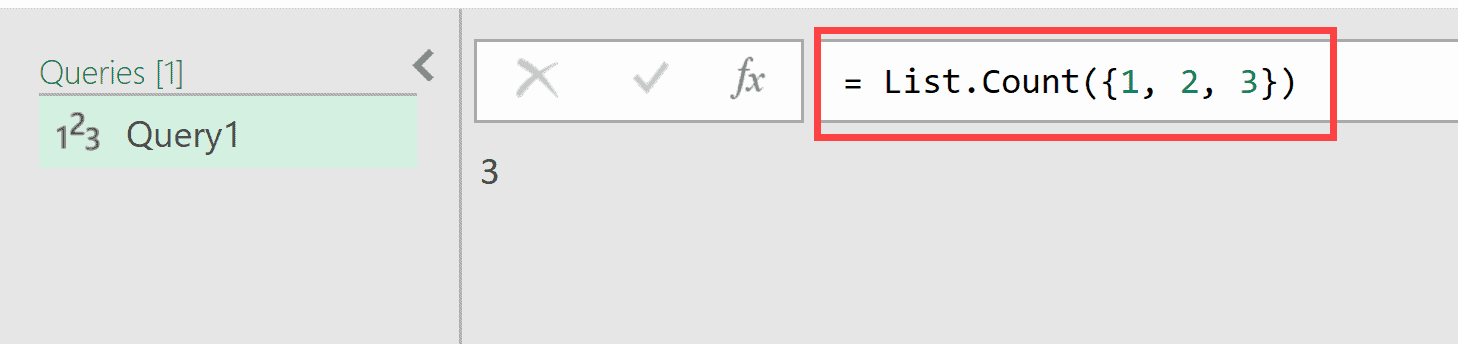
List.Count({1, 2, 3})Result: 3
The list contains three numbers (1, 2, and 3), so the function returns 3. Note that List.Count starts counting from 1, not 0.
Example 2: Counting Text Values
Scenario: You need to count how many product names are in your list.
List.Count({"Apple", "Banana", "Cherry", "Date", "Elderberry"})Result: 5
The function counts each text string as one item, returning 5 for the five fruit names in the list.

Example 3: Mixed Data Types
If your list contains different data types, including text, numbers, booleans, nested lists, and records, you can use the List.Count function to get a count of all the different elements.
List.Count({true, false, "Power BI", 100, {1, 2, 3}, [Name="John"]})Result: 6
In this example above, the List.Count function treats each element as a single item regardless of its data type.
The nested list {1, 2, 3} is counted as one item, not three. Similarly, the record [Name=”John”] is counted as one item.

Example 4: Handling Null Values and Errors
Scenario: Your data contains null values and even an expression that causes an error, and you want to count all items.
= List.Count({1, 2, 3, null, "text", 5/0})Result: 6
List.Count includes ALL items in its count, including null values and items that result in errors (like division by zero). This is a key difference from List.NonNullCount, which excludes nulls.

Example 5: Counting Items in a Table Column
This is a dataset that I have imported into Power Query. In this table, I want to count the total number of values in the product name column.
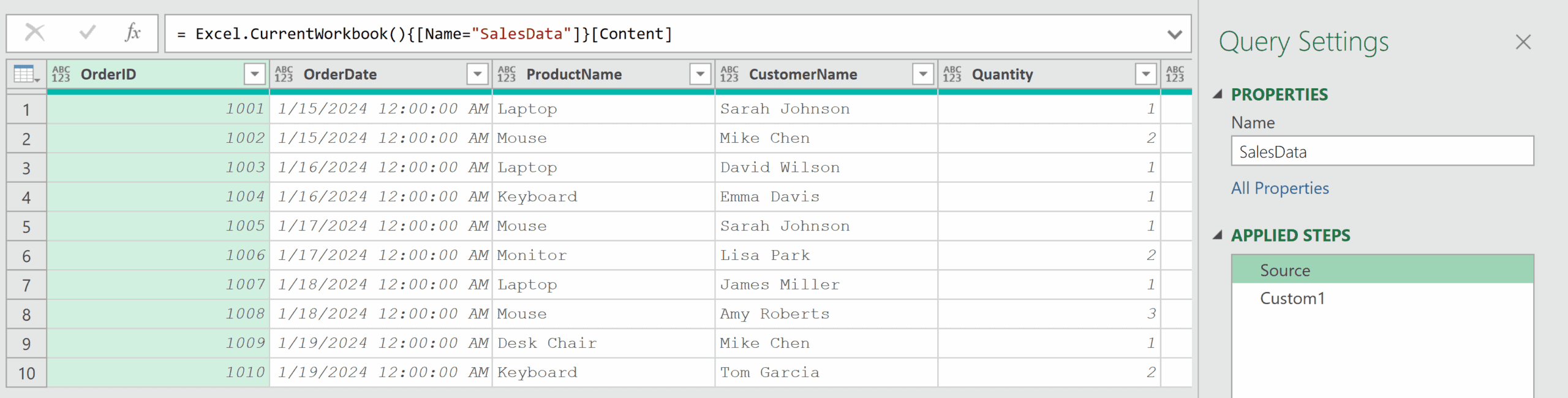
Here is the formula that will do that, where Source is the name of the previous step. In case you have a different step name, you can change the name Source to your step name.
= List.Count(Source[ProductName])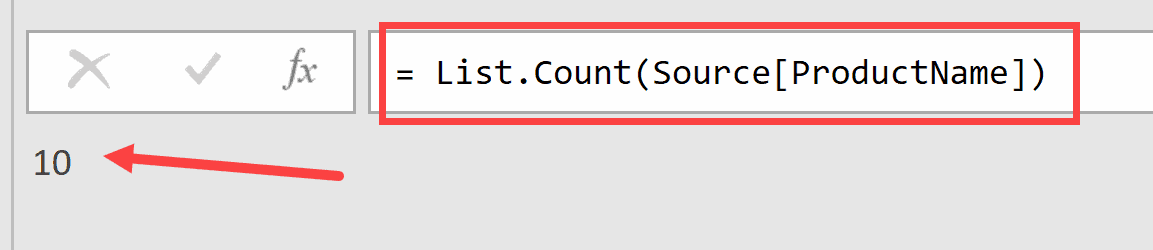
Source[ProductName] returns the column named ProductName as a list.
And when I use the List. Count function on this list, it gives me the total number of elements in the list.
This could be useful if you are working with a large dataset and you want to determine the total number of rows in your data.
As of now, it has counted all the items even when there is a repetition. But if you want to count only the unique items, you can use the formula below.
= List.Count(List.Distinct(Source[ProductName]))
Example 6: Counting Words in a Text String
Scenario: You need to count how many words are in a sentence.
= List.Count(Text.Split("Power Query is Mind Blowing", " "))Result: 5
By combining Text.Split with List.Count, you can count words in a string.
Text.Split breaks the sentence into a list using the space character as a delimiter, and List.Count returns the number of resulting items.

Example 7: Counting Distinct Values
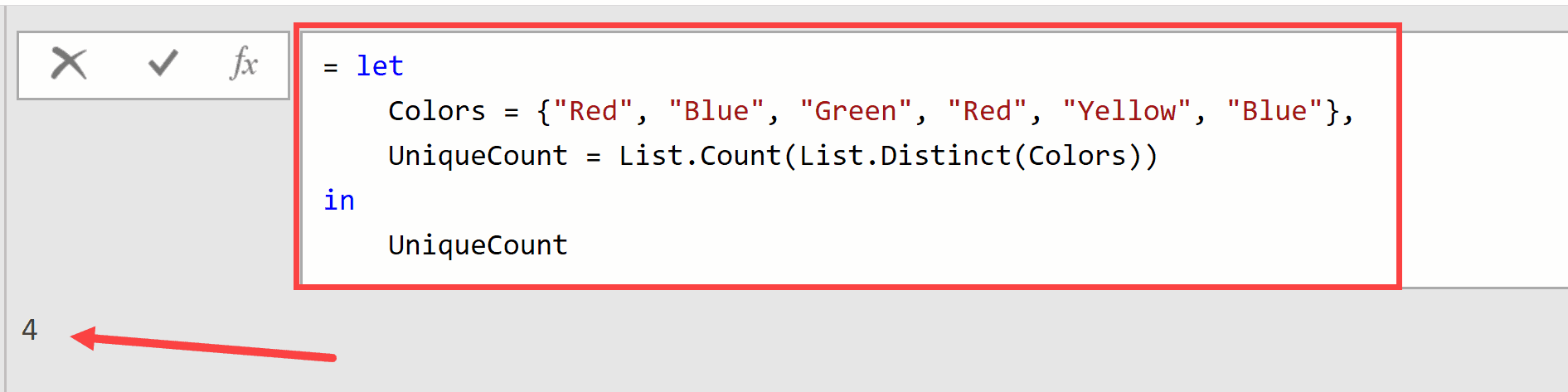
Scenario: You want to count only unique values in a list, ignoring duplicates.
let
    Colors = {"Red", "Blue", "Green", "Red", "Yellow", "Blue"},
    UniqueCount = List.Count(List.Distinct(Colors))
in
UniqueCountResult: 4
Explanation: List.Distinct removes duplicate values from the list, leaving only unique items (Red, Blue, Green, Yellow). List.Count then counts these four distinct colors.
Example 8: Counting Filtered Items
Scenario: You want to count how many times a specific value appears in a list.
let
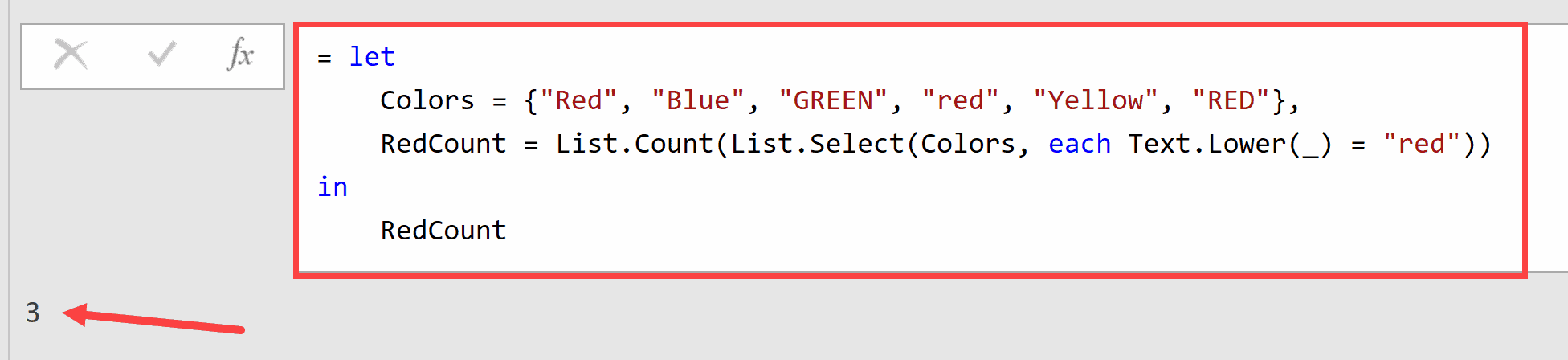
    Colors = {"Red", "Blue", "GREEN", "red", "Yellow", "RED"},
    RedCount = List.Count(List.Select(Colors, each Text.Lower(_) = "red"))
in
RedCountResult: 3
Explanation: List.Select filters the list to keep only items matching the condition. By using Text.Lower, the comparison becomes case-insensitive. The function finds “Red”, “red”, and “RED”, returning a count of 3.
Example 9: Empty List
Scenario: You need to handle the edge case of an empty list.
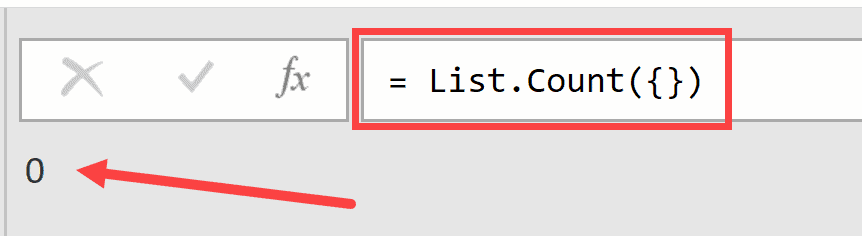
List.Count({})Result: 0
Explanation: An empty list {} contains no items, so List.Count returns 0. This is useful for conditional logic where you need to check if a list has any items before processing.
Tips & Common Mistakes
- List.Count includes null values and errors in its count. If you need to exclude nulls, use List.NonNullCount instead.
- Remember that nested lists count as single items. If you have {{1,2}, {3,4}}, List.Count returns 2, not 4.
- When counting table column values, use the syntax Table[Column] to reference the column as a list.
- List.Count uses 1-based counting for results. A count of 0 means the list is empty.
- For performance with large datasets, avoid calling List.Count multiple times on the same list. Store the result in a variable instead.
- Don’t confuse List.Count with Table.RowCount. Use List.Count for lists and Table.RowCount for tables.
Related Functions
- List.NonNullCount – Counts the number of non-null items in a list, excluding any null values from the count.
- List.Distinct – Returns a list with duplicate values removed. Often used with List.Count to count unique items.
- List.IsDistinct – Returns true if all items in a list are unique, or false if duplicates exist
- List.Contains – Checks whether a specific value exists in a list
- List.Dates – Generates a list of dates based on a starting date, end date, and the gap between dates.
- Table.RowCount – Returns the number of rows in a table. Use this instead of List.Count when working with tables directly.
All Power Query Functions