

The List.IsDistinct function checks whether all values in a list are unique.
It returns true if every item in the list appears only once, and false if any duplicates exist.
This function is particularly useful for data validation, such as verifying that a column can serve as a unique identifier before creating table relationships.
List.IsDistinct Syntax
= List.IsDistinct(list as list, optional equationCriteria as any) as logical
- list – The list of values you want to check for uniqueness
- equationCriteria (optional) – A comparer function that determines how values are compared. By default, the function uses case-sensitive comparison (Comparer.Ordinal)
What it returns: A logical value (TRUE or FALSE). Returns TRUE if all values in the list are distinct, and FALSE if any duplicates are found.
When to Use List.IsDistinct
Use this function when you need to:
- Validate that a column contains only unique values before using it as a primary key
- Check for duplicate entries in imported data during data cleansing
- Verify data integrity before creating relationships between tables in Power BI
- Build conditional logic that behaves differently based on whether duplicates exist
- Perform data quality checks as part of your ETL process
Example 1: Basic Duplicate Check
When working with data, you often need to quickly verify if a list contains any duplicate values.
Suppose you have a list of product IDs and want to confirm they are all unique before proceeding with your transformation.
= List.IsDistinct({101, 102, 103, 104, 105})Result: TRUE

In the above example, the function examines each value in the list and confirms that no value appears more than once. Since all five product IDs are different, it returns true.
Now let’s check a list that contains duplicates:
= List.IsDistinct({101, 102, 103, 102, 105})Result: FALSE
Here, the value 102 appears twice in the list, so the function returns false to indicate duplicates exist.

Example 2: Checking a Table Column for Duplicates
In real-world scenarios, you typically work with tables rather than hardcoded lists.
Suppose you have a Customers table with columns CustomerID, Name, and Email, and you want to verify that CustomerID contains unique values before using it as a key column.
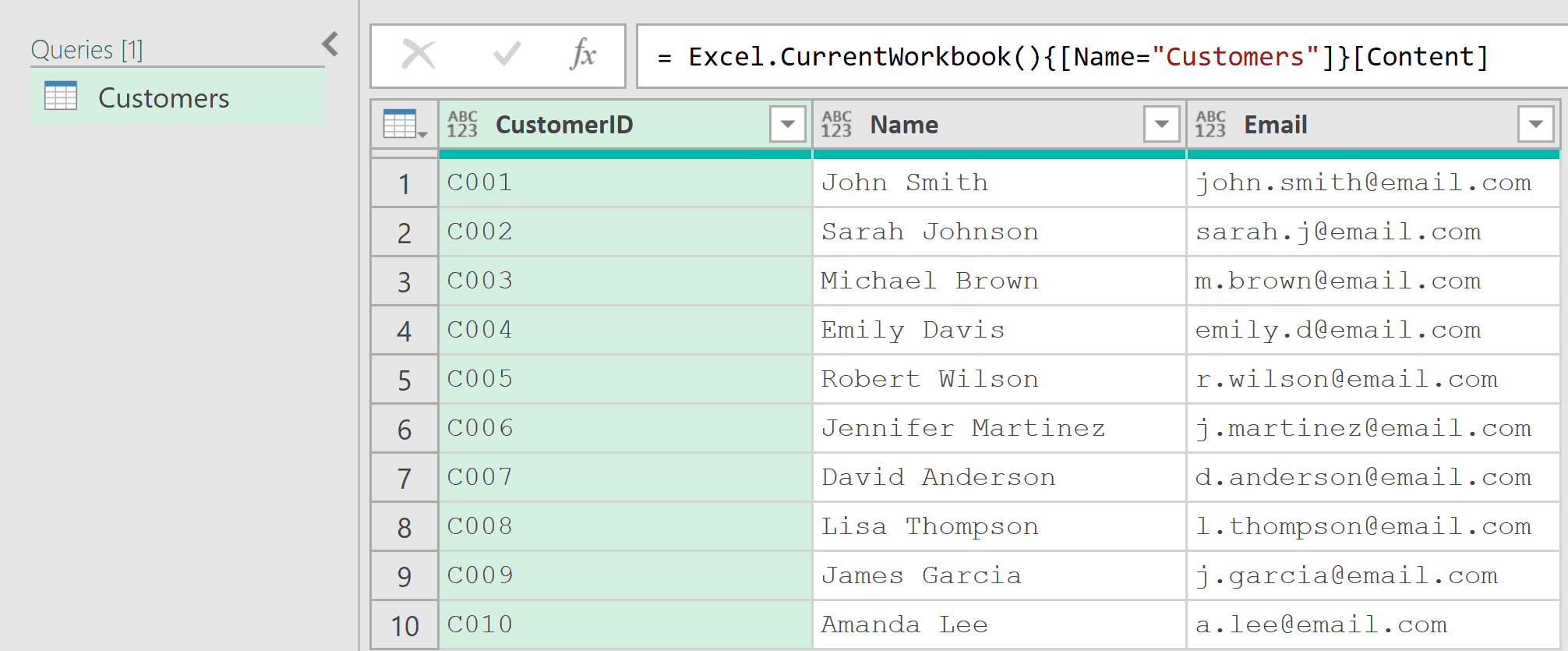
With the table loaded in Power Query, add a custom step by clicking the fx button in the formula bar and entering the following formula:
= List.IsDistinct(Source[CustomerID])
The result shows TRUE if all CustomerID values are unique, or FALSE if duplicates exist.
In this formula, Source[CustomerID] extracts the CustomerID column as a list, and List.IsDistinct checks whether all values in that list are unique.
Note: If your query has a “Changed Type” step after Source, you can either reference that step instead (e.g., #”Changed Type”[CustomerID]) or remove it for simplicity.
Alternatively, you can use this complete formula in a blank query without opening the table first:
= let
    Source = Excel.CurrentWorkbook(){[Name="Customers"]}[Content],
    IsUnique = List.IsDistinct(Source[CustomerID])
in
IsUniqueThe first line references the Customers table directly from your Excel workbook, and the second line checks whether the CustomerID column contains only unique values.
Example 3: Case-Sensitive vs Case-Insensitive Comparison
By default, List.IsDistinct treats uppercase and lowercase letters as different values.
This matters when checking text data, where case variations might represent the same item.
Suppose you have a list of department codes where some are entered in uppercase and others in lowercase:
= List.IsDistinct({"HR", "hr", "IT", "Finance"})Result: TRUE

Even though “HR” and “hr” mean the same, the default case-sensitive comparison treats them as different values, so the function returns true.
If you want to treat “HR” and “hr” as duplicates, use the Comparer.OrdinalIgnoreCase function (as shown below):
= List.IsDistinct({"HR", "hr", "IT", "Finance"}, Comparer.OrdinalIgnoreCase)Result: FALSE
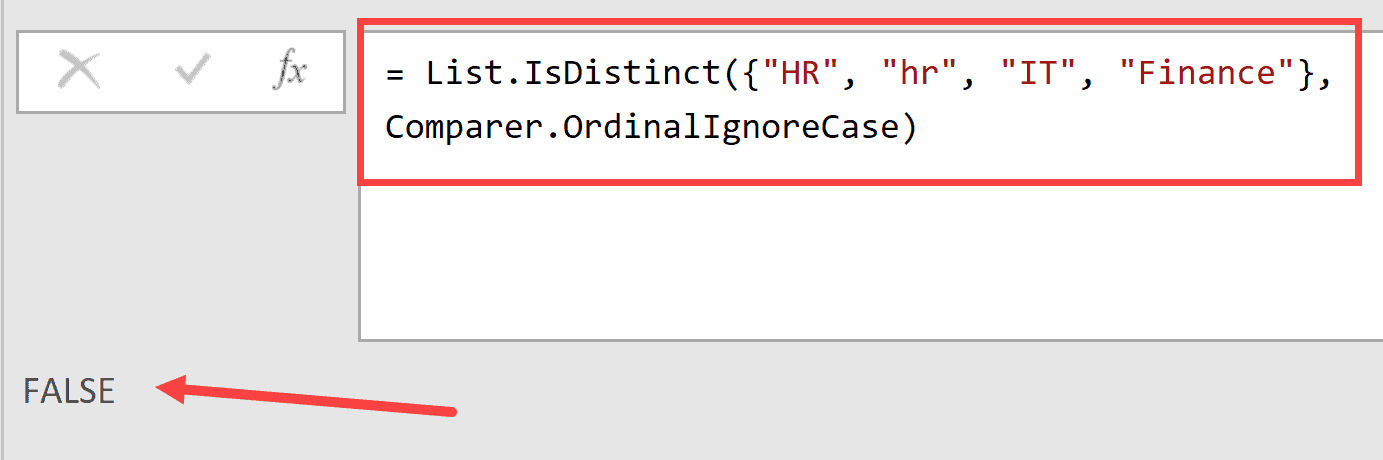
This time, with case-insensitive comparison, “HR” and “hr” are considered the same value, making the list contain duplicates.
Example 4: Using Culture-Specific Comparisons
When working with international data, certain characters may be equivalent in some languages but distinct in others.
The Comparer.FromCulture function lets you apply culture-specific comparison rules.
Consider a list containing the Danish word for “finished” written in two different ways:
= List.IsDistinct({"Færdig", "Faerdig"}, Comparer.FromCulture("en-US"))Result: FALSE

In English (US culture), the character “æ” is treated as equivalent to “ae”, so “Færdig” and “Faerdig” are considered duplicates.
Now apply Danish culture rules:
= List.IsDistinct({"Færdig", "Faerdig"}, Comparer.FromCulture("da-DK"))Result: TRUE

In Danish, “æ” is its own distinct letter in the alphabet, not simply a substitute for “ae”. Therefore, “Færdig” and “Faerdig” are considered different values.
Example 5: Conditional Logic Based on Uniqueness
You can use List.IsDistinct within conditional statements to trigger different actions based on whether duplicates exist.
This is useful for building validation checks into your data transformation.
Suppose you have a Products table loaded in Power Query and want to validate that the ProductID column contains unique values before proceeding.
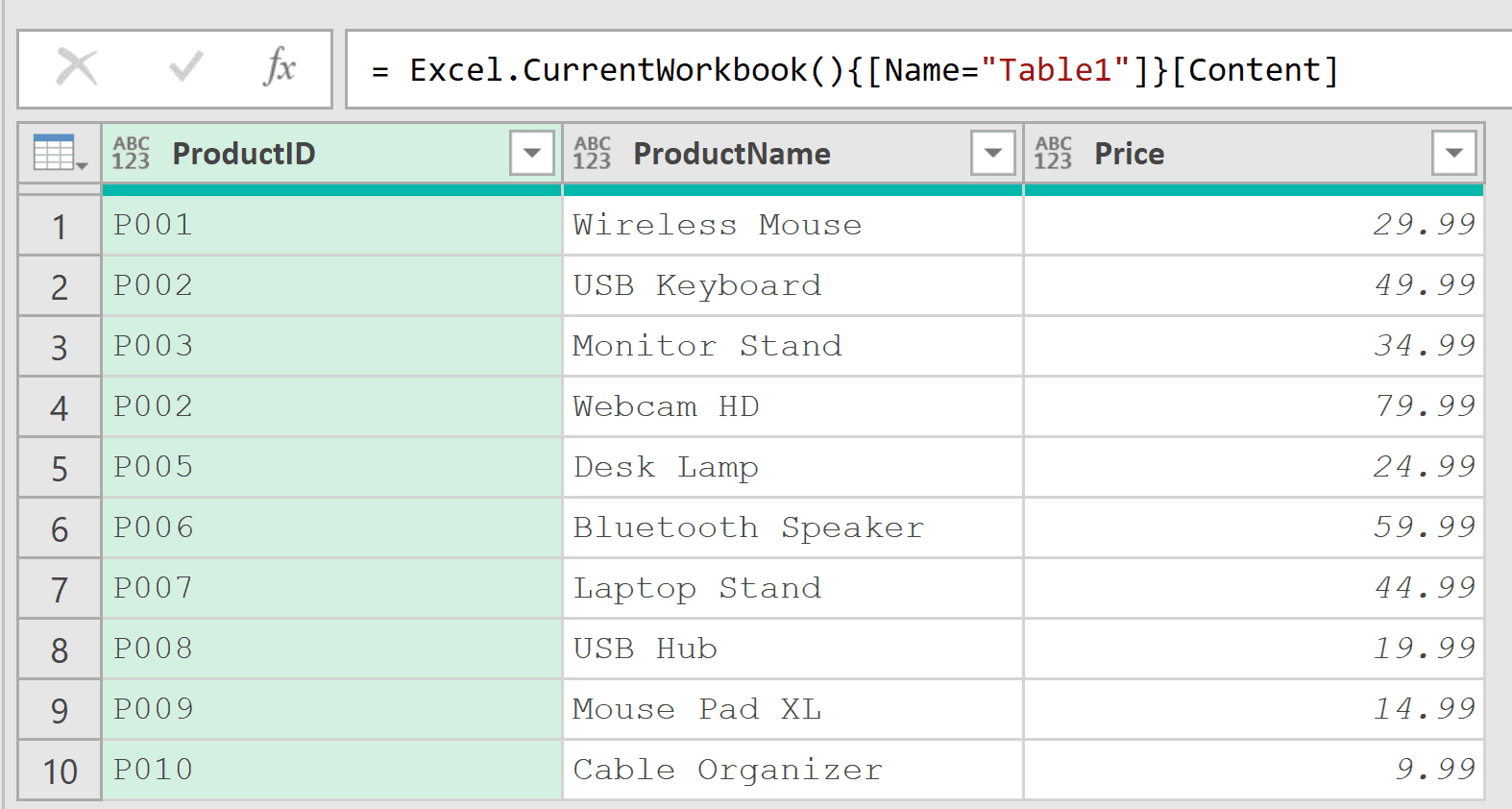
Notice that ProductID “P002” appears twice, which represents a data quality issue. To add a validation check that returns an error when duplicates exist, add a custom step with the following formula:
= if List.IsDistinct(Source[ProductID]) then Source else error "Duplicate ProductIDs found. Please clean the data."
Since the table contains duplicate ProductIDs, the formula returns an error instead of the data.
This prevents bad data from flowing through your data model and alerts you to fix the issue before proceeding.
Tips & Common Mistakes
- Default is case-sensitive: Remember that List.IsDistinct uses Comparer.Ordinal by default, meaning “Apple” and “apple” are considered different values. Use Comparer.OrdinalIgnoreCase when case shouldn’t matter.
- Don’t confuse with List.Distinct: List.IsDistinct returns a true/false value indicating whether duplicates exist. List.Distinct actually removes duplicates and returns a cleaned list. Choose the right function for your goal.
- Check columns, not tables: To check if a table column has duplicates, first extract it as a list using Table[ColumnName] syntax before passing it to List.IsDistinct.
- Consider Table.IsDistinct for rows: If you need to check whether entire rows are unique (not just a single column), use Table.IsDistinct instead.
- Performance with large lists: List.IsDistinct needs to compare values to find duplicates. For very large lists, this operation may take some time. Consider whether you need to check uniqueness on the full dataset or if sampling would suffice.
Related Functions
- List.Distinct – Returns a new list with duplicate values removed, keeping only unique items
- Table.IsDistinct – Checks if all rows in a table are unique based on specified columns or all columns
- List.Union – Combines multiple lists and returns a list containing only distinct values from all input lists
- List.Count – Returns the number of items in a list
- List.Contains – Checks whether a specific value exists in a list
All Power Query Functions