

Table.Buffer is an interesting (and useful) function in Power Query.
It loads a table into memory so Power Query reads from the cached copy instead of going back to the original data source each time.
This is useful when you want to preserve sort order before grouping or removing duplicates, or when a small table is referenced multiple times, and you want to avoid repeated fetches.
Think of it as taking a snapshot of your table at a specific point in your query. Once buffered, the data stays fixed regardless of what happens downstream.
Table.Buffer Syntax
Table.Buffer(table as table, optional options as nullable record) as table- table – The table you want to load into memory
- options (optional) – A record with a BufferMode field that controls when the data gets loaded. Two options are available:
- BufferMode.Delayed – Loads the table schema right away but defers the actual data loading until refresh time
- BufferMode.Eager (default) – Loads all data into memory immediately
What it returns: A table that is fully loaded into memory (buffered). The returned table has the same data as the original, but stored in memory as a fixed snapshot.
Important Note: The buffering that Table.Buffer performs is shallow in nature. This means it will evaluate and store all scalar cell values (numbers, text, dates, booleans), but it does not dig into nonscalar values. If a cell contains a record, list, or another table, those are left as they are and will only be evaluated when you interact with them.
When to Use Table.Buffer Function
Use this function when you need to:
- Preserve the sort order of a table before using Table.Group or Table.Distinct
- Speed up queries where a small lookup table is referenced repeatedly inside a custom function
- Cache a filtered reference table that gets used across multiple steps
- Force Power Query to evaluate a table at a specific point in your query
Example 1: Buffer a Simple Table
Let’s start with a basic example to understand what Table.Buffer does.
Suppose you have a small table loaded in Power Query with employee names and departments.
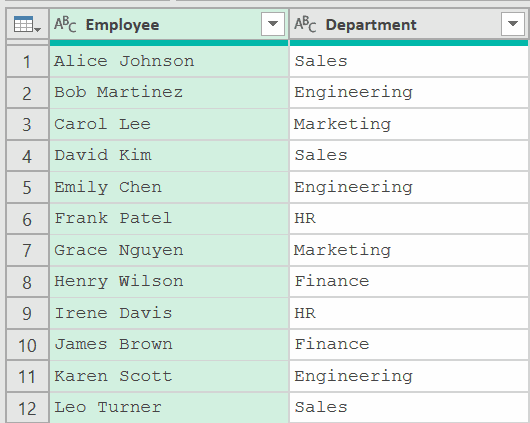
Add a new step (by clicking on the fx icon next to the formula bar) and use this formula:
= Table.Buffer(Source)
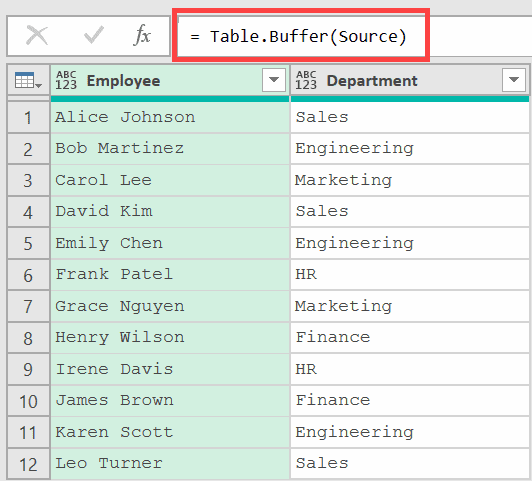
And it looks like it did nothing 😮
The output looks exactly the same as the original table. The data hasn’t changed.
But behind the scenes, Power Query has loaded the entire table into memory.
The difference shows up in performance.
Any step that references this buffered table will read from memory instead of going back to the data source.
On its own, Table.Buffer doesn’t seem to do much. But as you’ll see in the next examples, it really matters when combined with sorting, grouping, and merges.
Example 2: Preserve Sort Order Before Remove Duplicates
Here’s a problem that trips up a lot of Power Query users.
When you sort your data and then remove duplicates, Power Query completely ignores your sorting step.
Let me explain with an example.
Suppose you have a table with customer orders, and some customers have multiple entries.
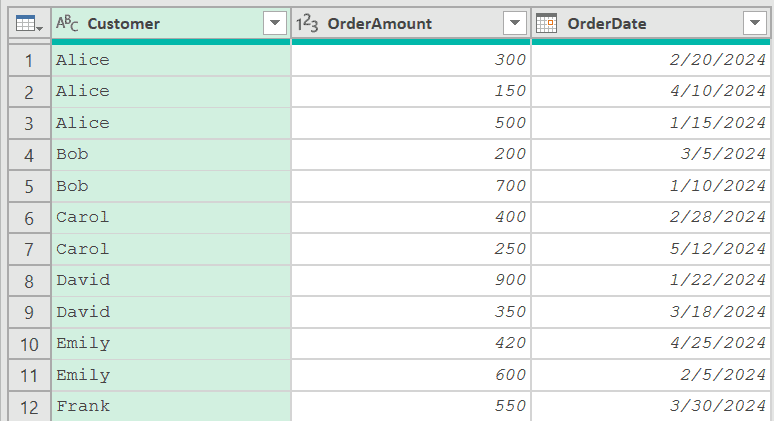
You want to keep only the row with the highest order amount for each customer.
The plan is simple. Sort by OrderAmount (descending) so the highest amount comes first, then remove duplicates based on Customer.
This should keep the first (highest) row for each customer (at least, that’s what we would expect).
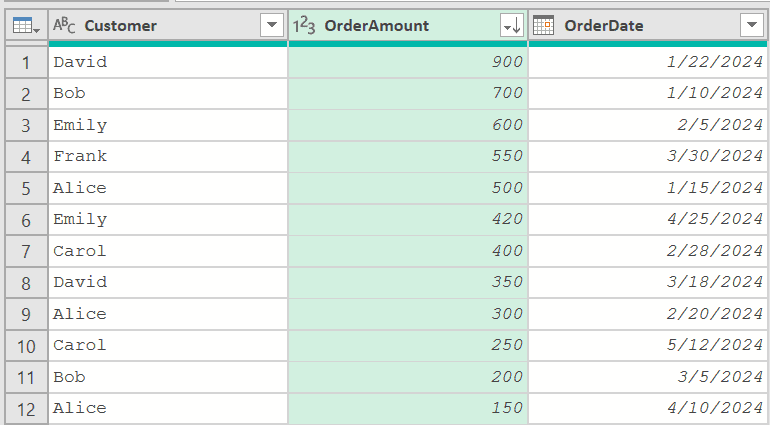
So with my data loaded in Power Query, I clicked on the filter icon in the OrderAmount column and then clicked on Sort Descending.
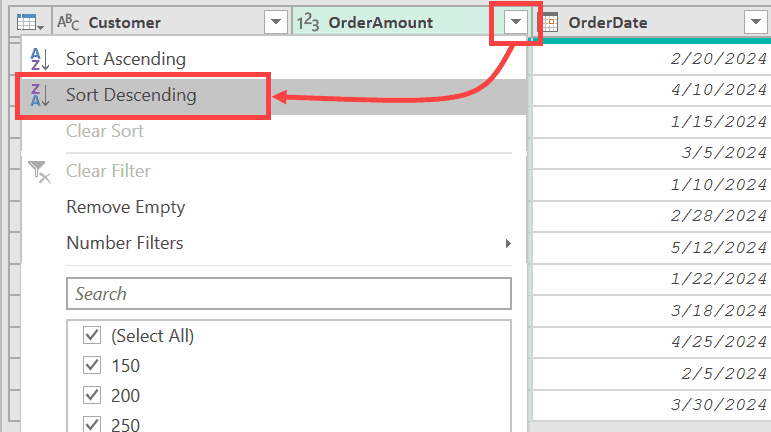
This would sort my data, and I’ll get the data as shown below:
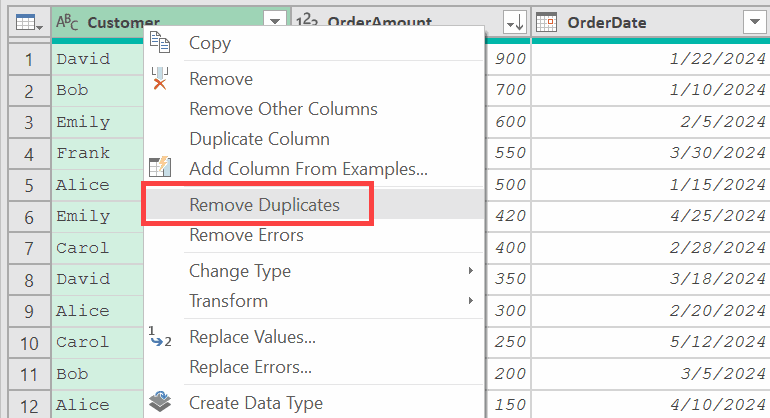
Now, I click on the Customer column header and then click on Remove Duplicates.
And this is what I get.
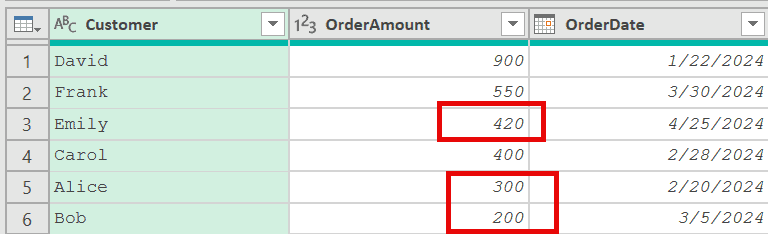
While this may appear correct, the data does not match my expectations. If you look closely, it gives me a row where the OrderAmount for Emily is 420, Alice is 300, and for Bob is 200.
But if you now go back to the earlier step where we sorted the data, you’ll notice that in the first row where Emily appears, the value for her is 600, and for Alice it’s 500 and for Bob it’s 700.
So what’s happening?
While removing duplicates, Power Query has completely ignored the result of the Sort step and has applied the remove duplicates operation to the Source step.
And why did it do that?
Because Power Query tried to optimize and decided that sorting the data before grouping it was unnecessary work, so it skipped the sort entirely.
This is a known phenomenon, and it has been mentioned by Microsoft in the official Power Query documentation

This is exactly where Table.Buffer saves the day.
By wrapping your sorted table in Table.Buffer, you’re telling Power Query, “Stop here and use this table“
Once the data is buffered, it has no choice but to work with the sorted result, because that’s all it can see, a fully materialized table sitting in memory, sort order and all.
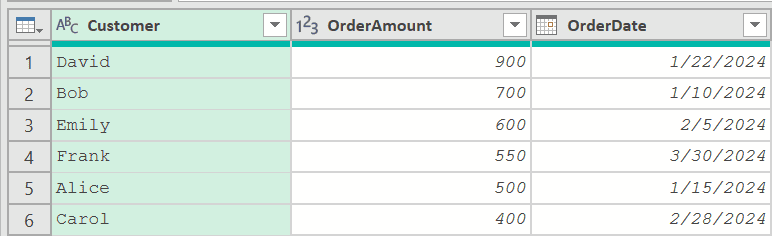
So after you have sorted the data, click on the fx icon and then use the formula below:
= Table.Buffer(#"Sorted Rows")
While the output would look exactly like the #”Sorted Rows” step, now when you remove duplicates on this step, it would work as expected.
Example 3: Preserve Sort Order Before Group By
Here is another example where Table.Buffer is needed.
Below, I have a table with sales data containing columns Region, Product, and Revenue.
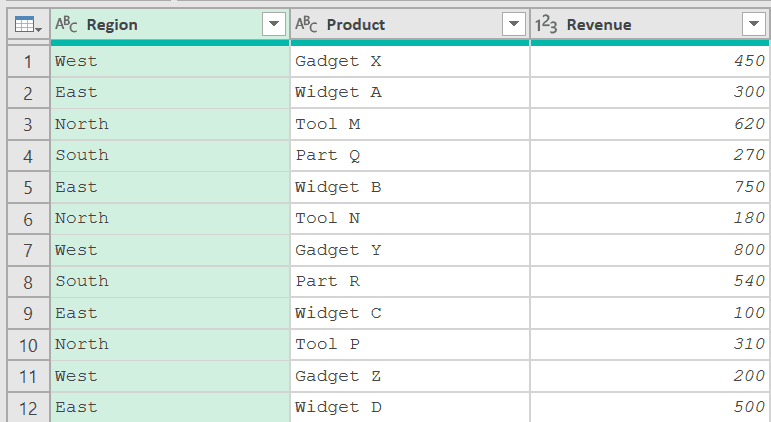
Now, let’s say you want to sort by Revenue (descending) and then group by Region to get a comma-separated list of products ordered by revenue.
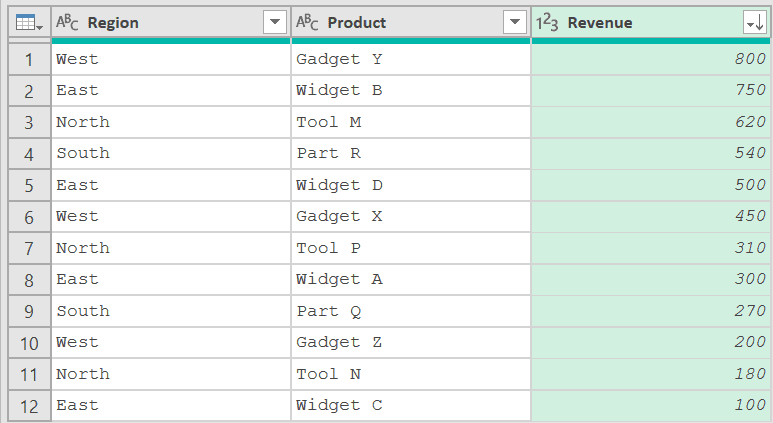
With this table loaded in Power Query, click on the filter icon in the Revenue column and then click on Sort Descending
This will give us a data set as shown below.
Now, click on the fx icon to add a new step and then use the formula below:
= Table.Group(#"Sorted Rows", {"Region"}, {{"Products", each Text.Combine([Product], ", ")}})
This formula groups the region and shows all the products as comma-separated values.
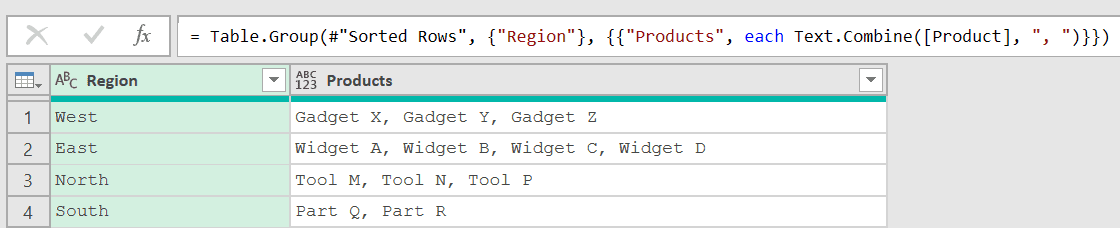
Now here is the issue.
If you look closely, the sorting we did has been ignored.
For the West region, it shows the product grouping as Gadget X, Gadget Y, Gadget Z
But if you go back to the output we got after the sorting, it should have given us Gadget Y, Gadget X, and Gadget Z
This happens because Power Query decides to ignore the sorting step and go directly to the source step in its bid to be more optimized.
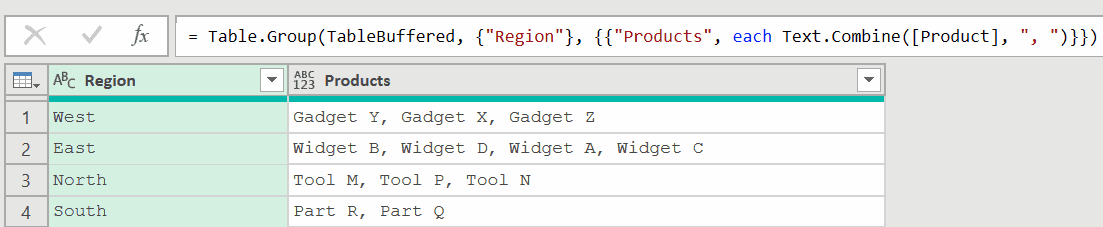
The solution – Use the formula below after the sorting step:
= Table.Buffer(#"Sorted Rows")
Replace the step name with whatever you have (in my case, it’s Sorted Rows).
Now, when you use the group by formula, it works as expected.
Example 4: Speed Up a Lookup Inside a Custom Function
This one is more involved, but it’s a pattern that comes up a lot with lookup-heavy queries.
Suppose you have two tables.
A main Sales table with thousands of rows, and a small CategoryMap table that maps product codes to category names.
You want to add a Category column to the Sales table by looking up each ProductCode in the CategoryMap table.
First, load both tables into Power Query. Then buffer the small CategoryMap table so it stays in memory. Create a new blank query with this formula:
= Table.Buffer(CategoryMap)
Name this step or query “BufferedMap”.
Now, in your Sales query, add a custom column that performs the lookup:
= Table.AddColumn(Source, "Category", each
    let
        match = Table.SelectRows(BufferedMap, (row) => row[ProductCode] = [ProductCode])
    in
        if Table.RowCount(match) > 0 then match{0}[Category] else null
)
Without buffering, Power Query re-fetches the CategoryMap table from the source for every single row in the Sales table. That’s a lot of repeated trips to the data source.
With Table.Buffer, the lookup table loads into memory once. Every row in Sales then reads from that cached copy. For large datasets, this can turn a query that takes minutes into one that finishes in seconds.
Note: You would see a speed improvement if you are fetching the CategoryMap table from a slow external source (maybe a SharePoint file or a database). You may not notice much speed improvement if the category map table is easily accessible (maybe from the same Excel file or stored in a different file on your system locally).
Also, note that Microsoft documentation mentions this
Using this function might or might not make your queries run faster. In some cases, it can make your queries run more slowly due to the added cost of reading all the data and storing it in memory, as well as the fact that buffering prevents downstream folding.
Example 5: Using BufferMode.Delayed for Faster Development
This last example is a productivity tip for when you’re building queries.
By default, Table.Buffer uses BufferMode.Eager (as the optional second argument), which loads all data into memory immediately during the evaluation phase.
Every time you click on a step in the Power Query Editor, it has to buffer the entire table before showing you the preview.
For large tables, this slows down your development workflow a lot.
BufferMode.Delayed handles this differently. It loads the table schema (column names and types) immediately but defers the actual data loading until the query is refreshed.
Add a new step (by clicking on the fx icon next to the formula bar) and use this formula:
= Table.Buffer(Source, [BufferMode = BufferMode.Delayed])
Result: The preview loads almost instantly because Power Query only evaluates the column structure, not the actual data.
During development, this lets you move through your query steps quickly without waiting for large tables to load into memory each time you click around.
When you do a full refresh (Close & Load or Refresh in Power BI), the data loads normally.
Worth trying when you’re working with CSV files or large datasets where the eager evaluation phase can take 20+ seconds just to show a preview.
Tips & Common Mistakes
- Filter first, then buffer: Never buffer a raw table with millions of rows. Apply your filters and transformations first to reduce the data size, then buffer the smaller result. Buffering a huge table can exhaust memory and crash your query.
- Table.Buffer breaks query folding: Once you buffer a table, all downstream operations run in the Power Query engine instead of being pushed to the data source. If you’re working with SQL Server or another foldable source and only need to stop folding (without caching data), use Table.StopFolding instead.
- Buffering is shallow: Table.Buffer evaluates all scalar values (text, numbers, dates) but leaves nested tables, lists, and records unevaluated. If your table cells contain nested structures, those will still be evaluated lazily when accessed.
- No cross-query buffering: If Query A buffers a table and Query B references Query A, the buffer happens separately for each query. Buffering a shared source does not mean it’s buffered once for all consuming queries.
- Reserve it for small tables: Table.Buffer works best for small lookup or reference tables (thousands of rows, not millions). For large fact tables, the memory overhead usually makes things worse, not better.
- Always test the impact: Add Table.Buffer and measure the actual load time. Then remove it and measure again. Don’t assume buffering always helps. In some cases it adds overhead without any benefit.
Other Related Power Query Functions
- List.Buffer – Loads a list into memory so it’s only evaluated once, even if referenced multiple times
- Binary.Buffer – Buffers binary data in memory to prevent repeated reads from the source
- Table.StopFolding – Prevents downstream query folding without loading data into memory
- Table.Sort – Sorts a table by one or more columns
- Table.Combine
- Table.Group – Groups rows of a table by specified columns and applies aggregation functions
- Table.TransformColumns – Applies transformations to one or more columns in a table simultaneously
