

If you want to remove blank rows from a dataset using a formula in Excel, you can do that by using the FILTER function.
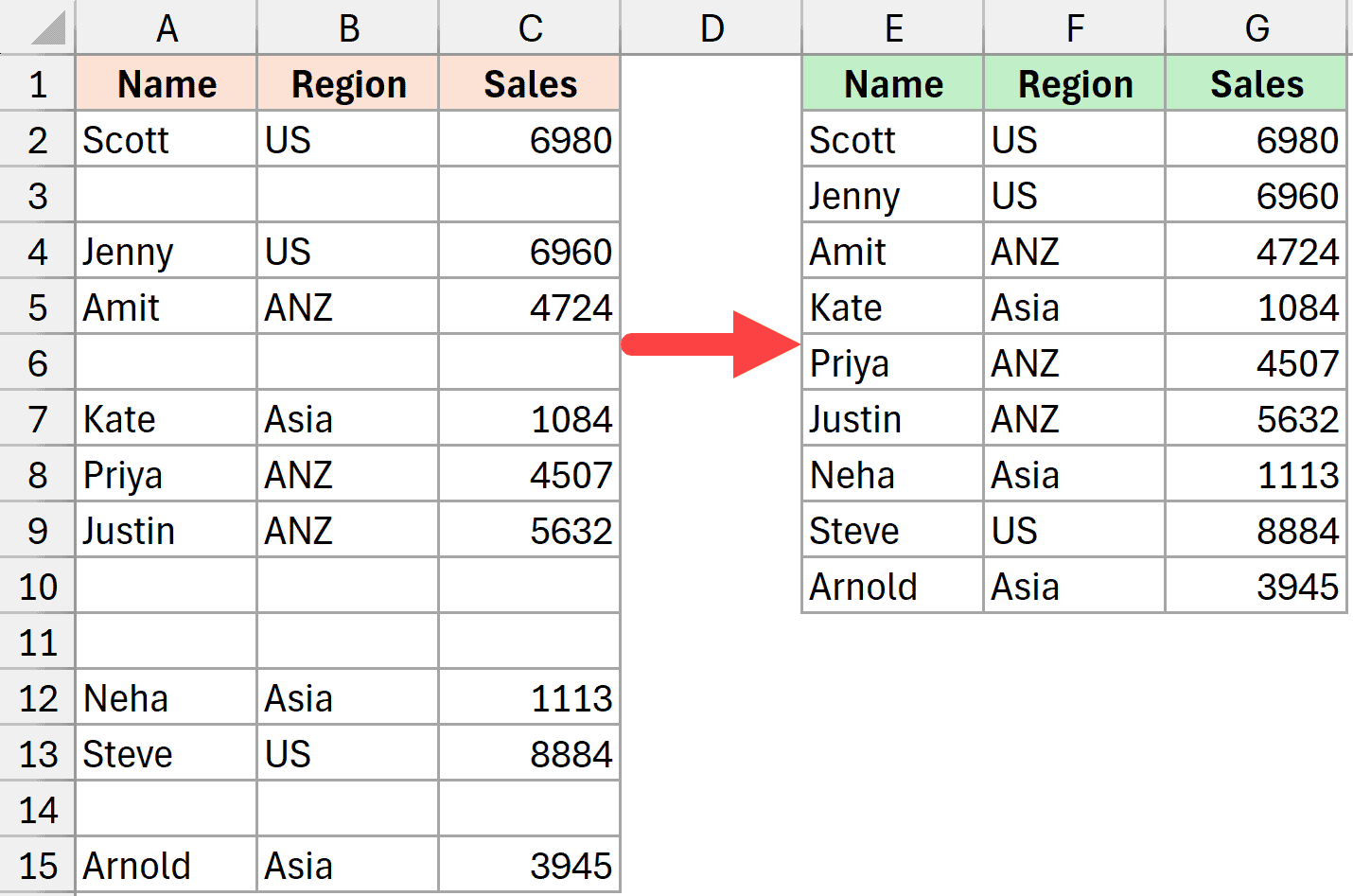
Below is an example where I have a dataset on the left, and then I’ve used the filter function to extract only those rows that are not blank on the right.
Let me show you how it works.
Remove Blank Rows Using FILTER Formula
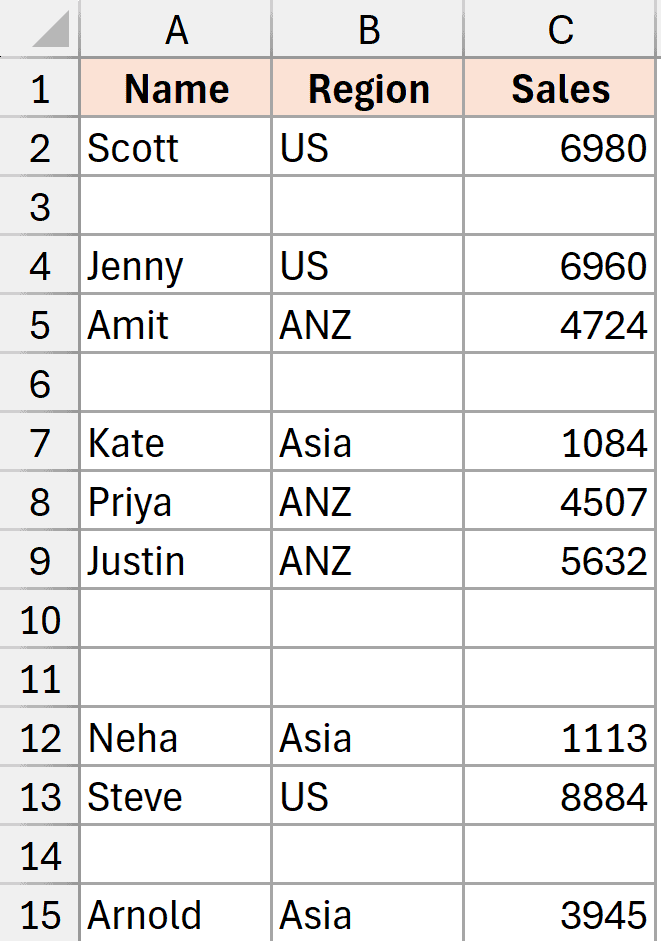
Below, I have a dataset where some rows are blank.
I want to use a formula that will remove all the blank rows and stack all the non-blank rows together.
Here is the formula that does this for me:
=FILTER(A2:C15,NOT(BYROW(ISBLANK(A2:C15),AND)))
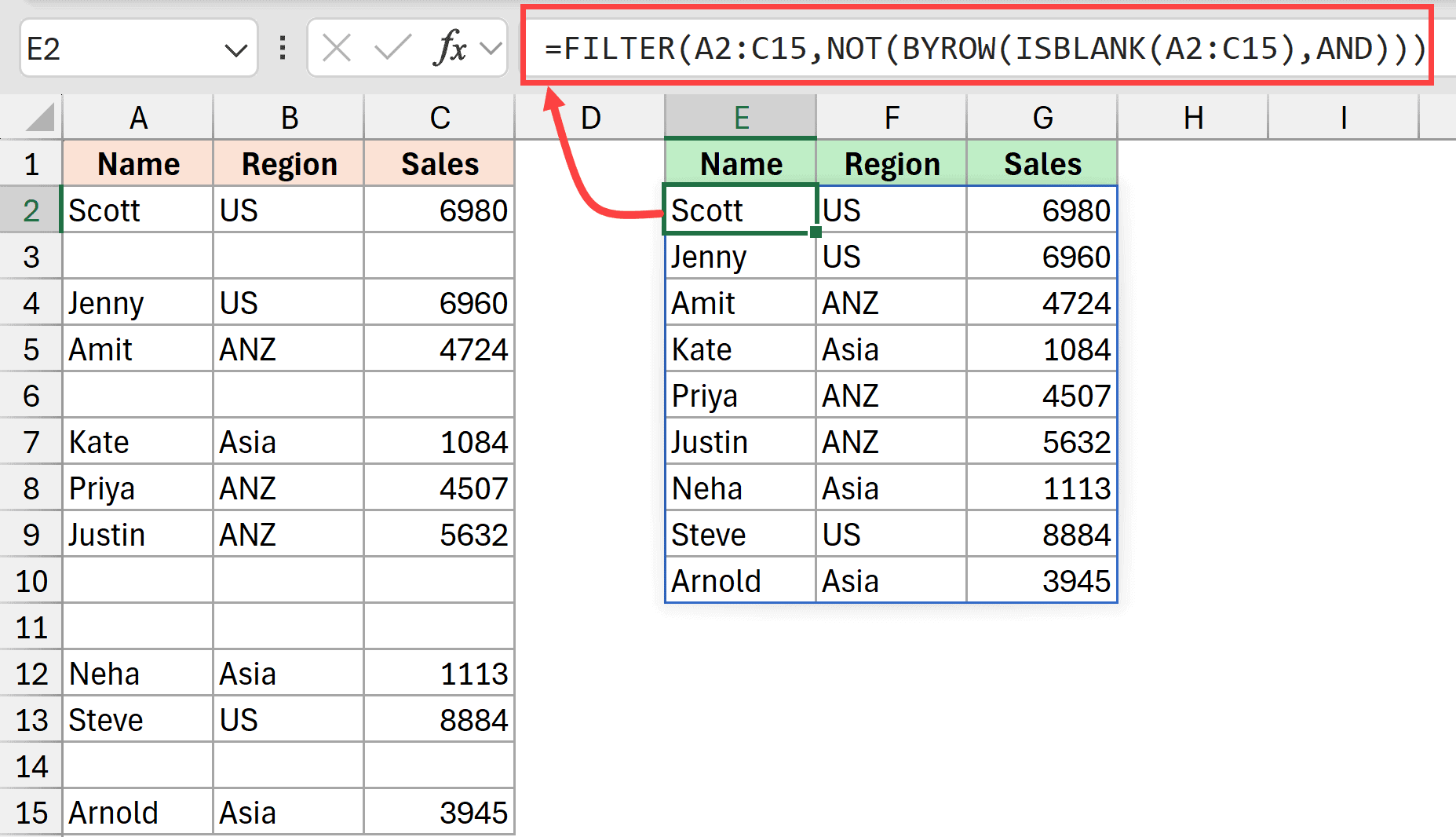
If you want to use this with your dataset, just change the range A2:C15 to your data range reference.
How this formula works:
ISBLANK(A2:C15) – This part checks each cell in the range A2:C15 and returns TRUE if the cell is blank and FALSE if it contains any value. So you get a grid of TRUE and FALSE values matching your data range.
BYROW(ISBLANK(A2:C15),AND) – Here, the BYROW function looks at each row one by one from the result we got in Step 1. For each row, it uses the AND function to check if all cells in that row are blank (all TRUE values). If all cells in a row are blank, it returns TRUE for that row. If even one cell has a value, it returns FALSE.
NOT(BYROW(ISBLANK(A2:C15),AND)) – The NOT function simply flips the results of the BYROW formula. So rows that were TRUE (completely blank) become FALSE, and rows that were FALSE (have at least one value) become TRUE. This gives us a list of TRUE for rows we want to keep and FALSE for blank rows we want to remove.
FILTER(A2:C15,…) – Finally, the FILTER function uses this TRUE/FALSE list to filter your original data range. It only returns the rows where the condition is TRUE, which means it gives you only the rows that have at least one value in them, effectively removing all the completely blank rows.
And that’s it! The formula stacks all your non-blank rows together and removes the blank ones.
Remove Blank Cells from a Single Column
If you want to remove blank cells from a single column, then you can use a simplified version of the above formula.
Below, I have a dataset with names in column A, and I want to remove all the blank cells.

Here is the formula that will do this:
=FILTER(A2:A15,A2:A15<>"")
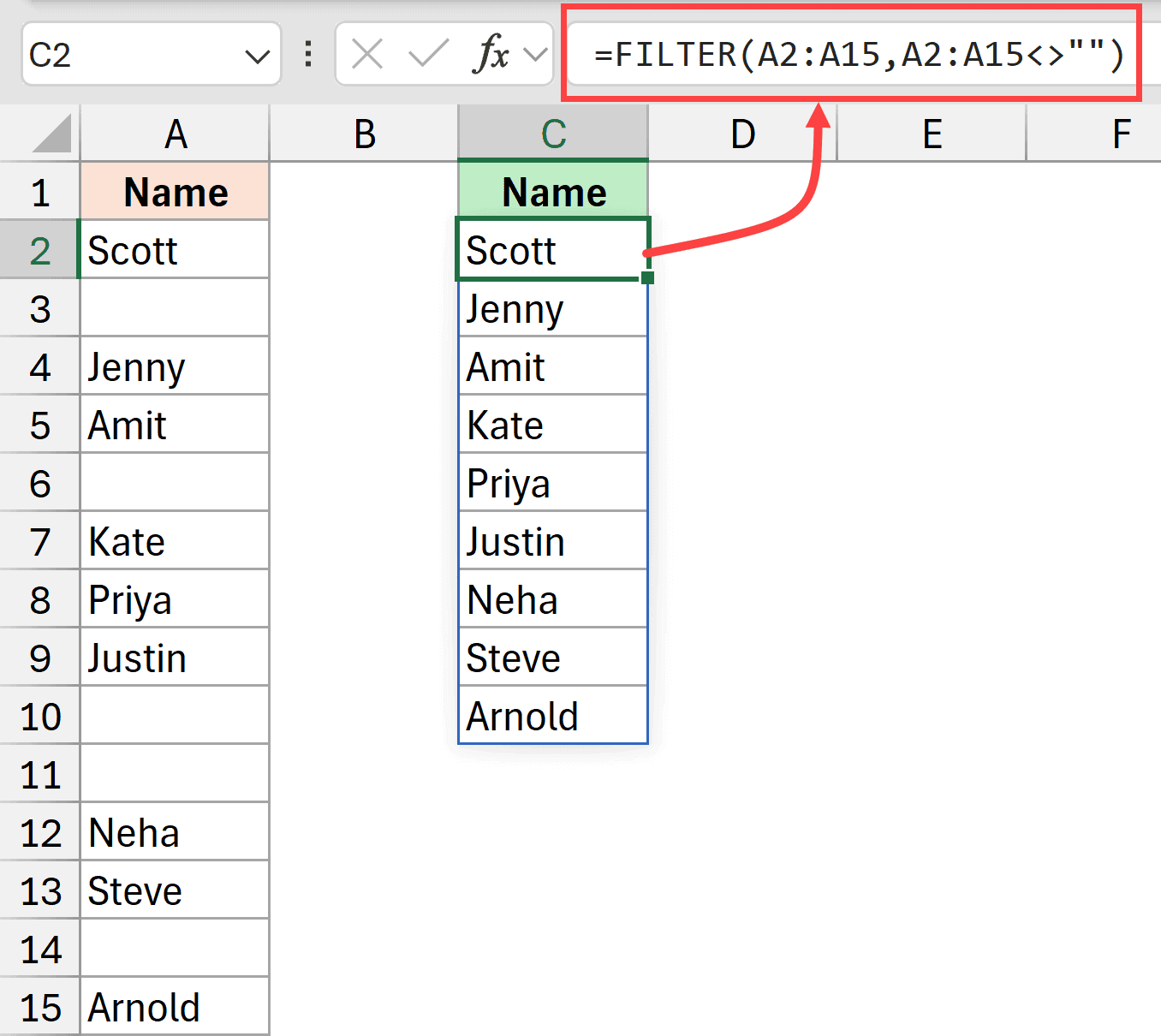
The above formula goes through each cell in the given range and checks whether it is empty or not.
If the cell is blank, the second argument of the FILTER function returns FALSE, and it is removed from the result. If it is not blank, it returns TRUE, and it is retained.
I hope you found this Excel tutorial helpful.
Other Excel articles you may also like:



You are Excellent teacher
Thanks, Lawrence. Glad you found the article helpful