

The RTD function brings data from a compatible external program into Excel and can keep the result updated as that program sends new values. It’s often used to bring market quotes into a worksheet.
There is a setup requirement here: Excel needs the provider’s RTD software installed and registered on your computer. Typing a formula alone won’t create a connection to a data feed.
In this tutorial, I’ll explain the arguments and show a provider formula in two forms. The example workbook shows the actual missing-provider error, so you can inspect the formulas without mistaking the screenshots for working live quotes.
Follow along with the example file
RTD Function Examples.xlsx
RTD Function Syntax
Here is the syntax of the RTD function:
=RTD(ProgID,server,topic1,[topic2],...)
- ProgID is required. It’s the registered name of the provider’s RTD program, written in double quotes when typed directly into the formula.
- server identifies the computer where the program runs. Use
""for a local connection. This argument position stays in the formula even when you aren’t naming a remote computer. - topic1 is required. It starts the set of values that identifies the data you want.
- topic2 and later topics are optional in the function’s general syntax. A provider may require several topics for its own requests, and the worksheet function accepts up to 253 topics in total.
The provider decides what the topics mean and which order they go in. A symbol and field name that work with one provider may be invalid for another, so use that provider’s formula documentation.
On a worksheet, you can also leave the local server argument empty between two commas. The examples below use "" to make that empty argument easier to see.
This tutorial uses desktop Excel for Windows. RTD is listed for Excel 365, 2024, 2021, 2019, and 2016, but the provider’s software must also support your setup.
Microsoft documents the worksheet syntax on its RTD function page. The VBA method has its own argument signature, so don’t use its topic count as the worksheet limit.
When to Use the RTD Function
Use this function when you need to:
- Bring a supported data provider’s changing values into worksheet cells.
- Maintain a worksheet that uses the provider’s documented symbols and fields.
- Make an existing RTD request easier to edit by putting its inputs in cells.
RTD needs a program that supports its connection method. An ordinary website address won’t work as the ProgID.
Set Up the Data Provider First
An RTD server is the program that supplies the data to Excel. It can run on your own PC, so the word “server” doesn’t necessarily mean another computer.
Install the RTD component using your provider’s instructions, then complete any required sign-in and data-access setup. The installation registers the program name that Excel looks for in the first argument.
For the example below, Infront’s documentation identifies the program as ontrade.quotes and says its Professional Terminal must be running. Its quote request uses the feed, symbol, and field as separate topics.
If you’re using another provider, start with a formula from that provider. Changing only ontrade.quotes while leaving Infront’s topics in place isn’t a reliable way to convert this example.
Excel for the web doesn’t establish this desktop connection. Microsoft’s browser comparison says it displays stored RTD values, or #N/A if no values are stored, so a visible saved number doesn’t prove that a browser workbook is receiving updates.
Mac compatibility also needs a provider-specific check. This Windows example doesn’t verify that the provider’s RTD component works on a Mac.
Example 1: Build an Editable RTD Request
Let’s use a documented Infront request to see how the arguments fit together.
Important: Both result screenshots below show #N/A because the Infront provider isn’t installed on the example computer. The workbook contains the formulas only; it doesn’t install the provider or supply market-data access.
Below are the provider settings for an Ericsson B quote, and the requested last price goes in cell B8 on the RTD Example sheet.
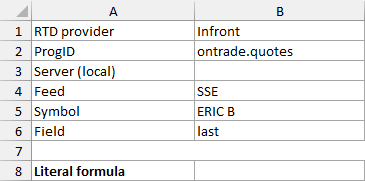
Enter this formula in B8:
=RTD("ontrade.quotes","","SSE","ERIC B","last")
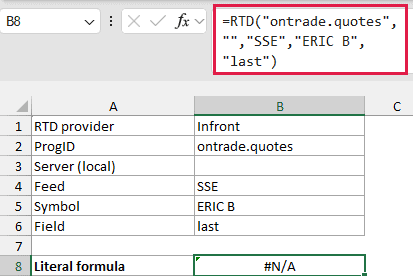
The formula asks Infront for the last field of ERIC B on the SSE feed. The empty second argument tells Excel to use the local RTD program.
In this workbook, B8 shows #N/A because the provider isn’t installed on the computer used for the example. This is a real Excel error result, not a sample price or proof of a successful connection.
With a compatible Infront installation, the terminal running and connected, access to the requested feed, and valid topics, the formula can return the last price instead. No successful quote or live price updates were verified for this example.
If you see this error on your computer, first check that the exact ProgID is installed and registered. Then check the provider’s running application, connection status, and topic spelling against its documentation.
When the provider is already installed, #N/A alone doesn’t tell you which part failed. Follow its connection checks before changing the formula, and keep the error visible while diagnosing it.
Now let’s make the request easier to edit. The same inputs are already in the parameter cells above the formula, so B9 can refer to those cells:
=RTD(B2,"",B4,B5,B6)
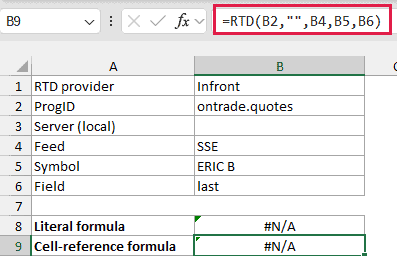
Here, B2 supplies the ProgID, B4 supplies the feed, B5 supplies the symbol, and B6 supplies the field. The local server argument stays as "" in the formula.
Don’t put quotes around those cell references. B5 reads the symbol stored in the cell, while "B5" passes the letters B5 as the topic text.
Changing B5 changes the request in B9. It doesn’t change B8, because the first formula still has "ERIC B" typed directly into it.
Both cells show #N/A in the supplied file. Their arguments describe the same request, but matching errors don’t verify that either form has retrieved a price.
This example makes one request per formula. It doesn’t demonstrate a spill across several symbols, so don’t replace the symbol cell with a range and assume your provider supports it.
Once a working provider sends updates, Excel needs automatic calculation for RTD results to update as Microsoft describes. If updates stop, check that setting along with the provider’s connection; recalculation can’t install a missing RTD server.
The two forms let you inspect the request directly or change its inputs from cells. For live use, finish the provider setup and verify an actual returned value before relying on the workbook.
Other Excel Articles You May Also Like:
