

The BAHTTEXT function in Excel converts a number into Thai words, with the currency words for baht and satang added for you. It’s the quick way to show an amount in words on a Thai invoice, receipt, or cheque without typing any Thai yourself.
You don’t need a Thai keyboard or Thai regional settings to use it. The one catch is that it only speaks Thai, so there’s no option to get the words in English.
For English, you’d need a different method to convert numbers to words in Excel.
Follow along with the example file
BAHTTEXT Function Examples.xlsx
BAHTTEXT Function Syntax
Here is the syntax of the BAHTTEXT function:
=BAHTTEXT(number)
- number – the amount you want to convert. It can be a number, a reference to a cell that has one, or a formula that returns a number.
BAHTTEXT works to two decimal places, because a satang is one hundredth of a baht. Anything beyond that is rounded to the nearest satang, so 1234.567 comes out as 1,234 baht and 57 satang.
If the cell you point to is blank, BAHTTEXT treats it as zero and returns ศูนย์บาทถ้วน (zero baht). So an empty input doesn’t give you an empty result.
The BAHTTEXT function works in Excel for Microsoft 365, Excel 2024, 2021, 2019, and 2016. The range formulas in this article spill, which needs Excel 365, 2024, or 2021.
When to Use the BAHTTEXT Function
Use this function when you need to:
- Write the amount in words on a Thai invoice, receipt, or quotation
- Fill in the amount line of a cheque or payment voucher in Thai
- Check that an amount someone typed in Thai words matches the number
Let me show you a few practical examples of how to use the BAHTTEXT function.
Example 1: Convert Numbers to Thai Baht Text
Let’s start with a simple example.
Below is a list of tenants with their monthly rent in baht, and I want the rent written in Thai words in column C.
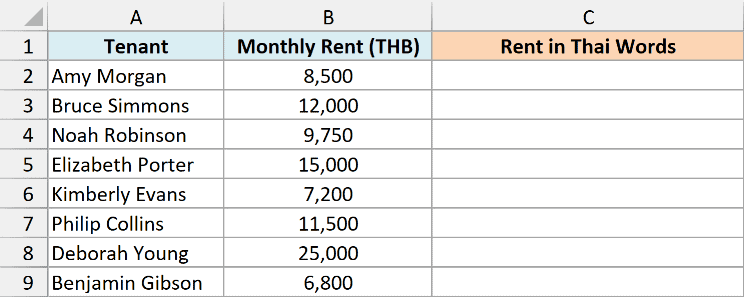
Here is the formula:
=BAHTTEXT(B2:B9)
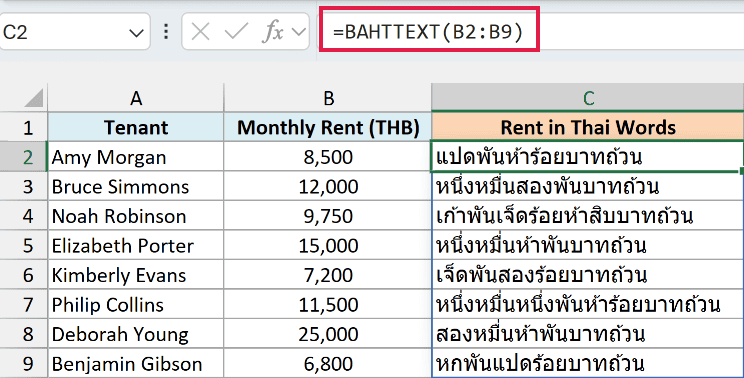
I gave BAHTTEXT the whole rent range B2:B9, so the one formula in C2 returns all eight results and spills them down to C9.
Every result ends in บาทถ้วน. บาท is baht, and ถ้วน means the amount is exact, with no satang.
So the 8,500 in B2 reads as eight thousand five hundred baht, exactly.
If you are using Excel 2019 or earlier, enter the below formula in cell C2 and then copy it down to C9:
=BAHTTEXT(B2)
Example 2: BAHTTEXT With Satang (Decimal Amounts)
Here’s another practical scenario.
Below are some lines from a monthly bank statement with amounts that include satang, and I want each amount in Thai words in column C.
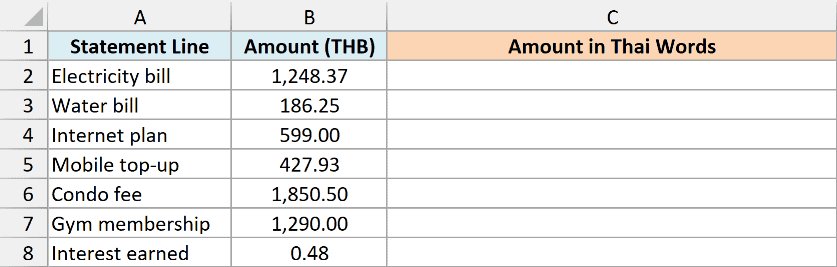
Here is the formula:
=BAHTTEXT(B2:B8)
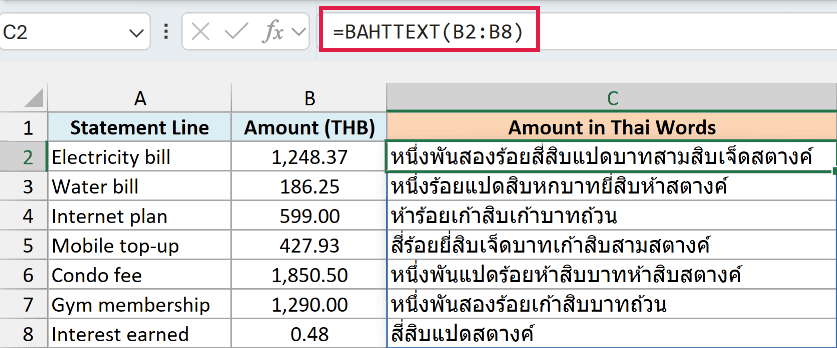
When an amount has decimals, BAHTTEXT writes the baht part followed by บาท, then the decimals as satang followed by สตางค์. So the 1,248.37 electricity bill in B2 becomes one thousand two hundred forty-eight baht and thirty-seven satang.
An amount that ends in .00, like the 599.00 internet plan in B4, still ends in บาทถ้วน. There’s no satang to write, so BAHTTEXT treats it like a whole number.
The 0.48 of interest earned in B8 is less than one baht. In that case BAHTTEXT leaves out the baht part completely and returns just สี่สิบแปดสตางค์ (forty-eight satang).
Example 3: Show Refunds (Negative Amounts) in Thai Words
Now let’s look at what happens with negative numbers.
Below is a list of online orders where refunds are recorded as negative amounts, and I want each amount in Thai words in column D.
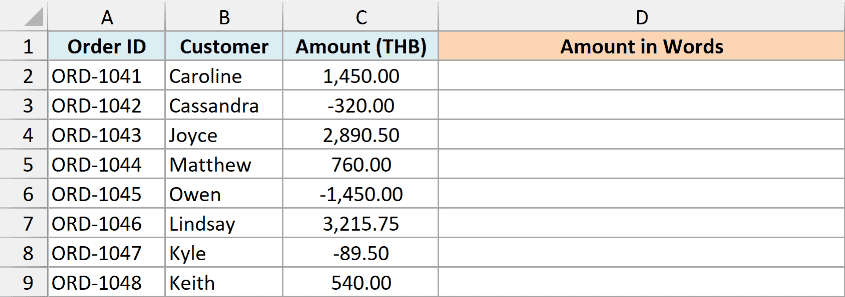
Here is the formula:
=BAHTTEXT(C2:C9)
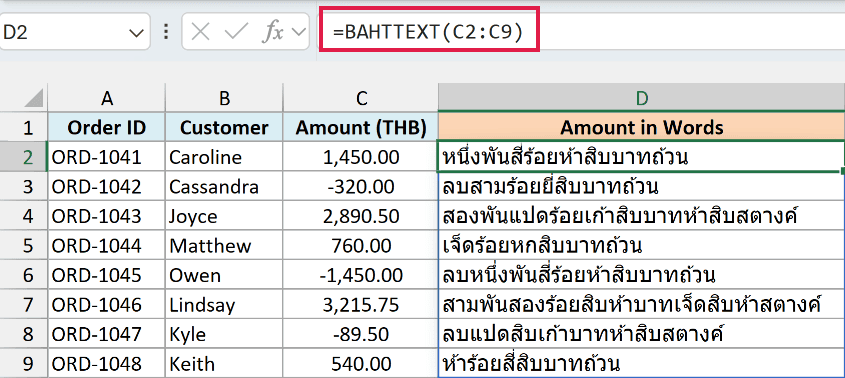
For a negative amount, BAHTTEXT puts ลบ (minus) at the start of the words. So the -320.00 refund in C3 becomes ลบสามร้อยยี่สิบบาทถ้วน, which reads as minus three hundred twenty baht.
That’s accurate, but a refund note usually already says it’s a refund, so you may want the words without the minus. Here is a formula for column E that does that:
=BAHTTEXT(ABS(C2:C9))
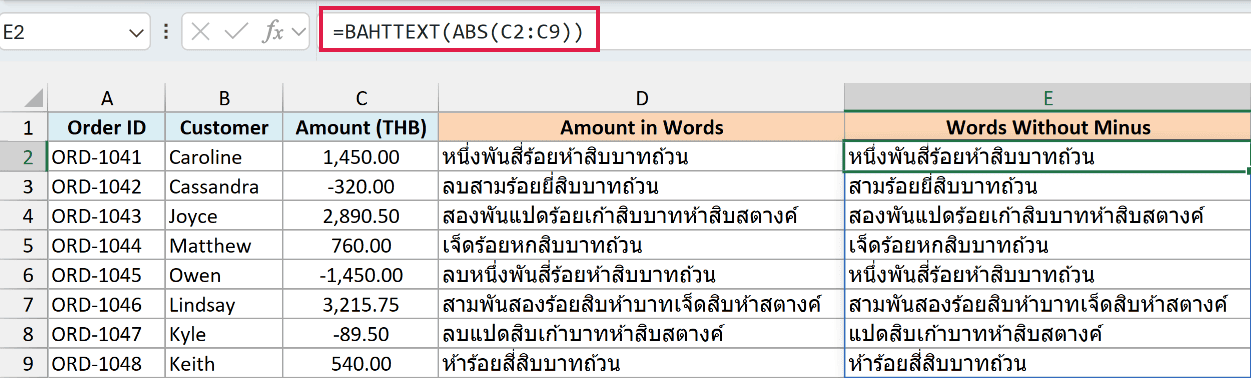
The ABS function returns each amount without its sign, so BAHTTEXT only ever sees positive numbers. The refund in C3 now reads สามร้อยยี่สิบบาทถ้วน, and the amounts that were already positive come out the same as in column D.
Example 4: BAHTTEXT in Parentheses for an Invoice Total
Let’s step it up with something you’d actually put on an invoice.
Below is a small invoice with a subtotal, 7% VAT, and a grand total in B9, and I want the grand total written in Thai words, inside parentheses, in cell A12.
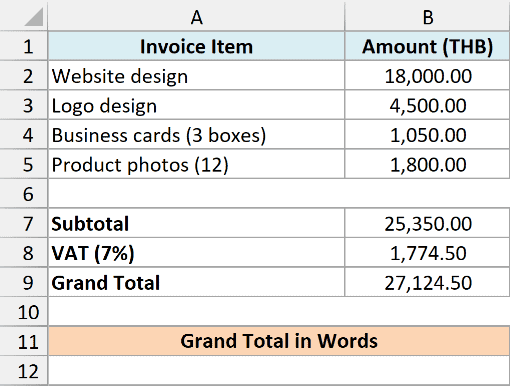
Here is the formula:
="("&BAHTTEXT(B9)&")"
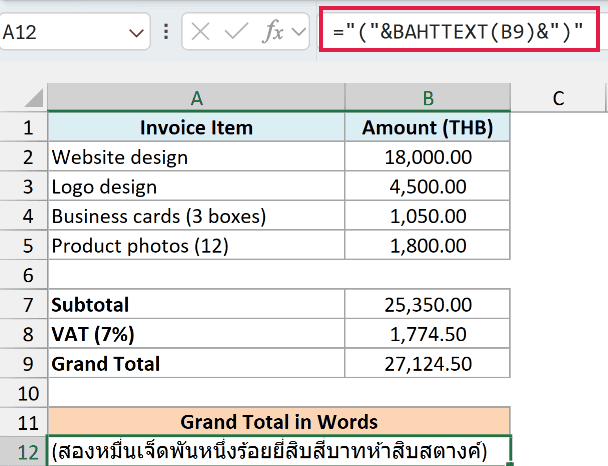
How this formula works:
- BAHTTEXT(B9) converts the grand total of 27,124.50 into Thai words.
- The ampersand (&) joins an opening parenthesis before the words and a closing parenthesis after them.
And because the formula points to B9 instead of a typed number, the words update on their own when you change any line item.
Example 5: Convert Amounts Stored as Text With THB
Here’s one that trips people up with imported data.
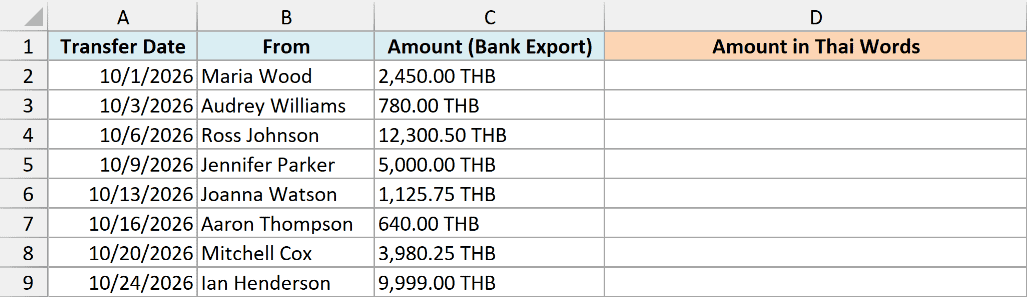
Below are bank transfers exported from online banking, where each amount came in as text with THB at the end, and I want each amount in Thai words in column D.
Here is the formula:
=BAHTTEXT(SUBSTITUTE(C2:C9," THB",""))
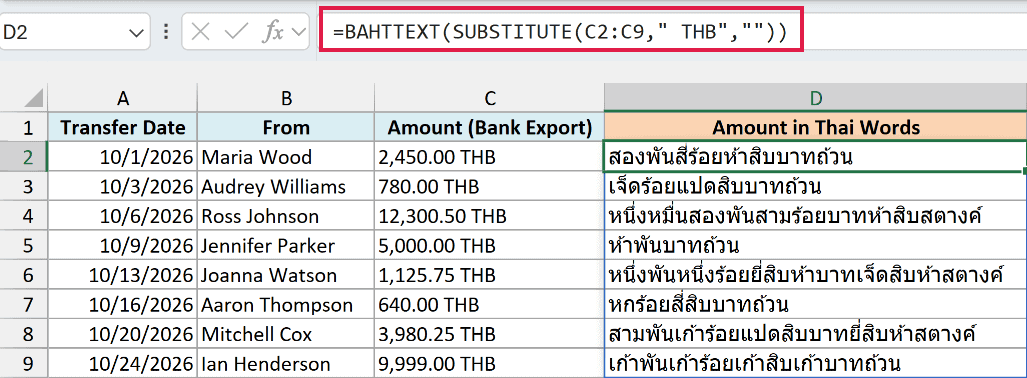
If you point BAHTTEXT straight at these cells, every result is a #VALUE! error. BAHTTEXT can read text that looks like a number, but “2,450.00 THB” has letters in it, so Excel can’t treat it as a number.
The SUBSTITUTE function removes ” THB” (including the space before it) from each amount, which leaves text like “2,450.00”. BAHTTEXT reads that as the number 2450 and converts it, so you don’t need the VALUE function in between.
A currency symbol that Excel doesn’t recognize under your regional settings gives the same #VALUE! error. For example, on a computer set to US settings, “$1,500” converts fine but “฿1,500” doesn’t.
If your amounts carry a symbol like that, remove it with SUBSTITUTE the same way this formula removes ” THB”.
Important: Make sure the formula points at the amount column and not the Transfer Date column. Excel stores a date as a number, so BAHTTEXT converts it without complaint, and a date like 5-Jan-2026 comes out as 46,027 baht in Thai words.
So that’s how the BAHTTEXT function works. You give it one amount and it returns the Thai words for it, with the baht, the satang, and any minus sign handled for you.
I hope you found this Excel tutorial useful.
Other Excel Articles You May Also Like:
