

The DOLLAR function in Excel converts a number into text that looks like currency. So 1049 becomes $1,049.00, with a dollar sign, a comma, and two decimal places.
You can also pick how many decimals to keep, or even round to the nearest thousand.
DOLLAR comes in handy when a number has to sit inside a sentence, a label, or a report heading, where regular cell formatting gets lost.
The one catch is that the result is text, not a number, which matters when you want to use it in calculations.
In this article, I’ll show you how to use DOLLAR with seven practical examples, from a simple conversion to getting DOLLAR results back into numbers.
Follow along with the example file
DOLLAR Function Examples.xlsx
DOLLAR Function Syntax
Here is the syntax of the DOLLAR function:
=DOLLAR(number, [decimals])
- number – The number you want to show as currency. It can be a number, a cell reference, a range, or a formula that returns a number.
- decimals – (Optional) The number of digits to show after the decimal point. If you leave it out, DOLLAR uses 2.
DOLLAR rounds the number to the decimals you ask for, it doesn’t just cut off the extra digits. So 0.125 with two decimals shows as $0.13.
A negative decimals value rounds to the left of the decimal point. With -1 you get the nearest ten, with -2 the nearest hundred, and with -3 the nearest thousand.
If number points to an empty cell, you get $0.00 instead of a blank. And if it’s text that can’t be read as a number (like “abc”), DOLLAR returns the #VALUE! error.
The DOLLAR function works in all Excel versions, including Excel for Microsoft 365, 2024, 2021, 2019, 2016, Mac, and Excel on the web.
When to Use the DOLLAR Function
Use this function when you need to:
- Show a number as currency inside a sentence, like a payment reminder
- Keep the currency format when you join a number with text
- Round amounts to whole dollars, hundreds, or thousands for a quick summary
- Create a total line or heading for a report that shows the amount as currency
Let me show you a few practical examples of how to use the DOLLAR function.
Example 1: Convert Numbers to Currency Text with DOLLAR
Let’s start with a simple example.
Below is a list of hotels with their nightly rates, and I want to show each rate as currency text in column C.
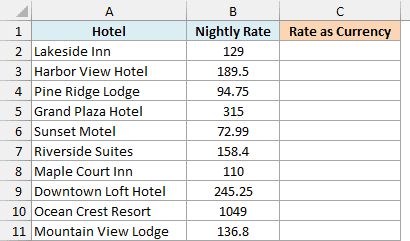
Here is the formula:
=DOLLAR(B2:B11)
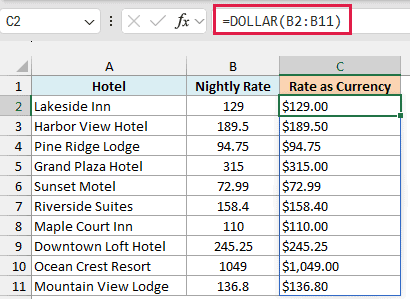
The formula takes all ten rates at once and spills the results down column C. Each rate now has a dollar sign, a comma for thousands ($1,049.00), and exactly two decimals, so 189.5 shows as $189.50.
Notice that the results line up on the left side of the cells, while the rates in column B don’t. That’s because DOLLAR returns text, not a number.
Important: Since the result is text, functions like SUM and AVERAGE ignore it. If you only want a cell to look like currency and still use it in calculations, apply the Currency or Accounting number format (Ctrl + 1) instead of using DOLLAR.
If any cell in C3:C11 already has something in it, the formula can’t spill and returns a #SPILL! error. So make sure that range is empty before you enter the formula.
If you are using Excel 2019 or earlier, enter the below formula in cell C2 and then copy it down the range:
=DOLLAR(B2)
The same applies to the other spilling formulas in this article. Use the first cell of the range in the formula, then copy it down.
Example 2: Show Whole Dollars Without Cents
Here’s another practical scenario.
Below are the monthly sales from an online store, and I want to show them as whole dollar amounts, without the cents, in column C.
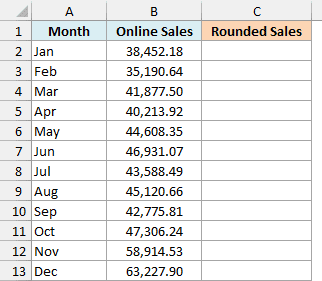
Here is the formula:
=DOLLAR(B2:B13,0)
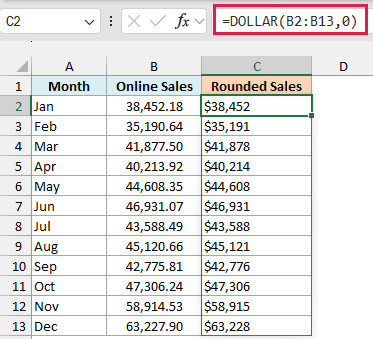
Setting the decimals argument to 0 tells DOLLAR to round each amount to the nearest whole dollar. So 35,190.64 becomes $35,191 and 41,877.50 becomes $41,878.
This works well for a monthly summary, where the cents only add clutter to numbers in the tens of thousands.
Example 3: Round Prices to the Nearest Thousand
Now let’s look at something a bit more interesting.
Below are the listing prices of ten homes, and I want to show each price rounded to the nearest thousand dollars in column C.
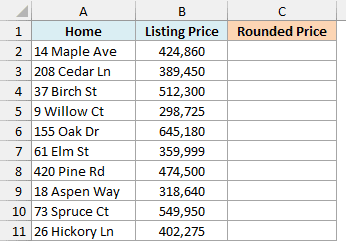
Here is the formula:
=DOLLAR(B2:B11,-3)
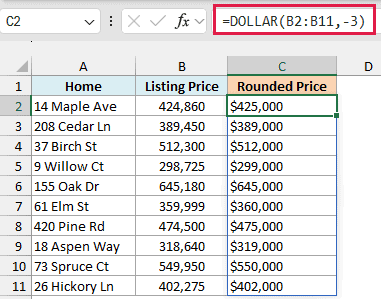
When the decimals argument is negative, DOLLAR rounds to the left of the decimal point. With -3, it rounds to the nearest thousand, so 424,860 becomes $425,000 and 389,450 becomes $389,000.
Rounded prices like these are easier to compare at a glance than the exact listing prices.
Example 4: Combine Text with a Dollar Amount
This next one is a common reason to use DOLLAR in the first place.
When you join a number with text using the & operator, Excel uses the raw number and ignores how the cell is formatted. So an amount of 120.5 shows up as 120.5, not $120.50.
Below is a list of gym members with the amount each one owes, and I want to create a payment reminder for each member in column C.
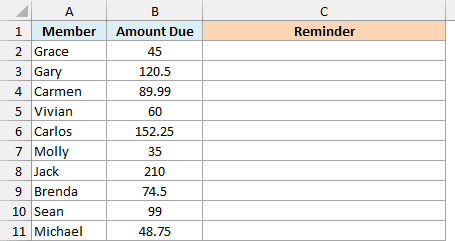
Here is the formula:
=A2:A11&", your balance due is "&DOLLAR(B2:B11)&"."
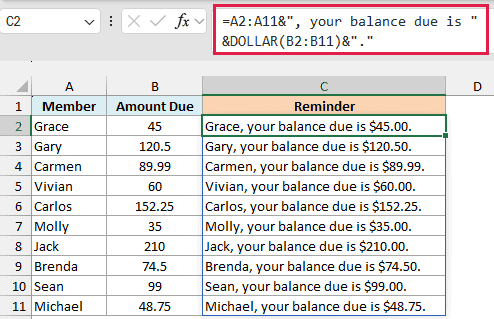
The formula joins the member’s name, the text “, your balance due is “, the amount converted by DOLLAR, and a period at the end. It does this for all ten members at once.
Since DOLLAR turns each amount into currency text before it’s joined, Gary’s reminder shows $120.50 instead of 120.5, and every other amount gets two decimals too.
Example 5: Show Overspending as Negative Dollar Amounts
Let’s step it up with a calculation inside DOLLAR.
Below is a monthly budget with the budgeted and spent amounts for each category, and I want to show how much is left over in each category in column D, with any overspending shown as a negative amount.
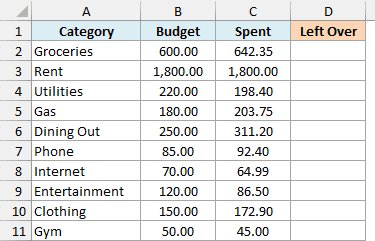
Here is the formula:
=DOLLAR(B2:B11-C2:C11)
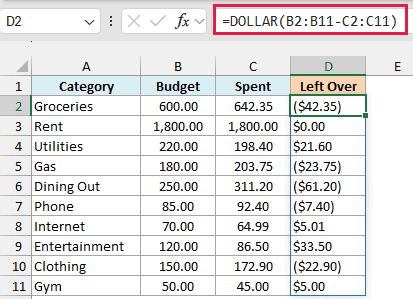
Here, DOLLAR doesn’t point to a cell with the number. B2:B11-C2:C11 subtracts the spent amount from the budget for each category, and DOLLAR converts each difference into currency text.
When a difference is negative, DOLLAR shows it in parentheses instead of with a minus sign. So Groceries shows ($42.35), which means $642.35 was spent against a $600 budget.
Positive amounts show what’s left in a category, and Rent, where the exact budget was spent, shows $0.00.
Parentheses are a common way to show negative amounts in accounting, and they are part of the currency format DOLLAR uses.
Pro Tip: If you’d rather show a minus sign, use the TEXT function with a currency format code instead. For example, =TEXT(B2:B11-C2:C11,"$#,##0.00") shows the Groceries row as -$42.35.
Example 6: Create a Total Line for a Report
Now let’s use DOLLAR together with another function.
Below is a list of donations for a school fundraiser, and I want to show a one-line total in cell D2 that I can use as a heading in a report.
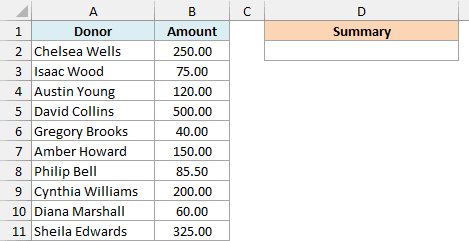
Here is the formula:
="Total raised so far: "&DOLLAR(SUM(B2:B11))
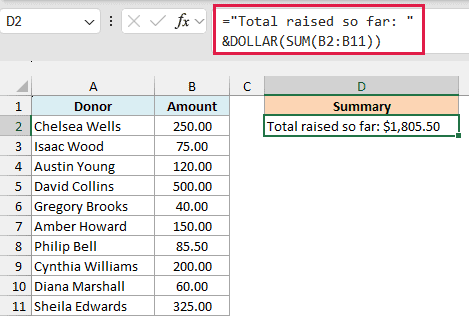
The SUM function adds up all the donations, which gives 1805.5. DOLLAR turns that into $1,805.50, and the & operator joins it to the text in front.
Since the formula refers to the donation amounts, the total line updates by itself when any of those amounts change.
Pro Tip: DOLLAR always uses the currency symbol from your computer’s settings. If you need a specific symbol, such as the euro, use the TEXT function with that symbol in the format code, like ="Total raised so far: "&TEXT(SUM(B2:B11),"€#,##0.00").
Example 7: Convert DOLLAR Text Back to Numbers
Let me also show you what to do when you need to do math with currency text.
Below are the expenses from a business trip, where the amounts are currency text (like the results you get from DOLLAR), and I want to get the total of these amounts below the list.
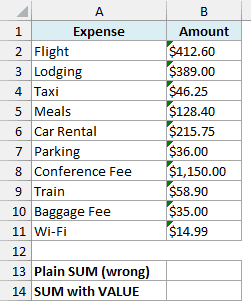
With Excel’s error checking turned on (it is by default), you’ll see small green triangles in the corner of each amount. That’s Excel flagging a number stored as text.
First, let’s see what happens with a regular SUM formula in cell B13:
=SUM(B2:B11)
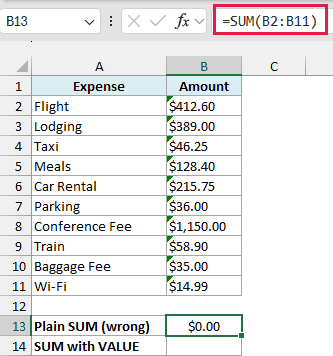
This returns 0, which shows as $0.00 because the cell has a currency number format. SUM skips text values in a range, and every amount here is text, so there’s nothing for it to add.
Here is the formula that gives the correct total in cell B14:
=SUM(VALUE(B2:B11))
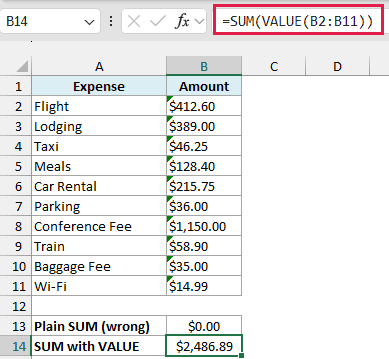
The VALUE function converts each text amount back into a number. It understands the dollar sign and the commas, so “$1,150.00” becomes 1150.
SUM then adds the ten numbers to give 2,486.89. Cell B14 has the same currency format, so it shows as $2,486.89, and this time it’s a real number.
If you are using Excel 2019 or earlier, enter the below formula in cell B14 instead, as it works without dynamic arrays:
=SUMPRODUCT(VALUE(B2:B11))
Of course, if you still have the original numbers that went into DOLLAR, it’s simpler to sum those directly. This method is for when the currency text is all you have.
So these are seven ways to use the DOLLAR function in Excel. It’s a quick way to turn numbers into currency text for sentences, labels, and report lines, as long as you remember the result is text and keep the original numbers for any math.
I hope you found this article helpful.
Other Excel Articles You May Also Like:
