

The ROUNDDOWN function in Excel cuts a number down to the digits you want to keep and drops the rest. Unlike regular rounding, it ignores the next digit, so 4.99 rounded to a whole number gives you 4, and 3.4999 rounded to two decimals gives 3.49.
You’d use it when a rounded-up number would claim more than is really there, like a percentage that shows 100% before the work is done. The examples below cover decimals, whole numbers, hundreds, percentages, and negative numbers.
Follow along with the example file
ROUNDDOWN Function Examples.xlsx
ROUNDDOWN Function Syntax
Here is the syntax of the ROUNDDOWN function:
=ROUNDDOWN(number,num_digits)
- number – The number you want to round down. It can be a typed number, a cell reference, a calculation such as B2/C2, or a whole range.
- num_digits – The number of digits you want to round down to.
Both arguments are required. If you leave out num_digits, Excel won’t let you enter the formula, so even for a whole number you need to add the 0.
A positive num_digits keeps that many decimal places, so =ROUNDDOWN(1487.639,2) returns 1487.63. A 0 drops all the decimals, so =ROUNDDOWN(1487.639,0) returns 1487.
A negative num_digits rounds down to the left of the decimal point. -1 goes to the tens, -2 to the hundreds, and -3 to the thousands, so =ROUNDDOWN(1487.639,-2) returns 1400.
The ROUNDDOWN function works in all Excel versions, including 365, 2024, 2021, 2019, 2016, Mac, and the web.
When to Use the ROUNDDOWN Function
Use this function when you need to:
- Give credit only for full units, like one reward point for every whole dollar spent.
- Report a number that must not round up past a cutoff, like a GPA or a percentage of a goal.
- Show large numbers as clean round figures that never overstate the real count.
- Work out how many whole items you can afford.
- Split a number of minutes into full hours and leftover minutes.
Now let’s look at some practical examples of ROUNDDOWN in action.
Example 1: Round Down to the Nearest Whole Number
Let’s start with a simple example.
Below is a list of purchases from a store’s loyalty program, and I want the reward points for each customer in column C, at one point for every full dollar spent.
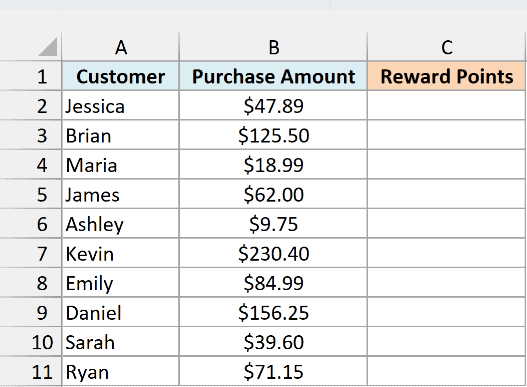
Here is the formula:
=ROUNDDOWN(B2:B11,0)
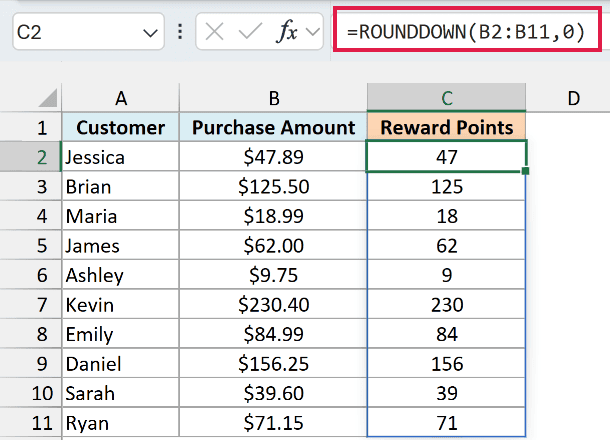
In the above formula, a num_digits of 0 tells ROUNDDOWN to drop everything after the decimal point. So Jessica’s $47.89 purchase earns 47 points, and Emily’s $84.99 earns 84, even though it’s only a cent away from 85.
James spent exactly $62.00, so his 62 points stay as they are. ROUNDDOWN only changes a number when there’s something after the digits you’re keeping.
You enter this formula once in cell C2, and in Excel 365 and 2021 or later, it spills the results down to C11. If any cell in that range already has something in it, you’ll get a #SPILL! error until you clear it.
If you are using Excel 2019 or earlier, enter the below formula in cell C2 and then copy it down the range:
=ROUNDDOWN(B2,0)
The same works for every example in this article. Replace each range with its first cell (so B2:B11 becomes B2), enter the formula in the first result cell, and copy it down.
Example 2: Round Down to Two Decimal Places
Here’s an example where rounding up would put someone over a line they haven’t crossed.
Below is a list of students with their GPA calculated to four decimals, and I want the GPA cut to two decimals for the transcript in column C.
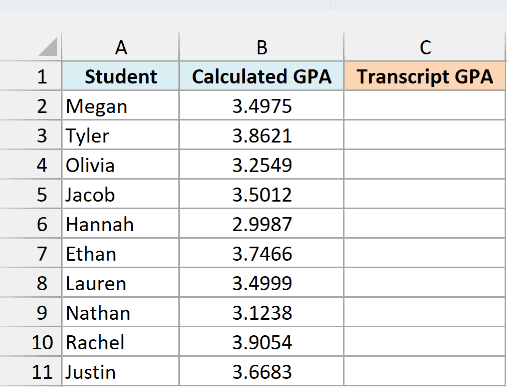
Here is the formula:
=ROUNDDOWN(B2:B11,2)
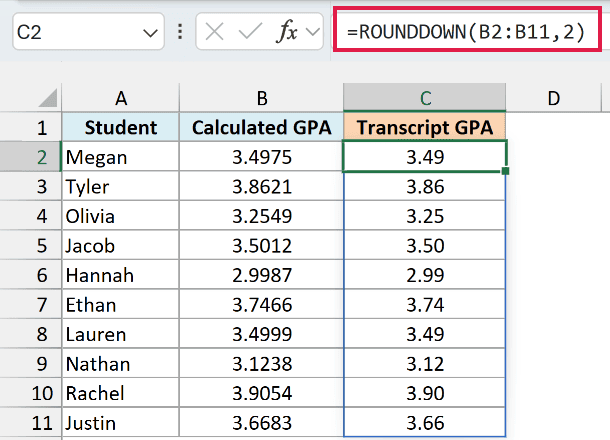
A num_digits of 2 keeps two decimal places and drops the rest. Megan’s 3.4975 becomes 3.49, and Lauren’s 3.4999 also becomes 3.49.
If the honors list needs a 3.50, the ROUND function would turn Megan’s 3.4975 into 3.50 and put her on the list, while ROUNDDOWN keeps her at 3.49. Jacob’s 3.5012 becomes 3.50, so he still makes it.
Important: Formatting a cell to show two decimals doesn’t round the value down. With that format, Megan’s 3.4975 would show as 3.50, even though her real GPA is still below the cutoff.
Example 3: Round Down to the Nearest Hundred
Next, let’s go the other way and round to the left of the decimal point.
Below is a list of social media pages with their follower counts, and I want each count rounded down to the nearest hundred in column C.
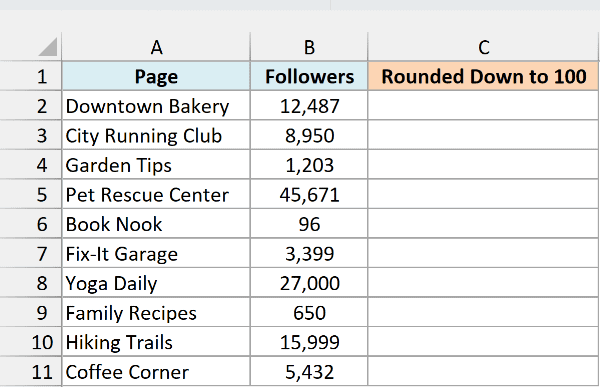
Here is the formula:
=ROUNDDOWN(B2:B11,-2)
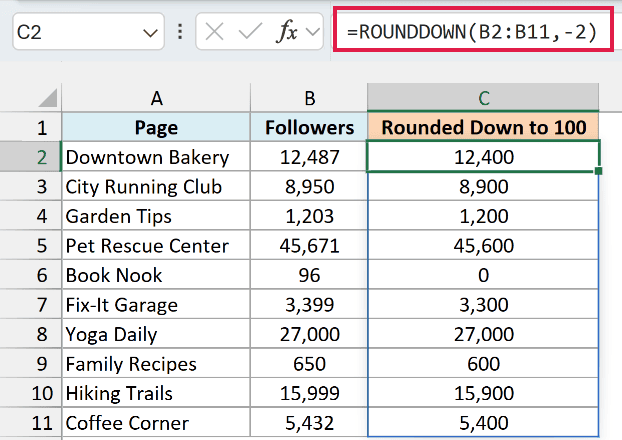
A num_digits of -2 rounds down to the hundreds place. Downtown Bakery’s 12,487 followers become 12,400, and Hiking Trails’ 15,999 become 15,900.
Book Nook has only 96 followers, so it rounds down to 0. When a number is smaller than the place you’re rounding to, there’s nothing left to keep.
If you need thousands instead, here’s a full guide on how to round to the nearest 1000 in Excel.
Example 4: ROUNDDOWN With Negative Numbers
Now let’s see what happens with negative numbers, because “down” doesn’t work the way most people expect.
Below is a weekly weight log where a negative number means weight lost. I want each change as a whole number with ROUNDDOWN in column C, and then with INT in column D to compare.
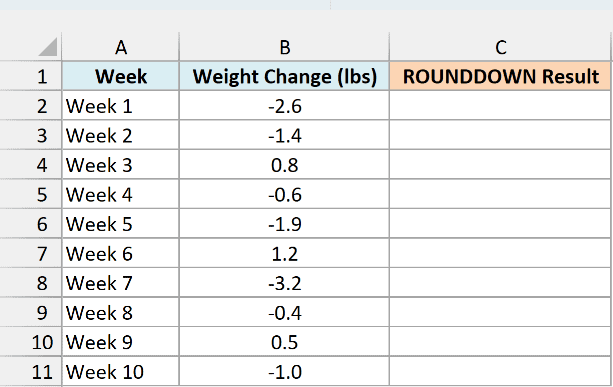
Here is the ROUNDDOWN formula:
=ROUNDDOWN(B2:B11,0)
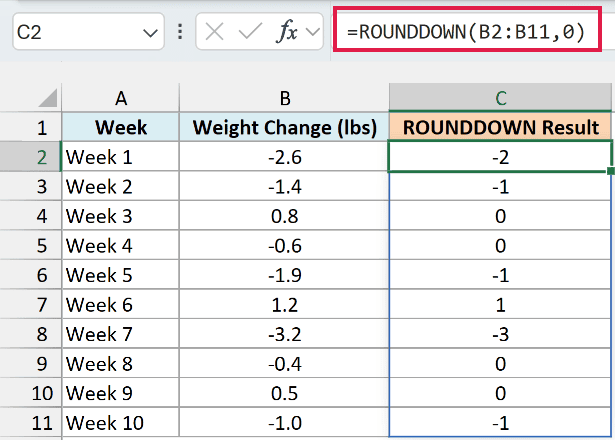
Look at the weight-loss weeks first. ROUNDDOWN turns -2.6 into -2 and -1.9 into -1, because it always rounds toward zero, so a negative number moves up, not further down.
Week 4’s -0.6 becomes 0 for the same reason. The positive weeks work the way you’d expect, so Week 6’s 1.2 becomes 1.
The INT function also removes decimals, but it treats negative numbers differently. Here is the formula for comparison:
=INT(B2:B11)
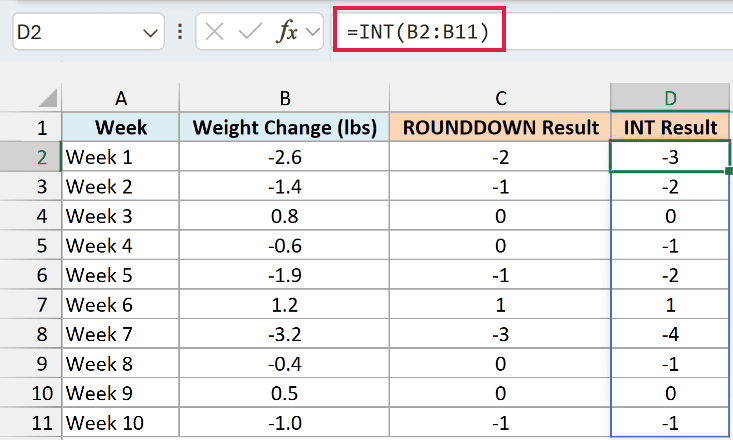
INT always goes to the lower whole number, so -2.6 becomes -3 and -0.6 becomes -1. For the positive weeks, both functions give the same result.
So pick the one that matches what you need. If you want the decimals simply dropped, use ROUNDDOWN, and if you want the next lower whole number, use INT.
Example 5: Find How Many Items You Can Afford
Now let’s use ROUNDDOWN on the result of a calculation.
Below is a school supply list with a budget for each item and the price per unit, and I want the number of units I can buy in column D.
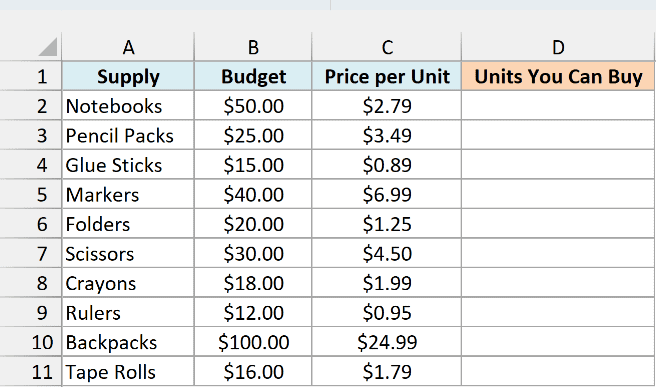
Here is the formula:
=ROUNDDOWN(B2:B11/C2:C11,0)
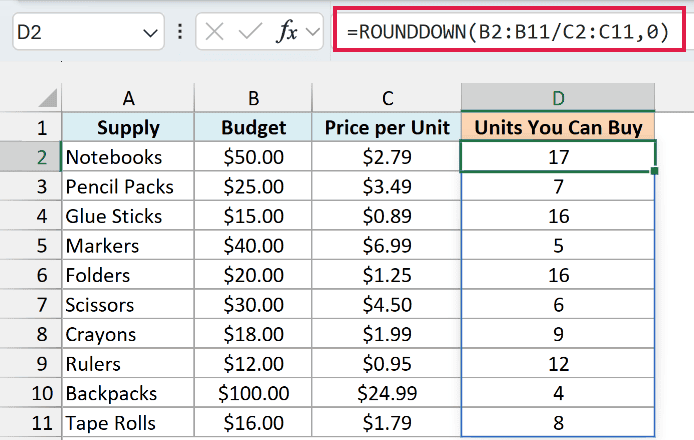
The formula divides each budget by the unit price, then rounds the answer down to a whole unit. Notebooks have a $50 budget at $2.79 each, which works out to 17.92, so I can buy 17.
Rounding down is the right call here, because a store won’t sell you 92% of a notebook, and buying 18 would go over budget.
When the numbers divide exactly, nothing gets dropped. $20 of folders at $1.25 each is exactly 16, and ROUNDDOWN returns 16.
For positive numbers like these, the INT function would give you the same counts, so you can use either one.
Example 6: Round Down a Percentage to Track Progress
This next one shows progress toward a goal, where the percentage shouldn’t say 100% until the goal is actually reached.
Below is a list of savings goals with how much has been saved and the target, and I want the progress as a whole percentage in column D.
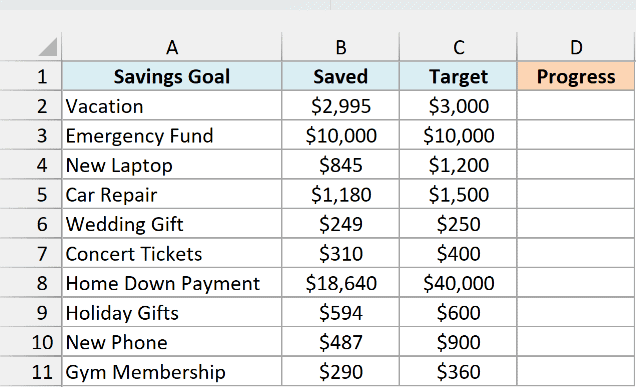
Here is the formula:
=ROUNDDOWN(B2:B11/C2:C11,2)
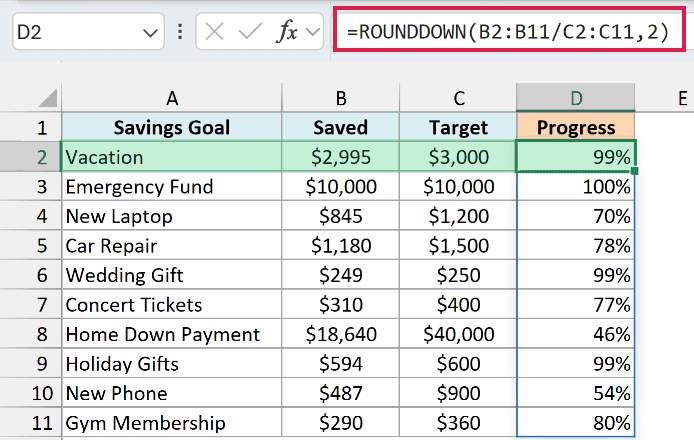
The formula divides what’s saved by the target, so the Vacation fund’s $2,995 out of $3,000 gives about 0.9983. Then ROUNDDOWN keeps two decimal places, which turns it into 0.99.
To show these as percentages, format column D with the Percent Style button on the Home tab, and 0.99 shows as 99%.
The num_digits is 2 here, not 0, because Excel stores 99% as 0.99. Keeping two decimal places is what gives you a whole percentage, and a 0 would cut every unfinished goal down to 0%.
Without ROUNDDOWN, the same percentage format would show the Vacation fund’s 99.83% as 100%, which says the goal is done when it isn’t. ROUNDDOWN keeps it at 99%.
Only the Emergency Fund, which has hit its target, shows 100%.
Example 7: Convert Minutes to Hours and Minutes
For the last example, let’s pair ROUNDDOWN with the MOD function to turn minutes into something easier to read.
Below is a list of road trips with the drive time in minutes, and I want each drive time shown as hours and minutes in column C.
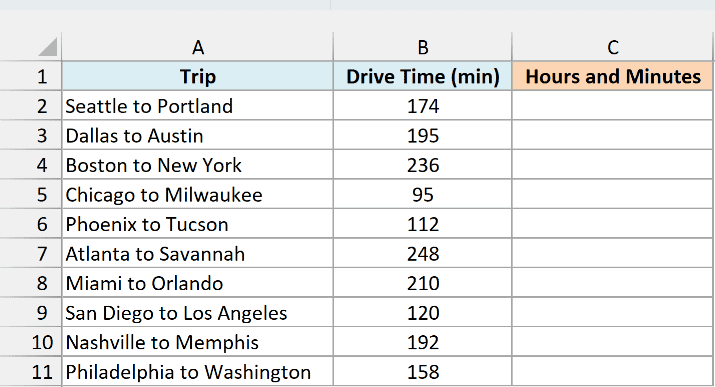
Here is the formula:
=ROUNDDOWN(B2:B11/60,0)&" hr "&MOD(B2:B11,60)&" min"
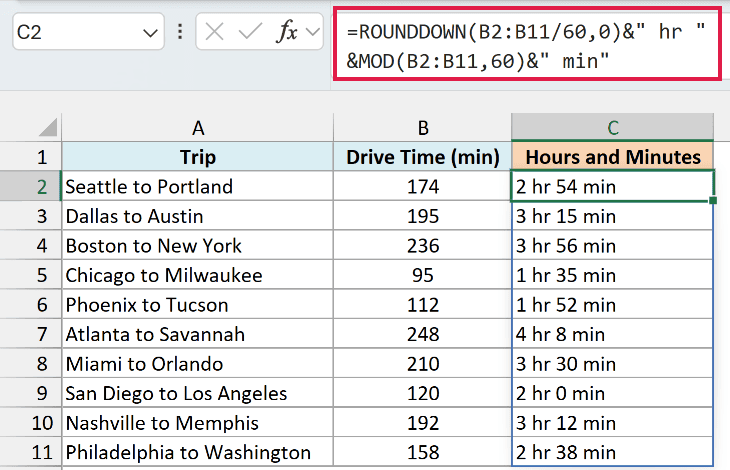
How this formula works:
- ROUNDDOWN(B2:B11/60,0) divides the minutes by 60 and keeps only the full hours. Seattle to Portland is 174 minutes, which is 2.9 hours, so this part gives 2.
- MOD(B2:B11,60) returns the minutes left over after the full hours, which is 54 for that trip.
- &” hr “& and &” min” join the two numbers and the labels into one piece of text, so you get 2 hr 54 min.
Rounding down is what makes this work. The ROUND function would turn 2.9 hours into 3, and you’d end up with 3 hr 54 min, which is an hour too long.
Since the result is text, you can’t add these values up or use them in other calculations. If you need that, do the math on the original minutes in column B.
So these are seven ways you can use the ROUNDDOWN function in Excel. Use it whenever you want the extra digits dropped rather than rounded, so a number never rounds up to something it hasn’t reached.
I hope you found this article helpful.
Other Excel Articles You May Also Like:
