

The CEILING function in Excel rounds a number up to the nearest multiple you choose. That could be the next 5, the next quarter dollar, the next thousand, or even the next 15 minutes.
It’s handy for things like menu prices or time billed in fixed blocks, where rounding down would leave you short.
In this article, I’ll show you how CEILING works with seven practical examples, including what happens with negative numbers and how to use it on dates.
Follow along with the example file
CEILING Function Examples.xlsx
CEILING Function Syntax
Here is the syntax of the CEILING function:
=CEILING(number,significance)
- number – The value you want to round up. It can be a typed number, a cell reference, or a whole range.
- significance – The multiple you want to round up to, such as 5, 0.25, or 1000.
Both arguments are required, and the significance can be a whole number, a decimal, or even a time.
When the number is positive, the significance has to be positive too, or you get a #NUM! error. Example 6 shows how to deal with this when your list mixes positive and negative numbers.
The CEILING function works in all Excel versions, including 365, 2024, 2021, 2019, 2016, Mac, and the web.
When to Use the CEILING Function
Use this function when you need to:
- Round a number up to a step like 5, 10, or 1000.
- Round prices up to a clean amount, like the next quarter dollar.
- Round an order up to full trays, boxes, or packs.
- Bill time in blocks, such as 15 or 30 minutes.
- Find the end of the week for a list of dates.
Let me show you a few practical examples of how this works.
Example 1: Round Up to the Nearest 5
Let’s start with a simple example.
Below is a list of food delivery orders with the estimated delivery time in minutes, and I want to round each time up to the nearest 5 minutes in column C.
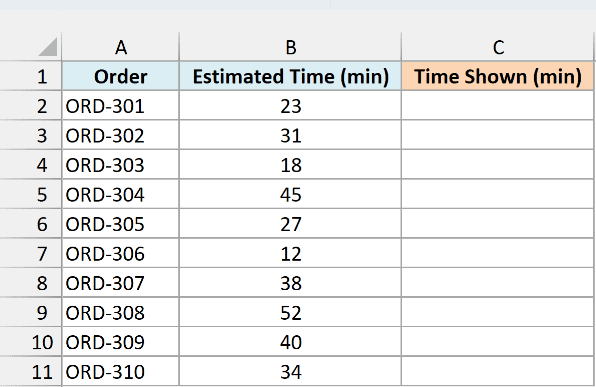
Here is the formula:
=CEILING(B2:B11,5)
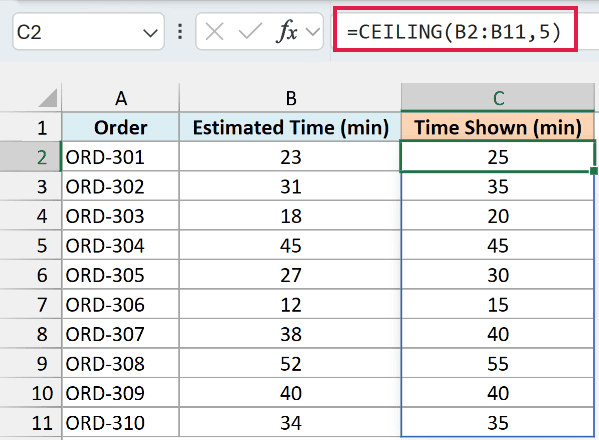
In the above formula, a significance of 5 tells CEILING to go up to the next multiple of 5. So 23 minutes becomes 25, and 31 becomes 35.
Notice that ORD-304 stays at 45 and ORD-309 stays at 40. When a number is already a multiple of the significance, CEILING leaves it as it is.
You enter this formula once in cell C2, and in Excel 365, 2021, and later it spills the results down to C11.
If any of those cells already has something in it, you’ll get a #SPILL! error until you clear it.
If you are using Excel 2019 or earlier, enter the below formula in cell C2 and then copy it down the range:
=CEILING(B2,5)
The same works for every example in this article. Replace each range with its first cell (so B2:B11 becomes B2), enter the formula in the first result cell, and copy it down.
Example 2: Round Prices Up to the Nearest $0.25
The significance doesn’t have to be a whole number. Here’s an example with prices.
Below is a coffee shop menu with a cost-based price for each drink, and I want to round each price up to the nearest 25 cents in column C.
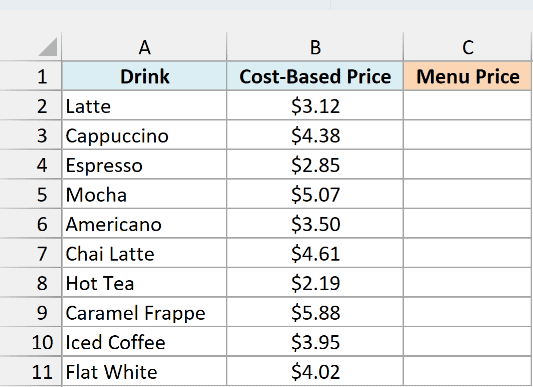
Here is the formula:
=CEILING(B2:B11,0.25)
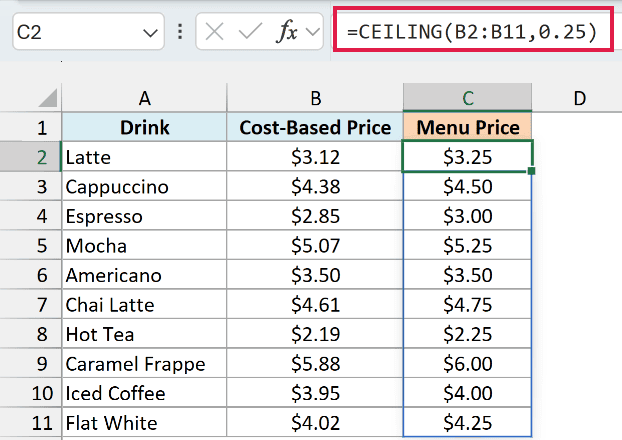
A significance of 0.25 rounds each price up to the next quarter dollar. The Latte goes from $3.12 to $3.25, and the Flat White goes from $4.02 to $4.25, even though it’s only two cents over $4.
The Americano stays at $3.50, since it’s already a multiple of 0.25.
If you want prices that end in .50 or .00 instead, use 0.5 as the significance.
Example 3: Round Up to the Nearest 1000 (Multiple in a Cell)
Typing the multiple into the formula works fine, but you can also keep it in a cell. That way you can change it without touching the formula.
Below is a list of stores with this year’s sales, and I want next year’s target, rounded up to the multiple in cell F1, in column C.
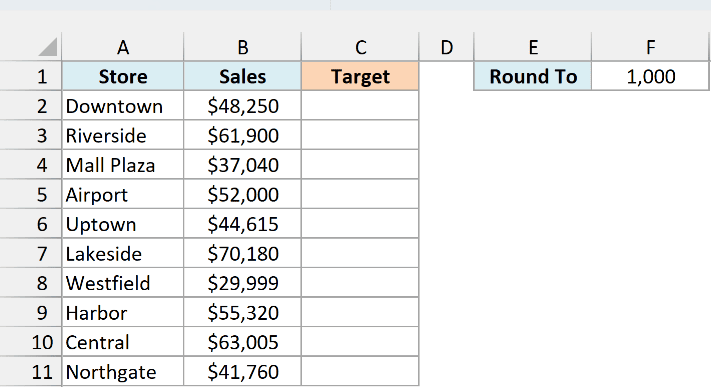
Here is the formula:
=CEILING(B2:B11,F1)
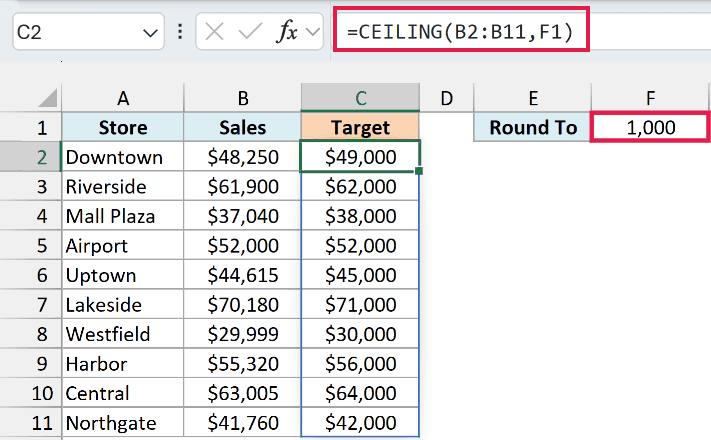
With 1000 in F1, the Downtown store’s $48,250 becomes a $49,000 target, and Westfield’s $29,999 becomes $30,000. Airport stays at $52,000, since it’s already a multiple of 1000.
Now change F1 to 500 or 2500, and every target updates instantly.
That’s something the ROUNDUP function can’t do, because it only rounds to a number of digits, like the next ten, hundred, or thousand.
If F1 is ever empty, CEILING treats the significance as 0 and returns 0 for every store instead of an error. So if all your results suddenly show $0, check the significance cell first.
Example 4: Use a Different Multiple for Each Row
The significance can also be a range, so each row can round up to its own multiple.
Below is a bakery’s order list with the number of each item ordered and how many fit on one tray, and I want the quantity to bake, in full trays, in column D.
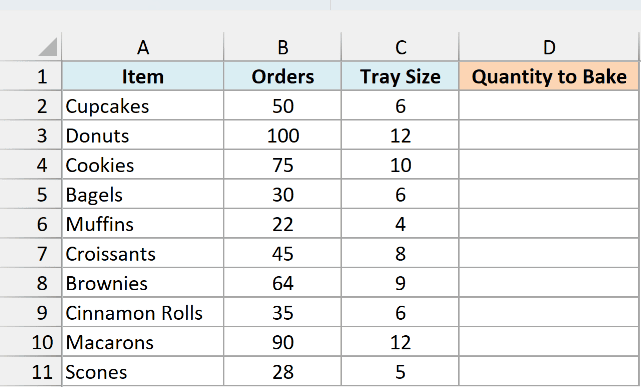
Here is the formula:
=CEILING(B2:B11,C2:C11)
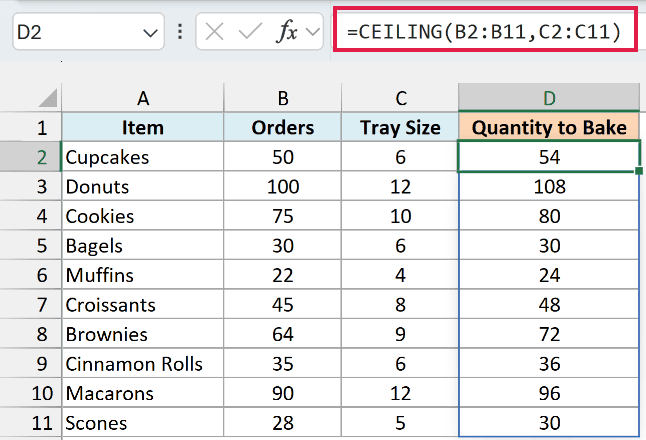
Here, CEILING pairs each order with the tray size in the same row. Cupcakes have 50 orders and a tray holds 6, so the bakery makes 54, which is 9 full trays.
Bagels show what happens when the numbers divide evenly. 30 bagels on trays of 6 is exactly 5 trays, so CEILING returns 30 and nothing extra gets baked.
Example 5: Round Time Up to the Nearest 15 Minutes
CEILING also works with time, which is useful when you charge by the quarter hour.
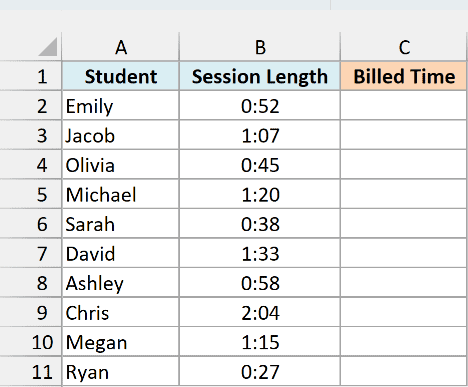
Below is a list of tutoring sessions with how long each one lasted, and I want the billed time, rounded up to the next 15 minutes, in column C.
Here is the formula:
=CEILING(B2:B11,"0:15")
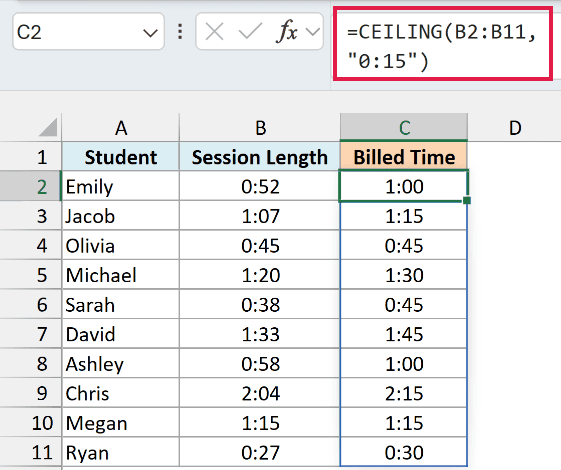
The “0:15” is 15 minutes written as text. Excel converts it into a time value, so CEILING rounds each session up to the next quarter hour.
So Emily’s 52-minute session is billed as 1:00, and Jacob’s 1:07 becomes 1:15. Megan’s session was exactly 1:15, so it stays at 1:15.
Excel stores times as fractions of a day, so the results can show up as decimals like 0.041667. If that happens, format the result column as time (h:mm) and they’ll read as hours and minutes again.
For 30-minute blocks, use “0:30” instead.
You can also write the significance as TIME(0,15,0) if you prefer that over text, and it gives the same results.
Example 6: CEILING With Negative Numbers
Negative numbers are where CEILING surprises people, so let’s look at what it does with them.
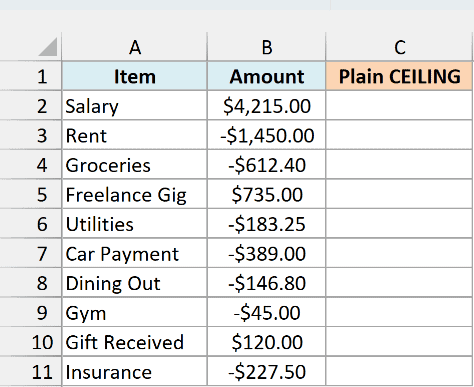
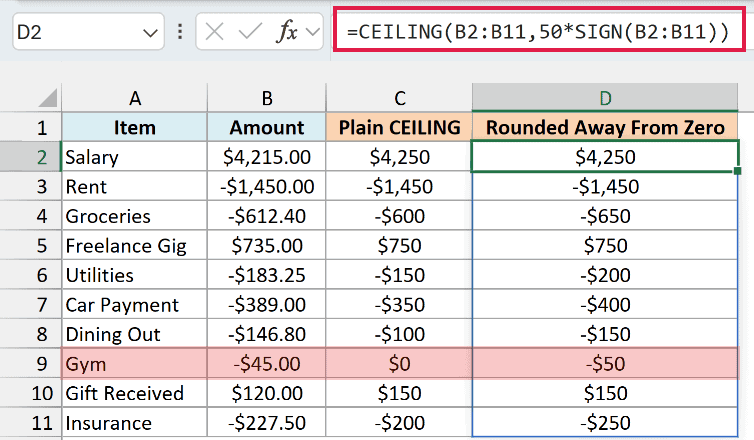
Below is a month of money in and out, with spending as negative amounts, and I want each amount rounded up to the nearest 50 in column C.
Here is the first formula:
=CEILING(B2:B11,50)
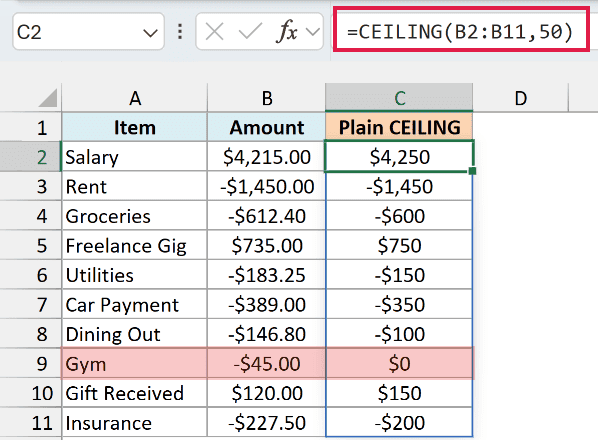
The positive amounts behave the way you’d expect, so the $4,215.00 salary becomes $4,250. But the negative amounts shrink, because rounding “up” a negative number means moving toward zero.
Groceries go from -$612.40 to -$600, and the -$45.00 gym fee becomes $0. If these numbers feed a budget, every expense now looks smaller than it really is.
To fix this, you need negative numbers to round away from zero, and that happens when the significance is negative too. But you can’t use -50 for the whole list, because a positive amount with a negative significance returns a #NUM! error.
So the significance has to switch sign row by row. Here is the formula that does that, with the results in column D:
=CEILING(B2:B11,50*SIGN(B2:B11))
How this formula works:
- SIGN(B2:B11) returns 1 for a positive amount and -1 for a negative one.
50*SIGN(B2:B11)turns that into a significance of 50 for income and -50 for spending.- CEILING then rounds the positive amounts up and the negative amounts down, so every amount moves away from zero.
Now Groceries become -$650 and the gym fee becomes -$50. Rent stays at -$1,450, since it’s already a multiple of 50.
Pro Tip: The newer CEILING.MATH function has a mode argument that does this for you. =CEILING.MATH(B2:B11,50,1) gives the same results as the SIGN formula, since a mode of 1 rounds negative numbers away from zero.
Example 7: Get the Week-Ending Date With CEILING
This last one uses CEILING on dates instead of plain numbers.
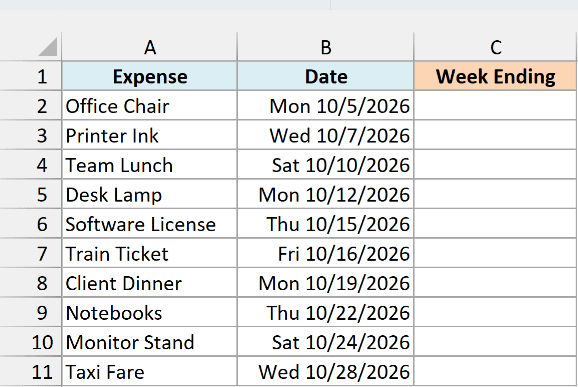
Below is a list of business expenses with the date of each one, and I want the week-ending Saturday for each date in column C.
Here is the formula:
=CEILING(B2:B11,7)
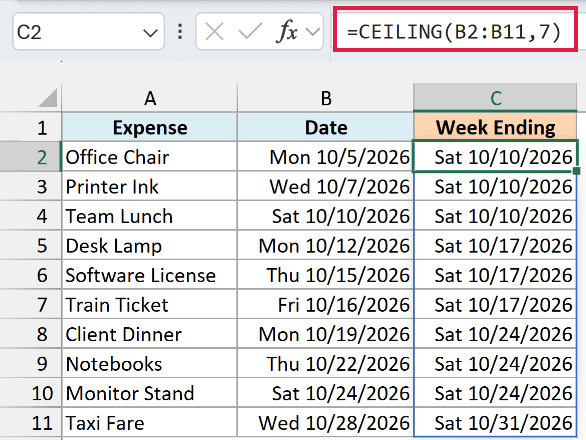
This works because Excel stores dates as serial numbers, and in Excel’s default date system, every multiple of 7 falls on a Saturday. So rounding a date up to the next multiple of 7 lands on the Saturday that ends its week.
The Office Chair bought on Monday, October 5 gets Saturday, October 10. Team Lunch was on a Saturday, so it keeps its own date.
Important: This trick needs Excel’s default 1900 date system, because a workbook set to the 1904 date system (an option in some older Mac files) lands on Fridays. For those files, use =B2:B11+7-WEEKDAY(B2:B11), which uses the WEEKDAY function and works in either system.
So these are seven ways to use the CEILING function in Excel. It always rounds up to a multiple you pick, and with negative numbers, “up” means toward zero unless the significance is negative too.
Excel also has a newer CEILING.MATH function with more control over negative numbers, and the MROUND function if you want the nearest multiple in either direction. If you want to round to a number of decimal places instead, use the ROUND function.
For more ways to round, see how to round to the nearest integer or a multiple of 0.5, 5, or 10.
I hope you found this article helpful.
Other Excel Articles You May Also Like:
