

The CEILING.PRECISE function rounds a number up to the next whole number, or up to the next multiple of a number you choose, like 0.5 or 10. And “up” always means toward the larger number, even when the number is negative.
It’s useful whenever a partial amount has to count as a full one, like charging for every started hour or buying material that only comes in fixed sizes.
Below, I’ll walk you through how it works and five practical examples, including one with negative numbers, where the results can catch you off guard.
Follow along with the example file
CEILING.PRECISE Function Examples.xlsx
CEILING.PRECISE Function Syntax
Here is the syntax of the CEILING.PRECISE function:
=CEILING.PRECISE(number, [significance])
- number – The number you want to round up. This can be a value, a cell reference, a range, or a calculation.
- significance – (Optional) The multiple you want to round up to, such as 0.5 or 10. If you leave it out, Excel uses 1.
When you leave out significance, CEILING.PRECISE rounds up to the next whole number. So =CEILING.PRECISE(4.3) returns 5.
The sign of significance doesn’t matter, because Excel only uses its absolute value. So =CEILING.PRECISE(4.3,-2) returns 6, the same as =CEILING.PRECISE(4.3,2).
The CEILING.PRECISE function was added in Excel 2010, so it works in Excel 2010 and later, including Microsoft 365, Excel 2024, 2021, 2019, 2016, Excel for Mac, and Excel for the web.
When to Use the CEILING.PRECISE Function
Use this function when you need to:
- Round a number up to the next whole number, like billing every started hour
- Round amounts up to a multiple such as 0.5, 4, or 10
- Round negative numbers up toward zero
- Keep the multiple in a cell so you can change it in one place
- Round the result of a calculation, like a discounted price, up to whole dollars
Let me show you a few practical examples of how to use CEILING.PRECISE in Excel.
Example 1: Round Up to Full Hours (No Significance)
Let’s start with a simple example.
Below is a parking garage’s list of customers with how long each one parked, and since the garage charges for every started hour, I want the billed hours in column C.
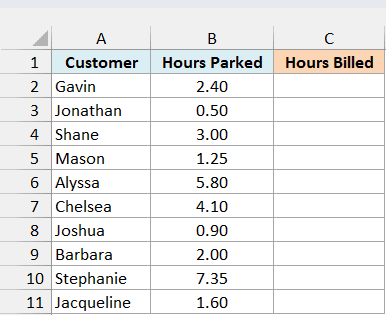
Here is the formula:
=CEILING.PRECISE(B2:B11)
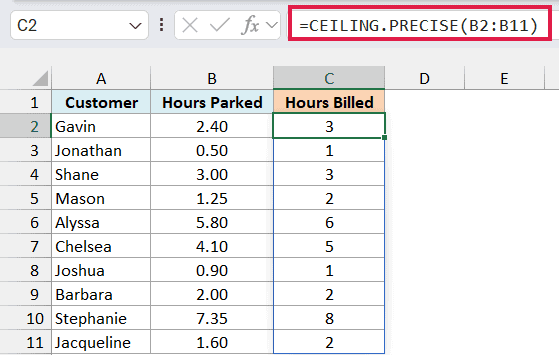
There’s no significance in this formula, so CEILING.PRECISE rounds each time up to the next whole number. Gavin parked for 2.40 hours and gets billed for 3, and Joshua’s 0.90 hours still counts as 1.
Shane parked for exactly 3.00 hours, so his time stays at 3. A number that’s already whole doesn’t get rounded.
You only enter this formula in cell C2. In Excel 365 and Excel 2021 or later, it spills the results down to C11 on its own.
If you are using Excel 2019 or earlier, enter the below formula in cell C2 and then copy it down the range:
=CEILING.PRECISE(B2)
Example 2: Round Up to the Nearest 0.5
Now let’s give the function a multiple to round up to.
Below is a list of sewing projects with how much fabric each one needs, and since the store sells fabric in half-yard cuts, I want the amount to buy in column C.
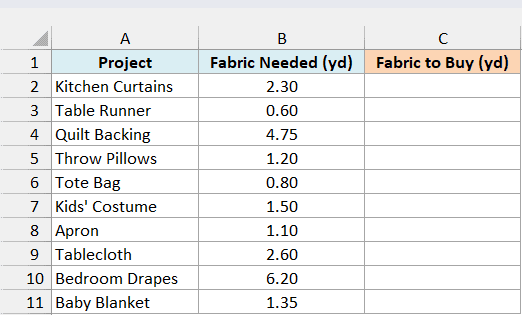
Here is the formula:
=CEILING.PRECISE(B2:B11,0.5)
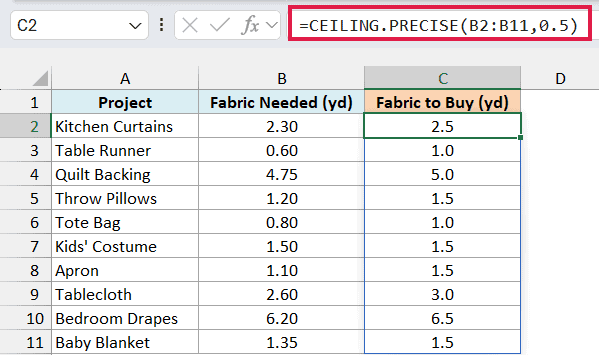
The 0.5 is the significance, so each amount goes up to the next multiple of half a yard. The Kitchen Curtains need 2.30 yards, so you buy 2.5, and the Table Runner’s 0.60 yards becomes 1.0.
The Kids’ Costume needs exactly 1.50 yards, which is already a multiple of 0.5, so it stays at 1.5.
You can use any multiple here. If the store cut fabric in quarter yards instead, you’d use 0.25 as the significance.
CEILING.PRECISE only ever rounds up. If you want the closest half instead, here’s how to round to the nearest multiple of 0.5 in Excel.
If you are using Excel 2019 or earlier, enter the below formula in cell C2 and then copy it down the range:
=CEILING.PRECISE(B2,0.5)
Example 3: CEILING.PRECISE With Negative Numbers
Now let’s see what happens when some of the numbers are negative.
Below is a list of checking account balances at the end of the month (overdrawn accounts are negative), and I want each balance rounded up to the next $10 in column C.
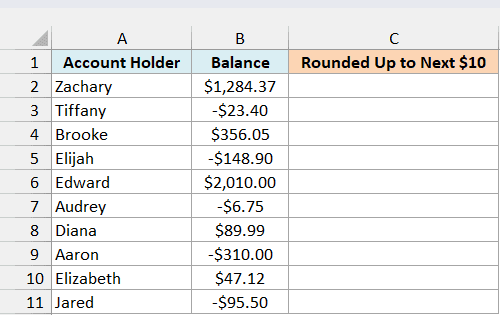
Here is the formula:
=CEILING.PRECISE(B2:B11,10)
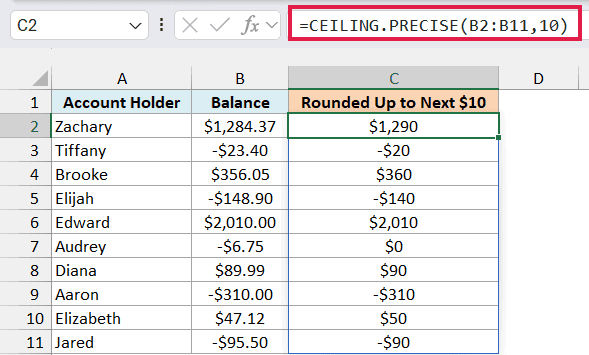
The positive balances go up to the next $10, so Zachary’s $1,284.37 becomes $1,290. The negative balances go up too, and for a negative number, up means toward zero.
Tiffany is overdrawn by $23.40, and her rounded balance is -$20. Audrey’s -$6.75 becomes $0, as if she isn’t overdrawn at all.
It helps to think of a thermometer. Going up from -23.40 takes you to -20, not -30, because -20 is the larger number.
Important: CEILING.PRECISE always rounds negative numbers toward zero, and it has no setting to change that. If you need -$23.40 to become -$30, use the CEILING.MATH function with a mode of 1, like =CEILING.MATH(B2:B11,10,1).
If you are using Excel 2019 or earlier, enter the below formula in cell C2 and then copy it down the range:
=CEILING.PRECISE(B2,10)
Example 4: Round Up to a Multiple Stored in a Cell
In this example, the multiple comes from a cell instead of being typed into the formula.
A folded sheet of paper makes 4 pages of a booklet, so a printed booklet’s page count has to be a multiple of 4.
Below is a print shop’s list of booklets with the number of pages written for each, and I want the pages to print in column C, rounded up to the multiple of 4 in cell F1.
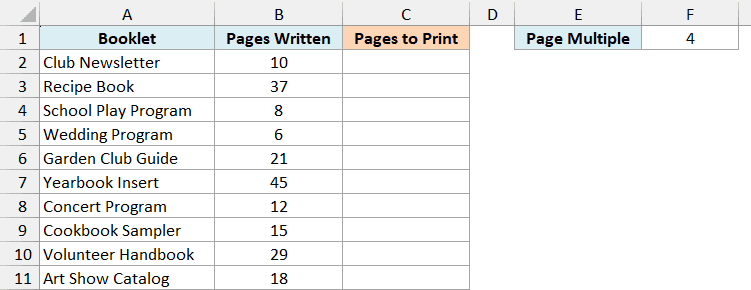
Here is the formula:
=CEILING.PRECISE(B2:B11,F1)
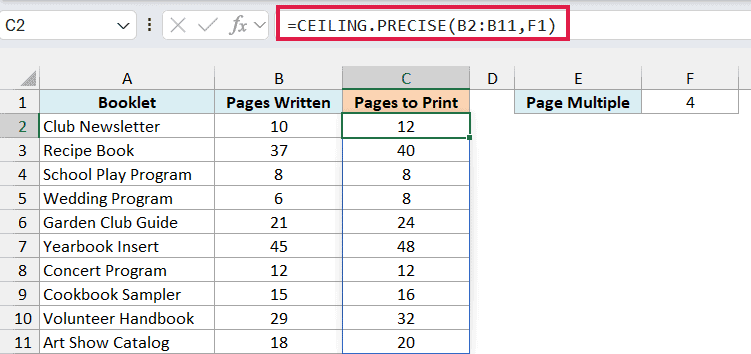
The formula rounds each page count up to the next multiple of the 4 in F1. So the 37-page Recipe Book becomes 40 pages to print, with 3 blank pages added.
The School Play Program already has exactly 8 pages, so it stays at 8. And if you ever need a different multiple, change F1 and every result updates.
Important: If F1 is empty, every result turns into 0, and Excel shows no error. CEILING.PRECISE treats the blank cell as a significance of 0, which always returns 0, so check F1 if the whole column suddenly shows zeros.
If you are using Excel 2019 or earlier, enter the below formula in cell C2 and then copy it down the range:
=CEILING.PRECISE(B2,$F$1)
The $ signs keep the formula pointing at F1 as you copy it down, so every row uses the same multiple.
Example 5: Round Up a Calculated Sale Price to Whole Dollars
Let’s finish with an example where CEILING.PRECISE rounds the result of a calculation.
Below is a clearance list with each item’s original price and discount, and I want the sale price, rounded up to a whole dollar, in column D.
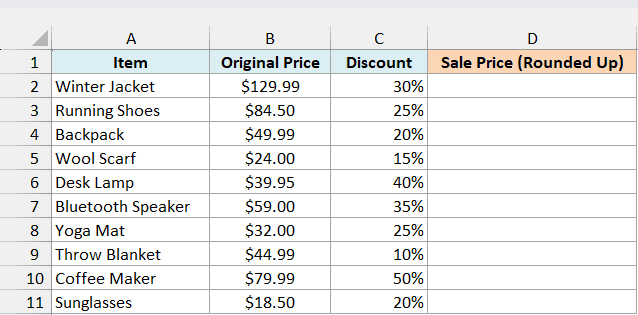
Here is the formula:
=CEILING.PRECISE(B2:B11*(1-C2:C11))
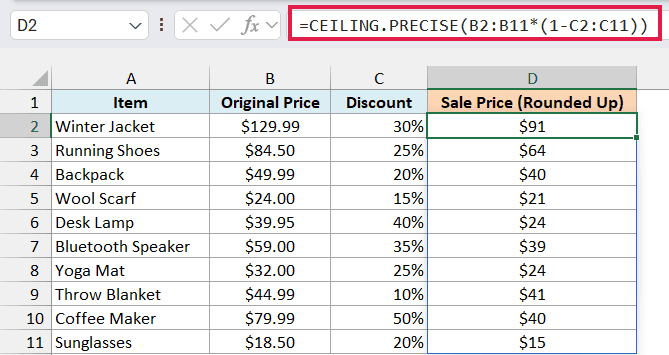
How this formula works:
1-C2:C11turns each discount into the share of the price the customer still pays, so a 30% discount becomes 70%.B2:B11*(1-C2:C11)multiplies each original price by that share. For the Winter Jacket, that’s $129.99 times 70%, which is $90.993.- CEILING.PRECISE then rounds each sale price up to the next whole dollar, since there’s no significance. So the jacket sells for $91.
The Yoga Mat works out to exactly $24.00 after its 25% discount, so it stays at $24. And since the rounding only ever goes up, no item ends up priced below its discounted amount.
If you are using Excel 2019 or earlier, enter the below formula in cell D2 and then copy it down the range:
=CEILING.PRECISE(B2*(1-C2))
So these are five ways to use the CEILING.PRECISE function in Excel. It rounds a number up to the next whole number or to any multiple you pick, and for negative numbers, up always means toward zero.
If you’ve used the older CEILING function, CEILING.PRECISE doesn’t need a significance, and a negative significance never gives you a #NUM! error.
And the CEILING.MATH function returns the same results as CEILING.PRECISE when you leave out its mode argument.
I hope you found this tutorial useful.
Other Excel Articles You May Also Like:
