

The FLOOR.PRECISE function rounds a number down, either to the whole number below it or to a multiple you pick, like 0.25 or 100. So 12.8 becomes 12, and 2,465.30 rounded down to a multiple of 100 becomes 2,400.
Negative numbers are where it can surprise you. FLOOR.PRECISE always rounds toward the smaller number, so a loss of $64.25 rounded down to a multiple of 100 becomes -$100, not $0.
In this tutorial, I’ll show you how its two arguments work and walk you through five examples where rounding down is the right call.
Follow along with the example file
FLOOR.PRECISE Function Examples.xlsx
FLOOR.PRECISE Function Syntax
Here is the syntax of the FLOOR.PRECISE function:
=FLOOR.PRECISE(number, [significance])
- number – The number you want to round down. This can be a value, a cell reference, a range, or a calculation.
- significance – (Optional) The multiple you want to round down to, such as 0.25 or 100. If you leave it out, Excel uses 1.
When you leave out significance, FLOOR.PRECISE rounds down to the whole number below. So =FLOOR.PRECISE(3.2) returns 3.
The sign of significance doesn’t matter, because Excel only uses its absolute value. So =FLOOR.PRECISE(47,-5) returns 45, the same as =FLOOR.PRECISE(47,5).
The FLOOR.PRECISE function was added in Excel 2010, so it works in Excel 2010 and later, including Microsoft 365, Excel 2024, 2021, 2019, 2016, Excel for Mac, and Excel for the web.
When to Use the FLOOR.PRECISE Function
Use this function when you need to:
- Round a number down to the whole number below, like counting only full miles
- Round amounts down to a multiple such as 0.25, 4, or 100
- Round negative numbers down, away from zero, for a cautious summary
- Keep the multiple in a cell so you can change it in one place
- Round the result of a calculation, like a currency conversion, down to whole notes
Let me show you a few practical examples of how to use FLOOR.PRECISE in Excel.
Example 1: Round Down to Full Miles (No Significance)
Let’s start with a simple example.
Below is a running club’s list of members with the miles each one ran this week, and since the club’s leaderboard only counts full miles, I want the full miles in column C.
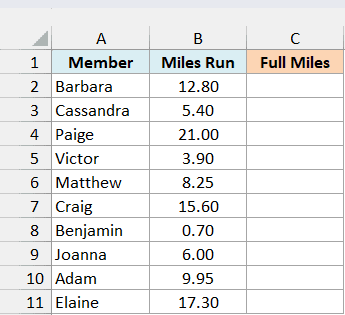
Here is the formula:
=FLOOR.PRECISE(B2:B11)
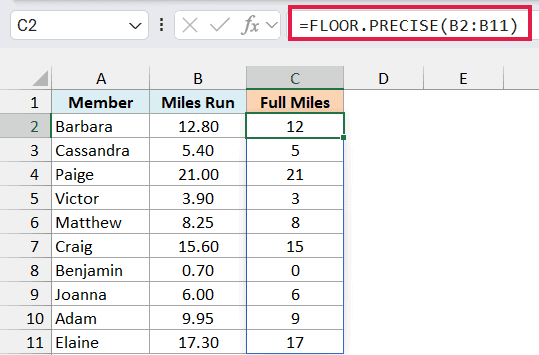
There’s no significance in this formula, so FLOOR.PRECISE rounds each distance down to the whole number below it. Barbara ran 12.80 miles and gets credit for 12, and Benjamin’s 0.70 miles counts as 0.
Paige ran exactly 21.00 miles, so her total stays at 21. A number that’s already whole doesn’t change.
You only enter this formula in cell C2. In Excel 365 and Excel 2021 or later, it spills the results down to C11 on its own.
The INT function gives the same results here, since it also rounds down to the whole number below. FLOOR.PRECISE is worth knowing because you can add a significance when whole numbers aren’t the step you need.
If you are using Excel 2019 or earlier, enter the below formula in cell C2 and then copy it down the range:
=FLOOR.PRECISE(B2)
Example 2: Round Down to the Last 25% Milestone
Now let’s give the function a multiple to round down to.
Below is a list of students in an online course with how much of the course each one has completed, and since the course awards a badge at every 25%, I want the last milestone each student reached in column C.
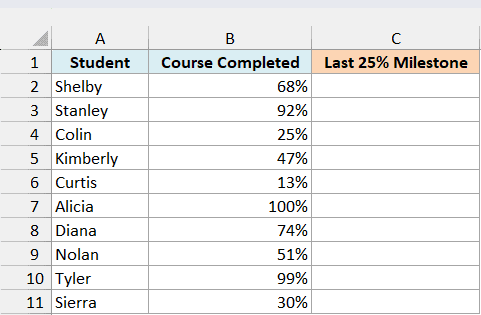
Here is the formula:
=FLOOR.PRECISE(B2:B11,0.25)
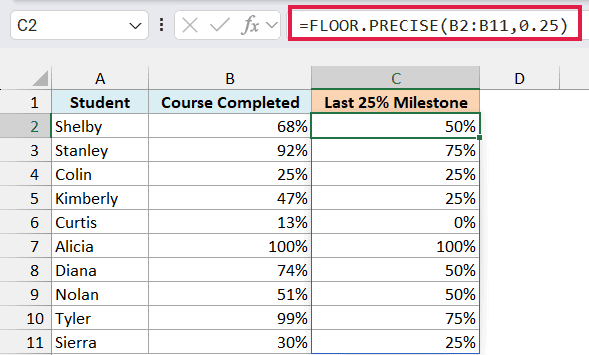
The 0.25 is the significance, and 0.25 is the same as 25%. So each percentage goes down to the last multiple of 25%, and Shelby’s 68% becomes 50%.
Tyler is the one to look at. He has finished 99% of the course, but he hasn’t reached 100% yet, so his last milestone is 75%.
Colin is at exactly 25%, which is already a milestone, so he stays at 25%. And Curtis, at 13%, hasn’t reached the first milestone yet, so he gets 0%.
This is where rounding down matters. The MROUND function rounds to the nearest multiple, so it would turn Tyler’s 99% into 100% and give him a badge he hasn’t earned.
You can also type 25% in place of 0.25 in the formula, and it works the same way.
If you are using Excel 2019 or earlier, enter the below formula in cell C2 and then copy it down the range:
=FLOOR.PRECISE(B2,0.25)
Example 3: FLOOR.PRECISE With Negative Numbers
Now let’s see what happens when some of the numbers are negative.
Below is a food truck’s profit or loss for each month of the year (losses are negative), and for a cautious summary, I want each month rounded down to a multiple of $100 in column C.
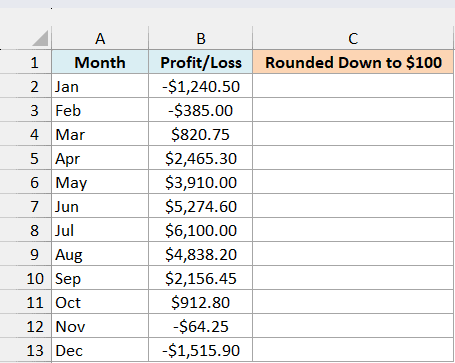
Here is the formula:
=FLOOR.PRECISE(B2:B13,100)
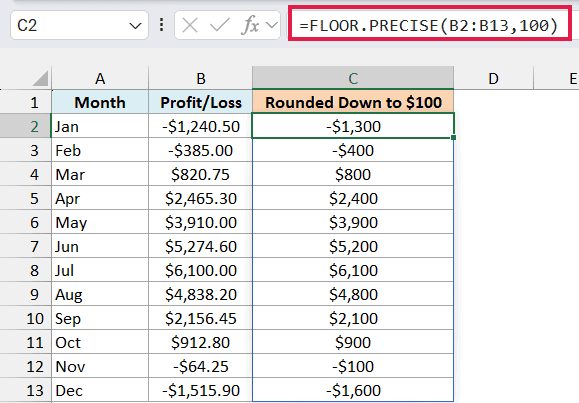
The profitable months go down to the multiple of $100 below them, so March’s $820.75 becomes $800, and June’s $5,274.60 becomes $5,200. July’s $6,100.00 is already a multiple of 100, so it stays the same.
The losses go down too, and for a negative number, down means away from zero. January’s loss of $1,240.50 becomes -$1,300, and November’s small $64.25 loss becomes -$100.
It helps to picture a number line. Going down from -1,240.50 takes you to -1,300, because -1,300 is the smaller number.
For a cautious summary, that’s what you want. The profits never look bigger than they were, and the losses never look smaller.
The ROUNDDOWN function wouldn’t work here, because it always rounds toward zero. It would show January as -$1,200 and November as $0, which makes the losses look smaller than they really were.
Important: FLOOR.PRECISE always rounds negative numbers away from zero, and it has no setting to change that. If you need -$1,240.50 to become -$1,200, use the FLOOR.MATH function with a mode of 1, like =FLOOR.MATH(B2:B13,100,1).
If you are using Excel 2019 or earlier, enter the below formula in cell C2 and then copy it down the range:
=FLOOR.PRECISE(B2,100)
Example 4: Round Down to a Multiple Stored in a Cell
In this example, the multiple comes from a cell instead of being typed into the formula.
Say a company lets employees book time off only in half-day blocks of 4 hours.
Below is a list of employees with their paid time off (PTO) balance in hours, and I want the hours each one can book in column C, rounded down to the block size in cell F1.
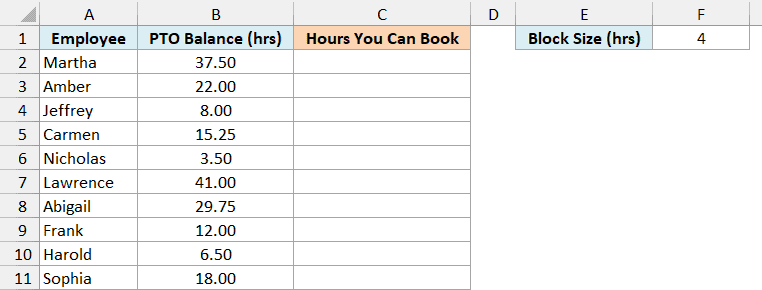
Here is the formula:
=FLOOR.PRECISE(B2:B11,F1)
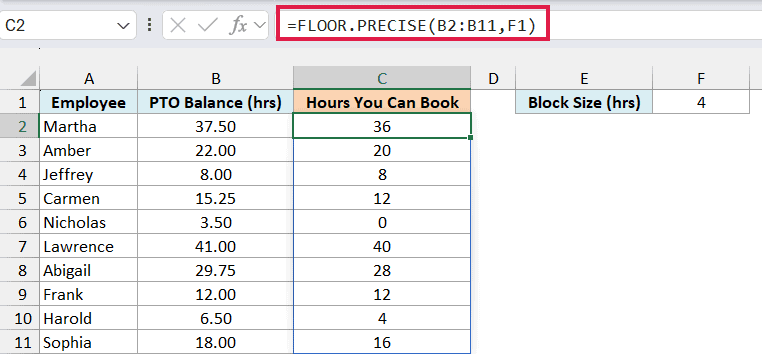
The formula rounds each balance down to a multiple of the 4 in F1. Martha has 37.50 hours, so she can book 36, which is nine half-days.
Jeffrey’s 8.00 hours is already a multiple of 4, so all of it can be booked. Nicholas has only 3.50 hours, which isn’t enough for one block, so he gets 0.
If the company switches to full-day blocks, change F1 to 8 and every result updates.
Important: If F1 is ever left empty, every result turns into 0 with no error, so check F1 if the column suddenly shows zeros. The formula still points at F1, and an empty cell counts as 0 (only leaving the argument out uses 1).
If you are using Excel 2019 or earlier, enter the below formula in cell C2 and then copy it down the range:
=FLOOR.PRECISE(B2,$F$1)
The $ signs keep the formula pointing at F1 as you copy it down, so every row uses the same block size.
Example 5: Round Down a Calculated Amount to €20 Notes
Let’s finish with an example where FLOOR.PRECISE rounds the result of a calculation.
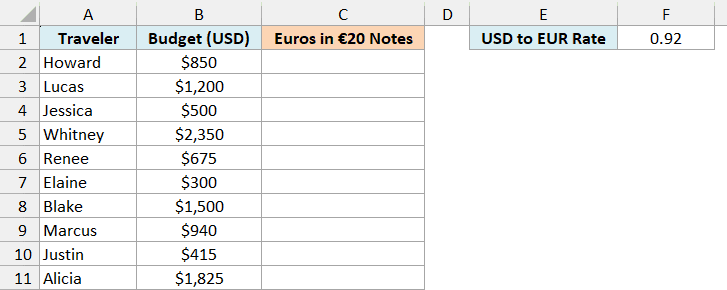
Below is a list of travelers with their trip budget in US dollars, and I want the euros each one can get in €20 notes in column C, using the exchange rate in cell F1.
Here is the formula:
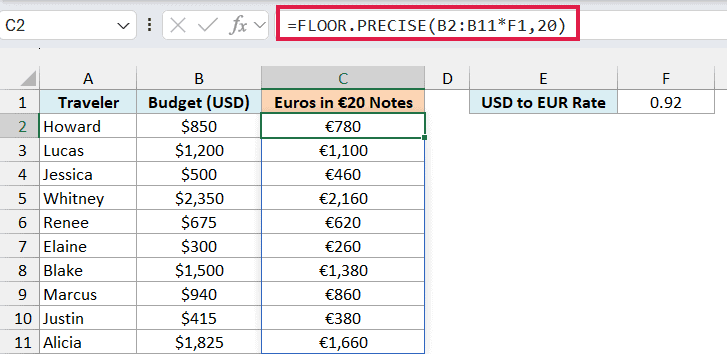
=FLOOR.PRECISE(B2:B11*F1,20)
How this formula works:
B2:B11*F1converts each budget from dollars to euros. Howard’s $850 at a rate of 0.92 comes to €782.- FLOOR.PRECISE then rounds each amount down to a multiple of 20, since the notes come in €20. So Howard gets €780.
Jessica’s $500 converts to exactly €460, which is already a multiple of 20, so she gets all of it. And since the rounding only goes down, nobody gets more euros than their budget covers.
The 0.92 in F1 is just an example rate. Exchange rates change every day, so put in the current rate before you use the results.
If you are using Excel 2019 or earlier, enter the below formula in cell C2 and then copy it down the range:
=FLOOR.PRECISE(B2*$F$1,20)
So these are five ways to use the FLOOR.PRECISE function in Excel. It rounds a number down to the whole number below or to any multiple you pick, and for negative numbers, down always means away from zero.
If you’ve used the older FLOOR function, FLOOR.PRECISE doesn’t need a significance, and a negative significance never gives you a #NUM! error.
A significance of 0, or one that points at an empty cell, is also handled differently. The FLOOR function shows a #DIV/0! error there, while FLOOR.PRECISE returns 0.
And the FLOOR.MATH function returns the same results as FLOOR.PRECISE when you leave out its mode argument.
I hope you found this tutorial useful.
Other Excel Articles You May Also Like:
