

The MROUND function in Excel rounds a number to the nearest multiple of any value you pick, like the nearest 5, the nearest 0.5, or the nearest 15 minutes.
The regular ROUND function only rounds to decimal places, tens, hundreds, and so on, so MROUND is the one to use when your step size is something else.
In Excel 365, MROUND doesn’t spill when you give it a whole range of cells. It returns a #VALUE! error instead, and I’ll show you the one-character fix for that.
In this article, I’ll show you how to use MROUND with seven examples, including rounding star ratings, time durations, prices, negative numbers, and when to use CEILING.MATH instead.
Follow along with the example file
MROUND Function Examples.xlsx
MROUND Function Syntax
Here is the syntax of the MROUND function:
=MROUND(number,multiple)
- number – The value you want to round. It can be a typed number, a cell reference, or a calculation such as C2-B2.
- multiple – The multiple you want to round to, such as 5, 0.5, or “0:15” for 15 minutes.
Both arguments are required.
MROUND finds the two multiples your number sits between and returns the closer one. So =MROUND(17,5) returns 15, and =MROUND(19,5) returns 20.
When the number is exactly halfway between two multiples, MROUND rounds away from zero. So =MROUND(22.5,5) returns 25, not 20.
The number and the multiple need to have the same sign. If one is negative and the other is positive, you get the #NUM! error, and Example 6 shows how to handle a list that has both.
The MROUND function works in all Excel versions, including 365, 2024, 2021, 2019, 2016, Mac, and the web.
When to Use the MROUND Function
Use it when you need to:
- Round to a step that isn’t a power of 10, such as 5, 25, or 0.5.
- Round times or durations to the nearest 15 or 30 minutes.
- Turn calculated prices into clean price points.
- Snap a calculated value to the increment you can actually use, like the plates on a barbell.
Let me show you a few practical examples of how this works.
Example 1: Round to the Nearest 5 With MROUND
Let’s start with a simple example.
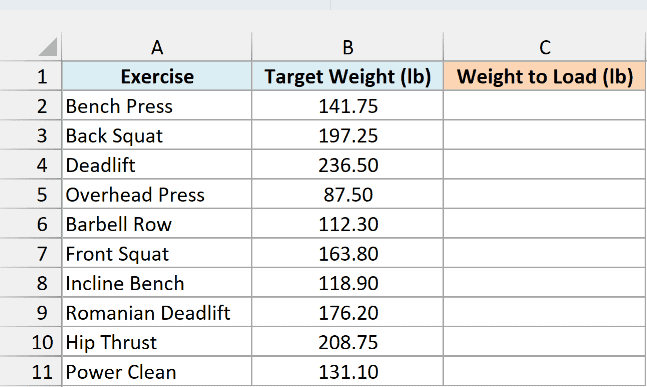
Below I have the target weights for some gym lifts, and since a bar can only be loaded in 5 lb steps, I want the nearest weight to load in column C.
Here is the formula:
=MROUND(B2,5)
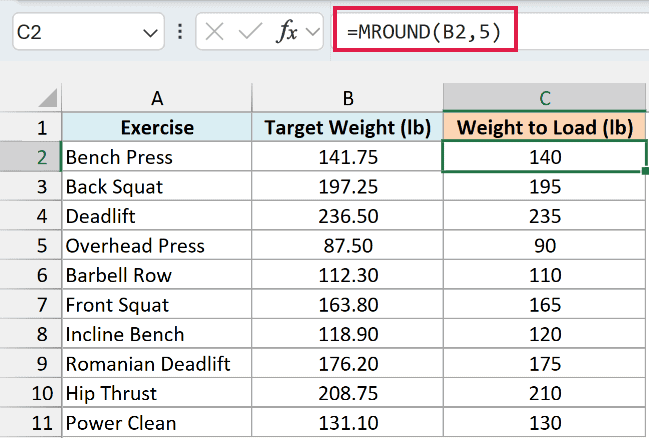
I entered it in cell C2 and copied it down to C11. Each target weight goes to the closer multiple of 5, so the bench press at 141.75 lb becomes 140, and the front squat at 163.8 lb becomes 165.
The overhead press at 87.5 lb sits exactly halfway between 85 and 90, so it goes up to 90.
I’ve used one formula per row here, and Example 3 shows how to round the whole column with a single formula.
Example 2: Round to the Nearest 0.5
The multiple doesn’t have to be a whole number. Here’s an example with a decimal.
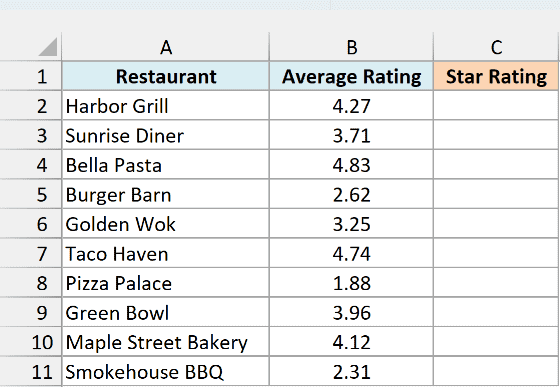
Below is a list of restaurants with their average customer rating, and I want to show each rating as a half-star value in column C.
Here is the formula:
=MROUND(B2,0.5)
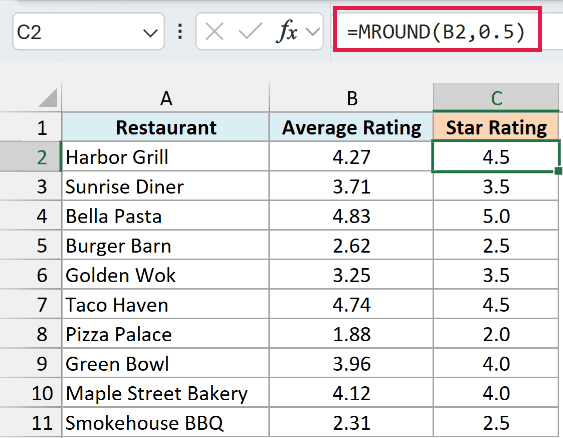
With 0.5 as the multiple, every rating lands on a whole number or a half. Harbor Grill’s 4.27 becomes 4.5, and Sunrise Diner’s 3.71 becomes 3.5.
Golden Wok’s 3.25 is exactly halfway between 3.0 and 3.5, so it becomes 3.5.
If you want quarter steps instead, use 0.25 as the multiple. Halves work fine with 0.5 and 0.25, because Excel can store these decimals exactly.
Important: With a multiple such as 0.1 or 0.05, which Excel can’t store exactly, a value exactly halfway can round the wrong way. =MROUND(6.05,0.1) returns 6 instead of 6.1, while =ROUND(6.05/0.1,0)*0.1 correctly returns 6.1.
Example 3: Make MROUND Spill With a Plus Sign
Let’s now look at a way to round a whole column with a single formula.
Below I have oven temperatures that I converted from recipes written in Celsius, and I want the nearest oven dial setting (which goes in 25°F steps) in column D.
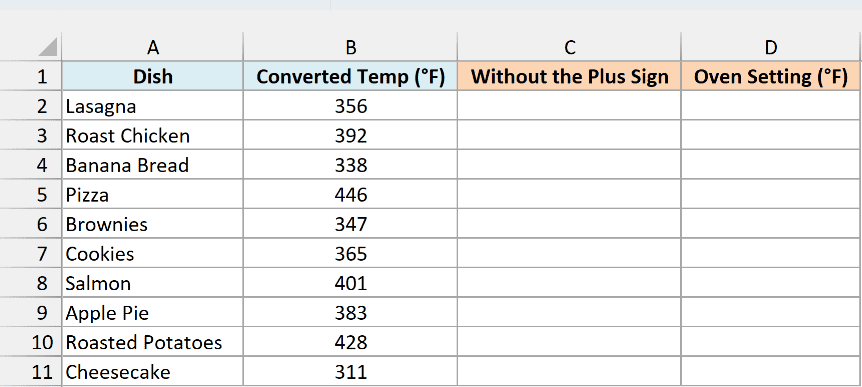
In Excel 365, you’d expect to give MROUND the whole range and have the results spill down. Here is that formula, entered in cell C2:
=MROUND(B2:B11,25)
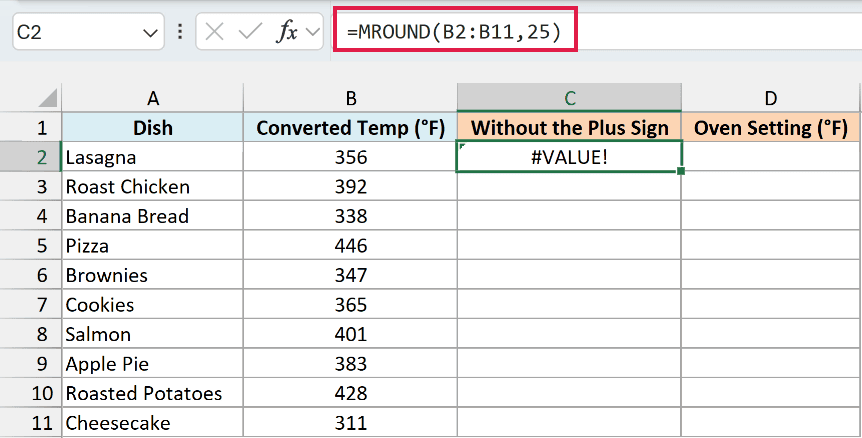
Instead of spilling, it returns a single #VALUE! error. MROUND came from the old Analysis ToolPak add-in, and it can’t read a range reference on its own, even though it can work with an array of values.
The fix is to add a plus sign before the range. Here is the formula that works, entered in cell D2:
=MROUND(+B2:B11,25)
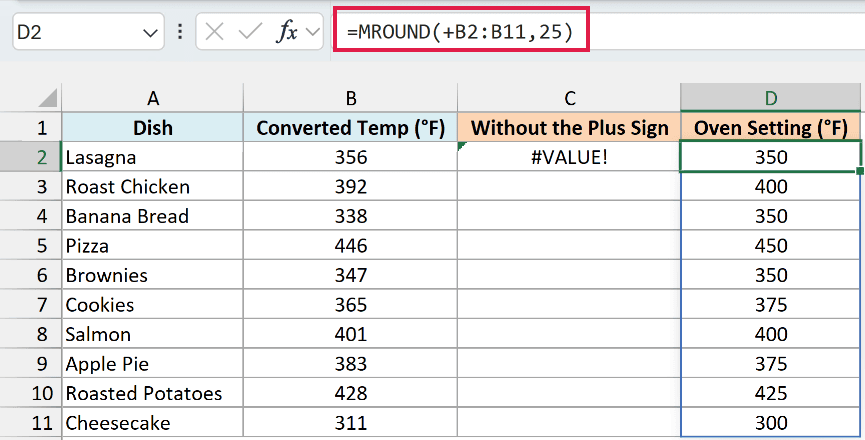
The plus sign makes Excel evaluate the range first, which turns it into an array of values. MROUND gets that array, rounds each temperature, and spills the results, so 356°F becomes 350 while 365°F becomes 375.
Adding +0 after the range, as in =MROUND(B2:B11+0,25), does the same job. I’ve covered this trick for other functions as well in how to fix Excel functions that won’t spill.
Spilling needs Excel 365 or Excel 2021 and later. If you are using Excel 2019 or earlier, enter the below formula in cell D2 and then copy it down the range:
=MROUND(B2,25)
For the rest of the examples that point MROUND at a single cell, I’ll stick with one formula per row because it’s easier to read. For a spill, put a plus sign before every range you give MROUND, the multiple included.
Example 4: Round Time to the Nearest 15 Minutes
MROUND works with time values too.
Below is a dog walker’s log with the start and end time of each walk, and I want the billed time for each walk, rounded to the nearest 15 minutes, in column D.
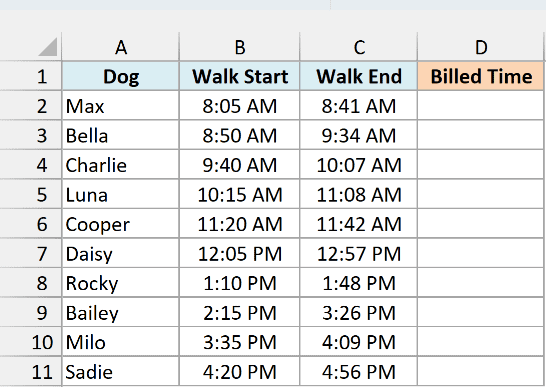
Here is the formula:
=MROUND(C2:C11-B2:B11,"0:15")
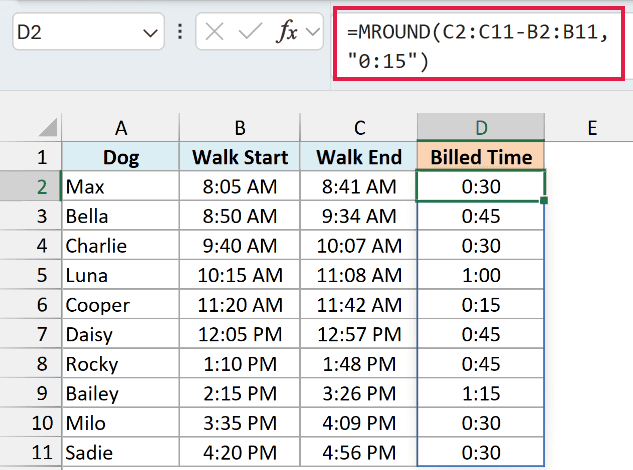
C2:C11-B2:B11 subtracts the start time from the end time to get each walk’s length, and MROUND rounds that to the nearest multiple of “0:15”, which Excel reads as 15 minutes. Max’s 36-minute walk becomes 0:30, and Luna’s 53-minute walk becomes 1:00.
The result is a time value, so format the column as h:mm. If you see a decimal such as 0.020833 instead, that’s the time shown as a fraction of a day.
Notice this one spills without the plus sign. The subtraction already turns the two ranges into an array, so MROUND gets values it can work with.
This works as long as each walk ends on the same day it starts. A walk that runs past midnight would have an end time earlier than its start time, and MROUND returns the #NUM! error for that negative length.
If you bill in decimal hours instead, you can convert the time to a decimal number by multiplying the result by 24.
If you are using Excel 2019 or earlier, enter the below formula in cell D2 and then copy it down the range:
=MROUND(C2-B2,"0:15")
Example 5: Round Each Value to Its Own Multiple
The multiple can also come from a cell, so each row can round to a different step.
Below is a list of store items with a calculated price and the step each price should be rounded to, and I want the final shelf price in column D.
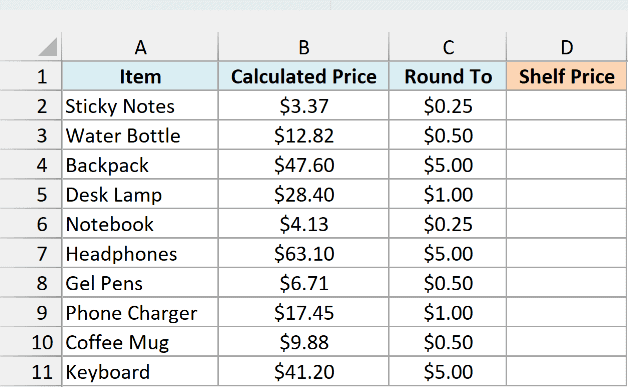
Here is the formula:
=MROUND(B2,C2)
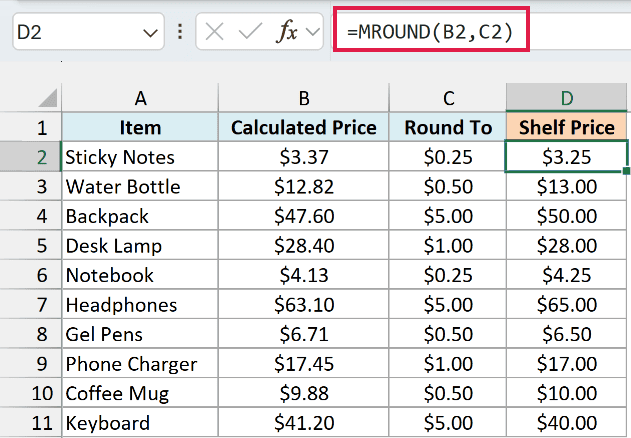
Each price rounds to the step in its own row. Sticky Notes at $3.37 round to the nearest quarter and become $3.25, while the backpack at $47.60 rounds to the nearest $5 and becomes $50.00.
If a cell in the Round To column is empty, MROUND treats it as 0 and returns 0. That’s easy to miss in a long list, so make sure every row has a multiple.
Pro Tip: If you want prices that end in .99, round to the nearest dollar and take off a cent with =MROUND(B2,1)-0.01. A price of $28.40 becomes $27.99.
Example 6: Use MROUND With Negative Numbers
Here’s a situation where MROUND trips up a lot of people.
Below is a monthly budget showing how much each category came in over or under budget (under budget is negative), and I want each amount rounded to the nearest $5 in column D.
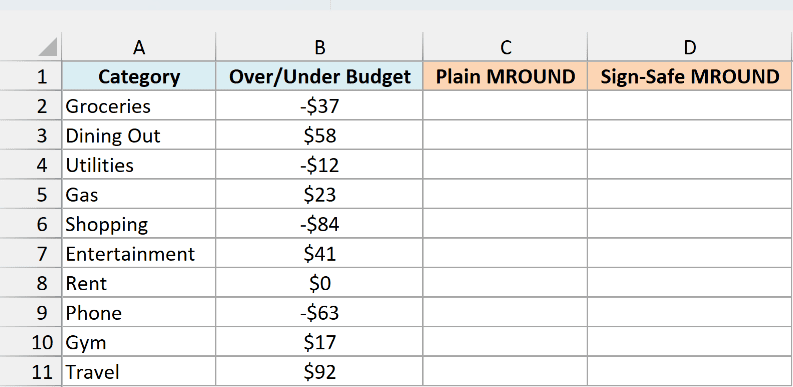
Let’s first try the regular formula, entered in cell C2:
=MROUND(B2,5)
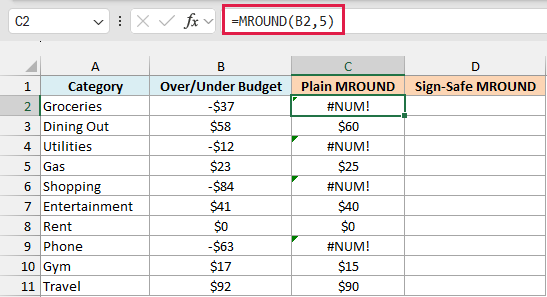
It works for the positive amounts, but every negative amount returns the #NUM! error. That’s because the number is negative while the multiple 5 is positive, and MROUND needs both to have the same sign.
To fix this, let the multiple take the sign of the number. Here is the formula, entered in cell D2:
=MROUND(B2,SIGN(B2)*5)
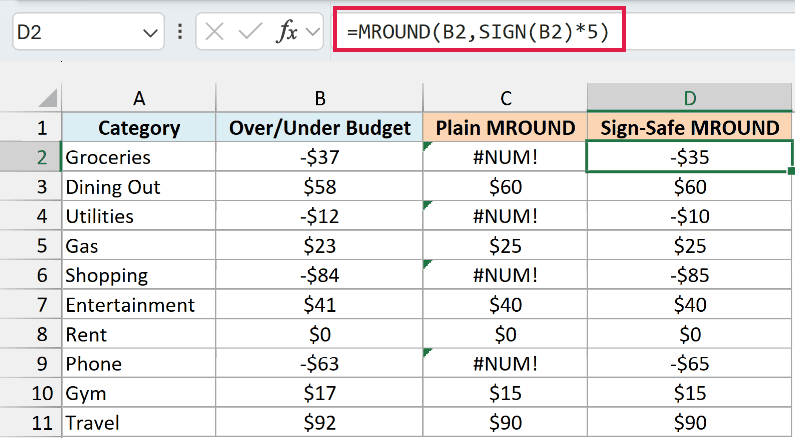
SIGN(B2) returns -1 for a negative number, 1 for a positive number, and 0 for zero. So for Groceries at -$37, the multiple becomes -5 and the result is -$35, while Dining Out at $58 still rounds to $60.
For Rent, the amount is 0, which makes the multiple 0 as well. MROUND returns 0 in that case, so you get $0 and no error.
Example 7: MROUND vs CEILING.MATH for Rounding Up
MROUND always goes to the nearest multiple, which can be up or down. Sometimes that’s not what you want.
Below is a list of meetings with how long each is expected to run, and I want to book each one in 30-minute calendar slots, with the MROUND booking in column C.
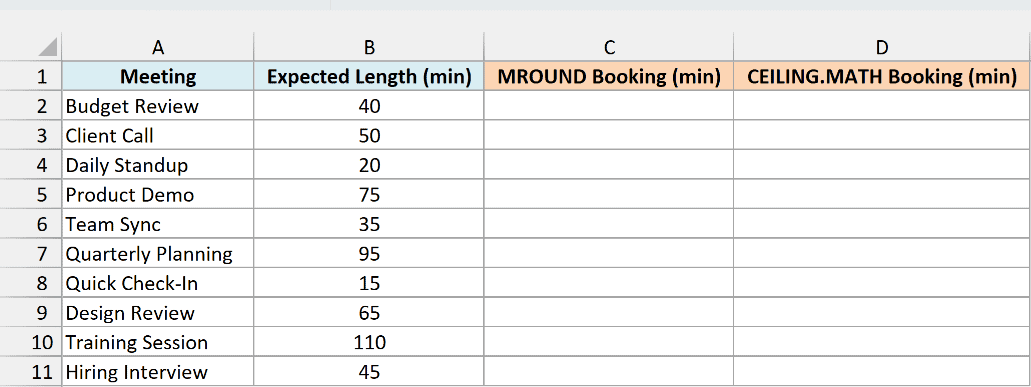
Here is the formula:
=MROUND(B2,30)
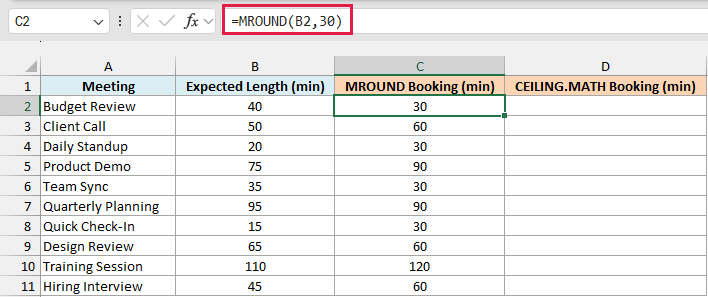
Look at the Budget Review, which is expected to run 40 minutes. MROUND books only 30, because 40 is closer to 30 than to 60.
The same thing happens with the Team Sync, the Quarterly Planning meeting, and the Design Review.
When the result must never be less than the number, use the CEILING.MATH function instead. Here is the formula, entered in cell D2:
=CEILING.MATH(B2,30)
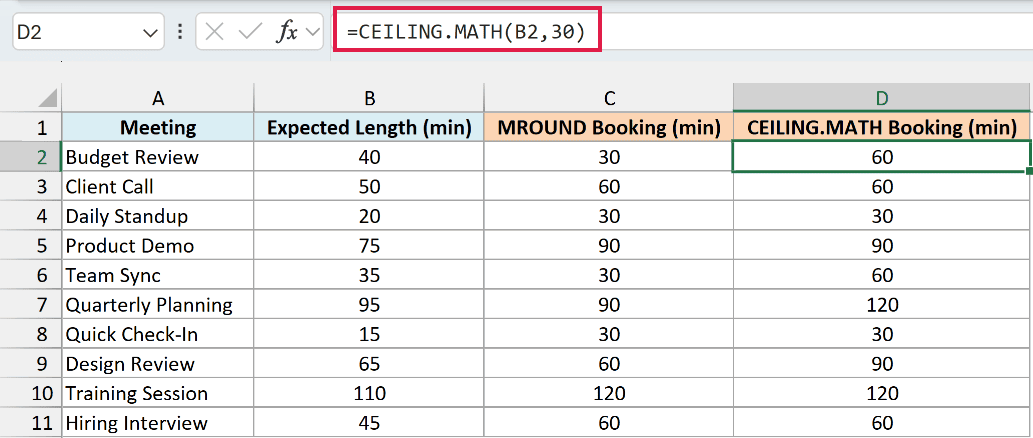
CEILING.MATH always rounds up to the next multiple of 30, so the Budget Review gets a 60-minute slot.
Use MROUND when either direction is fine and you just want the closest value. If you need to always round down instead, the FLOOR.MATH function does that.
I’ve compared MROUND with CEILING and FLOOR (the older versions of CEILING.MATH and FLOOR.MATH) in how to round to the nearest integer or multiple in Excel.
So these are seven ways you can use the MROUND function in Excel. Pick the multiple that matches the step you need, and remember that the number and the multiple must have the same sign.
I hope you found this article helpful.
Other Excel Articles You May Also Like:
