

The FLOOR.MATH function in Excel rounds a number down, either to the whole number below it or to a multiple you pick, like 10 or 0.5. So 8.9 becomes 8, and 124 rounded down to a multiple of 10 becomes 120.
Where it gets interesting is negative numbers. By default, FLOOR.MATH rounds them away from zero, so -2.3 becomes -3, but it also has a setting that rounds them toward zero instead.
In this tutorial, I’ll show you how each part of FLOOR.MATH works, what it does with negative numbers, and five practical ways to use it.
Follow along with the example file
FLOOR.MATH Function Examples.xlsx
FLOOR.MATH Function Syntax
Here is the syntax of the FLOOR.MATH function:
=FLOOR.MATH(number, [significance], [mode])
- number – The number you want to round down. It can be a typed number, a cell reference, a range, or a calculation.
- significance – (Optional) The multiple you want to round down to, such as 10 or 0.25. If you leave it out, Excel uses 1.
- mode – (Optional) Decides which way negative numbers are rounded. If you leave it out, Excel uses 0.
When you leave out significance, FLOOR.MATH rounds down to the whole number below. So =FLOOR.MATH(6.7) returns 6, and a whole number like 6 stays as it is.
The mode argument only affects negative numbers. With mode at 0 (or left out), they round away from zero, so =FLOOR.MATH(-6.7) returns -7.
With any other number as the mode, like 1, negative numbers round toward zero instead, so =FLOOR.MATH(-6.7,1,1) returns -6. TRUE or -1 works as the mode too, since anything other than 0 does the same thing.
The sign of the significance is ignored. =FLOOR.MATH(24.3,-5) returns 20, the same as =FLOOR.MATH(24.3,5), so only the mode can change the direction for negative numbers.
If the significance is 0, or points to an empty cell, FLOOR.MATH returns 0 instead of an error. So if a column of results suddenly shows all zeros, check the significance first.
The FLOOR.MATH function was added in Excel 2013, so it works in Excel 2013 and later, including Microsoft 365, Excel 2024, 2021, 2019, 2016, Excel for Mac (2016 and later), and Excel for the web.
When to Use the FLOOR.MATH Function
Use this function when you need to:
- Round a number down to the whole number below, like a rating to full stars
- Round amounts down to a multiple such as 50, 10, or 0.5
- Round negative numbers toward zero instead of away from it
- Round times down to full 15-minute or 30-minute blocks
- Group numbers into ranges, like years into decades
Let me show you a few practical examples of how to use FLOOR.MATH in Excel.
Example 1: Round Ratings Down to Full Stars
Let’s start with a simple example.
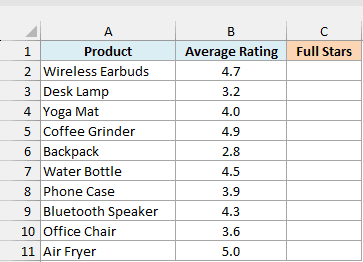
Below is a list of products with their average customer rating, and I want the number of full stars to show for each one in column C.
Here is the formula:
=FLOOR.MATH(B2:B11)
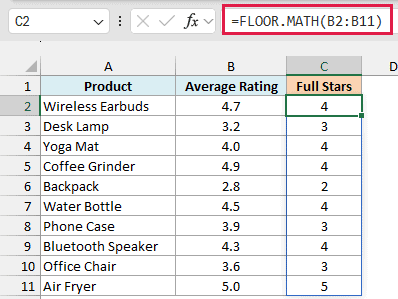
Since there’s no significance, FLOOR.MATH rounds each rating down to the whole number below it. The Wireless Earbuds have a 4.7 rating, so they get 4 full stars, and the Backpack’s 2.8 gets 2.
This is where rounding down matters. The ROUND function would turn the Coffee Grinder’s 4.9 into 5, and show five full stars for a product that never got a perfect score.
You enter this formula once in cell C2, and in Excel 365 and Excel 2021 or later it spills the results down to C11. If any cell in C3:C11 already has something in it, you’ll see a #SPILL! error instead, so clear those cells first.
If you are using Excel 2019 or earlier, enter the below formula in cell C2 and then copy it down the range:
=FLOOR.MATH(B2)
Example 2: Round Down to the Nearest Multiple of 50
Now let’s give FLOOR.MATH a multiple to round down to.
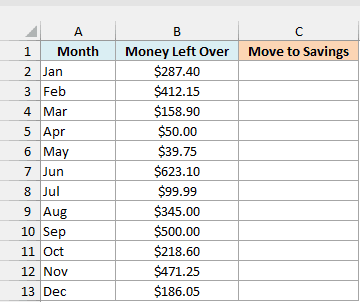
Below is a list of the money left over at the end of each month, and I want the amount to move into savings in column C, in steps of $50.
Here is the formula:
=FLOOR.MATH(B2:B13,50)
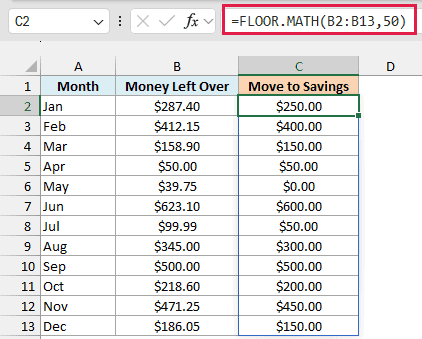
The 50 is the significance, so every amount goes down to the nearest multiple of 50. January’s $287.40 becomes $250.00, and the other $37.40 stays in the account as a buffer.
July shows why rounding down is the safe choice here. $99.99 is one cent short of $100, so FLOOR.MATH moves $50.00, while the MROUND function would round it to $100.00 and move money that isn’t there.
May only has $39.75, which isn’t enough for even one $50 step, so it gets $0.00. September’s $500.00 is already a multiple of 50, so all of it moves.
If you are using Excel 2019 or earlier, enter the below formula in cell C2 and then copy it down the range:
=FLOOR.MATH(B2,50)
Example 3: FLOOR.MATH With Negative Numbers (Mode Argument)
Negative numbers are where FLOOR.MATH can surprise you, so let’s look at them closely.
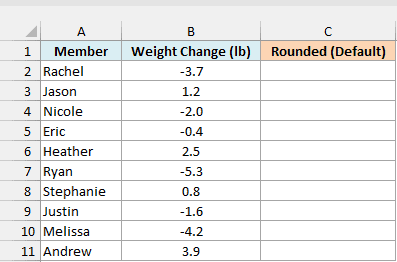
Below is a list of weight changes from a four-week fitness challenge (losses are negative), and I want each change rounded to complete half pounds in column C.
Here is the formula:
=FLOOR.MATH(B2:B11,0.5)
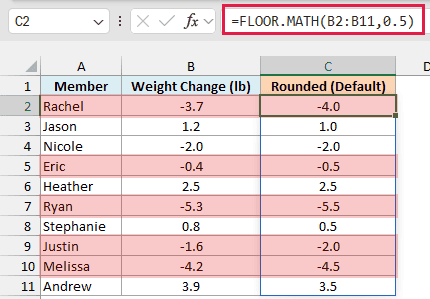
The gains work the way you’d expect. Jason gained 1.2 pounds, which rounds down to 1.0, and Andrew’s 3.9 becomes 3.5.
The losses are a different story. Rachel’s 3.7-pound loss shows as -4.0, and Eric’s 0.4-pound loss shows as a full half pound, so both get credit for losing more than they did.
This happens because FLOOR.MATH rounds negative numbers away from zero by default. On a number line, -4.0 sits below -3.7, so to Excel that’s “down.”
To count only the completed half pounds, the losses need to round toward zero instead. That’s what the mode argument does.
Here is the formula with the mode set to 1, with the results in column D:
=FLOOR.MATH(B2:B11,0.5,1)
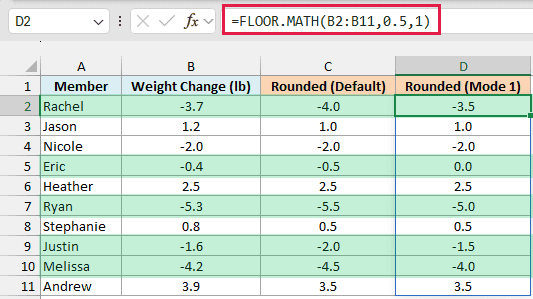
Now Rachel’s -3.7 becomes -3.5, and Ryan’s -5.3 becomes -5.0. Eric’s -0.4 becomes 0.0, because he hasn’t lost a full half pound yet.
The gains are the same in both columns, because mode never changes positive numbers.
Important: If your data has negative numbers, decide on the mode before you trust the results. Without it, losses, refunds, or shortfalls all get rounded to bigger amounts than they really are.
With the older FLOOR function, you’d round negatives toward zero by using -0.5 as the significance. But a positive number with a negative significance returns a #NUM! error, so one FLOOR formula can’t round this whole column.
If you are using Excel 2019 or earlier, enter the below formula in cell C2 for the default version and then copy it down the range:
=FLOOR.MATH(B2,0.5)
For the mode 1 version, enter the below formula in cell D2 and copy it down the same way:
=FLOOR.MATH(B2,0.5,1)
Example 4: Round Time Down to Full 15-Minute Blocks
FLOOR.MATH works with time too, because Excel stores a time as a fraction of a day.
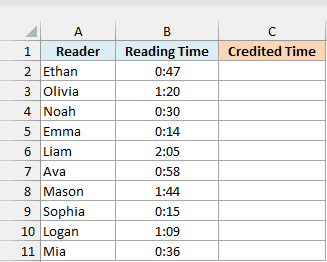
Below is a summer reading challenge log with how long each kid read, and since the challenge only counts full 15-minute blocks, I want the credited time in column C.
Here is the formula:
=FLOOR.MATH(B2:B11,TIME(0,15,0))
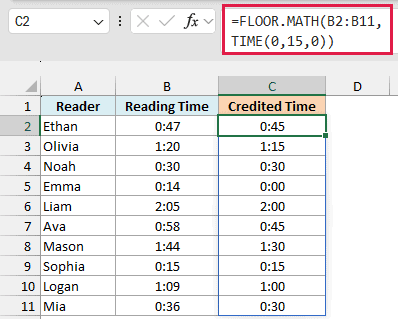
TIME(0,15,0) is 15 minutes, so FLOOR.MATH drops each reading time back to the last full 15-minute block. Ethan read for 47 minutes and gets credit for 0:45, and Olivia’s 1:20 becomes 1:15.
Emma read for 14 minutes, which isn’t a full block yet, so she gets 0:00.
If your results show up as decimals like 0.03125 instead of times, select the results and give them a time format such as h:mm.
You’ll also see this written with “0:15” in double quotes as the significance. It gives the same results, but TIME(0,15,0) makes the 15 minutes obvious and doesn’t depend on Excel reading text as a time.
If you are using Excel 2019 or earlier, enter the below formula in cell C2 and then copy it down the range:
=FLOOR.MATH(B2,TIME(0,15,0))
Example 5: Group Years Into Decades
Let’s finish with something a bit different, where FLOOR.MATH helps you group numbers into ranges.
Below is the entry list for a classic car show with each car’s model year, and I want the decade class for each car, like 1960s, in column D.
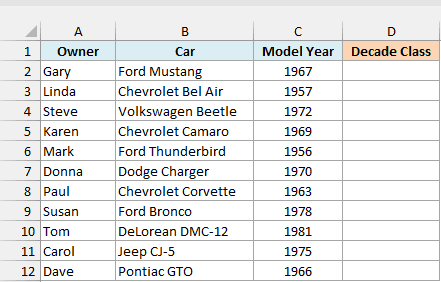
Here is the formula:
=FLOOR.MATH(C2:C12,10)&"s"
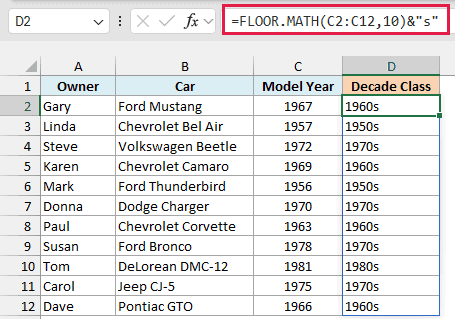
How this formula works:
- FLOOR.MATH(C2:C12,10) rounds each model year down to the nearest multiple of 10, which is the first year of its decade. Gary’s 1967 Ford Mustang becomes 1960.
- &”s” adds the letter s to the end, so 1960 shows up as 1960s.
Donna’s 1970 Dodge Charger lands in the 1970s class, not the 1960s, because 1970 is already a multiple of 10 and FLOOR.MATH leaves it as it is.
The results are text, which is fine for labels and for counting cars per decade with COUNTIF. If you want to calculate with the decade, leave out the &”s” part to keep plain numbers.
If you are using Excel 2019 or earlier, enter the below formula in cell D2 and then copy it down the range:
=FLOOR.MATH(C2,10)&"s"
So these are five ways to use the FLOOR.MATH function in Excel. If your numbers can go negative, pick the mode on purpose, and for times, set the block size with the TIME function.
If you need to round up instead, CEILING.MATH works the same way in the other direction. And if you only need to cut a number down to a set number of decimal places, ROUNDDOWN is the better fit.
I hope you found this article helpful.
Other Excel Articles You May Also Like:
