

The TIME function builds a proper Excel time from separate hour, minute, and second numbers. Give it 14, 30, and 0, and you get 2:30 PM, a real time value you can add to or compare like any other time.
It’s most useful when your times come in pieces (like the hour in one column and the minutes in another), or when you need to add a set number of minutes to a time.
In this article, I’ll show you how TIME works with some practical examples, including the 24-hour limit you need to know about.
Follow along with the example file
TIME Function Examples.xlsx
TIME Function Syntax
Here is the syntax of the TIME function:
=TIME(hour, minute, second)
- hour – A number from 0 to 32767 for the hours.
- minute – A number from 0 to 32767 for the minutes. Anything above 59 is carried over into hours.
- second – A number from 0 to 32767 for the seconds. Anything above 59 is carried over into minutes and hours.
All three arguments are required. So even when you only care about hours and minutes, you still need to pass a 0 for the seconds, like =TIME(14,30,0).
The result can never go past one day. Once the total reaches 24 hours, TIME starts again from midnight, so =TIME(27,0,0) returns 3:00 AM and not 27 hours.
Decimals are dropped, not rounded. So =TIME(9.75,0,0) returns 9:00 AM, which means any part of an hour has to go into the minute argument instead.
Even though the documented range starts at 0, you can use a negative number as long as the total stays positive. =TIME(9,-15,0) returns 8:45 AM, but =TIME(0,-15,0) returns a #NUM! error because Excel has no time before midnight.
The TIME function works in all Excel versions, including Microsoft 365, Excel 2024, 2021, 2019, 2016, Excel for Mac, and Excel for the web.
When to Use the TIME Function
Use this function when you need to:
- Turn separate hour, minute, and second numbers into a real time
- Add or subtract a set number of hours, minutes, or seconds from a time
- Compare times against a fixed cutoff, like orders placed before 11 AM
- Convert times stored as plain numbers (like 1320 or a count of seconds) into proper times
- Add a time of day to a date
Let me show you a few practical examples of how to use the TIME function in Excel.
Example 1: Create a Time From Hours and Minutes
Let’s start with a simple example.
Below is a cinema schedule with the hour and minute of each showtime in separate columns, and I want to combine them into a proper showtime in column D.
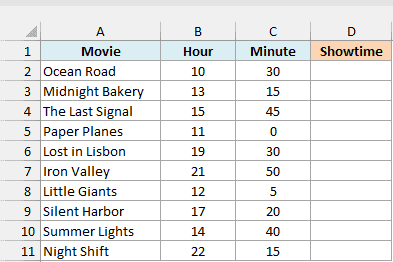
Here is the formula:
=TIME(B2:B11,C2:C11,0)
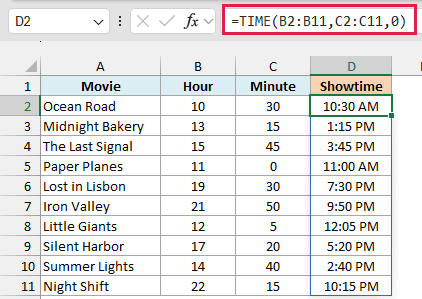
The formula takes each hour from column B and each minute from column C. The showtimes don’t need seconds, so the third argument is 0.
The hours are in the 24-hour format, so the 13 in B3 becomes 1:15 PM once it’s paired with the 15 minutes in C3.
TIME gives you a number between 0 and 1, where 0.5 is 12:00 PM. If some of your results show up as decimals (like 0.5521 instead of 1:15 PM), select the result cells and format them as Time.
You enter the formula only once, in D2, and the results spill down to D11. Spilling a range like this needs Excel 365 or Excel 2021 and later.
If you are using Excel 2019 or earlier, enter the below formula in cell D2 and then copy it down the range:
=TIME(B2,C2,0)
The same single-cell approach works for every spilling formula in this article.
Example 2: Add Minutes to a Time in Excel
Now let’s use TIME to add to an existing time.
Below is a gym class schedule with each class’s start time and its length in minutes, and I want the time each class ends in column D.
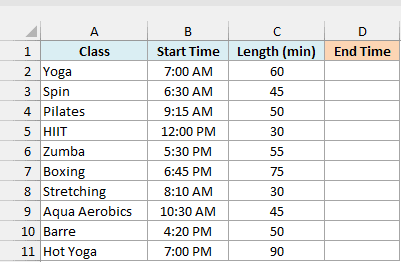
Here is the formula:
=B2:B11+TIME(0,C2:C11,0)
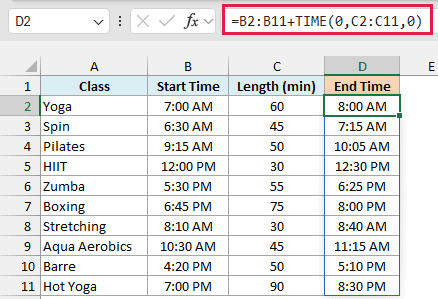
TIME(0,C2:C11,0) turns each class length into a time value, and adding it to the start time gives you the end time. The hour and second arguments are 0 because the lengths are only in minutes.
Look at the Boxing class in row 7. It runs for 75 minutes, and TIME carries the extra 15 minutes into the next hour, so a 6:45 PM start ends at 8:00 PM.
Important: Don’t add the minutes directly, like =B7+75. Excel counts a whole day as 1, so this adds 75 days, and the cell still shows 6:45 PM because the time format hides the days.
To subtract minutes instead, use a minus sign. For example, =B2:B11-TIME(0,15,0) gives you the time 15 minutes before each class starts.
Example 3: Compare Times With a Cutoff Time
Here’s another practical scenario.
Below is a list of online grocery orders with the time each one was placed, and I want to show Same Day for orders placed before 11:00 AM (and Next Day for the rest) in column C.
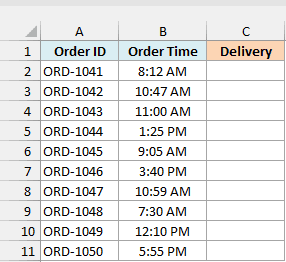
Here is the formula:
=IF(B2:B11<TIME(11,0,0),"Same Day","Next Day")
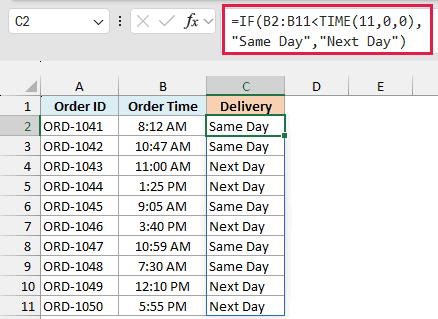
TIME(11,0,0) creates 11:00 AM as a real time value, and the IF function checks each order time against it. Orders placed before 11 AM get Same Day, and everything else gets Next Day.
The order in B4 was placed at exactly 11:00 AM, so it shows Next Day. If you want 11:00 AM itself to count as Same Day, use <= instead of <.
Important: Don’t type the cutoff as text, like B2:B11<"11:00". Excel treats any text as bigger than any number, so every order would show Same Day.
Example 4: Convert Numbers Like 1320 to Time
Let’s step it up with a more interesting one.
Below is a list of flight departures where each time is stored as a 4-digit number (like 1320 for 1:20 PM), and I want to convert these into proper times in column C. The numbers use a custom 0000 format, which is why 615 shows as 0615.
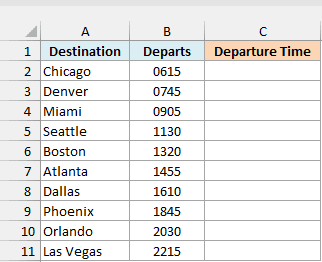
Here is the formula:
=TIME(INT(B2:B11/100),MOD(B2:B11,100),0)
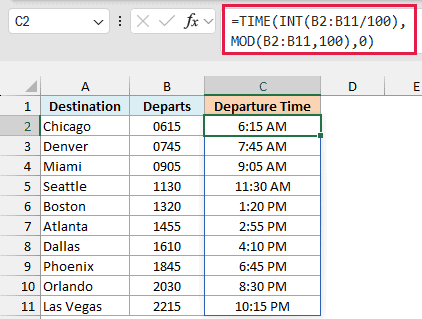
How this formula works:
INT(B2:B11/100)divides each number by 100 and drops the decimal, which gives you the hour. So 1320 becomes 13.MOD(B2:B11,100)gives you the remainder after dividing by 100, which is the minutes. So 1320 becomes 20.- TIME then puts the hour and minutes together into a time value, 1:20 PM.
If your departure times come in as text like “0615” instead of numbers, the formula still works, because the INT function and the MOD function turn that text into a number first.
Example 5: Convert Seconds to Hours, Minutes, and Seconds
Here’s one where all the work happens in the seconds argument.
Below is a list of podcast episodes with the length of each episode in seconds, and I want to show these lengths as hours, minutes, and seconds in column C.
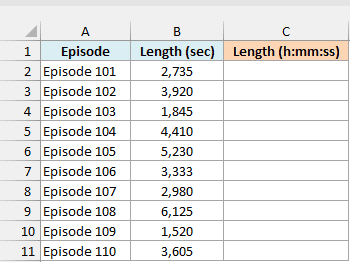
Here is the formula:
=TIME(0,0,B2:B11)
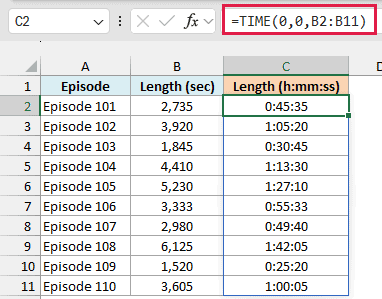
The whole length goes into the second argument, and TIME carries it over into minutes and hours. So 3,920 seconds becomes 1:05:20, which is one hour, five minutes, and 20 seconds.
The results use the h:mm:ss format, so the hour shows even when it’s 0, like 0:45:35 for Episode 101.
Important: TIME can’t take more than 32,767 seconds (about 9 hours), and anything bigger returns a #NUM! error. For longer lengths, use =B2:B11/86400 with the [h]:mm:ss format instead, which also keeps counting past 24 hours.
Example 6: Combine a Date and Time in Excel
Now let’s add a time of day to a date.
Below is a list of hair salon bookings with the date, hour, and minute in separate columns, and I want a single date and time for each booking in column E.
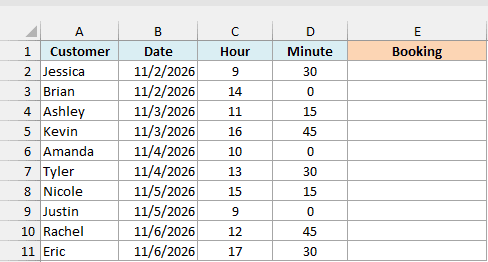
Here is the formula:
=B2:B11+TIME(C2:C11,D2:D11,0)
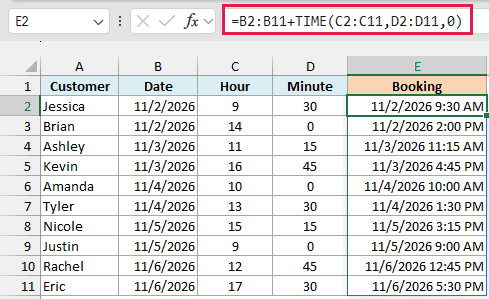
In Excel, a date is a whole number and a time is a part of a day. So when you add the result of TIME to a date, you get one value that holds both, like 11/2/2026 9:30 AM.
When you first enter this formula, Excel may show only the date. To see both parts, open Format Cells and apply a custom format such as m/d/yyyy h:mm AM/PM, which is what column E uses.
If your date and time are already in two separate cells, you can simply combine date and time by adding them.
Example 7: Round Time to the Nearest 15 Minutes
Let’s finish with something a lot of timesheets need.
Below is a list of employee clock-in times, and I want to round each one to the nearest 15 minutes in column C.
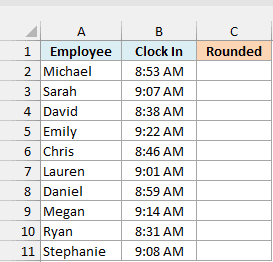
This formula needs to go in each row, because MROUND returns a #VALUE! error when you give it a range like B2:B11. So enter the below formula in cell C2 and then copy it down to C11:
=MROUND(B2,TIME(0,15,0))
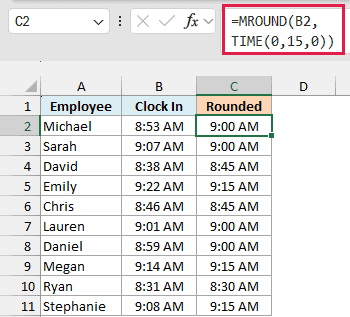
TIME(0,15,0) creates a 15-minute time value, and the MROUND function rounds each clock-in time to the nearest multiple of it. So 8:53 AM becomes 9:00 AM, and 8:38 AM becomes 8:45 AM.
Pro Tip: To always round down to the previous 15 minutes, use FLOOR.MATH instead. Unlike MROUND, it accepts a range, so =FLOOR.MATH(B2:B11,TIME(0,15,0)) spills all the results with one formula.
So this is how you can use the TIME function in Excel to build times from separate numbers, add minutes to a time, and compare times against a cutoff.
Just remember that TIME resets every 24 hours, so for longer durations, use the division approach from Example 5.
I hope you found this article helpful.
Other Excel Articles You May Also Like:
