

The TIMEVALUE function in Excel converts a time stored as text, like “6:45 PM”, into a real time value that Excel can calculate with.
You’ll need it most when times come in from a download, a web page, or another app and land in your sheet as text.
In this article, I’ll show you how to use TIMEVALUE with six examples, including adding up, sorting, and fixing times that Excel can’t read.
Follow along with the example file
TIMEVALUE Function Examples.xlsx
TIMEVALUE Function Syntax
Here is the syntax of the TIMEVALUE function:
=TIMEVALUE(time_text)
- time_text – The time you want to convert, as text. This can be a cell that holds a text time, like 9:30 AM, or a time typed straight into the formula in double quotes, like “18:45”.
The result is a decimal number from 0 to 0.999988426, where 0 is 12:00:00 AM and 0.999988426 is 11:59:59 PM. Excel doesn’t format it as a time for you, so you’ll see the decimal until you change the cell’s number format.
The argument has to be text. If you point TIMEVALUE at a cell that already holds a real time, you get a #VALUE! error, because there’s no text left to convert.
You can usually tell the two apart by alignment. Text times sit on the left side of the cell, while real times sit on the right (unless someone changed the alignment).
If a column has both kinds, use the VALUE function instead. It converts the text entries and leaves the real times as they are.
The TIMEVALUE function works in all Excel versions, including 365, 2024, 2021, 2019, 2016, Mac, and the web.
When to Use the TIMEVALUE Function
Use this function when you need to:
- Turn times that came in as text into real times you can format and calculate with
- Pull just the time out of a text timestamp that also has a date
- Compare text times against a cutoff, like an order deadline
- Add up durations that are stored as text
- Sort a list of text times in the right clock order
- Clean up times Excel can’t read, like 10:30AM with no space
Let me show you a few practical examples of how to use the TIMEVALUE function.
Example 1: Convert Text to Time in Excel
Let’s start with the simplest use.
Below is a list of movie showtimes copied from a cinema website, where the times came in as text, and I want to convert them into time values in column C.
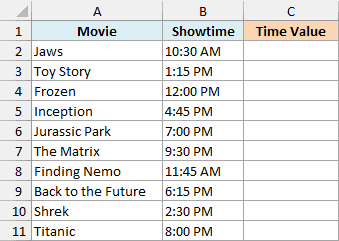
Here is the formula:
=TIMEVALUE(B2:B11)
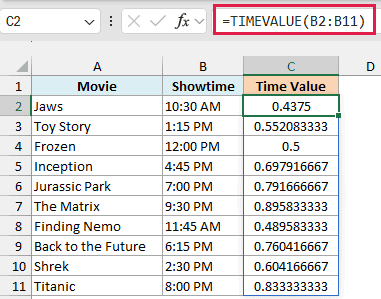
In the above formula, I’ve given TIMEVALUE the whole range B2:B11 instead of one cell. It converts all ten showtimes, and the results spill into C2:C11 on their own.
The results look like random decimals, but that’s how Excel stores time. A full day is 1, so noon (Frozen at 12:00 PM) is exactly 0.5, and 10:30 AM (Jaws) is 0.4375.
To see them as times again, select C2:C11, press Control + 1 (Command + 1 on a Mac), choose Time, and pick a format like 1:30 PM. Only the display changes, so the values underneath stay the same.
The spill needs the cells below C2 to be empty. If anything is sitting in C3:C11, you get a #SPILL! error instead of the results, and clearing those cells fixes it.
If you are using Excel 2019 or earlier, enter the below formula in cell C2 and then copy it down to C11:
=TIMEVALUE(B2)
Example 2: Get the Time From a Text Date and Time
Here’s another common situation.
Below is a workout log exported from a fitness app, where each entry has the date and time together as text, and I want just the workout time in column C.
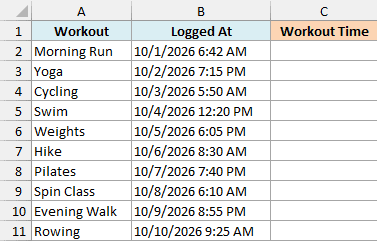
Here is the formula:
=TIMEVALUE(B2:B11)
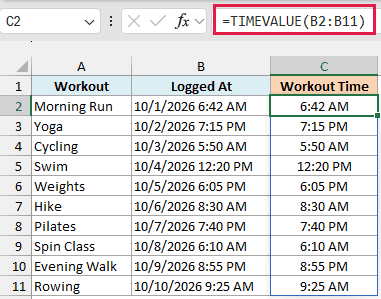
TIMEVALUE ignores the date part of the text and returns only the time. So 10/1/2026 6:42 AM gives 6:42 AM, and 10/9/2026 8:55 PM gives 8:55 PM.
I’ve formatted C2:C11 with the h:mm AM/PM format, so the results show as times instead of decimals.
The VALUE function would keep the date and return a number like 46296.28 for the first row. That’s handy when you need the full timestamp, but not when you only want the time.
Important: The date part still has to be a date Excel can read with your regional settings. On a US system, text like 25/10/2026 9:42 AM returns a #VALUE! error, because there’s no month 25.
If you are using Excel 2019 or earlier, enter the below formula in cell C2 and then copy it down to C11:
=TIMEVALUE(B2)
Example 3: Check If a Text Time Is Before a Cutoff
Now let’s use TIMEVALUE inside another formula.
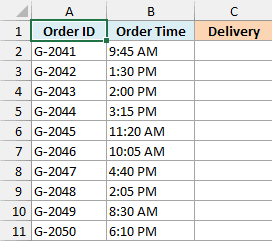
Below is a list of grocery orders with the time each one was placed, and I want to mark each order as Same Day or Next Day delivery in column C, where orders placed by 2:00 PM go out the same day.
Here is the formula:
=IF(TIMEVALUE(B2:B11)<=TIMEVALUE("2:00 PM"),"Same Day","Next Day")
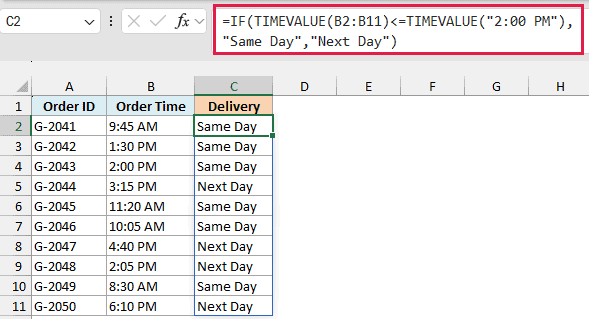
How this formula works:
- TIMEVALUE(B2:B11) converts each order time into a time value.
- TIMEVALUE(“2:00 PM”) converts the cutoff, typed in double quotes, the same way.
- The IF function checks whether each order time is less than or equal to the cutoff, and returns Same Day or Next Day.
Because the check uses <=, an order placed at exactly 2:00 PM (G-2043) still gets Same Day.
Without TIMEVALUE, Excel would compare the times as text, character by character. So 9:45 AM would count as later than 2:00 PM, because 9 comes after 2, and G-2041 (9:45 AM) and G-2049 (8:30 AM) would wrongly get Next Day.
Excel does convert text times on its own when you subtract one from another, but a comparison doesn’t get that conversion. That’s why TIMEVALUE turns both sides into numbers first, so the comparison follows the clock.
If you are using Excel 2019 or earlier, enter the below formula in cell C2 and then copy it down to C11:
=IF(TIMEVALUE(B2)<=TIMEVALUE("2:00 PM"),"Same Day","Next Day")
Pro Tip: If the cutoff changes often, type it in a cell (say E1) as a real time, like 2:00 PM, and use <=E1 in the formula instead. Since E1 already holds a real time, it doesn’t need TIMEVALUE.
Example 4: Add Up Times Stored as Text
This next one catches a lot of people out. If you add up times stored as text with a plain SUM, you get 0, because the SUM function skips text.
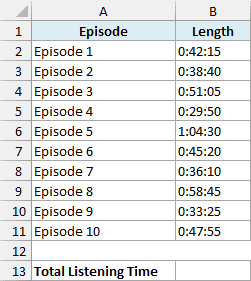
Below is a list of podcast episodes with the length of each one stored as text, and I want the total listening time in cell B13.
Here is the formula:
=SUM(TIMEVALUE(B2:B11))
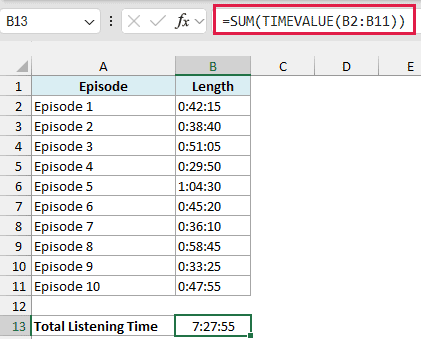
TIMEVALUE converts all ten lengths into time values, and SUM adds them up to 7:27:55.
I’ve formatted B13 as [h]:mm:ss. The square brackets around h let the total go past 24 hours, so a playlist that runs 30 hours and 15 minutes shows 30:15:00 instead of rolling back to 6:15:00.
Important: Write each length as h:mm:ss, like 0:42:15. TIMEVALUE reads a two-part entry like 42:15 as 42 hours and 15 minutes, and since it only returns times within one day, you get 6:15 PM instead of 42 minutes.
If you are using Excel 2019 or earlier, enter the below formula in cell B13 instead:
=SUMPRODUCT(TIMEVALUE(B2:B11))
In those versions, SUM(TIMEVALUE(B2:B11)) reads only one cell unless you confirm it with Control + Shift + Enter, so it can give a wrong total without any error. The SUMPRODUCT function handles the whole range on its own.
Example 5: Sort Text Times in the Right Order
Let’s step it up with a sorting problem.
Below is a family’s Saturday schedule with the start time of each activity stored as text, and I want the activities listed from earliest to latest in columns D and E.
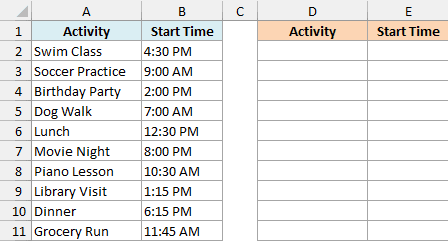
Here is the formula:
=SORTBY(A2:B11,TIMEVALUE(B2:B11))
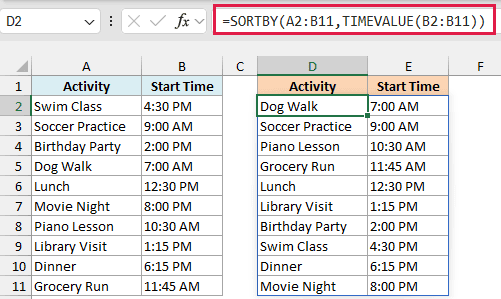
The SORTBY function sorts A2:B11 by a separate list of values, and here that list is TIMEVALUE(B2:B11), the real time behind each start time. So the schedule comes out in clock order, from Dog Walk at 7:00 AM to Movie Night at 8:00 PM.
The sorted list still shows the original text, because TIMEVALUE only decides the order. Nothing in A2:B11 changes.
If you sort the start times as they are, with the SORT function, Excel sorts them alphabetically. You get 1:15 PM first and 9:00 AM last, since 1 comes before 9 when the times are read as text.
SORTBY is only available in Excel 365 and Excel 2021 or later. Older versions need a helper column, and they sort the original list in place instead of building a sorted copy in columns D and E.
If you are using Excel 2019 or earlier, enter the below formula in cell C2, copy it down to C11, and then sort A1:C11 by column C using Sort on the Data tab:
=TIMEVALUE(B2)
Example 6: Fix the TIMEVALUE #VALUE! Error (No Space Before AM/PM)
For the last example, let’s fix times that TIMEVALUE can’t read. It needs a space between the time and AM or PM, so 10:30 AM works but 10:30AM returns a #VALUE! error.
Below is a list of salon bookings exported from a booking app, where the times have no space before AM or PM, and I want them as real times in column C.
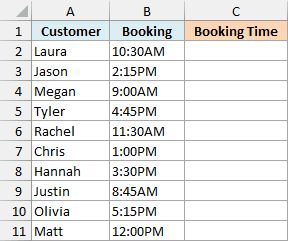
Here is the formula:
=TIMEVALUE(SUBSTITUTE(SUBSTITUTE(B2:B11,"AM"," AM"),"PM"," PM"))
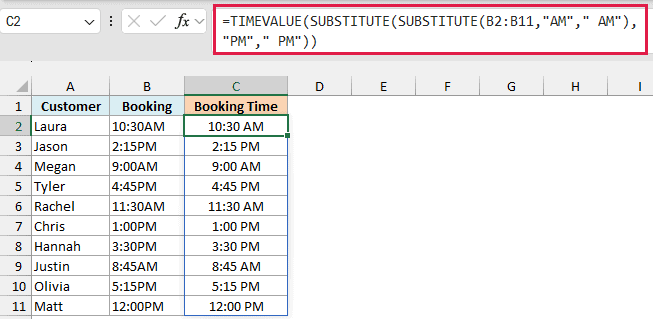
How this formula works:
- The inner SUBSTITUTE replaces AM with ” AM” (a space followed by AM), so 10:30AM becomes 10:30 AM.
- The outer SUBSTITUTE does the same for PM, so 2:15PM becomes 2:15 PM.
- TIMEVALUE then converts the cleaned-up text into a time, and I’ve formatted C2:C11 as h:mm AM/PM.
The SUBSTITUTE function is case-sensitive, so this formula expects uppercase AM and PM, like the bookings here. If a time already has a space, the extra one doesn’t hurt, because TIMEVALUE still reads a double space fine.
Ordinary spaces before or after a time don’t cause trouble either, so you don’t need the TRIM function for those.
If you are using Excel 2019 or earlier, enter the below formula in cell C2 and then copy it down to C11:
=TIMEVALUE(SUBSTITUTE(SUBSTITUTE(B2,"AM"," AM"),"PM"," PM"))
Pro Tip: A non-breaking space (common in times copied from a web page) and the T in app timestamps like 2026-10-14T18:30:00 also break TIMEVALUE. Replace either with a regular space using SUBSTITUTE, like SUBSTITUTE(B2,CHAR(160),” “), before TIMEVALUE reads it.
So that’s how the TIMEVALUE function works. Whenever times arrive as text and a sum, comparison, or sort gives you odd results, convert them with TIMEVALUE first.
If you’re working with dates stored as text too, the DATEVALUE function does the same job for the date part.
I hope you found this article helpful.
Other Excel Articles You May Also Like:
