

If you have a time or a timestamp in Excel and you want to pull out just the minutes part, the MINUTE function is what you need. It reads a time value and hands you back the minutes as a plain number from 0 to 59.
In Excel 365, you can also feed MINUTE a whole range of times and the results spill into the cells below. In this article, I’ll walk you through how the MINUTE function works with a bunch of practical examples.
Follow along with the example file
MINUTE Function Examples.xlsx
MINUTE Function Syntax
Here is the syntax of the MINUTE function:
=MINUTE(serial_number)
- serial_number – The time value you want the minutes from. This can be a cell reference to a time, a time typed as text in quotes (like “8:45 AM”), or the result of another formula such as NOW() or TIME().
The function always returns a whole number between 0 and 59.
When to Use the MINUTE Function in Excel
Use the MINUTE function when you need to:
- Pull the minutes out of a time or a full date-and-time stamp
- Break a time down into its parts so you can do math on it
- Check or flag times based on the minute they fall on (for example, meetings that don’t start on the hour)
- Group or count timestamps by the minute portion of the time
Let me show you a few practical examples of how to use this function.
Example 1: Extract Minutes From a List of Times
Let’s start with the most common use.
Below is the dataset. It has gym check-in times in column B, one per member in column A.
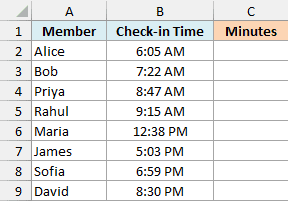
I want to pull the minutes out of every check-in time in one go.
Here is the formula:
=MINUTE(B2:B9)
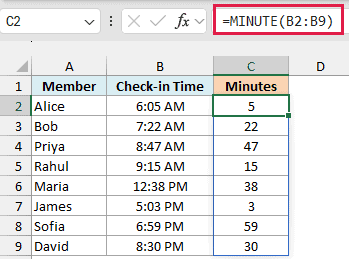
Since I pointed MINUTE at the whole range B2:B9, the results spill down the column automatically. A check-in at 6:05 AM returns 5, one at 8:47 AM returns 47, and so on.
Pro Tip: If you’re on an older version of Excel that doesn’t spill, write =MINUTE(B2) in the first cell and copy it down the column instead.
Example 2: Get the Current Minute With NOW
Here’s a quick one that doesn’t need any data at all.
Sometimes you want the minute value of the current time, maybe to drive a time-based check.

I want the minutes of the exact moment the sheet is calculating.
Here is the formula:
=MINUTE(NOW())
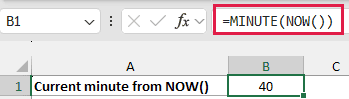
The NOW function returns the current date and time, and MINUTE strips out just the minutes. If it’s 3:42 PM right now, this returns 42.
Keep in mind that NOW is volatile, so this number refreshes every time the sheet recalculates. It is not a permanent timestamp.
Example 3: Extract Minutes From a Date and Time Stamp
Now let’s look at something a bit more real-world.
Below is the dataset. Column B holds server log entries that include both the date and the time in a single cell.
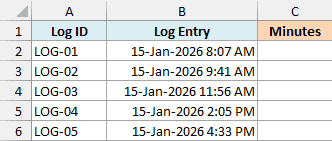
I want the minutes from each entry, even though the date is sitting right there in the same cell.
Here is the formula:
=MINUTE(B2:B6)
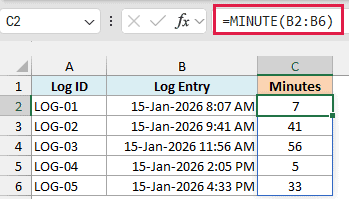
MINUTE ignores the date portion completely and reads only the time. An entry logged at 15-Jan-2026 8:07 AM returns 7, and one at 2:05 PM returns 5. The date never gets in the way.
Example 4: Convert a Time to Total Minutes
This next one is something I use quite often.
Below is the dataset. Column B lists how long each flight lasted, entered as a time value.
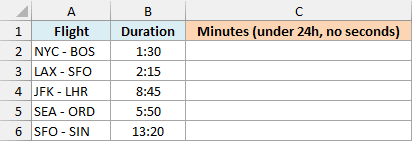
I want each duration as a plain count of total minutes, not split into hours and minutes. The formula and screenshot below show a method limited to whole-minute durations under 24 hours.
Here is the formula:
=HOUR(B2:B6)*60+MINUTE(B2:B6)
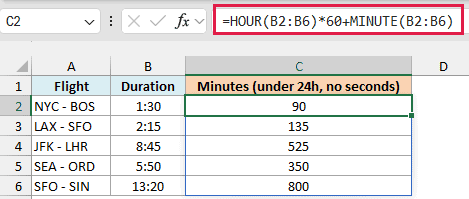
Here, the HOUR function gives the hours, which I multiply by 60 to turn into minutes, and then I add the MINUTE part on top. A duration of 1:30 becomes 90, and 8:45 becomes 525.
For total minutes from an elapsed duration, use =B2:B6*1440 in dynamic-array Excel, or =B2*1440 and copy it down. Multiplying by 1440 includes complete days and fractional minutes from seconds. Format the result as General or Number.
Example 5: Flag Times That Don’t Start on the Hour
Let’s use MINUTE inside a check now.
Below is the dataset. Column B has a meeting schedule with times entered to the whole minute, and I want to know which meetings start right on the hour and which don’t.
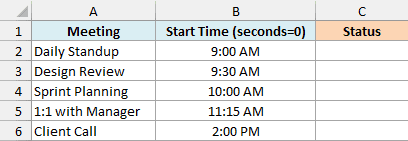
I want to label each meeting “On the hour” when its minutes are 0, and “Off the hour” otherwise.
Here is the formula:
=IF(MINUTE(B2)=0,"On the hour","Off the hour")
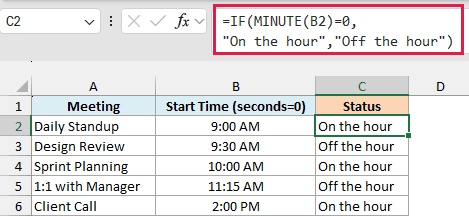
The IF function checks whether the minute portion equals 0. A 9:00 AM meeting returns “On the hour”, while 11:15 AM returns “Off the hour”. This check assumes seconds are zero; it would also label 9:00:30 “On the hour”.
I’m keeping this one as a per-row formula so the condition is easy to read. In Excel 365 you could spill the whole column at once with =IF(MINUTE(B2:B6)=0,"On the hour","Off the hour").
Example 6: Count Times in the First Half of the Hour
Let’s step it up with one more useful scenario.
Below is the dataset. Column B lists delivery drop-off times, and I want to know how many landed in the first half of their hour.
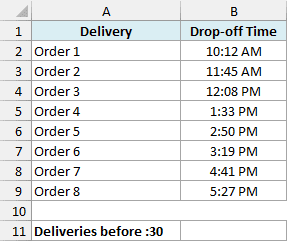
I want a single count of every delivery whose minutes are under 30.
Here is the formula:
=SUMPRODUCT(--(MINUTE(B2:B9)<30))
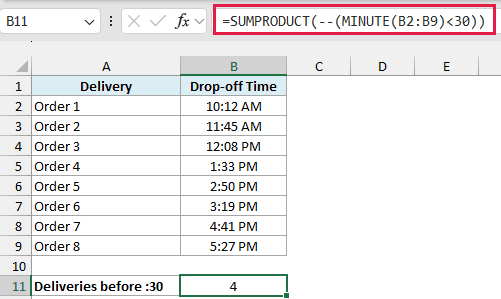
MINUTE reads every time in the range and returns its minutes. The <30 test turns each into TRUE or FALSE, the double negative flips those to 1s and 0s, and SUMPRODUCT adds them up. Here, 4 deliveries came in before the half-hour mark.
Tips & Common Mistakes
- MINUTE never goes past 59. It returns only the minutes portion of a time, so the MINUTE of 1:30 is 30, not 90. To get total minutes from an elapsed duration, multiply it by 1440, as explained in Example 4.
- Text times can trip it up. TIMEVALUE can convert recognized time text, for example
=MINUTE(TIMEVALUE("8:45 PM")). It still depends on your regional settings and returns #VALUE! if Excel cannot recognize the text. - The date part is ignored. Feed MINUTE a full date-and-time stamp and it still returns only the minutes, so you don’t need to strip the date out first.
- No need to drag in Excel 365. Point MINUTE at a range and it spills down on its own. The old Ctrl+Shift+Enter array trick isn’t needed anymore.
The MINUTE function is a small but handy tool for working with time data in Excel. It sits right alongside the SECOND function, which pulls the seconds the same way. Once you can pull the minutes out of any time or timestamp, you can group, flag, and do math on your times with just a formula or two.
Give these examples a try on your own data and you’ll have the MINUTE function down in, well, a minute.
Other Excel Articles You May Also Like:
