

If you want to pull just the seconds out of a time value in Excel, the SECOND function is what you need. It takes a time and gives you back the seconds part as a whole number from 0 to 59.
In Excel 365, you can also feed SECOND a whole range of times, and the results spill into the cells below. In this article, I’ll show you how to use the SECOND function with a few practical examples.
Follow along with the example file
SECOND Function Examples.xlsx
SECOND Function Syntax
Here is the syntax of the SECOND function:
=SECOND(serial_number)
- serial_number – the time value you want the seconds from. This can be a cell reference, a time typed as text in quotes, a decimal number, or the result of another formula like NOW() or TIMEVALUE().
The result is always a whole number between 0 and 59, since that’s as far as the seconds on a clock go before they roll back to zero.
The SECOND function works in Excel for Microsoft 365, Excel 2024, 2021, 2019, 2016, and Excel on the web, so you can use it almost anywhere.
When to Use the SECOND Function
Use the SECOND function when you need to:
- Pull the seconds out of a timestamp on its own
- Split a time into its hours, minutes, and seconds parts
- Turn a time into a total number of seconds (paired with HOUR and MINUTE for durations shorter than 24 hours)
- Grab the current seconds reading from the clock
Let me show you a few practical examples of how this works.
Example 1: Extract Seconds From a List of Times
Let’s start with the most common case: you have a column of times and you want the seconds from each one.
Below I have a set of race checkpoint times in column A, recorded down to the second. I want the seconds part of each time pulled out into column B.
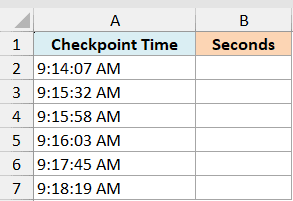
I want a single formula that reads the whole list and returns the seconds for every row.
Here is the formula:
=SECOND(A2:A7)
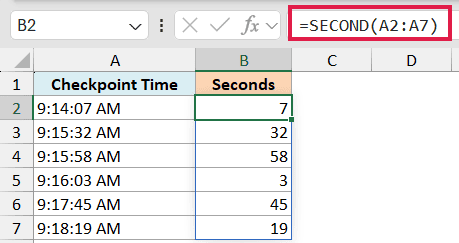
Because I passed the whole range A2:A7 in one go, the formula spills the results down column B on its own. You type it once in B2 and Excel fills the rest.
For the time 9:14:07 AM it returns 7, and for 9:15:32 AM it returns 32. Each result is just the seconds slice of that time, nothing else.
Pro Tip: The spilling version needs Microsoft 365, Excel 2024, Excel 2021, or Excel for the web. On older versions, put =SECOND(A2) in B2 and copy it down the column instead.
Example 2: Get Seconds From a Full Date and Time
Now let’s look at a value that holds both a date and a time, which is how most logs and exports store their timestamps.
Below I have a single server log entry in cell A2 that reads 3/15/2026 2:30:52 PM. I want only the seconds from that stamp, ignoring the date completely.
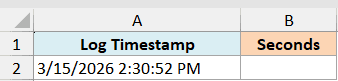
I want to confirm SECOND reads straight past the date and returns just the seconds.
Here is the formula:
=SECOND(A2)
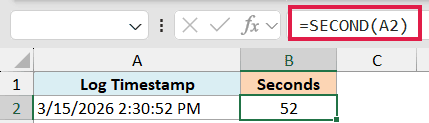
This returns 52.
The SECOND function only cares about the time portion of the value. The date part (3/15/2026) is completely ignored, so you get back the 52 seconds from 2:30:52 PM.
This is handy when you’re cleaning up log files or exports, where the date and time sit together in one cell.
Example 3: Use SECOND on a Time Typed as Text
You don’t always need a cell reference. SECOND can also read a time you type straight into the formula as text.
For this one there’s no dataset. I just want the seconds from the time “9:43:20 AM”, passed directly into the function.
I want to hand the time to SECOND as a text string and get the seconds back.
Here is the formula:
=SECOND("9:43:20 AM")
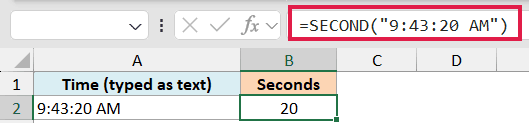
This returns 20.
As long as the text inside the quotes is a valid time that Excel recognizes, SECOND converts it and pulls out the seconds. This works with a plain time like “9:43:20 AM” or a full date and time like “15-Mar-2026 9:43:20 AM”.
Follow along with the example file
SECOND Function Examples.xlsx
Example 4: Get the Seconds From the Current Time
Here’s a quick one for when you want a live seconds reading straight from your computer’s clock.
There’s no dataset here either. I’ll use the NOW function, which returns the current date and time, and wrap SECOND around it.
I want the seconds value of whatever time it is right now.
Here is the formula:
=SECOND(NOW())
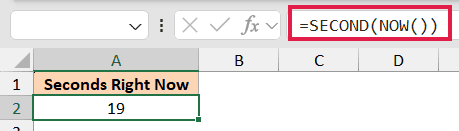
The NOW() function returns the current date and time, and SECOND pulls the seconds out of it. So if it’s 2:30:52 PM right now, this returns 52.
Pro Tip: NOW() is volatile, so its value refreshes every time the sheet recalculates. Press F9 to recalculate and you’ll see the seconds jump to the current reading.
Example 5: Convert a Time to Total Seconds
For a duration stored as an Excel time value, multiplying by 86,400 is the simplest way to get the total seconds.
This also includes whole days, so use it for durations of 24 hours or more.
For durations shorter than 24 hours, SECOND also works in a component formula. You combine it with the HOUR function to handle the hours. The MINUTE function takes care of the minutes, and SECOND adds the leftover seconds on top.
Below I have a set of video clip lengths in column A, each stored as a time. Column D holds total seconds, and column B holds the HOUR, MINUTE and SECOND version for comparison.
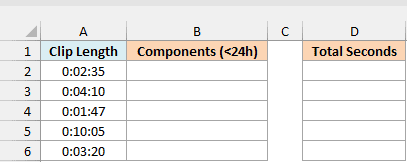
I want to turn each clip length into a single count of seconds.
For the total in D2, use:
=A2:A6*86400
For the comparison in B2, use:
=HOUR(A2:A6)*3600+MINUTE(A2:A6)*60+SECOND(A2:A6)
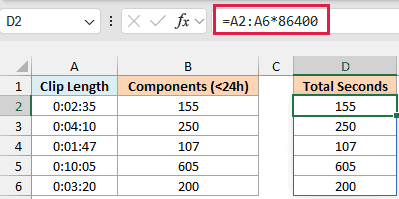
For a 25-hour duration, multiplying by 86,400 returns 90,000 seconds. The component formula returns only 3,600 because HOUR wraps back to 1.
For a clip that runs 0:02:35, both formulas return 155.
Here is how the formula works:
- HOUR pulls out the hours and multiplies them by 3,600, since one hour is 3,600 seconds.
- MINUTE pulls out the minutes and multiplies them by 60, since one minute is 60 seconds.
- SECOND adds the leftover seconds on top.
Add the three parts together and you get the full length in seconds for durations shorter than 24 hours. Because I fed the whole range in, the answers spill down column B automatically.
Tips & Common Mistakes
A few things to keep in mind when you work with the SECOND function:
- SECOND extracts, it doesn’t convert. Feeding it 0:02:00 (two minutes) returns 0, not 120, because the seconds slot of that time is empty. To get a total in seconds, multiply the time value by 86,400, as shown in Example 5.
- The result never goes past 59. Seconds roll back to 0 after 59, just like on a clock, so SECOND can only ever return a number from 0 to 59.
- A value with no time part returns 0. If a cell holds only a date (like 3/15/2026 with no time), SECOND returns 0, since midnight has zero seconds.
- Text times must be valid. SECOND can read a time typed in quotes, but only if Excel recognizes it as a time. A string like “9:43” works, while “nine forty” gives a #VALUE! error.
- The spilling form needs a modern version. Passing a whole range to SECOND spills in Excel 365, Excel 2024, Excel 2021, and Excel for the web. On older versions, write the formula for one cell and copy it down.
Wrapping Up
The SECOND function is a small, focused tool that does one job well: it pulls the seconds out of any time value. On its own it’s handy for reading timestamps, and paired with HOUR and MINUTE it lets you break times apart or count durations shorter than 24 hours in total seconds.
Once you’ve seen the examples above, you’ll know exactly when to reach for it.
I hope you found this tutorial helpful. Let me know in the comments if you have any questions.
Other Excel Articles You May Also Like:
