

The CONVERT function changes a number from one unit of measurement to another, like pounds to kilograms, miles to kilometers, or Fahrenheit to Celsius. You tell it the number, the unit it’s in, and the unit you want, and Excel does the math.
So you don’t have to look up conversion factors or remember that a mile is 1.609344 kilometers. The only thing you need to get right is the unit code, because CONVERT is very picky about how units are written.
In this tutorial, I’ll show you how CONVERT works with weights, distances, temperatures, file sizes, time, and a few combined units like miles per gallon.
Follow along with the example file
CONVERT Function Examples.xlsx
CONVERT Function Syntax
Here is the syntax of the CONVERT function:
=CONVERT(number, from_unit, to_unit)
- number – The value you want to convert. This can be a number or a cell reference.
- from_unit – The unit the number is currently in, written as a text code such as “lbm” (pound) or “mi” (mile).
- to_unit – The unit you want the result in, such as “kg” (kilogram) or “km” (kilometer).
When you type a unit code directly in the formula, it goes inside double quotes. The codes are also case-sensitive, so “km” works but “KM” returns the #N/A error.
Both units have to measure the same kind of thing. You can convert miles to kilometers or pounds to kilograms, but asking for pounds to miles returns #N/A, because a weight can’t become a distance.
Here are the unit codes you’ll probably use the most:
| Unit Group | Common Codes |
|---|---|
| Weight | g (gram), kg (kilogram), lbm (pound), ozm (ounce), stone, ton |
| Distance | m (meter), km, cm, mm, mi (mile), yd (yard), ft (foot), in (inch) |
| Temperature | C (Celsius), F (Fahrenheit), K (Kelvin) |
| Volume | l (liter), ml, gal (gallon), qt (quart), pt (pint), cup, oz (fluid ounce), tbs, tsp |
| Time | yr (year), day, hr (hour), mn (minute), sec (second) |
| Area | m2 (square meter), ft2 (square foot), in2 (square inch), ha (hectare) |
| Speed | mph, km/h, m/s, kn (knot) |
| Information | bit, byte, kbyte, Mbyte, Gbyte |
Microsoft’s CONVERT function page has the complete list, including pressure, energy, power, and force units.
The CONVERT function works in Excel 2007 and later, including Microsoft 365, Excel 2024, 2021, 2019, 2016, Excel for Mac, and Excel for the web.
When to Use the CONVERT Function
Use this function when you need to:
- Switch measurements between metric and US units (pounds and kilograms, miles and kilometers)
- Convert temperatures between Fahrenheit, Celsius, and Kelvin
- Turn file sizes from MB into GB, or the other way around
- Change Excel time values into decimal hours or minutes
- Build a small conversion table where the units come from cells
Let me show you a few practical examples of how to use CONVERT in Excel.
Example 1: Convert Pounds to Kilograms
Let’s start with a simple example.
Below is a list of items with their shipping weight in pounds, and I want the weight in kilograms in column C.
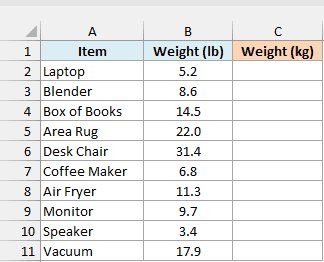
Here is the formula:
=CONVERT(B2,"lbm","kg")
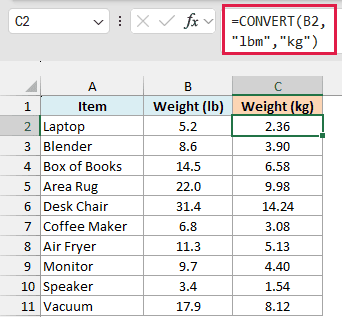
I entered this formula in cell C2 and copied it down to C11. B2 is the weight to convert, “lbm” says it’s in pounds, and “kg” says I want kilograms, which turns the 5.2 lb laptop into 2.36 kg.
I’m keeping this one as a regular formula that you copy down. CONVERT has a quirk when you give it a whole range, and I’ll show you how to handle that in the next example.
Important: The code for pounds is “lbm” (pound mass), and “lb” returns #N/A. Ounces work the same way, since weight ounces are “ozm” and “oz” means fluid ounces, which is a volume.
Example 2: Convert a Whole Column of Units at Once
Now let’s convert an entire column with just one formula.
Below is a road trip plan with the distance of each leg in miles, and I want the distance in kilometers in column C.
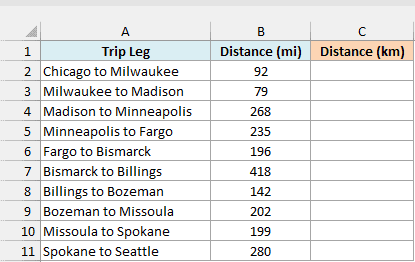
Here is the formula:
=CONVERT(+B2:B11,"mi","km")
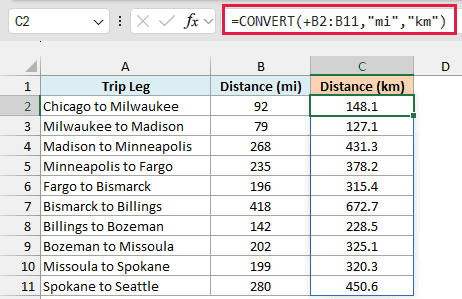
This one formula in C2 converts all ten distances and spills the results down column C. So the 92-mile leg from Chicago to Milwaukee becomes 148.1 km, and you never have to copy anything down.
The plus sign in front of B2:B11 is what makes this work. Without it, =CONVERT(B2:B11,"mi","km") returns a #VALUE! error instead of spilling.
CONVERT is an older function, and it won’t accept a range reference where it expects a single number. The plus sign turns the range into a list of values, which CONVERT is happy to work with.
The same fix works for an Excel Table column (+Table1[Miles]) or a spilled range (+A2#), which also return #VALUE! on their own.
You could also use --B2:B11 or B2:B11*1. I like the plus sign because it’s the shortest, and it also works on text, which you’ll need in Example 7.
Spilling a range like this needs Excel 365 or Excel 2021 and later. If you are using Excel 2019 or earlier, enter the below formula in cell C2 and then copy it down the range:
=CONVERT(B2,"mi","km")
The same single-cell approach works for the other spilling formulas in this article too (Example 6 needs one extra step, which I’ll show there).
Example 3: Convert Fahrenheit to Celsius
Temperature is one of the most common things people convert, and CONVERT handles it without you remembering any formula.
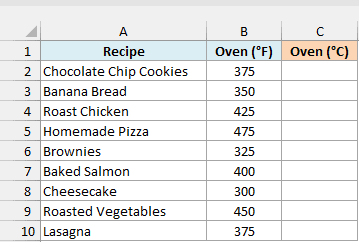
Below is a list of recipes with their oven temperature in Fahrenheit, and I want the temperature in Celsius, rounded to a whole degree, in column C.
Here is the formula:
=ROUND(CONVERT(+B2:B10,"F","C"),0)
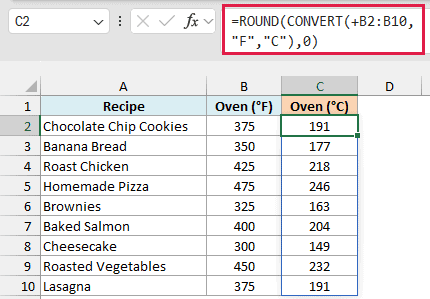
CONVERT turns each Fahrenheit value into Celsius, and the ROUND function rounds the results to zero decimal places. The cookies’ 375°F comes back as 190.56°C, and ROUND makes that 191°C.
Temperature isn’t a simple multiplication like most conversions, because you first subtract 32 and then multiply by 5/9. CONVERT takes care of that for you.
I used ROUND here because nobody sets an oven to 190.56 degrees. If you only want fewer decimals on screen, you can format the cells instead, but ROUND changes the actual value, so any formula that uses these results gets the rounded numbers too.
Example 4: Convert MB to GB Using Unit Prefixes
You’ve actually been using unit prefixes already. The k in “km” and “kg” is the kilo prefix, which means a thousand meters or a thousand grams.
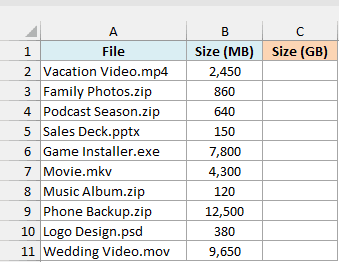
Below is a list of files with their size in megabytes, and I want the size in gigabytes in column C.
Here is the formula:
=CONVERT(+B2:B11,"Mbyte","Gbyte")
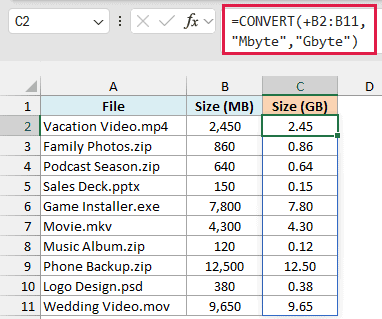
Here, “byte” is the base unit, and the M (mega) and G (giga) in front of it are metric prefixes. That’s how the 2,450 MB vacation video becomes 2.45 GB.
These prefixes work with any metric unit, like the c (centi) in “cm” or the m (milli) in “ml”.
That’s also why case matters so much in unit codes. A lowercase m means milli, and an uppercase M means mega.
Important: CONVERT doesn’t understand the usual short forms “MB” and “GB”, and both return #N/A. Always write the full prefix and unit, as “Mbyte” and “Gbyte”.
Metric prefixes count in thousands, so 1 Gbyte is 1,000 Mbyte. If you want the sizes in 1,024s (the way Windows File Explorer reports them), use the binary prefixes instead, as “Mibyte” and “Gibyte”.
Example 5: Convert Time to Decimal Hours
CONVERT also works with Excel time values, which comes in handy for timesheets.
Below is a timesheet with the time each employee worked in hours and minutes, and I want the same time as decimal hours (for payroll) in column C.
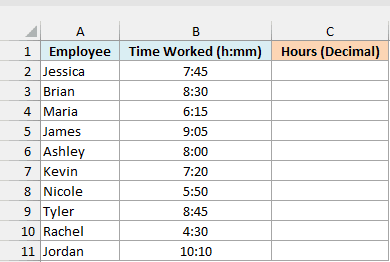
Here is the formula:
=CONVERT(+B2:B11,"day","hr")
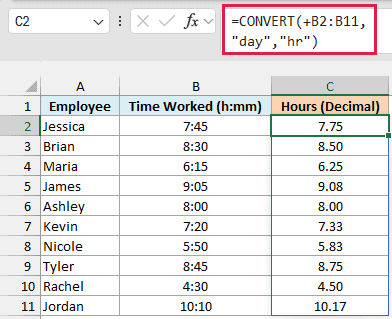
This works because Excel stores every time value as a fraction of a day. Jessica’s 7:45 is really 0.3229 of a day, and converting that from “day” to “hr” gives 7.75 hours.
Multiplying the times by 24 (=B2:B11*24) gives the same result. I prefer CONVERT here because it says exactly what it’s doing, and you can get minutes instead just by changing “hr” to “mn”.
Example 6: Convert to Several Units at Once
Sometimes you want the same value shown in more than one unit.
Below is a list of track events with their distance in meters, and I want each distance in yards and in miles in columns C and D.
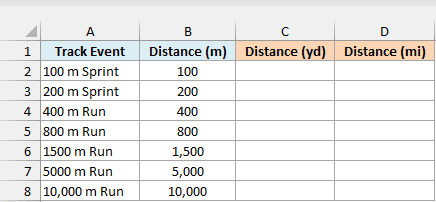
Here is the formula:
=CONVERT(+B2:B8,"m",{"yd","mi"})
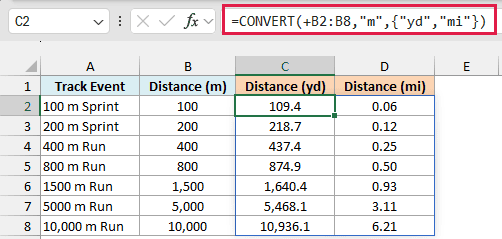
Instead of a single to_unit, I’ve given CONVERT a list of two units inside curly braces. Excel converts every distance into both units, so the one formula fills a grid of seven rows and two columns.
The 1500 m run, for example, comes out as 1,640.4 yards and 0.93 miles. To add another unit, just add its code inside the braces, like {“yd”,”mi”,”ft”}.
If you are using Excel 2019 or earlier, the formula can’t spill into a grid, so you need one formula per unit. Enter the below formula in cell C2 and then copy it down the range:
=CONVERT(B2,"m","yd")
Then enter this formula in cell D2 and copy it down as well:
=CONVERT(B2,"m","mi")
Example 7: Build a Unit Conversion Table with Codes in Cells
Typing unit codes into the formula is fine, but you can also keep them in cells. Then one formula can handle a different conversion on every row.
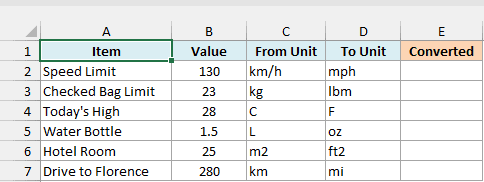
Below is a travel cheat sheet for a trip to Italy, where each row has a value, its current unit, and the unit to convert it to, and I want the converted value in column E.
Here is the formula:
=CONVERT(+B2:B7,+C2:C7,+D2:D7)
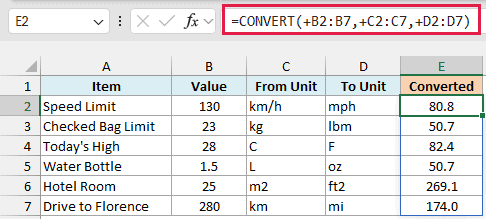
Each row now uses its own pair of units from columns C and D. The 130 km/h speed limit becomes 80.8 mph, the 23 kg bag limit becomes 50.7 lb, and the 28°C high becomes 82.4°F.
The water bottle row uses “L” for liters (CONVERT accepts both “l” and “L”), and “oz” there means fluid ounces, which is the right unit for a drink.
Unit codes in cells don’t need quotes, but they need the same plus sign as the numbers, since a range of codes also returns #VALUE! on its own.
Codes in cells follow the same rules as codes in a formula, so capitalization still matters. The one thing that’s easy to miss in a cell is an extra space after the code, which also gives you #N/A on that row.
Pro Tip: If other people type units into your sheet, wrap the formula in IFERROR, like =IFERROR(CONVERT(+B2:B7,+C2:C7,+D2:D7),"Check units"). A wrong code then shows a clear message instead of #N/A.
Example 8: Convert Compound Units Like MPG to Km per Liter
Let’s step it up with something CONVERT can’t do in one go.
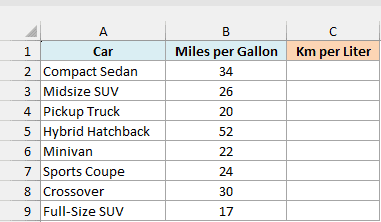
Below is a list of cars with their fuel economy in miles per gallon, and I want it in kilometers per liter in column C.
Here is the formula:
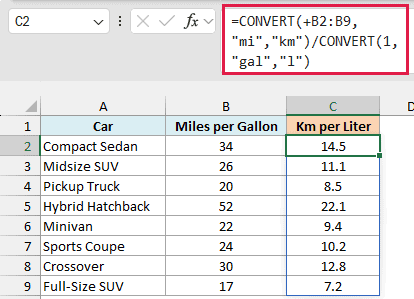
=CONVERT(+B2:B9,"mi","km")/CONVERT(1,"gal","l")
There’s no unit code for miles per gallon, because CONVERT converts one unit at a time. So I split it into its two parts.
The first CONVERT turns the miles into kilometers. Then I divide by CONVERT(1,"gal","l"), which is the number of liters in one gallon (about 3.785).
That turns the compact sedan’s 34 mpg into 14.5 km per liter.
You can use the same idea for any “per” unit, like turning a gas price per gallon into a price per liter.
So that’s how the CONVERT function works in Excel. Once you know the right unit codes (and the plus sign trick for ranges), you won’t need to look up a conversion factor again.
I hope you found this Excel tutorial useful.
Other Excel Articles You May Also Like:
