

The SORTBY function in Excel sorts a range or table based on the values in another range. That other range doesn’t have to be part of the result, and it can even be a list you calculate right inside the formula.
That’s what lets SORTBY handle sorts that a plain A-to-Z can’t, like days of the week, last names, or a random shuffle. In this article, I’ll show you how it works with seven practical examples.
Follow along with the example file
SORTBY Function Examples.xlsx
SORTBY Function Syntax
Here is the syntax of the SORTBY function:
=SORTBY(array,by_array1,[sort_order1],[by_array2,sort_order2],...)
- array – the range or array you want to sort. This is what the formula returns.
- by_array1 – the range or array to sort by. It needs one value for each row of array.
- sort_order1 – optional. Use 1 for ascending order (the default) or -1 for descending order. Any other value, including 0, gives a #VALUE! error.
- [by_array2, sort_order2], … – optional extra sort levels. Each one decides the order of rows that are still tied after the levels before it.
Each by_array must be a single column (or a single row) and the same size as array. If the sizes don’t match, or you use a range that’s two columns wide, SORTBY returns a #VALUE! error.
When by_array is a single row, SORTBY sorts the columns of array from left to right instead of the rows. So it also works on data that runs across the sheet.
The SORTBY function works in Excel 365, Excel 2024, Excel 2021 (Windows and Mac), and Excel for the web. Excel 2019 and earlier don’t have it and show a #NAME? error.
When to Use the SORTBY Function
Use this function when you need to:
- Sort a table by one of its columns and have the result update when the data changes
- Return only some columns while sorting by a column you leave out
- Sort by two or more columns, each in its own direction
- Put items in a custom order, like days of the week, instead of A to Z
- Sort by something you calculate, such as a last name pulled out of a full name
- Shuffle a list into a random order
Let me show you a few practical examples of how to use the SORTBY function.
Example 1: Sort a Table by One Column
Let’s start with a simple example, sorting a whole table by one of its columns.
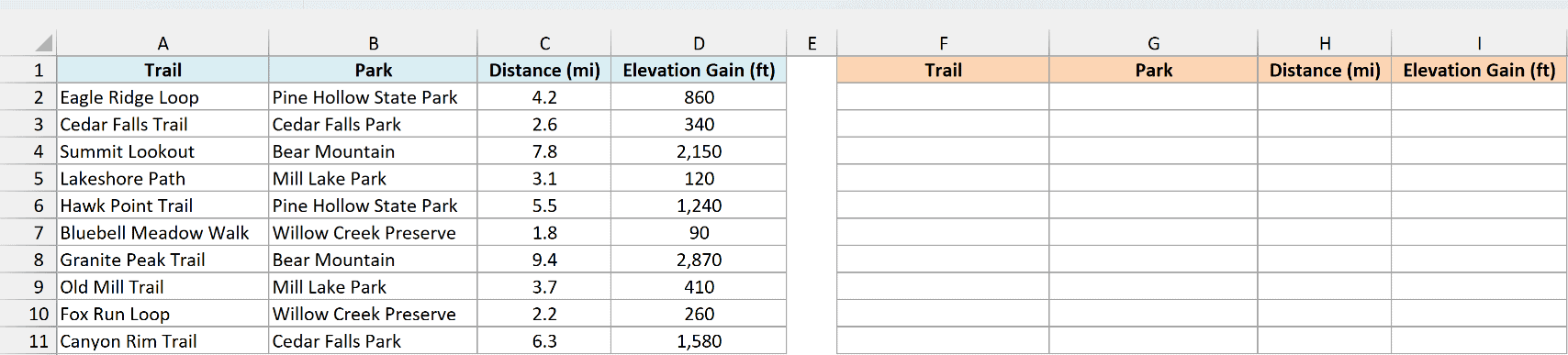
Below is a list of hiking trails with their park, distance, and elevation gain, and I want the full table sorted from the shortest trail to the longest, starting in column F.
Here is the formula:
=SORTBY(A2:D11,C2:C11)
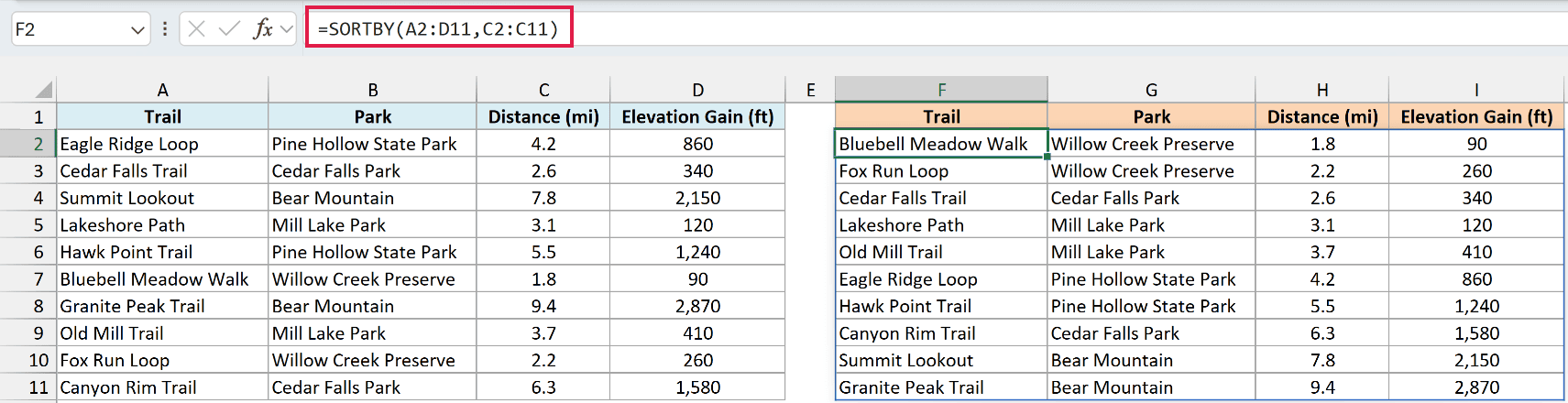
In the above formula, A2:D11 is the table I want back, and C2:C11 (the Distance column) is what SORTBY sorts it by. I didn’t give a sort_order, so it uses ascending order, and Bluebell Meadow Walk at 1.8 miles comes out on top.
You enter the formula once in F2, and the sorted table spills into F2:I11 on its own. Whole rows move together, so every trail keeps its own park, distance, and elevation gain.
The original table in A2:D11 doesn’t change. The sorted copy also updates by itself when you change a distance in column C.
Important: Keep the cells where the result spills empty. If anything is already in that range, SORTBY returns a #SPILL! error instead of the sorted table.
Example 2: Sort by a Column That’s Not in the Result
Now let’s look at the thing SORTBY makes really easy.
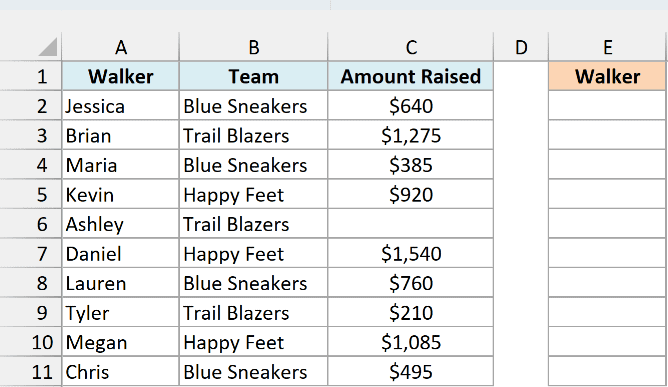
Below is a list of walkers from a charity walk with their team and the amount each one raised, and I want just the walker names, from the top fundraiser down, in column E.
Here is the formula:
=SORTBY(A2:A11,C2:C11,-1)
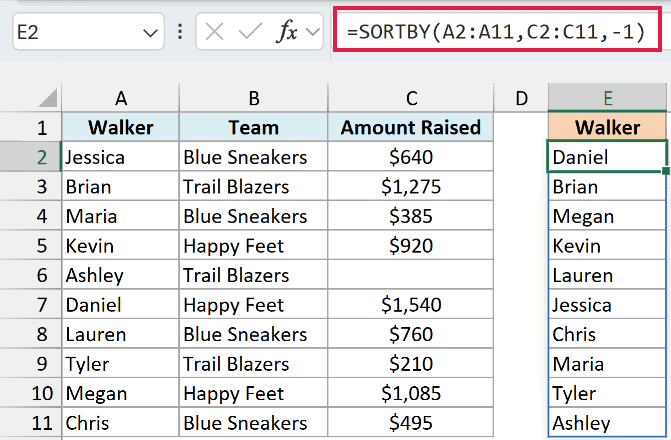
Here, the array is only the names in A2:A11, but the sorting happens on the amounts in C2:C11. The -1 sorts those amounts from largest to smallest, so Daniel, who raised $1,540, comes first.
You get a clean list of names in the right order, without having to return the amounts and then hide or delete them.
Ashley hasn’t reported her amount yet, so her cell in column C is blank. SORTBY always puts blank cells at the bottom, whether you sort in ascending or descending order, which is why she’s last.
Example 3: SORTBY with Multiple Columns
Let’s step it up with a sort that uses two columns.
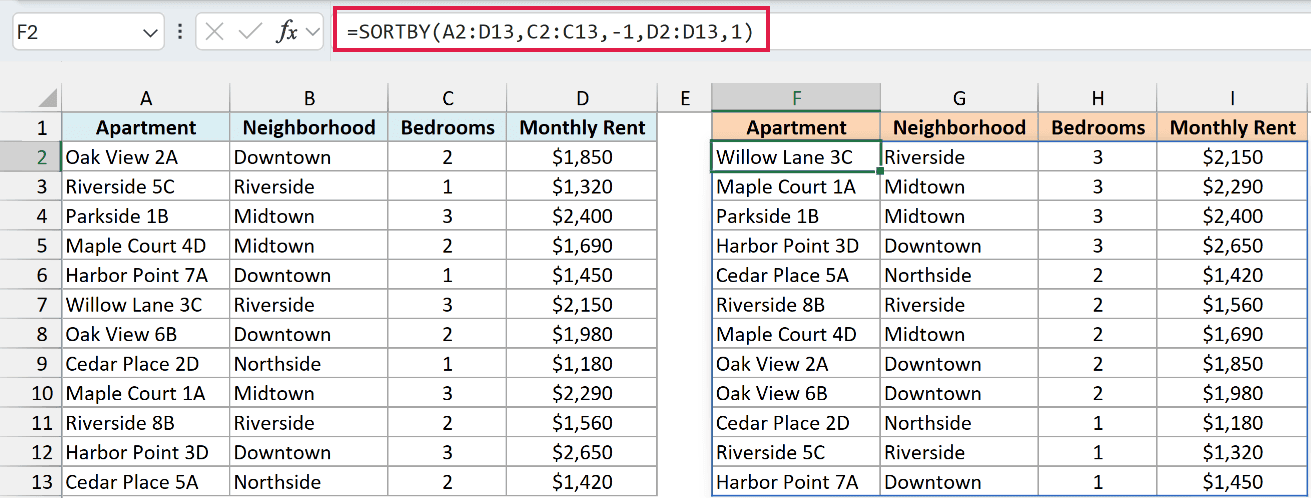
Below is a list of apartments for rent with the neighborhood, number of bedrooms, and monthly rent, and I want the biggest apartments first and, within each size, the cheapest first, starting in column F.
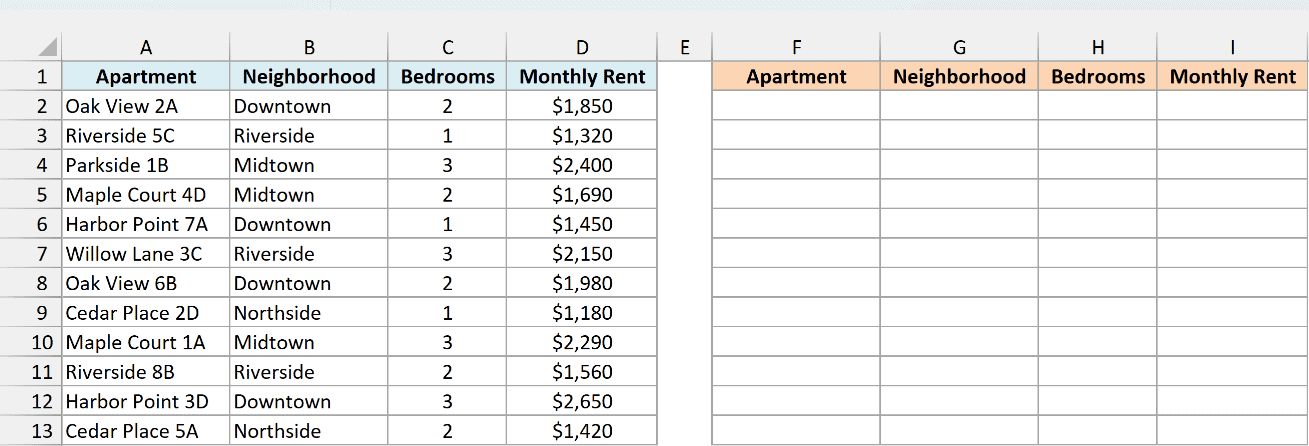
Here is the formula:
=SORTBY(A2:D13,C2:C13,-1,D2:D13,1)
How this formula works:
- C2:C13,-1 is the first sort level. It sorts by the number of bedrooms from largest to smallest, so all the 3-bedroom apartments come out on top.
- D2:D13,1 is the second sort level. It only matters for apartments with the same number of bedrooms, and it sorts those by rent from lowest to highest.
So among the 3-bedroom apartments, Willow Lane 3C at $2,150 comes first and Harbor Point 3D at $2,650 comes last. Then the 2-bedroom group starts again from the cheapest one.
You can keep adding a by_array and sort_order pair for each extra level you need. And if two rows are still tied after every level, SORTBY keeps them in the same order they had in the original data.
Example 4: Sort Names by Last Name
This next one comes up with almost any list of full names.
Below is a wedding guest list with each guest’s full name and table number, and I want the list sorted alphabetically by last name, starting in column D.
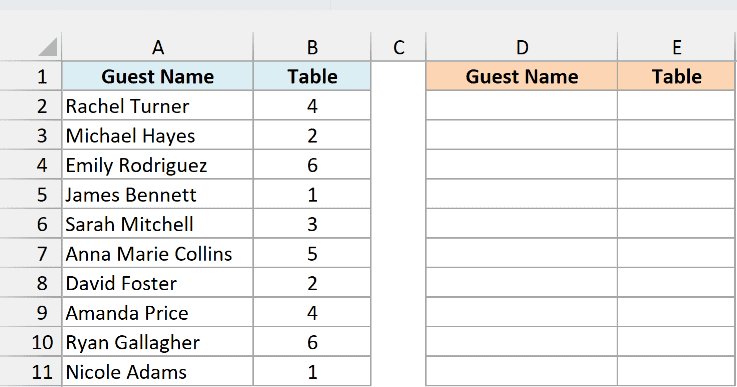
Here is the formula:
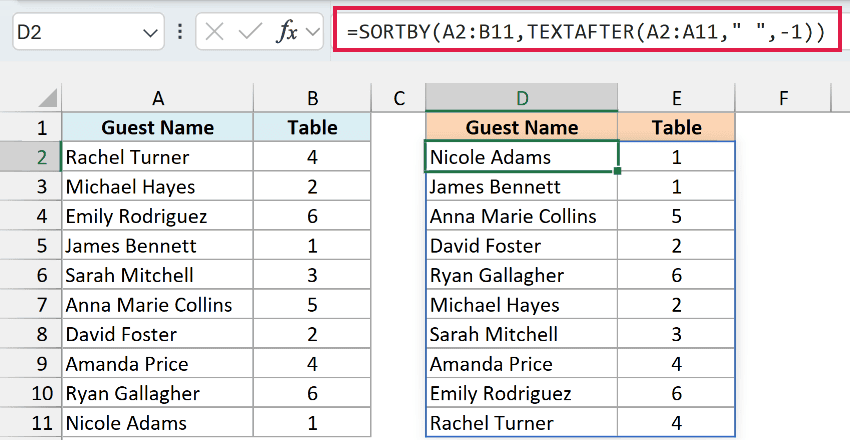
=SORTBY(A2:B11,TEXTAFTER(A2:A11," ",-1))
How this formula works:
- TEXTAFTER(A2:A11,” “,-1) pulls out the text after the last space in each name, which is the last name (Turner, Hayes, Rodriguez, and so on).
- SORTBY then sorts the guest list by those last names from A to Z, while the result still shows the full names and table numbers.
The -1 in TEXTAFTER tells it to use the last space instead of the first one. Without it, Anna Marie Collins would be sorted as “Marie Collins” and end up between Hayes and Mitchell.
The last names only exist inside the formula, so you don’t need a helper column for them.
The TEXTAFTER function needs Excel 365 or Excel 2024. If you are using Excel 2021, which has SORTBY but not TEXTAFTER, enter the below formula in cell D2 instead:
=SORTBY(A2:B11,TRIM(RIGHT(SUBSTITUTE(A2:A11," ",REPT(" ",100)),100)))
This version swaps every space for 100 spaces, takes the last 100 characters, and trims away the extra spaces, which leaves just the last name to sort by. It returns the same sorted list you see in the image above.
For a few non-formula ways to do this, see my guide on how to sort by last name in Excel.
Example 5: Sort in a Custom Order (Days of the Week)
Day names are a good example of an order that A to Z can’t handle, because a plain sort puts Friday first and Wednesday last. The trick is to sort by each day’s position in the week instead.
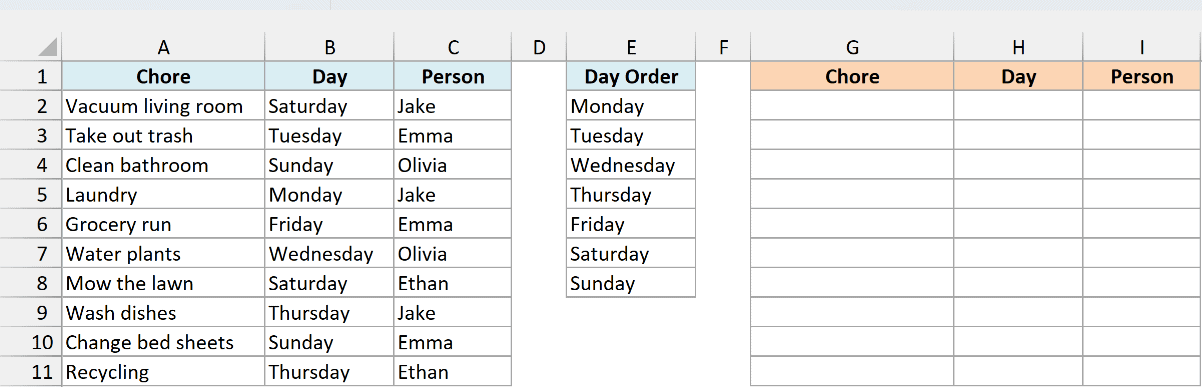
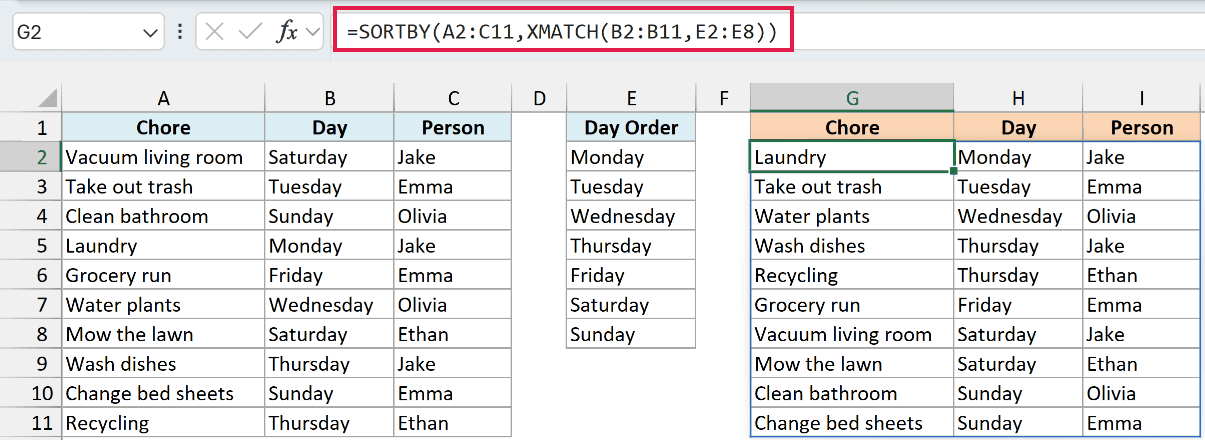
Below is a weekly chore list with the chore, the day it’s done, and who does it, plus a Day Order list in column E, and I want the chores arranged from Monday to Sunday, starting in column G.
Here is the formula:
=SORTBY(A2:C11,XMATCH(B2:B11,E2:E8))
How this formula works:
- XMATCH(B2:B11,E2:E8) finds the position of each chore’s day in the Day Order list. Monday gives 1, Tuesday gives 2, and so on up to Sunday at 7.
- SORTBY sorts the chores by those position numbers, smallest first, which puts them in order from Monday to Sunday.
The same idea works for any custom order, like shirt sizes (S, M, L, XL), as long as you type the order you want into a list.
Important: Every value in column B must match an entry in the Day Order list exactly. A day typed as “Tue”, or with an extra space, gives no error and just drops to the bottom of the result, which is easy to miss.
Example 6: Sort Text Months in Date Order
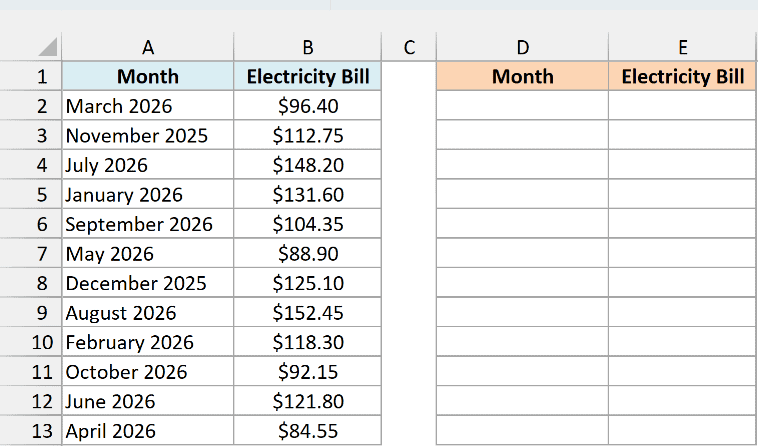
Months typed as text have the same A-to-Z problem, because an A-to-Z sort reads them letter by letter and puts April 2026, August 2026, and December 2025 first. Sorting by real dates fixes that.
Below is a list of monthly electricity bills where each month is text like “March 2026”, and I want the bills in calendar order, starting in column D.
Here is the formula:
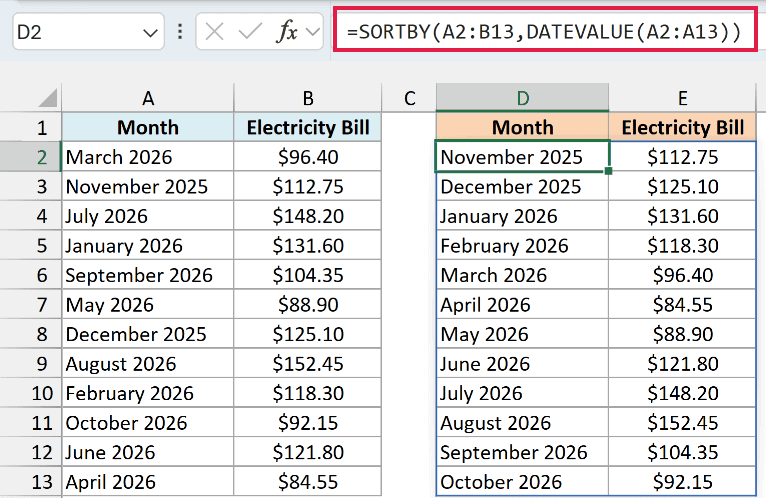
=SORTBY(A2:B13,DATEVALUE(A2:A13))
How this formula works:
- DATEVALUE(A2:A13) turns each text month into a real date. For example, “March 2026” becomes March 1, 2026, which Excel stores as a number.
- SORTBY sorts the table by those dates, so November 2025 comes first and October 2026 comes last, while the result still shows the months as you typed them.
DATEVALUE reads month names based on your computer’s language and regional settings. If you get a #VALUE! error, check that the month names in your data match the language your Excel uses.
If your months are already real dates that are only formatted to show the month and year, you don’t need DATEVALUE at all. For more on that, see how to sort dates by month in Excel.
Example 7: Shuffle a List with SORTBY and RANDARRAY
Let’s end with a fun one.
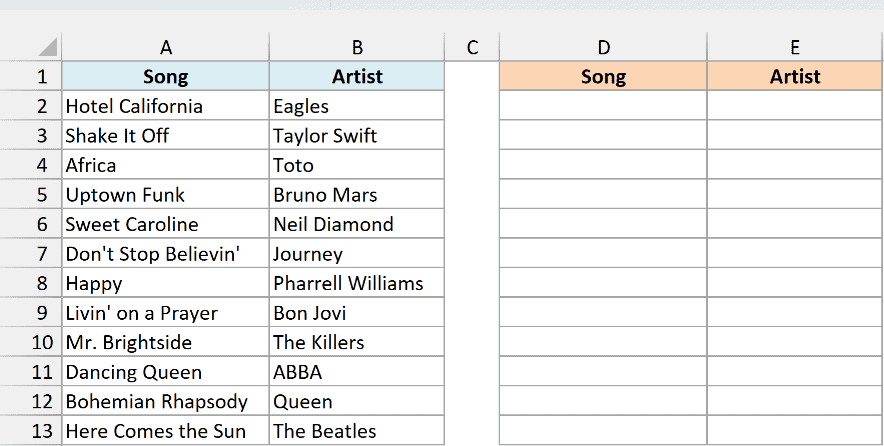
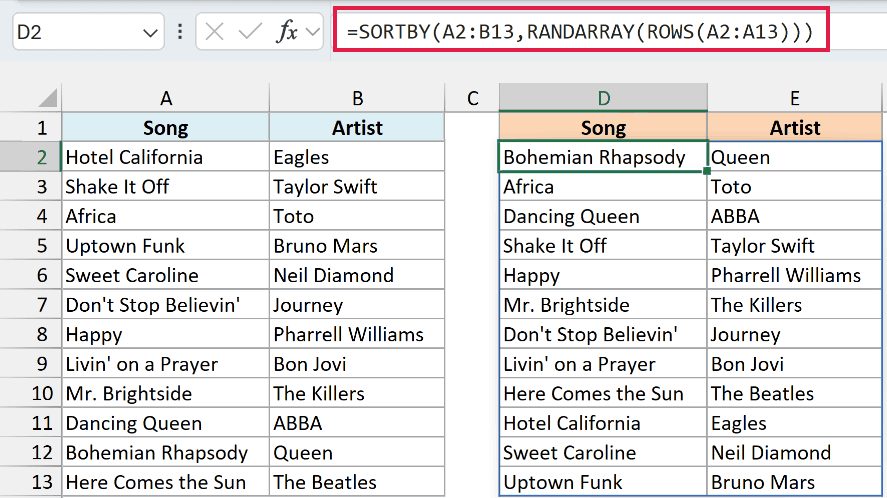
Below is a road trip playlist with the song and the artist, and I want the songs shuffled into a random order, starting in column D.
Here is the formula:
=SORTBY(A2:B13,RANDARRAY(ROWS(A2:A13)))
How this formula works:
- ROWS(A2:A13) counts the rows in the playlist, which is 12.
- RANDARRAY(12) creates 12 random decimal numbers between 0 and 1, one for each song.
- SORTBY sorts the playlist by those random numbers, and that shuffles it.
Your result will be in a different order than the one in the image above. Each song still shows up exactly once, next to its own artist.
Important: RANDARRAY makes new random numbers every time the sheet recalculates (that’s what makes the shuffle work), so the playlist reshuffles whenever you edit anything. To keep an order, copy the result and paste it back as values.
If you want a few other ways to do this, see how to shuffle a list in Excel.
SORTBY vs SORT: What’s the Difference?
Both functions return a sorted copy of your data, and for a simple sort they give the same result. For example, =SORT(A2:D11,3) returns the same trail table as Example 1.
The difference is in how you tell them what to sort by. The SORT function uses a column number inside the range it returns, while SORTBY uses an actual range or array.
That has two practical effects:
- SORTBY can sort by a column that isn’t in the result, or by values you calculate inside the formula, as in Examples 2, 4, 5, 6, and 7.
- SORTBY keeps sorting by the right column if someone inserts a new column into the table, because its by_array range moves with the data. A column number in SORT stays the same and can end up pointing at the wrong column.
So use SORT when you just want a table sorted by one of its own columns, and SORTBY when the sort key lives somewhere else or needs to be calculated.
So these are seven ways to use the SORTBY function in Excel. I hope you found this Excel tutorial useful.
Other Excel Articles You May Also Like:
- How to do a Multiple Level Data Sorting in Excel
- How to SORT in Excel (by Rows, Columns, Colors, Dates, & Numbers)
- How to Sort by Length in Excel
- RANK.EQ in Excel
- 20 Advanced Excel Functions and Formulas (for Excel Pros)
- Automatically Sort Data in Alphabetical Order using Formula
- How to Flip Data in Excel (Reverse Order of Rows or Columns)
- Lookup the Second, the Third, or the Nth Value in Excel
