

You can use the RANK.EQ function in Excel to find where a number stands in a list. By default, the biggest number gets rank 1, the next one gets rank 2, and so on, but you can flip it so the smallest number comes first.
It’s useful for leaderboards, contest results, and any list where you need to know who came first, second, or last. In this article, I’ll show you seven examples, from basic ranking to handling ties, breaking ties, and ranking across two separate lists.
Follow along with the example file
RANK.EQ Function Examples.xlsx
RANK.EQ Function Syntax
Here is the syntax of the RANK.EQ function:
=RANK.EQ(number,ref,[order])
- number – the number you want to rank.
- ref – the list of numbers you’re ranking against.
- [order] – optional. Leave it out (or use 0) to rank from highest to lowest. Use 1 (or any number other than 0) to rank from lowest to highest.
RANK.EQ only looks at the numbers in ref. Text, blank cells, and TRUE or FALSE values inside the range are ignored, so they don’t take up a rank.
The number you’re ranking has to be one of the numbers in ref. If it isn’t (say, because of a typo or because ref points at the wrong list), RANK.EQ returns #N/A.
Also, ref must be an actual cell range. If you give it an array, such as {10,20,30} or the result of FILTER or SORT typed inside the formula, Excel shows a “There’s a problem with this formula” message.
So if your list comes from one of those functions, put that formula in its own cell and point ref at the cells it fills. For example, if the formula is in E2, use E2# (the # means the whole range the formula’s results spill into).
The RANK.EQ function works in Excel 2010 and later, including Excel 365, 2024, 2021, 2019, and 2016, and the Mac versions of Excel 365, 2024, and 2021.
When to Use the RANK.EQ Function
Use this function when you need to:
- Find the position of a value in a list, like the top fundraiser or the lowest golf score
- Build a leaderboard that updates when the numbers change
- Pick out the top few entries, like the top three in a contest
- Rank values that sit in two separate lists against each other
Let me show you a few practical examples of how to use the RANK.EQ function.
Example 1: Rank Numbers From Highest to Lowest With RANK.EQ
Let’s start with the most common use, where the biggest number gets rank 1.
Below I have a school fundraiser list with the amount each student raised, and I want to rank the students so the top fundraiser gets rank 1 in column C.
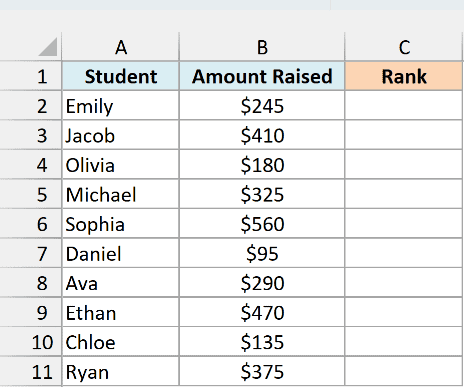
Here is the formula:
=RANK.EQ(B2:B11,B2:B11)
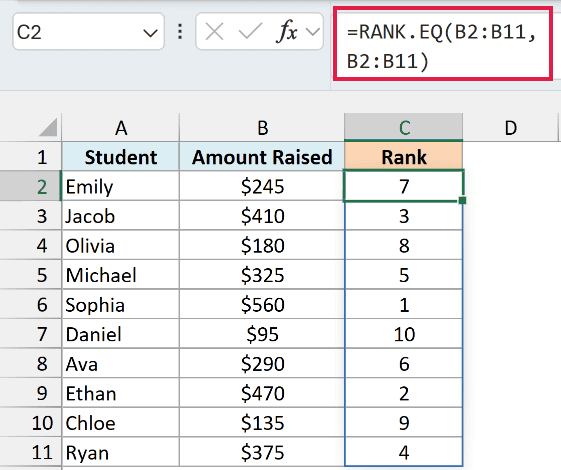
In the above formula, the first B2:B11 is the list of numbers I want ranks for, and the second B2:B11 is the list they’re ranked against. Since I left out the order argument, the highest amount gets rank 1.
Sophia raised the most ($560), so she gets rank 1, and Daniel raised the least ($95), so he gets rank 10. The data doesn’t need to be sorted first.
Because the first argument is a whole range, this one formula in C2 returns all ten ranks, and they spill down to C11. If any cell in C3:C11 already has something in it, you get a #SPILL! error, so keep that range empty.
Spilling needs Excel 365 or Excel 2021 and later. If you are using Excel 2019 or earlier, enter the below formula in cell C2 and then copy it down the range:
=RANK.EQ(B2,$B$2:$B$11)
The dollar signs in $B$2:$B$11 make it an absolute reference, so the list stays the same when you copy the formula down. B2 has no dollar signs, so it changes to B3, B4, and so on in each row.
The rest of the examples in this article use the same spilling style. In older versions, point the first argument at a single cell, lock the ranges with dollar signs, and copy the formula down the same way.
Example 2: Rank From Lowest to Highest (Ascending Order)
Sometimes a smaller number is the better one, like a golf score, where the player with the fewest strokes wins.
Below I have the scores from a round of golf, and I want to rank the golfers so the lowest score gets rank 1 in column C.
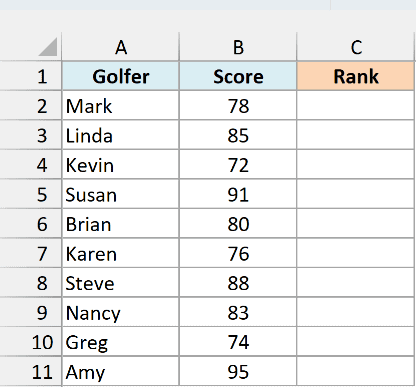
Here is the formula:
=RANK.EQ(B2:B11,B2:B11,1)
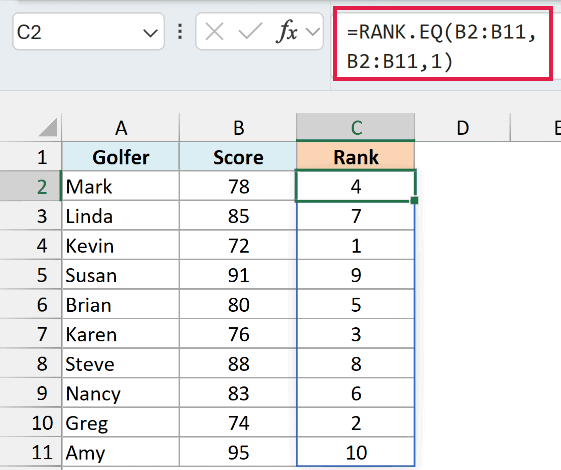
The 1 at the end is the order argument, and it tells RANK.EQ to rank in ascending order. Kevin has the lowest score (72), so he gets rank 1, and Amy has the highest score (95), so she gets rank 10.
If you forget the 1 here, the result flips, and the golfer with the worst score ends up at rank 1. So whenever a lower number should win (times, costs, golf scores), add the 1.
Example 3: How RANK.EQ Handles Ties
When two or more numbers in the list are the same, RANK.EQ gives them all the same rank. Let me show you what that looks like and what happens to the ranks right after a tie.
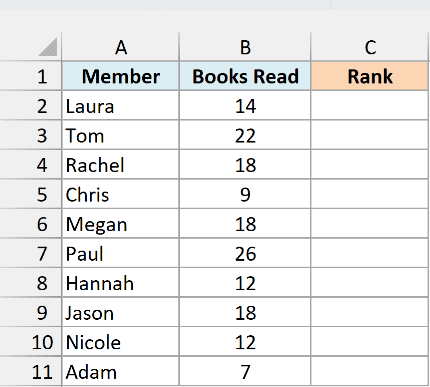
Below I have a book club list with the number of books each member read this year, and I want to rank the members by books read in column C. Some members read the same number of books.
Here is the formula:
=RANK.EQ(B2:B11,B2:B11)
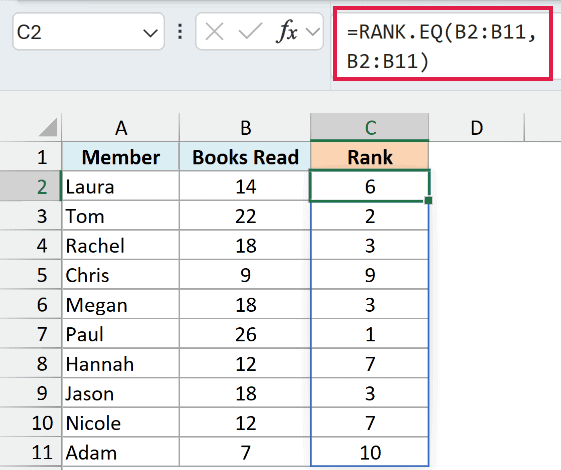
Rachel, Megan, and Jason each read 18 books, so they’d fill positions 3, 4, and 5, and RANK.EQ gives all three the top one, rank 3. It then skips ranks 4 and 5, which is why Laura, with 14 books, gets rank 6.
The same thing happens with Hannah and Nicole. Both read 12 books and get rank 7, rank 8 is skipped, and Chris gets rank 9.
Pro Tip: If you’d rather give tied numbers the average of the positions they share, use the RANK.AVG function instead. With the same data, the three members who read 18 books would each get rank 4, the average of 3, 4, and 5.
Example 4: Break Ties Using a Second Column
Shared ranks are fine for a book club, but sometimes you need every entry to have its own rank. A common way to do this is to use a second column as the tie-breaker, with the help of the COUNTIFS function.
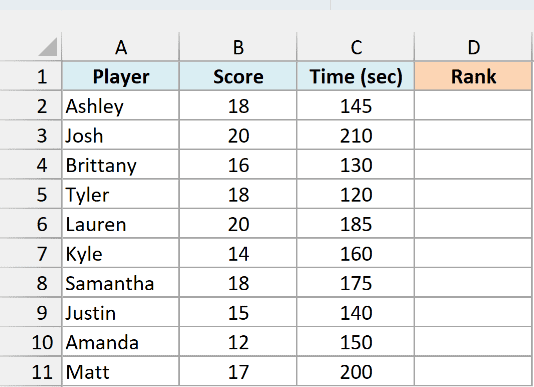
Below I have online quiz results with each player’s score and time in seconds, and I want a rank for each player in column D. When two players have the same score, the one who finished faster should rank higher.
Here is the formula:
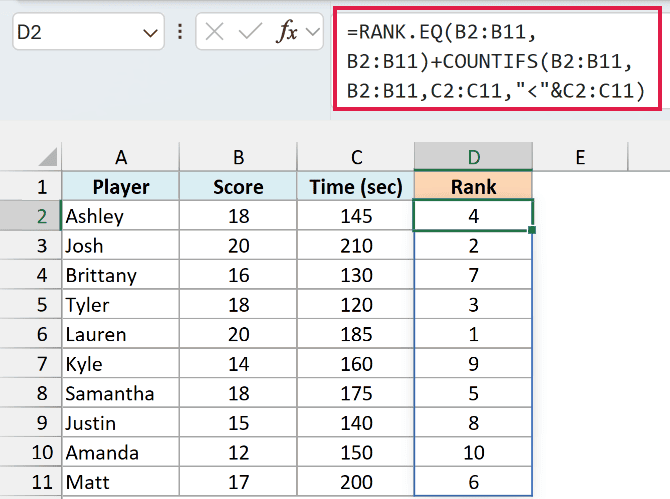
=RANK.EQ(B2:B11,B2:B11)+COUNTIFS(B2:B11,B2:B11,C2:C11,"<"&C2:C11)
How this formula works:
- RANK.EQ(B2:B11,B2:B11) gives the normal rank based on score. Josh and Lauren both scored 20, so both get rank 1 here.
- COUNTIFS(B2:B11,B2:B11,C2:C11,”<“&C2:C11) counts, for each player, how many players have the same score but a faster time.
- Adding the two pushes each tied player down by the number of faster players with the same score.
Lauren finished in 185 seconds, and nobody with 20 points was faster, so she stays at rank 1. Josh took 210 seconds, so one player (Lauren) beats him on time, and he moves to rank 2.
Tyler, Ashley, and Samantha all scored 18, so they share rank 3 before the tie-break. Their times sort them into ranks 3, 4, and 5.
If two players have the same score and the same time, they’ll still share a rank, because there’s nothing left to separate them.
Example 5: Rank Across Two Separate Lists
RANK.EQ can also rank against more than one range at once. This is handy when your data sits in two separate tables but you want one overall ranking.
Below I have the scores of two bowling teams in two separate lists, and I want to rank every bowler against all twelve scores, with the overall rank in column C for Team A and column G for Team B.
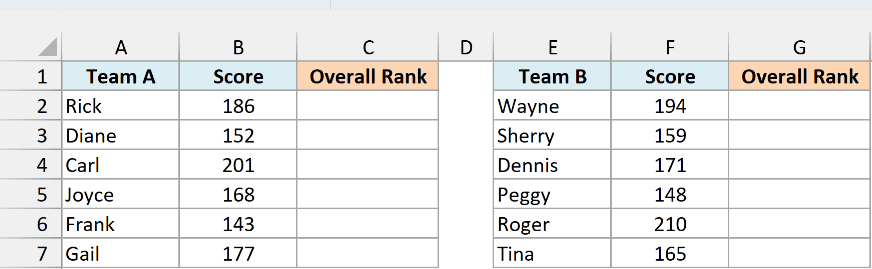
Here is the formula for Team A:
=RANK.EQ(B2:B7,(B2:B7,F2:F7))
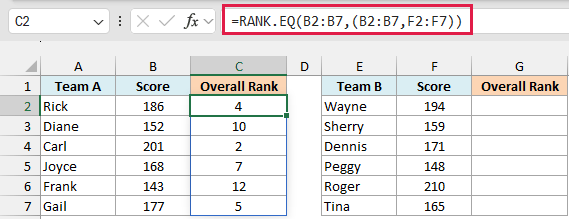
The second argument, (B2:B7,F2:F7), puts both score columns into one reference. The extra pair of parentheses matters here, because without it Excel would read F2:F7 as the third argument.
Carl’s 201 is the second-best score across both teams, so he gets rank 2. Frank’s 143 is the lowest of all twelve scores, so he gets rank 12.
Here is the formula for Team B:
=RANK.EQ(F2:F7,(B2:B7,F2:F7))
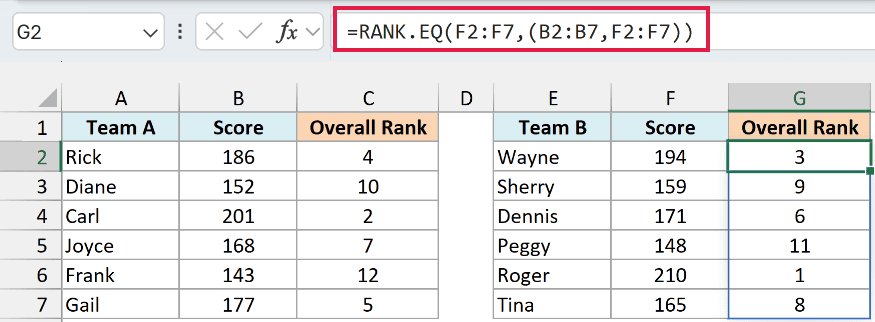
This one ranks the Team B scores in F2:F7 against the same combined reference. Roger’s 210 is the best score overall, so he gets rank 1, and between the two columns, every rank from 1 to 12 shows up once.
Both ranges need to be on the same worksheet. If you combine a range from this sheet with one from another sheet, RANK.EQ returns #VALUE!.
Example 6: Rank a List That Has Text Entries
Real lists often have a few entries that aren’t numbers, like a note saying someone had the day off. Let me show you how to rank the numbers and skip those rows.
Below I have the number of deliveries each driver made today, where two drivers show “Day Off” instead of a number, and I want to rank the drivers who worked in column C.
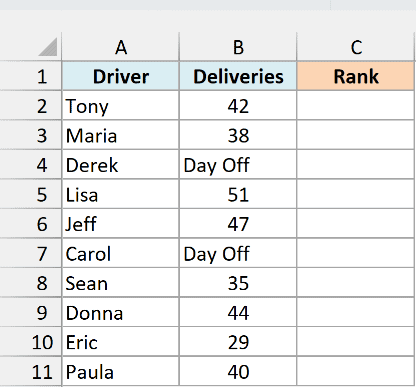
If you use the plain formula, =RANK.EQ(B2:B11,B2:B11), the Day Off rows return a #VALUE! error. Text in the second argument is fine because RANK.EQ skips it, but “Day Off” in the first argument can’t be ranked, so those rows error out.
Here is the formula that ranks only the numbers:
=IF(ISNUMBER(B2:B11),RANK.EQ(B2:B11,B2:B11),"")
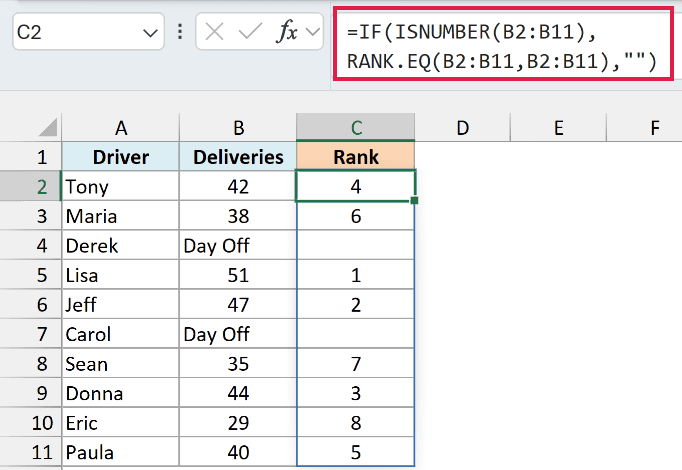
In the above formula, the ISNUMBER function checks each cell in B2:B11. When the cell has a number, IF returns its rank, and when it has text, IF returns an empty string, so Derek’s and Carol’s rows stay blank.
Lisa made the most deliveries (51), so she’s rank 1, and the eight drivers who worked get ranks 1 to 8. The Day Off rows don’t take up a rank.
You could also wrap RANK.EQ in IFERROR to hide the errors. But IFERROR hides every error, so a real mistake, like a #N/A from ranking against the wrong range, would also turn into a blank cell.
Example 7: Award Medals to the Top Three
You can also use the rank inside another formula. In this example, RANK.EQ works out each position, and XLOOKUP turns the top three positions into medals.
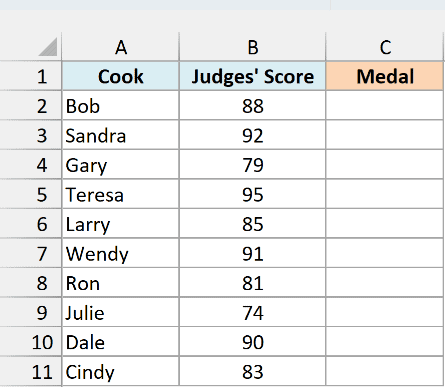
Below I have the judges’ scores from a chili cook-off, and I want to show Gold, Silver, or Bronze for the top three cooks in column C, with the rest left blank.
Here is the formula:
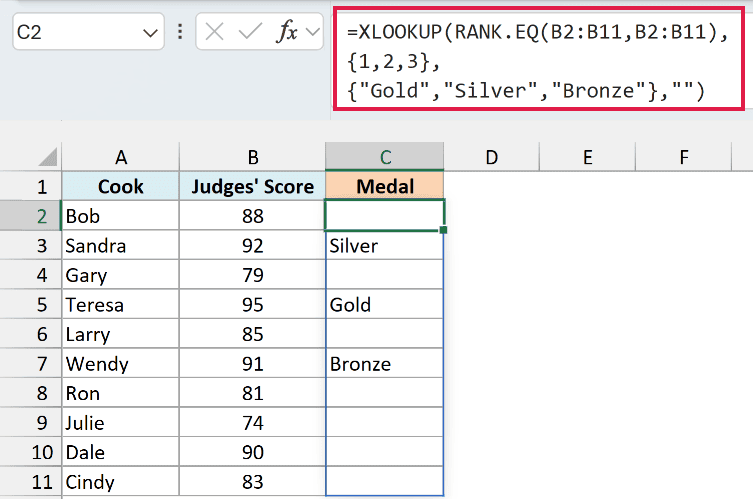
=XLOOKUP(RANK.EQ(B2:B11,B2:B11),{1,2,3},{"Gold","Silver","Bronze"},"")
How this formula works:
- RANK.EQ(B2:B11,B2:B11) gives each cook’s rank, with the highest score at rank 1.
- XLOOKUP looks up each rank in {1,2,3} and returns the matching medal from {“Gold”,”Silver”,”Bronze”}.
- The last argument (“”) is what XLOOKUP returns when it can’t find the rank, so every cook ranked 4 or lower gets a blank cell.
Teresa has the top score (95) and gets Gold, Sandra (92) gets Silver, and Wendy (91) gets Bronze.
Because RANK.EQ gives tied scores the same rank, ties carry over to the medals. If two cooks tie for second place, both get Silver, and nobody gets Bronze, since rank 3 is skipped.
XLOOKUP needs Excel 365 or Excel 2021 and later. If you are using Excel 2019 or earlier, enter the below formula in cell C2 and then copy it down the range:
=IF(RANK.EQ(B2,$B$2:$B$11)<=3,CHOOSE(RANK.EQ(B2,$B$2:$B$11),"Gold","Silver","Bronze"),"")
Here, IF checks whether the rank is 3 or better, and CHOOSE picks the first, second, or third medal from the list based on that rank.
That’s how you can use the RANK.EQ function in Excel. Leave out the order argument to rank from highest to lowest, add 1 to flip it, and combine it with COUNTIFS or XLOOKUP when you need tie-breakers or labels.
If you’ve used the older RANK function, RANK.EQ gives the same results, and RANK is still there so older workbooks keep working.
I hope you found this tutorial useful.
Other Excel Articles You May Also Like:
