

The RANK.AVG function in Excel tells you where a number stands in a list, like 1st, 2nd, or 3rd. What makes it different is how it handles ties, because tied numbers each get the average of the positions they share.
So if two numbers are tied for 3rd and 4th place, RANK.AVG gives both of them 3.5. RANK.EQ (and the older RANK function) would give both of them 3 instead.
That averaging makes RANK.AVG the fair choice when you add ranks together or use them in statistics. In this article, I’ll show you how it works, how it compares with RANK.EQ, and a few practical places where the averaged rank really helps.
Follow along with the example file
RANK.AVG Function Examples.xlsx
RANK.AVG Function Syntax
Here is the syntax of the RANK.AVG function:
=RANK.AVG(number,ref,[order])
- number – the number you want to rank.
- ref – the list of numbers you’re ranking against.
- [order] – optional. Leave it out (or use 0) to rank from highest to lowest. Use 1 (or any number other than 0) to rank from lowest to highest.
You can also give number a whole range, such as B2:B11. In Excel 365 and Excel 2021 or later, RANK.AVG then returns one rank for every value in that range, all from a single formula.
RANK.AVG only looks at the numbers in ref. Text, blank cells, and TRUE or FALSE values inside the range are ignored, so they don’t take up a position.
The number you’re ranking has to be one of the numbers in ref. If it isn’t (for example, a typo, or ref pointing at the wrong list), you get the #N/A error.
Also, ref must be an actual cell range. If you type an array or a calculation in its place, such as {10,20,30} or ROUND(B2:B11,1), Excel won’t accept the formula.
The RANK.AVG function works in Excel 2010 and later, including Excel 365, 2024, 2021, 2019, and 2016, Excel for the web, and the Mac versions of Excel 365, 2024, and 2021.
When to Use the RANK.AVG Function
Use this function when you need to:
- Rank a list where some values are tied, and you want each tied value to get the same, fair share of the positions
- Add up ranks from different lists, like scoring a contest across several events
- Calculate a rank correlation (Spearman’s), which needs tied values to get their average rank
Let me show you a few practical examples of how to use the RANK.AVG function.
Example 1: Rank Numbers From Highest to Lowest With RANK.AVG
Let’s start with a simple example, where the biggest number gets rank 1.
Below I have a coffee shop’s sales for the week, with the number of cups sold for each drink, and I want to rank the drinks so the best seller gets rank 1 in column C.
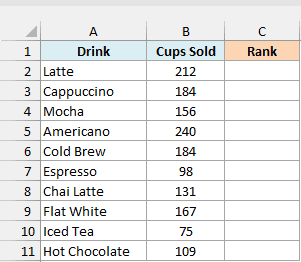
Here is the formula:
=RANK.AVG(B2:B11,B2:B11)
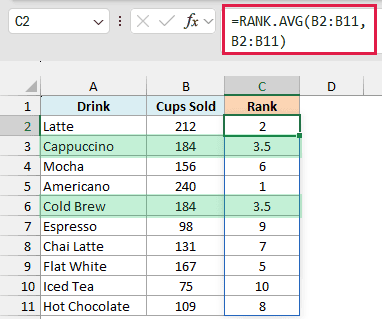
In the above formula, the first B2:B11 is the list of numbers I want ranks for, and the second B2:B11 is the list they’re ranked against. Since I left out the order argument, the highest number gets rank 1.
Because the first argument is a whole range, this one formula in C2 returns all ten ranks, and they spill down to C11 (in Excel 365 or Excel 2021 and later).
Americano sold the most cups (240), so it gets rank 1, and Latte (212) gets rank 2. Cappuccino and Cold Brew both sold 184 cups, so they share positions 3 and 4, and RANK.AVG gives each of them 3.5, the average of 3 and 4.
The next drink, Flat White, gets rank 5. Nothing is skipped, because the tied drinks already used up positions 3 and 4 between them.
Important: If the rank column is formatted to show no decimal places, 3.5 shows up as 4, and it looks like rank 3 is missing. Keep the column in the General format (or show one decimal place) so you can see the .5 ranks.
If you are using Excel 2019 or earlier, enter the below formula in cell C2 and then copy it down the range:
=RANK.AVG(B2,$B$2:$B$11)
The dollar signs in $B$2:$B$11 make it an absolute reference, which keeps the list fixed when you copy the formula down, while B2 changes to B3, B4, and so on.
You can use the same per-row approach for Examples 2 and 3. Examples 4 and 5 rank a spilled range (such as C2#), which needs Excel 365 or Excel 2021 and later, and Example 6 has its own note for older versions.
Example 2: Rank From Lowest to Highest (Ascending Order)
Sometimes a smaller number is the better one, like the price of a hotel room.
Below I have a list of hotels with the price per night, and I want to rank them so the cheapest hotel gets rank 1 in column C.
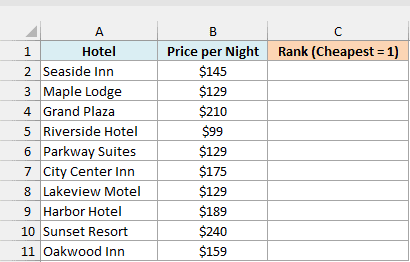
Here is the formula:
=RANK.AVG(B2:B11,B2:B11,1)
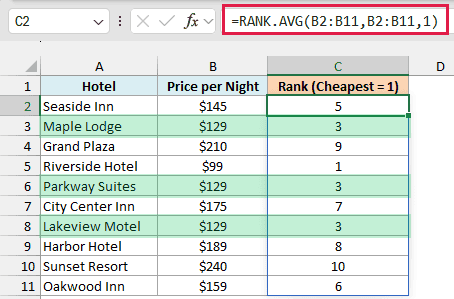
The 1 at the end is the order argument, and it tells RANK.AVG to rank in ascending order. Riverside Hotel is the cheapest at $99, so it gets rank 1, and Sunset Resort is the most expensive at $240, so it gets rank 10.
Now look at the three hotels that cost $129 (Maple Lodge, Parkway Suites, and Lakeview Motel). They take up positions 2, 3, and 4, and the average of those three positions is 3, so each of them gets rank 3.
So a whole-number rank doesn’t always mean there’s no tie. When an odd number of values tie, the average lands on a whole number, and the next hotel (Seaside Inn at $145) picks up at rank 5.
Example 3: RANK.AVG vs RANK.EQ (How Ties Are Ranked)
RANK.AVG and RANK.EQ only give different results when there are ties, so let’s put the two side by side.
Below I have the number of push-ups each gym member did in one minute, and I want to rank the members with RANK.AVG in column C and with RANK.EQ in column D.
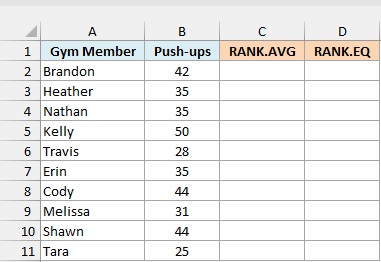
Here is the RANK.AVG formula:
=RANK.AVG(B2:B11,B2:B11)
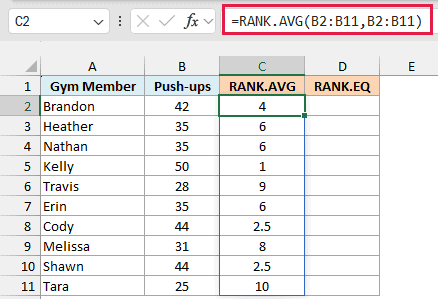
Cody and Shawn both did 44 push-ups, so they share positions 2 and 3 and each gets 2.5. Heather, Nathan, and Erin all did 35, so they share positions 5, 6, and 7 and each gets 6.
And here is the RANK.EQ formula for comparison:
=RANK.EQ(B2:B11,B2:B11)
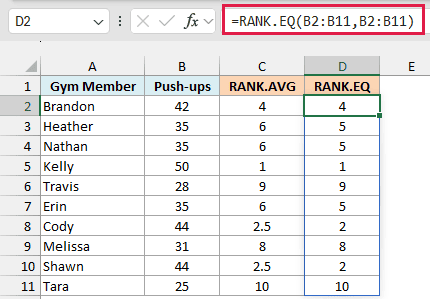
RANK.EQ gives the tied members the best of the positions they share. Cody and Shawn both get 2, and Heather, Nathan, and Erin all get 5, which is why rank 3 and ranks 6 and 7 never show up in column D.
There’s one more difference. The RANK.AVG ranks in column C add up to 55 (the same as adding 1 through 10), while the RANK.EQ ranks in column D add up to only 51, and you’ll see why that matters in Example 5.
So when ranks are just a label (like “joint second place”), RANK.EQ reads more naturally. When you’ll do math with the ranks, RANK.AVG keeps the numbers fair.
If you’d like to see more on the shared-rank style, I’ve covered it in the RANK function tutorial.
Example 4: Rank Rounded Values So Near-Equal Numbers Tie
RANK.AVG only treats two numbers as tied when they’re exactly equal. That can surprise you when the numbers have more decimals than you care about.
Below I have average customer ratings for ten restaurants, and I want to rank them by their rating rounded to one decimal place, with the rounded ratings in column C and the rank in column D.
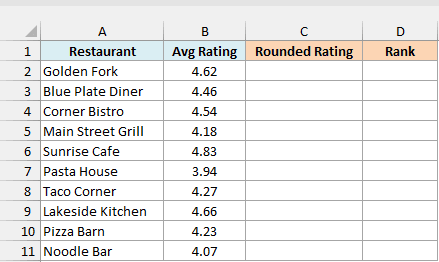
If you rank column B directly, Blue Plate Diner (4.46) and Corner Bistro (4.54) get different ranks, 5 and 4. But on a review site, both would show up as 4.5 stars, so it makes sense to treat them as tied.
Since ref has to be a real cell range (as covered in the syntax section), you can’t round inside it. So the first step is a helper column with the rounded ratings.
Here is the formula for the rounded ratings:
=ROUND(B2:B11,1)
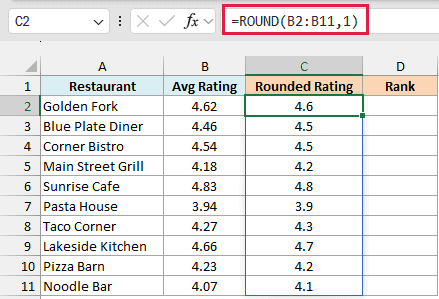
The ROUND function rounds each rating to one decimal place, so 4.46 and 4.54 both become 4.5.
This matters because RANK.AVG compares the stored numbers. If you only formatted column B to show one decimal place, both ratings would look like 4.5, but they still wouldn’t tie.
Here is the formula for the rank:
=RANK.AVG(C2#,C2#)
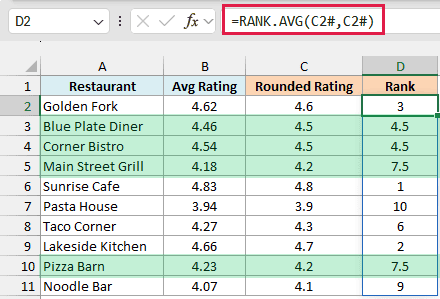
C2# refers to the whole range that the ROUND formula spills into, which is C2:C11 here.
Now Blue Plate Diner and Corner Bistro both get 4.5, the average of positions 4 and 5. The same thing happens with Main Street Grill (4.18) and Pizza Barn (4.23), which both round to 4.2 and share rank 7.5.
Example 5: Combine Ranks From Several Events Into One Standing
Let’s say you’re scoring a contest across several events, and you need one overall standing for everyone.
Below I have the results from a school sports day, with each student’s sprint time, long jump, and sit-ups, and I want a rank total in column E and the final place in column F.
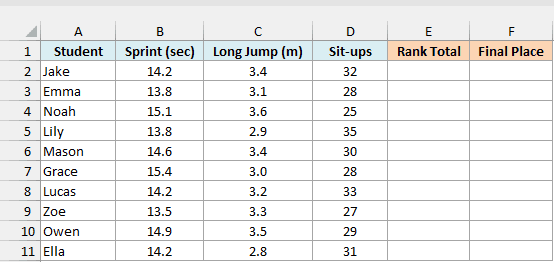
Adding seconds, meters, and sit-ups together wouldn’t mean anything. Instead, I’ll rank every student in each event and add up those three ranks, so the student with the lowest total did best overall.
Here is the formula for the rank total:
=RANK.AVG(B2:B11,B2:B11,1)+RANK.AVG(C2:C11,C2:C11)+RANK.AVG(D2:D11,D2:D11)
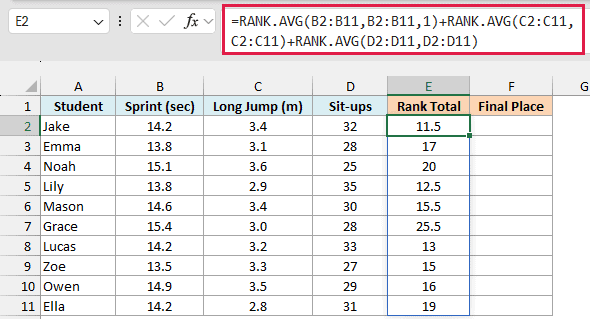
How this formula works:
RANK.AVG(B2:B11,B2:B11,1)ranks the sprint times. It uses 1 for ascending order, because a lower time is better.RANK.AVG(C2:C11,C2:C11)ranks the long jumps, where the longest jump gets rank 1.RANK.AVG(D2:D11,D2:D11)ranks the sit-ups, where the most sit-ups gets rank 1.- The three sets of ranks are added row by row, and the totals spill down from E2.
Take Jake as an example. His sprint time of 14.2 seconds is tied with two other students for positions 4 to 6, so he gets 5.
His long jump of 3.4 meters is tied for positions 3 and 4, so he gets 3.5. His 32 sit-ups are the third best (3), so his total is 5 + 3.5 + 3 = 11.5.
Here is the formula for the final place:
=RANK.AVG(E2#,E2#,1)
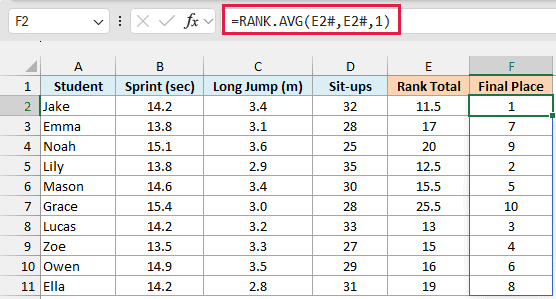
This ranks the totals in E2# in ascending order, so the lowest total gets 1st place. Jake has the lowest total (11.5), so he finishes 1st, and Grace (25.5) finishes 10th.
Because RANK.AVG keeps every event’s ranks adding up to 55, each event counts the same in the total.
If you swap in RANK.EQ, the sprint (which has the most ties) hands out only 51 points and the other two events 54 each, so the sprint counts for less in the total.
The RANK.EQ standings also end up with three ties, with Lily and Lucas sharing 2nd, Mason and Zoe sharing 4th, and Emma and Owen sharing 6th. In this data, the half-point ranks from RANK.AVG separate every student, so each one gets a clear place.
Example 6: Calculate Spearman Rank Correlation
Spearman’s rank correlation tells you how strongly two things move together, based on their ranks instead of their actual values.
Excel doesn’t have a built-in function for it, but you can calculate it with RANK.AVG and the CORREL function, which normally gives you the correlation coefficient between two lists.
Below I have a list of apartments with their distance from downtown and monthly rent, and I want to find out how closely rent goes down as the distance goes up, with the result in cell F2.
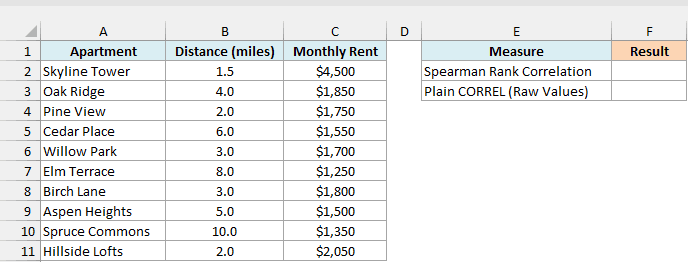
Here is the formula:
=CORREL(RANK.AVG(B2:B11,B2:B11),RANK.AVG(C2:C11,C2:C11))
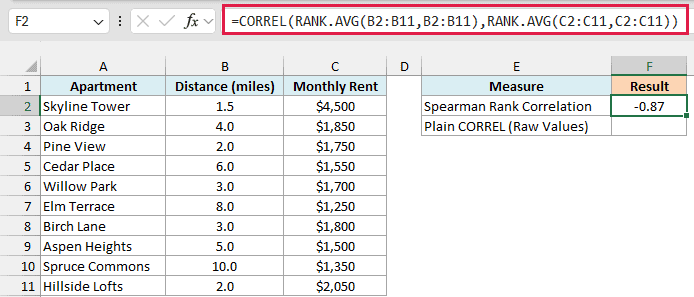
In the above formula, the first RANK.AVG ranks the distances, and the second ranks the rents. CORREL then measures how closely the two sets of ranks move together, and returns -0.87.
A result close to -1 means that as one goes up, the other goes down, so apartments farther from downtown tend to be cheaper. A result close to 1 would mean both go up together, and near 0 means no clear pattern.
If you are using Excel 2019 or earlier, enter the above CORREL formula with Control + Shift + Enter instead of just Enter.
RANK.AVG is the right function here, because Spearman’s correlation is defined with tied values getting their average rank. Two apartments are 2 miles away and two are 3 miles away, and if you use RANK.EQ instead, the result comes out slightly off (-0.88).
Now let’s compare it with a plain correlation on the actual distances and rents. Here is the formula:
=CORREL(B2:B11,C2:C11)
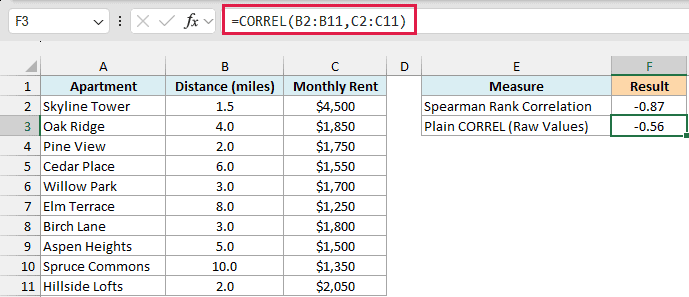
This one returns only -0.56, which makes the pattern look much weaker than it is. The reason is Skyline Tower, a luxury building that rents for $4,500, more than twice the next highest rent.
If you leave Skyline Tower out, the plain correlation for the other nine apartments comes out at -0.87, so that one value is what pulls the result down.
The rank-based version doesn’t care how much more expensive Skyline Tower is. It’s simply the most expensive apartment, so it gets rank 1 for rent whether it costs $2,200 or $4,500, and one extreme value can’t drag the result around.
So these are six examples of using the RANK.AVG function in Excel. It ranks numbers just like RANK.EQ, but tied values get the average of the positions they share, which keeps your ranks fair when you add them up or calculate with them.
Other Excel Articles You May Also Like:
