

The PEARSON function in Excel returns the Pearson correlation coefficient. It’s a number between -1 and 1 that shows how closely two sets of numbers move together in a straight line.
A result near 1 means they rise together, and a result near -1 means one drops as the other goes up. It’s handy whenever you want to know if two things are linked, like calls and sales, or price and demand.
In this article, I’ll show you how to use PEARSON, how to read its result, and how to pair it with other functions for rank correlation and a p-value.
Follow along with the example file
PEARSON Function Examples.xlsx
PEARSON Function Syntax
Here is the syntax of the PEARSON function:
=PEARSON(array1, array2)
- array1 – The first set of values, usually a column of numbers.
- array2 – The second set of values. It needs the same number of cells as array1.
PEARSON pairs the two arrays by position, so the first value in array1 goes with the first value in array2, the second with the second, and so on. Swapping the two arrays doesn’t change the result.
If either value in a pair is a blank cell, text, or TRUE/FALSE, PEARSON skips that whole pair. A zero is a real number, though, so a pair with a 0 stays in the calculation.
The PEARSON function works in all Excel versions, including Microsoft 365, Excel 2024, 2021, 2019, 2016, and Excel for Mac.
When to Use the PEARSON Function
Use this function when you need to:
- Check how strongly two sets of numbers are related
- Find out whether a relationship is positive or negative
- See whether one thing lines up with something that happens later
- Compare which of several factors is most closely linked to a result
- Measure whether two values consistently rise and fall together, even when they don’t follow a straight line
- Check whether a correlation is statistically significant
Let me show you six practical examples of how to use the PEARSON function.
Example 1: Calculate the Pearson Correlation Between Two Columns
Let’s start with a simple example.
Below is a list of sales reps with the calls each one made last month and the deals they closed, and I want to find how closely the two are related in cell F1.
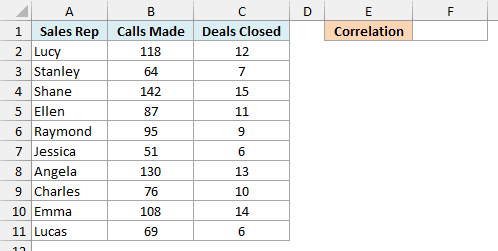
Here is the formula:
=PEARSON(B2:B11,C2:C11)
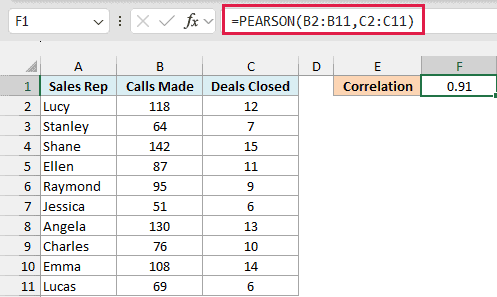
This gives 0.91. PEARSON compares the calls in B2:B11 with the deals in C2:C11, one rep at a time.
A result this close to 1 is a strong positive correlation. Reps who made more calls also tended to close more deals.
The sign tells you the direction, and the size tells you the strength. The closer the result is to 1 or -1, the more closely the two columns follow a straight line, and the closer it is to 0, the weaker the link.
If one of the columns has the same value in every row, PEARSON returns the #DIV/0! error. There’s no variation in that column, so there’s nothing to compare the other column against.
Important: If the two ranges don’t have the same number of cells, PEARSON returns the #N/A error. A common cause is selecting the header in one range but not the other, as in =PEARSON(B1:B11,C2:C11).
Example 2: Find a Negative Pearson Correlation
Now let’s look at a relationship that goes the other way.
Below is a coffee shop menu with the price of each drink and the cups it sells in a week, and I want to see how price relates to sales in cell F1.
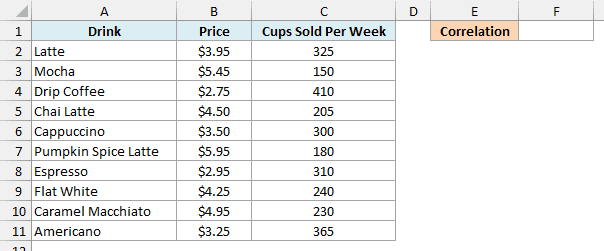
Here is the formula:
=PEARSON(B2:B11,C2:C11)
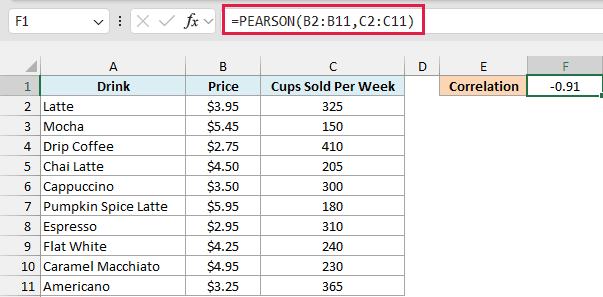
This gives -0.91. The minus sign means the two columns move in opposite directions, so the pricier drinks tend to sell fewer cups.
It’s just as strong as the 0.91 in Example 1, only in the other direction.
Keep in mind that PEARSON only tells you the two columns move together. It doesn’t prove the price is the reason, because things like drink size or how popular a drink is could play a part too.
Example 3: Correlate Ad Spend With Next Month’s Sales
This next one uses the way PEARSON pairs values to answer a slightly different question.
Below is a year of monthly ad spend and sales for an online store, and I want to see whether ad spend is linked to sales in the same month in cell F1.
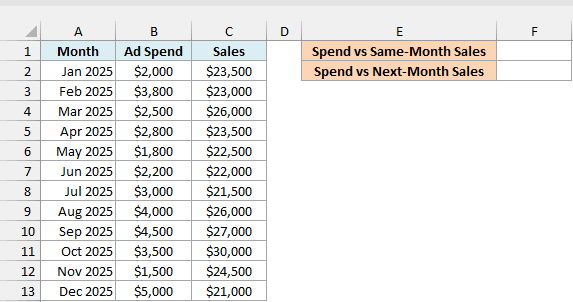
Here is the formula:
=PEARSON(B2:B13,C2:C13)
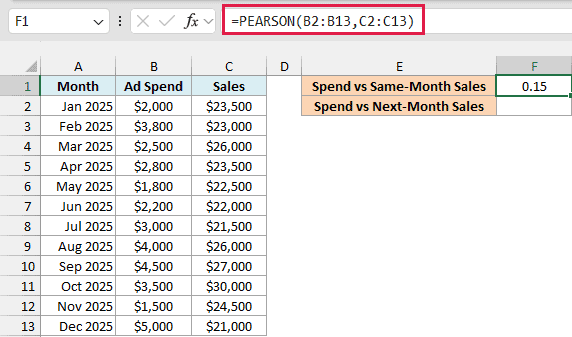
This gives 0.15, which is a weak link. The months with bigger ad budgets didn’t have noticeably higher sales in the same month.
But ads can take a while to bring in sales. So here is the formula in cell F2 that pairs each month’s ad spend with the next month’s sales:
=PEARSON(B2:B12,C3:C13)
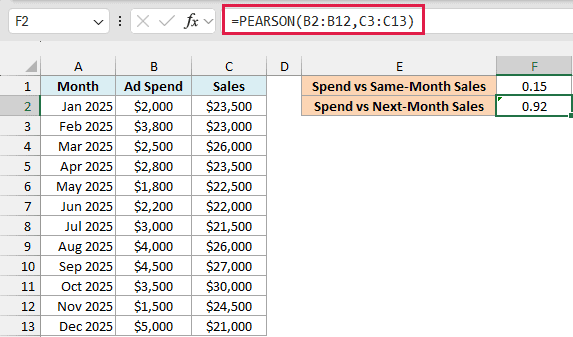
This gives 0.92, a strong positive correlation.
B2:B12 is the ad spend from January to November, and C3:C13 is the sales from February to December. Both ranges have 11 cells, so PEARSON pairs January’s spend with February’s sales, February’s spend with March’s sales, and so on.
So by moving the second range down one row (and keeping both ranges the same size), you change which values get paired. Here it shows that ad spend lines up much better with the following month’s sales.
Pro Tip: To check a two-month delay, move the second range down two rows and drop one more month from the first, as in =PEARSON(B2:B11,C4:C13). Both ranges still have the same number of cells.
Example 4: Check Which Factor Is Most Related to Sales
Let’s step it up with one formula that checks several columns at once.
Below is a list of products from an online store with each product’s price, rating, number of photos, and units sold, and I want the correlation between units sold and each of the other three columns in row 13.
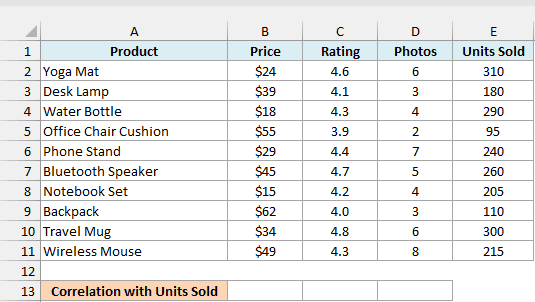
Here is the formula:
=BYCOL(B2:D11,LAMBDA(col,PEARSON(col,E2:E11)))
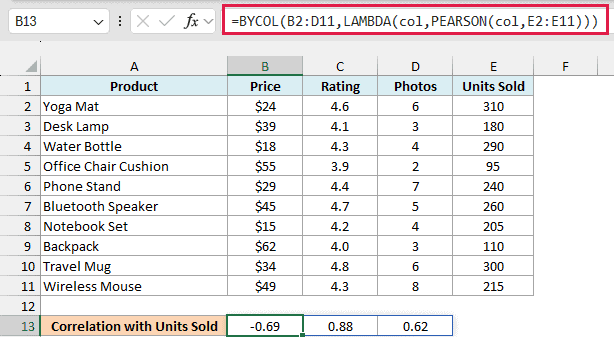
This spills three results into B13:D13. It gives -0.69 for price, 0.88 for rating, and 0.62 for photos.
How this formula works:
- BYCOL(B2:D11,…) goes through the Price, Rating, and Photos columns one at a time.
- LAMBDA(col,…) gives the current column the name col.
- PEARSON(col,E2:E11) finds the correlation between that column and the units sold in E2:E11. Each result lands right under its own column.
So rating has the strongest link with units sold here (0.88), followed by price (-0.69) and then photos (0.62). Price is a negative link, which means the cheaper products tended to sell more.
The BYCOL and LAMBDA functions are available in Excel 365 and Excel 2024 (on both Windows and Mac).
If you are using Excel 2021 or earlier, enter the below formula in cell B13 and then copy it across to D13:
=PEARSON(B2:B11,$E$2:$E$11)
The dollar signs keep the units sold range fixed, so only the first range moves to the Rating and Photos columns as you copy the formula across.
Example 5: Calculate Spearman Rank Correlation Using PEARSON
Here’s a case where PEARSON on its own can undersell a relationship.
Below is a list of runners with the miles each one runs in a week and their 5K time, and I want to find how closely the two are related in cell F1.
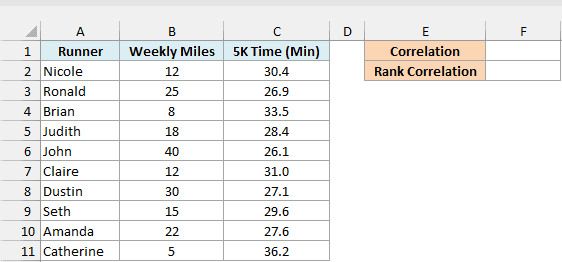
Here is the formula:
=PEARSON(B2:B11,C2:C11)
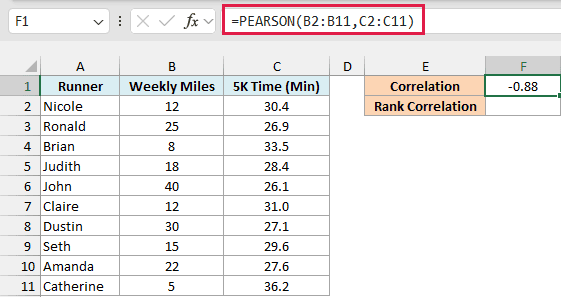
This gives -0.88, a strong negative correlation. Runners who put in more miles tend to have faster (lower) 5K times.
But the data has a curve to it. Times drop quickly for the first few extra miles and then level off.
PEARSON only measures how well the points fit a straight line, so the curve makes the result weaker (closer to 0) than the relationship really is.
A scatter plot of the two columns makes a curve like this easy to spot.
When what you really want to know is whether one value goes down as the other goes up, you can use a rank correlation (also called Spearman’s correlation).
Excel doesn’t have a separate function for it, but you can get it by using PEARSON on the ranks instead of the values.
Ranks keep only the order of the values, not the gaps between them. So a relationship that keeps going the same way turns into an almost straight line of ranks, even when the raw values curve.
Here is the formula in cell F2:
=PEARSON(RANK.AVG(B2:B11,B2:B11),RANK.AVG(C2:C11,C2:C11))
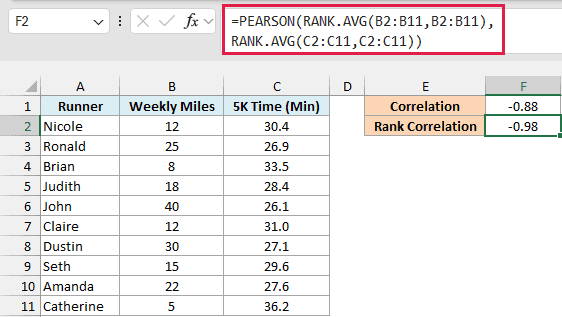
This gives -0.98, which tells you the runners are almost perfectly ordered. Almost every runner with more weekly miles has a faster time than the runners with fewer miles.
How this formula works:
- RANK.AVG(B2:B11,B2:B11) ranks every runner’s weekly miles, so John with 40 miles gets rank 1 and Catherine with 5 miles gets rank 10.
- RANK.AVG(C2:C11,C2:C11) ranks the 5K times the same way, so Catherine’s 36.2 minutes (the slowest time) gets rank 1.
- PEARSON then finds the correlation between these two lists of ranks instead of the original values.
Nicole and Claire both run 12 miles, so the RANK.AVG function gives each of them 7.5, the average of ranks 7 and 8. The RANK.EQ function would give both of them 7 and skip rank 8, which nudges the result slightly (-0.9823 instead of -0.9848).
Averaging tied ranks is the standard way rank correlation handles ties, which is why I’m using the RANK.AVG function here.
In Excel 2019 or earlier, this formula needs to be entered with Control + Shift + Enter instead of just Enter, because the RANK.AVG function is working on a whole range at once.
Example 6: Find the P-Value for a Pearson Correlation
Finally, let’s check whether a correlation is strong enough to trust.
Below is a small survey of 12 people with their daily screen time and hours of sleep, and I want the correlation in cell F1 and its p-value in cell F2.
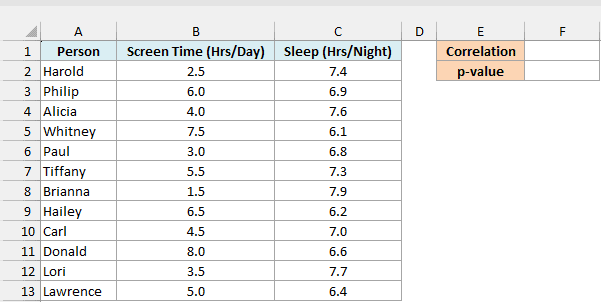
Here is the formula for the correlation:
=PEARSON(B2:B13,C2:C13)
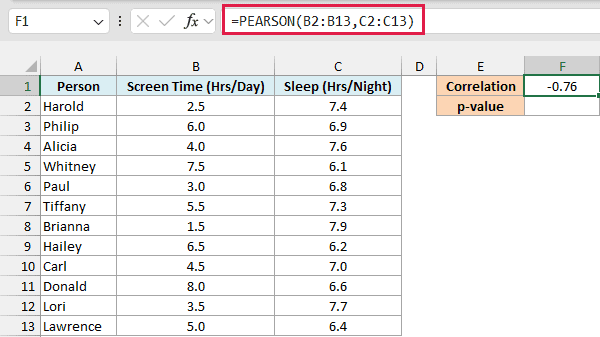
This gives -0.76, so people with more screen time tended to sleep less.
With only 12 people, though, a pattern could show up just by chance. The p-value tells you how likely that is, and here is the formula for it in cell F2:
=LET(r,PEARSON(B2:B13,C2:C13),n,COUNT(B2:B13),tstat,r*SQRT((n-2)/(1-r^2)),T.DIST.2T(ABS(tstat),n-2))
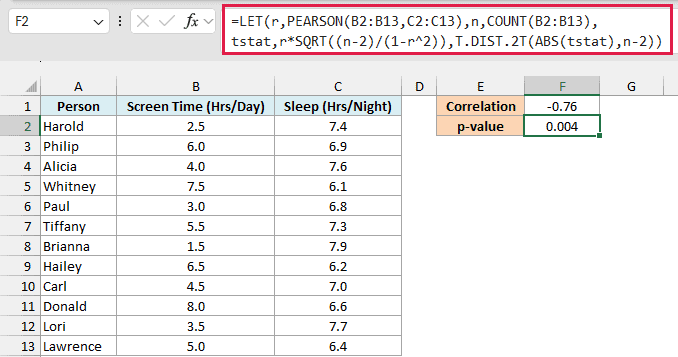
This gives 0.004. If screen time and sleep weren’t related at all, a correlation this strong (in either direction) would show up only about 0.4% of the time.
A p-value below 0.05 is commonly treated as statistically significant. So this correlation is very unlikely to be a fluke.
How this formula works:
- r is the correlation from PEARSON, which is -0.76.
- n is the number of people. COUNT(B2:B13) gives 12, which matches the number of pairs because nobody is missing a value.
- tstat turns the correlation into a t-statistic, which is the form of the result the T.DIST.2T function works with. Here r*SQRT((n-2)/(1-r^2)) works out to about -3.70.
- T.DIST.2T(ABS(tstat),n-2) returns the p-value. The n-2 part is the degrees of freedom (12 minus 2, so 10), and the 2T means two-tailed, which counts a strong correlation in either direction.
- ABS(tstat) is there because the T.DIST.2T function returns the #NUM! error for a negative number.
In the LET formula, I named the t-statistic tstat instead of just t. If you call it t, Excel reads the T in T.DIST.2T as that name, and the formula returns an error.
This formula assumes every row has both values. If someone’s sleep value were blank, PEARSON would skip that pair, but the COUNT function would still count that person, so the p-value would be slightly off.
So before you use it, make sure both columns are complete, or remove the rows that are missing a value.
The LET function is available in Excel 365, Excel 2024, and Excel 2021.
If you are using Excel 2019 or earlier, enter the below formula in cell F2, which uses the correlation already in F1:
=T.DIST.2T(ABS(F1*SQRT((COUNT(B2:B13)-2)/(1-F1^2))),COUNT(B2:B13)-2)
So these are six ways to use the PEARSON function in Excel, from a simple check between two columns to a rank correlation and a p-value. The CORREL function gives exactly the same result as PEARSON, so you can use either one.
I hope you found this article helpful.
Other Excel Articles You May Also Like:
