

The BYCOL function in Excel goes through a range one column at a time, runs the same calculation on each column, and gives you one result for every column.
It’s useful whenever you’d normally write a formula under the first column and copy it across. With BYCOL, a single formula returns the whole row of results.
In this article, I’ll start with simple column totals and then show you how to count, rank, find the latest entry, and remove empty columns with it.
Follow along with the example file
BYCOL Function Examples.xlsx
BYCOL Function Syntax
Here is the syntax of the BYCOL function:
=BYCOL(array, lambda(column))
- array – The range (or array) you want to work through one column at a time.
- lambda – A LAMBDA function with one parameter (the column) that returns a single result for that column.
- column – The name you give each column inside the LAMBDA. You can call it anything you like, such as col or c.
BYCOL hands each column of the array to the LAMBDA, one at a time, and whatever the LAMBDA returns becomes the result for that column. The results come back side by side in one row, so a range with four columns gives you four results.
When the whole calculation is a single function like SUM or MAX, the lambda argument can also be just that function’s name. You’ll see this short form in Example 2.
The BYCOL function works in Excel for Microsoft 365 (Windows and Mac), Excel 2024, and Excel for the web. It’s not available in Excel 2021 or earlier versions.
When to Use the BYCOL Function
Use this function when you need to:
- Get a total, average, or highest value for every column with one formula
- Count how many values in each column meet a condition
- Run your own calculation on each column, like a percentage or a rate
- Rank or sort columns based on their totals
- Pick the last entry in each column, or drop the columns that are empty
Let me show you a few practical examples of how to use the BYCOL function.
Example 1: Sum Each Column in Excel Using BYCOL
Let’s start with the most common use of BYCOL, which is adding up each column.
Below is a running log with the miles four friends ran each week, and I want the total miles for each runner in row 11.
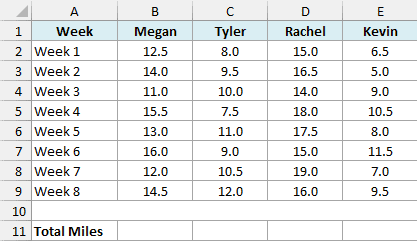
Here is the formula:
=BYCOL(B2:E9,LAMBDA(col,SUM(col)))
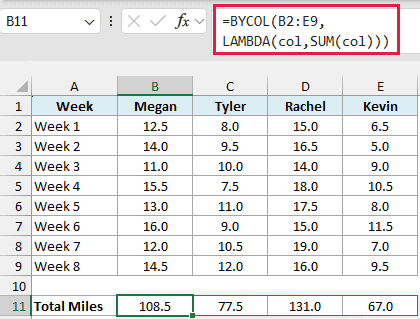
BYCOL takes the range B2:E9 and passes it to the LAMBDA one column at a time. Inside the LAMBDA, col stands for the current column, so for Megan it’s B2:B9, her eight weeks of runs.
SUM(col) adds up that column, and BYCOL puts each total in its own cell. You get all four totals from the one formula in cell B11, with Rachel on top at 131 miles.
The totals spill to the right on their own, so the cells from C11 to E11 need to be empty. If something is sitting in those cells, you’ll get a #SPILL! error instead of the totals.
If you are using Excel 2021 or earlier, enter the below formula in cell B11 and then copy it across to E11:
=SUM(B2:B9)
Example 2: Get the Highest Value in Each Column (Short Form)
When the calculation is just one function, you can skip writing the LAMBDA.
Below are the scores of four bowlers across six games, and I want each bowler’s best game in row 9.
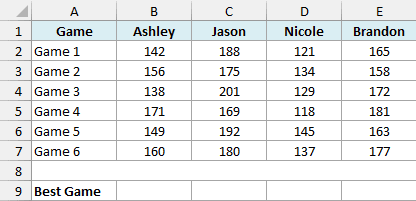
Here is the formula:
=BYCOL(B2:E7,MAX)
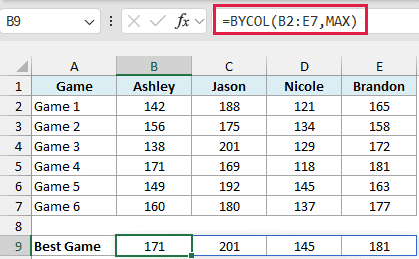
Here, MAX is typed on its own as the second argument. BYCOL sends each bowler’s column to the MAX function, so you get 171 for Ashley, 201 for Jason, 145 for Nicole, and 181 for Brandon.
You can swap MAX for MIN, AVERAGE, or COUNT to get a different result for each column.
This short form only works with functions that need nothing but the column. The ROUND function also needs the number of decimal places, so =BYCOL(B2:E7,ROUND) returns a #VALUE! error.
In Microsoft 365, this works as it is. If your version of Excel gives an error with it, enter the full LAMBDA version below in cell B9 instead (it returns the same results):
=BYCOL(B2:E7,LAMBDA(col,MAX(col)))
Example 3: Count Values That Meet a Condition in Each Column
This time, the formula counts the values that meet a condition, with the cutoff kept in a cell.
Below are the daily high temperatures in four cities over ten days in July, and I want to count the hot days for each city in row 13, using the temperature in cell G2 as the cutoff.
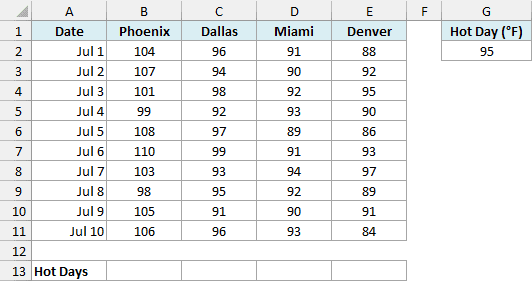
Here is the formula:
=BYCOL(B2:E11,LAMBDA(col,COUNTIF(col,">="&G2)))
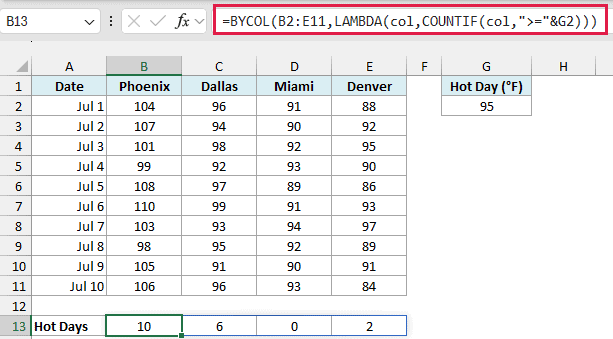
For each city, the COUNTIF function counts the days where the high was at or above the value in G2. The ">="&G2 part joins the operator with the 95 in G2, so the condition becomes “>=95”.
Phoenix reached 95°F on all 10 days, while Miami never got there. Since the cutoff comes from G2, you can change it to 100 and every count updates right away.
Important: The COUNTIF function needs a range on the sheet, like B2:E11. If BYCOL works on the result of another formula (such as FILTER), COUNTIF returns #CALC!, so use SUM(--(col>=G2)), where the — turns each TRUE or FALSE into 1 or 0 for SUM to add.
Example 4: Use a LAMBDA for a Custom Column Calculation
Now let’s write a calculation that uses more than one function.
Below is a book club attendance sheet with a check mark for each meeting a member attended, and I want each member’s attendance rate in row 13.
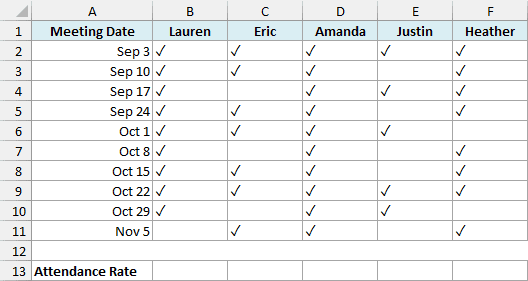
Here is the formula:
=BYCOL(B2:F11,LAMBDA(col,COUNTA(col)/ROWS(col)))
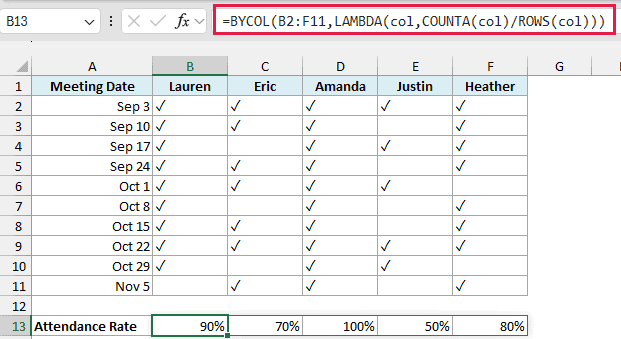
How this formula works:
COUNTA(col)counts the cells in the column that aren’t empty, which is the number of meetings the member attended.ROWS(col)counts all the rows in the column, which is the total number of meetings (10).- Dividing the first number by the second gives the attendance rate. Lauren has 9 check marks, so she gets 90% (the result cells are formatted as percentages).
Since COUNTA counts anything that isn’t empty, leave the cell blank for a missed meeting. An X in that cell would count as attended.
Example 5: Rank Columns by Their Total Using BYCOL and SORTBY
Let’s step it up and use BYCOL inside another function.
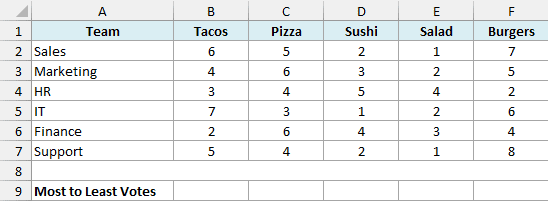
Below are the results of an office lunch poll with the votes each team gave five dishes, and I want to list the dishes from most to least votes in row 9.
Here is the formula:
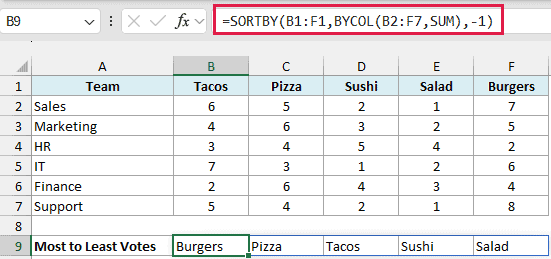
=SORTBY(B1:F1,BYCOL(B2:F7,SUM),-1)
How this formula works:
BYCOL(B2:F7,SUM)adds up the votes for each dish, which gives 27 for Tacos, 28 for Pizza, 17 for Sushi, 13 for Salad, and 32 for Burgers.- The SORTBY function sorts the dish names in B1:F1 by those totals, and the -1 sorts them from largest to smallest.
Burgers come out on top with 32 votes, followed by Pizza with 28. And because BYCOL calculates the totals inside the formula, you don’t need a totals row on the sheet.
Pro Tip: To move the whole columns (dish names and votes) instead of just the names, use B1:F7 as the first argument: =SORTBY(B1:F7,BYCOL(B2:F7,SUM),-1).
Example 6: Get the Last Entry in Each Column
This next one is handy when your columns don’t all have the same number of entries.
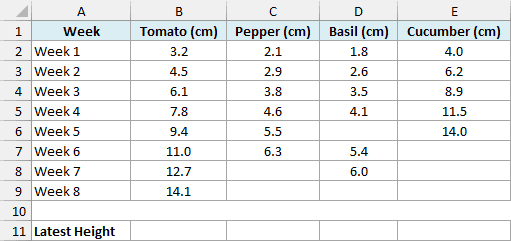
Below is a garden log with the height of four seedlings measured each week (a few weeks were missed), and I want the latest height of each plant in row 11.
Here is the formula:
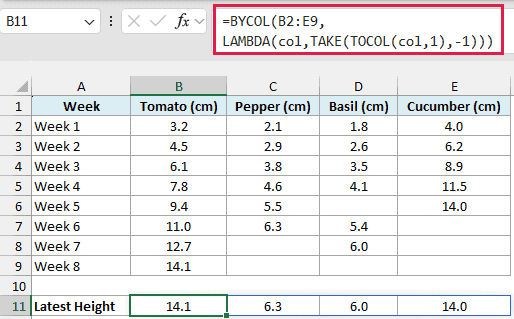
=BYCOL(B2:E9,LAMBDA(col,TAKE(TOCOL(col,1),-1)))
How this formula works:
TOCOL(col,1)turns the column into a list, and the 1 tells it to skip the blank cells. For Basil, that leaves 1.8, 2.6, 3.5, 4.1, 5.4, and 6.0.TAKE(...,-1)picks the last item from that list, which is the most recent measurement.- BYCOL repeats this for each plant, so you get 14.1, 6.3, 6.0, and 14.0.
Basil wasn’t measured in Week 5 or Week 8, but the formula still finds its Week 7 height of 6.0, so it doesn’t matter where the gaps are.
Important: The TAKE function is what makes this formula work. Without it, the LAMBDA returns a whole list for each column, and BYCOL shows a #CALC! error because it can only return one value per column.
Example 7: Remove Empty Columns Using BYCOL and FILTER
Let’s finish with a cleanup job.
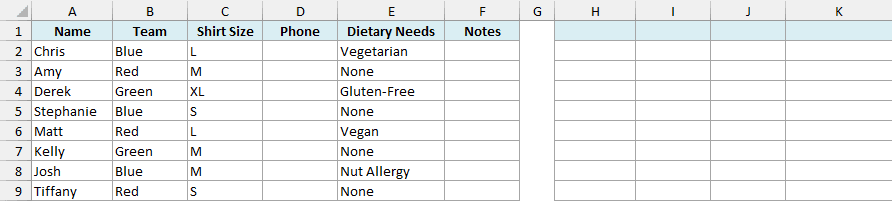
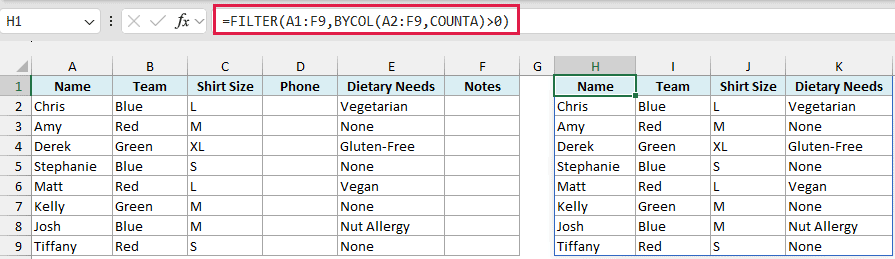
Below is an event sign-up sheet where the Phone and Notes columns were never filled in, and I want a copy of the table without the empty columns, starting in cell H1.
Here is the formula:
=FILTER(A1:F9,BYCOL(A2:F9,COUNTA)>0)
How this formula works:
BYCOL(A2:F9,COUNTA)counts the filled cells in each column. Phone and Notes are completely empty, so they get 0.- The
>0part turns those counts into TRUE or FALSE, one for each column, with TRUE for every column that has data. - The FILTER function keeps only the columns marked TRUE, along with their headers from row 1.
Most of the time, you’d use FILTER to filter rows. But when the TRUE and FALSE values sit in a single row like this one, it keeps or drops whole columns instead.
I started the BYCOL range at row 2 so the headers aren’t counted. If you include them, every column has at least one filled cell, and nothing gets removed.
So these are seven ways to use the BYCOL function in Excel, from adding up each runner’s miles to ranking lunch options and cleaning out empty columns.
If you need one result per row instead, use the BYROW function. And if you want a result for every single cell, try the MAP function.
I hope you found this article helpful.
Other Excel Articles You May Also Like:
