

The BYROW function runs a calculation on each row of a range and gives you one result per row. You write the formula once, and it returns a total, a count, or a label for every row in one go.
The calculation you give BYROW is usually written as a small LAMBDA, which sounds scarier than it is. In this article, I’ll start with simple row totals and then show you how to use BYROW to count, label, filter, and sort your data.
Follow along with the example file
BYROW Function Example File.xlsx
BYROW Function Syntax
Here is the syntax of the BYROW function:
=BYROW(array, lambda(row))
- array – The range (or array) you want to work through one row at a time.
- lambda – A LAMBDA function with one parameter (the row) that returns one result for that row.
- row – The name you give each row inside the LAMBDA. You can call it anything you like, such as r or row.
BYROW hands each row of the array to the LAMBDA, one at a time, and whatever the LAMBDA returns becomes the result for that row. The results are stacked in a single column, one per row.
When the whole calculation is a single function like SUM or MAX, you can skip the LAMBDA and type just the function name, as in =BYROW(B2:E11,SUM).
This short form only works with functions that can run on one argument (ROUND, which needs two, returns a #VALUE! error). For anything more than a single function, write the LAMBDA out, as you’ll see in Example 2.
The BYROW function works in Excel for Microsoft 365 (Windows and Mac), Excel 2024, and Excel for the web. It’s not available in Excel 2021 or earlier versions.
When to Use the BYROW Function
Use this function when you need to:
- Get a total, average, or highest value for every row with a single formula
- Run your own calculation on each row, like the gap between the highest and lowest value
- Count how many values in each row meet a condition
- Return a text label for each row based on what’s in it
- Filter or sort a table based on a calculation across each row
Let me show you a few practical examples of how to use the BYROW function.
Example 1: Sum Each Row in Excel Using BYROW
Let’s start with the simplest use of BYROW, which is adding up each row.
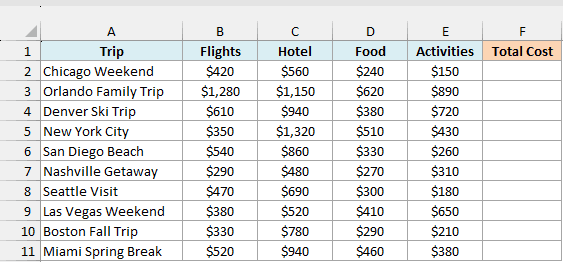
Below is a travel budget with the cost of flights, hotel, food, and activities for each trip, and I want the total cost of each trip in column F.
Here is the formula:
=BYROW(B2:E11,SUM)
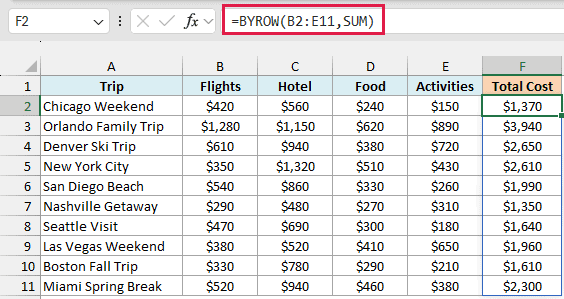
BYROW takes the range B2:E11, sends each row to the SUM function, and returns the total for that row. There are 10 trips, so you get 10 totals, all from the one formula in cell F2.
Here I used the short form, where you only type SUM. It gives the same result as the full version, =BYROW(B2:E11,LAMBDA(r,SUM(r))).
The totals spill down on their own, so the cells from F3 to F11 need to be empty. If something is sitting in that range, you’ll get a #SPILL! error instead of the totals.
If you are using Excel 2021 or earlier, enter the below formula in cell F2 and then copy it down the range:
=SUM(B2:E2)
Example 2: Use a LAMBDA for a Custom Row Calculation
Now let’s write a calculation of our own.
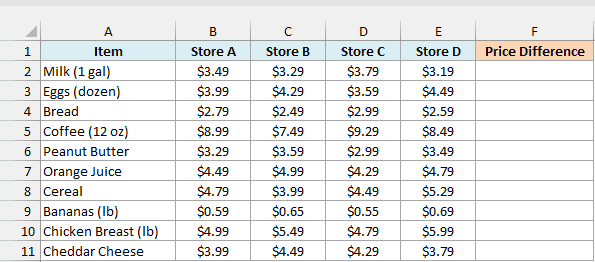
Below is a grocery price list with the price of each item at four stores, and I want to see how much each item’s price varies across the stores (highest price minus lowest price) in column F.
Here is the formula:
=BYROW(B2:E11,LAMBDA(r,MAX(r)-MIN(r)))
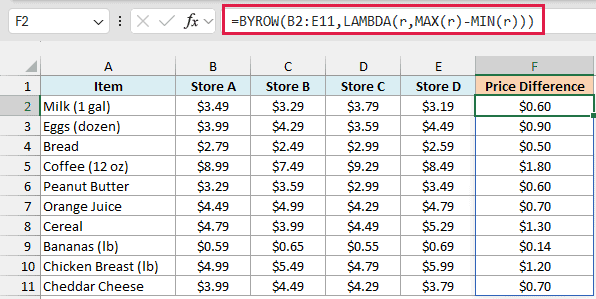
This one needs the full LAMBDA because the calculation uses two functions, MAX and MIN, and the short form can only pass the row to one.
How this formula works:
LAMBDA(r, ...)gives each row the name r. For the first item, r is the four prices in B2:E2.MAX(r)-MIN(r)takes the highest price in that row and subtracts the lowest one.- BYROW repeats this for all 10 items and spills the results into column F.
For example, Coffee (12 oz) costs $9.29 at its most expensive and $7.49 at its cheapest, which gives a difference of $1.80. That’s the item where shopping around saves you the most.
Example 3: Count Values That Meet a Condition in Each Row
Here’s another practical scenario, where you check every value in a row against a target.
Below is a savings tracker with each person’s savings from January to June, and I want to count how many months each person reached the monthly goal (in cell J2) in column H.
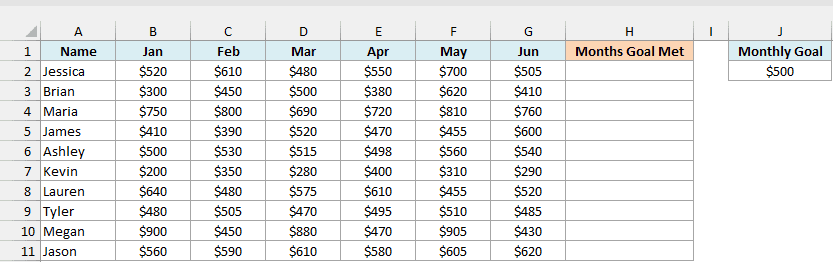
Here is the formula:
=BYROW(B2:G11,LAMBDA(r,COUNTIF(r,">="&J2)))
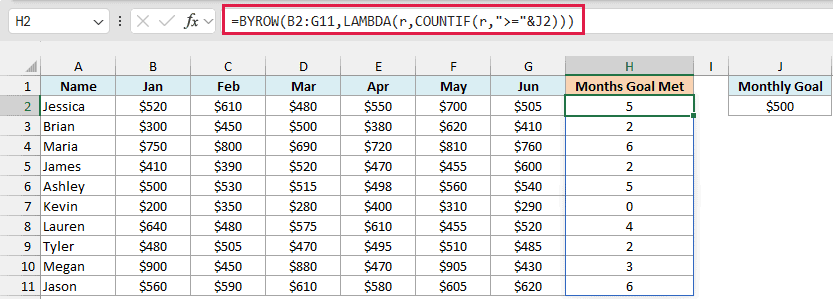
For each row, COUNTIF counts the months where the savings were $500 or more. The ">="&J2 part joins the operator with the goal in J2, so the condition becomes “>=500”.
The formula refers to J2, which is outside the range BYROW is working on. That’s allowed, because the LAMBDA can use any cell on the sheet, and it means you can change the goal in J2 and every count updates right away.
Important: COUNTIF works here because B2:G11 is a real range on the sheet. If BYROW gets an array from another formula instead (such as the output of FILTER), COUNTIF, SUMIF, and COUNTBLANK return #CALC!, so count with SUM(--(r>=J2)) instead.
Example 4: Return a Text Status for Each Row
Now let’s look at something a bit more interesting, where the result is text instead of a number.
Below is an online course tracker that shows which of the five modules each student has finished, and I want a status in column G that says Complete or how many modules are left.
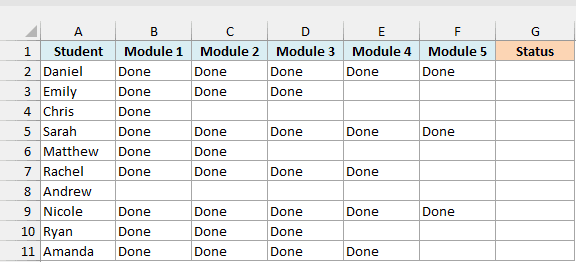
Here is the formula:
=BYROW(B2:F11,LAMBDA(r,IF(COUNTBLANK(r)=0,"Complete",COUNTBLANK(r)&" left")))
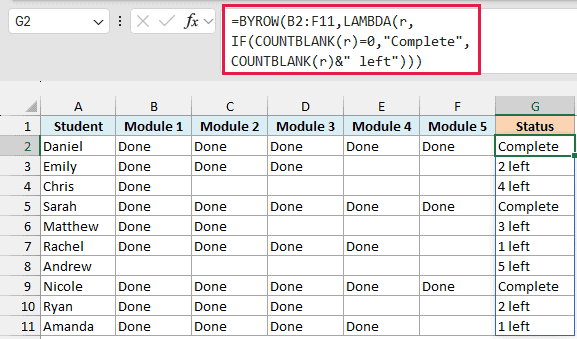
How this formula works:
- The COUNTBLANK function counts the empty cells in the row, which are the modules the student hasn’t finished yet.
- If that count is 0, the IF function returns “Complete”.
- Otherwise, it joins the count with the text ” left”, so Emily, who has two empty modules, gets “2 left”.
Example 5: Filter Rows Using BYROW and FILTER
Let’s step it up and use BYROW inside another function.
Below is a gym attendance log with the number of visits each member made in each of four weeks, and I want to pull out only the members who visited at least twice every week, starting in column G.
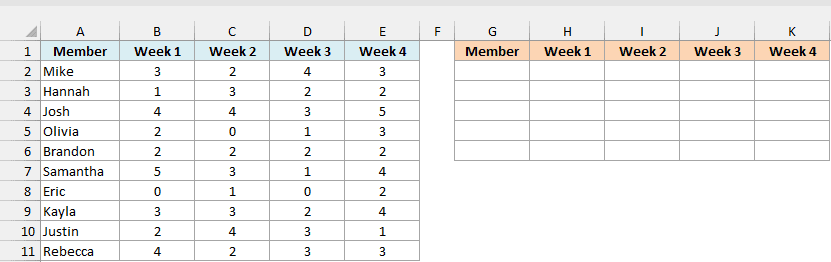
Here is the formula:
=FILTER(A2:E11,BYROW(B2:E11,LAMBDA(r,MIN(r)>=2)))
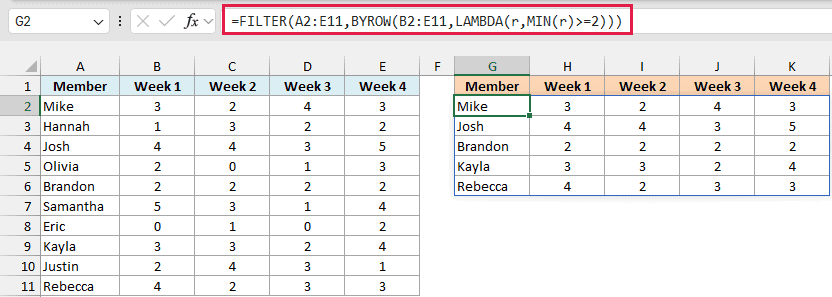
How this formula works:
BYROW(B2:E11,LAMBDA(r,MIN(r)>=2))checks each member’s lowest weekly count. If it’s 2 or more, the member came at least twice every week and gets TRUE, otherwise FALSE.- This gives the FILTER function 10 TRUE or FALSE values, one for each member.
- FILTER then returns only the rows of A2:E11 that got TRUE, which are Mike, Josh, Brandon, Kayla, and Rebecca.
Without BYROW, you’d have to write a separate check for every week column inside FILTER. Since MIN looks at the whole row, the same check works whether you track four weeks or twelve, and you only need to extend the ranges.
Example 6: Sort Rows by Their Total Using BYROW
Here’s a fun one where BYROW helps you rank the rows.
Below are the scores of 10 teams across four rounds of a trivia night, and I want a leaderboard in columns G and H that lists each team with its total points, highest first.
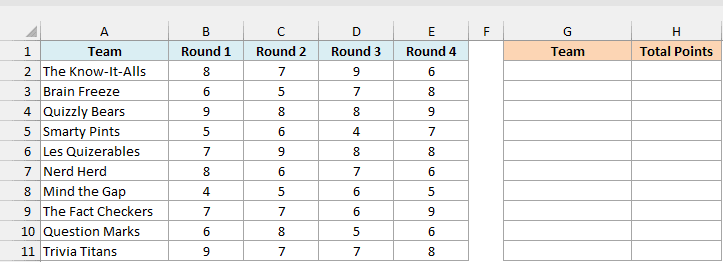
Here is the formula:
=SORT(HSTACK(A2:A11,BYROW(B2:E11,SUM)),2,-1)

How this formula works:
BYROW(B2:E11,SUM)adds up the four rounds for each team.HSTACK(A2:A11, ...)places the team names next to those totals, which makes a two-column array.SORT(..., 2, -1)sorts that array by its second column (the totals) in descending order.
Quizzly Bears come out on top with 34 points. And since BYROW calculated the totals inside the formula, you didn’t need a helper column for them.
Example 7: Combine Several Values in a Row into One Result
Let’s finish with an example where BYROW turns a row of Yes marks into a readable list of days.
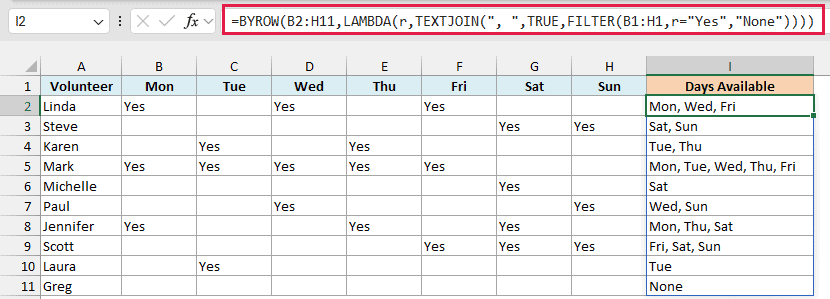
Below is a volunteer schedule where “Yes” marks the days each person can help, and I want to list those days for each volunteer in column I.
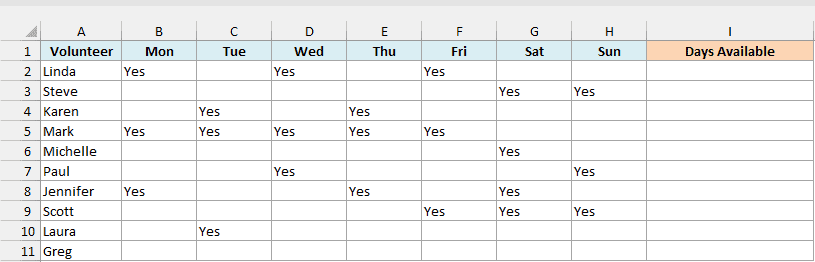
Here is the formula:
=BYROW(B2:H11,LAMBDA(r,TEXTJOIN(", ",TRUE,FILTER(B1:H1,r="Yes","None"))))
How this formula works:
r="Yes"checks each day in the row and gives TRUE for the days marked Yes.FILTER(B1:H1, ...)uses those TRUE values to pick the matching day names from the header row.- The TEXTJOIN function joins the day names into one text value, so Linda gets “Mon, Wed, Fri”.
Greg hasn’t picked any days yet, so the FILTER function falls back to its third argument and his result is “None”.
Important: If you remove TEXTJOIN and use FILTER on its own, BYROW returns a #CALC! error. FILTER gives back several days for a row, and BYROW can only take one value per row, so TEXTJOIN is what makes this formula work.
You’ll hit the same #CALC! error with TEXTSPLIT inside BYROW, because it also returns several values for each row.
So these are seven ways to use the BYROW function in Excel, from adding up trip costs to building a trivia leaderboard and a list of volunteer days.
If you need one result per column instead, use the BYCOL function, and for a result per cell, try the MAP function.
I hope you found this article helpful.
Other Excel Articles You May Also Like:
