

The SCAN function goes through a list one item at a time, runs a calculation at each step, and gives you the result of every step.
That makes it a natural fit for running totals, running balances, and anything else where each answer builds on the one before it. You write it with a small LAMBDA that tells SCAN what to do at each step.
In this article, I’ll show you how that works with simple running totals first, and then with streaks, text, ranges with rows and columns, and totals that restart for each group.
Follow along with the example file
SCAN Function Examples.xlsx
SCAN Function Syntax
Here is the syntax of the SCAN function:
=SCAN([initial_value], array, lambda)
- initial_value (optional) – the value SCAN starts from before it looks at the first item, such as 0 for a running total or a cell holding a starting balance.
- array – the range or array you want SCAN to go through, one item at a time.
- lambda – a LAMBDA with two parameters, the running result so far (the accumulator) and the current item, followed by the calculation that creates the next running result.
SCAN works through every item in the array and returns a result for each one. So a range with 10 cells gives you 10 results.
If you leave initial_value out, SCAN uses the first item of the array as its starting point and returns it unchanged as the first result. You still need the comma, so the formula begins with =SCAN(,.
You can name the two LAMBDA parameters anything you like. Only the order matters, as the first one always holds the running result and the second one holds the current item.
Each step has to return a single value, or SCAN shows a #CALC! error. And if your LAMBDA doesn’t have exactly two parameters, you get a #VALUE! error.
The SCAN function works in Excel for Microsoft 365, Excel 2024, and Excel for the web, on both Windows and Mac. It’s not available in Excel 2021 or older versions, where the formula returns a #NAME? error.
When to Use the SCAN Function
Use this function when you need to:
- Keep a running total or running balance in one formula that spills down the column
- Track the lowest or highest value seen so far, like the best price or the top score
- Build up a text string one item at a time
- Count a streak that starts over when a condition isn’t met
- Get a running total for each group that restarts when the group changes
Let me show you a few practical examples of how to use the SCAN function.
Example 1: Create a Running Total with SCAN
Let’s start with the most common use of SCAN, a running total.
Below are the daily ticket sales for a school play, and I want a running total of the tickets sold in column C.
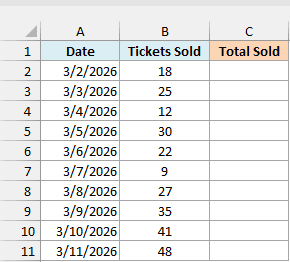
Here is the formula:
=SCAN(0,B2:B11,LAMBDA(total,tickets,total+tickets))
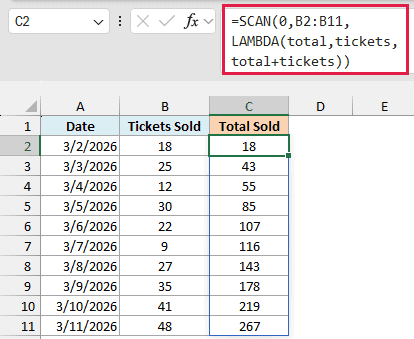
In the above formula, SCAN starts with total set to 0. For the first day, it adds 18 to get 18, then adds 25 to that to get 43, and keeps going down the list until it reaches 267 for all ten days.
You only enter the formula in C2, and the results spill down to C11. If anything is already in those cells, you get a #SPILL! error, so keep that range empty.
A blank cell in the range counts as 0, so the total just stays the same for that row.
But text (like “N/A”) or an error value in the range makes that step return an error. Because each step builds on the previous result, every row below it shows the error too.
Pro Tip: When the calculation is just adding, you can pass the SUM function instead of writing a LAMBDA, as in =SCAN(0,B2:B11,SUM). This shortcut also works with MAX and MIN.
If you are using Excel 2021 or earlier, enter the below formula in cell C2 and then copy it down the range:
=SUM($B$2:B2)
Example 2: Running Balance with a Starting Amount
Now let’s use the initial_value argument to start from something other than 0.
Below is a log of purchases made with a coffee shop gift card that started with $75.00 (in cell E2), and I want the balance left after each purchase in column C.
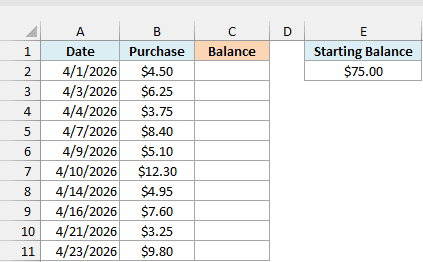
Here is the formula:
=SCAN(E2,B2:B11,LAMBDA(balance,spent,balance-spent))
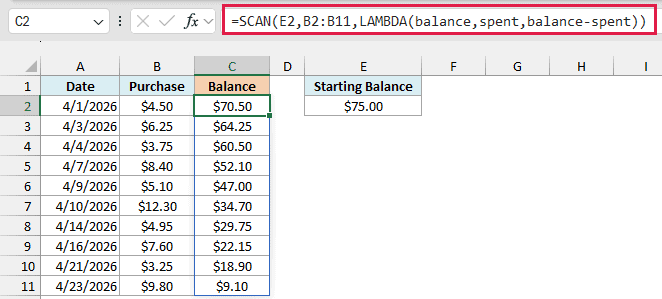
Here, SCAN starts with balance set to the $75.00 in cell E2. Each step subtracts that day’s purchase, so the balance drops to $70.50, then $64.25, and ends at $9.10 after the last purchase.
Because the starting amount sits in a cell, you can change E2 when the card gets reloaded, and every balance updates on its own.
Example 3: Track the Lowest Price So Far (Running Minimum)
Now let’s track the lowest value seen so far, where the starting value really matters.
Below is the weekly price of a TV, and I want the lowest price seen so far in column C.
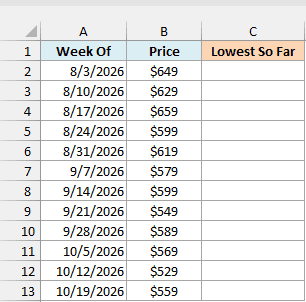
Here is the formula:
=SCAN(,B2:B13,LAMBDA(low,price,MIN(low,price)))
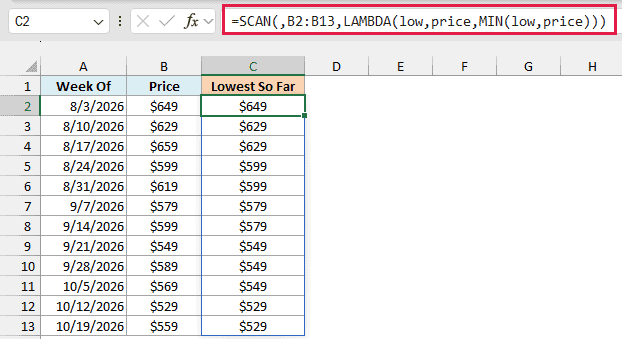
Notice there’s nothing before the first comma. Since initial_value is left out, SCAN uses the first price ($649) as its starting point rather than 0.
For every week after that, MIN(low,price) keeps whichever is smaller, the lowest price so far or this week’s price. So the result only goes down when a new low shows up, like $599 in the fourth week and $529 in the eleventh.
If you want the highest value so far instead, use the MAX function in place of MIN.
Important: Don’t start a running minimum at 0, because MIN compares every price with 0 and keeps the 0, so every row returns 0. The same thing happens with a running maximum on negative numbers.
Example 4: Build a Text String Step by Step
SCAN isn’t limited to numbers. It can also build up text, one item at a time.
Below is the list of stops on a road trip, and I want to show the route so far in column C.
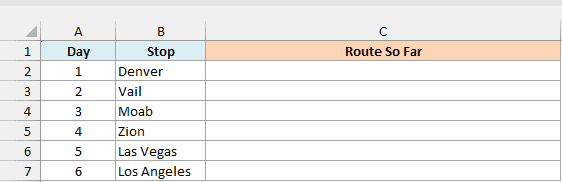
Here is the formula:
=SCAN(,B2:B7,LAMBDA(route,city,route&" > "&city))
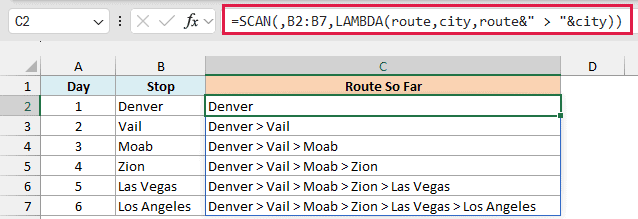
Since initial_value is left out, the route starts as the first stop, Denver. After that, each step joins the route so far, a ” > ” separator, and the next city, so the last row shows the full trip.
You’ll often see text examples that start SCAN with an empty string (“”). If you do that here, the first result becomes ” > Denver”, with a stray separator in front, which is why I left initial_value out.
Example 5: Count a Streak That Resets
Let’s step it up with a running count that starts over when a condition isn’t met.
Below is a piano practice log with the minutes practiced each day and a daily goal of 30 minutes in cell E2. I want to count the streak of days that met the goal in column C.
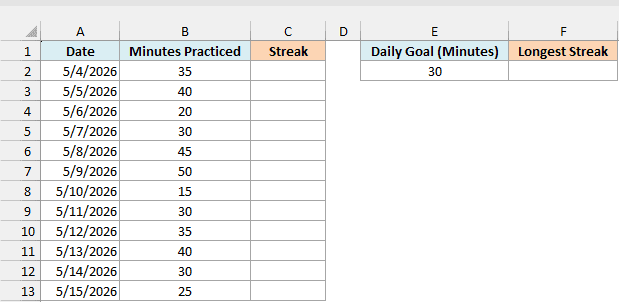
Here is the formula:
=SCAN(0,B2:B13,LAMBDA(streak,minutes,IF(minutes>=E2,streak+1,0)))
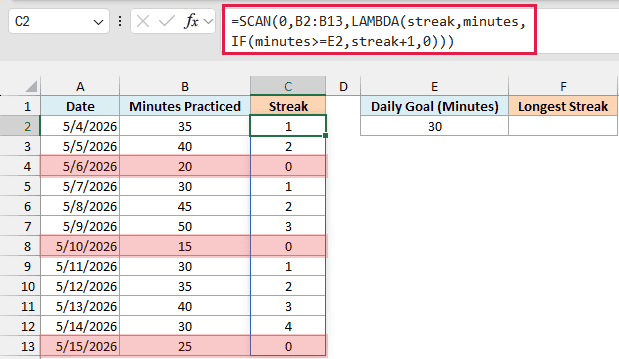
How this formula works:
- streak starts at 0.
- For each day, the IF function checks whether the minutes practiced are at least the goal in cell E2.
- If yes, the streak goes up by 1. If not, it drops back to 0.
So the streak climbs to 3 by May 9, goes back to 0 on May 10 (only 15 minutes), and reaches 4 on May 14.
Once the streak column is in place, getting the longest streak is easy. Here is the formula I used in cell F2:
=MAX(C2#)
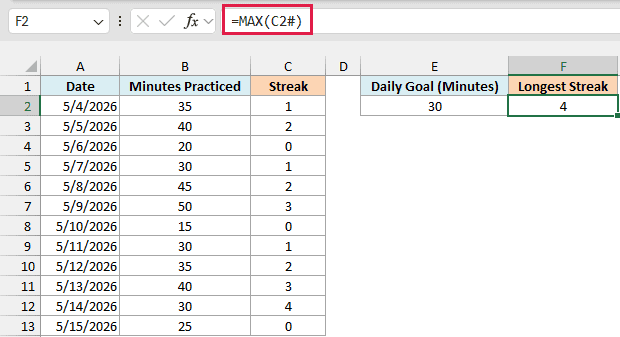
C2# refers to the whole spill range of the SCAN formula in C2, so MAX returns the highest streak in it, which is 4. If you add more days and extend the range in the SCAN formula, C2# grows with it.
Example 6: Use SCAN on a Range with Rows and Columns
So far, every example used a single column. Here’s what happens when you give SCAN a range with rows and columns.
Below is a four-week push-up challenge with the push-ups done each day, and I want a running total for the whole challenge in the Total So Far table, starting in cell B8.
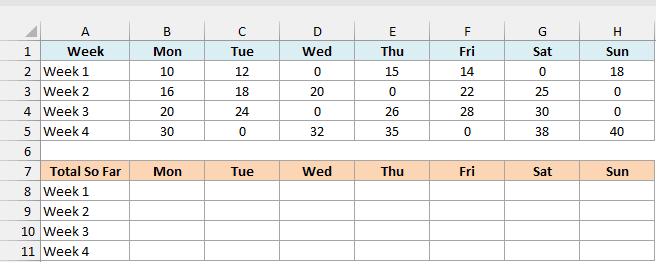
Here is the formula:
=SCAN(0,B2:H5,LAMBDA(total,reps,total+reps))
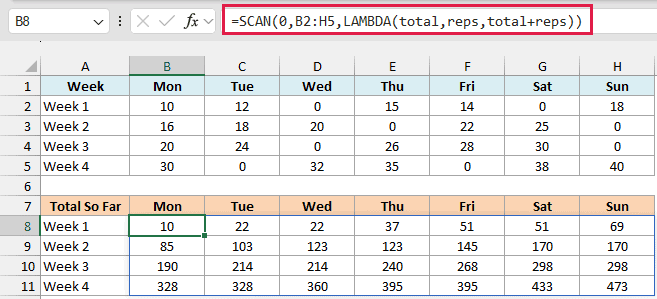
SCAN goes through a range like this row by row. It moves left to right across Week 1, then carries that total over to Monday of Week 2, and so on.
The result has the same shape as the range (4 rows by 7 columns), so each cell shows the push-ups done up to that day. Rest days with 0 keep the same total, and the last cell, 473, is the total for the whole challenge.
Example 7: Running Total That Restarts for Each Group
This last one is the most advanced. It’s a running total that starts over every time the group changes.
Below is a reading log with the pages read in each sitting across three books, and I want the pages read so far in the current book in column C.
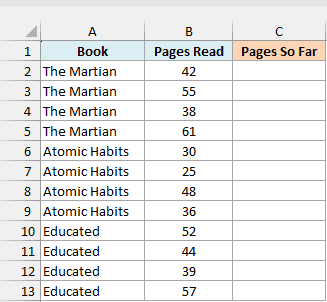
The catch is that SCAN only goes through one array, but this calculation needs two columns. It needs the book name to know when to restart, and the pages to add.
The trick is to have SCAN go through the row numbers instead of the values. Then the LAMBDA can use the INDEX function to read any column for that row.
Here is the formula:
=LET(book,A2:A13,pages,B2:B13,SCAN(0,SEQUENCE(ROWS(pages)),LAMBDA(total,i,IF(INDEX(book,i)=INDEX(book,MAX(i-1,1)),total,0)+INDEX(pages,i))))
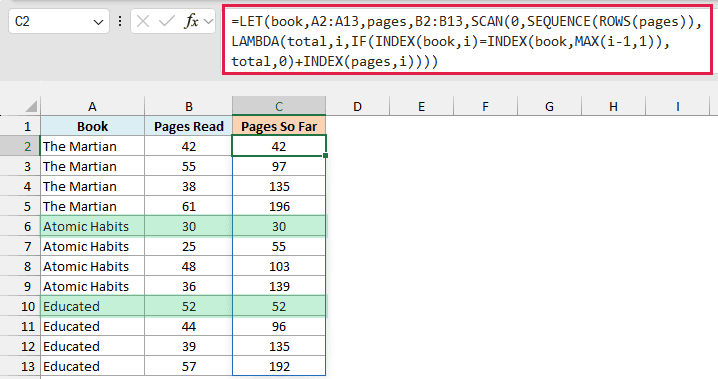
How this formula works:
- LET gives the book column the name book and the pages column the name pages.
- SEQUENCE(ROWS(pages)) creates the row numbers 1 to 12, and SCAN goes through them one by one as i.
- INDEX(book,i) is the book in the current row, and INDEX(book,MAX(i-1,1)) is the book in the row above. MAX(i-1,1) makes the first row compare with itself, since there’s no row above it.
- If both rows have the same book, the formula keeps the running total. If the book changed, it starts again from 0.
- INDEX(pages,i) then adds the pages read in the current row.
So The Martian adds up to 196, and then the total starts over at 30 for Atomic Habits and again at 52 for Educated.
Important: This formula starts over whenever the book name changes from one row to the next. So if the same book shows up again further down, its total restarts from 0 instead of continuing.
If your data isn’t sorted by book, or you’re using Excel 2021 or earlier, enter the below formula in cell C2 and then copy it down the range:
=SUMIFS($B$2:B2,$A$2:A2,A2)
So these are some of the ways you can use the SCAN function in Excel.
If you only need the final result and not every step along the way, the REDUCE function works the same way but returns just the last value.
I hope you found this article helpful.
Other Excel Articles You May Also Like:
