

The HSTACK function in Excel places two or more ranges next to each other and returns them as one combined table. It’s like copying columns and pasting them side by side, except the result is a live formula that updates when the source data changes.
This comes in handy when the columns you need sit in different places, live on different sheets, or come out of other formulas. In this article, I’ll show you how it works, from a simple side-by-side join to building a small summary table.
Follow along with the example file
HSTACK Function Examples.xlsx
HSTACK Function Syntax
Here is the syntax of the HSTACK function:
=HSTACK(array1,[array2],...)
- array1 – the first range or array you want to combine. It’s required, and its columns become the leftmost columns of the result.
- [array2], … – optional extra ranges or arrays. Each one is added to the right of the one before it, in the order you list them.
Each argument can be a cell range, a range on another sheet, an array constant, or the result of another formula.
The HSTACK function works in Excel for Microsoft 365, Excel 2024 (Windows and Mac), and Excel for the web. It isn’t available in Excel 2021 or earlier, where an HSTACK formula returns the #NAME? error.
When to Use the HSTACK Function
Use HSTACK when you need to:
- Put columns from different parts of a sheet next to each other in one table.
- Combine data from different sheets side by side.
- Add a calculated column next to your data without a helper column.
- Return several columns, in the order you want, from a lookup.
- Build a small report from formulas, such as a list of items with their totals.
Let me show you seven practical examples of how to use HSTACK.
Example 1: Combine Two Ranges Side by Side with HSTACK
Let’s start with the basic way HSTACK works.
Below I have a coffee shop’s drink list in columns A and B, with the small and large price of each drink in columns D and E, and I want one combined table in columns G to J.
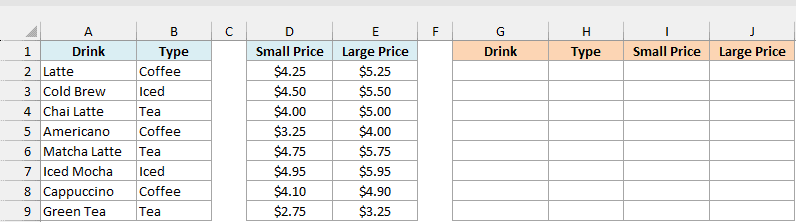
Here is the formula:
=HSTACK(A2:B9,D2:E9)
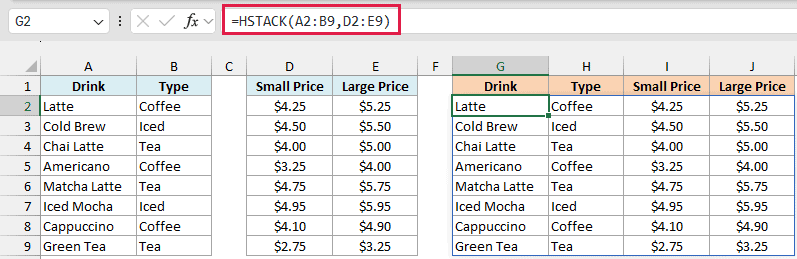
HSTACK takes the drink names and types from A2:B9 and places the prices from D2:E9 right after them. You enter the formula only in G2, and the result spills into G2:J9, a table that’s four columns wide and eight rows tall.
The empty column C doesn’t show up in the result, because HSTACK only picks up the ranges you give it. Any gap between those ranges is simply left out.
HSTACK brings over the values but not the cell formatting. So the prices in columns I and J show as dollars only because I applied a currency format to those columns.
If any cell in G2:J9 already has something in it, HSTACK can’t spill its result there and shows a #SPILL! error. So clear the result area before you enter the formula.
Example 2: Combine Data from Two Sheets
Your data won’t always be on the same sheet, and HSTACK handles that too.
A school canteen tracks snack sales on a separate sheet for each month, and below is the September sheet with the units sold for each snack.
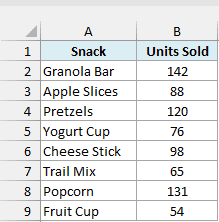
The October sheet has the same snacks in the same order, and I want both months side by side in columns A to C of the Example 2 sheet.
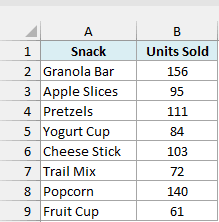
Here is the formula to enter in A2 of the Example 2 sheet:
=HSTACK(September!A2:B9,October!B2:B9)
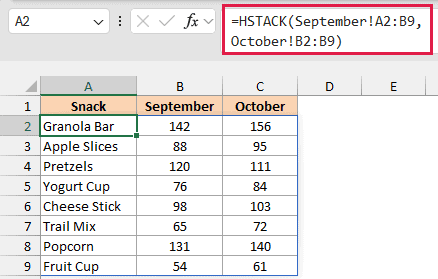
The first range, September!A2:B9, brings in the snack names along with the September numbers. The second range, October!B2:B9, takes only the October numbers, since the names are already there.
The result fills A2:C9, so you can compare both months in one table. For example, Granola Bar went from 142 in September to 156 in October.
You can type the sheet references yourself, or click into each sheet and select the range while you build the formula.
Important: HSTACK lines up rows by position, not by snack name. If the October sheet listed the snacks in a different order, the October numbers would land next to the wrong snacks, and you wouldn’t get any error.
When the order on the two sheets can differ, use the XLOOKUP function to pull each October number by its snack name instead of relying on position.
Example 3: HSTACK with Different Row Counts (Fix the #N/A Error)
Now let’s see what happens when the ranges you combine aren’t the same height.
Below I have two shopping lists, one for the farmers market and one for the supermarket, and I want them side by side in columns E and F.
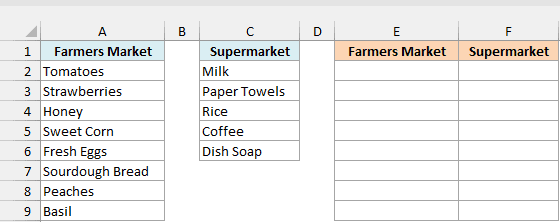
Here is the formula:
=HSTACK(A2:A9,C2:C6)
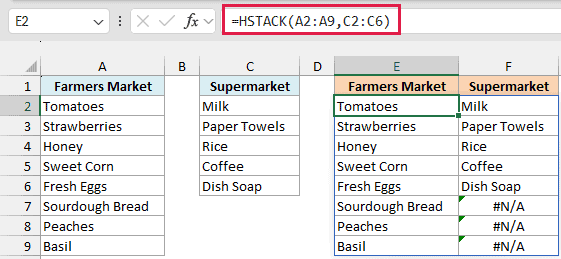
The farmers market list has eight items, but the supermarket list has only five. HSTACK makes the result as tall as the longest range, so the result is eight rows tall.
The supermarket list has nothing for the last three rows, so HSTACK fills F7:F9 with #N/A. That’s just padding for the missing rows, not a problem with either list.
To show blanks instead of the errors, wrap the formula in the IFNA function. Enter this formula in H2:
=IFNA(HSTACK(A2:A9,C2:C6),"")
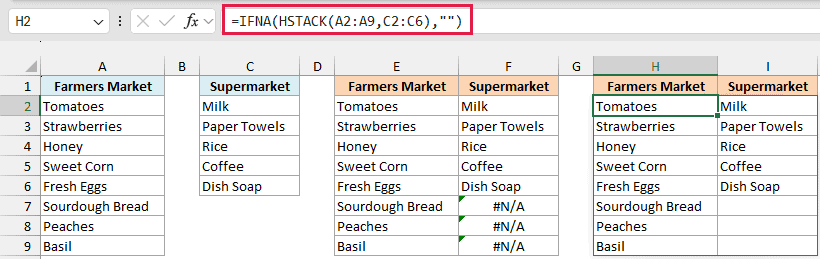
IFNA replaces each #N/A with an empty text string, so I7:I9 now look blank. The rest of the result stays the same.
Microsoft suggests IFERROR for this, and that works too. But IFERROR hides every error type, including real problems like #DIV/0! in your source data, while IFNA only catches the #N/A padding.
You might think of selecting C2:C9 so both ranges are the same size. That gets rid of the #N/A, but the three empty cells come through as 0, because HSTACK returns an empty cell as a 0.
Example 4: Add a Calculated Column and Sort by It
HSTACK doesn’t only take ranges. You can also hand it a calculation, and it adds the answers as a new column.
Below is a road trip log with the miles driven and gallons of gas used on each leg, and I want each leg’s miles per gallon (MPG), sorted from best to worst, in columns E and F.
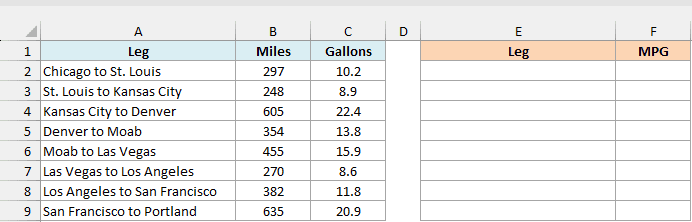
Here is the formula:
=SORT(HSTACK(A2:A9,B2:B9/C2:C9),2,-1)
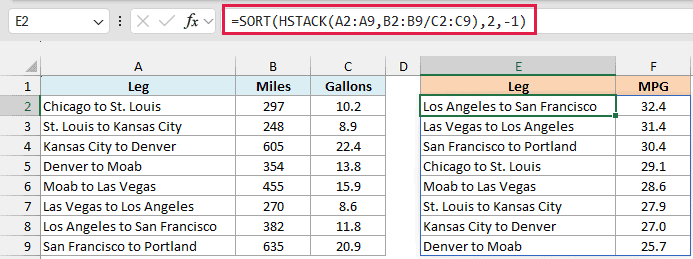
How this formula works:
- B2:B9/C2:C9 divides the miles by the gallons for each leg, which gives you eight MPG values.
- HSTACK(A2:A9, …) puts the leg names next to those MPG values, so you get a two-column table.
- SORT(…, 2, -1) sorts that table by its second column (the MPG) in descending order.
The best leg, Los Angeles to San Francisco at 32.4 MPG, comes out on top, and Denver to Moab at 25.7 MPG ends up at the bottom.
The division returns long decimals, like 32.3728…, so I formatted column F to show one decimal place.
Example 5: Return Non-Adjacent Columns with XLOOKUP and HSTACK
Sometimes the columns you want back from a lookup aren’t next to each other, and you want them in a different order than your data.
Below is a library catalog with the code, title, author, genre, and shelf for each book, and I want to look up the book code in G2 and get its shelf and title in H2 and I2.
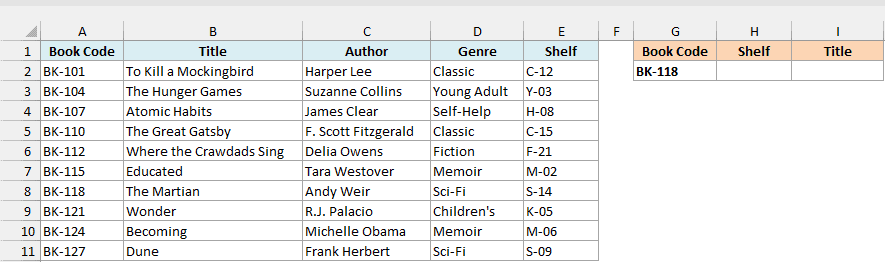
Here is the formula to enter in H2:
=XLOOKUP(G2,A2:A11,HSTACK(E2:E11,B2:B11))
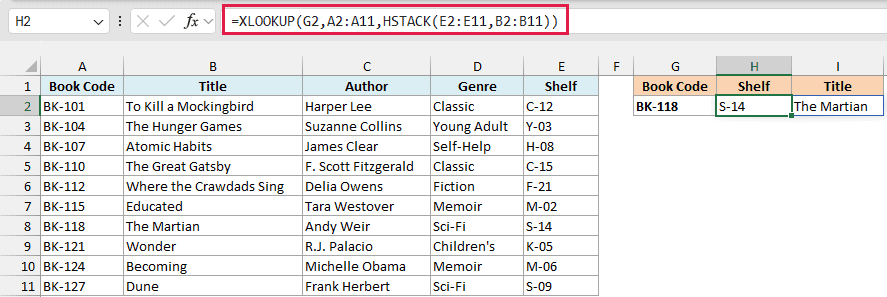
XLOOKUP finds BK-118 in A2:A11. Its return array is HSTACK(E2:E11,B2:B11), a two-column block with the shelf first and the title second.
So XLOOKUP returns both values from that book’s row, S-14 and The Martian, and they spill into H2:I2.
A plain range like B2:E11 would bring back the columns in the order they sit in your data, including the ones you don’t need. With HSTACK, you pick only the shelf and title columns, in the order you want.
Example 6: Build a Summary Table with UNIQUE and SUMIFS
Let’s step it up and build a small summary report with a single formula.
Below is a workout log with the date, activity, and minutes for each session, and I want the total minutes for each activity in columns E and F.
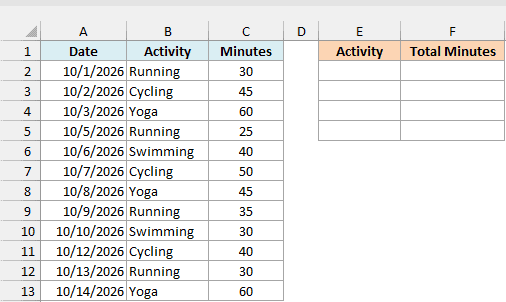
Here is the formula:
=HSTACK(UNIQUE(B2:B13),SUMIFS(C2:C13,B2:B13,UNIQUE(B2:B13)))
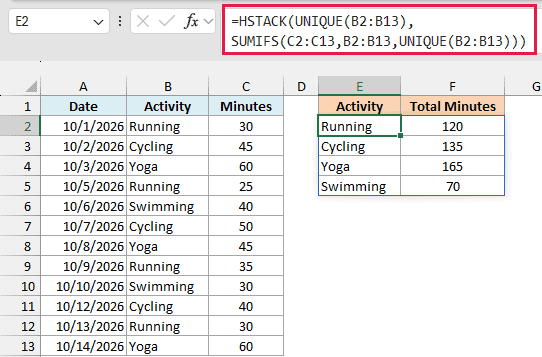
How this formula works:
- UNIQUE(B2:B13) returns each activity once: Running, Cycling, Yoga, and Swimming.
- SUMIFS(C2:C13,B2:B13,UNIQUE(B2:B13)) adds up the minutes for each of those four activities, so it returns four totals.
- HSTACK places the activity list and the totals side by side as one table.
The result shows 120 minutes of running, 135 of cycling, 165 of yoga, and 70 of swimming. Each total sits right next to its activity because both columns come from the same UNIQUE list, in the same order.
Pro Tip: If you have Excel for Microsoft 365, the GROUPBY function can build this summary in one step, with a grand total row added for you. GROUPBY isn’t in Excel 2024, though, so the HSTACK formula above is the one that works in both.
Example 7: Add a Label Column When Stacking Lists (HSTACK with VSTACK)
For the last example, let’s use HSTACK together with VSTACK, which stacks ranges on top of each other. The tricky part here is repeating a session name on every row, and that’s what the EXPAND function handles.
Below I have the sign-up lists for a morning and an evening cooking class, and I want one roster in columns E and F with each person’s name and session.
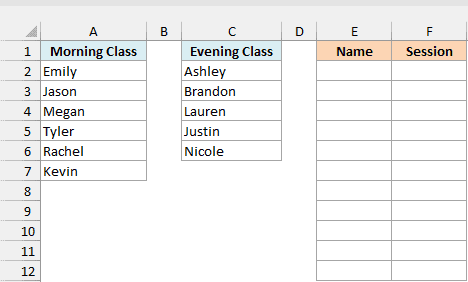
Here is the formula:
=VSTACK(HSTACK(A2:A7,EXPAND("Morning",ROWS(A2:A7),,"Morning")),HSTACK(C2:C6,EXPAND("Evening",ROWS(C2:C6),,"Evening")))
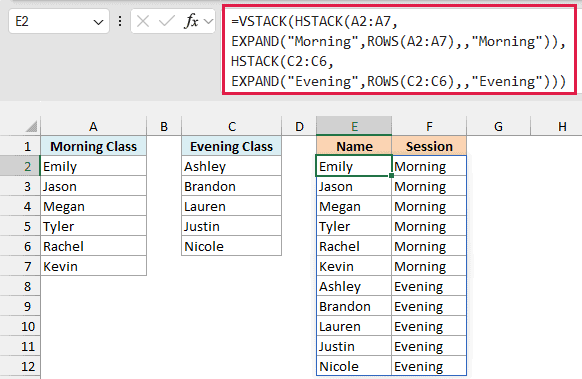
How this formula works:
- EXPAND(“Morning”,ROWS(A2:A7),,”Morning”) creates a column of the word Morning that’s as tall as the morning list (six rows). Its last argument fills every new row with that same word.
- HSTACK(A2:A7, …) puts each morning name next to the word Morning.
- The second HSTACK does the same for the evening list, using the word Evening.
- VSTACK stacks the two blocks, with the morning class on top and the evening class below it.
The result is an 11-row roster in E2:F12, with every person tagged with their session. Kevin is the last of the morning names, and Ashley starts the evening group.
Important: Don’t shorten this to HSTACK(A2:A7,”Morning”). A single word counts as a one-row array, so HSTACK puts Morning in the first row only and fills the other five rows with #N/A.
In this article, I showed you how to use the HSTACK function to combine ranges side by side, pull data from different sheets, and fix the #N/A you get when the ranges have different row counts.
I also covered using HSTACK with SORT, XLOOKUP, UNIQUE, and VSTACK to add calculated columns, return the columns you pick, and build small report tables.
I hope you found this article helpful.
Other Excel Articles You May Also Like:
