

The COVARIANCE.S function in Excel tells you how two sets of numbers move together, based on a sample of data. A positive result means they tend to go up together, and a negative result means one tends to go down when the other goes up.
It’s handy when you want a quick check on whether two things are related, like the temperature outside and your electricity bill. The catch is that the number on its own is hard to read, because its size depends on the units of your data.
In this article, I’ll show you how to use the COVARIANCE.S function with seven practical examples, including how to read the result and how to handle missing values.
Follow along with the example file
COVARIANCE.S Function Examples.xlsx
COVARIANCE.S Function Syntax
Here is the syntax of the COVARIANCE.S function:
=COVARIANCE.S(array1, array2)
- array1 – The first set of numbers. This is usually a range of cells, but it can also be an array or a named range.
- array2 – The second set of numbers. It needs to have the same number of values as array1.
Both arguments are required.
Excel pairs the two sets by position. The first value in array1 goes with the first value in array2, the second with the second, and so on, so each row of your data should hold one matching pair.
The order of the two arguments doesn’t matter. =COVARIANCE.S(B2:B11,C2:C11) and =COVARIANCE.S(C2:C11,B2:B11) give you exactly the same result.
If the two ranges have a different number of cells, the formula returns the #N/A error. And if there are fewer than two complete pairs to work with, you get the #DIV/0! error.
The COVARIANCE.S function works in Excel 2010 and later versions, including Excel 365, 2024, 2021, 2019, 2016, Excel for Mac, and Excel for the web.
When to Use the COVARIANCE.S Function
Use this function when you need to:
- Check whether two sets of numbers tend to rise and fall together
- Spot an opposite relationship, such as sales dropping when a price goes up
- Measure how two things vary together when your data is a sample, not every possible record
- Build a covariance matrix that compares several columns at once
Let me show you a few practical examples of how to use the COVARIANCE.S function in Excel.
Example 1: Calculate Covariance in Excel
Let’s start with a simple example.
Below I have the number of hours ten students studied and the score each one got in the exam, and I want to find the covariance between the two in cell F2.
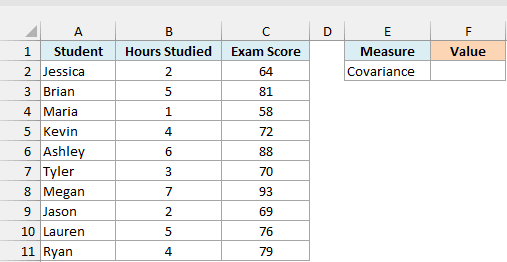
Here is the formula:
=COVARIANCE.S(B2:B11,C2:C11)
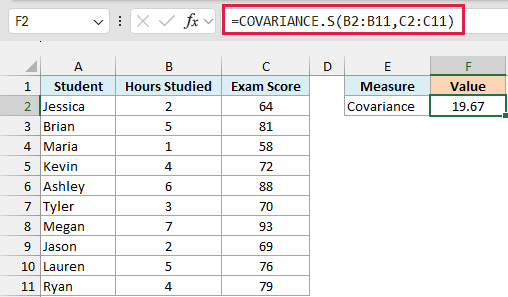
This gives 19.67.
The result is positive, which means the two columns move in the same direction. Students who studied more hours generally scored higher, and the ones who studied less generally scored lower.
In the back end, COVARIANCE.S finds how far each student’s hours and score are from their averages. It multiplies those two distances for each student, adds them all up, and divides the total by the number of students minus one.
Note that the sign is the useful part here. Whether 19.67 counts as a big number is much harder to say, and Example 4 shows why.
Example 2: Negative Covariance (When One Goes Up, the Other Goes Down)
Here’s another practical scenario.
Below is a bakery’s weekly cupcake price along with the number of cupcakes it sold that week, and I want the covariance between price and sales in cell F2.
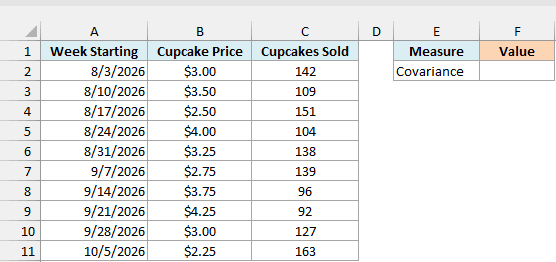
Here is the formula:
=COVARIANCE.S(B2:B11,C2:C11)
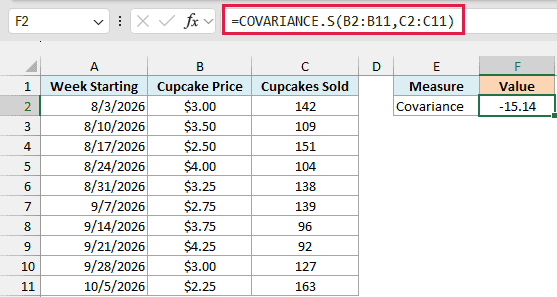
This returns -15.14.
A negative covariance means the two columns move in opposite directions. In the weeks when the price was higher, the bakery sold fewer cupcakes, and when the price dropped, sales went up.
If the result had come out close to zero, it would mean there’s no consistent pattern between price and sales.
Example 3: COVARIANCE.S vs COVARIANCE.P (Sample vs Population)
Excel has two covariance functions you’ll use today, and picking the wrong one gives you a slightly different number.
Below I have data for ten shoppers picked from everyone who visited a store, with the minutes each one spent in the store and the amount they spent, and I want both the sample and the population covariance in column F.
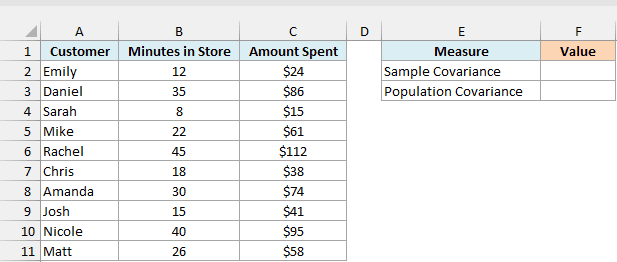
Here is the COVARIANCE.S formula for the sample covariance:
=COVARIANCE.S(B2:B11,C2:C11)
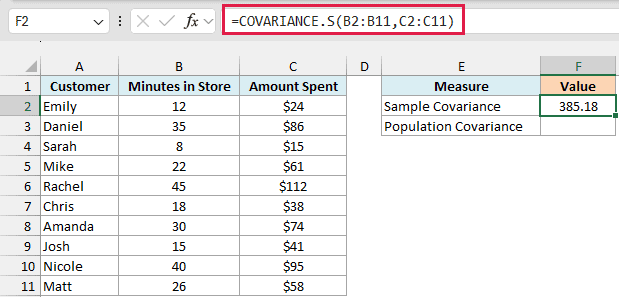
This gives 385.18.
And here is the COVARIANCE.P formula for the population covariance:
=COVARIANCE.P(B2:B11,C2:C11)
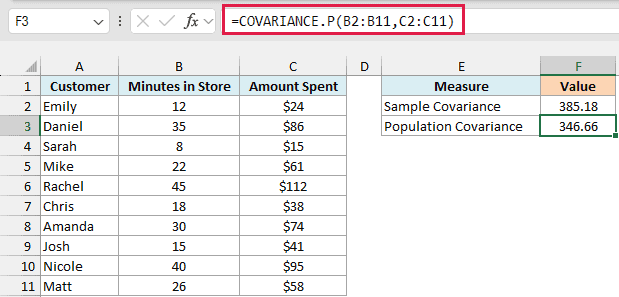
This gives 346.66.
Both functions do the same math until the very last step. COVARIANCE.S divides by the number of pairs minus one (9 here), while COVARIANCE.P divides by the number of pairs (10), which is why the sample result is always a little further from zero.
So which one should you use? These ten shoppers are only a small part of everyone who visits the store, so COVARIANCE.S is the right choice here.
Use COVARIANCE.P only when your data covers every member of the group you care about, like all the employees on a small team. In most real situations you’re working with a sample, so COVARIANCE.S is the one you’ll use far more often.
The gap between the two also shrinks as your data grows. With ten pairs, the sample result is about 11% higher, but with a few hundred pairs you’d barely notice the difference.
Important: The older COVAR function returns the population covariance, the same as COVARIANCE.P. So if you replace COVAR with COVARIANCE.S in an old workbook, your numbers will change.
Example 4: Why the Size of the Covariance Depends on Units
This next example explains why you can’t judge a covariance just by how big it is.
Below I have ten online orders with the package weight in kilograms, the same weight in grams, and the shipping cost, and I want to compare the covariance and the correlation for both weight columns in column G.
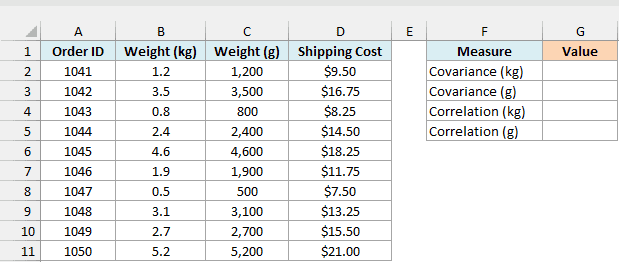
Here is the formula that uses the weight in kilograms:
=COVARIANCE.S(B2:B11,D2:D11)
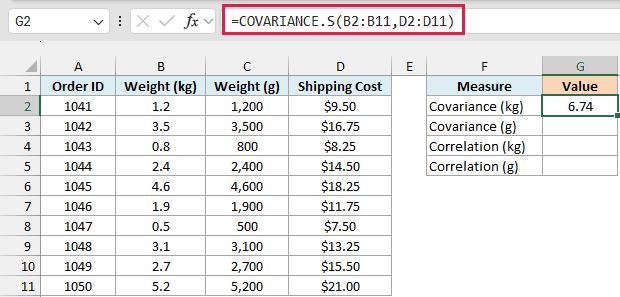
This gives 6.74.
And here is the same formula with the weight in grams:
=COVARIANCE.S(C2:C11,D2:D11)
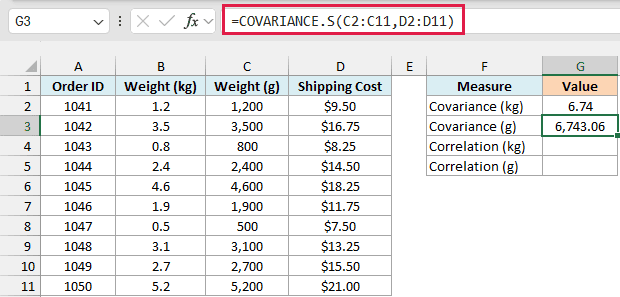
This gives 6,743.06, which is a thousand times bigger, even though these are the exact same packages.
Covariance is measured in the units of both columns multiplied together (kilograms times dollars in the first formula). Switch to grams and every weight becomes a thousand times bigger, so the covariance does too.
So a bigger covariance doesn’t mean a stronger relationship. For the same reason, you can’t compare covariances across different pairs of columns.
When you want to know how strong the relationship is, use the CORREL function instead. Here is the formula:
=CORREL(B2:B11,D2:D11)
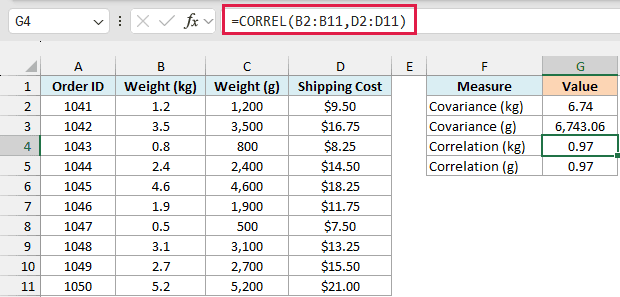
This gives 0.97.
CORREL scales the covariance by how spread out each column is, so the result always falls between -1 and 1. A value close to 1 (like 0.97 here) tells you the weight and the shipping cost have a strong positive relationship.
The Correlation (g) row in G5 runs the same CORREL formula on the grams column and also returns 0.97, because correlation doesn’t care about units. You can learn more about it in this guide on the correlation coefficient in Excel.
Example 5: How COVARIANCE.S Handles Blank Cells and Text
Real data often has gaps, so let’s see what COVARIANCE.S does with them.
Below is a fitness tracker log with the steps and calories burned for 12 days, where one day has no step count and another has “No data” instead of calories, and I want the covariance in cell F2.
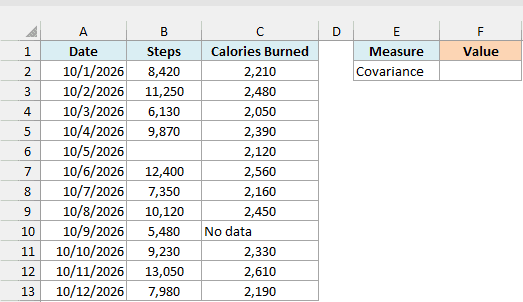
Here is the formula:
=COVARIANCE.S(B2:B13,C2:C13)
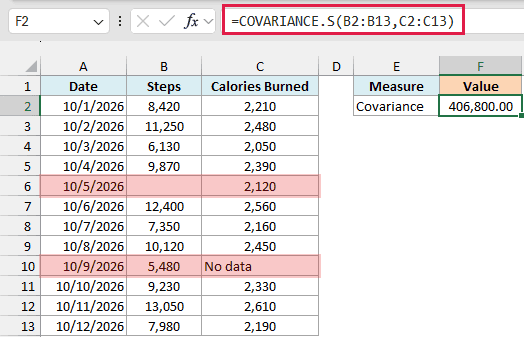
This gives 406,800.00.
COVARIANCE.S skips the blank cell in B6 and the text in C10 (it would skip TRUE or FALSE values the same way). And it doesn’t just skip that one cell, it leaves out the whole pair, so the 10/5/2026 and 10/9/2026 rows are ignored and the result is based on the other 10 days.
That’s what you’d want, because a calories number without a matching step count can’t be paired with anything.
Important: Don’t type 0 for a missing value. A zero is a real number, so COVARIANCE.S includes it, and in this data putting 0 in B6 and C10 changes the result from 406,800.00 to 1,134,418.18.
So leave the cell blank, or put a text note like “No data” in it.
Example 6: Covariance for One Group Using FILTER
Now let’s look at a more advanced use case.
Below is a weekly log of ad spend and orders for two marketing channels, Email and Social, and I want the covariance for the channel typed in cell G2, with the result in G3.
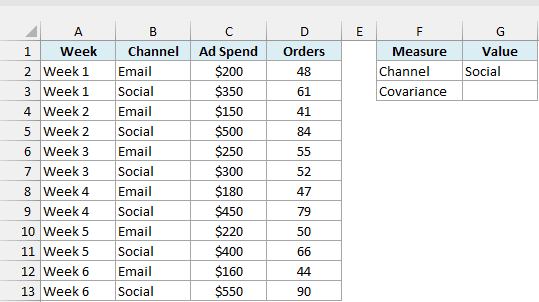
Here is the formula:
=COVARIANCE.S(FILTER(C2:C13,B2:B13=G2),FILTER(D2:D13,B2:B13=G2))
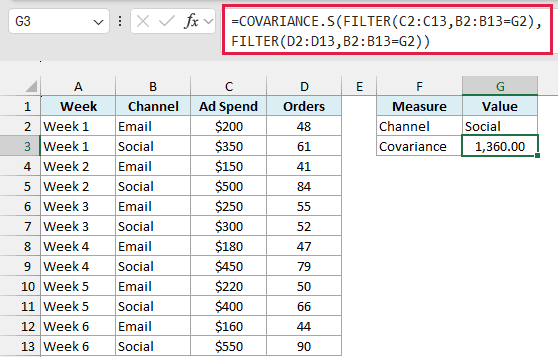
This gives 1,360.00 for the Social channel.
How this formula works:
FILTER(C2:C13,B2:B13=G2)returns the ad spend for only the weeks where the channel matches G2 (Social), which is 350, 500, 300, 450, 400, and 550.FILTER(D2:D13,B2:B13=G2)uses the same condition to return the orders for those same weeks, which is 61, 84, 52, 79, 66, and 90.- COVARIANCE.S then pairs these up and calculates the covariance for the Social weeks only.
Since both FILTER functions use the same condition, the ad spend and orders stay lined up in the same order. If you change G2 to Email, the result changes to 180.00.
If G2 has a channel that isn’t in the list, FILTER finds nothing and the formula returns the #CALC! error.
The FILTER function is available in Excel 365 and Excel 2021 or later. If you are using Excel 2019 or earlier, enter the below formula in cell G3 and press Control + Shift + Enter instead of just Enter:
=COVARIANCE.S(IF(B2:B13=G2,C2:C13),IF(B2:B13=G2,D2:D13))
This works because IF returns FALSE for the rows that don’t match, and COVARIANCE.S ignores logical values like FALSE.
Important: In Excel 2019 or earlier, pressing only Enter on this IF version gives you a wrong number with no error, so it’s easy to miss.
Example 7: Create a Covariance Matrix With One Formula
Let’s step it up with a more complex use case.
Below is a household’s monthly spending on groceries, dining out, and entertainment for a year, and I want the covariance between every pair of categories, as a matrix that starts in cell G2.
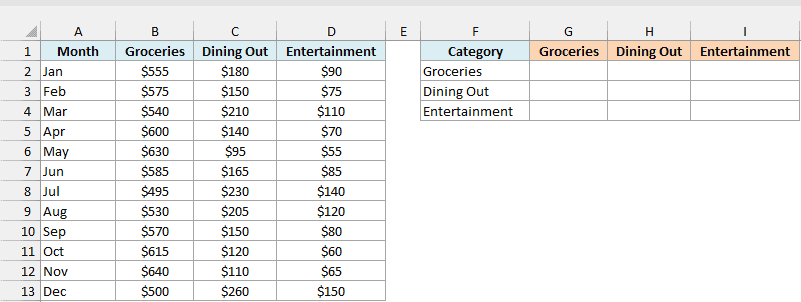
Here is the formula:
=MAKEARRAY(3,3,LAMBDA(r,c,COVARIANCE.S(CHOOSECOLS(B2:D13,r),CHOOSECOLS(B2:D13,c))))
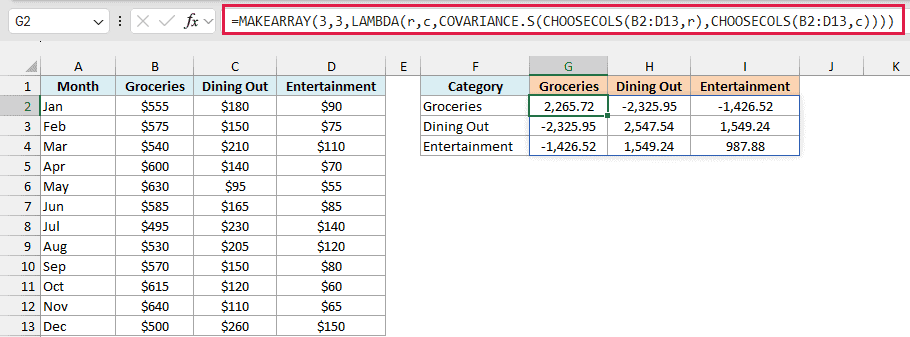
This single formula spills a 3 by 3 grid of covariances into G2:I4.
How this formula works:
MAKEARRAY(3,3,...)builds a grid with 3 rows and 3 columns, and runs the LAMBDA once for every cell.ris the row number of that cell andcis its column number.CHOOSECOLS(B2:D13,r)picks the r-th spending column, andCHOOSECOLS(B2:D13,c)picks the c-th one.- COVARIANCE.S returns the covariance of those two columns, so the cell in row 1, column 2 holds the covariance of Groceries and Dining Out.
Reading the matrix is easy. Dining Out and Entertainment have a positive covariance (1,549.24), so in months when this household ate out more, it also spent more on entertainment.
Groceries has a negative covariance with both of the other categories. So in the months when this household ate out more or spent more on entertainment, the grocery bill went down.
The numbers on the diagonal (G2, H3, and I4) are each category compared with itself, which is just its variance. For example, G2 shows 2,265.72, the same value you get with =VAR.S(B2:B13).
The grid is also a mirror image across that diagonal, because the order of the two arrays doesn’t change the covariance. If you add a fourth category, change both 3s to 4 and extend the range to B2:E13.
This formula needs Excel 365, because that’s the version where MAKEARRAY is available. In older versions, you can build the same grid by writing one COVARIANCE.S formula in each cell.
The Covariance tool in the Analysis ToolPak can also build a matrix like this. But it gives you static values and uses the population formula (COVARIANCE.P), so its numbers will be a bit smaller than the ones from COVARIANCE.S.
So these are seven ways to use the COVARIANCE.S function in Excel, from a simple positive or negative result to a full covariance matrix. Just remember that covariance tells you the direction of a relationship, and CORREL tells you how strong it is.
I hope you found this Excel tutorial useful.
Other Excel Articles You May Also Like:
