

The PERCENTRANK function tells you where a value stands in a list, as a percentage (also called its percentile rank). A result of 80% means the value is higher than 80% of the other values in that list.
It’s useful when a raw number on its own doesn’t tell you much, and you want to know whether it’s high, low, or somewhere in the middle compared with the rest.
Before you start, note that Microsoft now lists PERCENTRANK as a compatibility function, kept so older workbooks still work. Its newer twin, PERCENTRANK.INC, gives exactly the same results (I compare them in the last example).
Follow along with the example file
PERCENTRANK Function Examples.xlsx
PERCENTRANK Function Syntax
Here is the syntax of the PERCENTRANK function:
=PERCENTRANK(array, x, [significance])
- array – The list of numbers you want to compare against. Text, blank cells, and TRUE/FALSE values in this range are ignored.
- x – The value whose rank you want. In Excel 365 and Excel 2021 or later, this can also be a whole range, and you get one result for each value.
- significance – (Optional) How many digits to keep in the result. If you leave it out, Excel keeps three digits (0.xxx). It has to be 1 or more, or you get a #NUM! error.
PERCENTRANK counts how many values in the array are smaller than x and divides that by the number of values minus one. So the smallest value always gets 0, and the largest always gets 1 (0% and 100% when formatted as a percentage).
The PERCENTRANK function works in all Excel versions, including Microsoft 365, Excel 2024, 2021, 2019, 2016, Excel for Mac, and Excel for the web.
When to Use the PERCENTRANK Function
Use this function when you need to:
- See where a value stands compared with the rest of a list
- Turn raw numbers into percentile ranks from 0% to 100%
- Check where a new value would fall, even if it isn’t in the list
- Flag the top values in a list based on their percent rank
- Rank values within each group or category
Let me show you a few practical examples of how to use PERCENTRANK in Excel.
Example 1: Find the Percent Rank of Every Value in a List
Let’s start with a simple example.
Below is a list of videos from a travel channel with the views each one got, and I want to find the percent rank of every video in column C.
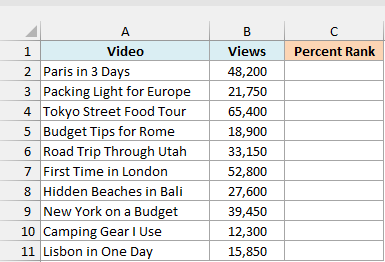
Here is the formula:
=PERCENTRANK(B2:B11,B2:B11)
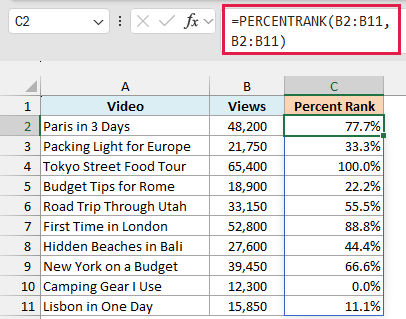
The first B2:B11 is the list to compare against, and the second B2:B11 is the values to rank. Since the second argument is a whole range, the formula spills one result for each video down column C.
PERCENTRANK returns a decimal such as 0.888, so column C is formatted as a percentage to show it as 88.8%.
Tokyo Street Food Tour has the most views, so it gets 100%, and Camping Gear I Use has the fewest, so it gets 0%. First Time in London gets 88.8% because 8 of the other 9 videos have fewer views (8/9 is 0.8889, cut to 0.888).
Spilling a range like this needs Excel 365 or Excel 2021 and later. If you are using Excel 2019 or earlier, enter the below formula in cell C2 and then copy it down the range:
=PERCENTRANK($B$2:$B$11,B2)
The dollar signs lock the list in place, so it doesn’t shift as you copy the formula down (more on this in absolute and relative cell references). The same single-cell approach works for every spilling formula in this article.
Example 2: Find the Percentile Rank of a Value Not in the List
Now let’s check where a value falls when it isn’t in the list at all.
Below is a list of asking prices for the same used car model from different sellers, and I want to find the percent rank of a $14,500 price (entered in D2) in cell E2.
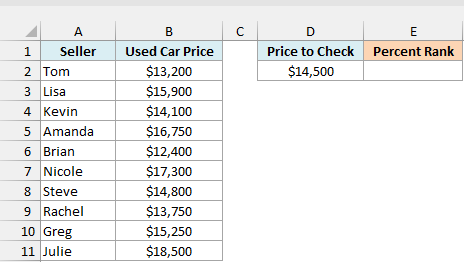
Here is the formula:
=PERCENTRANK(B2:B11,D2)
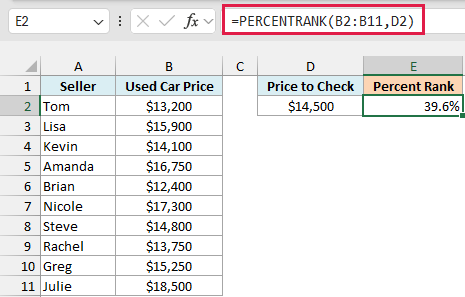
$14,500 isn’t one of the asking prices, so PERCENTRANK looks at the two prices on either side of it: $14,100 (33.3%) and $14,800 (44.4%).
$14,500 sits about 57% of the way from $14,100 to $14,800, so it gets a rank about 57% of the way from 33.3% to 44.4%, which is 39.6%. In other words, a $14,500 price is on the cheaper side for this car.
Important: PERCENTRANK can only work out a rank between the lowest and highest values in the list. If D2 holds a price below $12,400 or above $18,500, the formula returns a #N/A error.
Example 3: Control the Decimals With the significance Argument
By default, PERCENTRANK keeps three digits, but you can change that with the third argument.
Below is a list of podcast episodes with their download counts, and I want the percent rank of each episode as a whole percentage in column C.
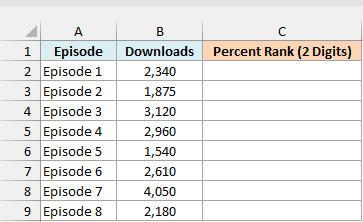
Here is the formula:
=PERCENTRANK(B2:B9,B2:B9,2)
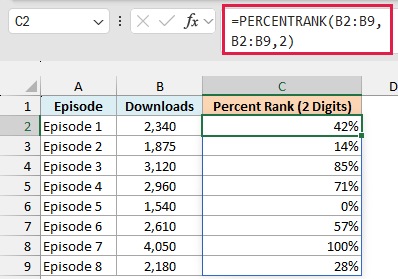
The 2 at the end tells PERCENTRANK to keep two digits, so you get values like 0.85 and 0.28, which show as 85% and 28% in a percentage format.
Note that significance cuts off the extra digits instead of rounding them. Episode 8 has more downloads than 2 of the other 7 episodes, which is 0.2857, and PERCENTRANK returns 0.28, not 0.29.
This is different from only formatting the result. If you leave out the third argument and format the cell as 0%, Excel shows 0.285 as 29%, because a number format rounds what you see.
Example 4: How PERCENTRANK Handles Ties (Duplicate Values)
Let’s see what happens when some values in the list are the same.
Below is a list of players in a soccer league with the goals each one scored this season, and I want the percent rank of each player in column C.
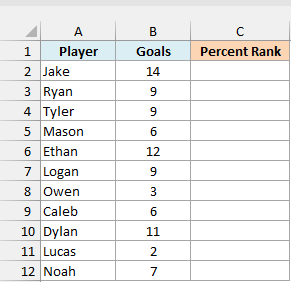
Here is the formula:
=PERCENTRANK(B2:B12,B2:B12)
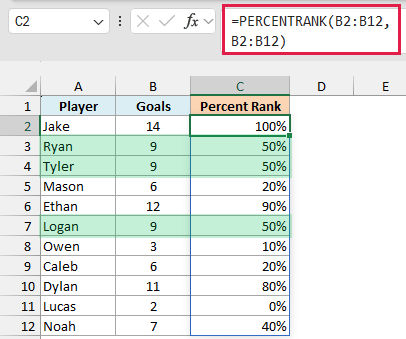
Ryan, Tyler, and Logan scored 9 goals each, and all three get the same rank of 50%. That’s because 5 of the other 10 players scored fewer than 9 goals, and PERCENTRANK only counts the values that are smaller.
The same thing happens with Mason and Caleb at 6 goals (20% each). Dylan, with 11 goals, then jumps to 80%, because 8 of the other 10 players scored fewer goals than him.
Example 5: Tag the Top Values Based on Percent Rank
Now let’s put the percent rank to work.
Below is a list of books from a small online bookstore with the copies each one sold, and I want to tag every book with a percent rank of 75% or higher as a Bestseller in column C.
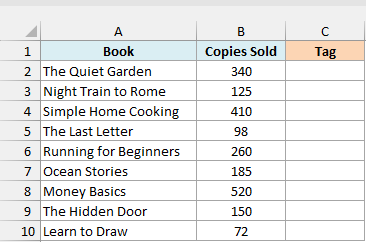
Here is the formula:
=IF(PERCENTRANK(B2:B10,B2:B10)>=0.75,"Bestseller","")
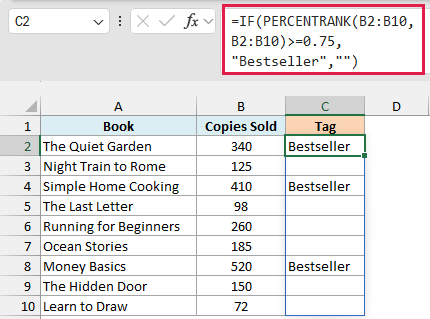
PERCENTRANK first gives each book its rank, and the IF function checks whether that rank is 0.75 or more. Books that pass get Bestseller, and the rest get an empty text string, so the cell looks blank.
Three books make the cut: Money Basics (100%), Simple Home Cooking (87.5%), and The Quiet Garden (75%).
The Quiet Garden sold more than 6 of the other 8 books, which is exactly 75%, so the >= in the formula includes it. If you used > instead, only two books would get the tag.
If you’d rather find the number of copies a book needs to sell to reach the 75% mark, the PERCENTILE function works the other way around.
Example 6: Percent Rank Within Each Category
Let’s step it up and rank values within groups instead of across the whole list.
Below is a list of online courses with their category and the number of enrollments, and I want the percent rank of each course within its own category in column D.
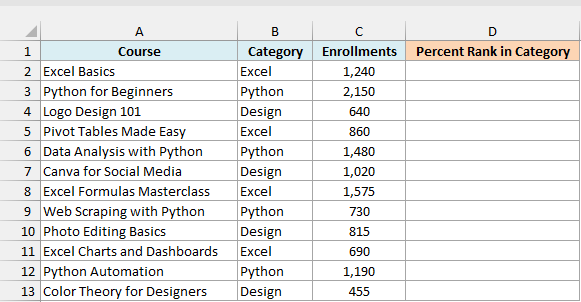
Here is the formula, entered in D2 and copied down, since each row needs its own filtered list:
=PERCENTRANK(FILTER($C$2:$C$13,$B$2:$B$13=B2),C2)
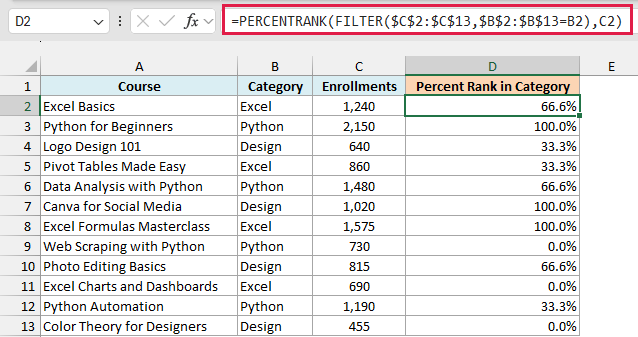
How this formula works:
- FILTER($C$2:$C$13,$B$2:$B$13=B2) pulls out only the enrollments for courses in the same category as the current row. For Excel Basics, that’s the four Excel courses.
- PERCENTRANK then ranks C2 against that smaller list instead of all 12 courses.
- The dollar signs keep the ranges fixed as you copy the formula down, while B2 and C2 move to the next row.
Excel Basics gets 66.6% because it has more enrollments than 2 of the other 3 Excel courses. Canva for Social Media has fewer enrollments than Excel Basics, yet it gets 100%, because it’s only compared with the other Design courses.
The FILTER function needs Excel 365 or Excel 2021 and later. If you are using Excel 2019 or earlier, enter the below formula in cell D2, press Ctrl + Shift + Enter, and then copy it down the range:
=PERCENTRANK(IF($B$2:$B$13=B2,$C$2:$C$13),C2)
The IF part returns FALSE for courses in other categories, and PERCENTRANK ignores those FALSE values.
Example 7: Percent Rank When a Lower Number Is Better
Sometimes a smaller number is the better result, like a faster time or a lower price.
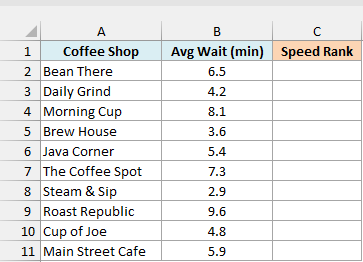
Below is a list of coffee shops with the average wait time for an order, and I want a speed rank in column C where the fastest shop gets 100%.
Here is the formula:
=PERCENTRANK(-B2:B11,-B2:B11)
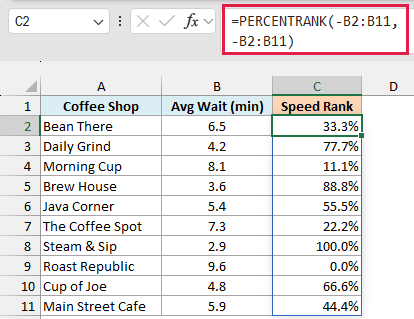
The minus signs turn every wait time into a negative number, so the shortest wait becomes the biggest value. PERCENTRANK then ranks those flipped values as usual.
Steam & Sip, with a 2.9-minute wait, gets 100%, and Roast Republic, with the longest wait, gets 0%. Each result now tells you the share of the other shops that are slower.
Example 8: PERCENTRANK vs PERCENTRANK.INC vs PERCENTRANK.EXC
Finally, let’s compare PERCENTRANK with its two newer versions.
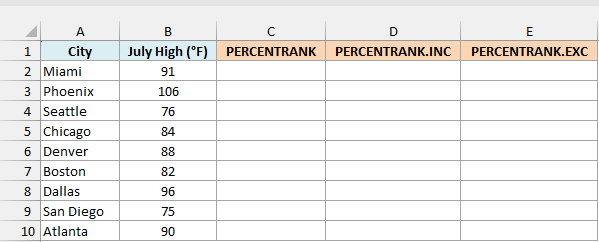
Below is a list of cities with their average July high temperature, and I want to see what PERCENTRANK, PERCENTRANK.INC, and PERCENTRANK.EXC return for each city in columns C, D, and E.
Here is the PERCENTRANK formula in C2:
=PERCENTRANK(B2:B10,B2:B10)
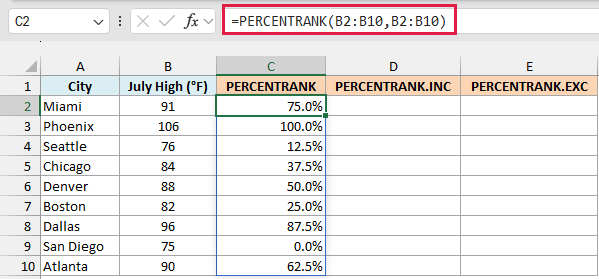
This is the same formula you’ve seen throughout this article. Phoenix, the hottest city, gets 100%, and San Diego, the coolest, gets 0%.
Here is the PERCENTRANK.INC formula in D2:
=PERCENTRANK.INC(B2:B10,B2:B10)
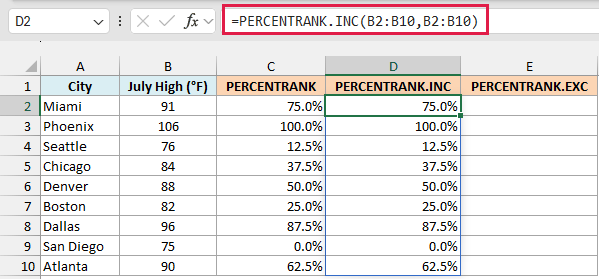
Every result matches column C. PERCENTRANK.INC is the newer name for the same calculation, and INC stands for inclusive, because the lowest and highest values get 0% and 100%.
And here is the PERCENTRANK.EXC formula in E2:
=PERCENTRANK.EXC(B2:B10,B2:B10)
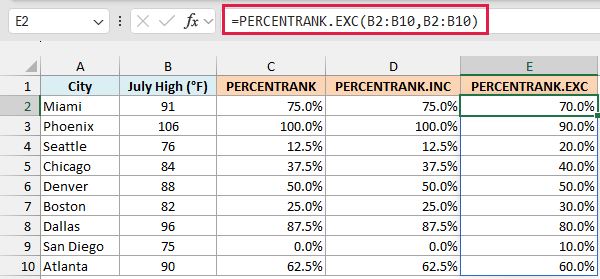
PERCENTRANK.EXC (exclusive) never returns 0% or 100%. With 9 cities, its ranks run from 10% to 90%, so San Diego gets 10% and Phoenix gets 90%.
For a new workbook, PERCENTRANK.INC gives you the same results as PERCENTRANK under the name Microsoft recommends. Use PERCENTRANK.EXC only when you need ranks that never reach 0% or 100%.
So these are some practical ways to use the PERCENTRANK function in Excel. Just remember that it cuts the result to three digits unless you set significance, and that it returns #N/A for any value outside the list’s range.
I hope you found this Excel tutorial useful.
Other Excel Articles You May Also Like:
